> ## Documentation Index
> Fetch the complete documentation index at: https://docs.libratech.ai/llms.txt
> Use this file to discover all available pages before exploring further.
# Chat basics
> The chat composer: the Tools menu, attaching context with @-mentions, and what you can do with an answer.
Chat is where most of your work in Libra starts. Everything you can attach, create or run sits in the row of controls under the message box: a **Tools** menu for context and for starting new work, **Research** for sourced legal research, a button that picks how much reasoning to spend on the question, and an **@-mention** picker for pointing Libra at something you already have.

Type `@` mid-sentence, not just at the start. The picker filters as you type: `@nda` narrows every section to the items named for it; ↑↓ + Enter inserts.
## The chat input, left to right
 | Control | What it does |
| ------------------------------------ | -------------------------------------------------------------------------------------------------------------------------------------------------------------------------------------------------------------------------------------------------------------------------------------------------------------------------------------------------- |
| **+ Tools** | The menu for context and for new work: **Create new**, **Assistants**, **Workflows**, **Search files** and **Add context**. See below. |
| **Research** | Turns on sourced research and opens the source picker, filtered by jurisdiction. See [Research mode](/en/features/chat/research-mode). |
| Paperclip (**Add External Sources**) | Attaches files to this message. **Select files** opens a browser over the sources you can reach — the current project, your databases, and connected sources such as SharePoint, RA-MICRO or [Kleos](/en/integrations/kleos) — with a search box and multi-select, and **Add** to confirm. **Upload files** takes them from your computer instead. |
| Creation badge | While a **Create new** mode is armed, a badge sits in the same row naming what you're about to create, so you can see it before you send. |
| **Improve** | Rewrites what you've typed into a fuller prompt. It stays greyed out until there is text in the box; once it has run, the button becomes **Undo**, which puts your original wording back. |
| Mode picker | The button showing which model is answering. Click it to switch between **Standard**, **Deep Thinking** and **Fast**. See [Chat modes](/en/features/chat/modes). |
| Microphone (**Record voice**) | Dictate instead of typing. The transcript is added to whatever is already in the box. |
| Send arrow | Sends the message, as does Enter. Shift + Enter adds a line break instead of sending. |
| `@` **in the message box** | Type `@` anywhere in the prompt to attach an Assistant, a document or folder, the current project, a database, a Discovery, a Review or a Playbook. See below. |
Not every control is there for every team. **Create new** entries, **Search files** and the attach menu depend on your plan, on what your administrator has switched on, and on which sources you have connected.
## The Tools menu
A single menu for everything you'd want to attach or create.
The menu opens above the input.
| Control | What it does |
| ------------------------------------ | -------------------------------------------------------------------------------------------------------------------------------------------------------------------------------------------------------------------------------------------------------------------------------------------------------------------------------------------------- |
| **+ Tools** | The menu for context and for new work: **Create new**, **Assistants**, **Workflows**, **Search files** and **Add context**. See below. |
| **Research** | Turns on sourced research and opens the source picker, filtered by jurisdiction. See [Research mode](/en/features/chat/research-mode). |
| Paperclip (**Add External Sources**) | Attaches files to this message. **Select files** opens a browser over the sources you can reach — the current project, your databases, and connected sources such as SharePoint, RA-MICRO or [Kleos](/en/integrations/kleos) — with a search box and multi-select, and **Add** to confirm. **Upload files** takes them from your computer instead. |
| Creation badge | While a **Create new** mode is armed, a badge sits in the same row naming what you're about to create, so you can see it before you send. |
| **Improve** | Rewrites what you've typed into a fuller prompt. It stays greyed out until there is text in the box; once it has run, the button becomes **Undo**, which puts your original wording back. |
| Mode picker | The button showing which model is answering. Click it to switch between **Standard**, **Deep Thinking** and **Fast**. See [Chat modes](/en/features/chat/modes). |
| Microphone (**Record voice**) | Dictate instead of typing. The transcript is added to whatever is already in the box. |
| Send arrow | Sends the message, as does Enter. Shift + Enter adds a line break instead of sending. |
| `@` **in the message box** | Type `@` anywhere in the prompt to attach an Assistant, a document or folder, the current project, a database, a Discovery, a Review or a Playbook. See below. |
Not every control is there for every team. **Create new** entries, **Search files** and the attach menu depend on your plan, on what your administrator has switched on, and on which sources you have connected.
## The Tools menu
A single menu for everything you'd want to attach or create.
The menu opens above the input.
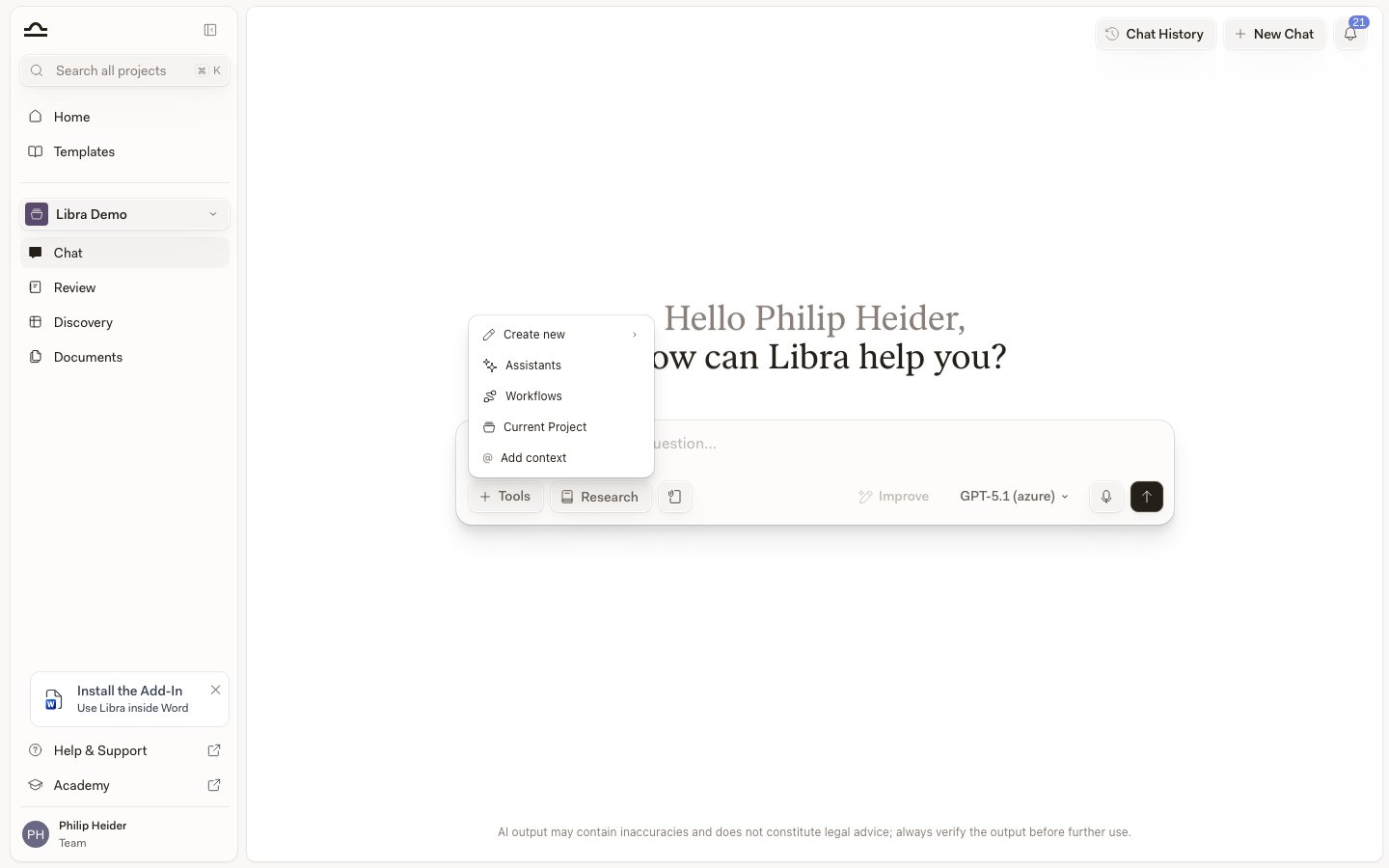 | Choice | What happens |
| ---------------- | --------------------------------------------------------------------------------------------------------------------------------------------------------------------------- |
| **Create new** | Starts something from this chat: **Playbook**, **Review** or **Discovery**. A pill appears in the composer row to confirm what's armed; then you type your prompt and send. |
| **Assistants** | Pick a custom Assistant to handle the conversation: your "M\&A specialist", your "house style writer", etc. |
| **Workflows** | Run a multi-step procedure (onboarding, NDA drafting, etc.). |
| **Search files** | Choose what Libra searches while it answers — the current project, a database, all of SharePoint. See below. |
| **Add context** | Types an `@` at your cursor and opens the mention picker, the same as typing `@` yourself. |
See [Starting work from Chat](/en/features/chat/starting-work) for what happens after you pick any **Create new** entry, and [Reviews from chat](/en/features/review/from-chat) for running a Review against a Playbook once you have one.
### Search files: choosing what Libra searches
**Search files** appears once your team has [Databases](/en/features/databases/basics) switched on. Everything in it is a switch rather than a one-off choice, so you can combine scopes and leave them on for the rest of the conversation:
| Scope | What it covers |
| --------------------- | -------------------------------------------------------------------------------- |
| **Current Project** | Every file in the project you're working in. |
| Each database by name | One entry per [database](/en/features/databases/basics) you can read. |
| **Entire SharePoint** | Everything you can see in SharePoint. Only offered once SharePoint is connected. |
Switching a database on is not the same as attaching its files. It adds a single search source, and Libra queries it on demand while it answers, so a database of thousands of documents takes up exactly one of your search sources, the same as a small one.
You can have **at most ten search sources on at once** — the current project, the databases you've switched on and **Entire SharePoint** all count towards the same ten. Turn on an eleventh and Libra says *"You can search at most 10 sources at once"* and leaves it off. Documents and folders you attach directly are not search sources and don't count.
If Libra couldn't get through everything you selected, the answer's activity list says **Some databases could not be fully searched** — take that as a sign the answer may be missing something rather than as a normal step.
## The @-mention picker
The fastest way to attach context, without leaving the input.
The picker opens in sections: **Assistants**, **Documents**, **Discoveries**, **Reviews** and **Playbooks**. The Documents section is the broad one — it holds the current project as a whole, your databases, your folders and your individual documents.
| Choice | What happens |
| ---------------- | --------------------------------------------------------------------------------------------------------------------------------------------------------------------------- |
| **Create new** | Starts something from this chat: **Playbook**, **Review** or **Discovery**. A pill appears in the composer row to confirm what's armed; then you type your prompt and send. |
| **Assistants** | Pick a custom Assistant to handle the conversation: your "M\&A specialist", your "house style writer", etc. |
| **Workflows** | Run a multi-step procedure (onboarding, NDA drafting, etc.). |
| **Search files** | Choose what Libra searches while it answers — the current project, a database, all of SharePoint. See below. |
| **Add context** | Types an `@` at your cursor and opens the mention picker, the same as typing `@` yourself. |
See [Starting work from Chat](/en/features/chat/starting-work) for what happens after you pick any **Create new** entry, and [Reviews from chat](/en/features/review/from-chat) for running a Review against a Playbook once you have one.
### Search files: choosing what Libra searches
**Search files** appears once your team has [Databases](/en/features/databases/basics) switched on. Everything in it is a switch rather than a one-off choice, so you can combine scopes and leave them on for the rest of the conversation:
| Scope | What it covers |
| --------------------- | -------------------------------------------------------------------------------- |
| **Current Project** | Every file in the project you're working in. |
| Each database by name | One entry per [database](/en/features/databases/basics) you can read. |
| **Entire SharePoint** | Everything you can see in SharePoint. Only offered once SharePoint is connected. |
Switching a database on is not the same as attaching its files. It adds a single search source, and Libra queries it on demand while it answers, so a database of thousands of documents takes up exactly one of your search sources, the same as a small one.
You can have **at most ten search sources on at once** — the current project, the databases you've switched on and **Entire SharePoint** all count towards the same ten. Turn on an eleventh and Libra says *"You can search at most 10 sources at once"* and leaves it off. Documents and folders you attach directly are not search sources and don't count.
If Libra couldn't get through everything you selected, the answer's activity list says **Some databases could not be fully searched** — take that as a sign the answer may be missing something rather than as a normal step.
## The @-mention picker
The fastest way to attach context, without leaving the input.
The picker opens in sections: **Assistants**, **Documents**, **Discoveries**, **Reviews** and **Playbooks**. The Documents section is the broad one — it holds the current project as a whole, your databases, your folders and your individual documents.
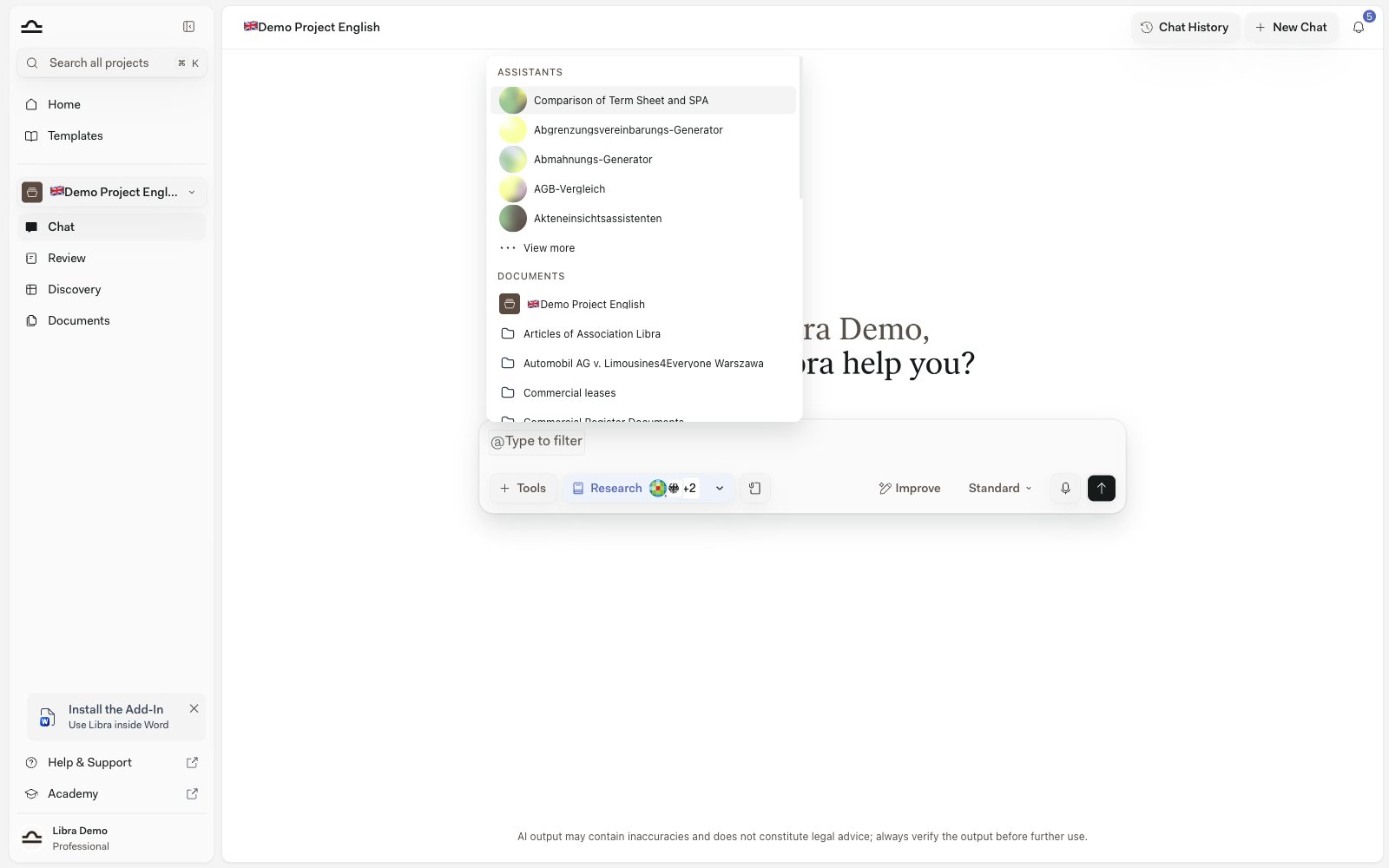 Each section shows its first five items, with **View more** to expand it — in the Documents section the current project comes first, then your databases, then folders, then individual documents, each group in alphabetical order. As soon as you type after the `@`, the cap drops away and every section filters live by name.
The mention is inserted as a pill in your prompt. Send the message; the referenced item is now part of the chat's context.
`@` works **anywhere in the prompt**, not just at the start. *"Compare the confidentiality terms in @NDA-baseline against this draft"* is a valid prompt.
## Working with responses
Below every response, the toolbar gives you the standard set of actions.
| Action | What it does |
| ---------------- | -------------------------------------------------------------------------------------------------------------------------------------------------------------------------------------------------- |
| **Copy** | Copies the response. Where it cites sources, you can choose to copy it with the references included. |
| **Regenerate** | Asks Libra for a different version of the answer. Offered on the last answer in the chat. |
| **Export** | Saves the answer as a **Word Document** or a **PDF**, either this one message or the entire chat. Where the answer cites sources, you also choose **With inline citations** or **With footnotes**. |
| **Create email** | Opens a new draft in your default mail app with the answer pasted in as plain text. Nothing is sent for you. |
For the structured answer side, including citations, sources, and the cited-sources panel, see [Citations & sources](/en/features/chat/citations).
### Quote part of an answer and ask a follow-up
To follow up on one specific part of a long answer, select the text you want to ask about. A small toolbar appears; choose **Ask Libra** and the excerpt becomes a quote chip above the message box. Type your question and send — Libra sees the exact passage you highlighted, so you don't have to paraphrase it.
Clear the quote with the **✕** on the chip; it never carries over into a different chat. The same **Ask Libra** action works when you select text in an answer in the [Word](/en/integrations/word/chat) and [Outlook](/en/integrations/outlook/summarize) add-ins.
## Long-running responses keep going in the background
Chat responses, especially in [Deep Thinking](/en/features/chat/modes) or [Research](/en/features/chat/research-mode) mode, can take a minute or two to finish. You don't have to wait — leaving the chat lets the response continue in the background, and Libra tells you when it's done.
| What you'll see | When |
| ----------------------------- | ---------------------------------------------------------------------------------------------------------------------------------------------------------------------------------------------------------- |
| **Toast notification** | Pops in from the corner of the screen the moment a background chat finishes, reading **Chat response completed** with the opening of the prompt you sent and a **View** button that takes you to the chat. |
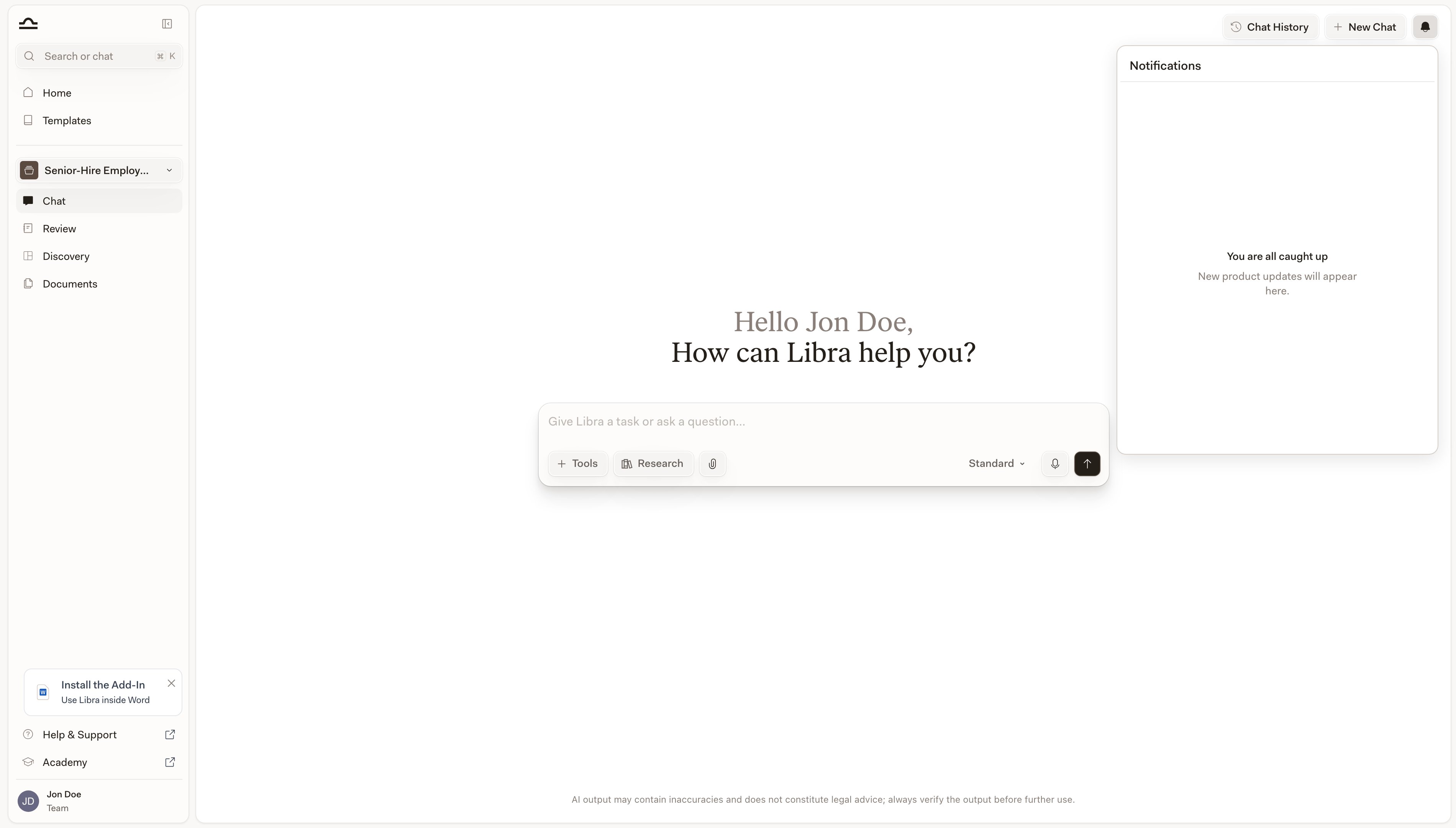
| **Notification-center entry** | A row in the **Messages** tab of the bell icon (top-right), again showing the start of your prompt. Clicking it opens that chat. |
Each section shows its first five items, with **View more** to expand it — in the Documents section the current project comes first, then your databases, then folders, then individual documents, each group in alphabetical order. As soon as you type after the `@`, the cap drops away and every section filters live by name.
The mention is inserted as a pill in your prompt. Send the message; the referenced item is now part of the chat's context.
`@` works **anywhere in the prompt**, not just at the start. *"Compare the confidentiality terms in @NDA-baseline against this draft"* is a valid prompt.
## Working with responses
Below every response, the toolbar gives you the standard set of actions.
| Action | What it does |
| ---------------- | -------------------------------------------------------------------------------------------------------------------------------------------------------------------------------------------------- |
| **Copy** | Copies the response. Where it cites sources, you can choose to copy it with the references included. |
| **Regenerate** | Asks Libra for a different version of the answer. Offered on the last answer in the chat. |
| **Export** | Saves the answer as a **Word Document** or a **PDF**, either this one message or the entire chat. Where the answer cites sources, you also choose **With inline citations** or **With footnotes**. |
| **Create email** | Opens a new draft in your default mail app with the answer pasted in as plain text. Nothing is sent for you. |
For the structured answer side, including citations, sources, and the cited-sources panel, see [Citations & sources](/en/features/chat/citations).
### Quote part of an answer and ask a follow-up
To follow up on one specific part of a long answer, select the text you want to ask about. A small toolbar appears; choose **Ask Libra** and the excerpt becomes a quote chip above the message box. Type your question and send — Libra sees the exact passage you highlighted, so you don't have to paraphrase it.
Clear the quote with the **✕** on the chip; it never carries over into a different chat. The same **Ask Libra** action works when you select text in an answer in the [Word](/en/integrations/word/chat) and [Outlook](/en/integrations/outlook/summarize) add-ins.
## Long-running responses keep going in the background
Chat responses, especially in [Deep Thinking](/en/features/chat/modes) or [Research](/en/features/chat/research-mode) mode, can take a minute or two to finish. You don't have to wait — leaving the chat lets the response continue in the background, and Libra tells you when it's done.
| What you'll see | When |
| ----------------------------- | ---------------------------------------------------------------------------------------------------------------------------------------------------------------------------------------------------------- |
| **Toast notification** | Pops in from the corner of the screen the moment a background chat finishes, reading **Chat response completed** with the opening of the prompt you sent and a **View** button that takes you to the chat. |
| **Notification-center entry** | A row in the **Messages** tab of the bell icon (top-right), again showing the start of your prompt. Clicking it opens that chat. |

Send a long Research prompt, then jump to another project to keep working. The bell tells you when your answer is ready; click the row to jump straight back to the chat.
The notification-center entry is **per-session and per-device** — it's created in the browser tab that was running the chat, so refreshing the page or signing out clears it. Server-backed notifications (sharing, license changes, etc.) survive reloads.
 ## Tips for getting good answers
*"Review the contract"* is too vague. *"Review the contract for non-compete clauses that may be unenforceable under California law"* is something Libra can act on. Treat each prompt like a brief to a junior associate: context, scope, and outcome.
*"Under German employment law"*, *"per New York state contract law"*, *"in a Swiss commercial context"*: these phrases narrow the answer dramatically.
*"Provide your analysis as a numbered list of issues"*, *"Format as a comparison table with columns Risk, Clause, Recommendation"*, *"Draft this as a partner-facing memo"*. Format requests almost always pay for themselves.
Don't try to nail it in one prompt. Start broad, then narrow. *"Now focus specifically on Section 4.2"*, *"Give me a more formal version"*, *"Explain the reasoning behind your third point."*
Treat citations the way you'd treat a junior's case cite: open the source and confirm it says what's claimed. Verified citations (clickable, linked to a database) are more reliable than unverified ones (plain text). See [Citations & sources](/en/features/chat/citations) for how Libra distinguishes them.
For questions that need case-law or statute citations, switch **Research** on and pick the sources that apply. See [Research mode](/en/features/chat/research-mode).
## Tips for getting good answers
*"Review the contract"* is too vague. *"Review the contract for non-compete clauses that may be unenforceable under California law"* is something Libra can act on. Treat each prompt like a brief to a junior associate: context, scope, and outcome.
*"Under German employment law"*, *"per New York state contract law"*, *"in a Swiss commercial context"*: these phrases narrow the answer dramatically.
*"Provide your analysis as a numbered list of issues"*, *"Format as a comparison table with columns Risk, Clause, Recommendation"*, *"Draft this as a partner-facing memo"*. Format requests almost always pay for themselves.
Don't try to nail it in one prompt. Start broad, then narrow. *"Now focus specifically on Section 4.2"*, *"Give me a more formal version"*, *"Explain the reasoning behind your third point."*
Treat citations the way you'd treat a junior's case cite: open the source and confirm it says what's claimed. Verified citations (clickable, linked to a database) are more reliable than unverified ones (plain text). See [Citations & sources](/en/features/chat/citations) for how Libra distinguishes them.
For questions that need case-law or statute citations, switch **Research** on and pick the sources that apply. See [Research mode](/en/features/chat/research-mode).

Press ↑ in an empty input to reopen your last message for editing — tweak it and send again instead of retyping. Shift+Enter drops a newline; Enter sends.
## Next steps
Standard vs. Deep Thinking vs. Fast: pick the right depth for the question.
Create a Review or Discovery without leaving the chat.
Read the Cited Sources panel and verify Libra's references.
Reusable sets of documents you can search from any chat.
Sourced research from legal databases.