
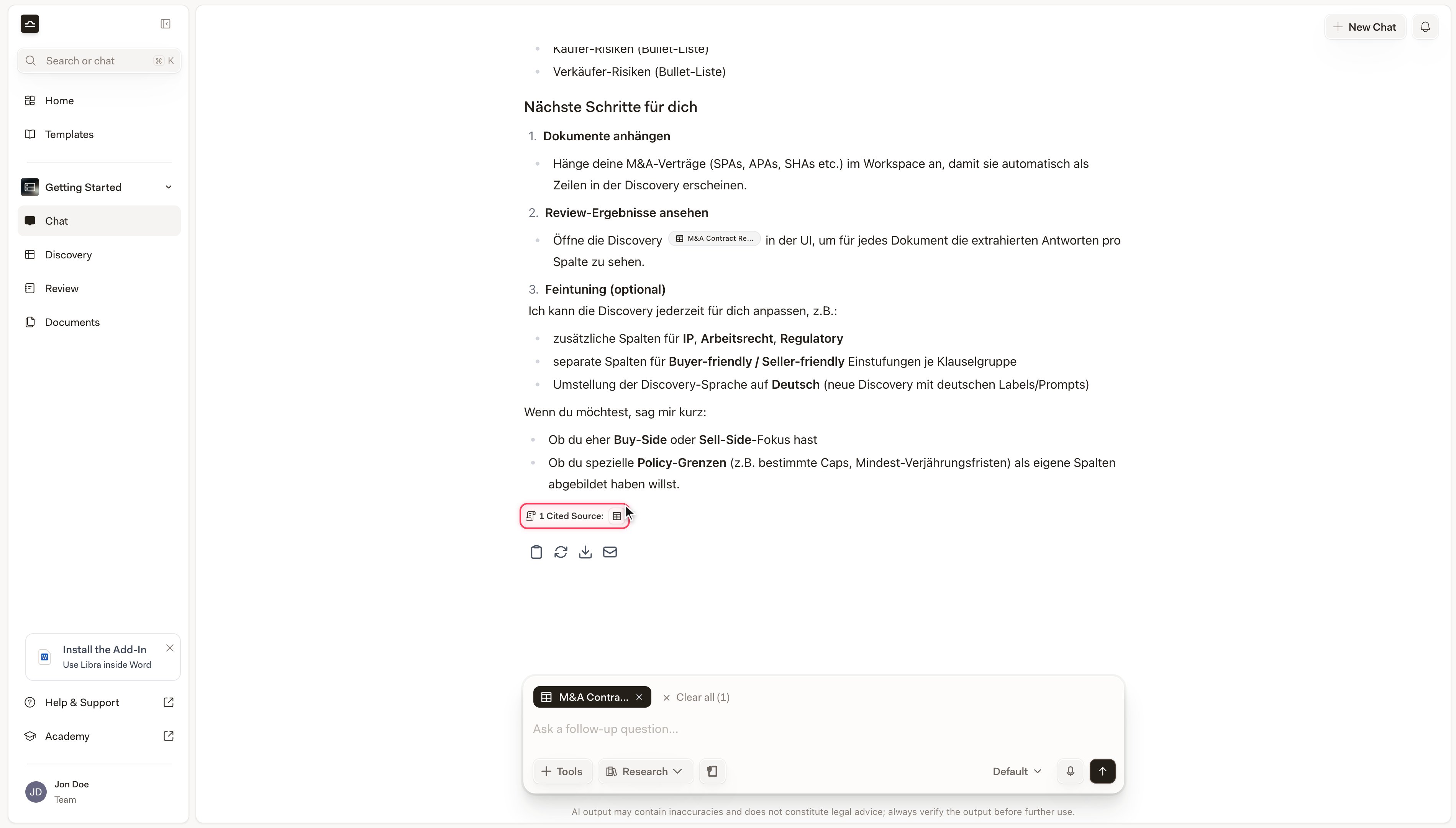
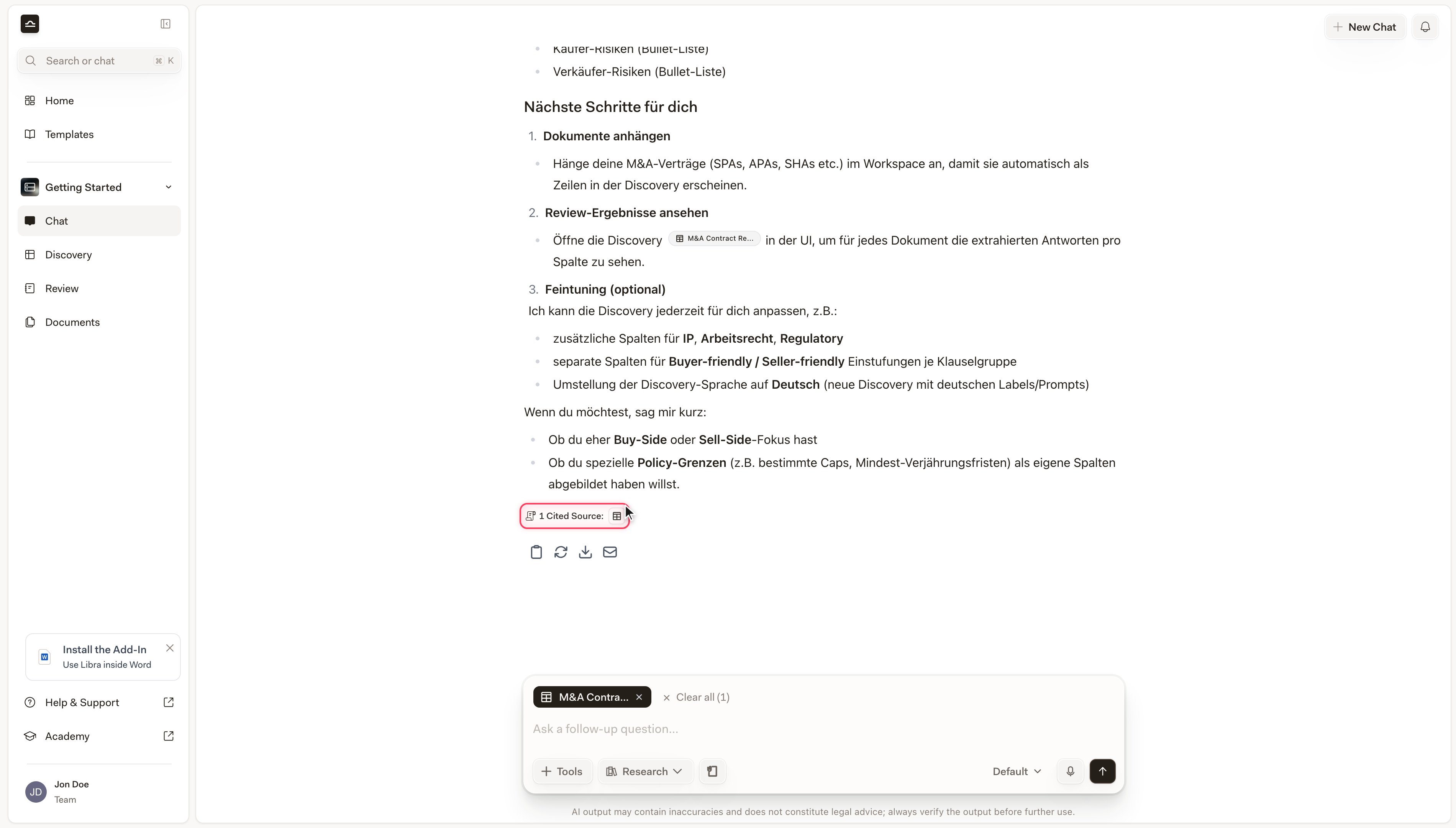
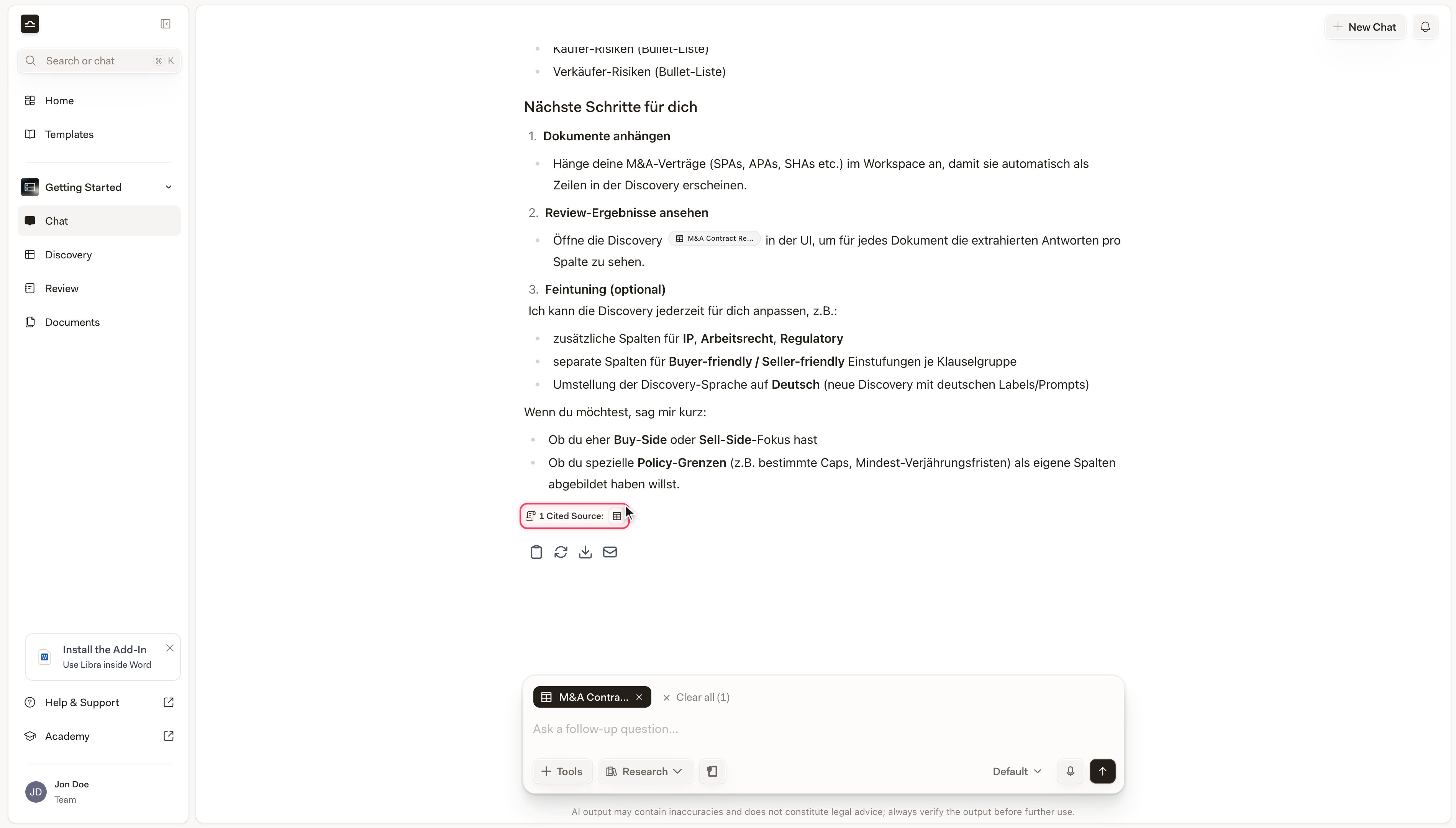
In a Document card, click the snippet itself rather than the **View source** button. The snippet opens the document at that exact page with the cited passage highlighted; **View source** opens the same document from the top.
 ### Web and legal-database sources
Web Search results and legal databases — Wolters Kluwer, Otto Schmidt, Legal Intelligence, monKEY, EUR-Lex, Kluwer Law International and whichever others your team has. The collapsed card shows the provider favicon and the source title; expanding it gives one snippet per place the answer cited it. **View source** opens the original in a new tab.
### Documents
Files you have uploaded or `@`-mentioned (PDF, DOCX, XLSX, PPTX, CSV). The collapsed card uses the native file-type icon — PDF in red, Word in blue, Excel in green. Expanding shows one snippet per cited page, each with a *Page N* label. Click a snippet to open the document at that page with the passage highlighted.
### Reviews
A Review the answer cited. The collapsed card shows the Review glyph and the Review's title. Expanding a whole-Review citation reveals a Topic roster: one row per Topic with a risk pill reading **No risk**, **Medium risk**, **High risk**, **Not found** or **Pending**, so you can see at a glance which Topics the answer leaned on. **Open Review** takes you to the Review itself. Review cards carry no **Find in chat** button — there is only ever one place in the chat to land.
### Discoveries
A Discovery the answer cited. The collapsed card shows the Discovery glyph and the Discovery's title. Expanding reveals a mini table preview — document rows against columns, with the actual cell answers — and the cited cell, row or column highlighted. Per-row, per-cell and per-column citations show the same neighbourhood the inline tooltip shows, so you can confirm the Discovery context without opening the full table. **Open Discovery** takes you to the table.
### Web and legal-database sources
Web Search results and legal databases — Wolters Kluwer, Otto Schmidt, Legal Intelligence, monKEY, EUR-Lex, Kluwer Law International and whichever others your team has. The collapsed card shows the provider favicon and the source title; expanding it gives one snippet per place the answer cited it. **View source** opens the original in a new tab.
### Documents
Files you have uploaded or `@`-mentioned (PDF, DOCX, XLSX, PPTX, CSV). The collapsed card uses the native file-type icon — PDF in red, Word in blue, Excel in green. Expanding shows one snippet per cited page, each with a *Page N* label. Click a snippet to open the document at that page with the passage highlighted.
### Reviews
A Review the answer cited. The collapsed card shows the Review glyph and the Review's title. Expanding a whole-Review citation reveals a Topic roster: one row per Topic with a risk pill reading **No risk**, **Medium risk**, **High risk**, **Not found** or **Pending**, so you can see at a glance which Topics the answer leaned on. **Open Review** takes you to the Review itself. Review cards carry no **Find in chat** button — there is only ever one place in the chat to land.
### Discoveries
A Discovery the answer cited. The collapsed card shows the Discovery glyph and the Discovery's title. Expanding reveals a mini table preview — document rows against columns, with the actual cell answers — and the cited cell, row or column highlighted. Per-row, per-cell and per-column citations show the same neighbourhood the inline tooltip shows, so you can confirm the Discovery context without opening the full table. **Open Discovery** takes you to the table.
 ## Working with a table in an answer
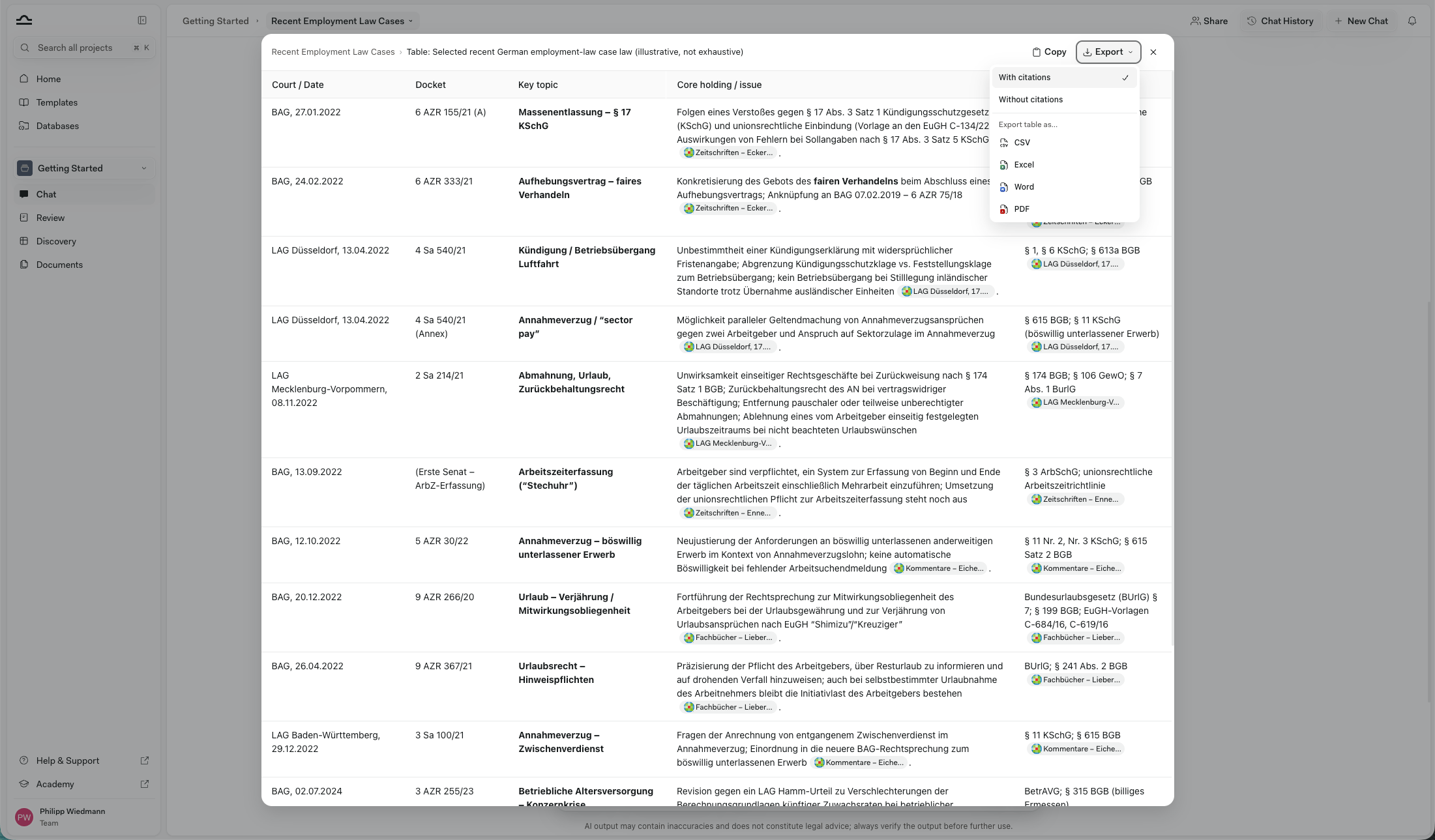
When an answer contains a table, a toolbar sits above it holding the table's name, an **Expand table** button and an **Export** menu. Hovering any cell also puts a copy button on that cell alone. The screenshot below is the full-screen view rather than the inline toolbar — it carries its own **Copy** button, and its **Export** menu drops the **Copy table** item the inline one has.
## Working with a table in an answer
When an answer contains a table, a toolbar sits above it holding the table's name, an **Expand table** button and an **Export** menu. Hovering any cell also puts a copy button on that cell alone. The screenshot below is the full-screen view rather than the inline toolbar — it carries its own **Copy** button, and its **Export** menu drops the **Copy table** item the inline one has.
 | Action | What it does |
| ---------------- | ----------------------------------------------------------------------------------------------------------------------------------------------------------------------------------------------------------------------------------------------------------- |
| **Expand table** | Opens the table in a full-screen view. Wide tables scroll sideways so you can reach every column, and the header row stays pinned as you scroll. The expanded view adds a **Copy** button of its own next to **Export**. |
| **Export** | **Copy table** puts the whole table on the clipboard, ready to paste into Word or Excel. **With citations** / **Without citations** decides whether the sources travel with it, and **Export table as…** downloads **CSV**, **Excel**, **Word** or **PDF**. |
With citations turned on, the sources come across as cell comments in Excel, inline in the cells in CSV, and as footnotes in Word and PDF.
## Citation format when you copy or export
Separately from the table menu, you control how citations come across when you copy or export the answer itself. There are two forms: footnotes, or plain text with the markers stripped.
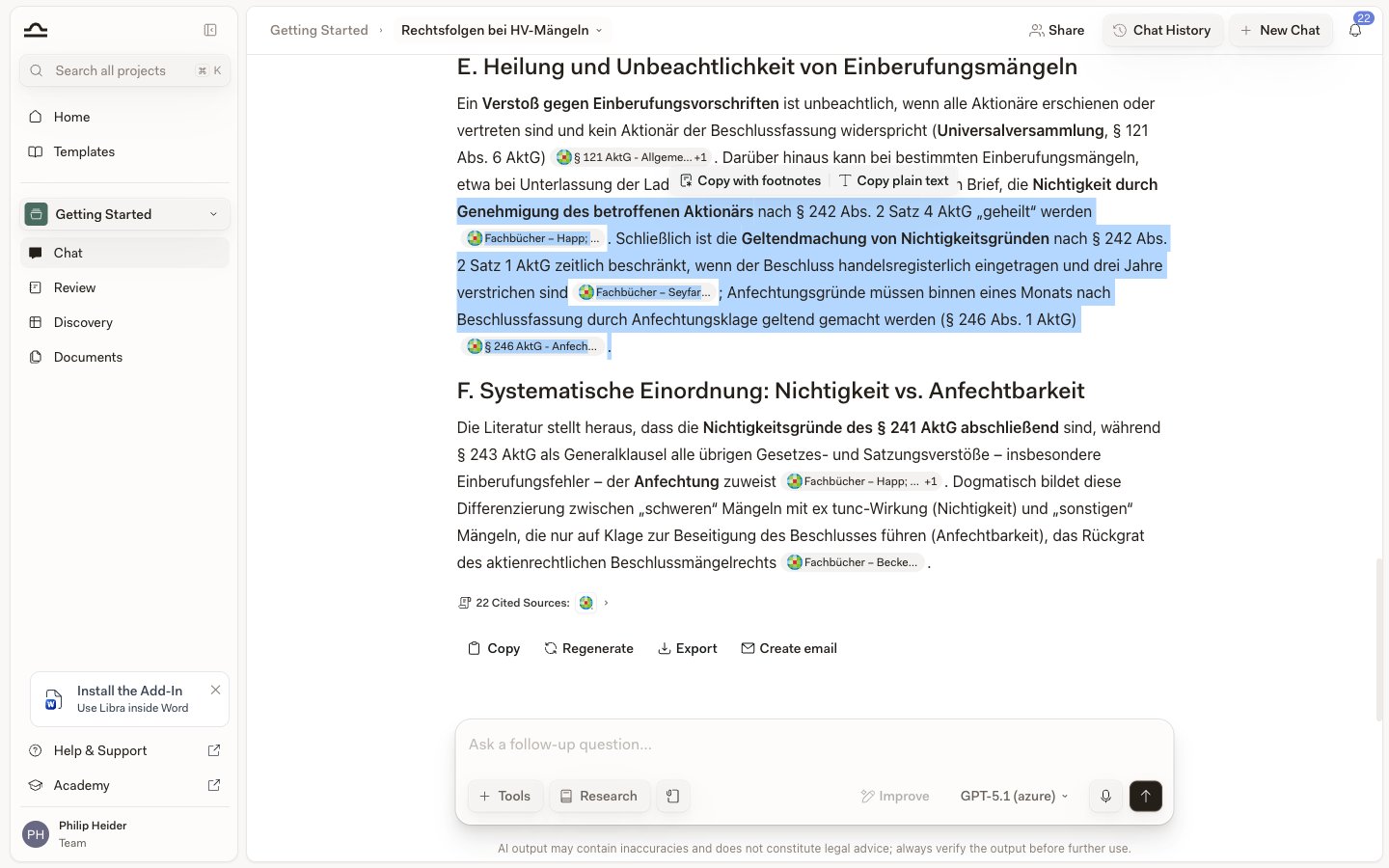
Select any answer text and a small toolbar offers **Copy with footnotes** or **Copy plain text**:
| Action | What it does |
| ---------------- | ----------------------------------------------------------------------------------------------------------------------------------------------------------------------------------------------------------------------------------------------------------- |
| **Expand table** | Opens the table in a full-screen view. Wide tables scroll sideways so you can reach every column, and the header row stays pinned as you scroll. The expanded view adds a **Copy** button of its own next to **Export**. |
| **Export** | **Copy table** puts the whole table on the clipboard, ready to paste into Word or Excel. **With citations** / **Without citations** decides whether the sources travel with it, and **Export table as…** downloads **CSV**, **Excel**, **Word** or **PDF**. |
With citations turned on, the sources come across as cell comments in Excel, inline in the cells in CSV, and as footnotes in Word and PDF.
## Citation format when you copy or export
Separately from the table menu, you control how citations come across when you copy or export the answer itself. There are two forms: footnotes, or plain text with the markers stripped.
Select any answer text and a small toolbar offers **Copy with footnotes** or **Copy plain text**:
 | Choice | What you get |
| ----------------------- | ---------------------------------------------------------------------------------------------------- |
| **Copy with footnotes** | Citations collected as footnotes — native Word footnotes on export, an appended bibliography in PDF. |
| **Copy plain text** | The answer text only, with the citation markers removed. |
The **Copy** button under the answer offers the same pair, and so do the copy buttons in the Word and Outlook add-ins. **Ctrl + C** is the exception: a copy event cannot append a reference list, so a selection containing citation chips is copied as plain text with the markers stripped.
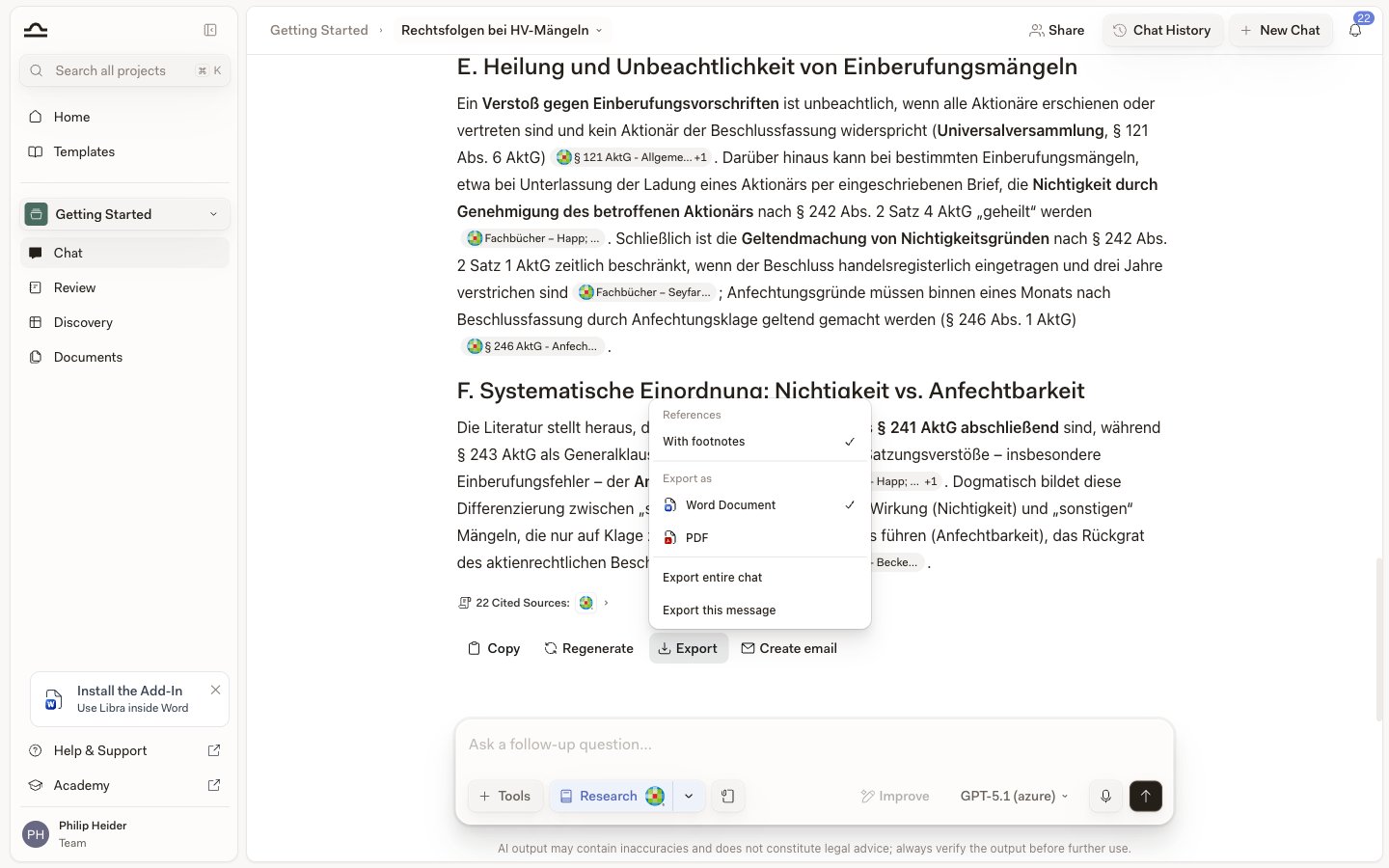
In the **Export** dropdown the same choice sits under **References**, above the **Word Document** / **PDF** choice and whether to export the whole chat or a single message. **With footnotes** is a toggle — leave it checked to carry the citations, click it again to clear it and export the text alone.
| Choice | What you get |
| ----------------------- | ---------------------------------------------------------------------------------------------------- |
| **Copy with footnotes** | Citations collected as footnotes — native Word footnotes on export, an appended bibliography in PDF. |
| **Copy plain text** | The answer text only, with the citation markers removed. |
The **Copy** button under the answer offers the same pair, and so do the copy buttons in the Word and Outlook add-ins. **Ctrl + C** is the exception: a copy event cannot append a reference list, so a selection containing citation chips is copied as plain text with the markers stripped.
In the **Export** dropdown the same choice sits under **References**, above the **Word Document** / **PDF** choice and whether to export the whole chat or a single message. **With footnotes** is a toggle — leave it checked to carry the citations, click it again to clear it and export the text alone.
 Diagrams in an answer — flowcharts and the like — come across as well: a Word or PDF export renders them into the document instead of dropping them.
## How far to trust a citation
Every card in the panel is a source Libra actually retrieved and quoted, so the snippet you read in the panel is the text the answer was built on. What the panel cannot tell you is whether that passage supports the point being made. That is what the click-through is for.
Web results carry one extra caveat. A citation that came from **Web Search** shows the line *Be aware: unverified third-party web information.* in its tooltip: it is a public page Libra read, not a licensed legal database, and nothing about it has been checked.
Diagrams in an answer — flowcharts and the like — come across as well: a Word or PDF export renders them into the document instead of dropping them.
## How far to trust a citation
Every card in the panel is a source Libra actually retrieved and quoted, so the snippet you read in the panel is the text the answer was built on. What the panel cannot tell you is whether that passage supports the point being made. That is what the click-through is for.
Web results carry one extra caveat. A citation that came from **Web Search** shows the line *Be aware: unverified third-party web information.* in its tooltip: it is a public page Libra read, not a licensed legal database, and nothing about it has been checked.