> ## Documentation Index
> Fetch the complete documentation index at: https://docs.libratech.ai/llms.txt
> Use this file to discover all available pages before exploring further.
# Chat history
> Find, organise, and manage every conversation. Search across projects with Cmd+K, then rename, archive, or export any chat.
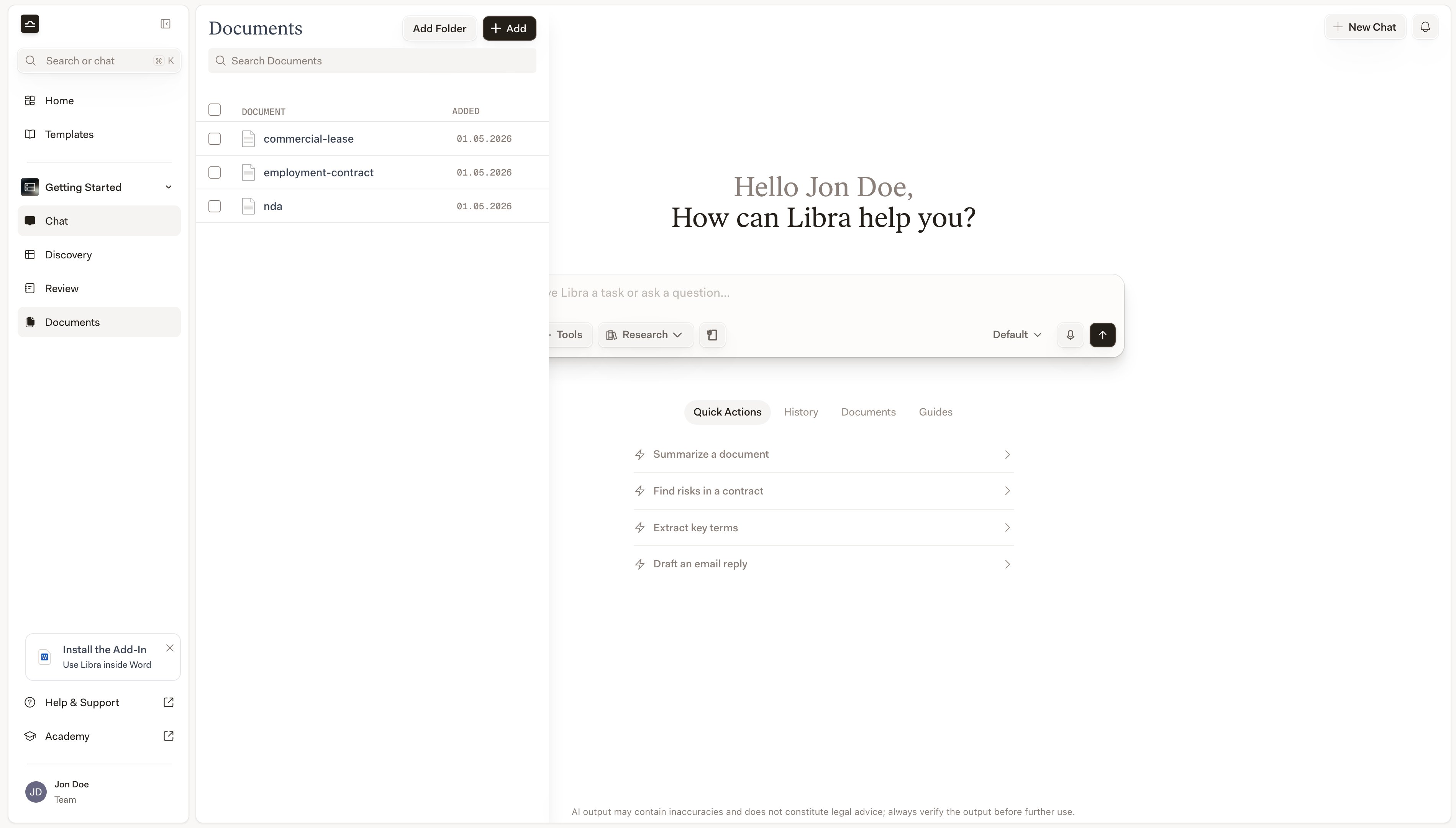
By default, Libra automatically saves every conversation in the project you started it in — and if it belongs elsewhere, you can [move it to another project](#managing-a-chat) later. If you turn **Chat History** off on the **Chats** tab in Settings, new chats become temporary instead: they're labelled **Temporary Chat** and aren't saved by Libra at all, so they're gone once you leave them — see [Chat preferences](/en/features/chat/customization). To find an old chat, the fastest path is global [Search](/en/features/search): press Cmd+K (or Ctrl+K) and search by chat name or message content across every project you have access to.
Search matches both chat names *and* message bodies. Quote a phrase you remember from the conversation; it's usually the fastest way back into a chat from weeks ago.
## Finding a chat
Press Cmd+K (Mac) or Ctrl+K (Windows) to open Search from anywhere in Libra. Search runs across every project you have access to, matching chat names and full message content. Filter by **Type → Chats** to limit the results to conversations only. See [Search](/en/features/search) for the full picker.
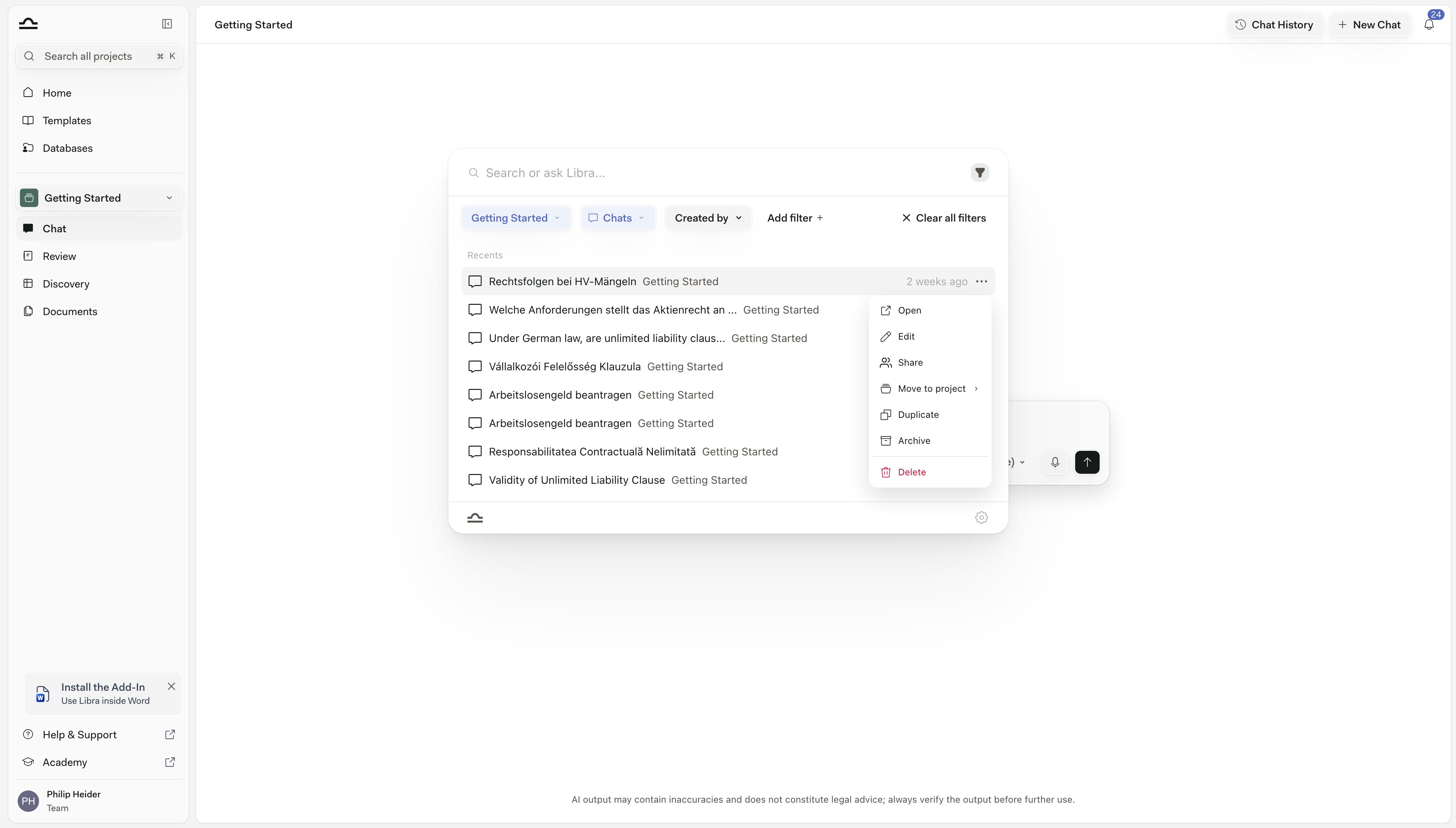
**Chat History**, at the top right of a chat, opens that same picker with two filters already set for you: the project you're working in, and **Chats**. It's the shortest route to a recent conversation in the current project, and because it is Search underneath, you can widen it at any time — change the project chip, or click **Clear all filters** to look everywhere. The button is disabled while **Chat History** is switched off in Settings, since nothing is being saved to list.
## Chat names
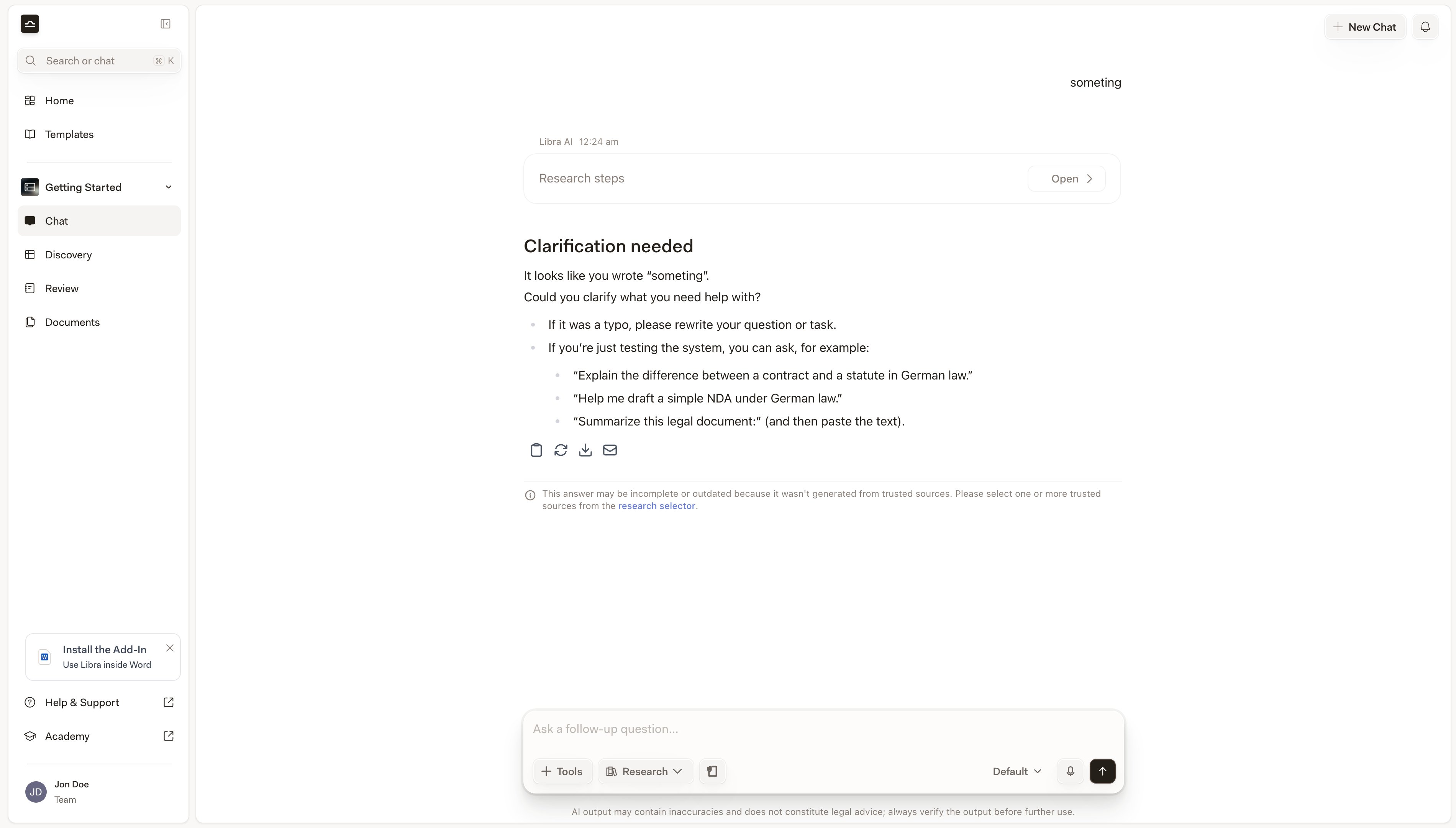
Libra automatically generates a name for each chat based on its content, usually a one-line summary of the first prompt. Names appear in Search results and at the top of the chat itself. You can rename any chat at any time.
Click the **⌄** next to the chat title, in the bar at the top of the conversation.
Update the **Chat name** field and save. Meaningful names make chats easier to find later, especially in long lists.
## Managing a chat
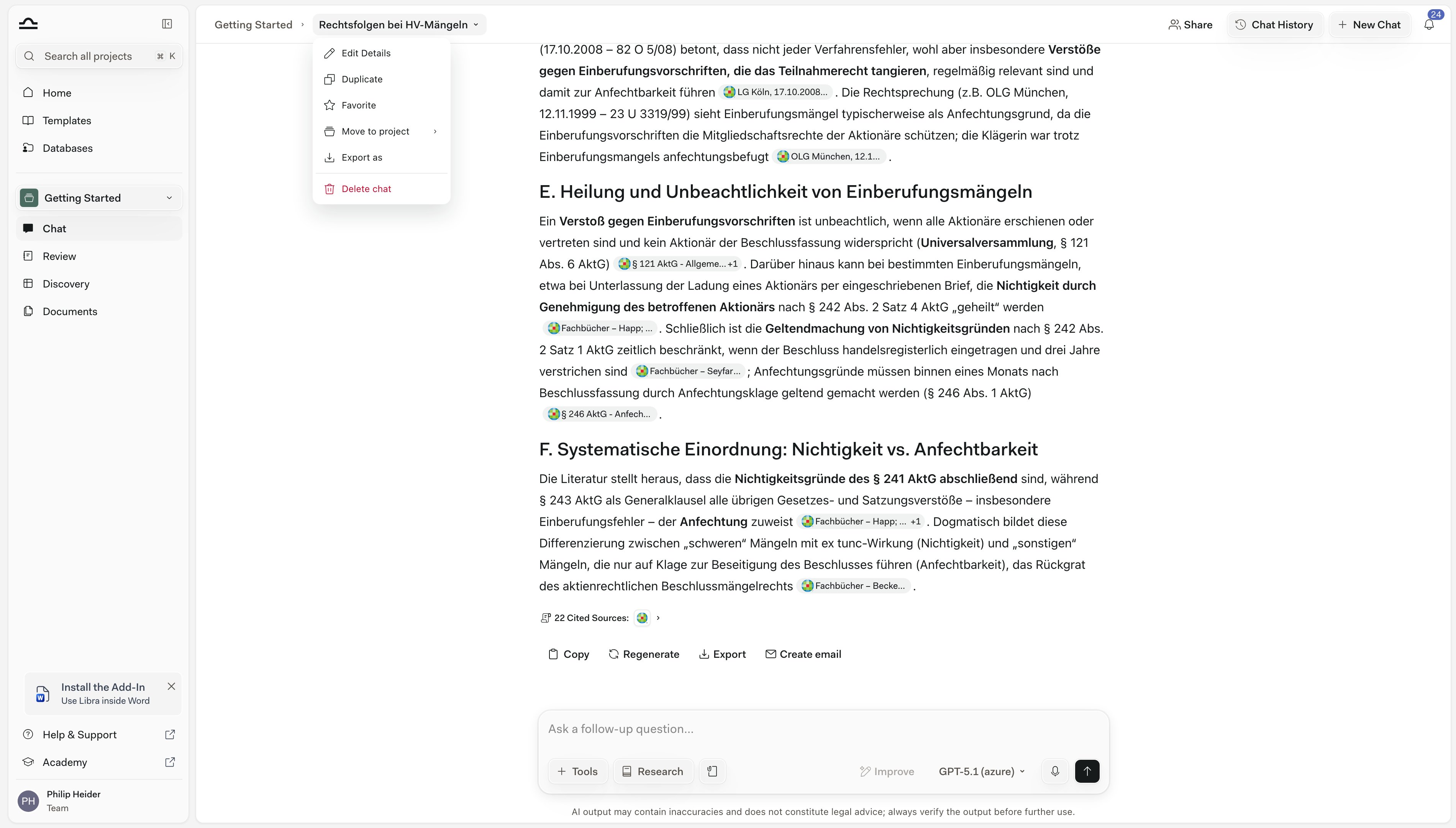
Open a chat and click the **⌄** next to its title to open the **Chat actions** menu.
| Action | What it does |
| ------------------- | -------------------------------------------------------------------------------------------------------------------------------------------------------------------------------------------------------------------------------------------------------------------- |
| **Edit Details** | Rename the chat in the **Chat name** field, and set its practice area and **Tags** so it surfaces under those filters in Search. The dialog also shows who owns the chat and whether it is **Private** or shared with the **Team**. |
| **Duplicate** | Create a copy of the chat that you can continue independently. The original is unaffected. |
| **Favorite** | Star the chat to mark it a favourite. The star is yours alone, syncs across your devices, and stays even after you archive the chat. Filter for starred chats with **Add filter → Favorite** in [Search](/en/features/search). |
| **Move to project** | Move the chat to a different project you can edit — view-only and archived projects aren't offered — or create the destination on the spot with **New project**. The chat's sharing is reset on arrival — share it again from the new project if colleagues need it. |
| **Export as** | Save the whole chat as a **Word** document or **PDF**. To export a single answer instead, use the export button on that message and choose **Export this message**. |
| **Delete chat** | Permanently remove the chat. |
A chat you reach as a *result* — in [Search](/en/features/search), and therefore in **Chat History**, which is the same picker — carries its own **⋯** menu with a different set: **Open**, **Edit**, **Share**, **Move to project**, **Duplicate**, **Archive**, and **Delete**. **Archive** is offered only there, never on the open chat's **Chat actions** menu.
**Delete is permanent.** If you might want the chat back later, archive it instead.
## Archiving and restoring
Archive is the right move for chats you want to keep but don't need at hand.
Archiving is offered from a chat's **⋯** menu in a [Search](/en/features/search) result list — **Chat History** included — and not from the **Chat actions** (⌄) menu on the open chat. Open the ⋯ menu, click **Archive**, and confirm. The chat disappears from the active list.
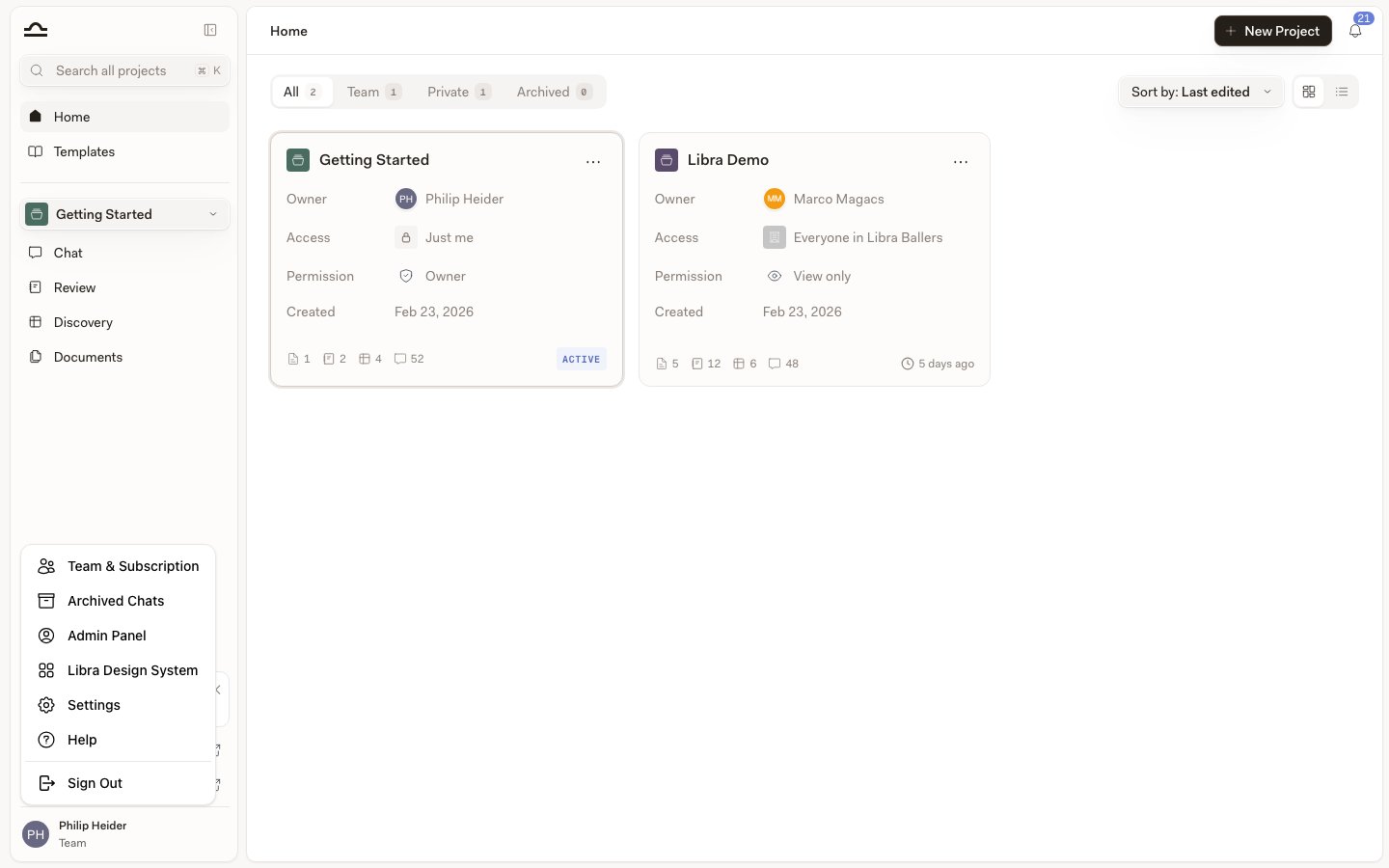
Click your profile icon at the bottom of the sidebar and choose **Archived Chats**. The list shows the archived chats you own in the project you're currently working in, with a search box to narrow it by name — switch projects to see the others, or click **Export** to download every archived chat in your account as a JSON file.
On the archived chat's row, click the unarchive icon on the right (tooltipped **Unarchive Chat**) to bring the chat back to the active list. The bin icon next to it is **Delete Chat**, and it deletes for good — including for anyone the chat was shared with.
## Sharing a chat
By default, chats are private, even when working in shared projects. You can share a chat manually.
Open the chat and click the **Share** button at the top right.
Search for a person by name or email, or pick a group. Set the access level: **Can view**, **Can edit**, or **Full access**. Click **Add** for each recipient.
There's no Save button — each person is shared the moment you click **Add**, and permission changes apply as soon as you pick them. Close the dialog with the **X** when you're done.
Chats belong to a project, so a colleague needs access to that project too. If they don't have it, Libra offers to grant them view access to the project as part of the share — confirm **Grant project access and share** and they receive the chat at the permission you picked. If you can't manage the project's sharing, Libra asks you to contact the project owner or an editor instead.
## Exporting a chat
Open the chat, click the **⌄** next to its title, and choose **Export as**.
Libra shows the whole conversation, formatting intact, exactly as it will be exported. If the chat contains citations, **Include citations** is on by default: it numbers the references in the text and adds a bibliography at the end of the document. Turn it off for a clean copy.
Click **PDF** or **Word** to download.
## Tips
The auto-generated name is good but generic. The first time a chat becomes "the negotiation chat for the Acme acquisition", rename it.
Disk space isn't an issue. An archived chat can always be restored; a deleted one can't. Note that archived chats are left out of Search results — find them under **Archived Chats** in your profile menu, or restore one to bring it back into Search.
**Chat History** opens Search already narrowed to chats in the project you're working in. To look across every project at once, change the project chip, click **Clear all filters**, or just press Cmd+K instead.
## Next steps
Cross-project search by name and content.
Back to the chat input walkthrough.