
> ## Documentation Index
> Fetch the complete documentation index at: https://docs.libratech.ai/llms.txt
> Use this file to discover all available pages before exploring further.

# Chat modes

> Three reasoning depths, Standard, Deep Thinking, and Fast, so you can match the answer to the question.

<video autoPlay muted loop playsInline src="https://mintcdn.com/libra-4206ec93/azhR9hqtFjs66ITC/assets/videos/features/chat-modes.webm?fit=max&auto=format&n=azhR9hqtFjs66ITC&q=85&s=2476fc9d315a104a99ac1b2091a181ba" className="rounded-xl border w-full" data-path="assets/videos/features/chat-modes.webm" />

Not every question needs the same depth of reasoning. **Chat modes** let you pick how much thinking Libra does: quick everyday questions, the standard balanced mode, or a slower mode for genuinely complex analysis.

<div className="libra-buddy-callout">
  <img src="https://mintcdn.com/libra-4206ec93/wgVZXcGnHS4aJk9T/assets/images/libra-buddy/thinking.png?fit=max&auto=format&n=wgVZXcGnHS4aJk9T&q=85&s=6fe60c07c6a0e65c084ac6880c337f84" alt="Libra mascot thinking" width="872" height="693" data-path="assets/images/libra-buddy/thinking.png" />

  <div className="libra-buddy-callout-content">
    The mode applies to the message you send next and stays selected as you keep working in that chat, so change it as the work changes: **Standard** for the first prompt, **Deep Thinking** for the synthesis, **Fast** for the summary.
  </div>
</div>

## The three modes

| Mode              | What it does                                                                                                                               | When to pick it                                                                                                                |
| ----------------- | ------------------------------------------------------------------------------------------------------------------------------------------ | ------------------------------------------------------------------------------------------------------------------------------ |
| **Standard**      | Balanced reasoning, described in the menu as *Best for most tasks*. Where every new chat starts unless you pin a different default.        | Anything that's not specifically simple or specifically complex. The right choice 90% of the time.                             |
| **Deep Thinking** | Extended, slower reasoning that works through the problem step by step before answering. The menu calls it *Complex reasoning & analysis*. | Multi-step legal analysis, contract interpretation across multiple clauses, comparative law questions, complex drafting tasks. |
| **Fast**          | Quick, lightweight responses. Trades some reasoning depth for speed. The menu calls it *Quick, everyday questions*.                        | Quick everyday questions: "What does ARG stand for?", "Translate this clause", "Summarise this paragraph in two sentences."    |

## Switching modes

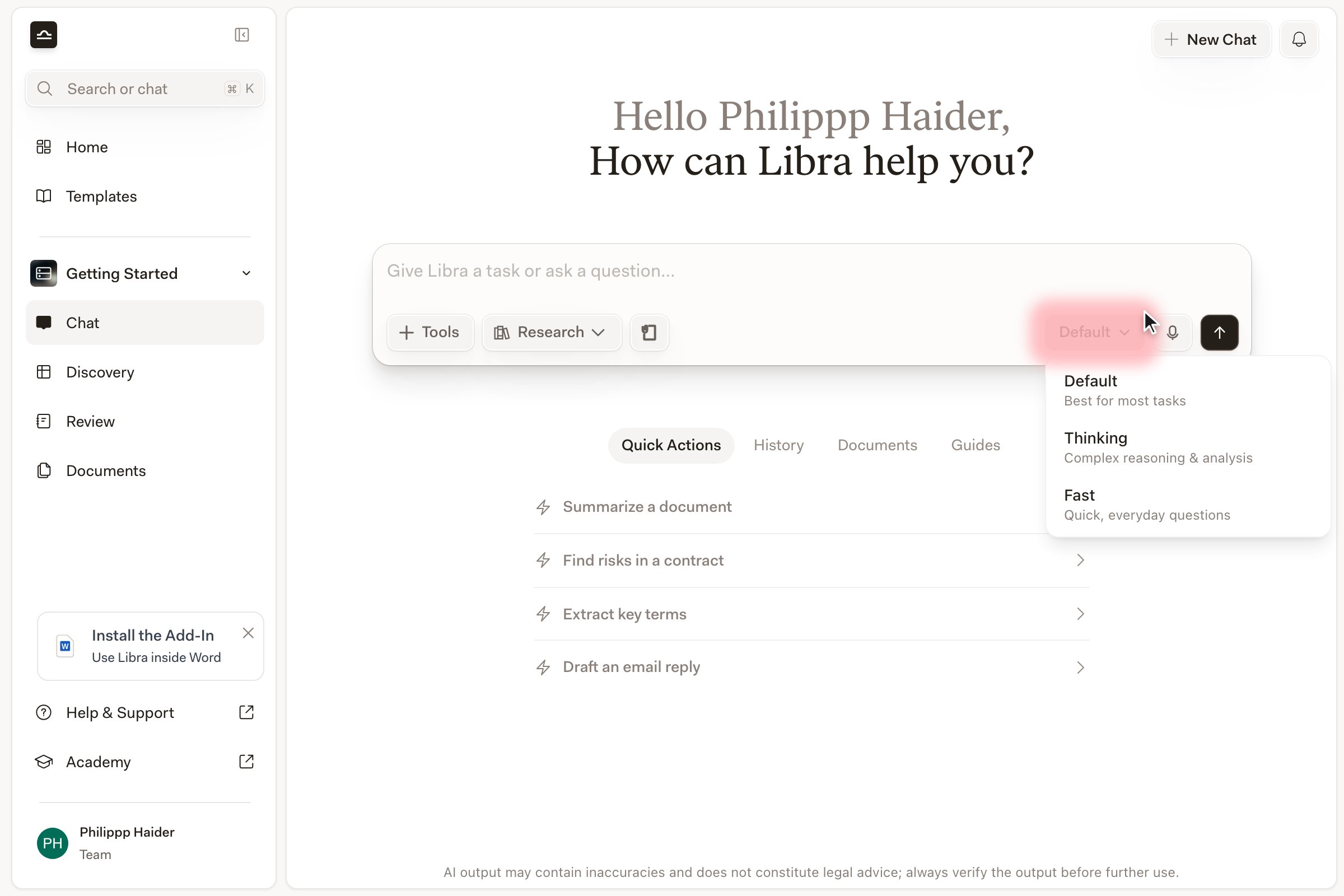
The mode button sits at the right-hand end of the row of controls under the chat input, after **Tools**, **Research** and **Improve**. It shows the mode you are currently in.

<Steps>
  <Step title="Click the current mode">
    The menu opens below the button, listing the three modes with their one-line descriptions. A checkmark marks the active one.

    <img src="https://mintcdn.com/libra-4206ec93/DvY4COCBKazHNw7v/assets/images/app/chat-modes-picker.png?fit=max&auto=format&n=DvY4COCBKazHNw7v&q=85&s=76ac26af5382aaa3b297ead9ad2589c0" alt="The mode menu open under the chat input, showing Standard, Deep Thinking and Fast" width="2400" height="1600" data-path="assets/images/app/chat-modes-picker.png" />
  </Step>

  <Step title="Pick the mode you want">
    The button label updates. The mode applies to the message you send next and stays selected as you keep working in that chat. It is not stored with the chat, though: reload the page and the chat comes back in **Standard**.
  </Step>

  <Step title="Read the heading above the answer">
    Answers produced in Deep Thinking or Fast are headed with the mode name in front of the assistant's name. A Standard answer is headed with the assistant's name alone — no mode in front of it. (If the heading names a model instead of the assistant, that answer ran on the named model you picked, outside the three modes.)
  </Step>
</Steps>

<Tip>
  Hover a mode in the menu and click the pin (**Set as default**) to make it the mode every new chat starts in.
</Tip>

<Note>
  The mode button is hidden while an Assistant or a Workflow is driving the chat. Those run on the model they were built with, so there is no mode to choose.
</Note>

### Choosing a specific model

By default the menu offers the three modes and nothing else. To choose a named model, first turn on **Show Model Selector** on the **Chats** tab of [Settings](/en/features/chat/customization) and reload the page — without that, the model list described below does not appear at all.

Once it is on, a model row sits under the three modes. Click it (**Show all**) to expand the full list of models your firm has available, then pick one. Two things change when you do: the button now shows the model's name instead of a mode, and the chat is no longer in any of the three modes — you have replaced the mode with an explicit model. Pick a mode again to go back.

The same row lets you pin a model as your default, and add a second and a third model slot with **+**. With more than one slot filled, your prompt is answered by each model in turn so you can compare them side by side.

### Premium models and the daily limit

Some of the models in that list are metered. Every **Claude Opus** model and **GPT-5.6 Sol** counts as premium, and they share one daily message allowance per person: 5 messages a day on a trial, 10 on **Starter**, and 20 on the paid plans, unless your administrator has changed those numbers. GPT-5.6 Luna and Terra are not metered.

In the model list, a **Daily limits** badge sits next to each metered model. Hover it for the detail: how many messages you have used out of your allowance, that it **Resets daily**, and which model Libra will use once the allowance is gone.

Running out does not block you. Libra answers with a substitute instead: a Claude Opus message falls back to **Claude Sonnet 4.6** and a GPT-5.6 Sol message to **GPT-5.6 Terra** — both defaults your administrator can change — and Libra shows a notification as the message is sent: *Daily premium model limit reached. This message was sent using … instead.* The counter resets daily, at midnight UTC.

<Note>
  That notification is easy to miss. If an answer from a premium model suddenly reads differently from the ones you were getting earlier in the day, reopen the model list and hover the **Daily limits** badge: if you have used your whole allowance, you were served the fallback model, not the one you picked.
</Note>

## Picking the right mode

<Tabs>
  <Tab title="Standard">
    Standard is the right answer almost every time. Most contract-review questions, drafting prompts, and research-light analysis sit comfortably here, so when in doubt, leave it where it is. The trade-off between speed and reasoning is tuned for the kind of work most lawyers do most of the time: *"what does this clause mean and what's the risk"*, get back a thoughtful paragraph, move on.

    <Tip>
      If you don't know which mode to pick, pick Standard. Switch only when the answer it gives you actively feels too shallow (Deep Thinking) or too slow for what you're asking (Fast).
    </Tip>
  </Tab>

  <Tab title="Deep Thinking">
    Deep Thinking is for the questions Standard visibly struggles with. The signal is usually the same: the answer is correct on each individual point but doesn't connect them, or it skips a step that mattered.

    Reach for Deep Thinking when:

    * The question requires a *chain* of reasoning, like *"if clause A applies, then clause B is triggered, which means…"*
    * Interpretation has to span multiple parts of a long document, or multiple documents.
    * You're comparing legal positions across jurisdictions.
    * A drafting task has to satisfy two competing requirements at once.

    <Note>
      Every message you send in Deep Thinking is held back by a **Deep Thinking Mode** dialog until you switch it off. It puts complex queries at two to three minutes, and Deep Thinking combined with Research at five minutes or more, and reminds you that you can stop a running request at any time. Click **Continue** to send, or tick **Don't show this warning again** first if you'd rather not be asked on every Deep Thinking message.
    </Note>
  </Tab>

  <Tab title="Fast">
    Fast is for everyday transformations:

    * *"Translate this paragraph into German."*
    * *"Give me a one-sentence summary of this clause."*
    * *"What does GDPR stand for?"*
    * *"Reformat this list as bullet points."*

    Fast trades some reasoning depth for speed. It's the wrong choice for analysis, and the right choice when you already know what you want and just need it produced.
  </Tab>
</Tabs>

<Tip>
  **A pattern that works:** start in Standard for a research question, get the overview, switch to Deep Thinking for a follow-up that requires careful comparison, then switch back to Standard (or even Fast) for the short reformat or summary that lands in the email you're drafting. One click per turn.
</Tip>

## Combining modes with Research

The mode and [Research](/en/features/chat/research-mode) are independent settings. Turning Research on doesn't change your mode, and switching mode doesn't turn Research off, so every combination is available to you.

Standard plus Research is the everyday pairing, and the one to reach for by default: sourced answers at ordinary speed. Deep Thinking plus Research is the slowest thing you can ask Libra for — its own warning puts it at five minutes or more — and it earns that wait when a research question needs several sources reconciled rather than merely found. Fast plus Research is the odd pair: the point of Research is a carefully reasoned answer over the sources it finds, which is exactly the part Fast trims.

<div className="libra-buddy-callout">
  <img src="https://mintcdn.com/libra-4206ec93/wgVZXcGnHS4aJk9T/assets/images/libra-buddy/hopeful.png?fit=max&auto=format&n=wgVZXcGnHS4aJk9T&q=85&s=dda1d151f81c072e70c0c3fbbed970e5" alt="Libra mascot hopeful" width="666" height="649" data-path="assets/images/libra-buddy/hopeful.png" />

  <div className="libra-buddy-callout-content">
    Only Deep Thinking and Fast answers carry the mode name in their heading; a Standard answer shows the assistant's name alone. Answer reads thin? Check the heading first — a complex question sent in **Fast** is the usual cause.
  </div>
</div>

## Next steps

<Columns cols={2}>
  <Card title="Research mode" icon="https://mintcdn.com/libra-4206ec93/vIwxn8dmEk0jsP5x/assets/images/icons/research.svg?fit=max&auto=format&n=vIwxn8dmEk0jsP5x&q=85&s=b71b64b69957b598c1506ba997da54e8" href="/en/features/chat/research-mode" width="16" height="16" data-path="assets/images/icons/research.svg">
    Add sourced legal research to any chat.
  </Card>

  <Card title="Chat basics" icon="https://mintcdn.com/libra-4206ec93/vIwxn8dmEk0jsP5x/assets/images/icons/chat.svg?fit=max&auto=format&n=vIwxn8dmEk0jsP5x&q=85&s=9a77dbd38fde763e8ac783fb8a68aef6" href="/en/features/chat/basics" width="16" height="16" data-path="assets/images/icons/chat.svg">
    The full chat input walkthrough.
  </Card>
</Columns>
