> ## Documentation Index
> Fetch the complete documentation index at: https://docs.libratech.ai/llms.txt
> Use this file to discover all available pages before exploring further.

# Research mode

> Ground every answer in legal databases. Pick your jurisdictions, pick your sources, get verifiable citations.

<video autoPlay muted loop playsInline src="https://mintcdn.com/libra-4206ec93/azhR9hqtFjs66ITC/assets/videos/features/chat-research.webm?fit=max&auto=format&n=azhR9hqtFjs66ITC&q=85&s=1f3b642f801d0a0be6ff96929591953e" className="rounded-xl border w-full" data-path="assets/videos/features/chat-research.webm" />

In standard chat mode, Libra answers from its general knowledge. **Research mode** changes that: Libra queries the legal databases your firm has access to and grounds the answer in what it retrieves, with citations you can click through to verify.

<div className="libra-buddy-callout">
  <img src="https://mintcdn.com/libra-4206ec93/wgVZXcGnHS4aJk9T/assets/images/libra-buddy/clipboard.png?fit=max&auto=format&n=wgVZXcGnHS4aJk9T&q=85&s=cde036cf23ea2d67cd50f1c295db549a" alt="Libra mascot with a clipboard" width="725" height="605" data-path="assets/images/libra-buddy/clipboard.png" />

  <div className="libra-buddy-callout-content">
    Cite the section number in your prompt: *§ 626 BGB*, *Art. 1357 Cod civil*. Libra resolves the source straight from the database.
  </div>
</div>

## Turning Research mode on

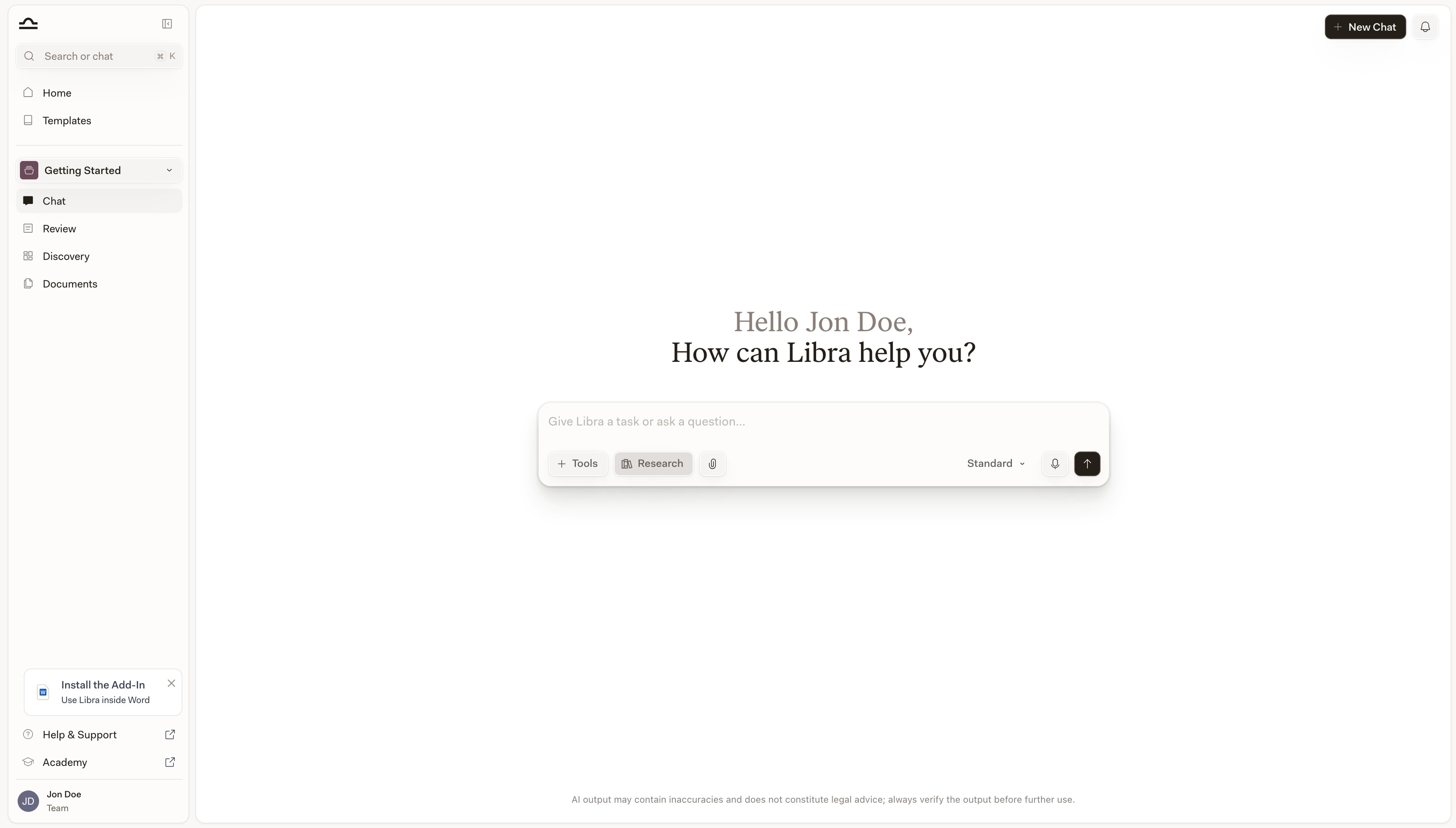
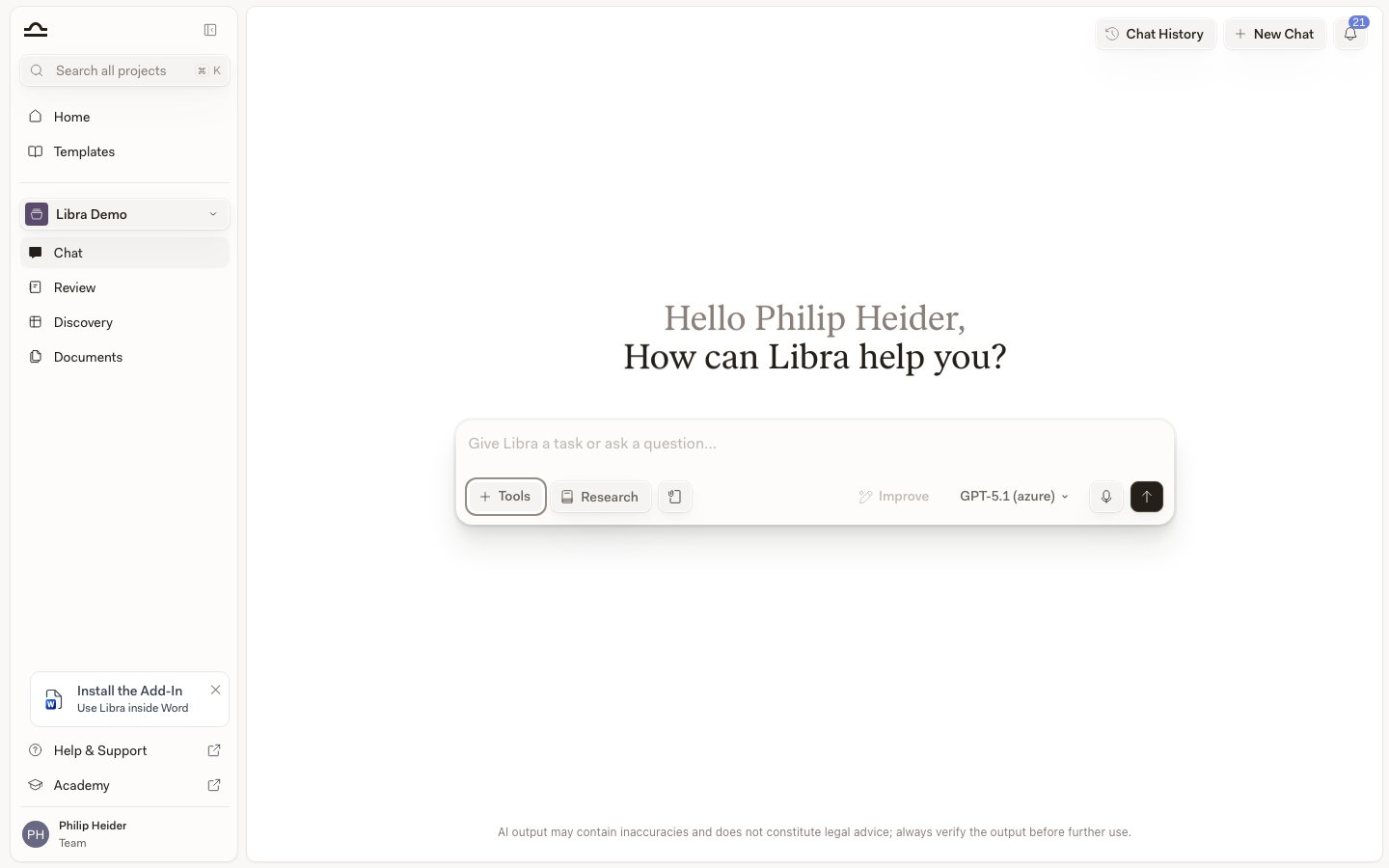
**Research** sits in the composer footer, between **Tools** and **Improve**. It is both the switch and the settings panel: research is on for your next message as soon as at least one source is toggled on.

<Steps>
  <Step title="Open the Research panel">
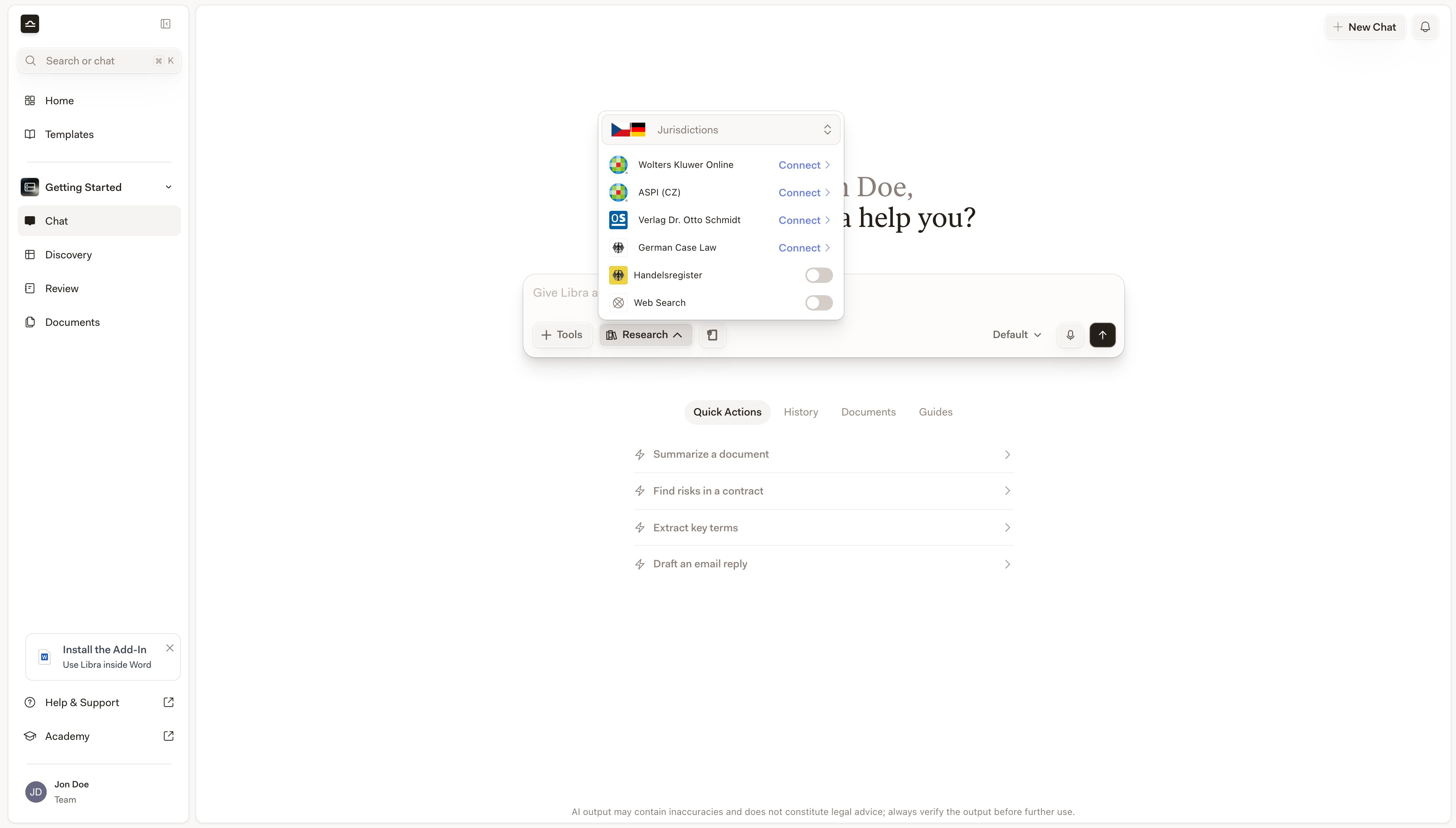
    Click **Research**. A panel opens with a **Jurisdictions** selector at the top, the sources you can use listed beneath it, and **View all Libra integrations** at the bottom.

    <img src="https://mintcdn.com/libra-4206ec93/DvY4COCBKazHNw7v/assets/images/app/research-mode-button.png?fit=max&auto=format&n=DvY4COCBKazHNw7v&q=85&s=eb03d99d6bd1e63fcd5ab82541344d30" alt="Chat composer with the Research panel open" width="1440" height="900" data-path="assets/images/app/research-mode-button.png" />
  </Step>

  <Step title="Set your jurisdictions">
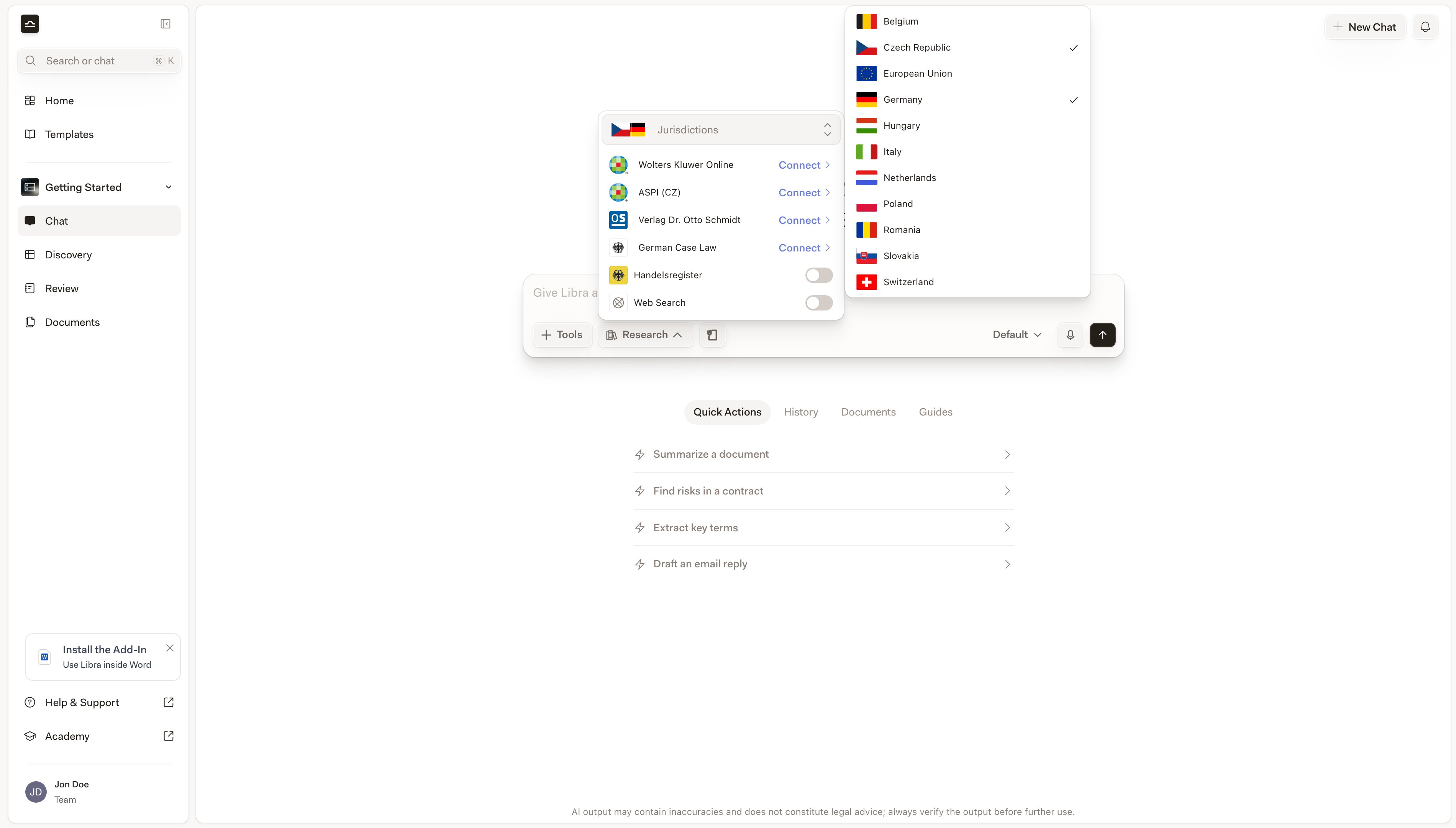
    The **Jurisdictions** control at the top of the panel is your own preference, not something your firm assigns — click it and tick the countries you work in (it reads **Add Jurisdiction** until you have picked one). Your choice decides which sources are listed below: the panel shows the sources belonging to every jurisdiction you have ticked, plus **Web Search**, which isn't tied to any jurisdiction. Only jurisdictions that have at least one source available to you appear in the list.

    What your subscription controls is which *sources* you can use inside those jurisdictions, not which jurisdictions you may pick.

    <img src="https://mintcdn.com/libra-4206ec93/DvY4COCBKazHNw7v/assets/images/app/research-mode-jurisdictions.png?fit=max&auto=format&n=DvY4COCBKazHNw7v&q=85&s=f24444477c9c8e786e08fd5173f8f330" alt="Jurisdictions dropdown open at the top of the Research panel" width="3800" height="2160" data-path="assets/images/app/research-mode-jurisdictions.png" />
  </Step>

  <Step title="Toggle the sources you want">
    Each source has a switch. During a free trial the panel also lists sources your firm has not connected, with a **Connect** control in place of the switch; it opens a small card offering **Activate in free trial**, **Connect your account** and, for most sources, **More about …**. On a paid plan the panel lists only the sources your firm has connected, plus any whose connection has lapsed, which show **Reconnect** — everything else sits behind **View all Libra integrations** at the foot of the panel. **Verlag Dr. Otto Schmidt** is licensed per module and carries a **Select modules** control. Turn on only what the question needs — a tighter source set gives a more focused answer.

    <img src="https://mintcdn.com/libra-4206ec93/DvY4COCBKazHNw7v/assets/images/app/research-mode-sources.png?fit=max&auto=format&n=DvY4COCBKazHNw7v&q=85&s=529ffadd8fbc257a3ae4e2a52c77cc6f" alt="Research source list with several databases toggled on" width="3800" height="2160" data-path="assets/images/app/research-mode-sources.png" />
  </Step>

  <Step title="Send your prompt">
    With at least one source on, the **Research** button highlights and shows the icons of the sources you selected, with a `+N` chip when there are more than fit. Send your prompt and Libra consults those sources; the answer comes back with citations to what it actually retrieved.

    Clicking **Research** again turns research off for the next message but keeps your selection — reopening the panel restores it.
  </Step>
</Steps>

<Tip>
  Tick more than one jurisdiction when you are comparing laws across countries. The source list becomes the union of what each ticked jurisdiction offers, so a single prompt can run against, say, a German and a Belgian database at once.
</Tip>

<Note>
  The legal databases in this panel are not the same thing as **Databases**, the feature in the left sidebar. Those are structured collections built from your own documents, and you bring them into a chat through **Tools → Search files** rather than through Research. See [Databases](/en/features/databases/basics).
</Note>

## What you see in the response

After Libra finishes, two things matter: **how Libra got there**, and **what it cited**.

### See Libra's research process

Above the answer sits a collapsible strip recording every step Libra took — which database it queried, in what order, and why. Its header is a status line rather than a fixed label: **Analyzing…** while Libra is working, then **Thought for 12 seconds** once the answer is finished. It falls back to a plain **Actions** while the strip is expanded mid-run, or when no thinking time was recorded. Use the **Open** / **Close** button on the right to expand it and read the steps.

<img src="https://mintcdn.com/libra-4206ec93/DvY4COCBKazHNw7v/assets/images/app/research-mode-actions.png?fit=max&auto=format&n=DvY4COCBKazHNw7v&q=85&s=fd777cc262042ba9c336cc3cad3e4076" alt="Expanded research-steps strip showing each database queried with Libra's reasoning" width="3800" height="2160" data-path="assets/images/app/research-mode-actions.png" />

This matters for two reasons:

1. **Auditability.** You can show another lawyer (or a sceptical partner) exactly how the answer was researched.
2. **Diagnosis.** If an answer feels wrong, the steps usually show why: Libra picked the wrong source, missed a database, or framed the query differently than you would have.

### Which citations carry a warning

Every citation Libra renders is a numbered chip in the text. Hover it for a card with the source and the passage; click it to open the source itself.

Citations that came from the open web — **Web Search** results and **Handelsregister** company lookups — carry an extra line in that card: *Be aware: unverified third-party web information.* Citations from your subscribed databases do not, because Libra retrieved the passage from the database itself. Citations into the Libra documentation are exempt from the note as well.

Anything Libra asserts in prose *without* a citation chip is coming from its general knowledge rather than from a source it opened. Treat it as a lead to follow up, not as a citation.

<div className="libra-buddy-callout">
  <img src="https://mintcdn.com/libra-4206ec93/wgVZXcGnHS4aJk9T/assets/images/libra-buddy/pointing.png?fit=max&auto=format&n=wgVZXcGnHS4aJk9T&q=85&s=fb9114facd16ecd4bc0c89bfbc7d660b" alt="Libra mascot pointing" width="856" height="585" data-path="assets/images/libra-buddy/pointing.png" />

  <div className="libra-buddy-callout-content">
    Expand the steps strip above any research answer — **Thought for …** once it has finished — to see which database Libra tried, what it searched for, and what it skipped. When an answer is wrong, this usually shows why.
  </div>
</div>

<Warning>
  Always verify important citations by clicking through. A citation from a subscribed database tells you the passage exists; it does not tell you the passage supports the specific point being made. Check that yourself, particularly for client-facing or court-facing work.
</Warning>

### When Libra warns the answer isn't grounded

Under the most recent answer in a chat, Libra sometimes adds a small grey note that the answer may be incomplete. There are three of them, and which one you get says something different:

<AccordionGroup>
  <Accordion title="Not generated from trusted sources, with a subscription prompt">
    *This answer may be incomplete or outdated because it wasn't generated from trusted sources.* You have no connected databases and no documents in the chat, so Libra had nothing to research against. The note offers two links: **activate your account**, which opens **Settings → Integrations** if your firm already holds a content subscription, and **get a subscription** if it does not.
  </Accordion>

  <Accordion title="Please select one or more trusted sources">
    The same opening line, followed by a pointer to the **research selector**. You do have databases available, but none were switched on for this message. The link opens the Research panel so you can toggle sources and ask again.
  </Accordion>

  <Accordion title="Libra didn't find content in your activated sources">
    Your sources *were* on, but this particular answer came back with nothing from them. Depending on your subscription the note either points you to **View your subscriptions** or explains that Libra only answers from subscribed content.
  </Accordion>
</AccordionGroup>

Each note ends with a **Don't show again** link. Clicking it saves the choice to your account, so all three notes stay hidden from then on, in every chat. The condition itself doesn't change — silence after dismissing is not evidence that an answer is grounded, so keep reading the citations.

## The Cited Sources panel

Any answer that drew on at least one source gets a **Cited Sources** pill below it. Click it to open the panel; every source from web search, documents, legal databases, attached Reviews, and Discoveries appears in one list.

See [Citations & sources](/en/features/chat/citations) for the panel walkthrough.

## Libra's own documentation is a source too

During research, Libra can also consult its own product documentation. If a product or how-to question comes up mid-answer — *"how do I export this table with footnotes?"* — Libra pulls the answer from the Libra help documentation and cites it alongside your legal sources, numbered in the same sequence. Those citations point at the documentation site itself, so they are exempt from the unverified-web note.

## Sources in the Research panel

The Research panel names sources the way the databases themselves are branded, which is not always the name on the connector card in **Settings → Integrations** — Otto Schmidt, for instance, is listed as **Verlag Dr. Otto Schmidt**. Which of these you see depends on the jurisdictions you have ticked and on what your firm subscribes to.

| Source in the panel                             | What it covers                                                                                                                    |
| ----------------------------------------------- | --------------------------------------------------------------------------------------------------------------------------------- |
| **Web Search**                                  | Content from all over the internet. Not tied to a jurisdiction — whether it appears depends on your team's country and plan.      |
| **Statutes & Case Law**                         | German case law and legislation provided by Wolters Kluwer Online.                                                                |
| **Wolters Kluwer Online**                       | Legal research and expert knowledge for Germany.                                                                                  |
| **Verlag Dr. Otto Schmidt**                     | Case law, commentaries and legal content from Verlag Dr. Otto Schmidt. Licensed per module — use **Select modules** in the panel. |
| **InView Legal (NL)** and **InView Legal (BE)** | Wolters Kluwer's Dutch and Belgian legal research.                                                                                |
| **InView Tax**                                  | Dutch tax law research. Distinct from InView Legal (NL).                                                                          |
| **monKEY (BE)**                                 | Belgian legal research for accountants and tax professionals.                                                                     |
| **Fedlex**                                      | Swiss federal legislation.                                                                                                        |
| **OpenCaseLaw**                                 | Swiss court decisions from opencaselaw\.ch.                                                                                       |
| **Entscheidsuche**                              | Swiss case law from entscheidsuche.ch.                                                                                            |
| **Handelsregister**                             | German commercial-register data: company details, capital changes, current ownership and shareholder lists, and financials.       |

The full catalogue — every country, every source, and which ones are included versus an add-on — is in [Content integrations](/en/integrations/setup).

## Tips for effective research

<AccordionGroup>
  <Accordion title="State the jurisdiction in the prompt as well">
    Even with the jurisdiction ticked, *"under German law…"* in the prompt itself sharpens the answer further.
  </Accordion>

  <Accordion title="Narrow your sources for the question">
    If the question is purely about case law, switch off commentary databases. If it's purely about commentary, switch off case law. Tighter source sets give more focused answers.
  </Accordion>

  <Accordion title="Provide context about your client and matter">
    *"My client is a Swiss software company with 50 employees"* gives Libra what it needs to scope an employment-law answer. Generic prompts get generic answers.
  </Accordion>

  <Accordion title="Use Deep Thinking for cross-jurisdictional questions">
    A question that compares two jurisdictions usually rewards [Deep Thinking](/en/features/chat/modes) alongside Research mode. The slower tier is the one to pick when an answer has to hold two bodies of law in view at once.
  </Accordion>

  <Accordion title="Ask follow-up questions in the same chat">
    The research context carries forward across turns: citation numbers continue, and Libra remembers which sources were consulted. Use this for drilling into a specific finding without restarting.
  </Accordion>
</AccordionGroup>

## Next steps

<Columns cols={2}>
  <Card title="Citations & sources" icon="quote" href="/en/features/chat/citations">
    The unified Cited Sources panel: read it, verify it, export it.
  </Card>

  <Card title="Content integrations" icon="database" href="/en/integrations/setup">
    Browse the legal databases Libra integrates with.
  </Card>
</Columns>