> ## Documentation Index
> Fetch the complete documentation index at: https://docs.libratech.ai/llms.txt
> Use this file to discover all available pages before exploring further.

# Starting work from Chat

> Create a Playbook, a Review, or a Discovery directly from a chat. Libra works out which tool you mean, asks for what it needs, and shows the result in the conversation.

<video autoPlay muted loop playsInline src="https://mintcdn.com/libra-4206ec93/azhR9hqtFjs66ITC/assets/videos/features/chat-starting-work.webm?fit=max&auto=format&n=azhR9hqtFjs66ITC&q=85&s=c74193759a7efdd57ed2eaadbbb71a43" className="rounded-xl border w-full" data-path="assets/videos/features/chat-starting-work.webm" />

Chat is the fastest way to start a Playbook, a Review, or a Discovery; you don't have to leave it. Either pick **Tools → Create new** explicitly, or just describe what you want and Libra figures out which tool to use.

<div className="libra-buddy-callout">
  <img src="https://mintcdn.com/libra-4206ec93/wgVZXcGnHS4aJk9T/assets/images/libra-buddy/determined.png?fit=max&auto=format&n=wgVZXcGnHS4aJk9T&q=85&s=e38c0d18de68e6b63cbe749112a79eb5" alt="Libra mascot determined" width="790" height="604" data-path="assets/images/libra-buddy/determined.png" />

  <div className="libra-buddy-callout-content">
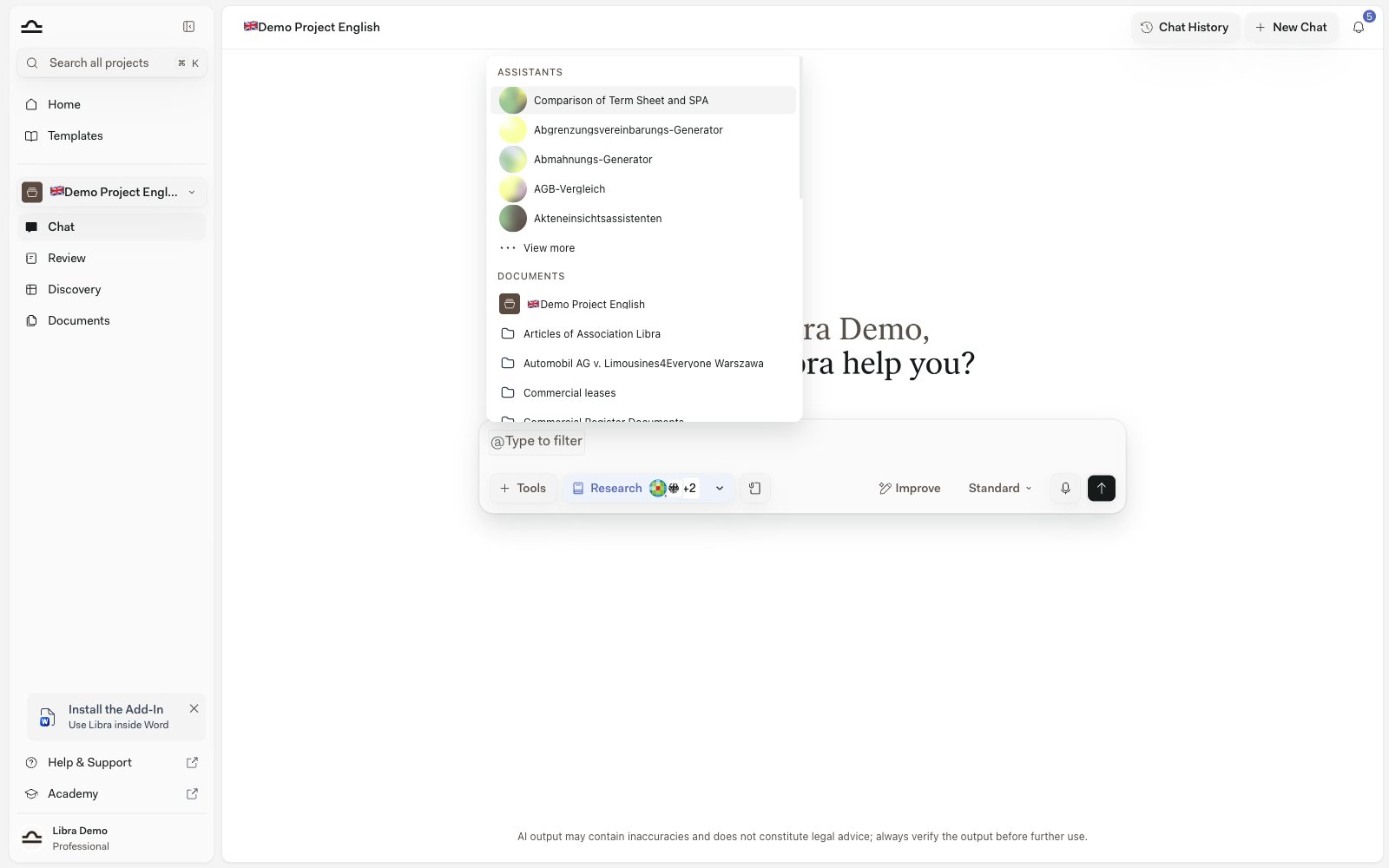
    Whatever you create auto-attaches as `@`-context for your *next* message, so *"now draft a partner email on high-risk Topics"* just knows.
  </div>
</div>

## What you need first

Creating something takes a little more than a prompt. The chat has to sit **in a project**, because that's where the result is filed — without one, the **Create new** entries stay greyed out and the tooltip reads *Select a project to create reviews or discoveries*. You also need **edit access** to that project: view-only members get *You need edit access. Ask a project admin for edit rights or switch projects*.

The chat has to be a saved one. With **Chat History** switched off on the **Chats** tab in Settings every new conversation is a [Temporary Chat](/en/features/chat/history), and temporary chats can't create anything — *Resource creation is disabled for temporary chats*. Creation is also a paid capability: on a **Starter** plan all three entries are disabled and hovering one offers an upgrade to **Professional**. See [Subscription](/en/resources/subscription).

Finally, attach the documents before you send. A Review runs against whatever is attached to the message — with nothing attached Libra asks you to attach the document you want reviewed instead of starting anything — and a Discovery has nothing to extract from without them.

## Two ways to start

<AccordionGroup>
  <Accordion title="Explicit, from the Tools dropdown">
    Click **Tools** above the chat input, then **Create new** and pick **Playbook**, **Review**, or **Discovery**. The armed mode appears as a pill in the composer's toolbar row, next to **Tools** and **Research** — click the pill again to cancel it. Type your prompt and send.
  </Accordion>

  <Accordion title="Implicit, Libra picks">
    Just type a prompt that implies a Review or a Discovery (*"compare these contracts on confidentiality terms"*, *"check this against our standard NDA terms"*) with documents attached, and Libra decides which tool to call. When Libra starts a Review this way, it goes through the same Playbook chooser as the explicit route.
  </Accordion>
</AccordionGroup>

## Creating a Playbook from chat

A **Playbook** is a saved Review framework: the Topics you negotiate, the Positions you'd accept for each, and the Rules that test them. You can draft one in conversation instead of building it in the editor.

<Steps>
  <Step title="Pick Tools → Create new → Playbook">
    A **Playbook** pill appears in the composer's toolbar row.
  </Step>

  <Step title="Say what it should check, and attach anything to work from">
    Name the contract type and the side you act for — *"a Playbook for reviewing standard German employment contracts from the employer's side, covering working time, remuneration, probation and termination"*. If your firm already has a checklist or positions document, attach it and Libra derives the Topics, Positions, and Rules from it.
  </Step>

  <Step title="Refine it in the same conversation">
    Libra answers with a **Playbook created** card listing the Topics. Keep going in chat to add, rename, or delete Topics; the card comes back as **Playbook updated** with the change applied.
  </Step>

  <Step title="Use it">
    The new Playbook is saved and attached to your next message, so you can run a Review against it straight away. It also shows up on the Review page under **My Playbooks** and in the Templates library.
  </Step>
</Steps>

## Creating a Review from chat

<Steps>
  <Step title="Pick Tools → Create new → Review (or just describe what you want)">
    A **Review** pill appears in the composer's toolbar row.

    <img src="https://mintcdn.com/libra-4206ec93/DvY4COCBKazHNw7v/assets/images/app/chat-create-review-badge.png?fit=max&auto=format&n=DvY4COCBKazHNw7v&q=85&s=807d3af268c245ca018236b23b4ea536" alt="The Tools menu open in the chat composer, with Create new expanded to Playbook, Review and Discovery" width="1600" height="1000" data-path="assets/images/app/chat-create-review-badge.png" />
  </Step>

  <Step title="Attach the documents and write the prompt">
    Drop in the contracts you want reviewed. Type a prompt that describes what to check, like *"review these against our standard NDA terms"* or *"check confidentiality, term, and termination clauses"*.

    <img src="https://mintcdn.com/libra-4206ec93/DvY4COCBKazHNw7v/assets/images/app/chat-mention-picker.png?fit=max&auto=format&n=DvY4COCBKazHNw7v&q=85&s=d740422fe326c263f3279c559471e7f6" alt="Chat composer with documents attached and a focused prompt" width="1600" height="1000" data-path="assets/images/app/chat-mention-picker.png" />
  </Step>

  <Step title="Choose the Playbook Libra should apply">
    Libra doesn't invent a rubric on the spot. Every Review started from chat runs against a Playbook, so the conversation pauses on a chooser headed **Select which Playbook Libra should apply to Review the document**. Hovering a row gives you **Preview**, which opens that Playbook read-only so you can check what's in it, and **Select**, which commits to it. If you have only a handful of Playbooks they're all listed; with more, Libra ranks them against the attached documents and your prompt and offers just its best few matches — the search box and **Browse all Playbooks** reach the rest.

    The search box (*Search for another template…*) filters the list, **Browse all Playbooks** opens the full library, and **Create a new Playbook** hands the turn over to Playbook drafting — Libra builds a new Playbook from the attached documents and your instructions, then tells you it's ready. It stops there on purpose: ask for the Review once you're happy with the Playbook. The chooser waits for you — it survives a page reload, and you can dismiss it if you change your mind. Attach exactly one Playbook to the message yourself and Libra skips the chooser and uses it.

    <img src="https://mintcdn.com/libra-4206ec93/DvY4COCBKazHNw7v/assets/images/app/chat-with-messages.png?fit=max&auto=format&n=DvY4COCBKazHNw7v&q=85&s=7c871ee560fe0b96b3776c2373b3b611" alt="Chat showing the Playbook chooser with Preview and Select on each row" width="3800" height="2160" data-path="assets/images/app/chat-with-messages.png" />
  </Step>

  <Step title="Watch the Review fill in, Topic by Topic">
    Once you've picked, a **Review created** card appears with the Review title and its Topic and document counts. Each Topic streams in as a numbered row with a risk tag, showing **EVALUATING** until it resolves. You don't have to wait for the whole Review to finish to start reading, and clicking a row jumps straight to that Topic.

    <img src="https://mintcdn.com/libra-4206ec93/DvY4COCBKazHNw7v/assets/images/app/chat-review-streaming.png?fit=max&auto=format&n=DvY4COCBKazHNw7v&q=85&s=bf033a7f214c66bbd978d7b92ea301fa" alt="Review preview card streaming live, with some Topics resolved and others still evaluating" width="3800" height="2160" data-path="assets/images/app/chat-review-streaming.png" />
  </Step>

  <Step title="Open Review for the full screen">
    The card has two buttons. **Open preview** shows the finished Review read-only without leaving the conversation; **Open Review** opens the full Review screen, where each Topic carries its reasoning with document citations, its Positions with *Met* counts, and a **Verify** checkbox, and where you can add, edit, re-run, or delete Topics and **Export** the result.

    Because the Review is backed by a Playbook, editing a Topic asks whether to **Update playbook & review** or change **Only this review** — so an improvement you make while reading can flow back into the Playbook for next time.

    <img src="https://mintcdn.com/libra-4206ec93/pnEt5D-f3JDzogZl/assets/images/app/review-results-hero.png?fit=max&auto=format&n=pnEt5D-f3JDzogZl&q=85&s=af9c10e14c2b1692641dd06229224e2c" alt="Full-screen Review view with numbered Topics, reasoning, Positions and risk badges" width="3800" height="2160" data-path="assets/images/app/review-results-hero.png" />
  </Step>

  <Step title="Auto-attached for follow-ups">
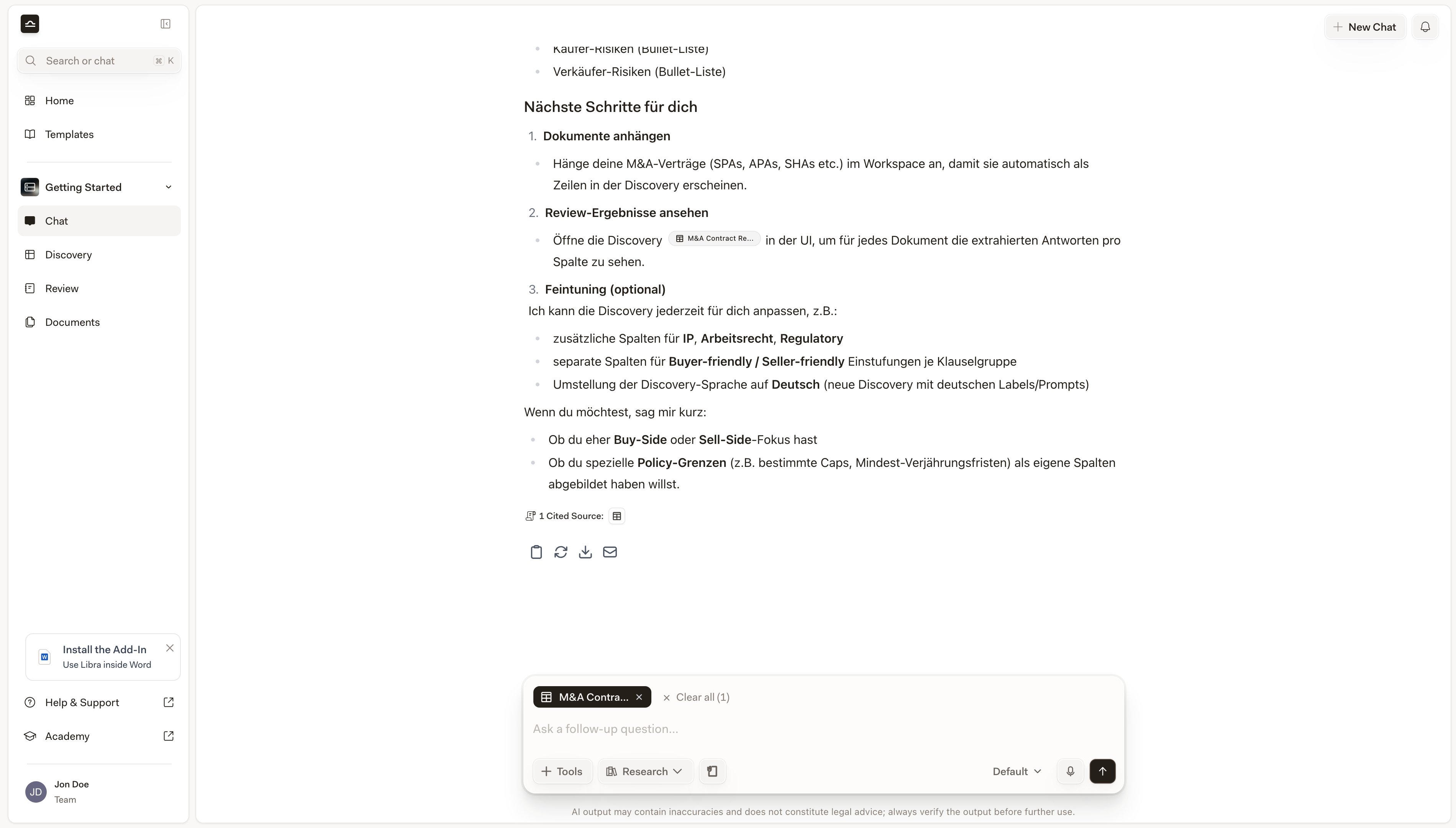
    The created Review is automatically attached to your next message in the chat, so a follow-up like *"now draft a redline email summarising the high-risk Topics"* knows about it.

    <img src="https://mintcdn.com/libra-4206ec93/DvY4COCBKazHNw7v/assets/images/app/review-chat-citations.png?fit=max&auto=format&n=DvY4COCBKazHNw7v&q=85&s=4667cfe2372c5350e917e9d2f166e6c2" alt="Follow-up chat answer citing Topics from the Review that was just created" width="3800" height="2160" data-path="assets/images/app/review-chat-citations.png" />
  </Step>
</Steps>

<Note>
  Reviews started from chat are scoped to the chat's project and filed in that project's *Reviews* folder in [Project files](/en/features/documents/folder-structure).
</Note>

## Creating a Discovery from chat

The flow is shorter, because Discovery needs no Playbook: Libra designs the columns from your prompt.

<Steps>
  <Step title="Pick Tools → Create new → Discovery (or just describe what you want)">
    A **Discovery** pill appears in the composer's toolbar row.

    <img src="https://mintcdn.com/libra-4206ec93/DvY4COCBKazHNw7v/assets/images/app/chat-create-discovery-badge.png?fit=max&auto=format&n=DvY4COCBKazHNw7v&q=85&s=bfa4b993195e8ff3bff6c9dbff143419" alt="Chat composer with the Discovery pill armed and multiple documents attached" width="3800" height="2160" data-path="assets/images/app/chat-create-discovery-badge.png" />
  </Step>

  <Step title="Attach the documents and describe the columns">
    *"Extract employee name, job title, and home office location for each contract"*. Libra builds a Discovery with those columns and runs it across every document attached to the message.

    <img src="https://mintcdn.com/libra-4206ec93/DvY4COCBKazHNw7v/assets/images/app/discovery-mention-picker-rich.png?fit=max&auto=format&n=DvY4COCBKazHNw7v&q=85&s=4bc7631f40a51344e13ff05335d20df9" alt="Chat composer with multiple documents attached and a column-extraction prompt" width="3800" height="2160" data-path="assets/images/app/discovery-mention-picker-rich.png" />
  </Step>

  <Step title="Send">
    Libra creates the Discovery, runs the extraction, and shows a **Discovery created** card. Each row corresponds to one document; columns appear as Libra extracts them.

    <img src="https://mintcdn.com/libra-4206ec93/DvY4COCBKazHNw7v/assets/images/app/discovery-chat-citations.png?fit=max&auto=format&n=DvY4COCBKazHNw7v&q=85&s=fe7648a4a4dabba45d5bf2c8f17c5943" alt="Discovery preview card in chat with extracted rows and cell-level citations" width="3800" height="2160" data-path="assets/images/app/discovery-chat-citations.png" />
  </Step>

  <Step title="Open Discovery to refine">
    Click **Open Discovery** on the card to open the full Discovery view. Add or remove columns; the Discovery re-runs immediately for any new column.

    <img src="https://mintcdn.com/libra-4206ec93/DvY4COCBKazHNw7v/assets/images/app/discovery-completed.png?fit=max&auto=format&n=DvY4COCBKazHNw7v&q=85&s=d13e11314ccac3db66390f997d073f57" alt="Full-screen Discovery view with columns and extracted rows" width="3800" height="2160" data-path="assets/images/app/discovery-completed.png" />
  </Step>
</Steps>

## Keeping what you built

<Steps>
  <Step title="A Review from chat is already reusable">
    There's nothing to save afterwards. The Playbook you picked — or the one Libra built with you during the flow — is already in your library, and the Review's header says **Saved as Playbook** instead of offering a save button. Run it again on the next contract from the Review page or the Playbook chooser.
  </Step>

  <Step title="A Discovery takes one click">
    On the full Discovery screen, **Save as Template** sits in the header next to **Author** and **Updated**. It saves immediately, with no dialog: the new template takes the Discovery's own title and its columns, and the button briefly confirms with **Saved as Template** before returning to normal.
  </Step>

  <Step title="Find it again in the library">
    Saved Discovery templates appear in the Templates library under **Discoveries**, Playbooks under **Reviews**. Practice areas and tags are set on the template there, not during the save — see [Practice areas & tags](/en/features/templates/practice-areas-and-tags) and [About templates](/en/features/templates/about).
  </Step>
</Steps>

## Tips for getting good results

<AccordionGroup>
  <Accordion title="Attach the documents before sending">
    Reviews and Discoveries need documents to work on. Ask for a Review with nothing attached and Libra won't start one — it asks you to attach the document you want reviewed first.
  </Accordion>

  <Accordion title="Be specific about what to check or extract">
    *"Review this NDA"* leaves Libra guessing which of your Playbooks fits. *"Review for confidentiality scope, term length, and remedies for breach, flagging deviations from a standard buyer-friendly NDA"* both narrows the ranking in the chooser and gives a focused Review.
  </Accordion>

  <Accordion title="Preview before you select">
    The chooser's **Preview** opens a Playbook read-only in place. Two Playbooks with similar names are much easier to tell apart from their Topics than from the title.
  </Accordion>

  <Accordion title="One Review or Discovery per chat works best">
    Multiple in one chat works, but the chat gets cluttered with multiple cards. For the cleanest workflow, one Review or Discovery per chat, then a follow-up chat for the next one.
  </Accordion>

  <Accordion title="Improve the Playbook while you read the Review">
    When a Topic comes back with a rule that was too loose or too strict, edit it on the Review screen and choose **Update playbook & review**. The next matter starts from the better version.
  </Accordion>

  <Accordion title="Use Reference in chat for follow-up reasoning">
    Once a Review or Discovery exists, attaching it as `@`-mention context for follow-up questions gives you precise, citation-backed answers. See [Reviews from chat](/en/features/review/from-chat) and [Discovery from chat](/en/features/discovery/from-chat).
  </Accordion>
</AccordionGroup>

## Next steps

<Columns cols={2}>
  <Card title="Reviews from chat" icon="https://mintcdn.com/libra-4206ec93/vIwxn8dmEk0jsP5x/assets/images/icons/review.svg?fit=max&auto=format&n=vIwxn8dmEk0jsP5x&q=85&s=034a75366c56b497bbe99cbb19f2f796" href="/en/features/review/from-chat" width="16" height="16" data-path="assets/images/icons/review.svg">
    Use a finished Review as context for follow-up questions.
  </Card>

  <Card title="Discovery from chat" icon="https://mintcdn.com/libra-4206ec93/vIwxn8dmEk0jsP5x/assets/images/icons/discovery.svg?fit=max&auto=format&n=vIwxn8dmEk0jsP5x&q=85&s=db1cd1f10cf28b892531af607cf1fd26" href="/en/features/discovery/from-chat" width="16" height="16" data-path="assets/images/icons/discovery.svg">
    Cite Discovery columns, rows, or cells directly in chat.
  </Card>
</Columns>