> ## Documentation Index
> Fetch the complete documentation index at: https://docs.libratech.ai/llms.txt
> Use this file to discover all available pages before exploring further.

# Setting up a database

> Create a Libra database, decide who in the team can use it, and fill it from your computer, from the workspace, or from a connected app.

<video autoPlay muted loop playsInline src="https://mintcdn.com/libra-4206ec93/rWGsqJYdHT3Dqdd0/assets/videos/features/databases-setup.webm?fit=max&auto=format&n=rWGsqJYdHT3Dqdd0&q=85&s=da880f849604dd23ad7ba7c30a5ce877" className="rounded-xl border w-full" data-path="assets/videos/features/databases-setup.webm" />

Anyone who can open **Databases** can create one, and whoever creates it owns it. This page is about a **Libra database**, where the files are uploaded into Libra; to link a SharePoint folder instead, see [SharePoint databases](/en/features/databases/sharepoint).

## Create a database

A database needs a name, an optional description, and a decision about who else may use it. All three can be changed later.

<Steps>
  <Step title="Databases → New database → New Libra database">
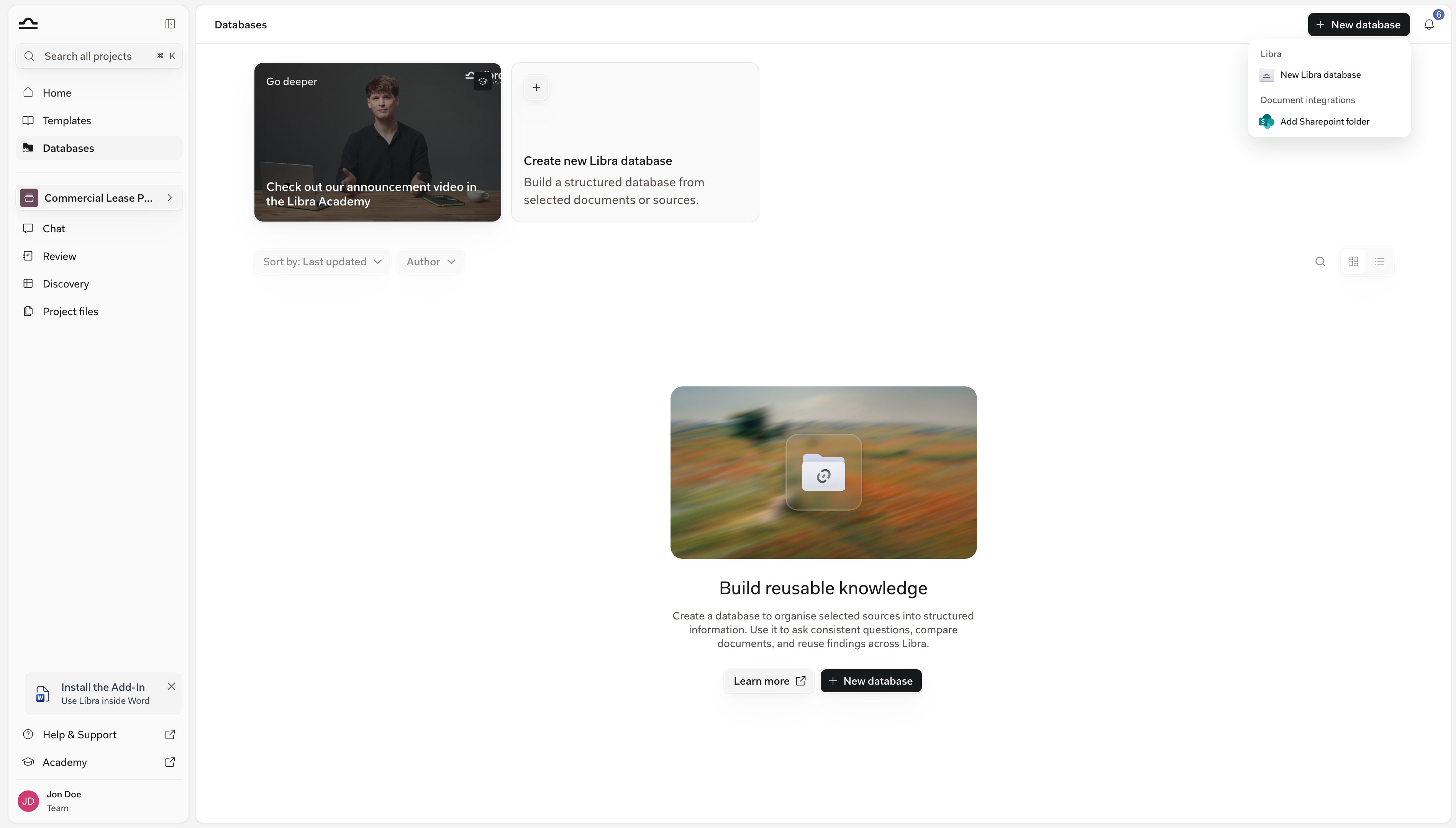
    **New database**, top right of the **Databases** page, offers **New Libra database** or **Add Sharepoint folder**. Choose the first.

    <img src="https://mintcdn.com/libra-4206ec93/uIM4p-wnrkQLmhsv/assets/images/app/databases-new-menu.png?fit=max&auto=format&n=uIM4p-wnrkQLmhsv&q=85&s=2bd1ef6867b02a0b496272e339389bfb" alt="The New database menu offering a new Libra database or a linked SharePoint folder" width="3800" height="2160" data-path="assets/images/app/databases-new-menu.png" />
  </Step>

  <Step title="Name and describe it">
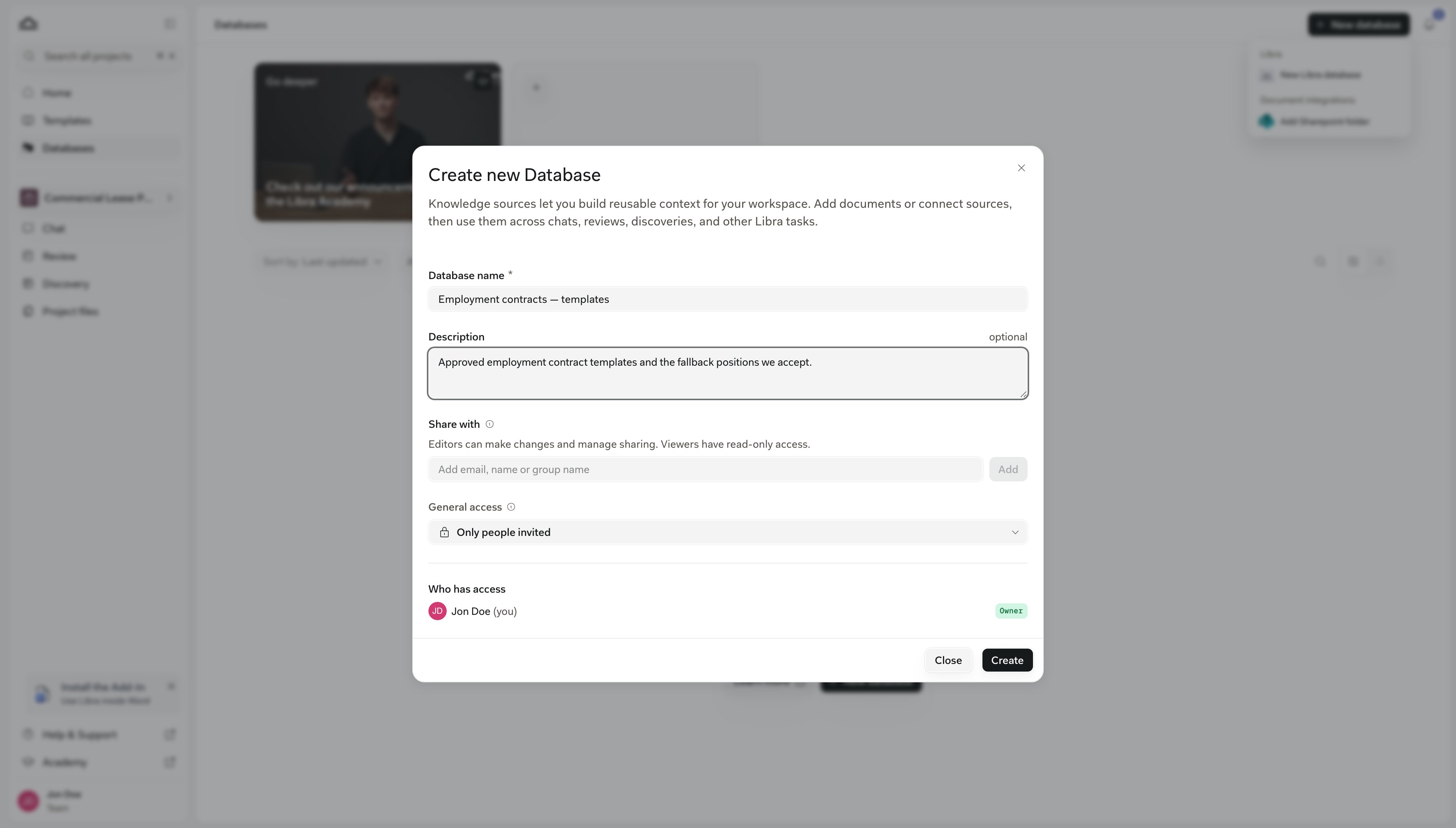
    Enter a **Database name** and a one-line **Description** of what belongs inside.
  </Step>

  <Step title="Decide who in the team may use it">
    The sharing block in the same dialog offers **Everyone in the team** or **Only people invited**, plus named people or groups, each with a role. Skip it if you're unsure: the database stays private to you until you share it (the team's Owner and Admins can't see it either), and you can share it later from its **⋯** menu. Roles are explained under [Share a database](/en/features/databases/usage#share-a-database).

    <img src="https://mintcdn.com/libra-4206ec93/uIM4p-wnrkQLmhsv/assets/images/app/databases-create-dialog.png?fit=max&auto=format&n=uIM4p-wnrkQLmhsv&q=85&s=df88a45e9ad66075ff046d7c344516b5" alt="The Create new Database dialog with a name, a description, the Share with field and General access set to Only people invited" width="3800" height="2160" data-path="assets/images/app/databases-create-dialog.png" />
  </Step>

  <Step title="Create, then open it">
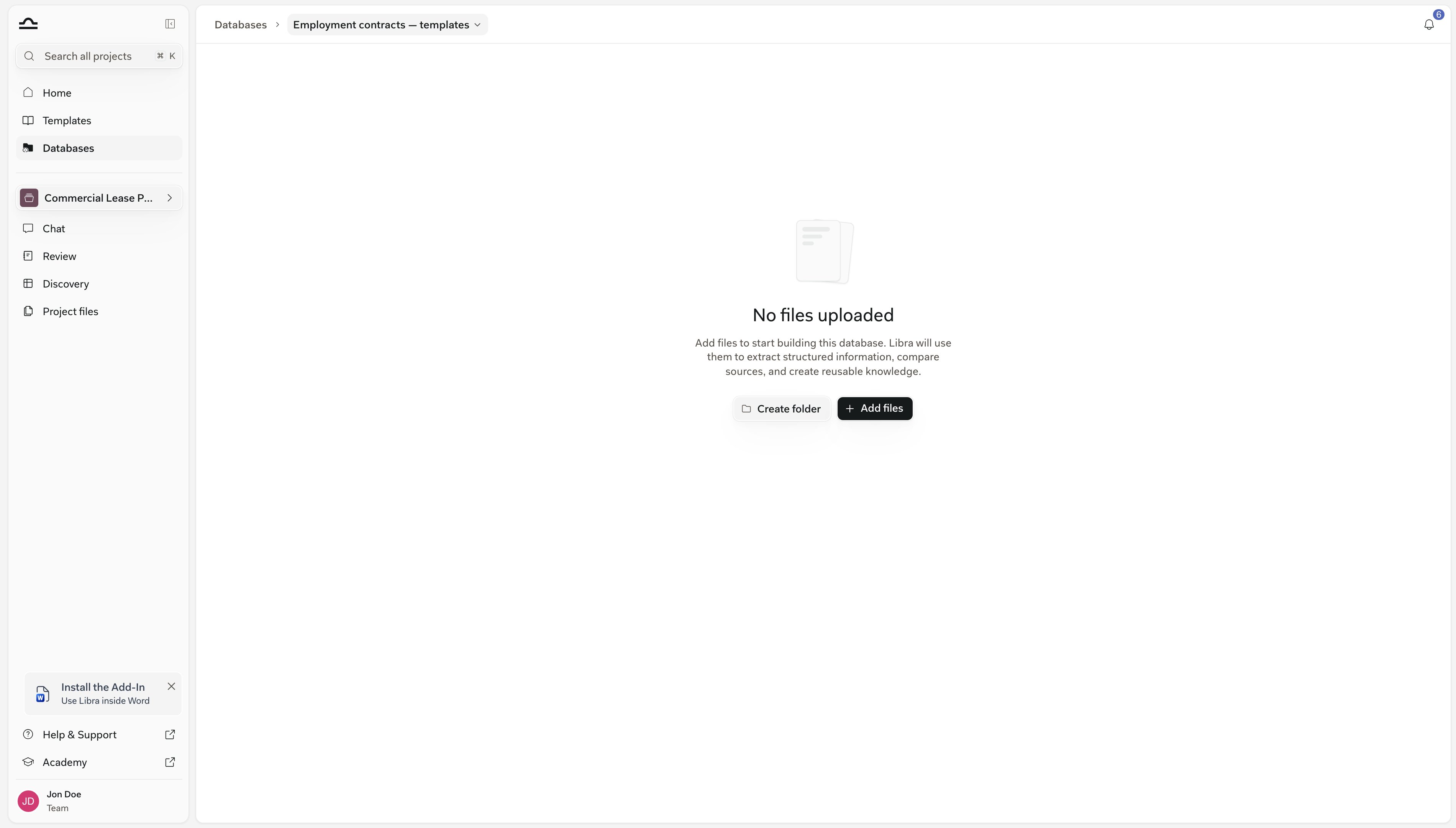
    You land back on the list with the new database near the top, below any favourites. Click it to open the empty browser.

    <img src="https://mintcdn.com/libra-4206ec93/uIM4p-wnrkQLmhsv/assets/images/app/databases-empty-detail.png?fit=max&auto=format&n=uIM4p-wnrkQLmhsv&q=85&s=f09bfc84b0d458cc6193e37072a19252" alt="A newly created database showing the empty state, No files uploaded, with the Create folder and Add files buttons" width="3800" height="2160" data-path="assets/images/app/databases-empty-detail.png" />
  </Step>
</Steps>

<div className="libra-buddy-callout">
  <img src="https://mintcdn.com/libra-4206ec93/wgVZXcGnHS4aJk9T/assets/images/libra-buddy/pointing.png?fit=max&auto=format&n=wgVZXcGnHS4aJk9T&q=85&s=fb9114facd16ecd4bc0c89bfbc7d660b" alt="Libra mascot pointing" width="856" height="585" data-path="assets/images/libra-buddy/pointing.png" />

  <div className="libra-buddy-callout-content">
    Choose a name that tells a colleague what is inside without opening it, for example *Employment contracts – templates*. Keep each database to one subject. A chat can search up to ten databases at once, and smaller, clearly named databases make it easy to pick the right ones for a question.
  </div>
</div>

## Upload from your computer

This is the usual way to fill a new database: point Libra at the files or folders you already keep on disk.
<Steps>
  <Step title="Add → Upload Files or Upload Folders">
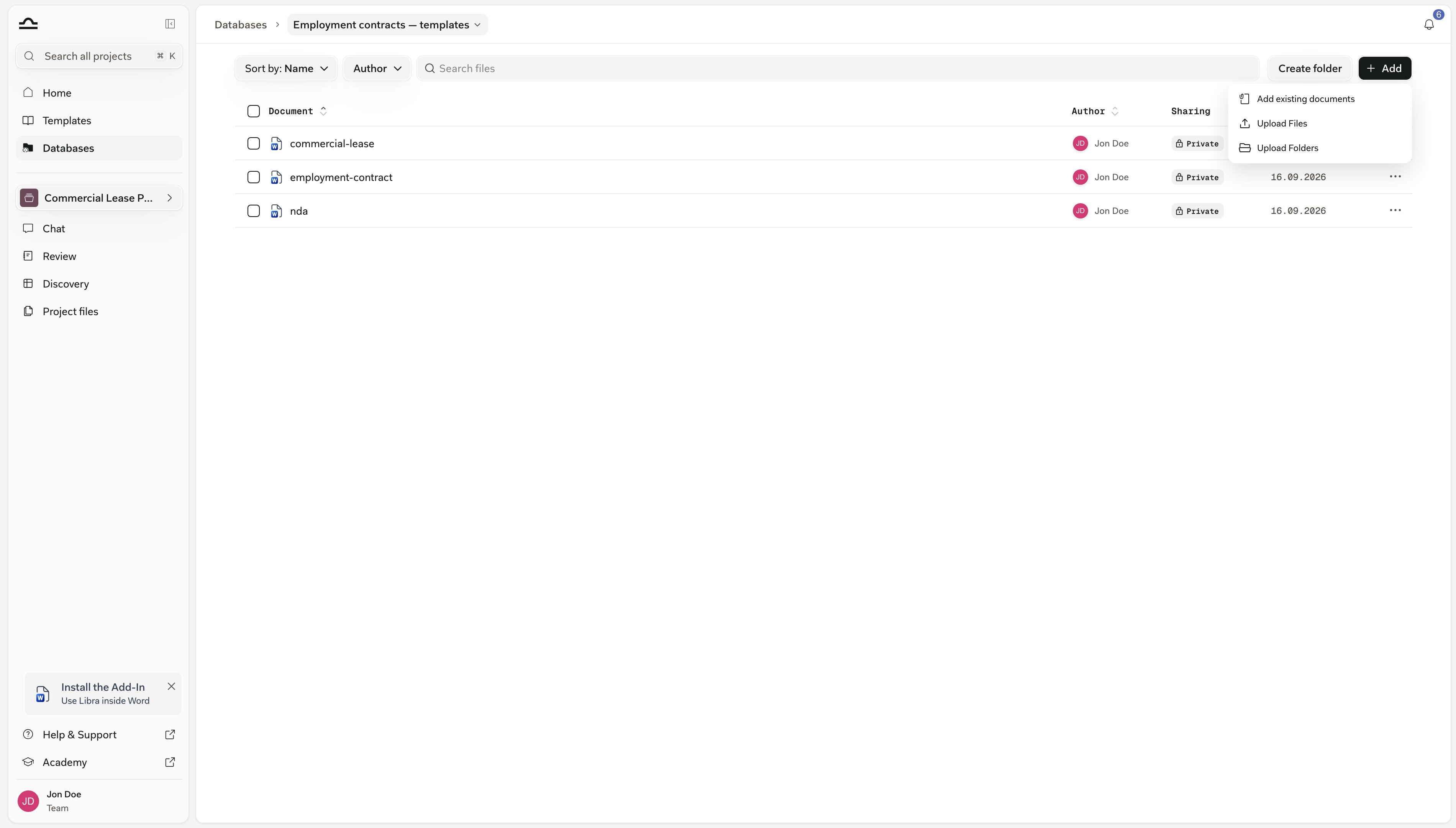
    On an empty database the button is **Add files**; once it has content, **Add** in the toolbar. **Upload Folders** takes a whole folder and recreates its structure, subfolders included. Dragging files or a folder onto the list does the same; drop onto a folder's row to land them inside it.

    <img src="https://mintcdn.com/libra-4206ec93/uIM4p-wnrkQLmhsv/assets/images/app/databases-add-menu.png?fit=max&auto=format&n=uIM4p-wnrkQLmhsv&q=85&s=2c1dbd4cef97cae4dac15b13fc5f4f9a" alt="The Add menu open in a database, listing Add existing documents, Upload Files and Upload Folders" width="3800" height="2160" data-path="assets/images/app/databases-add-menu.png" />
  </Step>

  <Step title="Let them process">
    Each new document shows a spinner while Libra reads it, and a **Processing Documents** panel counts the batch off. You can keep adding meanwhile.

    <img src="https://mintcdn.com/libra-4206ec93/uIM4p-wnrkQLmhsv/assets/images/app/databases-processing.png?fit=max&auto=format&n=uIM4p-wnrkQLmhsv&q=85&s=a04be33dc55a888eb33e8559365eae2c" alt="Two documents uploading into a database, with the Processing Documents panel counting the batch off" width="3800" height="2160" data-path="assets/images/app/databases-processing.png" />
  </Step>

  <Step title="Retry anything that failed">
    A document that failed shows a retry icon in place of its file icon; click it. Files over 500 MB are refused with a message naming them, and files you drag in that Libra can't read are skipped the same way; the accepted formats are in [File types & previews](/en/features/documents/file-types).
  </Step>
</Steps>

<Note>
  Folders are for people browsing; chat search, **Ask Libra** and content search always look across the whole database. **Create folder** in the toolbar adds one, and dropping files onto a folder's row uploads straight into it. To add folders or move documents later, see [Organise the documents](/en/features/databases/usage#organise-the-documents).
</Note>

## Reuse documents already in Libra

A document that is already in a project doesn't need uploading again. Adding it to a database reuses the stored file, and the project's own entry stays where it is.

<Steps>
  <Step title="Add → Add existing documents">
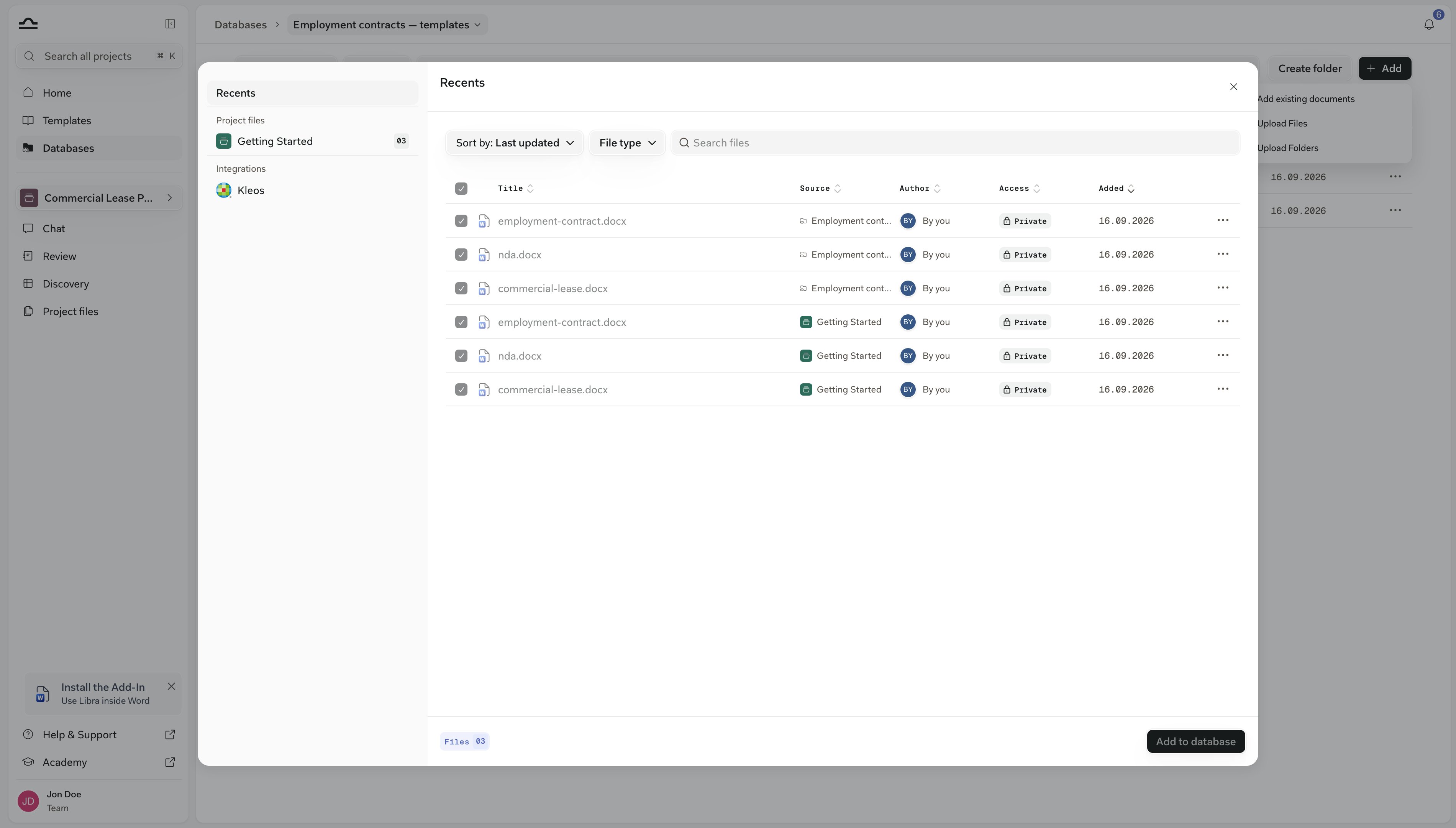
    The file picker opens with your sources down the left: **Recents**, **Project files** (every project you can open that has documents), **Databases** (your other databases) and **Integrations**.

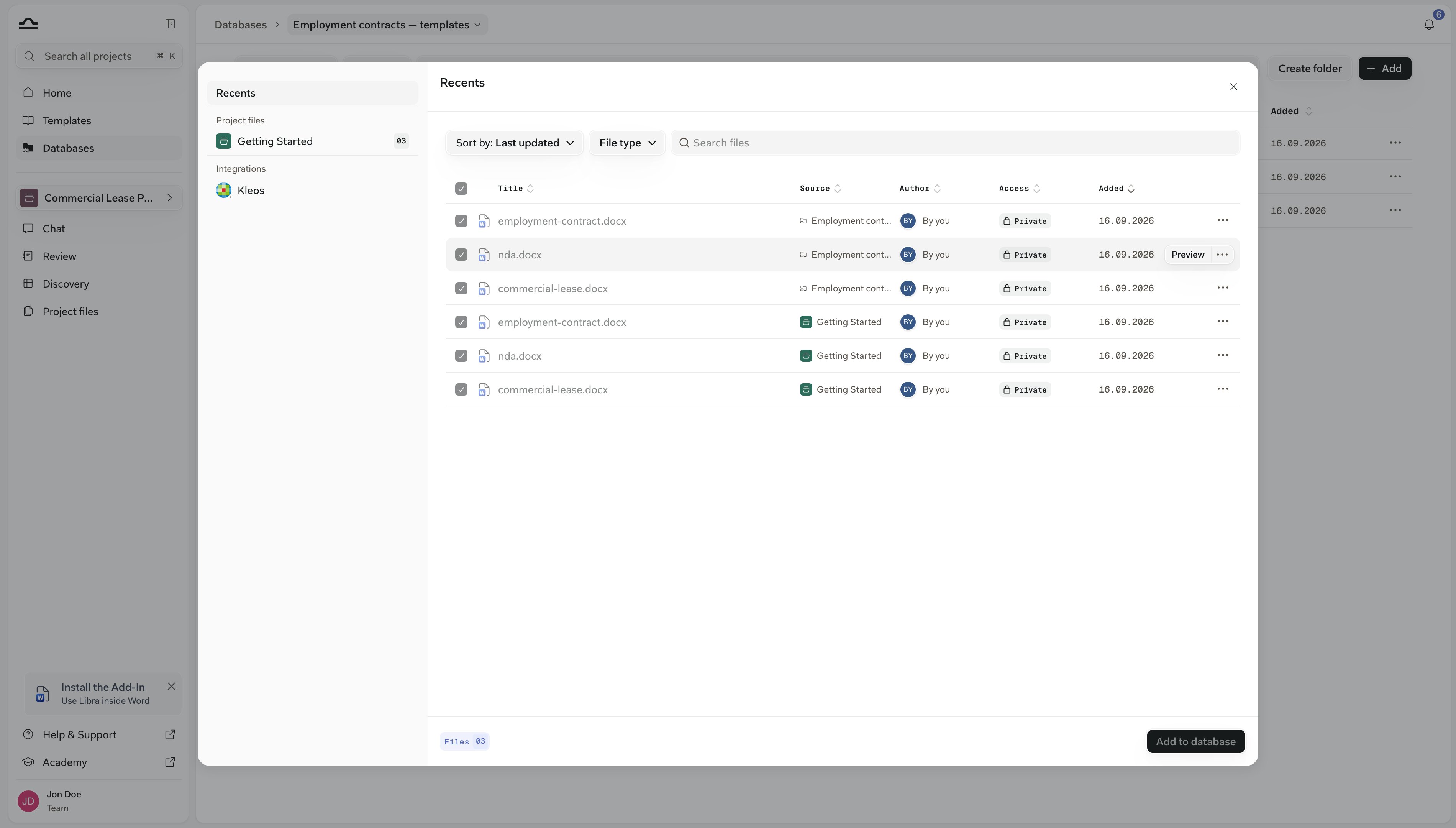
    <img src="https://mintcdn.com/libra-4206ec93/uIM4p-wnrkQLmhsv/assets/images/app/databases-add-existing-open.png?fit=max&auto=format&n=uIM4p-wnrkQLmhsv&q=85&s=1d2ccadcd0316c1584d3e4d74119835f" alt="The file picker open on a database, with Project files, Databases and Integrations in the left rail, two documents ticked and others greyed out because they are already in the database" width="3800" height="2160" data-path="assets/images/app/databases-add-existing-open.png" />
  </Step>

  <Step title="Tick the documents">
    Open a project or database and tick what you want. Rows already in this database show greyed and ticked, so nothing gets added twice.
  </Step>

  <Step title="Add to database">
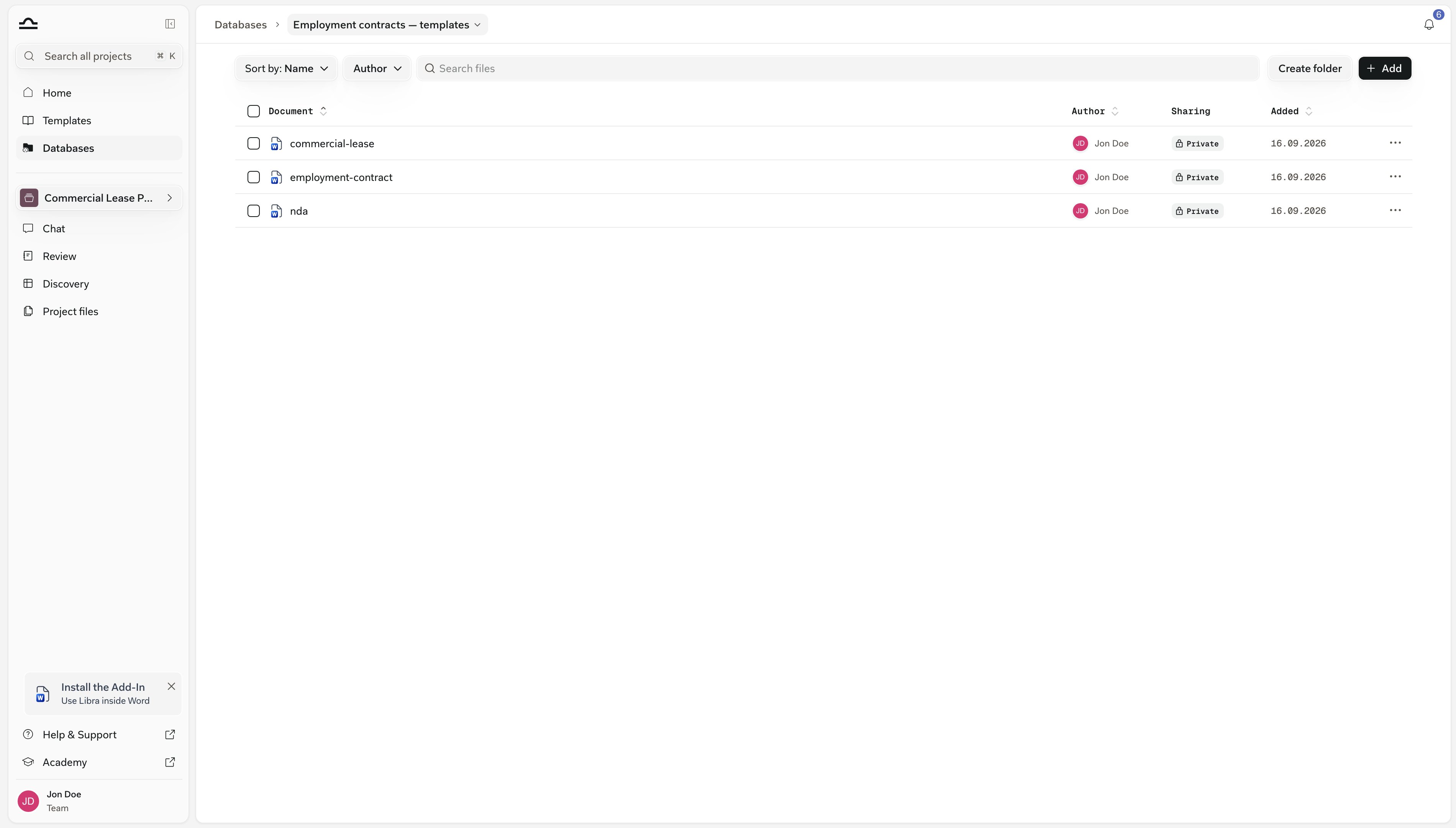
    Nothing is uploaded or processed again: Libra places the stored document in the database, and it stays in its project as well. This is the route for a contract that was uploaded into a matter and turns out to be a keeper.

    <img src="https://mintcdn.com/libra-4206ec93/uIM4p-wnrkQLmhsv/assets/images/app/databases-add-existing-done.png?fit=max&auto=format&n=uIM4p-wnrkQLmhsv&q=85&s=073fcfb12f527a33c7f25e259626553c" alt="A database showing the documents that were just added, each with its author and the date added" width="3800" height="2160" data-path="assets/images/app/databases-add-existing-done.png" />
  </Step>

  <Step title="Or pick from a connected app">
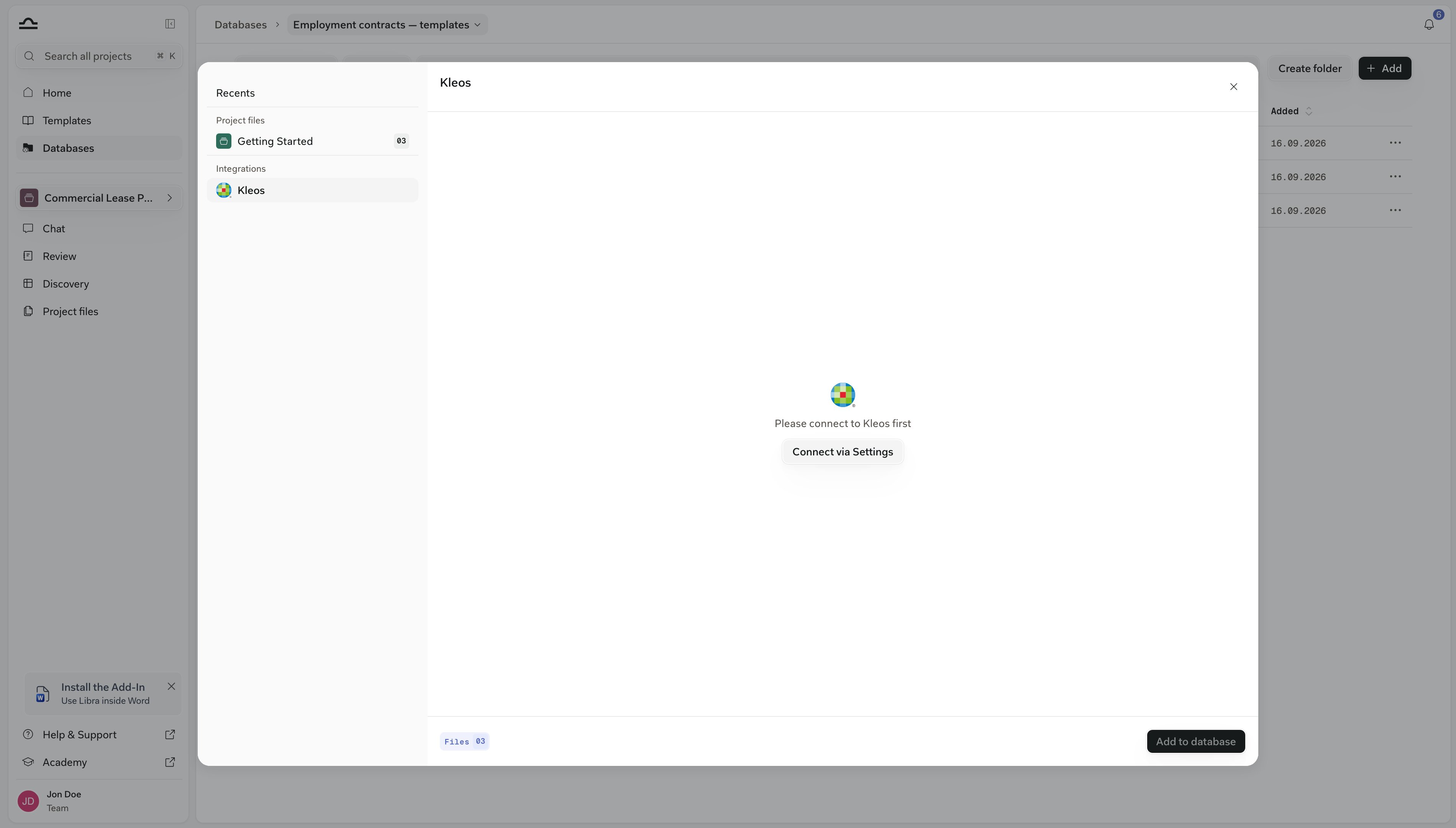
    SharePoint, Kleos and other connected sources sit under **Integrations** in the same picker. Pick the files and **Add to database**. SharePoint files are downloaded and stored in Libra as ordinary documents.

    [Kleos](/en/integrations/kleos) documents are linked instead, so they stay in Kleos and always show their current version.

    A source you haven't connected yet shows a **Connect via Settings** prompt instead.

    <img src="https://mintcdn.com/libra-4206ec93/uIM4p-wnrkQLmhsv/assets/images/app/databases-integration-connect.png?fit=max&auto=format&n=uIM4p-wnrkQLmhsv&q=85&s=660104a20f845aa6d23d014e930a7fca" alt="The Integrations section of the file picker with a source you haven't connected yet selected, showing the Connect via Settings prompt" width="3800" height="2160" data-path="assets/images/app/databases-integration-connect.png" />
  </Step>
</Steps>

<Note>
  SharePoint files added this way are copies: they won't follow later changes in SharePoint, and they count towards the page allowance. Linked Kleos documents don't count, because Libra doesn't store them. To keep a SharePoint folder live and always current, make a [SharePoint database](/en/features/databases/sharepoint) instead.
</Note>

## Limits and small print

<AccordionGroup>
  <Accordion title="The page allowance">
    Uploads into a Libra database, including documents added from a project or a connected app, count against a team-wide allowance of **100,000 page-equivalents per billed licence**; SharePoint databases don't. How it is counted: [Roles and limits](/en/features/databases/usage#roles-and-limits).
  </Accordion>

  <Accordion title="Duplicates">
    A file identical to one already stored for your team is reused rather than processed again, but still appears as a new document. Uploading or adding a document that is already in the database doesn't create a second row: Libra keeps the existing entry, and the picker shows such documents greyed and ticked. Moving a document into a folder that already holds one with the same name is refused with *This file is already in that folder*. The same document can sit in two different folders or two different databases.
  </Accordion>
</AccordionGroup>

## Next steps

<Columns cols={2}>
  <Card title="Usage" icon="message-square" href="/en/features/databases/usage">
    Add it to a chat, read the citations, share it, keep it in order.
  </Card>

  <Card title="SharePoint databases" icon="folder-symlink" href="/en/features/databases/sharepoint">
    Link a folder instead of uploading.
  </Card>
</Columns>


This documentation is built and hosted on [Mintlify](https://mintlify.com), a developer documentation platform.