> ## Documentation Index
> Fetch the complete documentation index at: https://docs.libratech.ai/llms.txt
> Use this file to discover all available pages before exploring further.

# Using a database

> Add a database to a chat and read the answer through its citations; bring its documents into a Review or Discovery; keep it in order, share it, and delete it when it's done.

<video autoPlay muted loop playsInline src="https://mintcdn.com/libra-4206ec93/rWGsqJYdHT3Dqdd0/assets/videos/features/databases-usage.webm?fit=max&auto=format&n=rWGsqJYdHT3Dqdd0&q=85&s=cd2e5647a463154b21a60c8117e09df4" className="rounded-xl border w-full" data-path="assets/videos/features/databases-usage.webm" />

Adding a database to a chat means Libra searches every document in it while answering, the same way it searches a project, only at a much larger scale. You don't attach files; you point Libra at the set and ask.

## Add a database to a chat

Any chat can draw on any database you can see, whichever project you happen to be working in.

<Steps>
  <Step title="Tools → Select files">
    Under the message box, click **Tools**, then **Select files**. The picker opens with **Recents**, **Project files**, **Databases** and **Integrations** down the left. Choose your database under **Databases** (Libra databases only; SharePoint databases are attached with `@` or **Add to chat**).

    <img src="https://mintcdn.com/libra-4206ec93/uIM4p-wnrkQLmhsv/assets/images/app/databases-tools-menu.png?fit=max&auto=format&n=uIM4p-wnrkQLmhsv&q=85&s=ea3c8f7670dcbec76320b81aa0bf8a90" alt="The Tools menu open above the chat input, with Upload files from computer, Select files, Assistants, Workflows, Create playbook, Start analysis and Draft document" width="3800" height="2160" data-path="assets/images/app/databases-tools-menu.png" />
  </Step>

  <Step title="Attach entire database, then Attach">
    **Attach entire database** sits above the document list. Click it, then **Attach**. A chip with the database's name appears in the message box; it stays for the whole conversation, and its × removes it.

    <img src="https://mintcdn.com/libra-4206ec93/uIM4p-wnrkQLmhsv/assets/images/app/databases-select-files.png?fit=max&auto=format&n=uIM4p-wnrkQLmhsv&q=85&s=2cc5438e2c18351d974c4fe80b116f47" alt="The Select files picker with a database open and the Attach entire database button beside its name" width="3800" height="2160" data-path="assets/images/app/databases-select-files.png" />
  </Step>

  <Step title="Ask">
    *Which of our precedent NDAs allow assignment on a change of control, and on what terms?* Libra searches the database for every question you ask from now on.

    <img src="https://mintcdn.com/libra-4206ec93/uIM4p-wnrkQLmhsv/assets/images/app/databases-chat-attached.png?fit=max&auto=format&n=uIM4p-wnrkQLmhsv&q=85&s=25f34abb4116a2de288ee1535de1f31d" alt="The chat composer with a database attached as a chip above the message box and a question typed in" width="3800" height="2160" data-path="assets/images/app/databases-chat-attached.png" />
  </Step>
</Steps>

Quicker doors to the same result:

| From | Do this |
| - | - |
| The message box | Type `@` and pick the database from the **Documents** section. |
| The **Databases** page, or the breadcrumb inside a database | **Add to chat**. It joins the chat you have open, or starts a new one. |
| Inside a database, with a question | Type it into **Search files** and click **Ask Libra**. A new chat opens with the database attached and your question sent. |

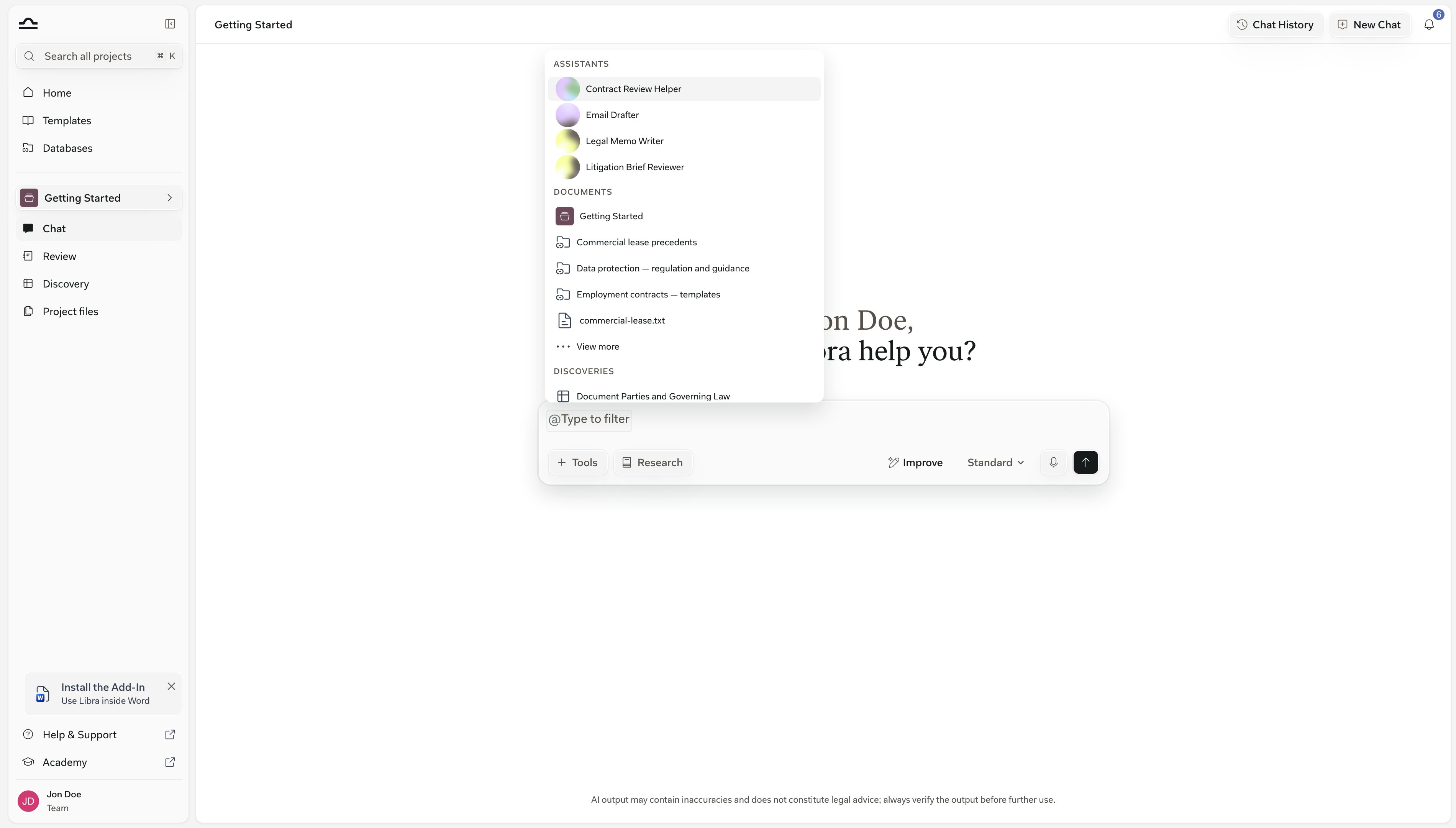
The `@` route is the fastest once you know the database's name — it sits under **Documents**, beside your Assistants and Discoveries.

<img src="https://mintcdn.com/libra-4206ec93/_JcRjdqeywA_CQSI/assets/images/app/databases-mention-picker.png?fit=max&auto=format&n=_JcRjdqeywA_CQSI&q=85&s=b36ae821d31583c35f7ca7d9756edc76" alt="The at-mention picker open in the chat input, listing the databases under Documents alongside Assistants and Discoveries" width="3800" height="2160" data-path="assets/images/app/databases-mention-picker.png" />

**Ask Libra** is the one to reach for when you are already browsing a database and a question occurs to you. It opens a new chat with that database attached and your question already sent.

<img src="https://mintcdn.com/libra-4206ec93/_JcRjdqeywA_CQSI/assets/images/app/databases-ask-libra.png?fit=max&auto=format&n=_JcRjdqeywA_CQSI&q=85&s=c446b5df8331cdadfb7500f9a495fd44" alt="A question typed into the Search files box inside a database, with the Ask Libra button beside it" width="3800" height="2160" data-path="assets/images/app/databases-ask-libra.png" />

<div className="libra-buddy-callout">
  <img src="https://mintcdn.com/libra-4206ec93/wgVZXcGnHS4aJk9T/assets/images/libra-buddy/thinking.png?fit=max&auto=format&n=wgVZXcGnHS4aJk9T&q=85&s=6fe60c07c6a0e65c084ac6880c337f84" alt="Libra mascot thinking" width="872" height="693" data-path="assets/images/libra-buddy/thinking.png" />

  <div className="libra-buddy-callout-content">
    Attach only the databases a question needs. Searching many databases at once returns more near-matches and weaker answers. A chat can search up to ten sources at once, counting the current project and **Attach entire SharePoint** under **Integrations** in the picker.
  </div>
</div>

## Check the answer's sources

An answer drawn from a database is cited like any other. Those citations are how you check it, so it is worth knowing what each one gives you.

<Steps>
  <Step title="Watch the activity list">
    While Libra works, the activity strip above the answer shows **Searching a database**, then **Searched a database**. Open it to see which documents Libra read.

    **Some databases could not be fully searched** means Libra hit a search limit — a time-out, a failed index, or more sources than one search can cover — and skipped part of the scope.

    Treat that answer as possibly incomplete. Narrow the question, or attach fewer sources.

    <img src="https://mintcdn.com/libra-4206ec93/uIM4p-wnrkQLmhsv/assets/images/app/databases-activity.png?fit=max&auto=format&n=uIM4p-wnrkQLmhsv&q=85&s=950a6843ca0551e30fe98aceb4d5905e" alt="The activity strip above an answer, expanded to show Analyzed query and Documents read with the documents Libra opened" width="3800" height="2160" data-path="assets/images/app/databases-activity.png" />
  </Step>

  <Step title="Click a citation">
    Each citation shows the passage Libra found. Click it and the document opens in the side panel with that passage highlighted.

    <img src="https://mintcdn.com/libra-4206ec93/uIM4p-wnrkQLmhsv/assets/images/app/databases-citation-open.png?fit=max&auto=format&n=uIM4p-wnrkQLmhsv&q=85&s=995f51535e04f87b56b407c91df8e08c" alt="A citation clicked open, with the document in the side panel and the cited passage highlighted" width="3800" height="2160" data-path="assets/images/app/databases-citation-open.png" />
  </Step>

  <Step title="Open Cited Sources">
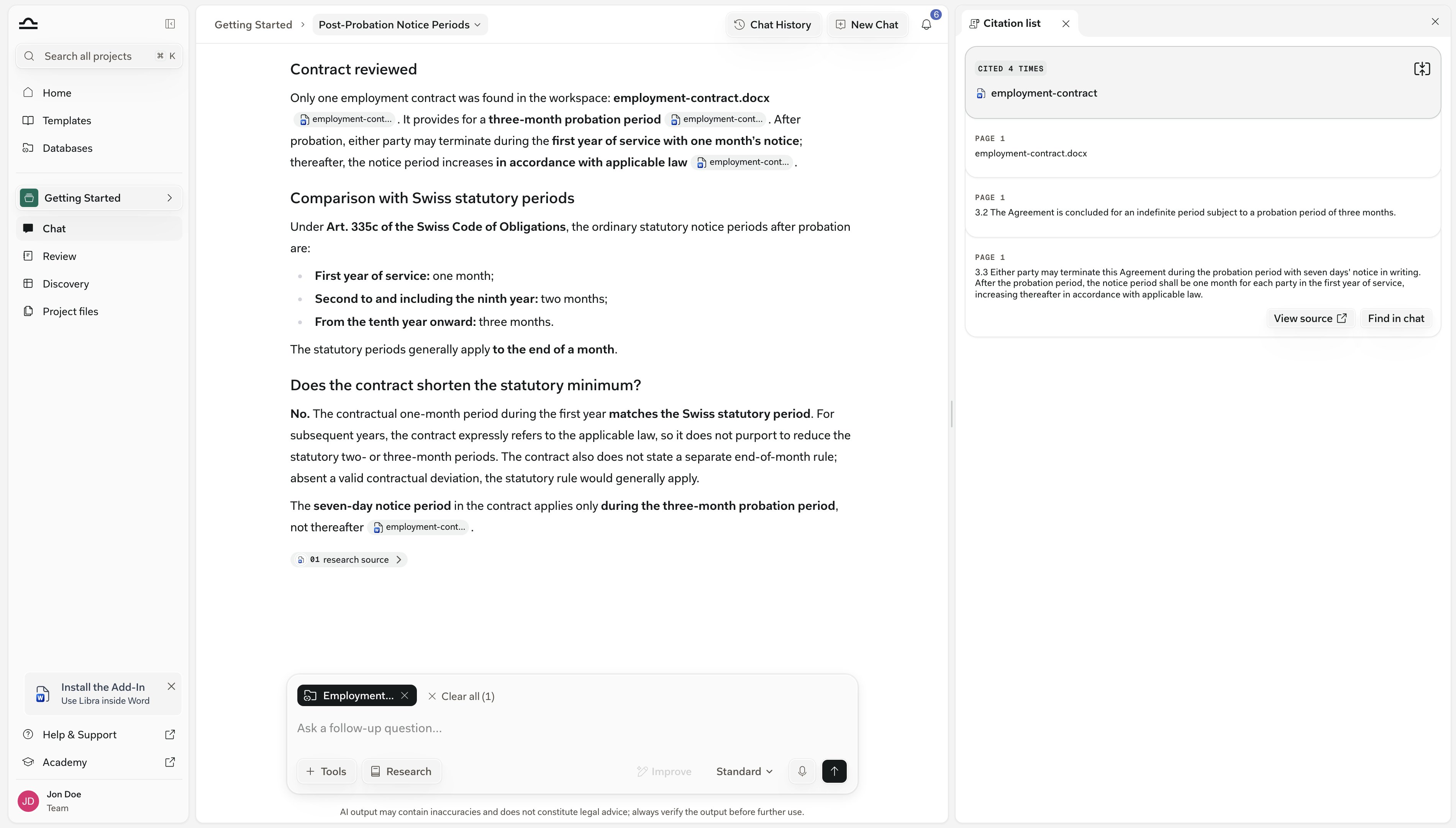
    The **Cited Sources** pill under the answer opens the **Citation list** panel: one card per document, so you see which documents carried the answer and how often each was cited. See [Citations & sources](/en/features/chat/citations).

    <img src="https://mintcdn.com/libra-4206ec93/uIM4p-wnrkQLmhsv/assets/images/app/databases-citation-list.png?fit=max&auto=format&n=uIM4p-wnrkQLmhsv&q=85&s=5d514423a3cb39c3fb96a8f05e471020" alt="An answer drawn from a database with the Citation list panel open on the right, showing one card per cited document and how many times each was cited" width="3800" height="2160" data-path="assets/images/app/databases-citation-list.png" />
  </Step>
</Steps>

## Attach individual documents

When you already know which documents matter, put them in front of Libra in full rather than having it search the whole set.

<Steps>
  <Step title="Tick documents in the picker">
    In **Tools → Select files**, open the database and tick the documents instead of clicking **Attach entire database**. Or, inside the database, use a row's **⋯ → Add to chat**, or tick several rows and use **Add to chat** in the bar that appears.

    <img src="https://mintcdn.com/libra-4206ec93/uIM4p-wnrkQLmhsv/assets/images/app/databases-select-docs.png?fit=max&auto=format&n=uIM4p-wnrkQLmhsv&q=85&s=d5145c1286c269ce18e383d0815b7ed7" alt="The Select files picker with two individual documents ticked inside a database" width="3800" height="2160" data-path="assets/images/app/databases-select-docs.png" />
  </Step>

  <Step title="Ask">
    Each document is its own chip and Libra reads it whole. *Compare the non-compete in these two agreements clause by clause.*

    <img src="https://mintcdn.com/libra-4206ec93/_JcRjdqeywA_CQSI/assets/images/app/databases-chat-docs-attached.png?fit=max&auto=format&n=_JcRjdqeywA_CQSI&q=85&s=71bb3d7830322dd88d08222abd42ff85" alt="The chat composer with two document chips attached and a comparison question typed in" width="3800" height="2160" data-path="assets/images/app/databases-chat-docs-attached.png" />
  </Step>
</Steps>

## Run a Review or Discovery

A Review and a Discovery both run on a defined set of documents, and both take them from a database through the same picker.

<Steps>
  <Step title="Open the document picker">
    Run a Playbook and **Select Documents to review** opens; in a Discovery, click **Add Documents**.

    <img src="https://mintcdn.com/libra-4206ec93/_JcRjdqeywA_CQSI/assets/images/app/databases-review-picker.png?fit=max&auto=format&n=_JcRjdqeywA_CQSI&q=85&s=516864352b118ea88f8cb87b6dba10a2" alt="The document picker opened from a Playbook, with Project files and Databases in the left rail" width="3800" height="2160" data-path="assets/images/app/databases-review-picker.png" />
  </Step>

  <Step title="Pick documents under Databases">
    Choose the database in the left rail and tick the documents. A Review takes up to ten — the footer counts them. A whole database can't be reviewed or extracted in one go.

    <img src="https://mintcdn.com/libra-4206ec93/_JcRjdqeywA_CQSI/assets/images/app/databases-review-picker-db.png?fit=max&auto=format&n=_JcRjdqeywA_CQSI&q=85&s=cd72d7f4bbaec80505b57d0d3796e4bf" alt="A database open in the Review document picker with two documents ticked and the footer showing Files 2 of 10" width="3800" height="2160" data-path="assets/images/app/databases-review-picker-db.png" />
  </Step>

  <Step title="Confirm the copy into the project">
    Confirm the **Copying & attaching N documents to “project”** dialog.

    <img src="https://mintcdn.com/libra-4206ec93/_JcRjdqeywA_CQSI/assets/images/app/databases-review-copy-dialog.png?fit=max&auto=format&n=_JcRjdqeywA_CQSI&q=85&s=b6ca398efd072575ae23f4dcfcf1eebf" alt="The Copying and attaching dialog explaining that copies are added to the project and the originals stay in the database" width="3800" height="2160" data-path="assets/images/app/databases-review-copy-dialog.png" />
  </Step>

  <Step title="Start Review, or add the documents">
    From here it is the normal flow. See [Reviews](/en/features/review/basics) and [Create a Discovery](/en/features/discovery/create-discovery).
  </Step>
</Steps>

<Note>
  A Review or Discovery belongs to a project, so Libra adds the chosen documents to that project's files first. The copies take the project's permissions; the originals stay in the database and nothing is uploaded again.
</Note>

## Organise the documents

Inside, a database behaves like a project's file panel: sort or search to find a document, then use its **⋯** menu to move, rename or remove it.

<img src="https://mintcdn.com/libra-4206ec93/uIM4p-wnrkQLmhsv/assets/images/app/databases-detail.png?fit=max&auto=format&n=uIM4p-wnrkQLmhsv&q=85&s=398c2d938e2d516b57ef8540bfbf3864" alt="Inside a database: a folder and several documents listed with their author, sharing status and the date they were added" width="3800" height="2160" data-path="assets/images/app/databases-detail.png" />

<Steps>
  <Step title="Find the document">
    **Sort by** switches between **Name**, **Author** and **Date added**; **Search files** filters by name. After three characters, **Search document content** searches the text inside the documents instead and opens the match at its page.

    <img src="https://mintcdn.com/libra-4206ec93/_JcRjdqeywA_CQSI/assets/images/app/databases-content-search.png?fit=max&auto=format&n=_JcRjdqeywA_CQSI&q=85&s=218512693fd6f273738a655bde103797" alt="Content matches inside a database for a search phrase, each with its page number and a highlighted extract" width="3800" height="2160" data-path="assets/images/app/databases-content-search.png" />
  </Step>

  <Step title="Move it">
    **⋯ → Move to folder**, or drag the row onto a folder. Drag onto empty space to return it to the top level. **Create folder** and **⋯ → New Subfolder** add structure; **Delete Folder** removes a folder *and everything in it*.

    <img src="https://mintcdn.com/libra-4206ec93/_JcRjdqeywA_CQSI/assets/images/app/databases-move-to-folder.png?fit=max&auto=format&n=_JcRjdqeywA_CQSI&q=85&s=50eff83926ad4ee760cc1c16b009b1c7" alt="The Move document to dialog listing Top level and the database folders" width="3800" height="2160" data-path="assets/images/app/databases-move-to-folder.png" />
  </Step>

  <Step title="Rename it">
    **⋯ → Rename** opens **Edit Document** with two fields. **Name Tag** is the short label Libra uses when it cites the document, so keep it recognisable: *Master NDA 2024* rather than *final\_v3\_clean*. **Title** is the full name shown in the list.

    <img src="https://mintcdn.com/libra-4206ec93/_JcRjdqeywA_CQSI/assets/images/app/databases-edit-document.png?fit=max&auto=format&n=_JcRjdqeywA_CQSI&q=85&s=b1bfe734f74d1b0e823d4b615cdaec92" alt="The Edit Document dialog with the Name Tag and Title fields" width="3800" height="2160" data-path="assets/images/app/databases-edit-document.png" />
  </Step>

  <Step title="Remove it">
    **⋯ → Delete**, or tick several rows and **More → Delete selected**. *Remove “name” from this database?* means exactly that: a document that also lives in a project or another database stays there untouched.

    <img src="https://mintcdn.com/libra-4206ec93/_JcRjdqeywA_CQSI/assets/images/app/databases-delete-document.png?fit=max&auto=format&n=_JcRjdqeywA_CQSI&q=85&s=f91c5c99e08740de3b7a40d0bff9085b" alt="The confirmation asking whether to remove a document from this database" width="3800" height="2160" data-path="assets/images/app/databases-delete-document.png" />
  </Step>
</Steps>

Hover a row and click **Preview** to open it. The **⋯** menu also offers **Download** and, for editors on teams with anonymisation enabled, **Anonymize**, which opens a redacted copy titled *name (anonymized)* as a second tab in the document viewer and leaves the original untouched.

## Rename or favourite a database

Both actions live in the database's own **⋯** menu, on the **Databases** page or in the breadcrumb inside it.

<Steps>
  <Step title="⋯ → Edit Details">
    On the **Databases** page, or in the breadcrumb menu inside the database. Editors and owners only. Change the **Name** or **Description**, then **Save**.

    <img src="https://mintcdn.com/libra-4206ec93/_JcRjdqeywA_CQSI/assets/images/app/databases-edit-details.png?fit=max&auto=format&n=_JcRjdqeywA_CQSI&q=85&s=628ecf9d45e014fc8a9286c3d7475306" alt="The Edit Details dialog for a database, with its Name and Description fields" width="3800" height="2160" data-path="assets/images/app/databases-edit-details.png" />
  </Step>

  <Step title="⋯ → Favorite">
    Keeps the database at the top of the **Databases** page whatever the sort. In list view, click the star on the row instead. **Unfavorite**, or the star again, removes it.

    <img src="https://mintcdn.com/libra-4206ec93/_JcRjdqeywA_CQSI/assets/images/app/databases-card-menu.png?fit=max&auto=format&n=_JcRjdqeywA_CQSI&q=85&s=9eb5f3385d95b08c1fbac1a389fb4c1b" alt="A database card's menu open on the Databases page, showing Edit Details, Add to chat, Share, Favorite and Delete" width="3800" height="2160" data-path="assets/images/app/databases-card-menu.png" />
  </Step>
</Steps>

## Share a database

A database starts private to you. Sharing is what turns it into something the team can use, and each person's role decides what they may change.

<Steps>
  <Step title="Open Share">
    From the database's **⋯** menu on the **Databases** page, from the breadcrumb menu inside it, or in the sharing block while creating it.
  </Step>

  <Step title="Set General access">
    **Only people invited** or **Everyone in the team**. A team-wide share starts everyone at **Can view & chat**; raise it with the dropdown beside it.

    <img src="https://mintcdn.com/libra-4206ec93/_JcRjdqeywA_CQSI/assets/images/app/databases-general-access.png?fit=max&auto=format&n=_JcRjdqeywA_CQSI&q=85&s=b921ebf93fe6df53fadb5257c61b3bac" alt="The General access dropdown open on a database, offering Only people invited and Everyone in the team" width="3800" height="2160" data-path="assets/images/app/databases-general-access.png" />
  </Step>

  <Step title="Add people or groups with a role">
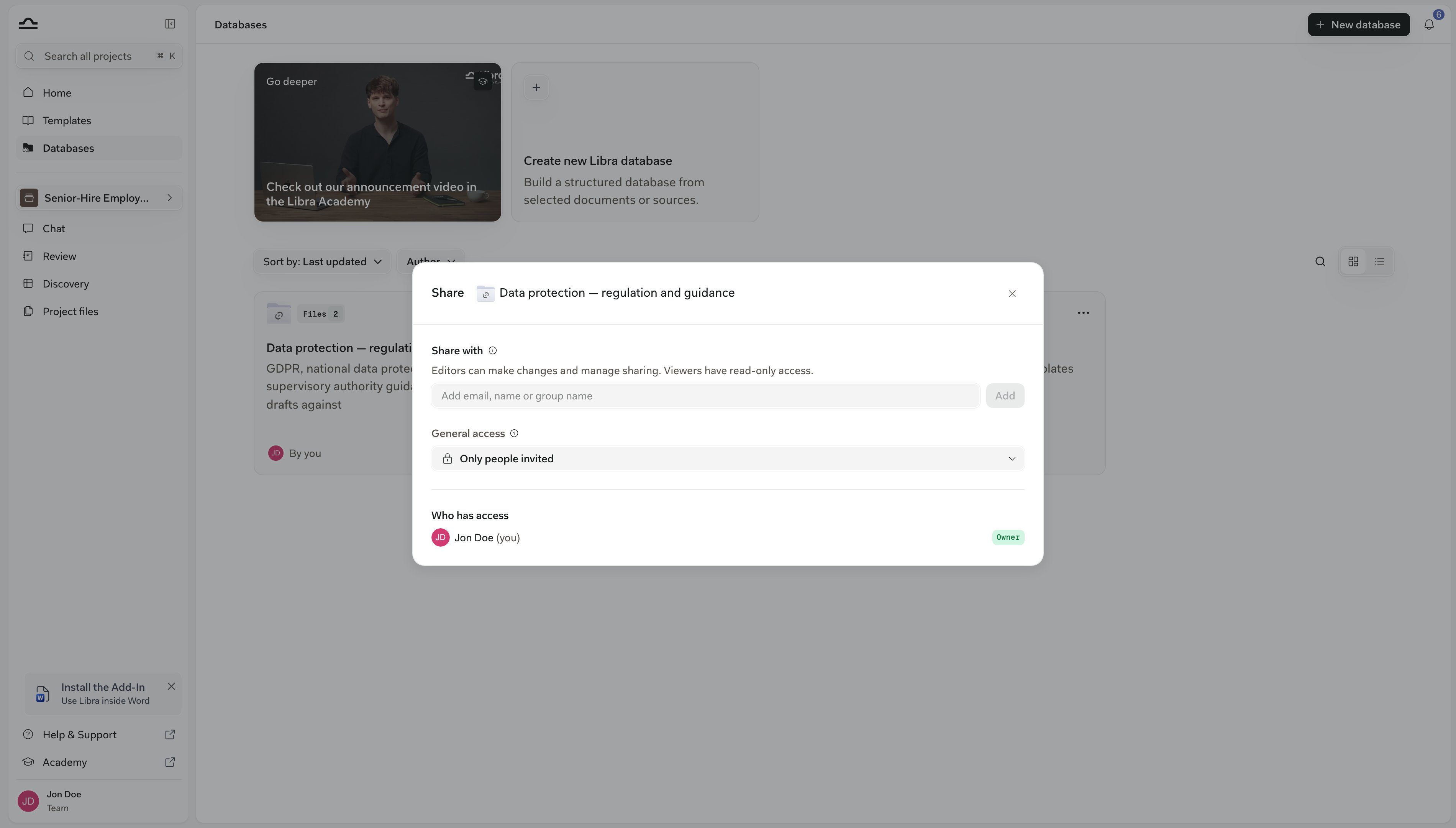
    Under **Share with**, type a name or group, pick **Can view & chat**, **Can edit** or **Full access**, click **Add**. **Who has access** lists everyone with their level and is where you change or remove a share.

    <img src="https://mintcdn.com/libra-4206ec93/_JcRjdqeywA_CQSI/assets/images/app/databases-share-dialog.png?fit=max&auto=format&n=_JcRjdqeywA_CQSI&q=85&s=16625d0f9d08adc0b922238706447970" alt="The Share dialog for a database, with the Share with field, General access set to Only people invited, and the owner listed under Who has access" width="3800" height="2160" data-path="assets/images/app/databases-share-dialog.png" />
  </Step>
</Steps>

<AccordionGroup>
  <Accordion title="What each role can do">
    | Role | Can |
    | - | - |
    | **Viewer** (*Can view & chat*) | Browse, search, preview and download; add the database or its documents to a chat; mark it as a favourite. |
    | **Editor** (*Can edit*) | All of that, plus add and remove documents, manage folders, rename documents, edit the name and description, and share it as Viewer or Editor. |
    | **Admin** (*Full access*) and the **Owner** | Everything, including granting Full access and deleting the database. |

    Your role shows as a badge on every row inside the database; the owner sees a **Sharing** badge (**Private** or **Shared**) instead. The model is the same as for projects and templates, see [Sharing & access](/en/features/sharing-and-access).
  </Accordion>
</AccordionGroup>

<div className="libra-buddy-callout">
  <img src="https://mintcdn.com/libra-4206ec93/wgVZXcGnHS4aJk9T/assets/images/libra-buddy/clipboard.png?fit=max&auto=format&n=wgVZXcGnHS4aJk9T&q=85&s=cde036cf23ea2d67cd50f1c295db549a" alt="Libra mascot with clipboard" width="725" height="605" data-path="assets/images/libra-buddy/clipboard.png" />

  <div className="libra-buddy-callout-content">
    Access to a database is separate from access to any project. An unshared database is visible only to its owner — the team's Owner and Admins cannot see it either.

    So before a colleague leaves the firm, check that their databases have been shared.
  </div>
</div>

## Delete a database

Deleting a database removes it for everyone it was shared with. What happens to the documents depends on where else they live.

<Steps>
  <Step title="⋯ → Delete">
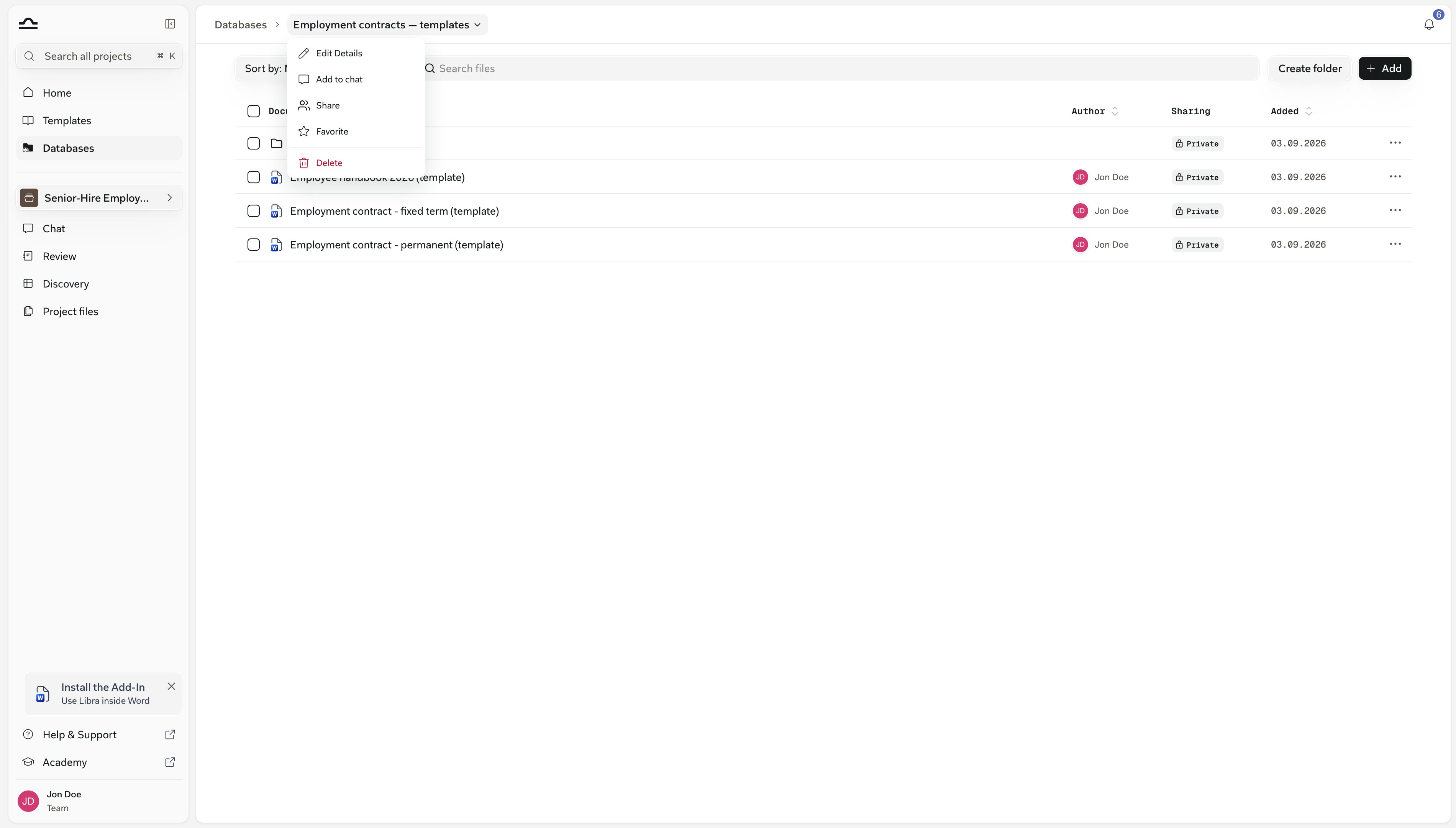
    Only the owner or someone with **Full access** sees it, on the **Databases** page or in the breadcrumb menu.

    <img src="https://mintcdn.com/libra-4206ec93/_JcRjdqeywA_CQSI/assets/images/app/databases-breadcrumb-menu.png?fit=max&auto=format&n=_JcRjdqeywA_CQSI&q=85&s=cda00db677c3666c55db639fdfd13fa6" alt="The breadcrumb menu inside a database, with Delete at the bottom" width="3800" height="2160" data-path="assets/images/app/databases-breadcrumb-menu.png" />
  </Step>

  <Step title="Confirm">
    The **Delete global database** dialog says the database will be permanently deleted and cannot be undone; from the **Databases** page it adds that a shared database is deleted for everyone it was shared with. Every share on it goes with it.

    <img src="https://mintcdn.com/libra-4206ec93/_JcRjdqeywA_CQSI/assets/images/app/databases-delete-database.png?fit=max&auto=format&n=_JcRjdqeywA_CQSI&q=85&s=4cee1fb6d90693521250b99e8068804a" alt="The Delete global database confirmation, warning that the deletion is permanent" width="3800" height="2160" data-path="assets/images/app/databases-delete-database.png" />
  </Step>
</Steps>

<Warning>
  Documents that also live in a project or another database survive there. Documents whose only home was this database are deleted for good, and the pages they consumed are not returned.

  Libra shows no indicator of where else a document lives. Check whether the ones you still need sit in a project or another database, and download anything you are unsure about.
</Warning>

## Roles and limits

What you can do in a database depends on the access you were given, and how much you can put in it depends on your plan.

<AccordionGroup>
  <Accordion title="The page allowance">
    Uploads into a **Libra database** count in pages against a team-wide allowance: **100,000 page-equivalents per billed licence**, pooled across the team.

    * It counts what your databases hold right now, not a monthly total, so removing a document gives its pages back.
    * Documents added from a project or a connected app count as well. SharePoint databases don't, and nor do Kleos documents you link.
    * When an upload would exceed the allowance, Libra refuses it and says how many pages remain. There is no usage meter elsewhere in the app.
  </Accordion>

  <Accordion title="In an Assistant">
    A custom Assistant's **Knowledge** tab can hold an entire database or project instead of individual files, up to ten per Assistant. The Assistant then searches everything in it, including documents added later. See [Custom Assistants](/en/features/assistants/custom).
  </Accordion>

  <Accordion title="In global search">
    With Databases switched on, the <kbd>Cmd</kbd>+<kbd>K</kbd> panel's **Location** filter lists projects and databases, and **Search document content** covers Libra databases. See [Search](/en/features/search).
  </Accordion>

  <Accordion title="A database is missing from the picker">
    It hasn't been shared with you — ask the owner. Empty databases are left out of the `@` picker entirely.

    SharePoint databases never appear under **Databases** in the **Select files** picker. Attach one with `@`, or with **Add to chat** from the **Databases** page or the breadcrumb menu inside it.

    On the **Databases** page a SharePoint database stays dimmed, showing **Connect your SharePoint account**, until you connect.
  </Accordion>

  <Accordion title="Dialogs say “global database”">
    *Global database created*, *Delete global database*: some confirmations still use the older name. It is the same thing.
  </Accordion>
</AccordionGroup>

## Next steps

<Columns cols={3}>
  <Card title="Chat basics" icon="message-square" href="/en/features/chat/basics">
    The composer, Tools menu and @-mentions.
  </Card>

  <Card title="Citations & sources" icon="quote" href="/en/features/chat/citations">
    Reading and verifying what Libra cites.
  </Card>

  <Card title="SharePoint databases" icon="folder-symlink" href="/en/features/databases/sharepoint">
    How a linked folder behaves in chat.
  </Card>
</Columns>


This documentation is built and hosted on [Mintlify](https://mintlify.com), a developer documentation platform.