> ## Documentation Index
> Fetch the complete documentation index at: https://docs.libratech.ai/llms.txt
> Use this file to discover all available pages before exploring further.

# Project files

> The project's file panel: every uploaded document, the Reviews, Discoveries and Chat uploads system folders, and the search, filter and bulk-download tools that keep it manageable.

<video autoPlay muted loop playsInline src="https://mintcdn.com/libra-4206ec93/azhR9hqtFjs66ITC/assets/videos/features/documents-library.webm?fit=max&auto=format&n=azhR9hqtFjs66ITC&q=85&s=0d78d9d0e9bacba76b19a66b9ad5d7a7" className="rounded-xl border w-full" data-path="assets/videos/features/documents-library.webm" />

**Project files** is the project's file system. Every document you upload, every file you attach to a chat, every Review you run and every Discovery you finish shows up here, in a folder tree you can organise the way you'd organise files on disk. Open it from **Project files** in the project section of the sidebar.

<div className="libra-buddy-callout">
  <img src="https://mintcdn.com/libra-4206ec93/wgVZXcGnHS4aJk9T/assets/images/libra-buddy/cheering.png?fit=max&auto=format&n=wgVZXcGnHS4aJk9T&q=85&s=49205b8407cd8d7b1326a1fb1db7c518" alt="Libra mascot cheering" width="1952" height="2176" data-path="assets/images/libra-buddy/cheering.png" />

  <div className="libra-buddy-callout-content">
    A file you dropped into a conversation last week is already in the project — chat attachments are filed in **Chat uploads** automatically. You never have to upload the same document twice.
  </div>
</div>

## What's in Project files

| Item type        | What it is                                                                                                                                       |
| ---------------- | ------------------------------------------------------------------------------------------------------------------------------------------------ |
| **Documents**    | Every file you've uploaded: PDFs, Word, Excel, PowerPoint, text, images, emails. See [File types & previews](/en/features/documents/file-types). |
| **Reviews**      | Every Review you run is filed in the project's **Reviews** folder.                                                                               |
| **Discoveries**  | Every Discovery you create is filed in the project's **Discoveries** folder.                                                                     |
| **Chat uploads** | Files you attach to a chat are filed in the project's **Chat uploads** folder.                                                                   |
| **Folders**      | Containers you create to group anything in the panel. Subfolders supported.                                                                      |

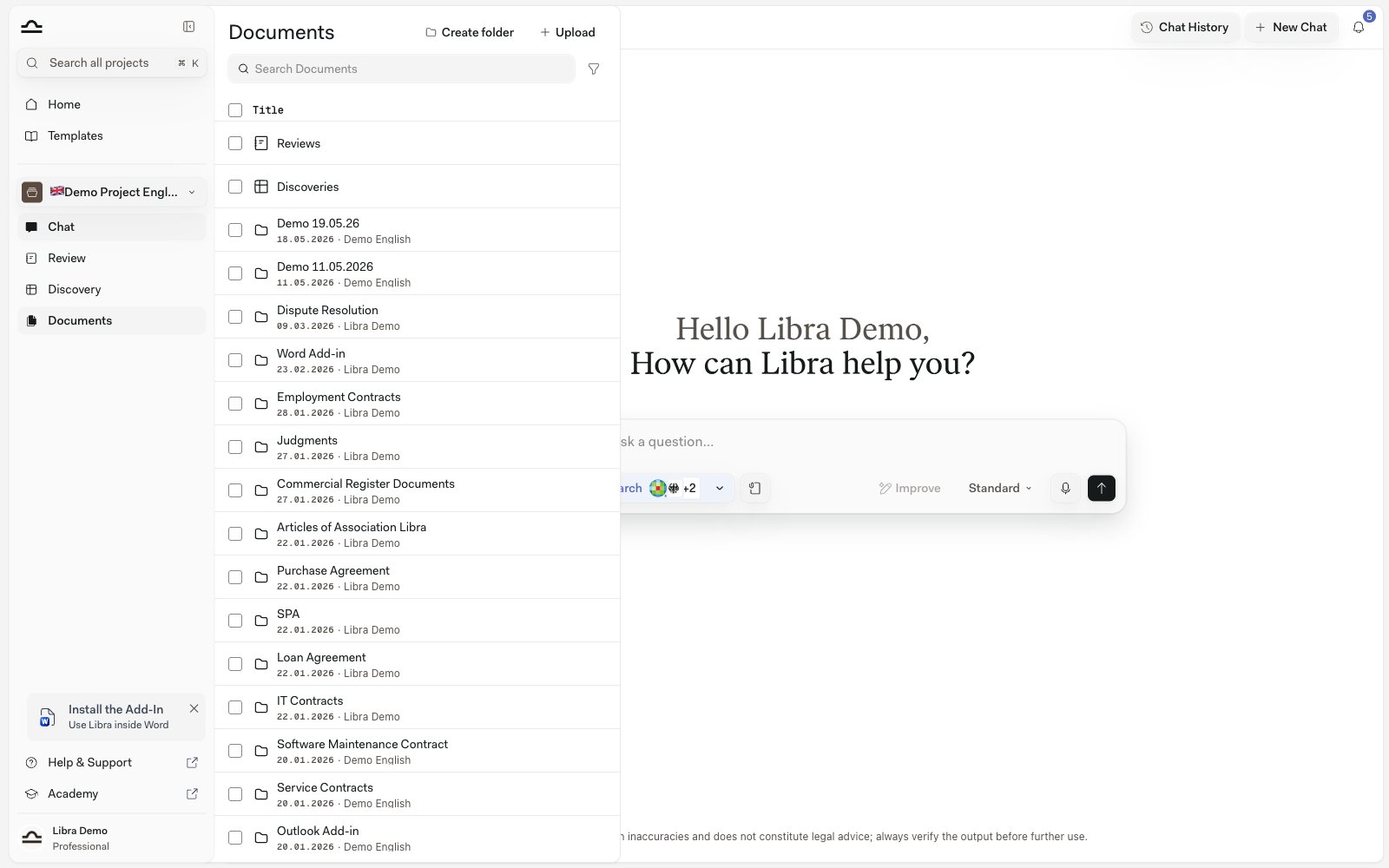
**Reviews**, **Discoveries** and **Chat uploads** are system folders. Libra creates them for you and keeps them pinned above your own folders, in that order, whichever sort you've chosen. You can't rename, move or delete them — but the Reviews and Discoveries inside them can be dragged into any folder you create, and **Chat uploads** takes ordinary documents like any other folder. See [Folder structure](/en/features/documents/folder-structure) for organising the panel as it grows.

## Adding documents

You need write access to the project to add anything to it.
<Steps>
  <Step title="Open Project files">
    Click **Project files** in the project section of the sidebar.

    <img src="https://mintcdn.com/libra-4206ec93/DvY4COCBKazHNw7v/assets/images/app/documents-hero.png?fit=max&auto=format&n=DvY4COCBKazHNw7v&q=85&s=fc9eeed7c39ec68fcb4cd6a1a24b84bb" alt="The project file panel open beside chat, showing the Reviews and Discoveries system folders above the project's own folders" width="1600" height="1000" data-path="assets/images/app/documents-hero.png" />
  </Step>

  <Step title="Open the Upload menu">
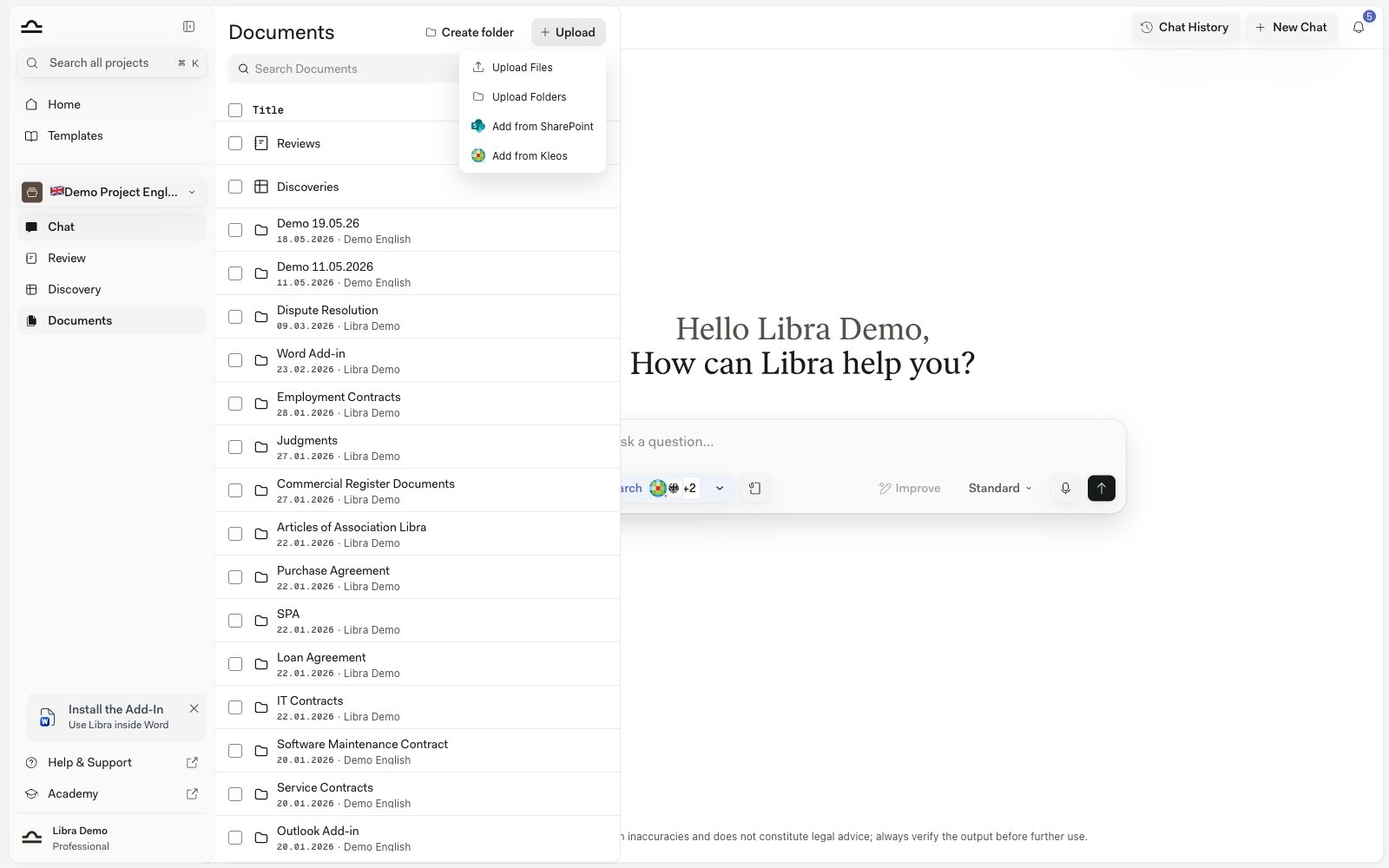
    **Upload**, at the top of the panel, is a menu rather than a single button. **Upload Files** opens the file picker for individual files. **Upload Folders** opens the folder picker instead and uploads a whole folder from your computer, subfolders and all. **Add from SharePoint** pulls files across from a connected SharePoint site, and each document connector your team has set up adds its own **Add from …** entry — Kleos, Legisway, NotaioNext or SuiteNext.

    You can also skip the menu entirely and drag files from your desktop straight onto the panel.

    <img src="https://mintcdn.com/libra-4206ec93/DvY4COCBKazHNw7v/assets/images/app/documents-upload.png?fit=max&auto=format&n=DvY4COCBKazHNw7v&q=85&s=8340007350f58aa5740fed917efd7ece" alt="The Upload menu open in the file panel, listing Upload Files, Upload Folders, Add from SharePoint and Add from Kleos" width="1600" height="1000" data-path="assets/images/app/documents-upload.png" />
  </Step>

  <Step title="Choose where the files land">
    Everything you add from the toolbar's **Upload** menu goes to the project root. To put files straight into a folder, hover that folder's row, open its **⋯** menu and choose **Upload Files** — or drag the files onto the folder row.
  </Step>

  <Step title="Wait for processing">
    Libra extracts the text, prepares previews, and indexes the document for search. You can keep working while documents process.
  </Step>
</Steps>

## Where documents come from

Documents land in the panel from several places:

| Source                      | Notes                                                                                                                                                                                                      |
| --------------------------- | ---------------------------------------------------------------------------------------------------------------------------------------------------------------------------------------------------------- |
| **Direct upload**           | The **Upload** menu, or drag-and-drop onto the panel.                                                                                                                                                      |
| **Chat attachments**        | Files attached to a chat are filed in the project's **Chat uploads** folder. If you only have view access to the project, your chat attachments stay private to you and are not added to the shared panel. |
| **Reviews and Discoveries** | Filed in the **Reviews** and **Discoveries** folders. Those folders stay put, but you can drag the items inside them anywhere.                                                                             |
| **Outlook export**          | Email threads exported from the Outlook add-in land in an **E-mails** folder, auto-converted to PDF.                                                                                                       |
| **Document connectors**     | Files copied across from Kleos, Legisway, NotaioNext or SuiteNext land in the project root. See [Kleos](/en/integrations/kleos); the others work the same way and are enabled per team.                    |
| **SharePoint**              | Files referenced through the SharePoint integration. See [SharePoint](/en/integrations/sharepoint).                                                                                                        |

## Finding a document in the panel

A busy matter fills the panel quickly, so the panel has its own search and filters — separate from [Search](/en/features/search), which spans every project and, in its **Document content** mode, searches inside the documents themselves.

The **Search Documents** box at the top of the panel matches names and titles — document names, Review and Discovery titles, and folder names — not the text inside the files. The filter icon beside it opens a row of chips underneath:

| Chip          | What it does                                                                                           |
| ------------- | ------------------------------------------------------------------------------------------------------ |
| **Sort by**   | **Last updated** (the default), **Name**, or **Date added**. Always present.                           |
| **File type** | PDF, Word, Excel, PowerPoint, Image, Email, Text, Other. Shown by default; you can tick more than one. |
| **Date**      | All time, Today, Last 7 days, Last 30 days.                                                            |
| **Author**    | Narrows the list to items added by particular people.                                                  |

**Date** and **Author** aren't shown until you add them from the **Add filter** menu at the end of the row, and you can remove any of the three from the chip's own menu. Libra remembers which chips you keep and whether the row is open.

The chips don't all reach the same things. **Date** and **Author** narrow Reviews and Discoveries too. **File type** applies to documents only, so with a file type selected, Reviews and Discoveries stay listed in the **Reviews** and **Discoveries** folders but drop out of any folder you have moved them into.

## Using documents

<AccordionGroup>
  <Accordion title="Reference in chat">
    Type `@` in any chat input and pick a document from the **Documents** group of the context picker; it's now part of the chat's context. Libra cites the document in answers.
  </Accordion>

  <Accordion title="Run a Review">
    From **Review**, or straight from chat: pick the documents, pick a **Playbook**, run. See [Reviews from chat](/en/features/review/from-chat).
  </Accordion>

  <Accordion title="Include in a Discovery">
    Click **Add Documents** in any Discovery and pick from the project tree.
  </Accordion>

  <Accordion title="Add to an Assistant's knowledge">
    When editing an Assistant, attach project documents to its knowledge base. The Assistant references them when responding.
  </Accordion>

  <Accordion title="Preview or download">
    Hover a document row and click **Preview** to open it in the document viewer; **Download** is in the same row's **⋯** menu. Reviews and Discoveries get an **Open** button instead. See [File types & previews](/en/features/documents/file-types) for what each format looks like.
  </Accordion>
</AccordionGroup>

## Downloading in bulk

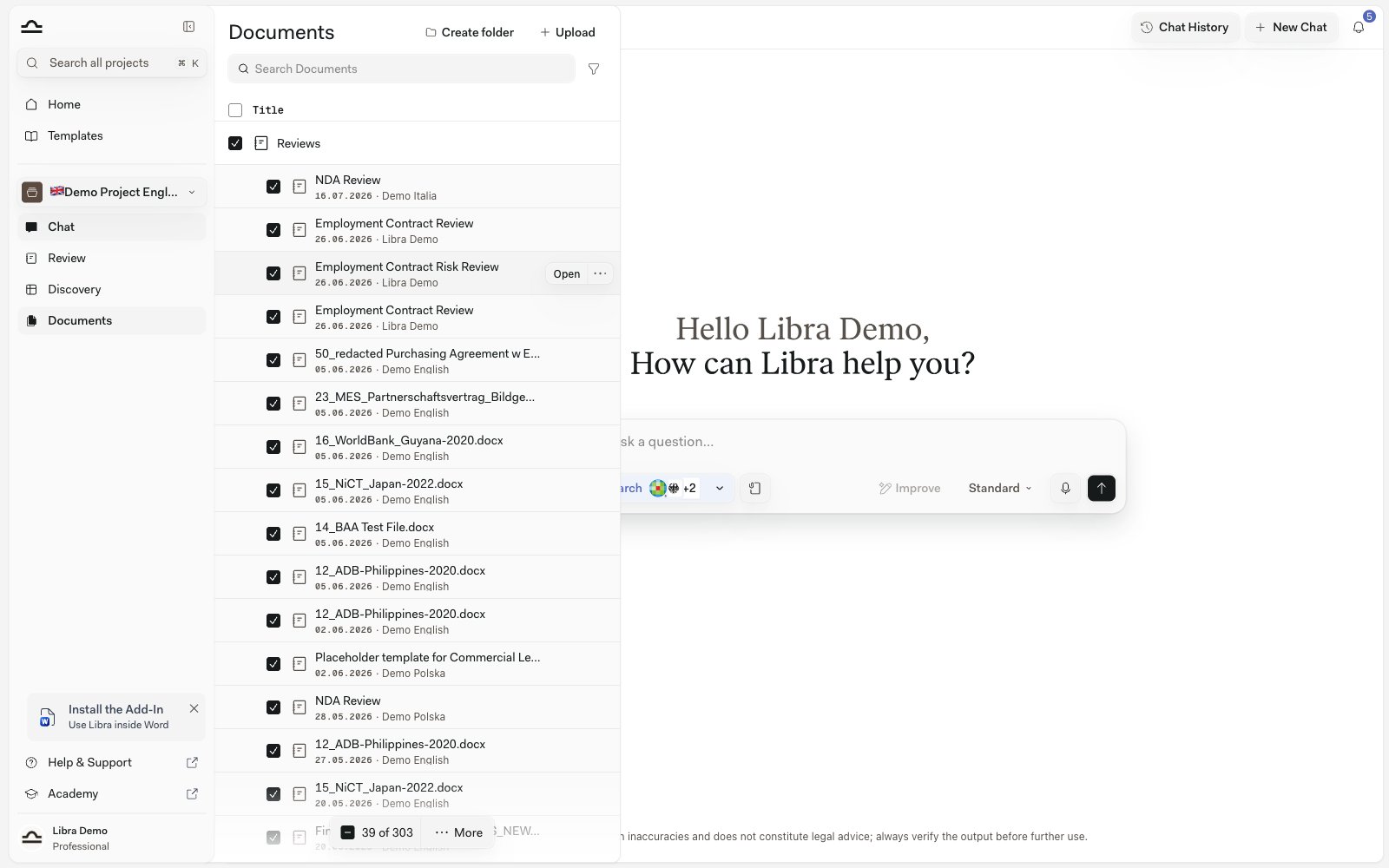
You don't have to download files one at a time. Tick the checkbox on any items in the panel — documents, Reviews and Discoveries in any mix — and a selection footer appears with the count and a **More** menu. Choose **Download files** and Libra packages everything into a single **.zip** that preserves your folder structure.

<img src="https://mintcdn.com/libra-4206ec93/DvY4COCBKazHNw7v/assets/images/app/documents-bulk-download.png?fit=max&auto=format&n=DvY4COCBKazHNw7v&q=85&s=79606841e8b8a42d6b8e66383e381d4c" alt="The file panel with several rows selected and a selection footer showing the count and a More menu" width="1600" height="1000" data-path="assets/images/app/documents-bulk-download.png" />

<Steps>
  <Step title="Select the items">
    Tick the checkbox on each document, Review or Discovery you want. The footer at the bottom of the panel tallies your selection.
  </Step>

  <Step title="Open More and choose Download files">
    Libra prepares a `.zip` and your browser downloads it. Folders are kept, so the archive mirrors how the panel is organised.
  </Step>
</Steps>

Inside the archive, each item type comes out in a sensible format:

| Item            | Downloads as                                                                      |
| --------------- | --------------------------------------------------------------------------------- |
| **Documents**   | Their original uploaded file.                                                     |
| **Reviews**     | A **Word** document.                                                              |
| **Discoveries** | **Excel** by default; switch to **Word** or **CSV** under **Settings → General**. |

<Note>
  A single download covers up to 1,000 items, with a combined cap of 50 Reviews and Discoveries. For larger sets, download in batches.
</Note>

## Sharing documents

Documents follow project sharing by default; anyone with access to the project can see the project's documents.

Access is controlled at the project level, not per file — there is no way to share a single document on its own. To change who can see a project's documents, share the project. See [Sharing & access](/en/features/sharing-and-access).

## Document limits

| Limit                                           | Value  |
| ----------------------------------------------- | ------ |
| **Documents per project**                       | 1,000  |
| **Documents attached to a single chat message** | 1,000  |
| **File size per document**                      | 500 MB |
| **Columns in a single Discovery**               | 50     |

<Note>
  The per-project limit counts every document stored in the project, whether you uploaded it from the panel or from inside a chat. Reviews and Discoveries are results rather than uploads, so they don't count toward it — you can keep creating and running them even after a project reaches 1,000 documents. The limit only blocks adding *new* files: once a project is full, Libra asks you to start a new project before you can upload more.
</Note>

Excel workbooks carry one extra bound. A `.xlsx` workbook is rejected during processing if its sheets together come to more than 13,000 rows or more than 1,000,000 cells — the file uploads and stays in the panel, but its contents are never indexed, so Libra can't search inside it, answer questions about it or cite it. Split an oversized workbook into smaller ones, or export the sheets you actually need as `.csv`, which isn't subject to either bound.

Previewing a spreadsheet is capped separately: the viewer won't render one larger than 10 MB, and it shows at most 5,000 rows per sheet and 20,000 rows across the workbook. The complete file is still stored and still downloads in full.

## Tips for keeping a tidy panel

<AccordionGroup>
  <Accordion title="Set up the folder structure early">
    The first day of a matter is when folder structure decisions cost the least. Decide on *Inbound documents*, *Drafts*, *Signed versions*, then keep moving files into the right buckets as they arrive — the **Reviews**, **Discoveries** and **Chat uploads** folders are already there.
  </Accordion>

  <Accordion title="Move Reviews and Discoveries out of their default folders">
    The **Reviews** and **Discoveries** folders work for low volume. As soon as you have several of either, drag them into the matter folder they describe, so the contract and its analysis sit side by side.
  </Accordion>

  <Accordion title="Empty Chat uploads regularly">
    Chat attachments accumulate in **Chat uploads** without anyone deciding they belong there. Every so often, move the ones worth keeping into a real folder and delete the rest — they count toward the project's 1,000-document limit either way.
  </Accordion>

  <Accordion title="Use clear file names">
    Document names show up in [Search](/en/features/search), and the panel's own search box matches on them too. *"Acme, Employment Contract, Maria Schneider, signed.pdf"* is much more useful than *"contract\_v3.pdf"*.
  </Accordion>

  <Accordion title="Delete drafts you don't need">
    Old drafts of contracts you've since signed don't need to clutter the panel, but consider archiving the project rather than deleting individual files. Archived projects keep everything.
  </Accordion>
</AccordionGroup>

## Next steps

<Columns cols={2}>
  <Card title="Folder structure" icon="folder-tree" href="/en/features/documents/folder-structure">
    Organise documents, Reviews, and Discoveries into folders.
  </Card>

  <Card title="File types & previews" icon="file" href="/en/features/documents/file-types">
    Every supported format and what the preview looks like.
  </Card>
</Columns>