
You rarely need a blank page. Open last month's lease from Project files, or turn your firm's model lease into a drafting template and start every new one from it.
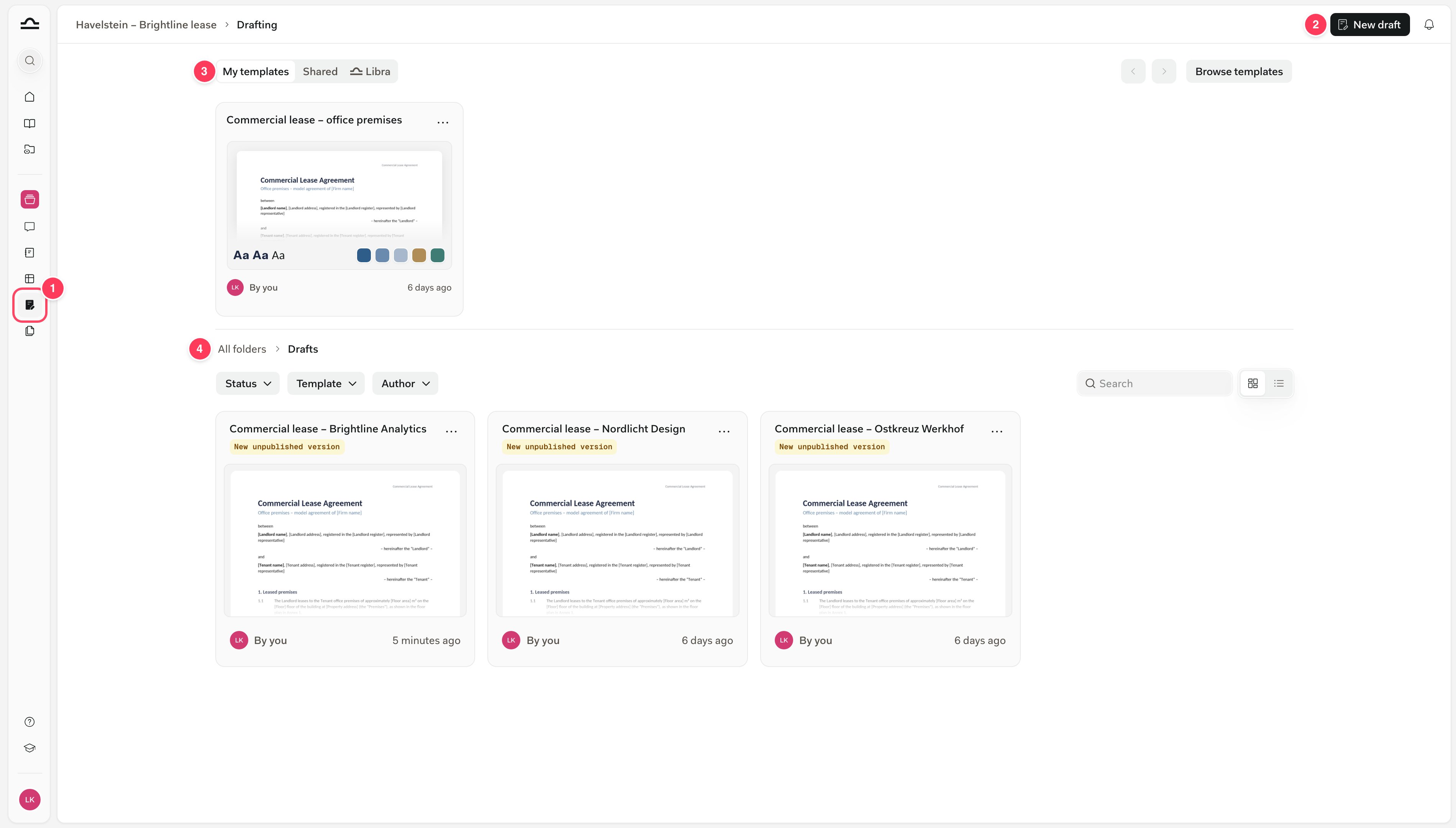 1. **Drafting** in the sidebar opens this page for the project you're in.
2. **New draft** opens a blank draft in the Editor.
3. The templates strip shows your drafting templates under **My templates**, the ones colleagues shared under **Shared**, and the ones Libra provides under **Libra**. Hover one and click **Use** to start a draft, or click **Browse templates** for the whole library.
4. The drafts: every draft in the project, as a grid or a list, with **Status**, **Template** and **Author** filters. A tag marks anything you haven't [published](/en/features/drafting/editor#publish) yet. Drafts live in the project's **Drafts** folder in Project files, which takes only `.docx` files.
Hover a draft and click **Edit** to open it, or use its **⋯** menu to favourite, rename, publish, duplicate, download, share or delete it.
## Open the Editor
You can open the Editor wherever a Word document appears in Libra. Only `.docx` files open in the Editor.
| From | Do this | What opens |
| - | - | - |
| The Drafting page | Click **New draft** | A blank draft, stored in the Drafts folder when you first save |
| A drafting template | Hover it and click **Use** | A new draft with the template's content and theme. See [Start a draft from a template](/en/features/drafting/templates#start-a-draft-from-a-template). |
| Project files | Hover a `.docx` and click **Edit**, or preview it and click **Edit** there | The document itself: your edits are saved to it, with a version history |
| Search | Click **Open** on a `.docx` result | The document itself |
| A chat | Click **Edit** on a Draft document card | An unsaved draft of the file Libra wrote, with the conversation carried into the Editor chat. Save it to keep it. |
| A chat answer | Click **Open in editor** in the toolbar under the answer | The document the chat belongs to, or a new draft if it has none, with the conversation carried into the Editor chat |
| The Editor | Click **New draft** in the title bar, or **Duplicate draft** in the document menu | A blank draft, or a copy of the one you're in |
Starting from a chat keeps the conversation going. The Editor chat knows what Libra drafted, so *"make the termination clause stricter"* works straight away. For the chat side, see [Word documents from chat](/en/features/chat/tools#word-documents-from-chat).
## The Editor, Draft document or the Word add-in?
All three give you a Word document. Pick by where you want to work and how much you'll change the draft.
| Use | When |
| - | - |
| **The Editor** | You want to shape a document step by step: edit by hand, have Libra rework single clauses, check each change and keep versions. |
| **Draft document** in chat | You want a complete first draft in one go. Open it in the Editor with **Edit** when you want to keep working on it. See [Chat tools](/en/features/chat/tools#word-documents-from-chat). |
| **The Word add-in** | The document is open in Word and should stay there. See [Word Add-in](/en/integrations/word/setup). |
## Common questions
These are the questions lawyers ask first, each with a pointer to the details.
1. **Drafting** in the sidebar opens this page for the project you're in.
2. **New draft** opens a blank draft in the Editor.
3. The templates strip shows your drafting templates under **My templates**, the ones colleagues shared under **Shared**, and the ones Libra provides under **Libra**. Hover one and click **Use** to start a draft, or click **Browse templates** for the whole library.
4. The drafts: every draft in the project, as a grid or a list, with **Status**, **Template** and **Author** filters. A tag marks anything you haven't [published](/en/features/drafting/editor#publish) yet. Drafts live in the project's **Drafts** folder in Project files, which takes only `.docx` files.
Hover a draft and click **Edit** to open it, or use its **⋯** menu to favourite, rename, publish, duplicate, download, share or delete it.
## Open the Editor
You can open the Editor wherever a Word document appears in Libra. Only `.docx` files open in the Editor.
| From | Do this | What opens |
| - | - | - |
| The Drafting page | Click **New draft** | A blank draft, stored in the Drafts folder when you first save |
| A drafting template | Hover it and click **Use** | A new draft with the template's content and theme. See [Start a draft from a template](/en/features/drafting/templates#start-a-draft-from-a-template). |
| Project files | Hover a `.docx` and click **Edit**, or preview it and click **Edit** there | The document itself: your edits are saved to it, with a version history |
| Search | Click **Open** on a `.docx` result | The document itself |
| A chat | Click **Edit** on a Draft document card | An unsaved draft of the file Libra wrote, with the conversation carried into the Editor chat. Save it to keep it. |
| A chat answer | Click **Open in editor** in the toolbar under the answer | The document the chat belongs to, or a new draft if it has none, with the conversation carried into the Editor chat |
| The Editor | Click **New draft** in the title bar, or **Duplicate draft** in the document menu | A blank draft, or a copy of the one you're in |
Starting from a chat keeps the conversation going. The Editor chat knows what Libra drafted, so *"make the termination clause stricter"* works straight away. For the chat side, see [Word documents from chat](/en/features/chat/tools#word-documents-from-chat).
## The Editor, Draft document or the Word add-in?
All three give you a Word document. Pick by where you want to work and how much you'll change the draft.
| Use | When |
| - | - |
| **The Editor** | You want to shape a document step by step: edit by hand, have Libra rework single clauses, check each change and keep versions. |
| **Draft document** in chat | You want a complete first draft in one go. Open it in the Editor with **Edit** when you want to keep working on it. See [Chat tools](/en/features/chat/tools#word-documents-from-chat). |
| **The Word add-in** | The document is open in Word and should stay there. See [Word Add-in](/en/integrations/word/setup). |
## Common questions
These are the questions lawyers ask first, each with a pointer to the details.