> ## Documentation Index
> Fetch the complete documentation index at: https://docs.libratech.ai/llms.txt
> Use this file to discover all available pages before exploring further.

# Home

> Your starting point. Every project you have access to, in one place.

<video autoPlay muted loop playsInline src="https://mintcdn.com/libra-4206ec93/azhR9hqtFjs66ITC/assets/videos/features/home.webm?fit=max&auto=format&n=azhR9hqtFjs66ITC&q=85&s=48a4969bf1103b4f136a059b6998bc41" className="rounded-xl border w-full" data-path="assets/videos/features/home.webm" />

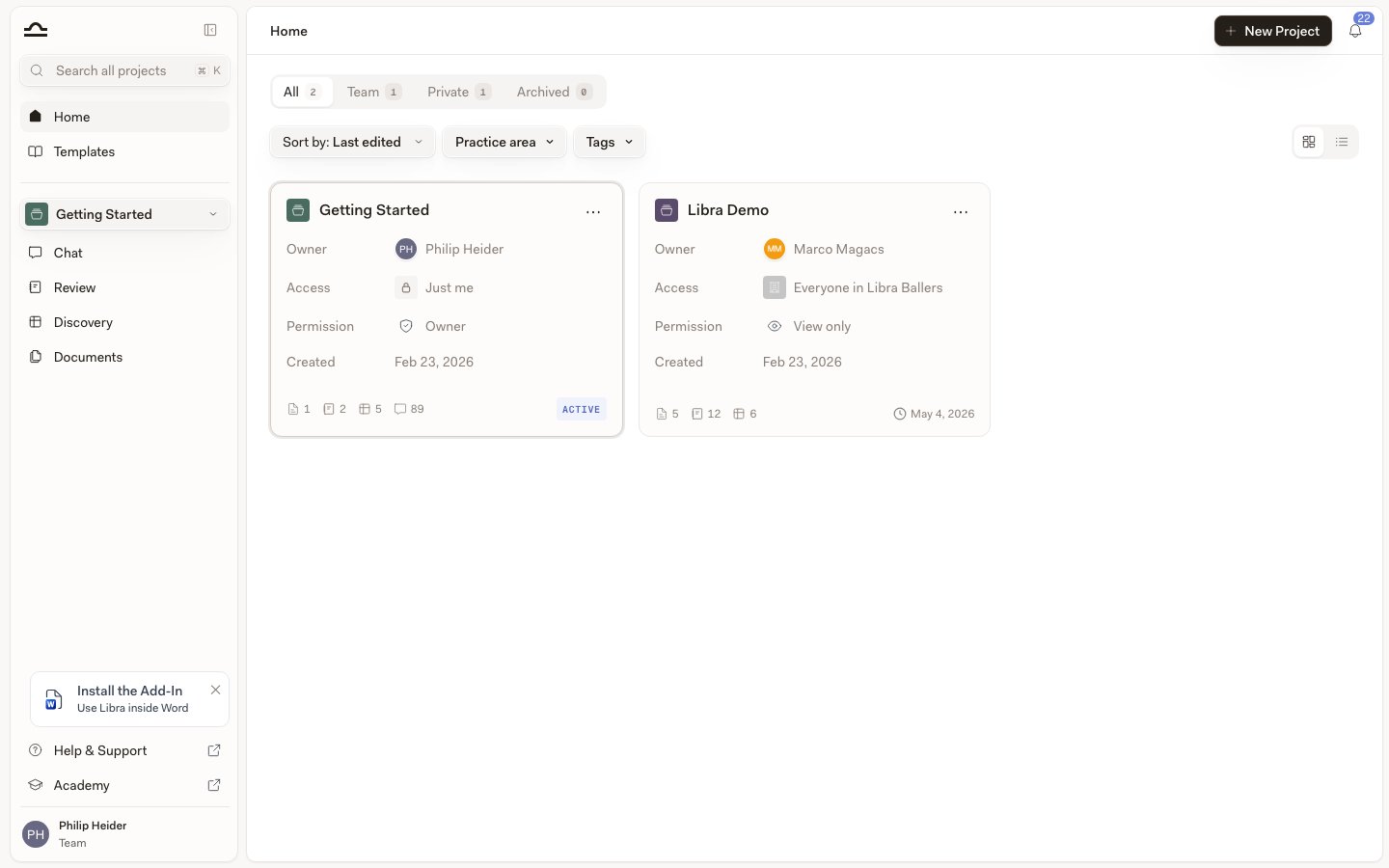
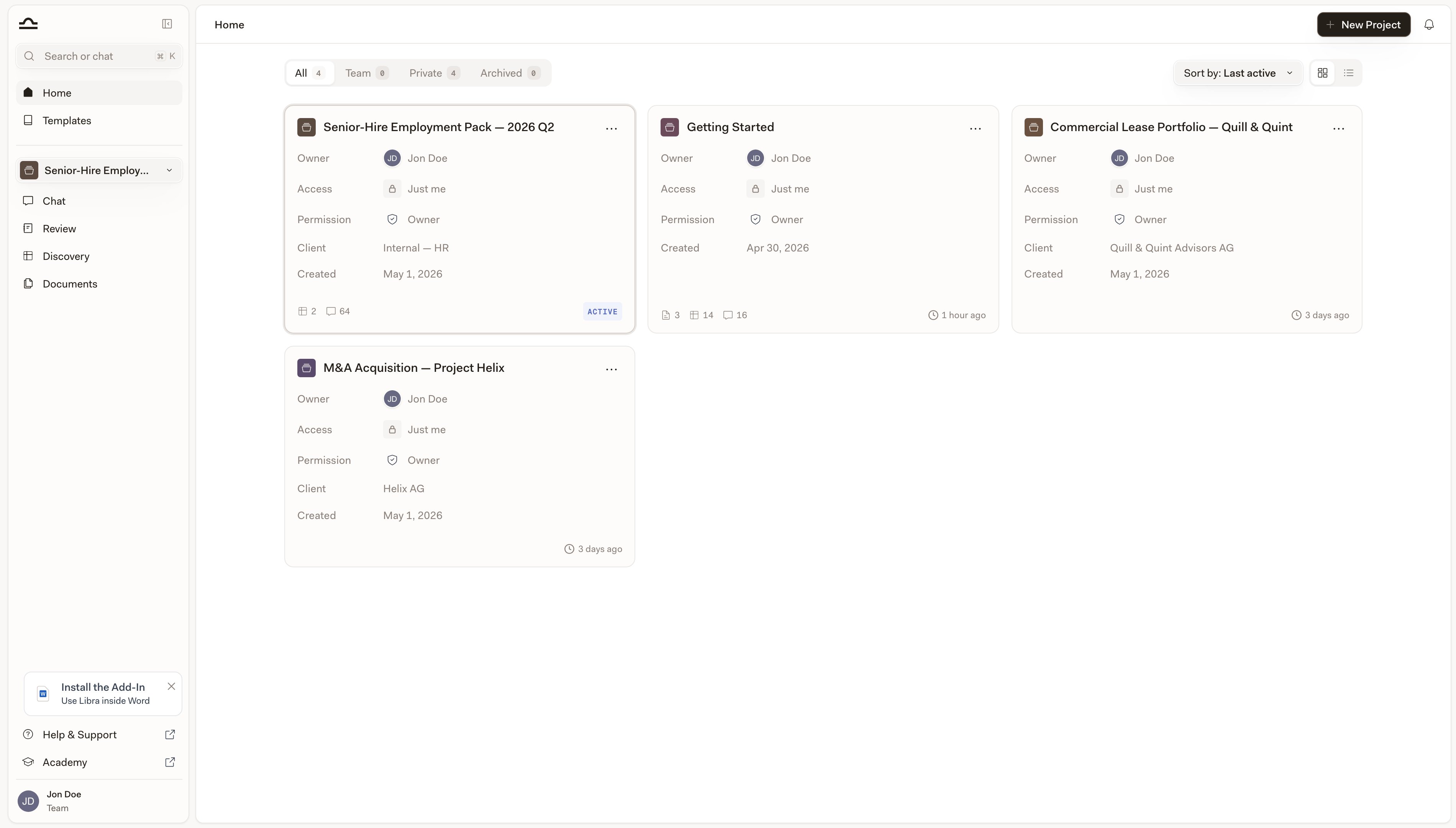
**Home** is where you start your day. Click **Home** at the top of the sidebar and Libra lists every project you have access to, with the metadata you need to find your way: who owns it, who else can see it, what your own access level is, and how much work is already inside.

<div className="libra-buddy-callout">
  <img src="https://mintcdn.com/libra-4206ec93/wgVZXcGnHS4aJk9T/assets/images/libra-buddy/excited.png?fit=max&auto=format&n=wgVZXcGnHS4aJk9T&q=85&s=ff4421471ed769b8a6bb79c03cda38f3" alt="Libra mascot excited" width="729" height="648" data-path="assets/images/libra-buddy/excited.png" />

  <div className="libra-buddy-callout-content">
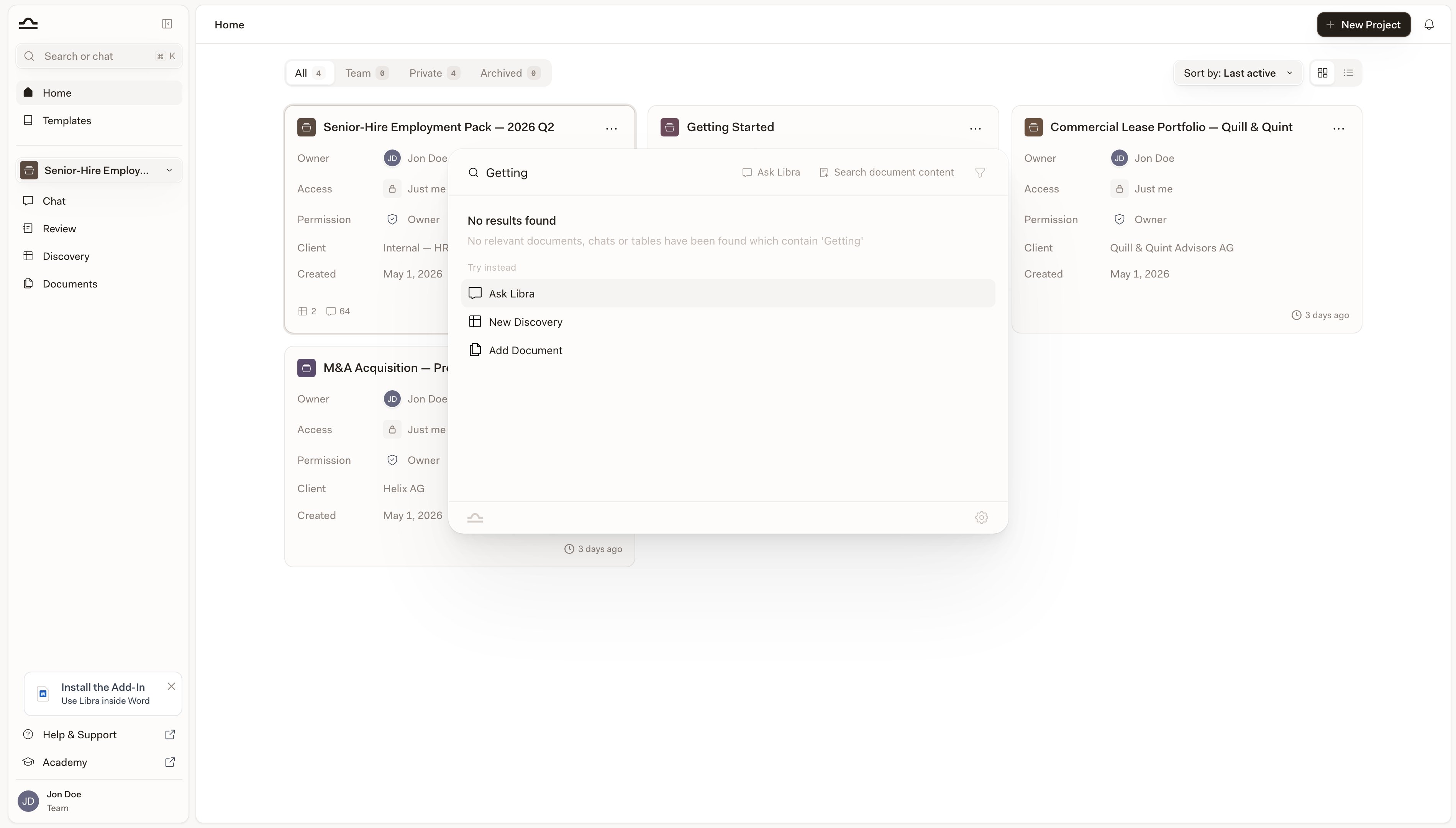
    Home's search box matches project details — the name and the client — not what's inside your chats and files. For that, hit <kbd>Cmd</kbd>+<kbd>K</kbd>; global Search indexes every chat, document, Review, and Discovery.
  </div>
</div>

## What a project card shows

Every project is a card with the same fields, so you can scan a long list quickly.

| Field          | What it shows                                                                                                                         |
| -------------- | ------------------------------------------------------------------------------------------------------------------------------------- |
| **Owner**      | The person who created the project.                                                                                                   |
| **Access**     | Who can see it: **Just me**, **Everyone in** *your team's name*, a single named colleague, or **Multiple people** with their avatars. |
| **Permission** | Your own access level on this project: **Owner**, **Full Access**, **Edit**, or **View only**.                                        |
| **Client**     | The client this matter belongs to. Shown only when the project has one.                                                               |
| **Created**    | The date the project was created.                                                                                                     |

Along the bottom of the card, a footer counts what's inside — documents, Reviews, Discoveries, and chats. Counts that are still zero are left out, so a brand-new project doesn't read as a row of zeros. On the right of the footer you get the relative time the project was **Last edited**, or an **Active** tag on the project you currently have open.
<Note>
  Practice area and tags aren't printed on the card. They're filters above the list, and columns in the list view.
</Note>

## Grid or list

Two buttons at the right of the toolbar switch between **Grid view** — the cards described above — and **List view**, a table with one row per project and the columns **Project Name**, **Author**, **Practice area**, **Tags**, **Access**, **Includes** (the same artefact counts as the card footer), **Last edited**, and **Created**. The list view is the better one for scanning a hundred matters at once; the grid is easier to read a single project from.

Libra remembers your view mode and your sort order in the browser you set them in, so Home comes back the way you left it.

## The tabs

The list narrows with the tabs at the top of the page, each showing a count.

<AccordionGroup>
  <Accordion title="All">
    Every project you have access to that hasn't been archived. Default view.
  </Accordion>

  <Accordion title="Team">
    Projects shared with one or more people. Useful for finding work you're collaborating on. On plans without team collaboration this tab is locked, and its icon changes to a padlock.
  </Accordion>

  <Accordion title="Private">
    Projects nobody else has been given access to. Solo work and drafts.
  </Accordion>

  <Accordion title="Archived">
    Projects that have been archived. They don't clutter the active list, and nothing inside them is lost — chats, documents, Reviews, and Discoveries are all preserved. To work in one again, unarchive it first.
  </Accordion>

  <Accordion title="Favorites">
    Projects you've marked as favourites. This tab only appears once you have favourited at least one project.
  </Accordion>
</AccordionGroup>

## Finding a project

Four ways to narrow down the list, depending on what you're looking for.

<Steps>
  <Step title="Search by name">
    Click the magnifier at the right of the toolbar to open the **Search projects** box and start typing. Libra re-runs the search as you type, matching the project name and the client.

    <img src="https://mintcdn.com/libra-4206ec93/DvY4COCBKazHNw7v/assets/images/app/home-search.png?fit=max&auto=format&n=DvY4COCBKazHNw7v&q=85&s=f74b0d9a9f3716e5dbc249aa49079568" alt="Home page with active search filtering results" width="3800" height="2160" data-path="assets/images/app/home-search.png" />
  </Step>

  <Step title="Sort the list">
    Use the **Sort by** dropdown to switch between **Last edited** (the default), **Name**, and **Date created**.

    <img src="https://mintcdn.com/libra-4206ec93/DvY4COCBKazHNw7v/assets/images/app/home-hero.png?fit=max&auto=format&n=DvY4COCBKazHNw7v&q=85&s=5ecca104f08ee1b328d15eb8e1c208bf" alt="Home page with the project list sorted by Last edited" width="3800" height="2160" data-path="assets/images/app/home-hero.png" />
  </Step>

  <Step title="Filter by practice area or tag">
    The filter chips above the list narrow your projects by **Practice area** and **Tags** — the same filters you already use in the [template library](/en/features/templates/practice-areas-and-tags). (To narrow by who can see a project, use the tabs instead.) Combine them to pare a long matter list down to exactly what you need, and use **Clear all filters** to start over.

    <img src="https://mintcdn.com/libra-4206ec93/DvY4COCBKazHNw7v/assets/images/app/home-filter-bar.png?fit=max&auto=format&n=DvY4COCBKazHNw7v&q=85&s=ecdaff5c1e8524812deeefaee00d4436" alt="Home page with the Practice area and Tags filters above the project list" width="1440" height="900" data-path="assets/images/app/home-filter-bar.png" />
  </Step>

  <Step title="Favourite the ones you work on">
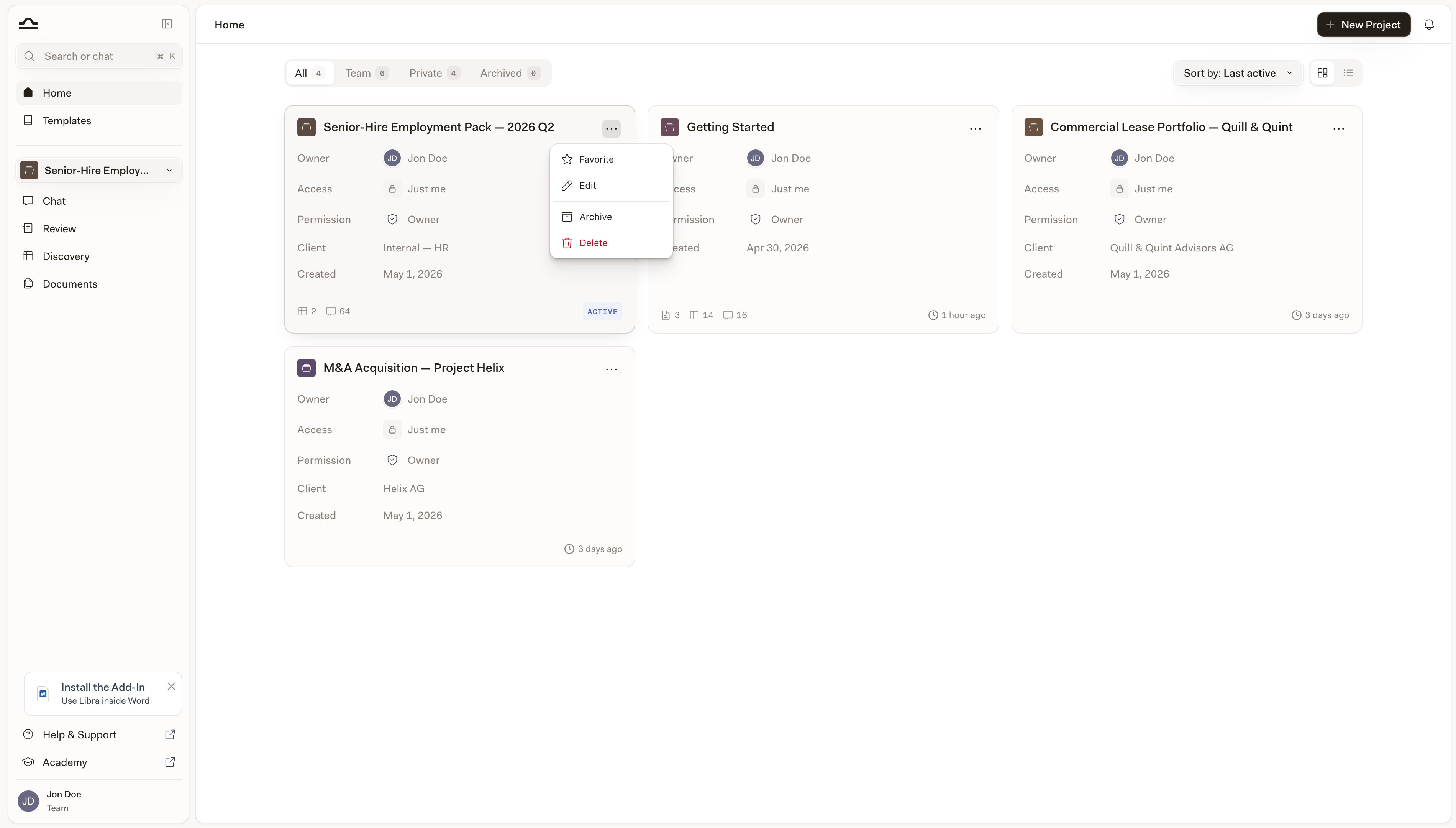
    In the grid, open a card's **⋯** menu and choose **Favorite**. In the list view, click the star next to the project name. Favourites collect in the **Favorites** tab, one click away whatever else you're filtering by.

    <img src="https://mintcdn.com/libra-4206ec93/DvY4COCBKazHNw7v/assets/images/app/projects-card-menu.png?fit=max&auto=format&n=DvY4COCBKazHNw7v&q=85&s=cc65f07a4188076ff3c27613b911e1a9" alt="Project card with its three-dot actions menu open" width="3800" height="2160" data-path="assets/images/app/projects-card-menu.png" />
  </Step>
</Steps>

<Tip>
  Favourites are stored on your account, so a project you favourite on your laptop is still a favourite on your tablet. They don't change the order of the list, though — to see just those projects, open the **Favorites** tab.
</Tip>

<Note>
  Home loads at most 200 projects for the current tab and sort. Past that you get a banner — *Showing the first 200 projects. Search by project name to find a specific one.* — and the search box reaches the rest.
</Note>

## Project actions

Every card and every list row has a **⋯** menu that acts on the project without opening it first. On a favourited card the star sits where the menu button is; move the pointer over the card and the star fades out to reveal it.

<AccordionGroup>
  <Accordion title="Open">
    Click anywhere on the card. Libra makes that project the active one, takes you to Chat, and starts a new chat in it. Review, Discovery, and Project files in the sidebar all point at the new project too. Archived projects can't be opened — unarchive them first.
  </Accordion>

  <Accordion title="Favorite / Unfavorite">
    Add the project to, or remove it from, the **Favorites** tab.
  </Accordion>

  <Accordion title="Edit">
    Change the project name, description, client, practice areas, or tags. If you only have view access the entry reads **Details** and opens the same dialog read-only.
  </Accordion>

  <Accordion title="Share">
    Open the sharing settings to add or remove people without entering the project first. See [Sharing & access](/en/features/sharing-and-access) for details.
  </Accordion>

  <Accordion title="Archive / Unarchive">
    Move a finished project to the **Archived** tab, or bring it back. Anything inside it is preserved either way.
  </Accordion>

  <Accordion title="Delete">
    Remove the project permanently. Libra asks you to confirm, and warns you when the project is shared — deleting it deletes it for everyone it was shared with.
  </Accordion>
</AccordionGroup>

Which entries you get depends on your **Permission**: sharing needs edit access, archiving and deleting need **Owner** or **Full Access**, and view-only access leaves you with **Details** and **Favorite**.

<Warning>
  Deleting a project deletes everything associated with it, including all its documents. If you might want the work back later, archive it instead.
</Warning>

## Creating a new project

The **New Project** button is always visible at the top right of Home.

<Steps>
  <Step title="Click New Project">
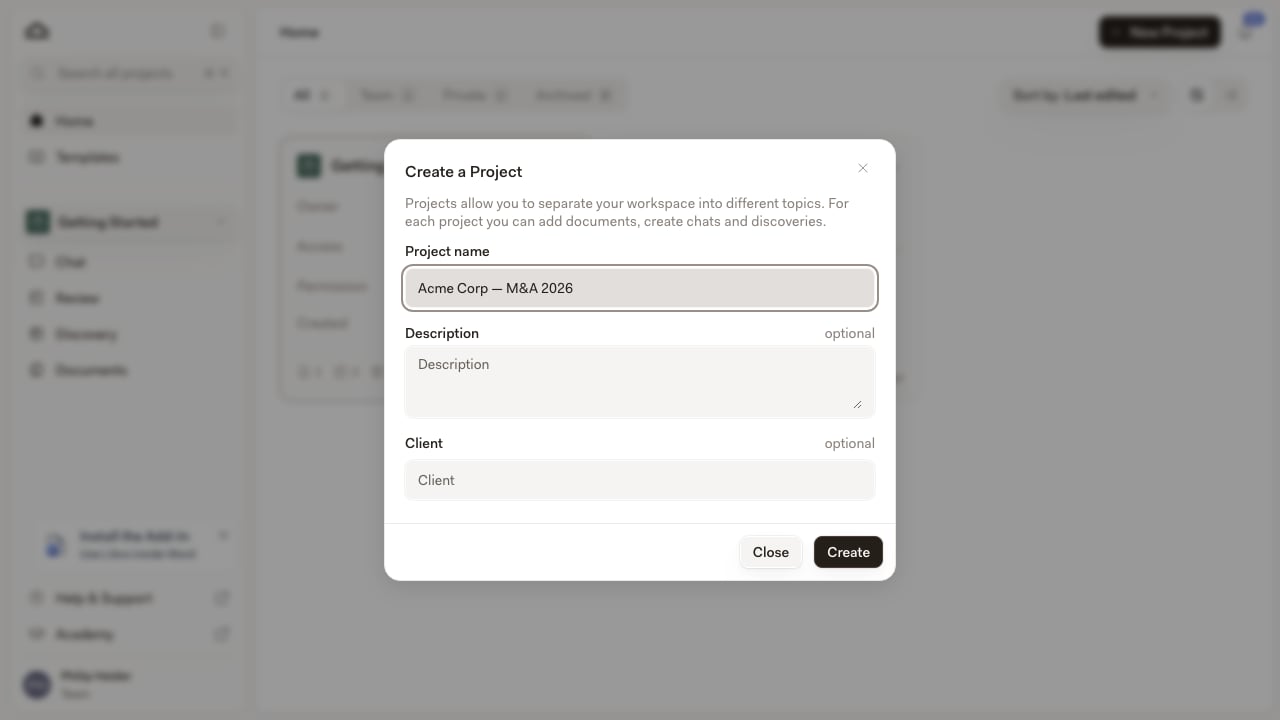
    The **Create a Project** dialog opens. Only **Project name** is required; **Description**, **Client**, **Practice area**, and **Tags** are all optional, and you can fill them in later from **Edit**.

    <img src="https://mintcdn.com/libra-4206ec93/DvY4COCBKazHNw7v/assets/images/app/create-project-dialog.png?fit=max&auto=format&n=DvY4COCBKazHNw7v&q=85&s=b7e6b7d564d5bcf32c9377e2f3e80ab4" alt="Create a Project dialog showing the project name, description, client, and practice area fields" width="1280" height="720" data-path="assets/images/app/create-project-dialog.png" />
  </Step>

  <Step title="Decide who else gets in">
    If your plan includes team collaboration and there is someone else on your team, Libra creates the project and then opens the sharing dialog as a follow-up step, so you can add people straight away. Close it when you're done — or close it immediately, and the project stays private until you share it later. On a solo account you go straight back to Home.
  </Step>

  <Step title="Start working">
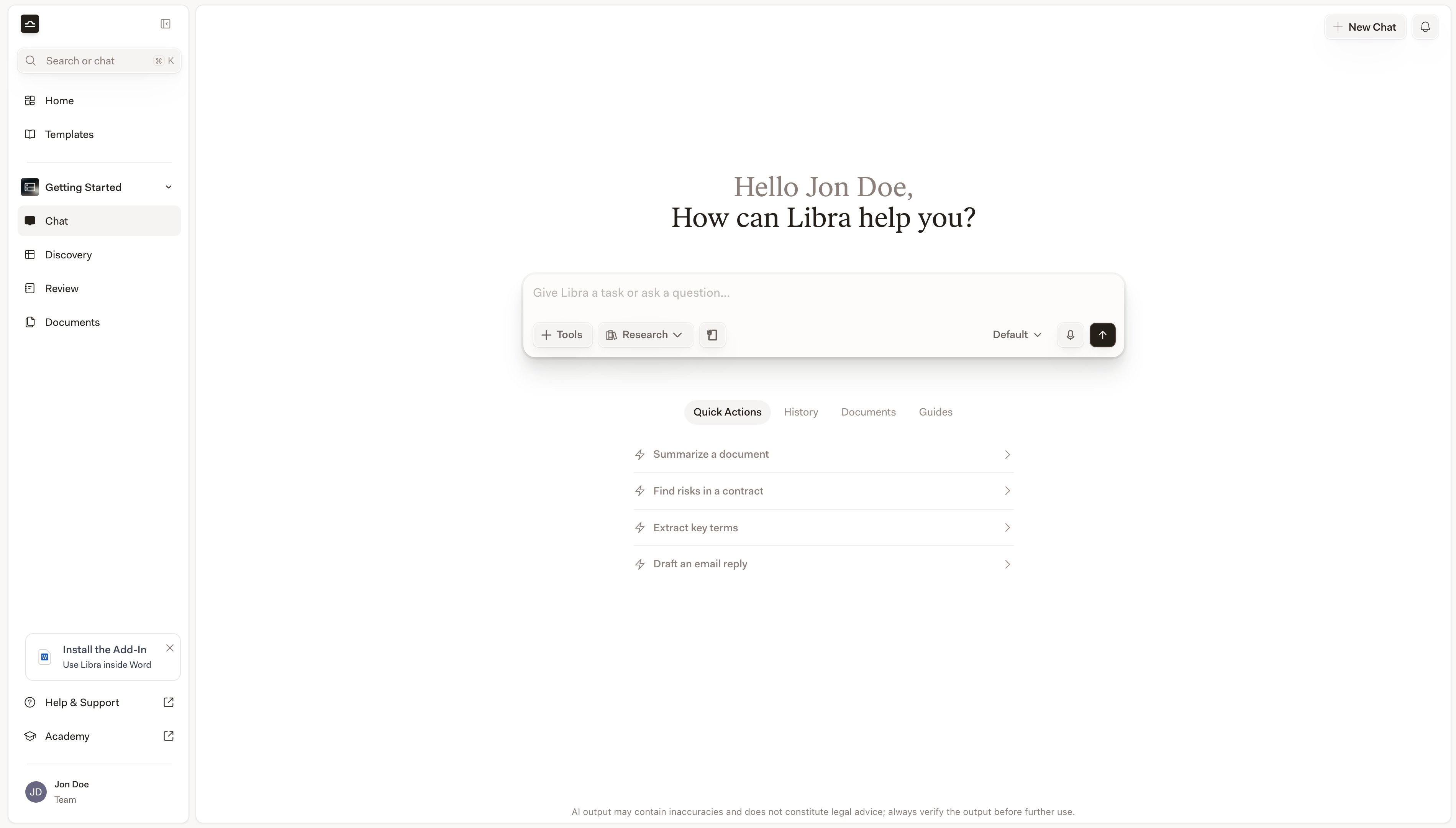
    You land back on Home with the new project active, so Chat, Review, Discovery, and Project files in the sidebar are already scoped to it. Open it and you can start a chat, upload documents, or run a Review immediately.

    <img src="https://mintcdn.com/libra-4206ec93/pnEt5D-f3JDzogZl/assets/images/app/sidebar-global-vs-project.png?fit=max&auto=format&n=pnEt5D-f3JDzogZl&q=85&s=199a04d3061b97e8ebf8ad1ae2ec0a74" alt="Sidebar showing the project sections after the new project becomes active" width="3800" height="2160" data-path="assets/images/app/sidebar-global-vs-project.png" />
  </Step>
</Steps>

<Note>
  On plans with a project limit, the create dialog shows how many of your projects you've used, and the **New Project** button stops responding once you hit the cap.
</Note>

## Tips for organising Home well

<AccordionGroup>
  <Accordion title="Favourite the matter you're currently in">
    One or two favourites turn the **Favorites** tab into a shortlist of live matters, which beats scrolling the full list every morning.
  </Accordion>

  <Accordion title="Archive after closing">
    The moment a matter closes, archive its project. It clears your active list without losing any of the work.
  </Accordion>

  <Accordion title="Set practice areas and tags consistently">
    They're what the filter chips run on. A project with no practice area is invisible to every practice-area filter — including the one a partner uses to see the spread of work.
  </Accordion>

  <Accordion title="Name projects so you'll find them later">
    Project names show up in **Search** results too. *"NDA review for Acme Corp"* is much easier to find later than *"Project 4"*.
  </Accordion>
</AccordionGroup>

## Next steps

<Columns cols={2}>
  <Card title="Projects" icon="folder" href="/en/features/projects">
    What lives inside a project, and how to work in one.
  </Card>

  <Card title="Search" icon="search" href="/en/features/search">
    Find anything across every project.
  </Card>

  <Card title="Sharing & access" icon="users" href="/en/features/sharing-and-access">
    Decide who sees what.
  </Card>
</Columns>