> ## Documentation Index
> Fetch the complete documentation index at: https://docs.libratech.ai/llms.txt
> Use this file to discover all available pages before exploring further.

# Projects

> Each project is a self-contained workspace, with chats, documents, Reviews, and Discoveries all scoped to one matter.

<video autoPlay muted loop playsInline src="https://mintcdn.com/libra-4206ec93/azhR9hqtFjs66ITC/assets/videos/features/projects.webm?fit=max&auto=format&n=azhR9hqtFjs66ITC&q=85&s=9e1e8731eaa3ec3dd22552b602844d14" className="rounded-xl border w-full" data-path="assets/videos/features/projects.webm" />

A **project** is a self-contained workspace. Everything you do inside it, including chats, document uploads, Reviews, and Discoveries, stays scoped to that project. When you switch projects, the project section of the sidebar updates to show only that project's work.

<div className="libra-buddy-callout">
  <img src="https://mintcdn.com/libra-4206ec93/wgVZXcGnHS4aJk9T/assets/images/libra-buddy/presenting.png?fit=max&auto=format&n=wgVZXcGnHS4aJk9T&q=85&s=db41075b4a259a172f68465ae5c3421e" alt="Libra mascot presenting" width="827" height="615" data-path="assets/images/libra-buddy/presenting.png" />

  <div className="libra-buddy-callout-content">
    Project scope is a hard wall. An `@`-mention in Project A can't reach Project B. Need a document from another matter? Switch to that project, open the document's **⋯** menu in **Project files** and pick [**Move to project**](/en/features/documents/folder-structure#moving-files-to-another-project) — it re-homes the document, so it leaves the matter it came from.
  </div>
</div>

## What lives inside a project

| Type                                                | What it is                                                                                                                              |
| --------------------------------------------------- | --------------------------------------------------------------------------------------------------------------------------------------- |
| **Chat**                                            | Every conversation you start in the project. A chat can be [moved to another project](/en/features/chat/history#managing-a-chat) later. |
| **Review**                                          | Contract reviews run against your Playbooks.                                                                                            |
| **Discovery**                                       | Multi-document data extractions.                                                                                                        |
| [**Project files**](/en/features/documents/library) | Every uploaded file, plus the system folders **Reviews**, **Discoveries** and **Chat uploads**.                                         |

Those are the project-scoped sidebar entries, in the order they appear. Above the project sit the global ones — **Search all projects**, **Home**, **Templates** and [**Databases**](/en/features/databases/basics) — which stay the same whichever project you're in. See [How Libra is organised](/en/getting-started/how-libra-is-organised).

## Using a project in chat

When you attach a project to a chat (the **project chip**), Libra can work across everything in it — even projects with **thousands of documents**. Rather than loading the whole project into the conversation up front, Libra **searches the project on demand**: it starts from a summary of what's there — the item counts and your most recently updated documents — then reads, searches, and previews documents as your question needs them, following your **folder structure** as it goes.

This keeps answers fast and accurate on large matters, and a project is no longer capped before a request is even sent. When Libra draws on the project, its [citations](/en/features/chat/citations) can point to a specific **folder** or a **whole document**, not just a single page.

## Creating a project

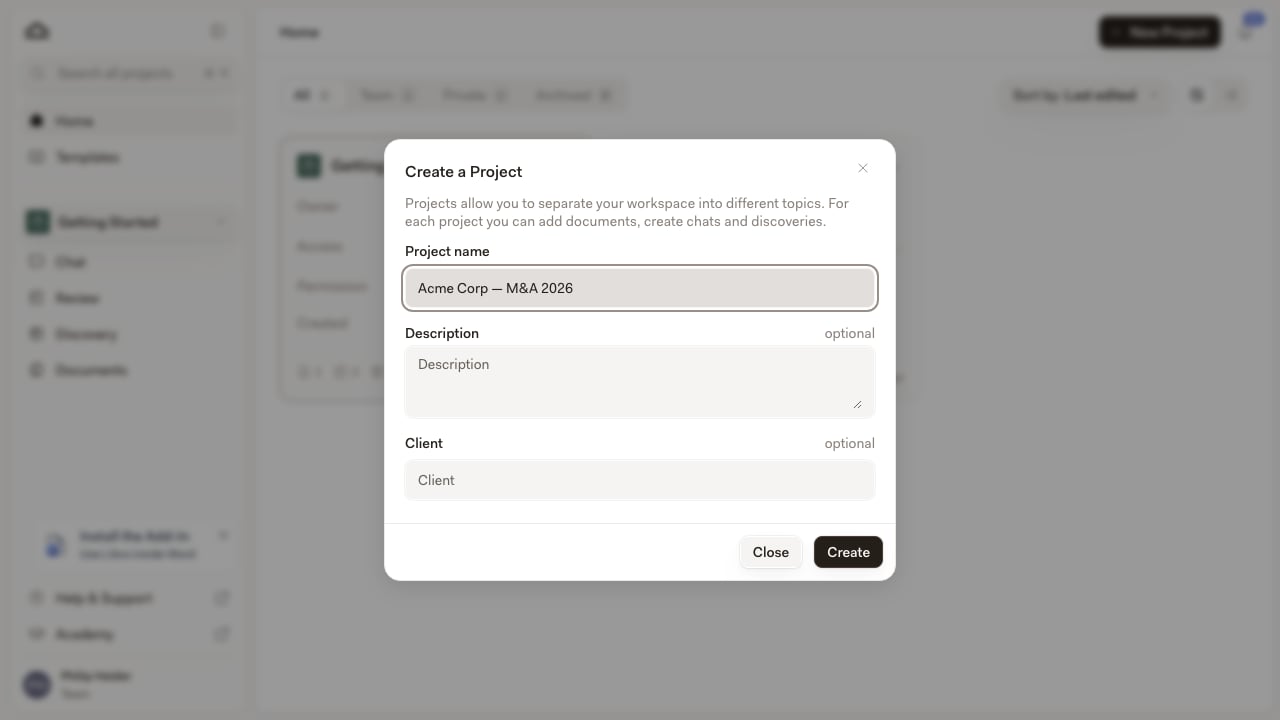
The **New Project** button sits in the top right of the [Home](/en/features/home) page. The project sidesheet has its own **New project** button. Both open the same **Create a Project** dialog.

Before you start: on the **Starter** plan you can have three active projects at a time. Under the cap, the dialog shows a meter reading *2 of 3 projects used*. At three, **New Project** on Home and **New project** in the sidesheet stop responding — hover either one and Libra explains why: **Starter Plan**, *3 project limit*, and an **Upgrade to Professional** link. Archiving a project frees a slot. Professional and Team have no project cap. See [Subscription](/en/resources/subscription).
<Steps>
  <Step title="Click New Project on the Home page">
    The **Create a Project** dialog opens.

    <img src="https://mintcdn.com/libra-4206ec93/DvY4COCBKazHNw7v/assets/images/app/projects-create-dialog.png?fit=max&auto=format&n=DvY4COCBKazHNw7v&q=85&s=48908b5509fdce77492d3590f1b6ec85" alt="Create a Project dialog with the project name filled in" width="1280" height="720" data-path="assets/images/app/projects-create-dialog.png" />
  </Step>

  <Step title="Fill in the basics">
    Only the name is required. The fields appear in this order.

    | Field             | What it's for                                                                                                                                                                                 |
    | ----------------- | --------------------------------------------------------------------------------------------------------------------------------------------------------------------------------------------- |
    | **Project name**  | A clear, findable name. *"Acme Corp, M\&A 2026"* beats *"Project 4"*.                                                                                                                         |
    | **Description**   | A few sentences about what the project covers.                                                                                                                                                |
    | **Client**        | The client this matter belongs to.                                                                                                                                                            |
    | **Practice area** | Picked from a fixed list, and you can pick more than one. Used for filtering on Home and in global search.                                                                                    |
    | **Tags**          | Labels for the matter (jurisdiction, client code, anything you like). Pick from the tags already in use or type a new one and create it on the spot. Filterable on Home and in global search. |
  </Step>

  <Step title="Click Create">
    The project is created immediately.
  </Step>

  <Step title="Set sharing, then land on Home">
    If sharing is available to your team, a sharing dialog opens as a follow-up step: pick specific colleagues, a user group, or everyone in the team. You can change this later, so closing the dialog is a fine answer. See [Sharing & access](/en/features/sharing-and-access).

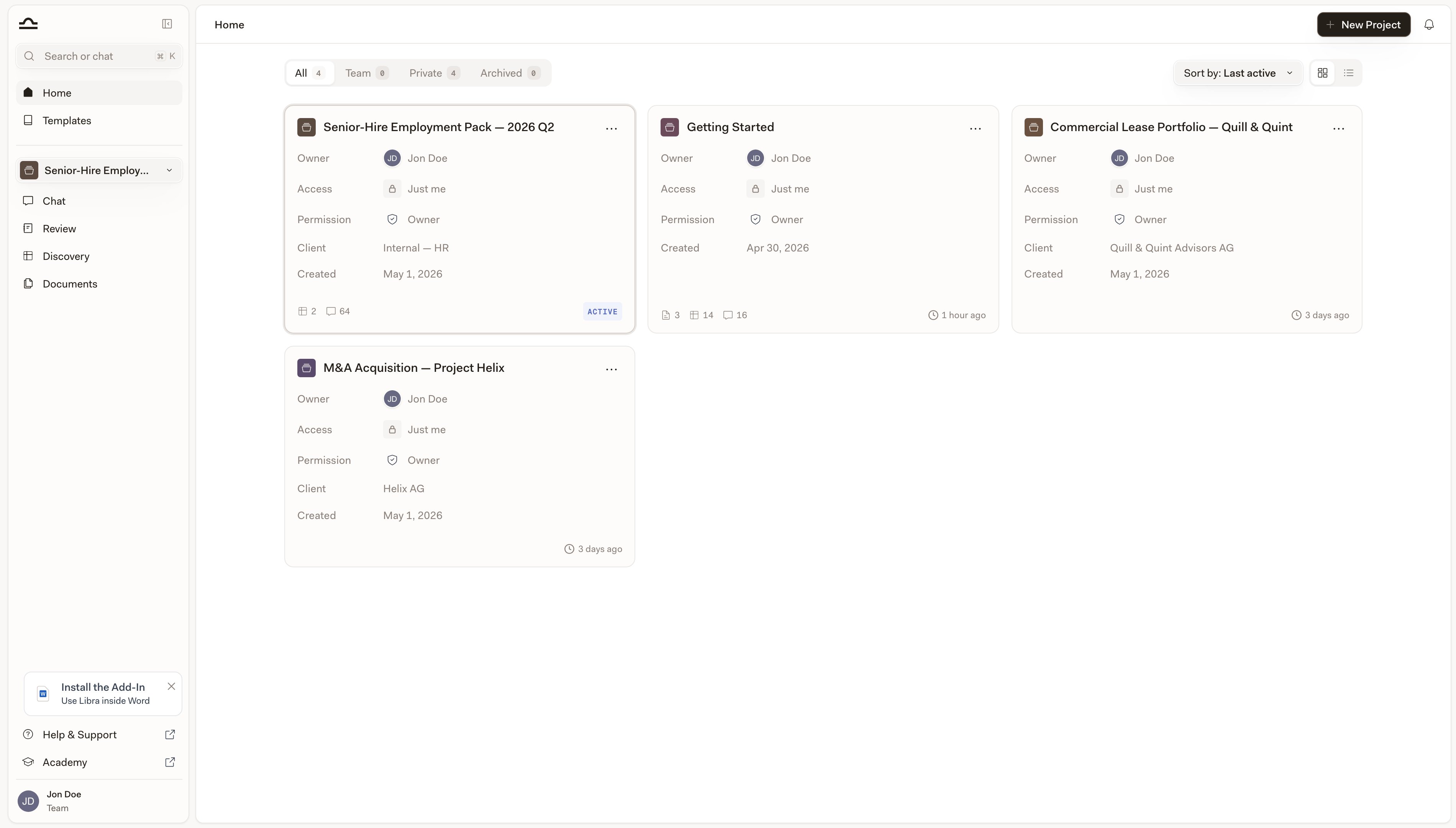
    Libra then makes the new project your active project — the project section of the sidebar switches to it — and takes you to **Home**.

    <img src="https://mintcdn.com/libra-4206ec93/DvY4COCBKazHNw7v/assets/images/app/home-hero.png?fit=max&auto=format&n=DvY4COCBKazHNw7v&q=85&s=5ecca104f08ee1b328d15eb8e1c208bf" alt="Home page showing the project list" width="3800" height="2160" data-path="assets/images/app/home-hero.png" />
  </Step>
</Steps>

<Tip>
  Use a consistent naming convention: *"\[Client], \[Matter description]"* makes projects findable on Home.
</Tip>

## Switching between projects

Two ways to switch on purpose, and a third that happens as a side effect of Search.

<AccordionGroup>
  <Accordion title="Project switcher in the sidebar">
    Click the active project's name just below the global section. A **Projects** sidesheet slides out beside the sidebar with every project you have access to. Search it with **Search projects**, narrow it with the scope chip (**All**, **Team**, **Private**, and **Favorites** once you've starred something) and the **Practice area** and **Tags** filters, then click a card. Libra makes that project the active one, takes you to Chat and starts a new chat in it — the same as clicking a card on Home.

    Each card shows who can see the project — **Just me**, **Everyone in** your team, or **View only** — counts of the documents, Reviews, Discoveries and chats it holds, and when it was last updated; the project you're in carries an **ACTIVE** marker instead of the timestamp. The sidesheet header also has **New project** and **Browse all**, which closes the sidesheet and takes you to Home.

    Archived projects aren't listed here. They live on the **Archived** tab on Home.
  </Accordion>

  <Accordion title="From the Home page">
    Open **Home** in the global section and click any project card — same result as the sidesheet: the project becomes active and Libra starts a new chat in it. Archived projects can't be opened this way; unarchive them first. See [Home](/en/features/home).
  </Accordion>

  <Accordion title="By opening a search result">
    <kbd>Cmd</kbd>+<kbd>K</kbd> searches the things *inside* your projects — chats, documents, folders, Reviews and Discoveries — not project names, so typing a project's name finds nothing on its own. What it does do is cross the wall: open a result that lives in another project and Libra asks **Switch project?** first, then switches you into that project to show it. To pick a project by name, use the sidesheet or Home. See [Search](/en/features/search).
  </Accordion>
</AccordionGroup>

## Editing a project

You can change the project name, description, client, practice area and tags without entering the project, and — if your team has sharing — reach the project's sharing from the same dialog.

<Steps>
  <Step title="Find the project on Home">
    Click **Home** in the global section, then search, sort, or scroll to the project.
  </Step>

  <Step title="Open the project menu (⋯)">
    Pick **Edit**. On a project you can only view, the same entry reads **Details** and opens the dialog read-only.

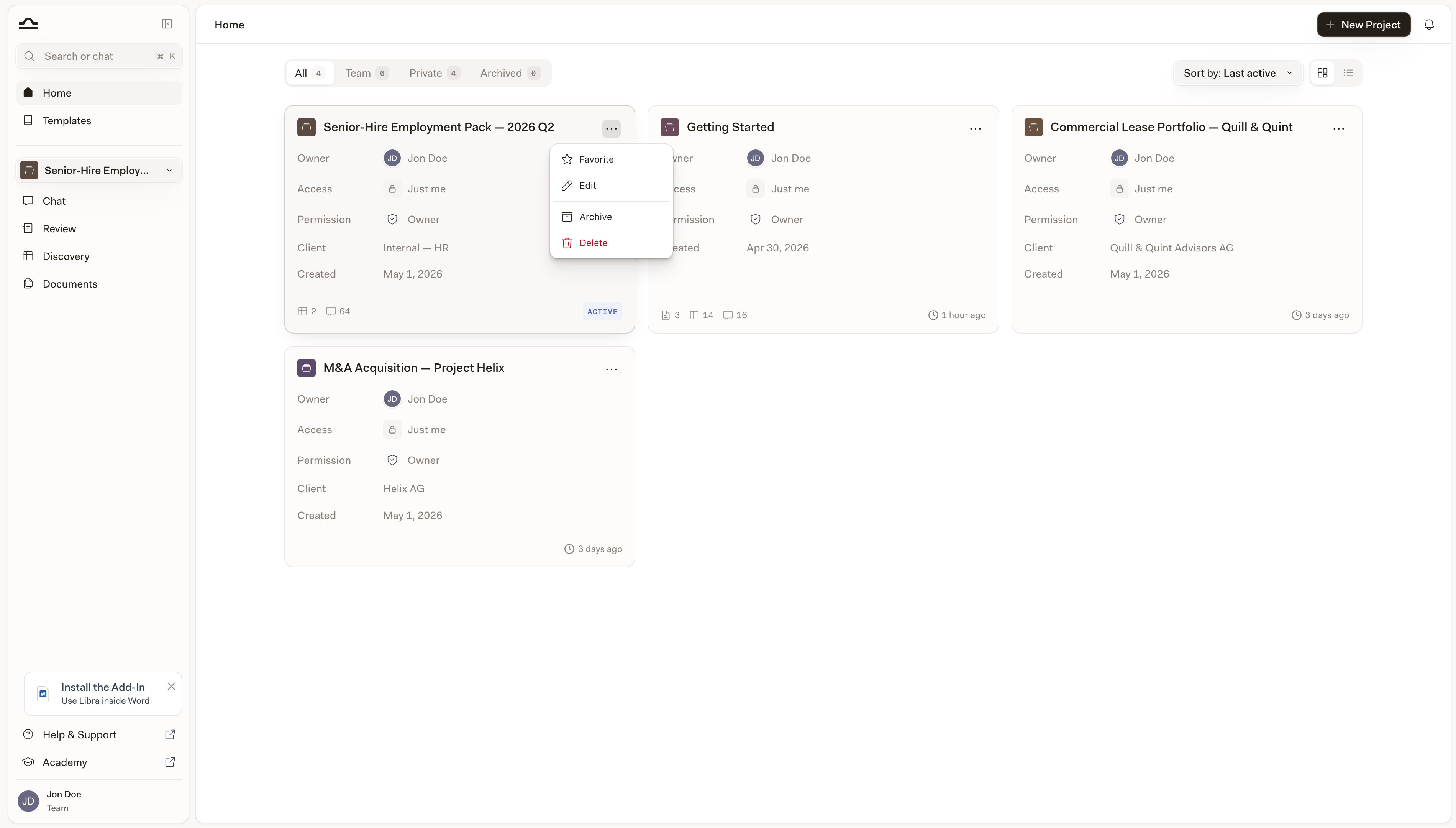
    The rest of the menu is **Favorite** — **Unfavorite** once the project is starred — plus **Archive** and **Delete**, which need **Full Access** or ownership. A **Share** entry sits between them when your team has sharing and the project isn't archived.

    <img src="https://mintcdn.com/libra-4206ec93/DvY4COCBKazHNw7v/assets/images/app/projects-card-menu.png?fit=max&auto=format&n=DvY4COCBKazHNw7v&q=85&s=cc65f07a4188076ff3c27613b911e1a9" alt="Project card ⋯ menu with Favorite, Edit, Archive and Delete" width="3800" height="2160" data-path="assets/images/app/projects-card-menu.png" />
  </Step>

  <Step title="Change what you need to change">
    The dialog opens as **Edit project details**. If your team has sharing, an **Owner** and an **Access** row sit above the fields; clicking the access value on the **Access** row — its tooltip reads **Manage sharing** — opens the project's sharing dialog. Click **Save changes** when you're done.
  </Step>
</Steps>

## Archiving and deleting

A finished matter doesn't need to clutter your active list. Both actions are on the project's **⋯** menu, and both need **Full Access** — being the owner counts.

| Action      | What happens                                                                                                                                                                                               | Reversible?                                  |
| ----------- | ---------------------------------------------------------------------------------------------------------------------------------------------------------------------------------------------------------- | -------------------------------------------- |
| **Archive** | Project moves to the **Archived** tab on Home and drops out of the sidebar sidesheet. Everything inside (chats, documents, Reviews, Discoveries) is preserved.                                             | Yes, **Unarchive** it from the Archived tab. |
| **Delete**  | Project and everything inside it is removed permanently, documents included. On a shared project the confirmation button reads **Delete for all** — it goes for everyone it was shared with, not just you. | No.                                          |

<Warning>
  Delete is permanent. If you might want the work back later, whether to refer to it on a similar matter, to reuse a Playbook, or to share with a colleague, archive it instead.
</Warning>

<Note>
  On the **Starter** plan only active projects count against the three-project cap, so archiving one frees a slot. The reverse also holds: while you're at the cap, unarchiving is refused until you archive something else or upgrade.
</Note>

## Organising your project list

There's no single right way. Common patterns:

| Pattern                           | Best for                                                                                                  |
| --------------------------------- | --------------------------------------------------------------------------------------------------------- |
| **One project per client matter** | The default. Most legal work fits here; each engagement gets a project.                                   |
| **One project per topic**         | Research-heavy practice. *"GDPR research"*, *"German employment law tracker"*.                            |
| **Personal + shared mix**         | A solo "drafts and notes" project alongside shared client matters.                                        |
| **Practice-area projects**        | Useful for partners overseeing a practice: one shared workspace per practice area, sub-divided by matter. |

You can always change strategy mid-stream. On **Professional** and **Team** there's no ceiling on how many projects you keep; on **Starter** the three-project cap makes one-project-per-client impractical past the first few matters, so lean on folders and tags inside fewer projects instead.

<Note>
  In list view your projects carry **Author**, **Practice area** and **Tags** columns, and you can narrow the list with the **Practice area** and **Tags** filters — the same two you get on [Templates](/en/features/templates/practice-areas-and-tags). [Global search](/en/features/search) leads with different filters — **Location**, **Type** and **Created by** — and offers **Practice area** and **Tags** under **Add filter**.
</Note>

## Next steps

<Columns cols={2}>
  <Card title="Home" icon="house" href="/en/features/home">
    Manage every project from one place.
  </Card>

  <Card title="Sharing & access" icon="users" href="/en/features/sharing-and-access">
    Control who sees what.
  </Card>
</Columns>