> ## Documentation Index
> Fetch the complete documentation index at: https://docs.libratech.ai/llms.txt
> Use this file to discover all available pages before exploring further.
# Reviews from chat
> Run a Review without leaving chat, work on a running Review from the chat bubble beside it, and keep asking questions with a finished Review attached as context.
Reviews don't have to start on the Review page. From any chat you can run one and watch the Topics resolve inline. Once a Review exists, chat stays useful: the Review page has its own chat bubble for changing Topics in place, and any finished Review can be attached to a conversation as context.
Attach two Reviews to one chat, *v1* and *v2* of the same contract, and ask *"which deviations were fixed in v2, and which are new?"*. Libra can answer across both, Topic by Topic.
## Run a Review from chat
Either arm Review mode explicitly from **Tools → Create new → Review**, or just describe what you want and let Libra pick the tool.
Open **Tools** in the chat composer, then **Create new → Review**. A **Review** pill appears in the composer toolbar next to **Tools** and **Research**, and the prompt placeholder changes to *"Tell Libra what to review and what to look for…"*. Click the pill again to cancel.
Drop in the contracts you want reviewed, or type `@` in the composer and pick them from the **Documents** group of the context picker. Then write a prompt that describes what to check, like *"review these against our standard NDA terms"* or *"check confidentiality, term, and termination clauses"*.
A Review needs at least one document. If you send without attaching anything, Libra won't start a Review — it asks you to attach the document you want reviewed.
Send the message. Before running anything, Libra settles which **Playbook** to review against — a saved set of Topics, Positions and Rules. It doesn't choose one silently:
* Attach exactly one Playbook to the message — type `@` and pick it from the **Playbooks** group — and Libra uses it, no picker.
* With fewer than five Playbooks available, the picker lists them all.
* With five or more, Libra ranks them against your documents and your prompt first, then shows the best matches.
The picker is headed **Select which Playbook Libra should apply to Review the document**. Type to filter, hover a row for **Preview** (opens the Playbook read-only) and **Select**, or use **Browse all Playbooks** to open the full library. It waits as long as you need — the question survives a page reload, a deploy, and days of elapsed time — and the ✕ in its header dismisses it if you change your mind.
The picker also offers **Create a new Playbook**. That path drafts a Playbook from your prompt and any rubric you attached — a checklist, an internal positions document — but it stops there rather than running a Review. Once the Playbook is ready, ask Libra to run it.
Libra answers with a **Review created** card: the Review's title, its Topic and document counts, and one numbered row per Topic. Each row carries a tag — **Pending** while it waits its turn, **Evaluating** while Libra is working on it, then **No risk**, **Medium risk** or **High risk** once it resolves (or **Not found** when the evaluator found nothing matching in the document, and **Failed** if the evaluation broke). You don't have to wait for the whole Review to finish to start reading.
The card has two ways out. **Open preview** opens the finished Review read-only without leaving the conversation. **Open Review** opens the full Review page, where each Topic has **Verify**, re-run, edit and delete actions, and the header carries **Export** and **Save as Playbook**.
The Review you just created stays attached to the conversation, so a follow-up like *"now draft a redline email summarising the high-risk Topics"* already knows about it — including after a page reload.
A Review created from chat belongs to the same project as the chat. A Playbook doesn't: save one and it's available to you in every project.
## Build a Playbook from chat
You don't need an existing Playbook to get a structured Review. Describe the review you have in mind and Libra drafts a reusable **Playbook** — a set of Topics, Positions and Rules — that you can save and run again on the next matter.
Open **Tools** in the chat composer, then **Create new → Playbook**. A **Playbook** pill appears in the composer toolbar and the placeholder changes to *"Describe the Playbook to create, and attach example documents or an existing checklist…"*.
Tell Libra which side you act for and what to check — *"a Playbook for reviewing standard German employment contracts from the employer's side, covering working time, remuneration, probation and termination"* — or attach an existing checklist to work from.
Libra drafts the Topics, Positions and Rules. Refine them in chat: you can change several Topics in one message, like *"rename topics 2, 5 and 7"* or *"add a governing-law topic and drop the NDA one"*, and Libra applies them together.
The saved Playbook lands in the **Reviews** tab of the [Templates library](/en/features/templates/about) and under **My Playbooks** on the Review page, ready for the next contract.
Building and running Reviews from chat needs a project and a plan that includes Review — the same requirement as the [Review](/en/features/review/basics) feature itself.
## Chat beside a Review
The traffic runs the other way too. Open a Review and a chat bubble sits in the bottom-right corner of the Review page. If you came here from a chat, the bubble continues that conversation; arrive without one open and it starts a fresh chat. Either way the Review you're looking at is attached automatically, so you don't have to `@`-mention it, and the bubble's header lets you switch to another chat or start a new one.
From there you can ask Libra to read a Topic's full definition and reasoning, add a Topic, rewrite one, or delete one. Edits apply to this Review only and never change the Playbook it came from. Anything you add or change is re-evaluated in the background and the page updates in place, with no manual refresh. You can change several Topics in one message — Libra batches them into a single edit — but only one such edit per message: after it lands the Review is busy re-evaluating, so a second edit in the same turn is refused. Libra tells you the Topics are updating and reports the new outcomes in its next message.
Two limits are worth knowing. Edits need a Review that has finished evaluating — you can't change Topics while a run is still in progress, including in the moments right after the Review is created, and Libra will tell you to wait. And the bubble is desktop-only; it doesn't appear on mobile.
## Reference a finished Review in chat
Once a Review exists, attach it to any chat as context. Libra answers with citations back to specific Topics, without you copy-pasting anything.
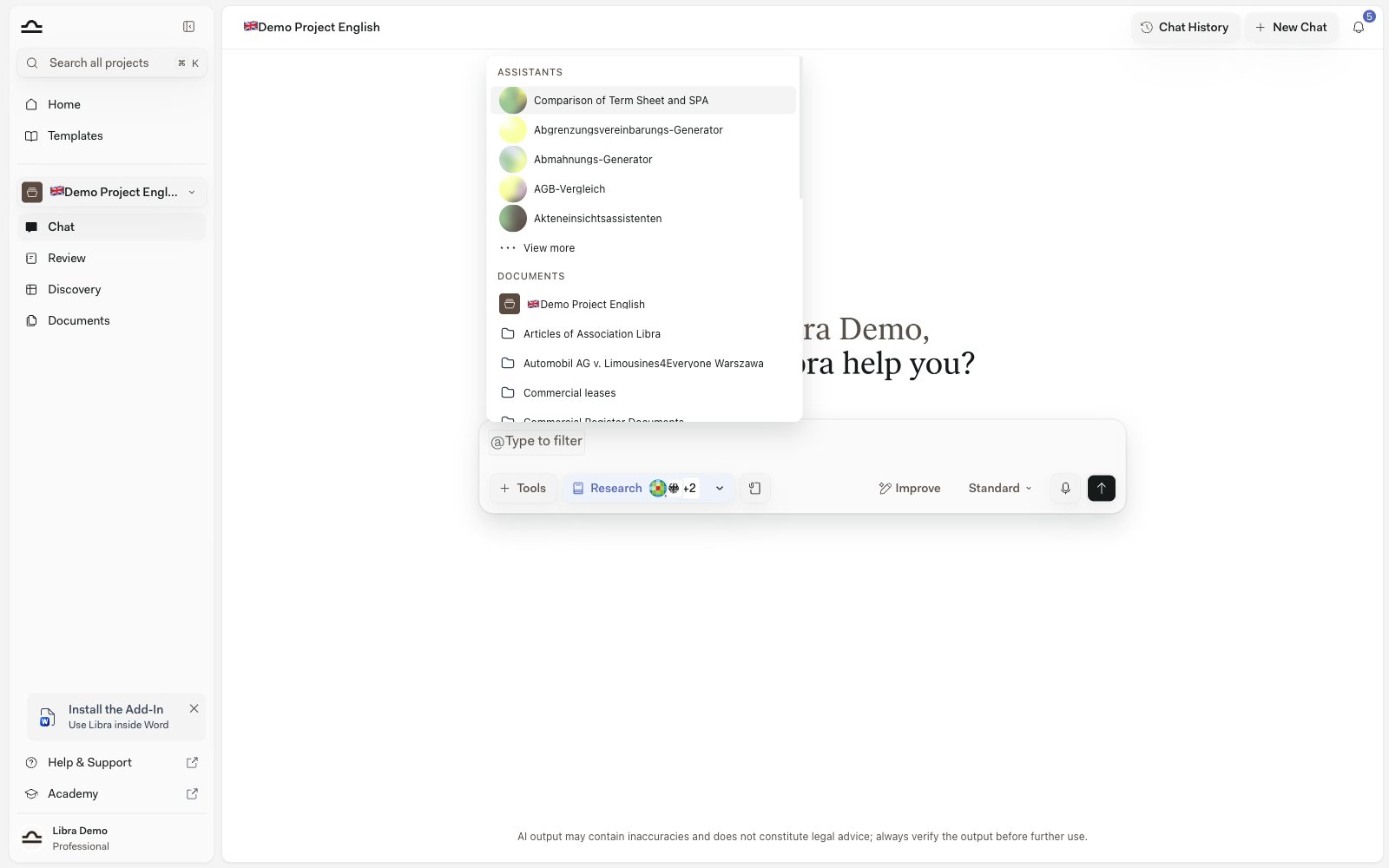
Type `@` anywhere in the chat input. The context picker opens, grouped by type — Assistants, Documents, Discoveries, Reviews and Playbooks. Pick the Review you want. Libra now treats that Review as part of the chat's context.
Open **Tools** in the composer and choose **Add context**. Select the Review from the picker. Same outcome: the Review is attached to the chat.
### Reference flow in practice
Reviews are project-scoped, so the chat needs to be in the same project — or attach the project itself, which lets Libra reach the Reviews inside it.
The picker groups its suggestions by type. Reviews appear under **Reviews**, with the Review icon.
The Review is attached as context. Examples:
* *"Which topics came back high risk and why?"*
* *"Draft a redline email summarising the deviations."*
* *"Compare this Review to the Review I ran on the previous draft."*
Libra's answer cites specific Topics from the Review. Open the [Cited Sources panel](/en/features/chat/citations): a whole-Review card expands into a Topic roster, one row per Topic with its risk badge, so you can see at a glance which Topics drove the answer.
### How a Review citation looks
A Review citation isn't bracketed text. It renders as a compact chip in the answer: the Review icon followed by the Topic's name, or the Review's title when the citation refers to the Review as a whole.
Hover the chip and a card opens with the Topic's number and name, its risk badge, and the **Reasoning** Libra recorded for it. The card's **Show in Review** action takes you to that Topic on the Review page.
## Common chat-on-Review prompts
*"Summarise this Review in one paragraph for the client. Focus on the high-risk topics."*
*"Draft an email to opposing counsel listing every deviation we'd push back on, ordered by risk."*
*"Prepare three bullet points the partner should know before the call. Include risk levels and citations."*
Attach two Reviews (e.g. v1 and v2 of the same contract). Ask: *"What changed between these two reviews? Which deviations were fixed in v2, which are new?"*
*"Translate the high-risk findings into German for the client."*
## Reviews vs. Discoveries as context
Both Reviews and Discoveries can be attached to a chat as context. They cite differently:
| | Review | Discovery |
| ---------------------- | ----------------------------------------- | ----------------------------------------------- |
| **Citation level** | The whole Review, or one Topic | The whole Discovery, or a Column, Row, or Cell |
| **Best for follow-up** | "Why did this Topic come back high risk?" | "Show me the rows where this column is over X." |
| **Best for summary** | A redline email or partner briefing. | A spreadsheet-shaped summary or chart. |
You can attach both at once, for example, a portfolio Discovery and a deep-dive Review on one of the Discovery's documents.
## Tips for getting useful answers
Reviews need contracts to work on. Without an attachment, Libra won't run the tool — it asks you for the document instead.
*"Summarise this Review"* gets generic. *"Summarise this Review in German for an internal partner. Focus on Topics with High risk and include citations."* gets something usable.
*"And cite the relevant Topics."* added to any prompt gets you a verifiable answer instead of a free-form summary.
Attach the Review and the contract itself. Now Libra can reference both: *"explain why Topic 3 is medium risk and quote the exact contract clause that triggered it."*
If you find yourself asking *"check the contract against these rules"* in chat, run a proper Review instead. A Review checks the document against your Playbook's Rules and records the outcome per Topic, with citations; a chat answer is prose that nothing keeps.
## Next steps
Build one Topic by Topic in the full editor, with Positions, Rules and Ideal Language.
How citations work across web sources, documents, Reviews, and Discoveries.