
> ## Documentation Index
> Fetch the complete documentation index at: https://docs.libratech.ai/llms.txt
> Use this file to discover all available pages before exploring further.

# Starring & sharing templates

> Pin the templates you use most, and decide who else gets to see them.

<video autoPlay muted loop playsInline src="https://mintcdn.com/libra-4206ec93/azhR9hqtFjs66ITC/assets/videos/features/templates-starring.webm?fit=max&auto=format&n=azhR9hqtFjs66ITC&q=85&s=1ea332edfebdeedd9b5d8a2fa5dd1731" className="rounded-xl border w-full" data-path="assets/videos/features/templates-starring.webm" />

Two controls turn the template library from a long list into something you can work out of every day. **Favorite** pins the templates you reach for most to the top of the grid, for you alone. **Share** decides which colleagues and groups get to see and run them.

## Starring a template

Starring is a personal preference. Your stars never change what your colleagues see, and any template can be starred — your own, one a colleague shared with you, or one that ships with Libra.

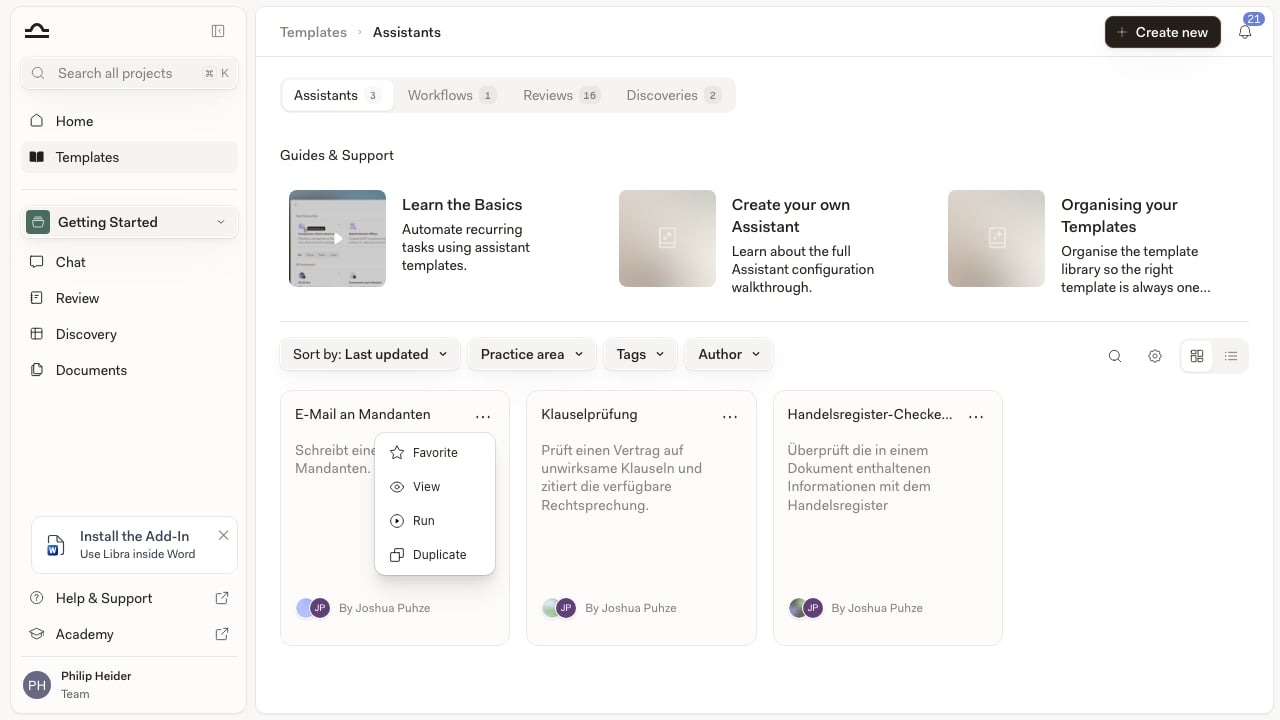
Where the control sits depends on how you're looking at the library. In the default **grid** view the star is only an indicator: it appears in a card's top-right corner once the template is starred, and it fades out the moment you hover so the **…** button can take its place. The action itself lives in that menu.

<Steps>
  <Step title="Open the card's … menu">
    On an unstarred card the **…** (More options) button sits in the top-right corner; on a starred one it takes the star's place as you hover. A template shared with you while your team is without collaboration is locked: a padlock sits in that corner instead, and there's no menu. Open the menu and choose **Favorite** — or **Unfavorite** on a template that's already starred.

    <img src="https://mintcdn.com/libra-4206ec93/pnEt5D-f3JDzogZl/assets/images/app/templates-star-icon.png?fit=max&auto=format&n=pnEt5D-f3JDzogZl&q=85&s=5f8c4328908740a4f4de67d4186c3ef2" alt="Template card with the More options menu open, showing Favorite, View, Run and Duplicate" width="1280" height="720" data-path="assets/images/app/templates-star-icon.png" />
  </Step>

  <Step title="Or use the star in list view">
    Switch the library to list view with the toggle on the right of the filter row. Hovering a row reveals a star next to the template title, labelled **Add to favorites** or **Remove from favorites**. One click, no menu.
  </Step>

  <Step title="Or star it from the template itself">
    Open a template and the same star sits in the top-right toolbar next to **Duplicate** and **Share**, with the same **Add to favorites** / **Remove from favorites** labels.
  </Step>
</Steps>

Starred templates sort to the top of whichever tab you're in — **Assistants**, **Workflows**, **Reviews** or **Discoveries** — whatever you've picked under **Sort by**. Filters are applied first, though: if a starred template doesn't match the **Practice area**, **Tags** or **Author** filter you've set, it isn't pulled back into view.

<div className="libra-buddy-callout">
  <img src="https://mintcdn.com/libra-4206ec93/wgVZXcGnHS4aJk9T/assets/images/libra-buddy/cheering.png?fit=max&auto=format&n=wgVZXcGnHS4aJk9T&q=85&s=49205b8407cd8d7b1326a1fb1db7c518" alt="Libra mascot cheering" width="1952" height="2176" data-path="assets/images/libra-buddy/cheering.png" />

  <div className="libra-buddy-callout-content">
    Stars are stored against your Libra account rather than the browser, so they follow you into any browser you sign in to. The Word and Outlook add-ins are a separate list: their assistant picker has its own **Pin to top** control, saved only on that installation.
  </div>
</div>

## Stars vs. tags

Stars and tags do different jobs. Use both.

|                         | Star                                                   | Tag                                                    |
| ----------------------- | ------------------------------------------------------ | ------------------------------------------------------ |
| **What it does**        | Sorts a template to the top of the list, just for you. | Labels a template so it can be filtered to.            |
| **Personal or shared?** | Personal; only you see your stars.                     | Shared; anyone who can see the template sees its tags. |
| **How many to use**     | Keep it short. A handful, max.                         | As many as the template warrants.                      |
| **When to use**         | The two or three templates you reach for every week.   | Every template, so they're findable in six months.     |

## Sharing a template

Sharing a template means being able to change it, so **Share** appears only on templates you own or hold **Edit** or **Full Access** on — open one that was shared with you as **View only** and there is no **Share** control at all. Past that, it depends on your team. If your team doesn't currently have collaboration — you're on a trial, on a plan without it, or the plan was downgraded — **Share** becomes a padlock whose tooltip offers **Enable team features** on a trial and **Upgrade to Team** otherwise. And if collaboration is already part of your plan but you're the only person on your team, **Share** is hidden altogether: there's nobody to add.

When it is available, **Share** opens a dialog with two halves that work independently: a list of named people and groups, and a single team-wide setting.

### Adding people and groups

Type into **Add email, name or group name** and Libra suggests matching team members and user groups; pick as many as you want and they collect as chips in the field. Set the permission for that batch in the dropdown beside it, then press **Add**. The dialog spells out the distinction itself: *Editors can make changes and manage sharing. Viewers have read-only access.*

| Permission                                       | What it allows                                                                                       |
| ------------------------------------------------ | ---------------------------------------------------------------------------------------------------- |
| **View only** (the dropdown calls it *Can view*) | Open and run the template. No changes.                                                               |
| **Edit** (*Can edit*)                            | Change the template, and manage sharing for viewers and editors.                                     |
| **Full Access** (*Full access*)                  | Everything an editor can do, plus managing the access of people who themselves have **Full Access**. |

You can only hand out a permission you hold yourself, so an editor can add viewers and editors but not grant **Full Access**.

### Team-wide access

Below the invite field, **General access** covers everyone in your team in one setting. **Only people invited** is the default and keeps the template to the list you've built by hand. Switch it to **Everyone in the team** and a permission dropdown appears next to it, so team-wide access can be **View only**, **Edit** or **Full Access** in the same way an individual's can.

### Reviewing who has access

**Who has access** lists the owner, then every person and group you've added, each with its own permission dropdown and a **Remove** action. There is no separate save step — each change is applied as you make it, and the people you added see the template in their library on their next refresh.
<Note>
  If you have the admin role, template editors show an extra **ADMIN ONLY** block. Alongside **Make public**, it carries **Assign to User**: enter a colleague's **User Email** and Libra creates a copy of the template that they own and can edit independently, optionally shared with their team as well. It's available on Assistant, Discovery and Playbook templates. For Assistants, knowledge files are not copied across.
</Note>

<Warning>
  **Edit** and **Full Access** both let the recipient change the template for everyone it's shared with, and both let them re-share it — an editor can add viewers and editors, and someone with **Full Access** can hand out **Full Access** too. If a template needs to stay stable, share it as **View only**; anyone who wants a variant can duplicate it into one of their own.
</Warning>

## Duplicating instead of editing

To build a variant of someone else's template without touching theirs, use **Duplicate** — the icon between the star and **Share** in the template's top-right toolbar, or the **Duplicate** entry in the card's **…** menu. For an Assistant, Discovery or Playbook template, Libra makes the copy straight away and names it after the original with **(Copy)** appended. A Workflow asks first: a **Duplicate Workflow** dialog opens with that same name filled in, and the copy is created when you confirm with **Create Workflow**. Either way the copy is yours and private — not shared with the team, not public — until you share it yourself.

## Tips for sharing well

<AccordionGroup>
  <Accordion title="Invite the people who need it before you open it to the team">
    **Everyone in the team** is hard to walk back once colleagues start relying on a template. Add the two or three people who actually need it, let it prove itself, and switch **General access** afterwards.
  </Accordion>

  <Accordion title="Document the template in its description">
    The description is what colleagues see before they run a template. A one-paragraph "what this is for and when to use it" saves a lot of confusion downstream.
  </Accordion>

  <Accordion title="Keep edit rights tight once the template is stable">
    A template that's been used dozens of times shouldn't be edited casually. Share it as **View only** and encourage duplicates for variants.
  </Accordion>

  <Accordion title="Star the shared templates you actually use">
    A colleague's template you find valuable can be starred like any other. The star is yours alone, but it puts their template at the top of your library too.
  </Accordion>
</AccordionGroup>

## Next steps

<Columns cols={2}>
  <Card title="Practice areas & tags" icon="tag" href="/en/features/templates/practice-areas-and-tags">
    Make sure templates can be found before you decide who shares them.
  </Card>

  <Card title="Sharing & access" icon="users" href="/en/features/sharing-and-access">
    The full sharing model across projects, templates, and Project files.
  </Card>
</Columns>
