> ## Documentation Index
> Fetch the complete documentation index at: https://docs.libratech.ai/llms.txt
> Use this file to discover all available pages before exploring further.

# How Libra is organised

> Two simple zones, global tools and project work, and how they fit together.

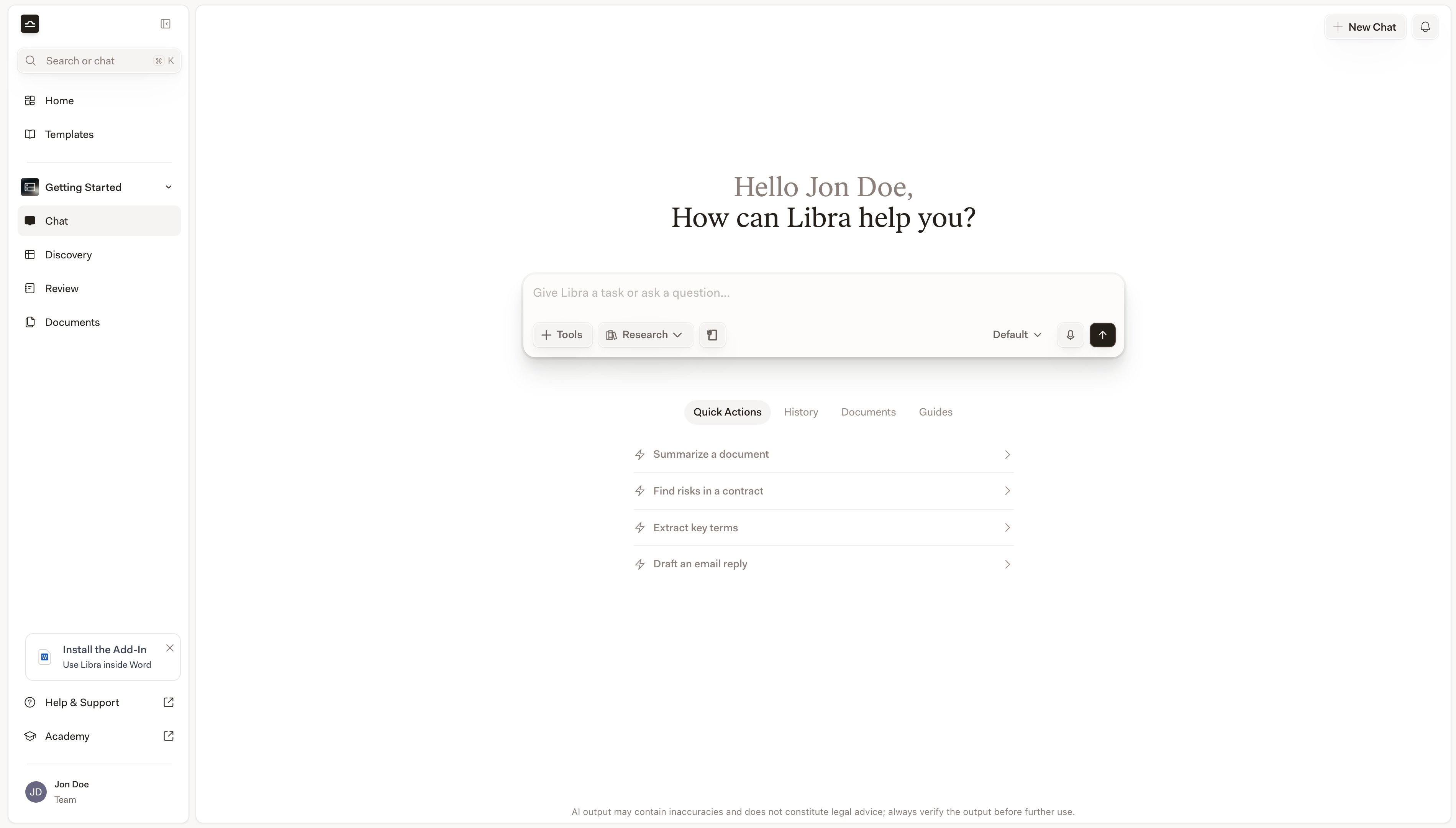
<img src="https://mintcdn.com/libra-4206ec93/pnEt5D-f3JDzogZl/assets/images/app/sidebar-global-vs-project.png?fit=max&auto=format&n=pnEt5D-f3JDzogZl&q=85&s=199a04d3061b97e8ebf8ad1ae2ec0a74" alt="Libra sidebar split into a global block at the top and the active project's entries below" width="3800" height="2160" data-path="assets/images/app/sidebar-global-vs-project.png" />

Everything in Libra lives in one of two places: **a global zone** for the tools and sources you use across all your work, and **a project zone** for the work itself. Once you see the split, the rest of the app falls into place.

<div className="libra-buddy-callout">
  <img src="https://mintcdn.com/libra-4206ec93/wgVZXcGnHS4aJk9T/assets/images/libra-buddy/presenting.png?fit=max&auto=format&n=wgVZXcGnHS4aJk9T&q=85&s=db41075b4a259a172f68465ae5c3421e" alt="Libra mascot presenting" width="827" height="615" data-path="assets/images/libra-buddy/presenting.png" />

  <div className="libra-buddy-callout-content">
    A horizontal line divides the sidebar. Everything above it — Search, Home, Templates, and, if your team has them, Databases — stays put when you switch projects. Directly below it sits the project you're in, and its entries rebind whenever you switch.
  </div>
</div>

## The two zones

| Zone        | What lives here                                        | When you use it                                                                                                                                             |
| ----------- | ------------------------------------------------------ | ----------------------------------------------------------------------------------------------------------------------------------------------------------- |
| **Global**  | **Search**, **Home**, **Templates**, **Databases**     | Looking something up across all of your work, starting from a reusable template, or reaching for sources that belong to the firm rather than to one matter. |
| **Project** | **Chat**, **Review**, **Discovery**, **Project files** | Doing the actual work on a specific matter: the contracts, the questions, the files, the analysis.                                                          |

The sidebar mirrors that split. The global entries sit at the top, above the separator. Below it, the active project's name doubles as the switcher, and that project's own entries follow.

## Global tools

The entries at the top of the sidebar are the same whichever project you're in.

<Columns cols={2}>
  <Card title="Search" icon="search" href="/en/features/search">
    The **Search all projects** bar sits at the very top, or press <kbd>Cmd</kbd>+<kbd>K</kbd> from anywhere. It covers chats, documents, folders, Reviews, Discoveries, Assistants, Workflows, and templates.
  </Card>

  <Card title="Home" icon="house" href="/en/features/home">
    The list of every project you have access to. Star, sort, filter, share, archive, or open one.
  </Card>

  <Card title="Templates" icon="book-marked" href="/en/features/templates/about">
    Reusable Assistants, Workflows, and templates for Reviews and Discoveries. Once configured, available everywhere.
  </Card>

  <Card title="Databases" icon="database" href="/en/features/databases/basics">
    Sets of documents that sit above your projects, so the same sources can back work in any matter.
  </Card>
</Columns>

**Databases** is the one global entry that isn't guaranteed to be there: it appears if your plan includes it and your administrator has switched it on, and teams below the Team plan see it with a **Team** badge and an upgrade prompt in place of the list.

It is also the entry that most changes the shape of the model above. Search, Home, and Templates are tools and lists; a database is *content* that isn't tied to a project. That makes it the deliberate opening in the wall between matters — the same precedent bank or regulation set can back a chat in one project and a Review in another. See [Databases](/en/features/databases/basics).

## Project tools

Each project is a self-contained workspace. When you switch projects, the chat history, the **Project files** panel, and the Reviews and Discoveries all change to show only the work that belongs to the project you're now in.

<Columns cols={2}>
  <Card title="Chat" icon="https://mintcdn.com/libra-4206ec93/vIwxn8dmEk0jsP5x/assets/images/icons/chat.svg?fit=max&auto=format&n=vIwxn8dmEk0jsP5x&q=85&s=9a77dbd38fde763e8ac783fb8a68aef6" href="/en/features/chat/basics" width="16" height="16" data-path="assets/images/icons/chat.svg">
    Where most of the work starts. Ask questions, attach documents, run Reviews and Discoveries, all from one place.
  </Card>

  <Card title="Review" icon="https://mintcdn.com/libra-4206ec93/vIwxn8dmEk0jsP5x/assets/images/icons/review.svg?fit=max&auto=format&n=vIwxn8dmEk0jsP5x&q=85&s=034a75366c56b497bbe99cbb19f2f796" href="/en/features/review/basics" width="16" height="16" data-path="assets/images/icons/review.svg">
    Check a contract against your firm's standard positions and rules.
  </Card>

  <Card title="Discovery" icon="https://mintcdn.com/libra-4206ec93/vIwxn8dmEk0jsP5x/assets/images/icons/discovery.svg?fit=max&auto=format&n=vIwxn8dmEk0jsP5x&q=85&s=db1cd1f10cf28b892531af607cf1fd26" href="/en/features/discovery/basics" width="16" height="16" data-path="assets/images/icons/discovery.svg">
    Ask the same questions across many documents and get a comparable table.
  </Card>

  <Card title="Project files" icon="folder" href="/en/features/documents/library">
    Every file in the project, plus the Reviews, Discoveries, and chat uploads it has produced.
  </Card>
</Columns>

**Chat**, **Review**, and **Discovery** each open a page. **Project files** is different: it toggles a panel beside whatever you're doing, so you can browse the matter's files without leaving the conversation.

## Switching projects

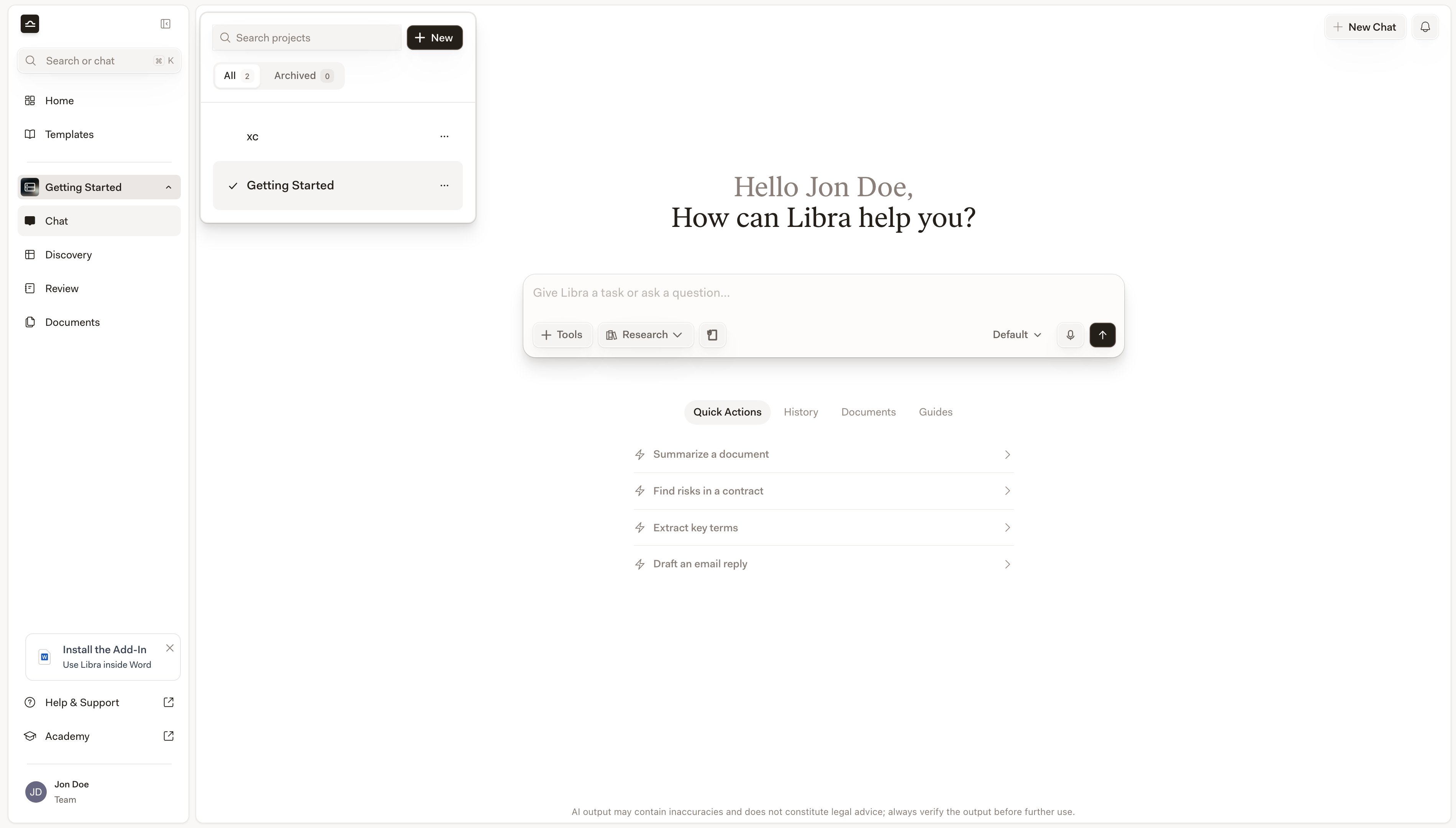
The active project's name sits just below the global entries. Clicking it slides out a full-height **Projects** panel — a sidesheet, not a dropdown.

<Steps>
  <Step title="Open the Projects panel">
    Click the active project's name in the sidebar. The chevron beside it flips from pointing right to pointing left while the panel is open.

    <img src="https://mintcdn.com/libra-4206ec93/DvY4COCBKazHNw7v/assets/images/app/project-switcher.png?fit=max&auto=format&n=DvY4COCBKazHNw7v&q=85&s=9155c3f31cd517d8e7b913b204d31251" alt="The Projects panel open beside the sidebar, listing the projects you can open" width="3800" height="2160" data-path="assets/images/app/project-switcher.png" />
  </Step>

  <Step title="Find the project you want">
    Type into **Search projects**, or narrow the list with the **All**, **Practice area**, and **Tags** chips and the sort button beside them. Each card shows how the project is shared — **Just me**, **Everyone in** *your team's name*, or **Shared** — with a **View only** badge if your access is read-only, plus counts of what's in it and when it was last edited. The project you're in is marked **ACTIVE** in place of that timestamp.

    **Browse all** takes you to [Home](/en/features/home) for the full list; **New project** creates one on the spot.
  </Step>

  <Step title="Pick it">
    Chat, Review, Discovery, and Project files rebind to the project you chose. Search, Home, Templates, and Databases stay exactly as they were; they belong to all projects.
  </Step>
</Steps>

<Tip>
  You can also open a project from the **Home** page by clicking its card. Global search is for finding work *inside* projects — you can scope a search to one project with its **Location** filter, but searching a project's name won't switch you into it.
</Tip>

## What this changes for you

If you've used Libra before:

| Before                                                              | Now                                                                                                                                                                    |
| ------------------------------------------------------------------- | ---------------------------------------------------------------------------------------------------------------------------------------------------------------------- |
| You looked for "your starred Assistants" inside a specific project. | Starred Assistants live in **Templates**. Stars are stored against your account, so they follow you across every project and every device.                             |
| You searched for an old chat in the project's chat history.         | Press <kbd>Cmd</kbd>+<kbd>K</kbd> from anywhere. Search covers chats, documents, Reviews, Discoveries, Assistants, Workflows, and templates across all projects.       |
| The project's file panel was called **Documents**.                  | It's called **Project files**, and alongside the **Reviews** and **Discoveries** folders it now collects everything you attach in chat into a **Chat uploads** folder. |
| Every document you uploaded belonged to exactly one project.        | **Databases** hold documents at the workspace level, so one set of sources can serve every matter that needs it.                                                       |

One thing hasn't changed: signing in drops you straight into a blank **Chat** in your active project. **Home** is a destination in the sidebar, not the screen you land on.

<div className="libra-buddy-callout">
  <img src="https://mintcdn.com/libra-4206ec93/wgVZXcGnHS4aJk9T/assets/images/libra-buddy/pointing.png?fit=max&auto=format&n=wgVZXcGnHS4aJk9T&q=85&s=fb9114facd16ecd4bc0c89bfbc7d660b" alt="Libra mascot pointing" width="856" height="585" data-path="assets/images/libra-buddy/pointing.png" />

  <div className="libra-buddy-callout-content">
    Anything you star, whether a template, Assistant, or Workflow, is stored against your account. Sign in on a colleague's laptop and your stars come with you.
  </div>
</div>

## Next steps

<Columns cols={3}>
  <Card title="Home" icon="house" href="/en/features/home">
    Every project you have access to, in one list.
  </Card>

  <Card title="Templates" icon="book-marked" href="/en/features/templates/about">
    Build a library of reusable work.
  </Card>

  <Card title="Databases" icon="database" href="/en/features/databases/basics">
    Share sources across every matter.
  </Card>
</Columns>