> ## Documentation Index
> Fetch the complete documentation index at: https://docs.libratech.ai/llms.txt
> Use this file to discover all available pages before exploring further.

# Kleos

> Copy files from your Kleos practice-management environment into a Libra project.

<video autoPlay muted loop playsInline src="https://mintcdn.com/libra-4206ec93/5Pm7pEl9igcUcCSB/assets/videos/integrations/kleos.webm?fit=max&auto=format&n=5Pm7pEl9igcUcCSB&q=85&s=e03a75a341a716a2a3daac0f33c50130" className="rounded-xl border w-full" data-path="assets/videos/integrations/kleos.webm" />

**Kleos** is Wolters Kluwer's practice-management system. If your firm runs Kleos, you can browse your Kleos cases from inside Libra and copy the documents you need straight into a project — no downloading and re-uploading.

<Note>
  Kleos appears only for Libra teams registered in **Germany**, **the Netherlands**, **Belgium** or **Italy**. If your team is registered elsewhere, the integration won't show up anywhere in Libra, whatever your Kleos subscription.

  It also requires a **Kleos Advanced** or **Advanced+** subscription. If your firm is on a different Kleos package, the integration won't be available — check with your firm administrator.

  Finally, your firm must assign permission to use Libra in Kleos. In Kleos, go to **Settings** → **Licences**, select a user, then assign the **Libra** licence. For the official requirements, see the [Kleos Libra FAQ](https://wkleu.my.site.com/legalsoftware/s/article/Kleos-Libra---FAQ).
</Note>

<div className="libra-buddy-callout">
  <img src="https://mintcdn.com/libra-4206ec93/wgVZXcGnHS4aJk9T/assets/images/libra-buddy/excited.png?fit=max&auto=format&n=wgVZXcGnHS4aJk9T&q=85&s=ff4421471ed769b8a6bb79c03cda38f3" alt="Libra mascot excited" width="729" height="648" data-path="assets/images/libra-buddy/excited.png" />

  <div className="libra-buddy-callout-content">
    The copy is one-way, Kleos to Libra, a snapshot, not a live link. Re-copy when the matter file moves on, or you'll review yesterday's SPA.
  </div>
</div>

## What the integration does

| Behaviour            | Detail                                                                                                    |
| -------------------- | --------------------------------------------------------------------------------------------------------- |
| **Direction**        | One-way copy: Kleos → Libra.                                                                              |
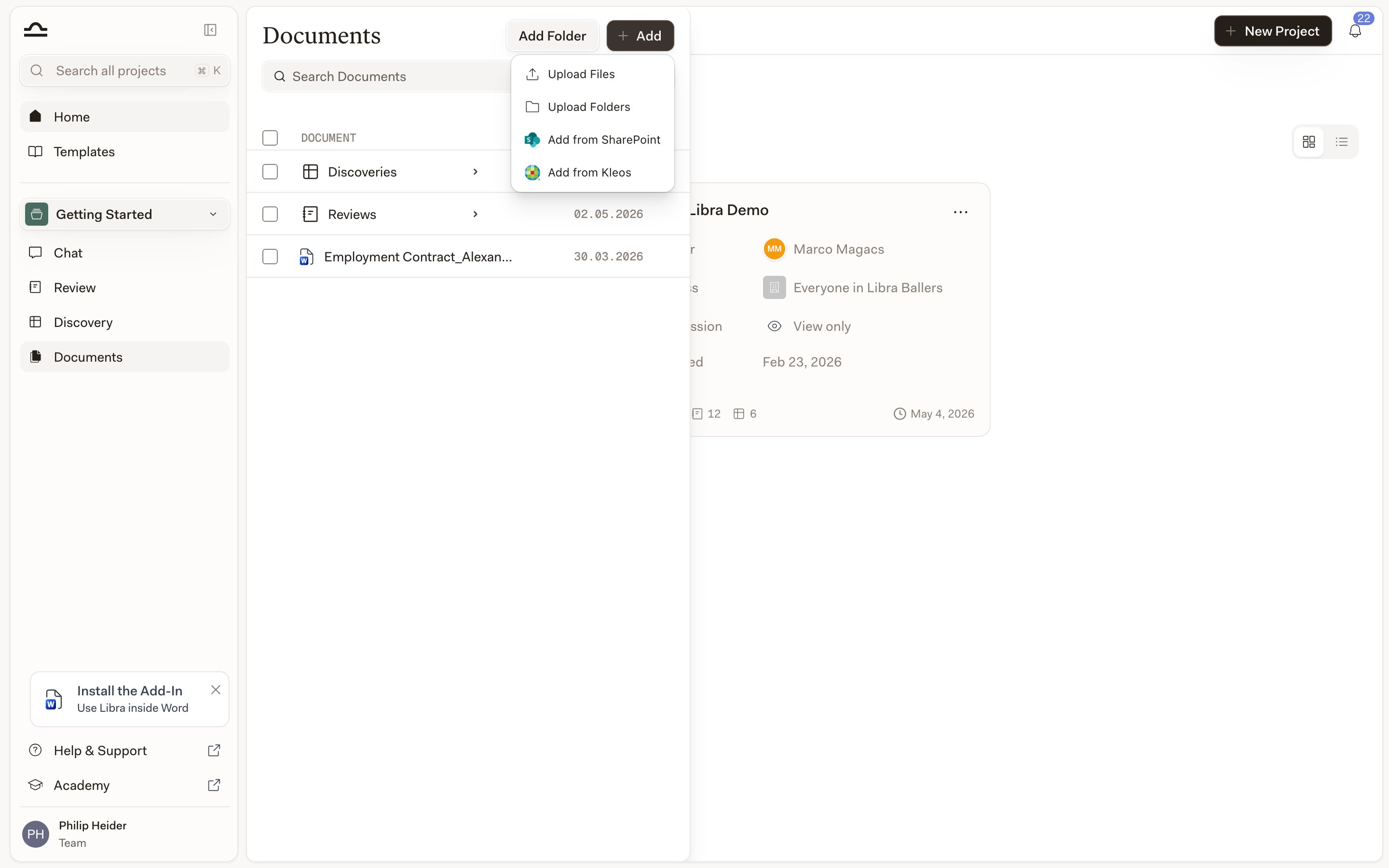
| **Where to start**   | **Upload** → **Add from Kleos** in a project's **Project files** panel, or the attachment menu in a chat. |
| **What's copied**    | The documents you tick in the picker. The originals stay in Kleos untouched.                              |
| **Where files land** | The top level of **Project files**; you can move them into folders afterwards.                            |
| **Authentication**   | Your own Kleos credentials, connected once in **Settings** → **Integrations**.                            |

## How to use it
<Steps>
  <Step title="Connect Kleos (first time only)">
    Go to **Settings** → **Integrations** and find the **Kleos** card. Click **Connect with Kleos** and sign in with your usual Kleos credentials in the pop-up window. Libra remembers the connection, so later copies skip this step.

    You can also start from the project: if you pick **Add from Kleos** before connecting, Libra opens the Kleos card for you and asks you to connect first.
  </Step>

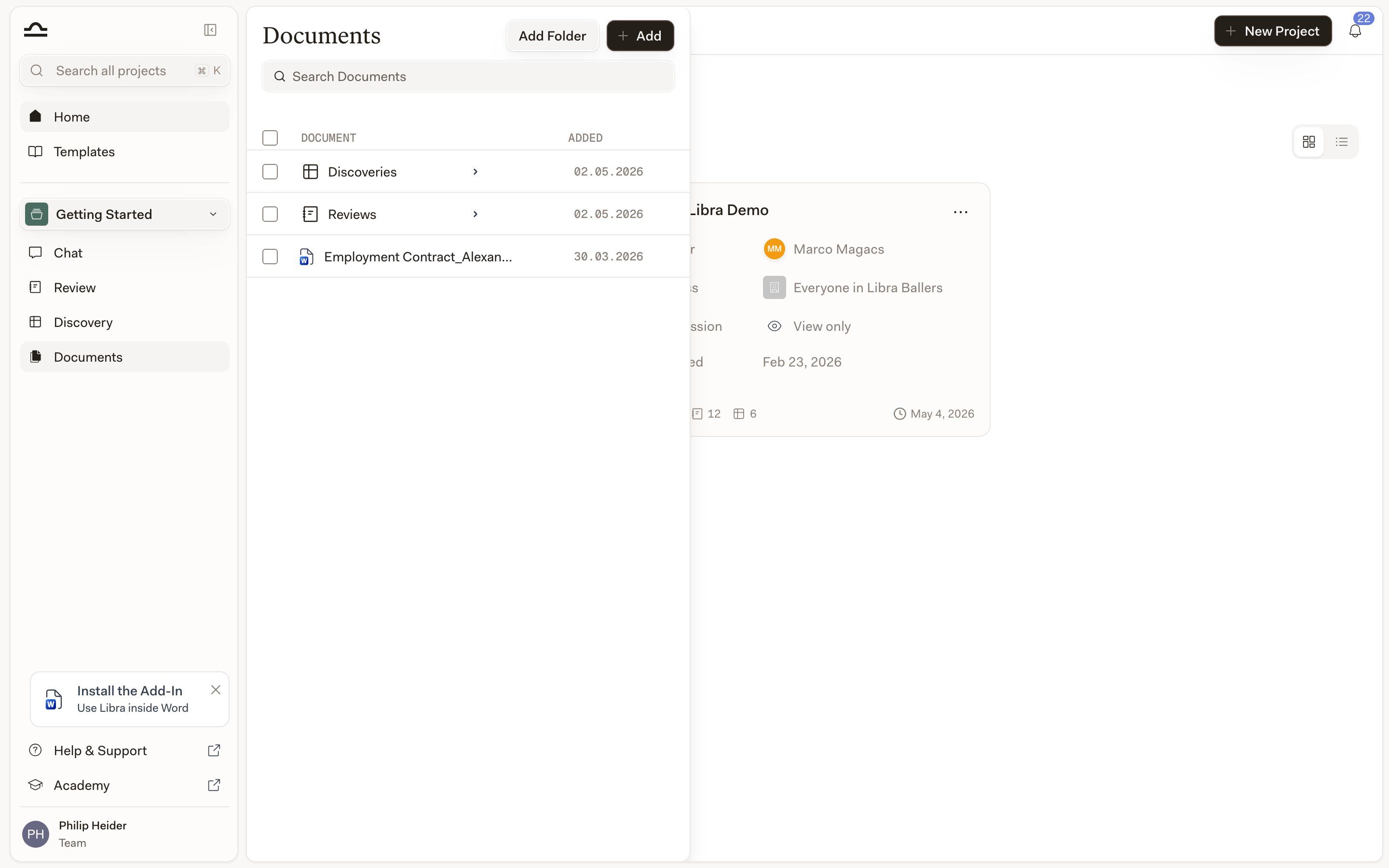
  <Step title="Open the Project files panel">
    In any project, click **Project files** in the sidebar.

    <img src="https://mintcdn.com/libra-4206ec93/DvY4COCBKazHNw7v/assets/images/app/documents-panel.png?fit=max&auto=format&n=DvY4COCBKazHNw7v&q=85&s=4df3bbcc7da77d74318c227c72b8788e" alt="The Project files panel in a Libra project" width="2880" height="1800" data-path="assets/images/app/documents-panel.png" />
  </Step>

  <Step title="Click Upload → Add from Kleos">
    In the **Project files** toolbar, click **Upload** and choose **Add from Kleos**. The same menu holds **Upload Files**, **Upload Folders** and **Add from SharePoint**.

    <img src="https://mintcdn.com/libra-4206ec93/DvY4COCBKazHNw7v/assets/images/app/documents-add-menu.png?fit=max&auto=format&n=DvY4COCBKazHNw7v&q=85&s=4e6fb3e9338f6752d1a8a12c12fadcd1" alt="The Project files add menu showing Add from Kleos" width="2880" height="1800" data-path="assets/images/app/documents-add-menu.png" />
  </Step>

  <Step title="Pick a case">
    The picker opens on your Kleos **Cases**, not on a file tree. Search by case name or number, or page through the list, then open the case you're working on.
  </Step>

  <Step title="Select the documents">
    Inside the case you get its folders and documents. Expand a folder to load its contents; where a folder holds more than one page of documents, a **Load more** button fetches the next batch. Tick as many documents as you need — file types Libra can't process are greyed out and can't be selected.
  </Step>

  <Step title="Click Add documents">
    Libra copies the selected files into the project's **Project files** panel. Processing happens in the background; the files become searchable, citable and usable in chat once they finish indexing.
  </Step>
</Steps>

<Tip>
  You don't have to go through **Project files**. The attachment button in the chat composer — next to **Tools** and **Research** — reaches Kleos too, which is the quicker route when you just want one case document in the conversation you're already having. Depending on how your team is set up, **Kleos** is either listed straight in that menu or one level down under **Select files**. In a narrow browser window there's no separate attachment button; open **Tools** → **Attach** for the same list.
</Tip>

## What you can do with copied files

Once a Kleos file is in your Libra project, it behaves like any other document.

| Action                     | How                                                                                                            |
| -------------------------- | -------------------------------------------------------------------------------------------------------------- |
| **Reference in chat**      | Type `@` in a chat and pick the file.                                                                          |
| **Run a Review**           | Pick the file when starting a Review.                                                                          |
| **Include in a Discovery** | Add to a Discovery's document list.                                                                            |
| **Organise into folders**  | Drag-and-drop in the **Project files** panel. See [Folder structure](/en/features/documents/folder-structure). |

## What the integration doesn't do

The integration is deliberately narrow — it copies documents out of Kleos and stops there.

| Not supported                                            | Workaround                                           |
| -------------------------------------------------------- | ---------------------------------------------------- |
| Bidirectional sync (Libra → Kleos)                       | Download from Libra, upload to Kleos manually.       |
| Live links between a Libra document and its Kleos source | Re-copy from Kleos to refresh.                       |
| Notifications when a Kleos file changes                  | Re-copy from Kleos when you need the latest version. |

## Tips

<AccordionGroup>
  <Accordion title="Copy once, organise once">
    Copied files land at the top level of **Project files**. Move them into the right folder straight away rather than letting them pile up there.
  </Accordion>

  <Accordion title="Re-copy when versions matter">
    A Kleos file can change after you copied it. For matters where the latest version matters, re-copy before doing important analysis.
  </Accordion>

  <Accordion title="Use Kleos as the system of record, Libra for analysis">
    Kleos is your firm's practice-management source of truth. Libra is where you analyse and research. Don't mistake Libra for the long-term filing system.
  </Accordion>
</AccordionGroup>

## Troubleshooting

<AccordionGroup>
  <Accordion title="Add from Kleos isn't in the Upload menu">
    Three things have to line up: your Libra team is registered in Germany, the Netherlands, Belgium or Italy; your firm has a Kleos Advanced or Advanced+ subscription; and your user has been assigned the **Libra** licence in Kleos. Your firm administrator can confirm the last two. If there's no **Upload** button in the toolbar at all, the cause is different — either you have view-only access to this project, or your team has document uploads switched off.
  </Accordion>

  <Accordion title="Sign-in fails">
    Confirm your Kleos credentials work directly on the Kleos website. Also allow pop-ups for Libra — the Kleos sign-in opens in a pop-up window and Libra can't complete the connection if the browser blocks it. If your credentials work but the connection still fails, your firm may have SSO restrictions that need an administrator's help.
  </Accordion>

  <Accordion title="Libra says your Kleos session has expired">
    Kleos sessions don't last forever. Go to **Settings** → **Integrations** → **Kleos**, where the card shows **Session expired**, and click **Reconnect** to sign in again. Your previously copied files are unaffected.
  </Accordion>

  <Accordion title="Files don't appear after copying">
    Large files take a few minutes to process. Check the **Project files** panel; processing files show a progress indicator.
  </Accordion>

  <Accordion title="Some files won't copy">
    Permissions in Kleos carry over: Libra browses Kleos as you, so you only see the cases and documents you can already read there. Files in formats Libra doesn't support are visible in the picker but greyed out.
  </Accordion>
</AccordionGroup>

## Next steps

<Columns cols={2}>
  <Card title="Project files" icon="folder" href="/en/features/documents/library">
    Organise and use copied files.
  </Card>

  <Card title="SharePoint" icon="app-window" href="/en/integrations/sharepoint">
    The other document-source integration.
  </Card>
</Columns>