> ## Documentation Index
> Fetch the complete documentation index at: https://docs.libratech.ai/llms.txt
> Use this file to discover all available pages before exploring further.
# Installation & Setup
> How to install and set up the Libra Outlook Add-in.
The Libra Outlook Add-in brings Libra into your inbox. It opens beside the message you are reading, and beside the reply you are writing.
The add-in signs in with the same Libra account as the web app — there is no separate Outlook sign-up, and the research sources your firm has [connected](/en/integrations/setup) are already there in the panel.
## Install the add-in
**Requirements:** Microsoft Outlook — desktop on Windows or Mac, or Outlook on the web — and an active Libra account.
The same minimum applies on every platform — there is no separate Windows or Mac requirement — and current Microsoft 365 builds meet it. If Outlook never offers you the add-in, either your Outlook build is too old or your organization restricts which add-ins you can install; update Outlook first, then ask your IT team.
Launch Outlook on your desktop, or open Outlook on the web.
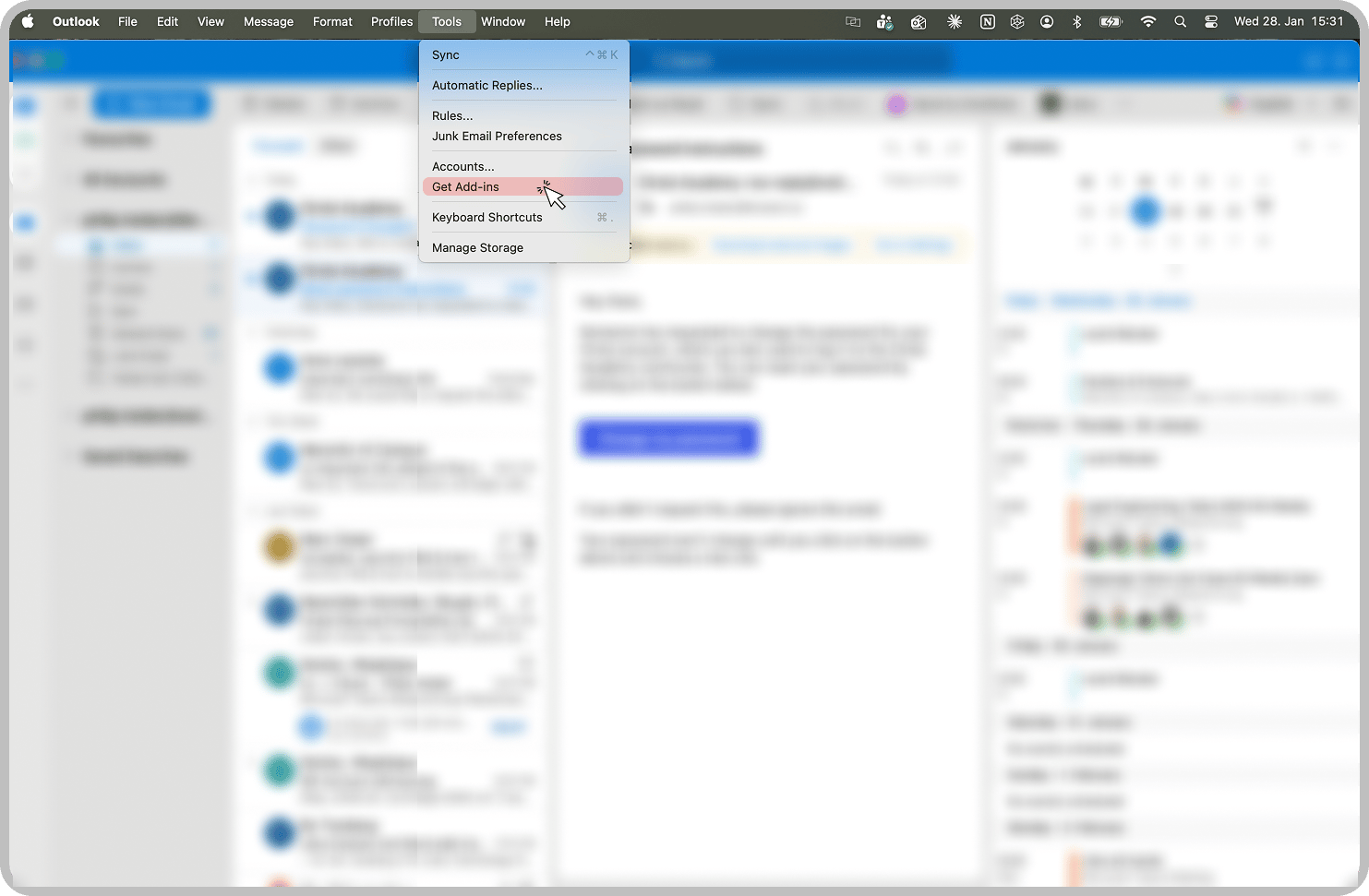
Go to **Tools** > **Get Add-ins**.
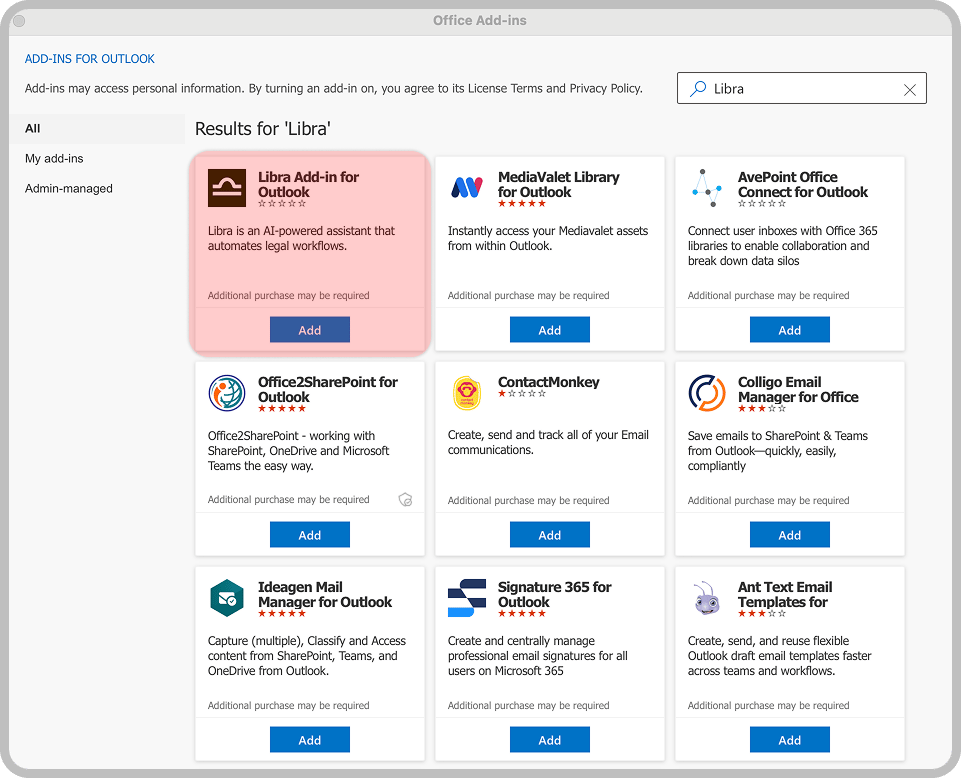
Search for "Libra", then click **Add** on **Libra Add-in for Outlook**.
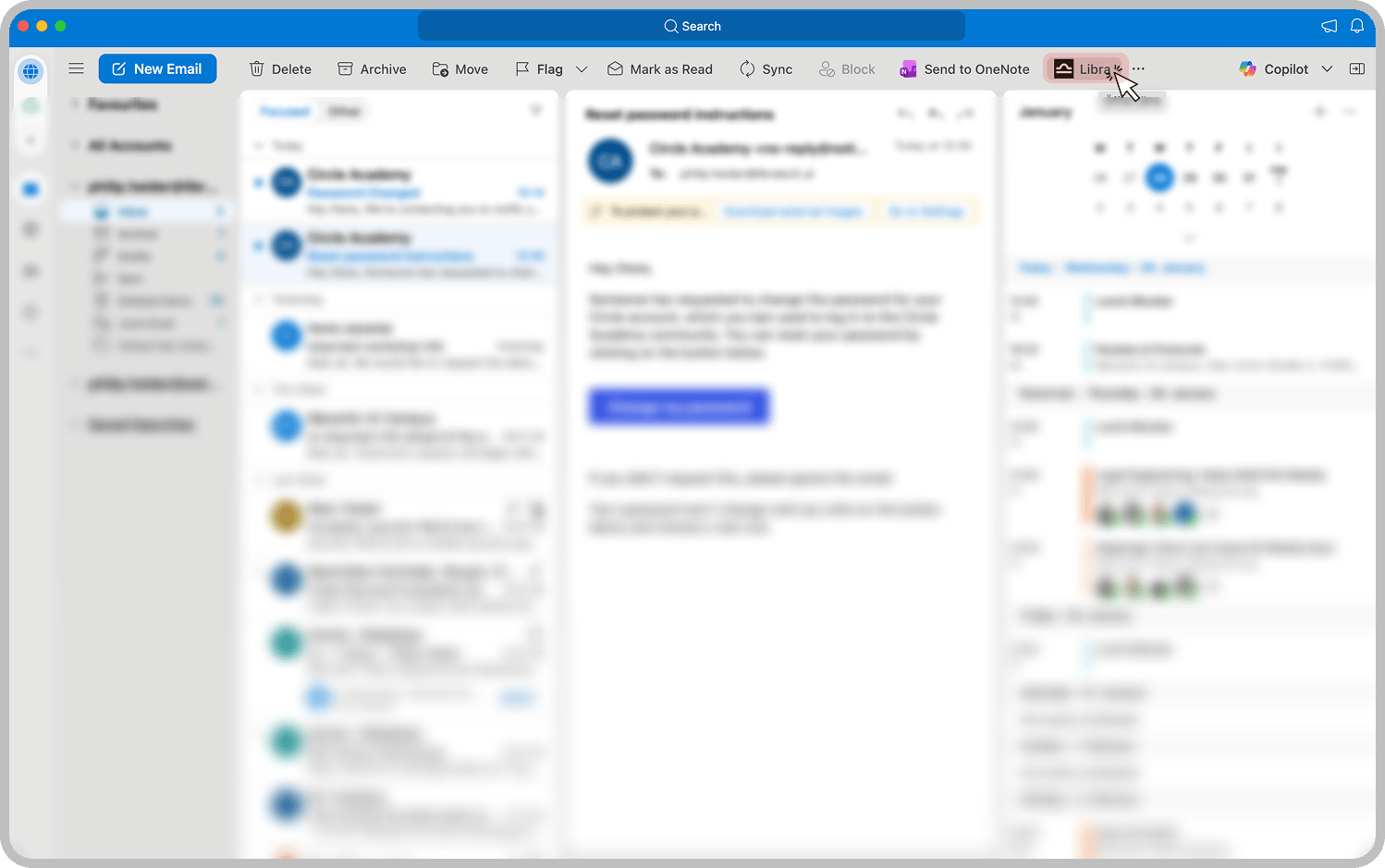
The **Libra** button now appears in the toolbar of any open message. Click it and the panel opens on the right.
Click **Sign In**. Outlook opens a separate window for the Libra login — complete it there, and the panel reloads with your account.
Your organization may have pre-installed the add-in for you. If **Libra** already appears in your Outlook toolbar, skip the installation steps and just sign in.
## Where Libra appears
The add-in activates on mail messages only, in two places.
**While you read.** The panel follows the message you have open: switch messages and Libra moves with you. Ask anything about the thread, or use the **Actions** menu beneath the chat field for the four most common requests. Ask for a reply and Libra writes one in the panel, with **Reply** and **Reply All** buttons that hand it to Outlook. See [Chat with email threads](/en/integrations/outlook/summarize#chat-with-email-threads).
**While you write.** Open the add-in from a **New**, **Reply**, **Reply All** or **Forward** window and the chat you had open on the message comes with you. Libra reads the draft in front of you, proposes changes as a comparison against your current text, and writes them in when you click **Apply** — the quoted thread history below your reply is left untouched. See [Rewrite the email you are composing](/en/integrations/outlook/summarize#rewrite-the-email-you-are-composing).
Writing support shipped in a later release of the add-in than reading support. If the **Libra** button is there when you read a message but missing when you write one, your organization is still on an earlier version — ask your administrator to deploy the current one.
## Troubleshooting
Check **Tools** > **Get Add-ins** and search for Libra. If your organization deploys add-ins centrally, look under **Admin-managed** in the same dialog instead of in the search results, and contact your IT administrator if it is not there either.
The add-in activates on mail messages only. Meeting invitations and appointments are not supported.
Verify the same credentials work at app.libratech.ai. The login opens in a separate window rather than inside the panel, so if nothing appears, allow pop-ups for Outlook and try again.
Check your internet connection, then close and reopen Outlook. Libra also reads the attachments on the message you have open, which takes longer for large documents. In a compose window it works from the draft text alone and does not read attachments.
## Organization deployment
Administrators can deploy the add-in to everyone from the Microsoft 365 admin center, so nobody has to install it themselves. Deployment also decides which version of the add-in your people get — including whether Libra opens in compose windows.
## Next steps
Ask questions and summarize email threads.
Generate email drafts based on thread context.
Connect your firm's subscriptions once; they follow you into Outlook.