
> ## Documentation Index
> Fetch the complete documentation index at: https://docs.libratech.ai/llms.txt
> Use this file to discover all available pages before exploring further.

# Email Chat

> How to use Libra in Outlook to summarize threads, generate replies, and rewrite the email you are composing.

<video autoPlay muted loop playsInline src="https://mintcdn.com/libra-4206ec93/5Pm7pEl9igcUcCSB/assets/videos/integrations/outlook.webm?fit=max&auto=format&n=5Pm7pEl9igcUcCSB&q=85&s=ccc01b5f10b7cf0f7eb21aa15b28b3f9" className="rounded-xl border w-full" data-path="assets/videos/integrations/outlook.webm" />

Libra gives you AI assistance directly in Outlook, without leaving your inbox. It works on two surfaces, and what it can do differs between them.

When you are **reading** a message, Libra answers questions about it and can generate a reply that opens as a pre-filled Outlook reply window. When you are **composing** — a new mail, a reply, a forward, or a draft you have come back to — Libra rewrites the text you are working on, in place, and shows you the change before you accept it.

<div className="libra-buddy-callout">
  <img src="https://mintcdn.com/libra-4206ec93/wgVZXcGnHS4aJk9T/assets/images/libra-buddy/thinking.png?fit=max&auto=format&n=wgVZXcGnHS4aJk9T&q=85&s=6fe60c07c6a0e65c084ac6880c337f84" alt="Libra mascot summarizing" width="872" height="693" data-path="assets/images/libra-buddy/thinking.png" />

  <div className="libra-buddy-callout-content">
    While you are reading a message, Libra picks up its attachments automatically: *"summarize this thread and the attached SPA"* gives one combined answer. Attachments are not read in a compose window.
  </div>
</div>

If you have not installed the add-in yet, start with [Installation & Setup](/en/integrations/outlook/setup).

<Note>
  The compose window is a newer entry point, and it comes with the add-in manifest your organization deploys — version 1.0.0.2 or later. On an earlier manifest the Libra button appears only when you are reading a message; ask your IT administrator to update the deployment.
</Note>

## Chat with email threads

Libra lets you have a conversation about the message you have open. Ask questions, request summaries, or get specific information extracted from the conversation.

<Note>
  The chat panel follows the email you are reading. Switch to a different email in Outlook and Libra moves to that email's conversation — or starts a fresh chat if it does not have one yet. Moving between messages in the same thread keeps your current chat open. A compose window behaves differently: it is pinned to the single draft you opened it from.
</Note>

<Steps>
  <Step title="Open the email">
    In Outlook, open the email thread you want to work with.
  </Step>

  <Step title="Open the Libra panel">
    Click the Libra icon in your Outlook ribbon.
  </Step>

  <Step title="Ask your question">
    Type what you need in the chat field. For example:

    * "Summarize this thread"
    * "What did the client agree to?"
    * "List all deadlines mentioned"
    * "What questions are still open?"
  </Step>

  <Step title="Review the response">
    Libra analyzes the email and responds based on your request. Continue the conversation to dig deeper or ask follow-up questions.
  </Step>
</Steps>

### One-click actions

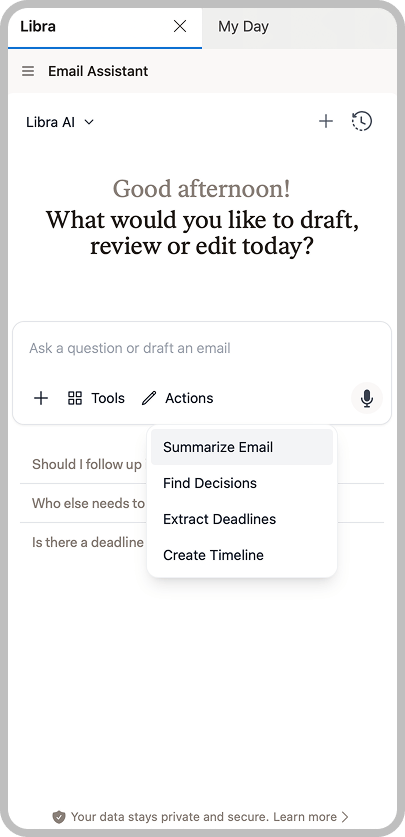
For the four most common requests you do not need to type anything. Click **Actions** in the row beneath the chat field, next to **Tools**, and pick one:

| Action                | What Libra returns                                         |
| --------------------- | ---------------------------------------------------------- |
| **Summarize Email**   | Overview of the message with key points and takeaways      |
| **Find Decisions**    | The conclusions and agreements reached in the conversation |
| **Extract Deadlines** | Dates, deadlines, and time-bound commitments               |
| **Create Timeline**   | The sequence of events in chronological order              |

<img src="https://mintcdn.com/libra-4206ec93/vIwxn8dmEk0jsP5x/assets/images/integrations/outlook/outlook-add-in-chat.png?fit=max&auto=format&n=vIwxn8dmEk0jsP5x&q=85&s=35ab20f6852f945b74e8ae7b4fb8533a" alt="Libra panel in Outlook with the Actions menu open, showing Summarize Email, Find Decisions, Extract Deadlines and Create Timeline" width="405" height="837" data-path="assets/images/integrations/outlook/outlook-add-in-chat.png" />

Each one sends a prepared prompt in your Libra interface language, and shows up in the chat as a labeled chip rather than as typed text.

### Example questions

Anything the **Actions** menu does not cover, you can simply ask:

| Request                                           | What Libra returns                                         |
| ------------------------------------------------- | ---------------------------------------------------------- |
| "What was decided about the payment terms?"       | Specific conclusions on one topic                          |
| "What questions are unanswered?"                  | Open issues that still need resolution                     |
| "What did \[person] say about \[topic]?"          | Specific statements from a participant                     |
| "Summarize this thread and the attached contract" | One combined answer across the message and its attachments |

## Draft a response

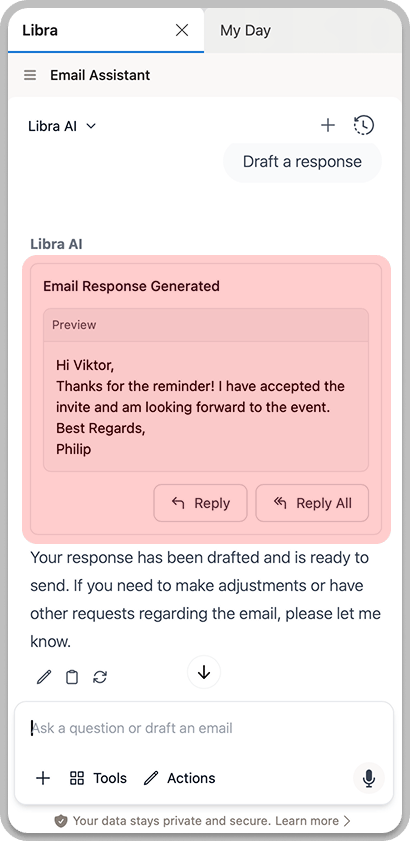
While you are reading a message, ask Libra to write the reply for you. Libra shows the proposed email in the chat and hands it to Outlook — there is no copying and pasting.
<Steps>
  <Step title="Open the email thread">
    In Outlook, open the email you want to respond to.
  </Step>

  <Step title="Open the Libra panel">
    Click the Libra icon in your Outlook ribbon.
  </Step>

  <Step title="Describe your response">
    In the chat field, describe what you want to say. For example:

    * "Draft a response confirming the meeting time"
    * "Write a polite decline for this request"
    * "Reply asking for clarification on the deadline"

    <img src="https://mintcdn.com/libra-4206ec93/vIwxn8dmEk0jsP5x/assets/images/integrations/outlook/outlook-add-in-draft-response.png?fit=max&auto=format&n=vIwxn8dmEk0jsP5x&q=85&s=eef390d5e5207699d2c9881d4fd13aca" alt="Libra showing a drafted email response" width="410" height="841" data-path="assets/images/integrations/outlook/outlook-add-in-draft-response.png" />
  </Step>

  <Step title="Review the draft">
    Libra writes the reply and shows a preview of it in the chat. Read it through before you take it any further. **Reply** and **Reply All** stay disabled until the response has finished generating.
  </Step>

  <Step title="Open it in Outlook">
    Click **Reply** or **Reply All**. Outlook opens its own reply window with the draft already filled in, addressed the way you chose. Edit it there and send it yourself — Libra never sends anything on your behalf.
  </Step>
</Steps>

<Tip>
  Include specific details in your request for better results. Instead of "write a response," try "draft a formal response accepting the proposal but requesting a 2-week extension on the deadline."
</Tip>

## Rewrite the email you are composing

Open the Libra panel from a compose window — a new mail, a reply, a reply-all, a forward, or a draft you have reopened — and Libra works on the text in front of you instead of producing a separate one.

Libra picks up the chat you already had open, so a question you asked in the reading pane carries over when you hit **Reply** and keep going.

<Steps>
  <Step title="Start writing">
    Compose your email in Outlook as usual. You can start from a blank message or from a rough first attempt — Libra works with either.
  </Step>

  <Step title="Open the Libra panel">
    Click the Libra icon in the compose window's ribbon.
  </Step>

  <Step title="Say what to change">
    Describe the edit you want, for example "make this more formal", "shorten it to three sentences", or "add a paragraph asking for an extension to the filing deadline".
  </Step>

  <Step title="Read the proposed change">
    Libra returns the rewrite as a word-by-word comparison against your current text, so you can see exactly what it added and removed. Only the reply itself is rewritten — the quoted thread history below it is preserved exactly as it stands. Libra is instructed to carry your signature over unchanged, but check that it did before you apply.
  </Step>

  <Step title="Apply it">
    Click **Apply** to replace your draft with the rewrite. Libra asks you to confirm the first time; tick **Don't show again** if you would rather it did not. If you change your mind, **Undo** on the same message puts your original text back.
  </Step>
</Steps>

<Warning>
  **Apply** overwrites your current draft, and Outlook's own undo (Ctrl+Z) will not bring it back. The **Undo** button on the Libra message is the way back, and it is a single step: it restores the text as it stood just before you applied that rewrite, and only for as long as the panel stays open.
</Warning>

A rewrite belongs to the draft it was generated for, so Libra will not apply it anywhere else. Look at one from the reading pane and it tells you to open the compose window first; look at one from a different email and it says so rather than pasting the wrong text into the wrong message. Separately, if the chat you carried over still shows a reply Libra drafted earlier, its **Reply** and **Reply All** buttons are greyed out in a compose window — clicking them would open a second compose window on top of the one you are already in. Ask Libra to rewrite the draft in front of you instead.

## Privacy considerations

<Info>
  Email content sent to Libra is processed according to your organization's data handling policies. Sensitive or privileged communications are handled with the same security as all Libra interactions.
</Info>

## Tips for better results

<AccordionGroup>
  <Accordion title="Open the message that has the history">
    Libra reads the message you have open — its body, including any quoted history it contains, and its attachments. If the earlier exchanges are not quoted in the message in front of you, open the one that does contain them.
  </Accordion>

  <Accordion title="Attach before you ask, not while composing">
    Attachments are read from the message you are reading. A compose window gives Libra the subject, recipients, and body of your draft, but not its attachments — so ask your questions about a document from the reading pane.
  </Accordion>

  <Accordion title="Be specific">
    Instead of broad questions, ask about specific aspects: "What did the client say about the payment terms?" returns more useful information than "Tell me about this email."
  </Accordion>

  <Accordion title="Ask follow-up questions">
    Continue the conversation to get more details. After a summary, you can ask "What exactly was the timeline discussed?" or "Were there any concerns raised?"
  </Accordion>

  <Accordion title="Verify important details">
    For critical information (deadlines, amounts, commitments), verify against the original emails.
  </Accordion>
</AccordionGroup>
