> ## Documentation Index
> Fetch the complete documentation index at: https://docs.libratech.ai/llms.txt
> Use this file to discover all available pages before exploring further.

# SharePoint

> Connect Libra to your firm's Microsoft 365 workspace so SharePoint files can be used in chats, Reviews and Discoveries without downloading them.

<video autoPlay muted loop playsInline src="https://mintcdn.com/libra-4206ec93/5Pm7pEl9igcUcCSB/assets/videos/integrations/research-demo.webm?fit=max&auto=format&n=5Pm7pEl9igcUcCSB&q=85&s=5935e71b09c12709947ab956f6849d69" className="rounded-xl border w-full" data-path="assets/videos/integrations/research-demo.webm" />

The SharePoint integration lets Libra reach the files in your firm's Microsoft 365 workspace, so you can work with them without downloading and re-uploading anything. In Libra it appears as **SharePoint** — the card in **Settings → Integrations** reads *Microsoft 365 files*.

Your own Microsoft permissions always apply. Libra browses SharePoint as you, so you only ever see the sites, libraries and files your Microsoft account can already open.

## Before you start

SharePoint is part of the **Professional** plan. On the Starter plan the integration panel shows an upgrade prompt instead of the setup flow, so there is nothing your firm administrator can switch on — see [Subscription](/en/resources/subscription).

Beyond the plan, three things have to be in place, in this order:

1. A **Microsoft 365 organization administrator** grants Libra access to SharePoint. This is one consent for the whole organization, granted once.
2. A **Libra team administrator** (an owner or team admin) enables SharePoint for your team.
3. **Each person** connects their own Microsoft account.

If you are an ordinary team member, steps 1 and 2 have usually been done for you and you only need the last one.

## Two ways to use SharePoint

Once you are connected, SharePoint reaches Libra in two quite different ways, and it is worth knowing which one you want before you start.

|                     | Bring files in                                                                                | Link a folder as a database                                                           |
| ------------------- | --------------------------------------------------------------------------------------------- | ------------------------------------------------------------------------------------- |
| **What happens**    | Libra downloads the files you pick and takes a copy into the project.                         | Nothing is copied. Libra links to the folder and browses it live in SharePoint.       |
| **Where they land** | A project's [Project files](/en/features/documents/library), or straight onto a chat message. | A workspace-level [database](/en/features/databases/basics), usable from any project. |
| **Stays current?**  | No — the copy is a snapshot from the moment you added it.                                     | Yes — Libra reads whatever is in the folder now.                                      |
| **Best for**        | The handful of documents this one matter turns on.                                            | A standing set your firm maintains in SharePoint and reuses across matters.           |

Linking folders as databases needs the **Team** plan, because it is part of the Databases product.

## Setting it up

### One-time setup for your organization

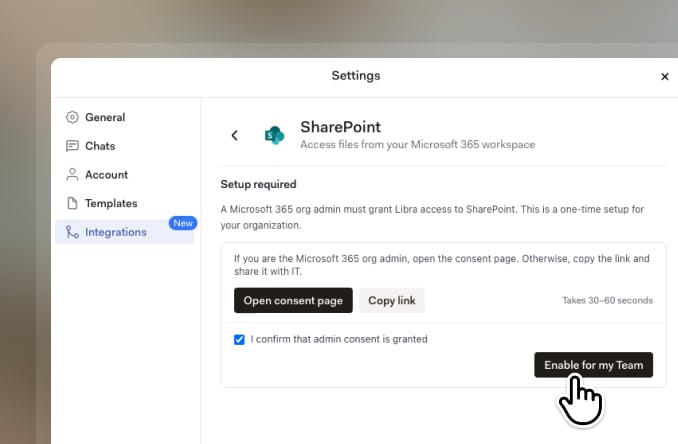
This part is done by a Libra team administrator, working with whoever administers your Microsoft 365 tenant. Open **Settings → Integrations → SharePoint**; the panel opens on **Setup required**.

<img src="https://mintcdn.com/libra-4206ec93/pnEt5D-f3JDzogZl/assets/images/app/sharepoint-enable-team.jpg?fit=max&auto=format&n=pnEt5D-f3JDzogZl&q=85&s=c237a0493072c64a63390b756370d738" alt="The SharePoint setup panel with Open consent page, Copy link, the admin-consent confirmation checkbox and the Enable for my Team button" width="678" height="444" data-path="assets/images/app/sharepoint-enable-team.jpg" />

<Steps>
  <Step title="Get Microsoft admin consent">
    If you administer the Microsoft 365 tenant yourself, click **Open consent page**. Libra opens Microsoft's admin-consent page in a new tab, where you review the access Libra is asking for and approve it. It takes under a minute.

    If you don't administer the tenant, click **Copy link** instead and send the link to whoever does. Nothing else in this panel will work until they have approved it.
  </Step>

  <Step title="Confirm and enable">
    Back in Libra, tick **I confirm that admin consent is granted**. The **Enable for my Team** button stays greyed out until you do. Click it, and SharePoint becomes available to everyone on your team.
  </Step>
</Steps>

<Info>
  Enabling SharePoint for the team doesn't give anyone access to anyone else's files. It only opens the door — each colleague still signs in with their own Microsoft account and sees only what that account can see.
</Info>

### Connect your own account

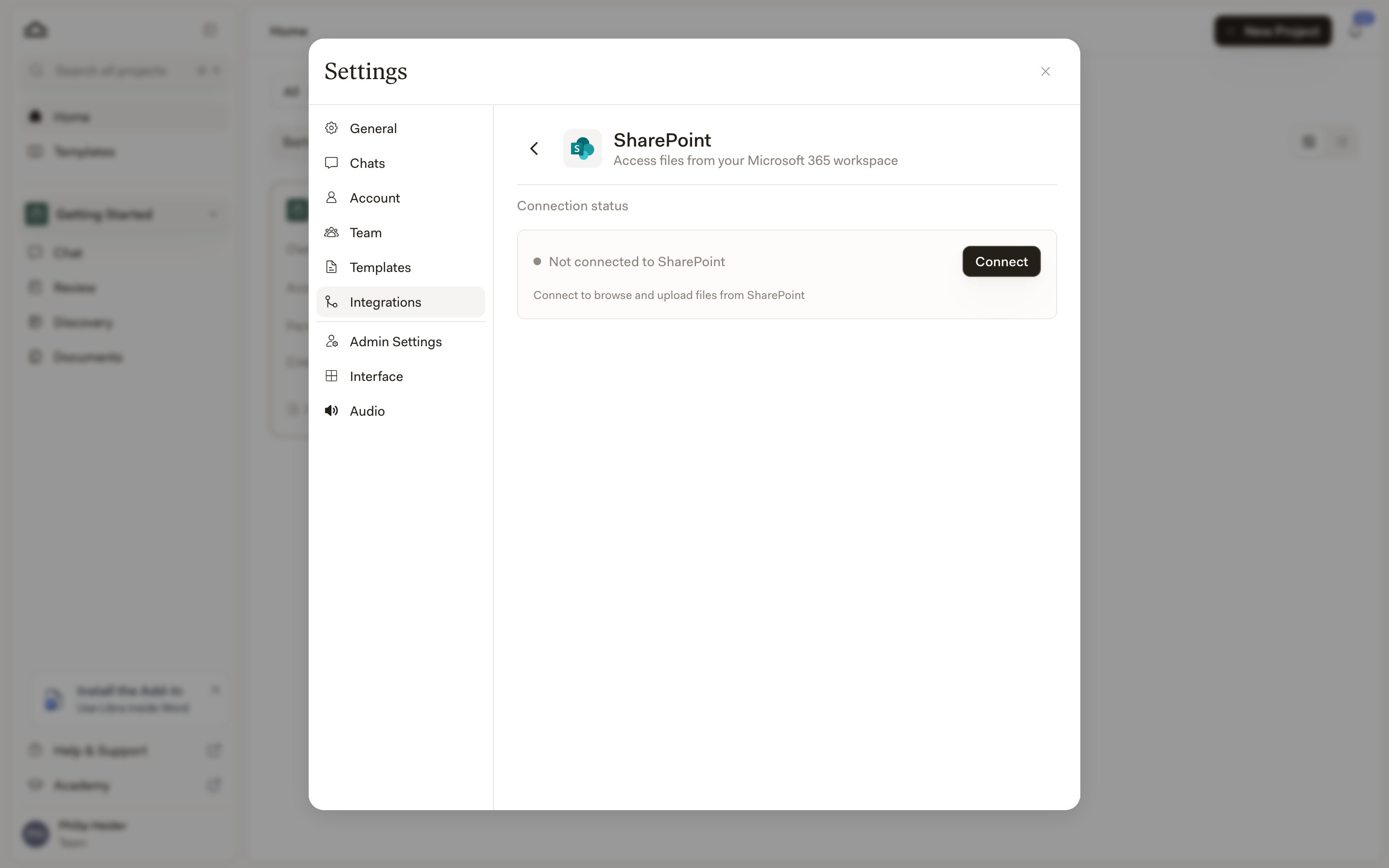
<img src="https://mintcdn.com/libra-4206ec93/vIwxn8dmEk0jsP5x/assets/images/integrations/sharepoint/connect.png?fit=max&auto=format&n=vIwxn8dmEk0jsP5x&q=85&s=d37659fdccbe7b07aa75011acf6772f1" alt="The SharePoint integration panel showing Connection status as Not connected to SharePoint, with a Connect button" width="2880" height="1800" data-path="assets/images/integrations/sharepoint/connect.png" />

Go to **Settings → Integrations → SharePoint** and look at **Connection status**. Click **Connect**, and sign in with your Microsoft account in the window that opens, using your organization's normal login. When it closes, the status reads **Connected to SharePoint**.

If **Connect** is greyed out and the panel says your team admin must enable SharePoint first, the team-wide step above hasn't been done yet.

## Bringing SharePoint files into a project

From a project's **Project files** panel, open the **Add** menu and choose **Add from SharePoint** — it sits alongside **Upload Files** and **Upload Folders**. Browse to what you want, tick the files, and click **Add documents**. Libra downloads them and adds them to the project like any other upload — which means the project holds a copy, and later changes in SharePoint won't reach it.

You can do the same without leaving a conversation — provided your team doesn't have Databases. In that case the chat composer's attach menu carries a **SharePoint** entry that opens the same browser and attaches what you select to your message.

<Note>
  Once your team has Databases, that direct entry is gone: the attach menu leads with **Select files**, which lists your databases rather than opening SharePoint. Browse your SharePoint database from there — or, if you haven't made one yet, the **SharePoint** entry in that list takes you to **Databases** to create it.
</Note>

## Linking a SharePoint folder as a database

A **SharePoint database** points Libra at one folder and leaves the files where they are. Create one from **Databases → New database → Add Sharepoint folder**, give it a name, then use **Select from SharePoint** to pick the folder. As the dialog puts it, the files stay in SharePoint and become reusable context across your chats and other Libra tasks.

Because nothing is ingested, a SharePoint database doesn't consume your page allowance, and it never goes out of date — Libra reads the folder as it stands each time. In exchange the browser is read-only: you can sort, navigate folders, preview documents and add them to a chat, but nothing in the folder can be changed from Libra. PDFs and the usual Office formats preview in place; anything else opens through **Open in SharePoint**.

Once a SharePoint database exists, you can point a chat at it from **Tools → Search files**, where it appears under **Databases**. If you are connected to SharePoint, that list also offers an **Entire SharePoint** toggle for searching across your workspace rather than one linked folder.

Three things are worth knowing before you rely on one:

* **SharePoint permissions still decide who sees what.** Sharing the database in Libra doesn't share the folder. A colleague who can't open the folder in SharePoint sees *No access to this folder* and is told to ask the folder's owner in SharePoint for access.
* **Search quality depends on the individual's Microsoft license.** A user with a Microsoft 365 Copilot license gets semantic search; everyone else gets keyword search. There is no setting for this — Libra checks the license when you search, and the create dialog tells you which one you'll get.
* **Moving or deleting the folder breaks the link.** The database then reports that the linked folder was moved or deleted, and an administrator has to re-link or remove it.

See [Databases](/en/features/databases/basics) for how databases behave once built, and how they differ from Project files.

## Managing your connection

Your connection lives in **Settings → Integrations → SharePoint**, under **Connection status**. **Disconnect** removes the link between your Libra account and your Microsoft account; Libra asks you to confirm, and you can connect again at any time from the same place.

Team administrators see one more control, **Disable for Team**. It switches SharePoint off for everybody: no one on the team can connect, and existing connections are dropped. Use it when the firm is turning the integration off, not to fix a problem with one person's account.

## Troubleshooting

<div className="libra-buddy-callout">
  <img src="https://mintcdn.com/libra-4206ec93/wgVZXcGnHS4aJk9T/assets/images/libra-buddy/questioning.png?fit=max&auto=format&n=wgVZXcGnHS4aJk9T&q=85&s=810df7246558207348feb4bc2ab3ad17" alt="Libra mascot with question" width="710" height="643" data-path="assets/images/libra-buddy/questioning.png" />

  <div className="libra-buddy-callout-content">
    Reaching for the same SharePoint folder in matter after matter? Link it as a database once instead of adding its files project by project — you'll stop re-uploading, and everyone works from whatever is in the folder today.
  </div>
</div>

| Issue                                  | What to do                                                                                                                                                                               |
| -------------------------------------- | ---------------------------------------------------------------------------------------------------------------------------------------------------------------------------------------- |
| No SharePoint option anywhere          | Your team may be on the Starter plan, where the integration isn't available, or a team administrator hasn't enabled it yet. Check **Settings → Integrations → SharePoint** to see which. |
| **Connect** is greyed out              | The team-wide step is missing. A team administrator needs to grant Microsoft admin consent and click **Enable for my Team**.                                                             |
| Sign-in fails or the popup never opens | Check that your browser isn't blocking the popup, and that you're signing in with the Microsoft account that has your firm's SharePoint access.                                          |
| Files you expect aren't listed         | You only see what your Microsoft account can open. Ask the owner to share the site or folder with you in SharePoint.                                                                     |
| Libra says your session expired        | Reconnect from **Settings → Integrations → SharePoint**.                                                                                                                                 |
| A SharePoint database won't load       | If it reports the folder was moved or deleted, the source folder has gone. An administrator has to re-link the database or remove it.                                                    |