> ## Documentation Index
> Fetch the complete documentation index at: https://docs.libratech.ai/llms.txt
> Use this file to discover all available pages before exploring further.
# Chat
> How to chat with your documents and request text edits in Word.
The **Chat** tab lets you ask questions about the document you have open, request revisions to its text, and search legal databases — all without leaving Word.
## Chat Modes
The mode picker sits to the right of the input field and decides what Libra is allowed to do with your document. It starts on **Edit** and then remembers the last mode you chose, so a new chat opens in whatever mode you left the picker in — worth a glance before you send if you have been using **Auto**.
| Mode | What Libra does |
| -------- | ------------------------------------------------------------------------------------------- |
| **Ask** | Answers your question and never touches the document — Ask mode has no editing tools at all |
| **Edit** | Proposes revisions in a **Changes** card that you apply or reject one by one |
| **Auto** | Applies each revision to the document as soon as it is ready |
**Auto** is available only in the Word desktop app for Windows and Mac. In Word on the web the picker offers **Ask** and **Edit** only, and a chat that was left in **Auto** falls back to **Edit**.
The **+** button beside the input adds files from your Libra project to the conversation, so Libra can answer against more than the open document.
## Ask Questions
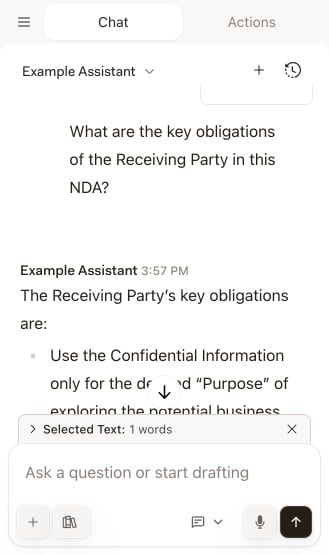
Select **Ask** in the mode picker and type your question. Libra answers from the document you have open together with its own legal knowledge, and leaves your text untouched. Select a passage before you ask and it appears as a chip above the input, so Libra knows what "this clause" refers to. Libra also offers suggested questions about the open document — click one to put it in the input, then send it.
 ## Request Text Edits
Use **Edit** mode when you want Libra to change the text but you want the last word on every change.
Highlight the passage you want changed. This keeps Libra focused on the right section instead of the whole document.
Open the mode picker next to the input and choose **Edit**.
Tell Libra what you want:
* "Rewrite this in a more formal tone"
* "Make this clause favor the landlord"
* "Shorten the confidentiality term to two years"
Libra returns its revisions in a **Changes** card. Nothing reaches your document until you act on them.
## Request Text Edits
Use **Edit** mode when you want Libra to change the text but you want the last word on every change.
Highlight the passage you want changed. This keeps Libra focused on the right section instead of the whole document.
Open the mode picker next to the input and choose **Edit**.
Tell Libra what you want:
* "Rewrite this in a more formal tone"
* "Make this clause favor the landlord"
* "Shorten the confidentiality term to two years"
Libra returns its revisions in a **Changes** card. Nothing reaches your document until you act on them.
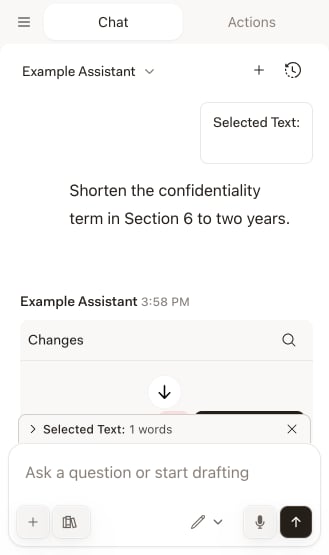 **Apply** writes the revision into the document and **Reject** discards it. The chevron next to **Apply** opens a menu holding **Apply All**, for when you want every revision at once, and **Undo rejection**, for when you reject something and change your mind. Once a revision is in the document, the card keeps **Undo** and **Apply again** available.
## Track Changes
The add-in has its own **Track Changes** switch, in the menu behind the chevron next to **Apply**. It is **on by default**, so applied revisions arrive as tracked changes that you accept or reject with Word's normal reviewing tools.
You do not need to turn Word's own **Track Changes** on first. For the moment it takes to write a revision, the add-in sets the document's tracking mode from that switch and then restores whatever you had before — so the switch in the add-in, not Word's ribbon, is what governs the result. Turn it off if you would rather have revisions written as plain text.
## Auto Mode
In **Auto** mode you skip the review step: each revision is applied as soon as Libra has finished writing it. While Libra is applying, a red stop button appears in the card — click it to stop the remaining revisions. Anything already applied stays in the document, and **Undo** is still available per revision.
The **Track Changes** switch governs Auto mode too, so with it on you still end up with tracked revisions to accept or reject.
Auto mode edits your document without asking. Use **Edit** mode on documents where you want to see each revision before it lands.
## Use Research Mode
Click the **Research** icon beside the input to open the source panel, and toggle on the databases you want Libra to search. Ask your question, and the answer comes back with citations you can click to open the underlying source.
**Apply** writes the revision into the document and **Reject** discards it. The chevron next to **Apply** opens a menu holding **Apply All**, for when you want every revision at once, and **Undo rejection**, for when you reject something and change your mind. Once a revision is in the document, the card keeps **Undo** and **Apply again** available.
## Track Changes
The add-in has its own **Track Changes** switch, in the menu behind the chevron next to **Apply**. It is **on by default**, so applied revisions arrive as tracked changes that you accept or reject with Word's normal reviewing tools.
You do not need to turn Word's own **Track Changes** on first. For the moment it takes to write a revision, the add-in sets the document's tracking mode from that switch and then restores whatever you had before — so the switch in the add-in, not Word's ribbon, is what governs the result. Turn it off if you would rather have revisions written as plain text.
## Auto Mode
In **Auto** mode you skip the review step: each revision is applied as soon as Libra has finished writing it. While Libra is applying, a red stop button appears in the card — click it to stop the remaining revisions. Anything already applied stays in the document, and **Undo** is still available per revision.
The **Track Changes** switch governs Auto mode too, so with it on you still end up with tracked revisions to accept or reject.
Auto mode edits your document without asking. Use **Edit** mode on documents where you want to see each revision before it lands.
## Use Research Mode
Click the **Research** icon beside the input to open the source panel, and toggle on the databases you want Libra to search. Ask your question, and the answer comes back with citations you can click to open the underlying source.
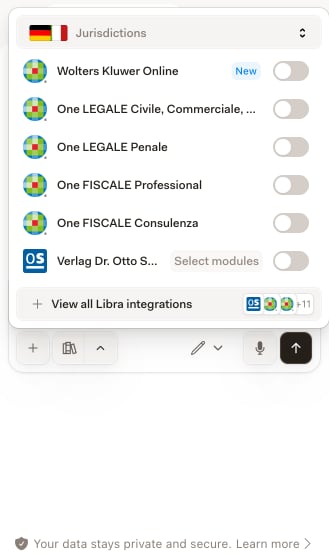 The panel offers the **same sources as the web app** — legal databases and commentary, case law, company registries and web search, filtered by jurisdiction at the top — including any source you activated during a free trial. Which sources you see depends on what your firm has connected and what your plan entitles you to; see [Research Mode](/en/features/chat/research-mode) for the full picture.
You connect sources in the web app rather than in Word. The **Connect** button beside a source opens Libra in your browser at that integration's settings, and the panel tells you when nothing is connected yet.
Some sources meter their usage. During a trial, [Otto Schmidt](/en/integrations/germany/otto-schmidt) research is capped per day: the panel shows how much of the day's allowance you have used, and Libra warns you once you have reached the limit. It resets the next day.
## Tips for Better Results
When asking about a specific section, select that text first. Libra then knows exactly what you are referring to.
Instead of "Fix this," try "Rewrite this paragraph to emphasize the buyer's remedies if delivery is delayed."
With the add-in's **Track Changes** switch on, every revision Libra applies is a tracked change, which fits straight into a normal contract negotiation workflow.
In **Edit** mode, read the revision in the **Changes** card before you click **Apply**. If you only notice a problem afterwards, **Undo** puts the original text back.
The panel offers the **same sources as the web app** — legal databases and commentary, case law, company registries and web search, filtered by jurisdiction at the top — including any source you activated during a free trial. Which sources you see depends on what your firm has connected and what your plan entitles you to; see [Research Mode](/en/features/chat/research-mode) for the full picture.
You connect sources in the web app rather than in Word. The **Connect** button beside a source opens Libra in your browser at that integration's settings, and the panel tells you when nothing is connected yet.
Some sources meter their usage. During a trial, [Otto Schmidt](/en/integrations/germany/otto-schmidt) research is capped per day: the panel shows how much of the day's allowance you have used, and Libra warns you once you have reached the limit. It resets the next day.
## Tips for Better Results
When asking about a specific section, select that text first. Libra then knows exactly what you are referring to.
Instead of "Fix this," try "Rewrite this paragraph to emphasize the buyer's remedies if delivery is delayed."
With the add-in's **Track Changes** switch on, every revision Libra applies is a tracked change, which fits straight into a normal contract negotiation workflow.
In **Edit** mode, read the revision in the **Changes** card before you click **Apply**. If you only notice a problem afterwards, **Undo** puts the original text back.