> ## Documentation Index
> Fetch the complete documentation index at: https://docs.libratech.ai/llms.txt
> Use this file to discover all available pages before exploring further.

# Fill Placeholders

> How to automatically fill template placeholders from reference documents.

<video autoPlay muted loop playsInline src="https://mintcdn.com/libra-4206ec93/5Pm7pEl9igcUcCSB/assets/videos/integrations/word.webm?fit=max&auto=format&n=5Pm7pEl9igcUcCSB&q=85&s=8f20c2eab58d4a329edf297ba80c3e65" className="rounded-xl border w-full" data-path="assets/videos/integrations/word.webm" />

<div className="libra-buddy-callout">
  <img src="https://mintcdn.com/libra-4206ec93/wgVZXcGnHS4aJk9T/assets/images/libra-buddy/clipboard.png?fit=max&auto=format&n=wgVZXcGnHS4aJk9T&q=85&s=cde036cf23ea2d67cd50f1c295db549a" alt="Libra mascot with clipboard" width="725" height="605" data-path="assets/images/libra-buddy/clipboard.png" />

  <div className="libra-buddy-callout-content">
    Set the Type in Step 2, *Name*, *Address*, *Date*, *Amount*, before pointing at a reference document. Type is the biggest accuracy lever in the flow.
  </div>
</div>

Fill Placeholders takes a template full of markers like `{Landlord's name}` and fills them from documents you already have in the project. You keep control at every stage: you decide what each placeholder means, where the answers come from, and which of the proposed values actually go into the document.

## Start the Wizard

<Steps>
  <Step title="Open the Actions tab">
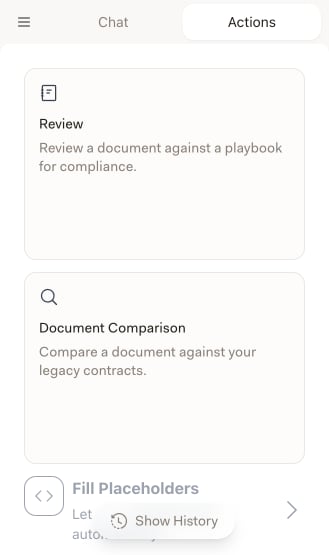
    Click **Actions** in the Libra panel. The panel has two tabs, **Chat** and **Actions**.
  </Step>

  <Step title="Select Fill Placeholders">
    The Actions list offers three things: **Review**, **Document Comparison** and **Fill Placeholders**. Click **Fill Placeholders**.

    <img src="https://mintcdn.com/libra-4206ec93/vIwxn8dmEk0jsP5x/assets/images/integrations/word/actions-overview.png?fit=max&auto=format&n=vIwxn8dmEk0jsP5x&q=85&s=d4798feada984bc031ea9a5edda7779e" alt="Actions tab listing Review, Document Comparison and Fill Placeholders" width="329" height="555" data-path="assets/images/integrations/word/actions-overview.png" />
  </Step>
</Steps>

<Note>
  **Review** sits directly above Fill Placeholders in the same list, but it is a different feature — it checks a document against a [Playbook](/en/integrations/word/review). Make sure you click the third item.
</Note>

The wizard runs in six steps, tracked by the dots in the floating control bar at the bottom of the panel. The round button on the right of that bar advances you; the arrow on the left takes you back a step. Going back clears the work done in the steps after it, so the wizard never shows you stale results.

## Step 1: Placeholder Formats

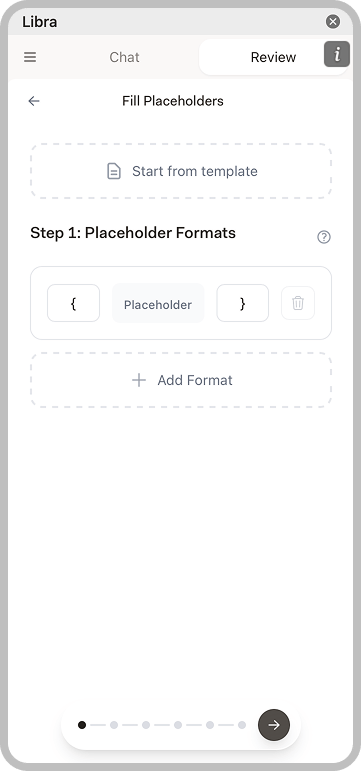
First tell Libra how placeholders are written in your document. A format is a prefix and a suffix wrapped around the placeholder text, so `{` and `}` match `{Landlord's name}`. The default format is a single pair of curly braces.

<img src="https://mintcdn.com/libra-4206ec93/vIwxn8dmEk0jsP5x/assets/images/integrations/word/word-add-in-placeholders-2.png?fit=max&auto=format&n=vIwxn8dmEk0jsP5x&q=85&s=51d068964f589db002e63d9219bd5201" alt="Step 1 showing placeholder format configuration" width="361" height="771" data-path="assets/images/integrations/word/word-add-in-placeholders-2.png" />

Edit the prefix and suffix fields directly to change the pattern — `[` and `]` for square brackets, `{{` and `}}` for double braces. Click **Add Format** if one template mixes several conventions, and use the bin icon to drop a format you no longer need.

**Start from template** at the top of the step is a shortcut, not a way of designating the open document. It loads a *saved placeholder template* — a set of formats plus the type and context settings you recorded on a previous run — so a template you fill every week only has to be configured once. Pick one from the list and the wizard shows its name, description, and how many formats and placeholders it carries; the placeholders it contributes are tagged **From Template** in the next step. Clear it with the cross if you change your mind.

## Step 2: Enrich Placeholders

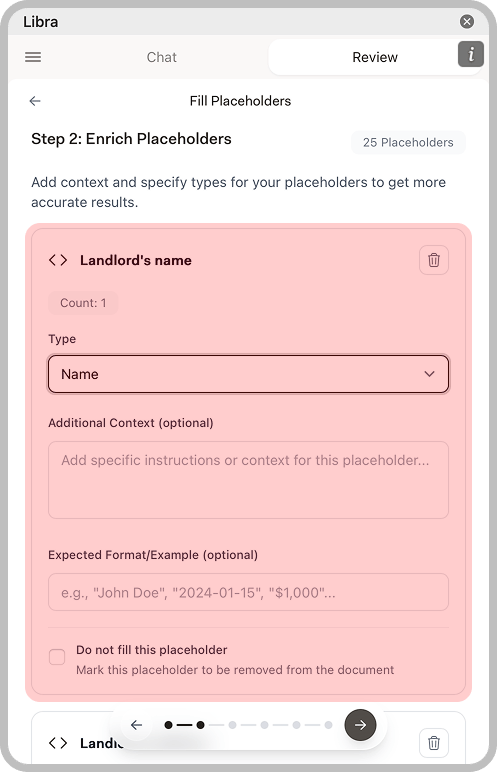
Libra scans the document and lists every placeholder it found, with a count of how many times each one occurs. Libra also suggests a type for each one automatically — you will see **Suggesting placeholder types…** while it works — and you can correct any of them.

<img src="https://mintcdn.com/libra-4206ec93/vIwxn8dmEk0jsP5x/assets/images/integrations/word/word-add-in-placeholders-3.png?fit=max&auto=format&n=vIwxn8dmEk0jsP5x&q=85&s=86ee0c7877fa2e1e6a81116b51348f08" alt="Step 2 showing placeholder enrichment with type and context options" width="497" height="772" data-path="assets/images/integrations/word/word-add-in-placeholders-3.png" />

For each placeholder you can set:

| Option                                 | Description                                                                           |
| -------------------------------------- | ------------------------------------------------------------------------------------- |
| **Type**                               | The kind of value expected: Text, Name, Number, Date, Amount, Address, Email or Phone |
| **Additional Context (optional)**      | Specific instructions for this placeholder                                            |
| **Expected Format/Example (optional)** | An example of how the value should look, such as `2024-01-15`                         |
| **Do not fill this placeholder**       | Marks the placeholder for removal from the document instead of filling                |

<Tip>
  Type is the biggest accuracy lever in the flow. A placeholder typed as **Address** extracts a formatted address, while **Name** extracts a person or company name. Correcting a wrong suggestion here saves you an edit in Step 4.
</Tip>

If you tick **Do not fill this placeholder** on everything, the wizard will not let you continue — at least one placeholder has to be left to fill.

### Save your configuration as a template

When you leave Step 2, Libra asks **Save as Template?**. Saving keeps your formats along with each placeholder's type, context and example, and you can share the template with your team. If you started from an existing template and changed something, the dialog reads **Save template changes?** and offers **Save as New**; **Update Template** is offered as well, but only on a template you created yourself, so overwriting a colleague's shared template is not on the table. Choose **Dont Save** and the run proceeds normally, configuration unsaved.

## Step 3: Add Context

Now tell Libra where the answers should come from. The two sources combine, so you can use either or both.

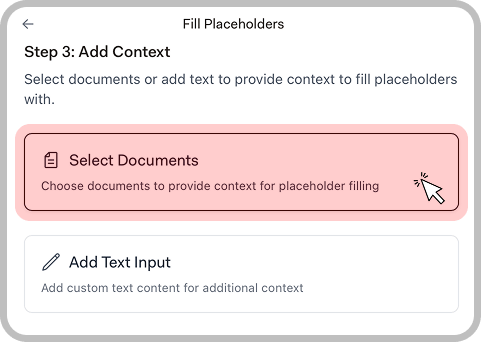
### Select Documents

Opens your project's [Project files](/en/features/documents/library) so you can pick the documents that carry the information — an intake form, a signed term sheet, prior correspondence. You can also upload new files into the project from the same picker. Selected documents appear in a list underneath, and each can be removed with the cross.

<img src="https://mintcdn.com/libra-4206ec93/vIwxn8dmEk0jsP5x/assets/images/integrations/word/word-add-in-placeholders-4-1.png?fit=max&auto=format&n=vIwxn8dmEk0jsP5x&q=85&s=c54228ff2c4ae288ccb79255e25669c8" alt="Step 3 showing Select Documents option" width="481" height="342" data-path="assets/images/integrations/word/word-add-in-placeholders-4-1.png" />

<Note>
  A project has to be active in the add-in for this to open. Click the menu button at the top left of the panel, then **Selected Project**, and pick one — see [Set up the Word add-in](/en/integrations/word/setup).
</Note>

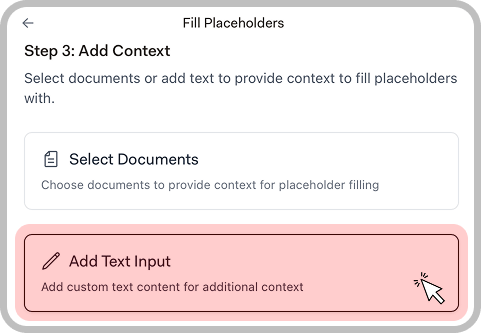
### Add Text Input

Reveals a free-text box for context that is not in any document, such as a fee figure agreed by phone. Click it again to remove the box.

<img src="https://mintcdn.com/libra-4206ec93/vIwxn8dmEk0jsP5x/assets/images/integrations/word/word-add-in-placeholders-4-2.png?fit=max&auto=format&n=vIwxn8dmEk0jsP5x&q=85&s=dc8cab05d3ec304489c344ba51678f40" alt="Step 3 showing Add Text Input option" width="481" height="333" data-path="assets/images/integrations/word/word-add-in-placeholders-4-2.png" />

## Step 4: Confirm Placeholders

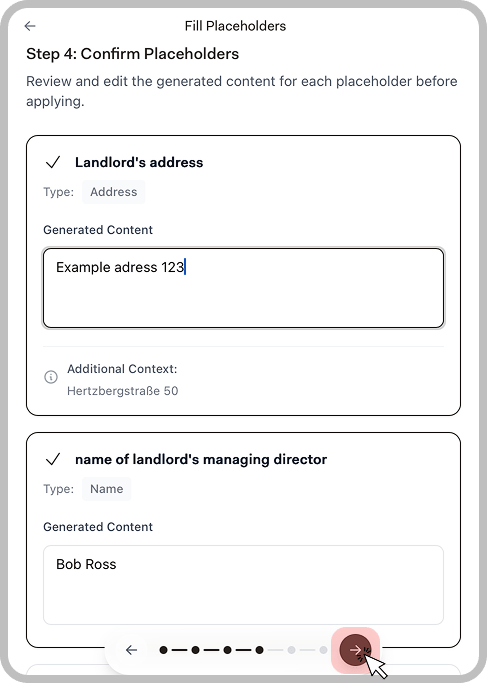
Libra generates a value for every placeholder you left to fill, streaming them in with a progress bar as it goes. This is the step where you check its work.
<img src="https://mintcdn.com/libra-4206ec93/vIwxn8dmEk0jsP5x/assets/images/integrations/word/word-add-in-placeholders-5.png?fit=max&auto=format&n=vIwxn8dmEk0jsP5x&q=85&s=2d0de5c2dbb6f9d154538c7b1354ccbf" alt="Step 4 showing generated values for review" width="487" height="687" data-path="assets/images/integrations/word/word-add-in-placeholders-5.png" />

Each card shows the placeholder, the type you configured, any context that was used, and the generated content in an editable field. Correct anything that is wrong here, before it reaches the document.

## Step 5: Apply Placeholders

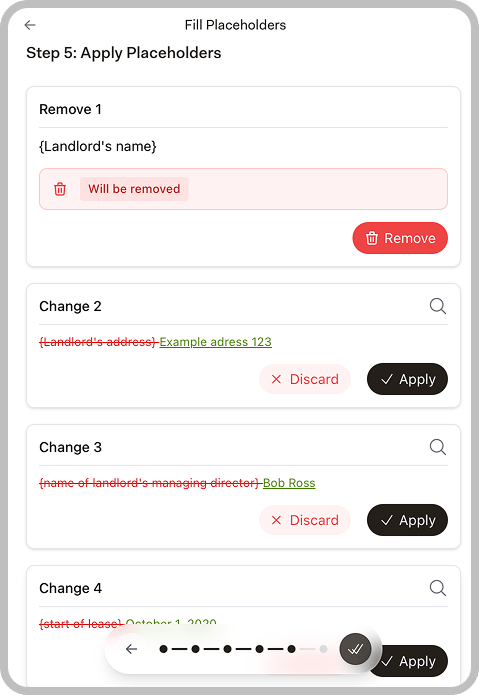
The wizard turns each accepted value into a proposed change and shows it as a diff — the old placeholder struck through, the new text alongside. The magnifier on a card scrolls the document to that spot so you can see the change in context.
<img src="https://mintcdn.com/libra-4206ec93/vIwxn8dmEk0jsP5x/assets/images/integrations/word/word-add-in-placeholders-6.png?fit=max&auto=format&n=vIwxn8dmEk0jsP5x&q=85&s=6d74b4a56a4d32b9fa3d5d53dd04cec4" alt="Step 5 showing Apply, Discard and Remove options for each change" width="479" height="695" data-path="assets/images/integrations/word/word-add-in-placeholders-6.png" />

| Card       | Actions                                                                                                                                                                  |
| ---------- | ------------------------------------------------------------------------------------------------------------------------------------------------------------------------ |
| **Change** | **Apply** writes the generated value into the document; **Discard** leaves the placeholder untouched                                                                     |
| **Remove** | **Remove** deletes the placeholder from the document — these cards are the ones you marked **Do not fill this placeholder** in Step 2, and carry a *Will be removed* tag |

To process everything at once, use the round double-check button in the control bar, **Apply All**. It applies every change you have not discarded, then moves you to the final step.
<Warning>
  Don't edit the document between Step 4 and Step 5. Libra matches each change against the original placeholder text, and a change whose text has moved or been edited is skipped rather than applied.
</Warning>

## Step 6: Finished

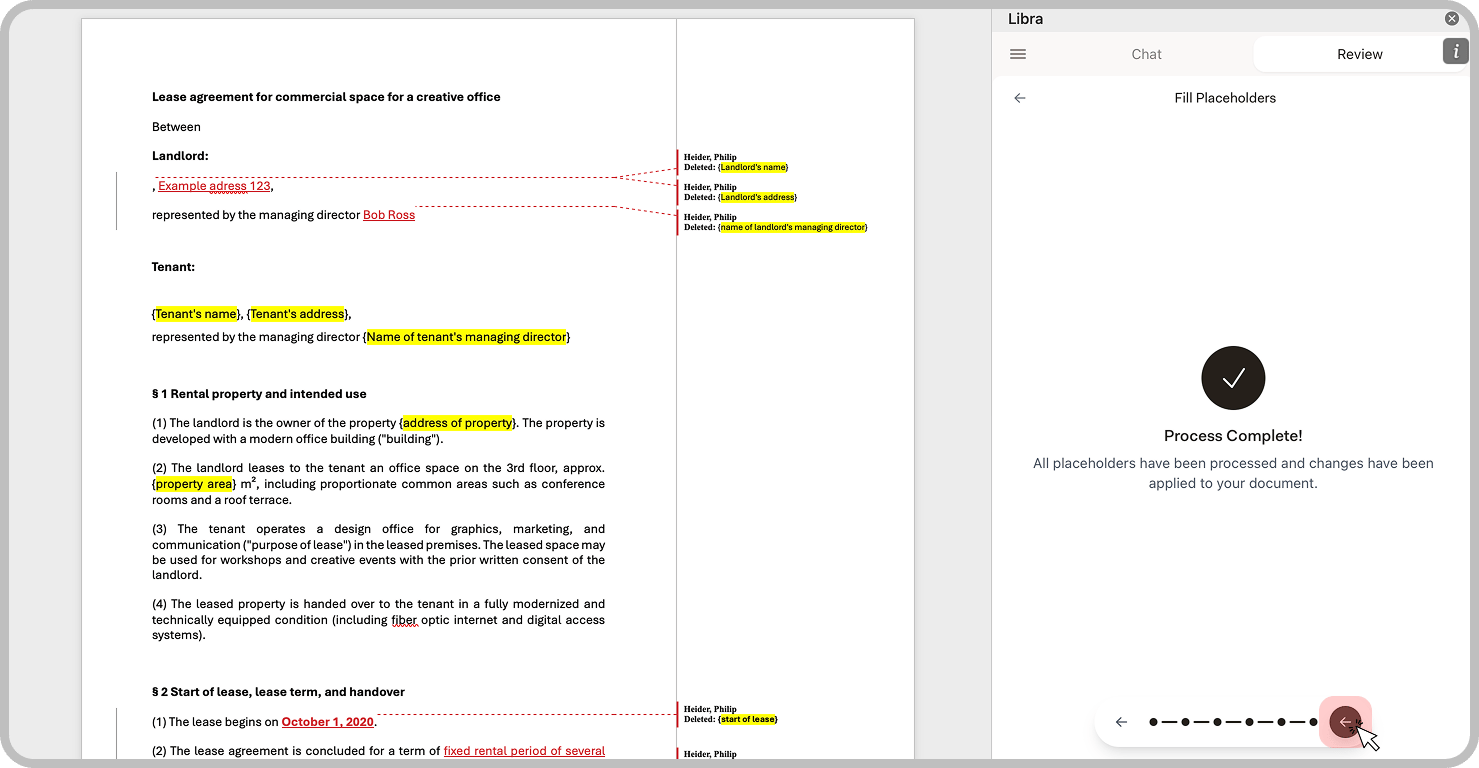
Once every change is applied or discarded, the panel shows **Process Complete!** and the round button returns you to the Actions list.

<img src="https://mintcdn.com/libra-4206ec93/vIwxn8dmEk0jsP5x/assets/images/integrations/word/word-add-in-placeholders-7.png?fit=max&auto=format&n=vIwxn8dmEk0jsP5x&q=85&s=557cecb6e85b94ad815c3fa97ebf6568" alt="Process complete screen showing applied changes in document" width="1479" height="768" data-path="assets/images/integrations/word/word-add-in-placeholders-7.png" />

Values go in as Word **tracked changes**, so the insertions and deletions appear in the markup with Libra's edits attributed to you. Nothing is final until you accept them in Word, which gives you a second review pass with all your usual Word tooling.

<Warning>
  Always review generated values before finalizing your document. Automated extraction is accurate but not perfect.
</Warning>

## Example Use Cases

<AccordionGroup>
  <Accordion title="Engagement letters">
    Point at the client intake form. Libra fills in client name, matter description, fee arrangement and contact details.
  </Accordion>

  <Accordion title="Lease agreements">
    Point at the signed term sheet or prior correspondence. Libra fills landlord details, tenant information, property address and key dates.
  </Accordion>

  <Accordion title="Contract summaries">
    Point at the executed contract. Libra fills in party names, dates, key terms and financial figures.
  </Accordion>

  <Accordion title="Standard correspondence">
    Point at case information or prior correspondence. Libra fills names, dates, case numbers and references.
  </Accordion>
</AccordionGroup>

## Tips for Better Results

<AccordionGroup>
  <Accordion title="Use descriptive placeholder names">
    `{Landlord's name}` is easier to fill correctly than `{Party A}`. Descriptive names help Libra understand what information to extract.
  </Accordion>

  <Accordion title="Check the suggested types">
    Libra proposes a type for every placeholder in Step 2. Correcting a wrong suggestion — Name, Address, Date, Amount — is the single most effective thing you can do for accuracy.
  </Accordion>

  <Accordion title="Save a template for recurring documents">
    If you fill the same template regularly, accept the **Save as Template?** prompt after Step 2. Every later run starts with the formats and types already set.
  </Accordion>

  <Accordion title="Provide structured reference documents">
    Documents with clear headings, labeled fields and organized information produce better extraction results.
  </Accordion>

  <Accordion title="Add context for ambiguous placeholders">
    Use **Additional Context (optional)** to give specific instructions when a placeholder name isn't self-explanatory.
  </Accordion>

  <Accordion title="Review before applying">
    Always check the generated values in Step 4. Edit any incorrect extractions before they reach the document.
  </Accordion>
</AccordionGroup>