> ## Documentation Index
> Fetch the complete documentation index at: https://docs.libratech.ai/llms.txt
> Use this file to discover all available pages before exploring further.
# Review
> Run a Playbook Review against the document open in Word, then redraft the Topics that deviate.
**Review** is one of the actions on the **Actions** tab of the Libra panel. It checks the document you have open in Word against a **Playbook** — the set of Topics carrying your firm's standard positions — flags every Topic where the document deviates, and lets you redraft the flagged ones in place, one at a time or all at once. Libra reads the whole document, not your selection.
Playbooks are written in the Libra web app, not in the add-in. See [Create a Playbook](/en/features/review/templates) for how Topics, Positions and Rules are built, and [Understanding Review results](/en/features/review/results) for the full anatomy of a result.
## Before you start
Both gates are on the **project** the add-in is pointed at:
* **A project has to be selected.** Click the menu button at the top left of the panel, then **Selected Project**, and pick one. With no project selected, **Start Review** is greyed out; hover it and the tooltip reads *Select a project to create reviews or discoveries.*
* **You need edit access to that project.** Owner, admin or edit all qualify. On a project you can only view, **Start Review** is greyed out and its tooltip reads *You need edit access. Ask a project admin for edit rights or switch projects.*
## Run a review
Open the **Actions** tab in the Libra panel and click **Review**.
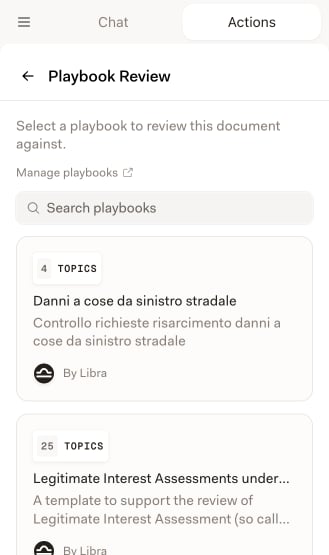
The **Playbook Review** screen lists the Playbooks available to you, each with its Topic count and its author. Use **Search playbooks** to find one by name, or **Manage playbooks** to open the Templates library in the web app.
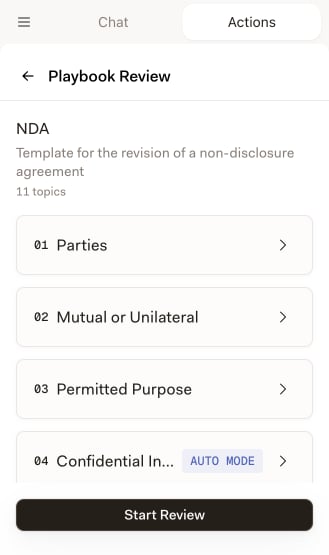
 The preview names the Playbook, its description and how many Topics it carries — for an NDA, Parties, Mutual or Unilateral, Permitted Purpose, Confidential Information and so on. Expand any Topic to read the Positions behind it before you commit, then click **Start Review**.
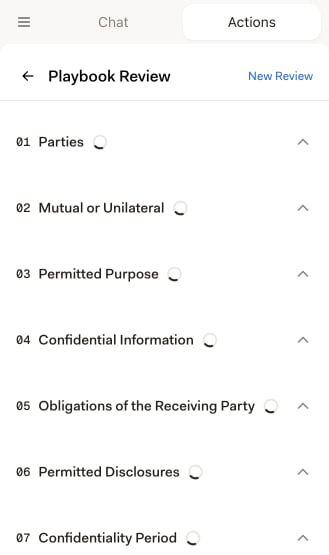
 Every Topic is evaluated against the document and swaps its spinner for a risk badge as it lands. Long contracts take a few minutes; you can watch the list fill in.
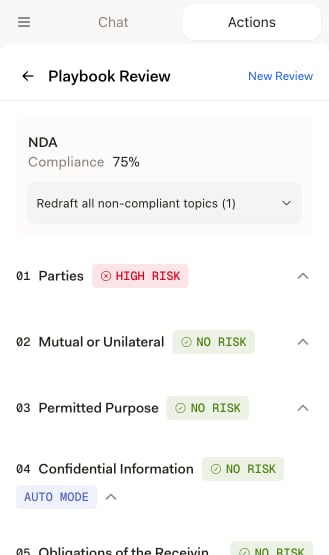
 A card at the top names the Playbook and gives one **Compliance** percentage; each Topic below it carries its own risk badge.
 **New Review** in the header clears the result rather than starting anything: it puts you back where the review came from — the preview of the Playbook you just ran, with **Start Review** ready again, or the Playbook list if you had opened the review from history. The back arrow returns to the **Actions** home from a loaded review, and to the Playbook list from a Playbook preview.
## Reading the result
Each Topic is badged **No risk**, **Medium risk** or **High risk** according to how the document measured against that Topic's Positions — or **Not found**, when nothing in the document was judgeable for it. The badges mean exactly what they mean in the web app, and [Understanding Review results](/en/features/review/results) explains how each verdict is reached.
Click a Topic to expand it. You get a **Reasoning** paragraph justifying the verdict, with numbered citations you can click to jump to that paragraph in the document, and the **Positions** the Topic was measured against.
**New Review** in the header clears the result rather than starting anything: it puts you back where the review came from — the preview of the Playbook you just ran, with **Start Review** ready again, or the Playbook list if you had opened the review from history. The back arrow returns to the **Actions** home from a loaded review, and to the Playbook list from a Playbook preview.
## Reading the result
Each Topic is badged **No risk**, **Medium risk** or **High risk** according to how the document measured against that Topic's Positions — or **Not found**, when nothing in the document was judgeable for it. The badges mean exactly what they mean in the web app, and [Understanding Review results](/en/features/review/results) explains how each verdict is reached.
Click a Topic to expand it. You get a **Reasoning** paragraph justifying the verdict, with numbered citations you can click to jump to that paragraph in the document, and the **Positions** the Topic was measured against.
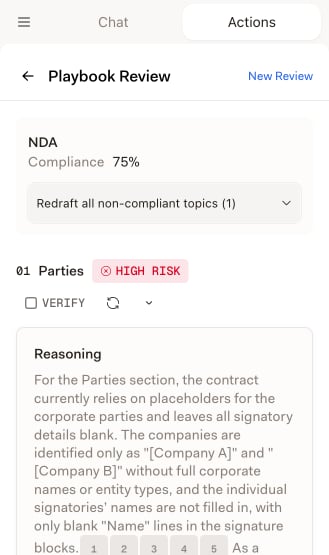 Two per-Topic controls sit in the Topic header when you have edit access. **Verify** marks the Topic as reviewed and stamps it with your avatar, so a colleague can see which Topics a human has already been through. The refresh icon (**Re-run evaluation**) evaluates that one Topic again against the document as it stands now — useful after you have accepted a redraft and want the verdict re-checked.
Topics badged **Auto mode** answer a research question instead of checking Rules. They show reasoning and citations only, with no Positions and no redraft section. See [Auto Mode](/en/features/review/auto-mode).
## Redraft one Topic
Under an expanded Topic, a **Redraft** section offers a **Select position** dropdown and a redraft button beside it.
The dropdown lists the Topic's **Starting Position** and any **Fallback 1**, **Fallback 2** and so on. A position the document already satisfies is labelled **(compliant)** and cannot be chosen — there is nothing to redraft toward. Libra preselects the first non-compliant one for you. Not acceptable positions never appear in the picker, and neither do Auto mode Topics.
Click the redraft button and Libra proposes new wording. The result appears as a card headed **Redrafting toward:** the position you picked, followed by **Suggested Changes** — one proposed paragraph at a time, shown as a redline against your text, with arrows to page through them. Apply or reject each suggestion individually, or apply them all. Nothing reaches the document until you apply it.
If the draft is close but not right, type into the **Follow-up instructions...** box at the bottom of the card and redraft again. Libra iterates on the previous attempt rather than starting over. Switching to a different position starts a clean draft instead.
## Redraft every non-compliant Topic at once
**Redraft all non-compliant topics (n)** sits in the compliance card at the top of the result. The count is the number of Topics that qualify: those Libra could map to the document and whose **Starting Position** the document does not meet. Compliant Topics, and Topics with no Starting Position, are skipped.
It is a dropdown, not a single button, and it opens on two choices:
* **Redraft all** drafts new wording for every qualifying Topic and stages it in that Topic's card, exactly as if you had redrafted each one by hand. Your document is untouched.
* **Redraft all & apply** does the same and then applies each draft. Because that rewrites the document, Libra asks first — *Apply redrafts to all n topics?* — and you confirm with **Redraft & apply**. `Ctrl+Z` undoes it, and you can still reject individual changes Topic by Topic afterwards.
Both branches always redraft toward the **Starting Position**; use the per-Topic picker when you want a Fallback instead. While a batch runs, the trigger counts *Redrafting x / y…*, a thin progress bar appears under the card, and **Cancel** stops it between Topics.
**Redraft all** and **Redraft all & apply** are not the same action. Only the second one writes to your document.
## Reviews created in the web app
The history list mixes reviews run here with reviews run in the Libra web app. A web-app review opens and reads normally in the add-in, tagged **Created in Libra web app** above the results — but you cannot redraft from it. Every Topic that would normally offer a redraft still shows its **Redraft** heading, with a help icon where the position picker would be; hover the icon and it reads *Redrafting isn't available — this review wasn't created from a Word document in the Word add-in.* **Re-run evaluation** is disabled too, and its tooltip reads *This review was created in the Libra web app. To retry topics, open the review there.* The bulk **Redraft all non-compliant topics** control is absent altogether.
That is a consequence of how redrafting works: it rewrites the paragraphs of the Word document the review was built from, and a web-app review has no such document behind it. Reopen the review in the web app to re-run its Topics there.
## When a Playbook needs research sources you don't have
Auto mode Topics name the research sources Libra should consult. If a Playbook references a source that is not enabled on your account, the add-in stops you before the review starts: selecting that Playbook opens **Missing research sources** instead of the preview, listing each Topic and the source it needs. The same check runs when you open an existing review whose sources you have since lost access to, and blocks the whole result.
The add-in has no way to switch a source on. Enable it in the Libra web app under **Settings → Integrations**, then come back — see [Set up integrations](/en/integrations/setup).
## Find an earlier review
**Show History** is a floating pill at the bottom of the **Actions** home. It is not on the **Playbook Review** screen, so use the back arrow in the header to leave the review first.
The **Recent Reviews** sheet slides up over the panel with both kinds of review in it, newest first. A Playbook Review row shows its name, how long ago it ran, the document it ran against, the Playbook used, and its **Compliance** percentage — or **Failed**, or a pulsing dot while it is still processing. Click any row to reopen that review.
Three controls narrow the list: a search box, a **Type** filter (**All**, **Document Comparison** or **Playbook Review**, each with a count), and **Filter by current document**, which hides everything not run against the document you have open. History is per project, so with no project selected the sheet just reads *Select a project to see your recent reviews.*
## Tips for better reviews
A Playbook written for NDAs produces sharper results on an NDA than a general one. Pick the most specific Playbook for the document type, and check its Topic list in the preview before you start.
**Redraft all** — without *& apply* — drafts wording for every flagged Topic and leaves it staged. You get the speed of the bulk action and still decide paragraph by paragraph what goes into the document.
Open the **High risk** Topics first, skim the **Medium risk** ones, and spot-check a **No risk** Topic or two. Reading the **Reasoning** before you accept a redraft is usually faster than undoing one.
If a redraft is nearly right, give it **Follow-up instructions...** instead of redrafting from scratch — it keeps the previous attempt as context. Once you have accepted changes, **Re-run evaluation** on that Topic re-checks the verdict against the new text.
Two per-Topic controls sit in the Topic header when you have edit access. **Verify** marks the Topic as reviewed and stamps it with your avatar, so a colleague can see which Topics a human has already been through. The refresh icon (**Re-run evaluation**) evaluates that one Topic again against the document as it stands now — useful after you have accepted a redraft and want the verdict re-checked.
Topics badged **Auto mode** answer a research question instead of checking Rules. They show reasoning and citations only, with no Positions and no redraft section. See [Auto Mode](/en/features/review/auto-mode).
## Redraft one Topic
Under an expanded Topic, a **Redraft** section offers a **Select position** dropdown and a redraft button beside it.
The dropdown lists the Topic's **Starting Position** and any **Fallback 1**, **Fallback 2** and so on. A position the document already satisfies is labelled **(compliant)** and cannot be chosen — there is nothing to redraft toward. Libra preselects the first non-compliant one for you. Not acceptable positions never appear in the picker, and neither do Auto mode Topics.
Click the redraft button and Libra proposes new wording. The result appears as a card headed **Redrafting toward:** the position you picked, followed by **Suggested Changes** — one proposed paragraph at a time, shown as a redline against your text, with arrows to page through them. Apply or reject each suggestion individually, or apply them all. Nothing reaches the document until you apply it.
If the draft is close but not right, type into the **Follow-up instructions...** box at the bottom of the card and redraft again. Libra iterates on the previous attempt rather than starting over. Switching to a different position starts a clean draft instead.
## Redraft every non-compliant Topic at once
**Redraft all non-compliant topics (n)** sits in the compliance card at the top of the result. The count is the number of Topics that qualify: those Libra could map to the document and whose **Starting Position** the document does not meet. Compliant Topics, and Topics with no Starting Position, are skipped.
It is a dropdown, not a single button, and it opens on two choices:
* **Redraft all** drafts new wording for every qualifying Topic and stages it in that Topic's card, exactly as if you had redrafted each one by hand. Your document is untouched.
* **Redraft all & apply** does the same and then applies each draft. Because that rewrites the document, Libra asks first — *Apply redrafts to all n topics?* — and you confirm with **Redraft & apply**. `Ctrl+Z` undoes it, and you can still reject individual changes Topic by Topic afterwards.
Both branches always redraft toward the **Starting Position**; use the per-Topic picker when you want a Fallback instead. While a batch runs, the trigger counts *Redrafting x / y…*, a thin progress bar appears under the card, and **Cancel** stops it between Topics.
**Redraft all** and **Redraft all & apply** are not the same action. Only the second one writes to your document.
## Reviews created in the web app
The history list mixes reviews run here with reviews run in the Libra web app. A web-app review opens and reads normally in the add-in, tagged **Created in Libra web app** above the results — but you cannot redraft from it. Every Topic that would normally offer a redraft still shows its **Redraft** heading, with a help icon where the position picker would be; hover the icon and it reads *Redrafting isn't available — this review wasn't created from a Word document in the Word add-in.* **Re-run evaluation** is disabled too, and its tooltip reads *This review was created in the Libra web app. To retry topics, open the review there.* The bulk **Redraft all non-compliant topics** control is absent altogether.
That is a consequence of how redrafting works: it rewrites the paragraphs of the Word document the review was built from, and a web-app review has no such document behind it. Reopen the review in the web app to re-run its Topics there.
## When a Playbook needs research sources you don't have
Auto mode Topics name the research sources Libra should consult. If a Playbook references a source that is not enabled on your account, the add-in stops you before the review starts: selecting that Playbook opens **Missing research sources** instead of the preview, listing each Topic and the source it needs. The same check runs when you open an existing review whose sources you have since lost access to, and blocks the whole result.
The add-in has no way to switch a source on. Enable it in the Libra web app under **Settings → Integrations**, then come back — see [Set up integrations](/en/integrations/setup).
## Find an earlier review
**Show History** is a floating pill at the bottom of the **Actions** home. It is not on the **Playbook Review** screen, so use the back arrow in the header to leave the review first.
The **Recent Reviews** sheet slides up over the panel with both kinds of review in it, newest first. A Playbook Review row shows its name, how long ago it ran, the document it ran against, the Playbook used, and its **Compliance** percentage — or **Failed**, or a pulsing dot while it is still processing. Click any row to reopen that review.
Three controls narrow the list: a search box, a **Type** filter (**All**, **Document Comparison** or **Playbook Review**, each with a count), and **Filter by current document**, which hides everything not run against the document you have open. History is per project, so with no project selected the sheet just reads *Select a project to see your recent reviews.*
## Tips for better reviews
A Playbook written for NDAs produces sharper results on an NDA than a general one. Pick the most specific Playbook for the document type, and check its Topic list in the preview before you start.
**Redraft all** — without *& apply* — drafts wording for every flagged Topic and leaves it staged. You get the speed of the bulk action and still decide paragraph by paragraph what goes into the document.
Open the **High risk** Topics first, skim the **Medium risk** ones, and spot-check a **No risk** Topic or two. Reading the **Reasoning** before you accept a redraft is usually faster than undoing one.
If a redraft is nearly right, give it **Follow-up instructions...** instead of redrafting from scratch — it keeps the previous attempt as context. Once you have accepted changes, **Re-run evaluation** on that Topic re-checks the verdict against the new text.