> ## Documentation Index
> Fetch the complete documentation index at: https://docs.libratech.ai/llms.txt
> Use this file to discover all available pages before exploring further.
# Installation & Setup
> How to install and set up the Libra Word Add-in.
Work with Libra without leaving Microsoft Word. The add-in opens as a panel beside your document, signs in with the same Libra account as the web app, and works against the same projects, Assistants and Playbooks.
## Install the add-in
**Requirements:** Microsoft Word — desktop on Windows or Mac, or Word on the web — and an active Libra account.
The add-in declares a single minimum for all three (Word JavaScript API requirement set 1.7); there is no separate Windows or Mac version floor. Current Microsoft 365 builds meet it. If Word never offers you the add-in, your Word build is older than that minimum — update Word or ask your IT team.
Launch Word and open any document, or create a new one.
Click **Add-Ins** in the Word toolbar.
 If Libra is not installed yet, search for "Libra" in the **Office Add-ins** dialog and click **Add**. If your organization deploys add-ins centrally, Libra sits under **Admin-managed** rather than in the search results.
The **Libra** button now sits in your Word toolbar. Click it and the panel opens to the right of your document.
If Libra is not installed yet, search for "Libra" in the **Office Add-ins** dialog and click **Add**. If your organization deploys add-ins centrally, Libra sits under **Admin-managed** rather than in the search results.
The **Libra** button now sits in your Word toolbar. Click it and the panel opens to the right of your document.
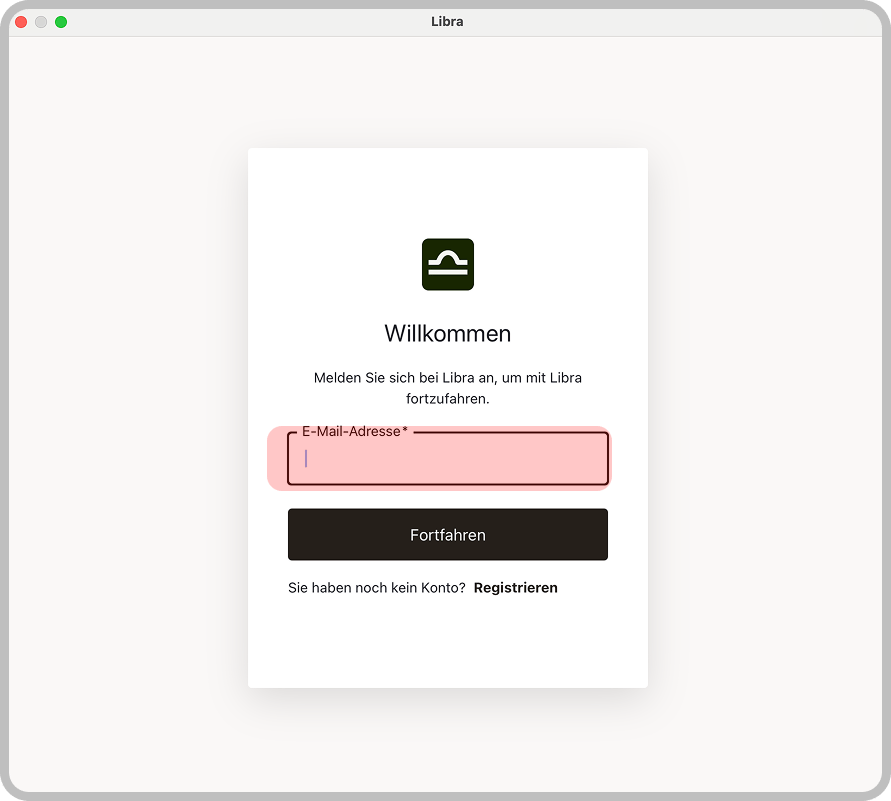
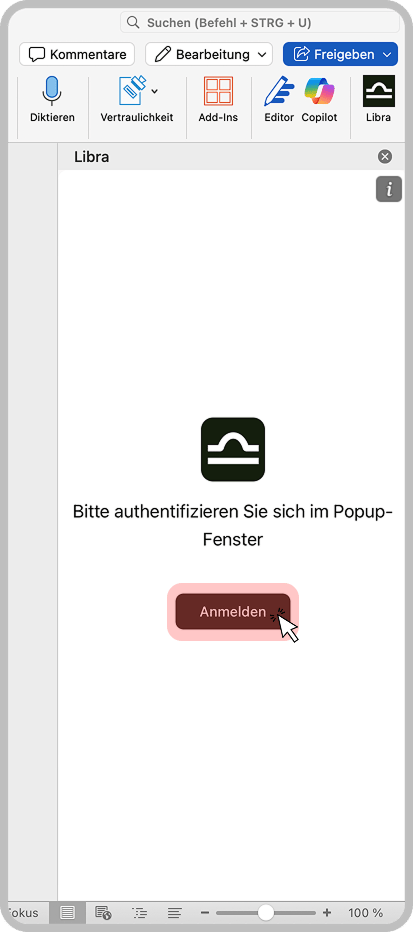 Click **Sign in**. Word opens a separate window for the Libra login — enter your email address and finish the flow there. The panel then reloads with your account.
 Your organization may have pre-installed the add-in for you. If **Libra** already appears in your Word toolbar, skip the installation steps and just sign in.
## The Libra panel
Signing in brings you to the panel proper. It has two tabs — **Chat** and **Actions** — plus a menu behind the hamburger button in the top-left corner.
Your organization may have pre-installed the add-in for you. If **Libra** already appears in your Word toolbar, skip the installation steps and just sign in.
## The Libra panel
Signing in brings you to the panel proper. It has two tabs — **Chat** and **Actions** — plus a menu behind the hamburger button in the top-left corner.
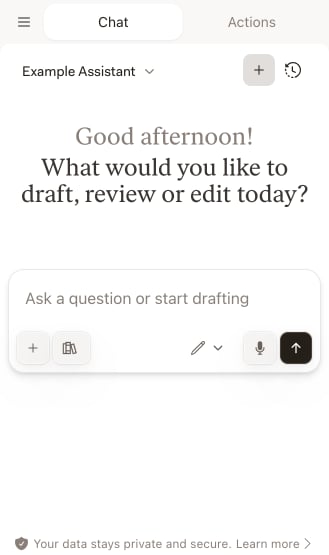 **Chat** is where you ask questions about the document you have open and ask for revisions to its text. The assistant selector at the top of the panel chooses which [Assistant](/en/integrations/word/assistants) answers; beside it, **+** starts a **New Chat** and the clock icon opens your **Chat History**. The second **+**, inside the input field, is **Add Files** — it attaches documents from the selected project to the conversation rather than starting a new one. Beside it, the mode picker sets what Libra is allowed to do with the document — **Ask**, **Edit**, and in the Word desktop apps **Auto** — and the **Research** icon opens the list of legal databases Libra may search. [Chat](/en/integrations/word/chat) covers all of it, including [chat modes](/en/integrations/word/chat#chat-modes) and [research](/en/integrations/word/chat#use-research-mode).
**Actions** holds the three things Libra runs across a whole document.
**Chat** is where you ask questions about the document you have open and ask for revisions to its text. The assistant selector at the top of the panel chooses which [Assistant](/en/integrations/word/assistants) answers; beside it, **+** starts a **New Chat** and the clock icon opens your **Chat History**. The second **+**, inside the input field, is **Add Files** — it attaches documents from the selected project to the conversation rather than starting a new one. Beside it, the mode picker sets what Libra is allowed to do with the document — **Ask**, **Edit**, and in the Word desktop apps **Auto** — and the **Research** icon opens the list of legal databases Libra may search. [Chat](/en/integrations/word/chat) covers all of it, including [chat modes](/en/integrations/word/chat#chat-modes) and [research](/en/integrations/word/chat#use-research-mode).
**Actions** holds the three things Libra runs across a whole document.
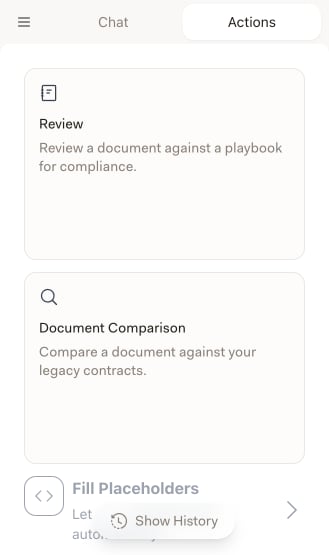 [Review](/en/integrations/word/review) checks the open document against a **Playbook** and flags every Topic that deviates from your firm's standard position. **Document Comparison** checks it against your own precedents instead: you say which party you act for, add the reference documents, and Libra grades the differences it finds. [Fill Placeholders](/en/integrations/word/placeholders) walks the placeholders in a template and fills them from the documents and context you supply. **Show History**, the pill at the bottom of the tab, reopens earlier Review and Document Comparison runs.
The hamburger menu holds **Selected Project** — the Libra project the panel is working in — together with **Settings** and **Sign Out**. That project matters more than it looks: it decides which files you can pull into a chat and which earlier runs **Show History** lists. Click the project name to switch. Archived projects cannot be opened from the add-in; unarchive them in the web app first.
## Troubleshooting
Click **Add-Ins** in the Word toolbar, then **More Add-ins**, and search for "Libra". If your organization deploys add-ins centrally, look under **Admin-managed** in the same dialog rather than in the search results, and contact your IT administrator if it is not there either.
The panel is a web view, so it needs a live connection to Libra. Check your internet connection, close and reopen the panel, and if that does not help, restart Word. Installing pending Office updates is worth a try as well.
The login opens in a separate window rather than inside the panel, so if nothing appears, allow pop-ups and try again. Check that the same credentials work at app.libratech.ai.
Chats and reviews belong to a project. Open the hamburger menu, check that **Selected Project** names the project you expect, and switch if it does not.
## Organization deployment
Administrators can deploy the add-in to everyone from the Microsoft 365 admin center, so nobody has to install it themselves. If you would rather not do it yourself, ask your IT administrator to roll it out.
## Next steps
Ask questions about the open document and have Libra revise its text.
Use your Assistants, personal and shared, inside Word.
Check a document against a Playbook and redraft what deviates.
Fill a template's placeholders from the documents and context you supply.
[Review](/en/integrations/word/review) checks the open document against a **Playbook** and flags every Topic that deviates from your firm's standard position. **Document Comparison** checks it against your own precedents instead: you say which party you act for, add the reference documents, and Libra grades the differences it finds. [Fill Placeholders](/en/integrations/word/placeholders) walks the placeholders in a template and fills them from the documents and context you supply. **Show History**, the pill at the bottom of the tab, reopens earlier Review and Document Comparison runs.
The hamburger menu holds **Selected Project** — the Libra project the panel is working in — together with **Settings** and **Sign Out**. That project matters more than it looks: it decides which files you can pull into a chat and which earlier runs **Show History** lists. Click the project name to switch. Archived projects cannot be opened from the add-in; unarchive them in the web app first.
## Troubleshooting
Click **Add-Ins** in the Word toolbar, then **More Add-ins**, and search for "Libra". If your organization deploys add-ins centrally, look under **Admin-managed** in the same dialog rather than in the search results, and contact your IT administrator if it is not there either.
The panel is a web view, so it needs a live connection to Libra. Check your internet connection, close and reopen the panel, and if that does not help, restart Word. Installing pending Office updates is worth a try as well.
The login opens in a separate window rather than inside the panel, so if nothing appears, allow pop-ups and try again. Check that the same credentials work at app.libratech.ai.
Chats and reviews belong to a project. Open the hamburger menu, check that **Selected Project** names the project you expect, and switch if it does not.
## Organization deployment
Administrators can deploy the add-in to everyone from the Microsoft 365 admin center, so nobody has to install it themselves. If you would rather not do it yourself, ask your IT administrator to roll it out.
## Next steps
Ask questions about the open document and have Libra revise its text.
Use your Assistants, personal and shared, inside Word.
Check a document against a Playbook and redraft what deviates.
Fill a template's placeholders from the documents and context you supply.