> ## Documentation Index
> Fetch the complete documentation index at: https://docs.libratech.ai/llms.txt
> Use this file to discover all available pages before exploring further.
# Settings
> Manage your Libra account: profile, security, Word export templates, and integrations.
Settings is where you manage your individual account: who you are, how you sign in, what your exports look like, and which third-party services Libra can reach. For chat-specific behaviour (personalization, model selector, default research sources), see [Customizing chat](/en/features/chat/customization). For team-wide settings, see [Team management](/en/features/team-management).
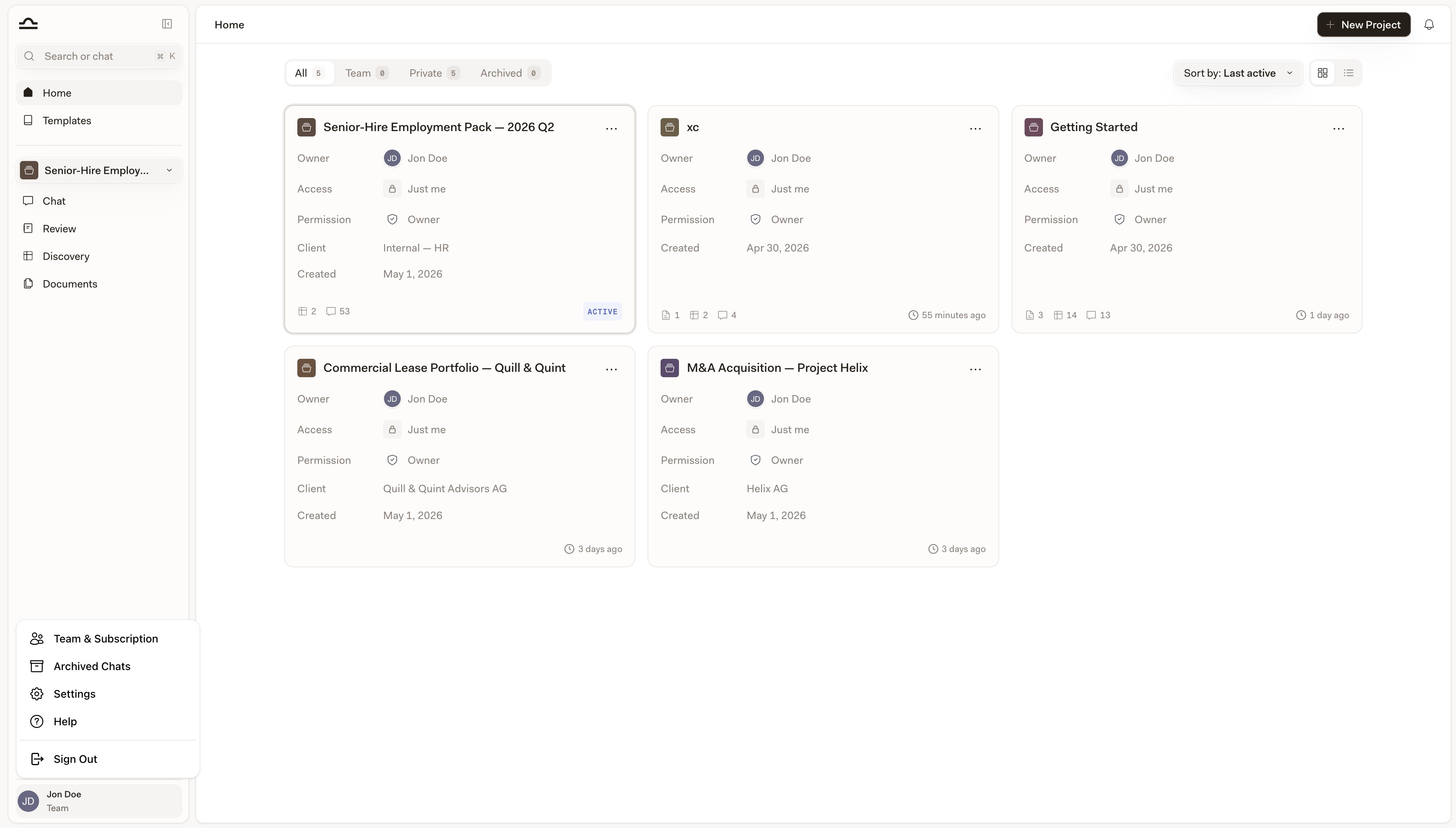
Click your profile picture in the bottom-left of the sidebar and select **Settings**.
 ## Account
The **Account** tab manages your profile and security.
## Account
The **Account** tab manages your profile and security.
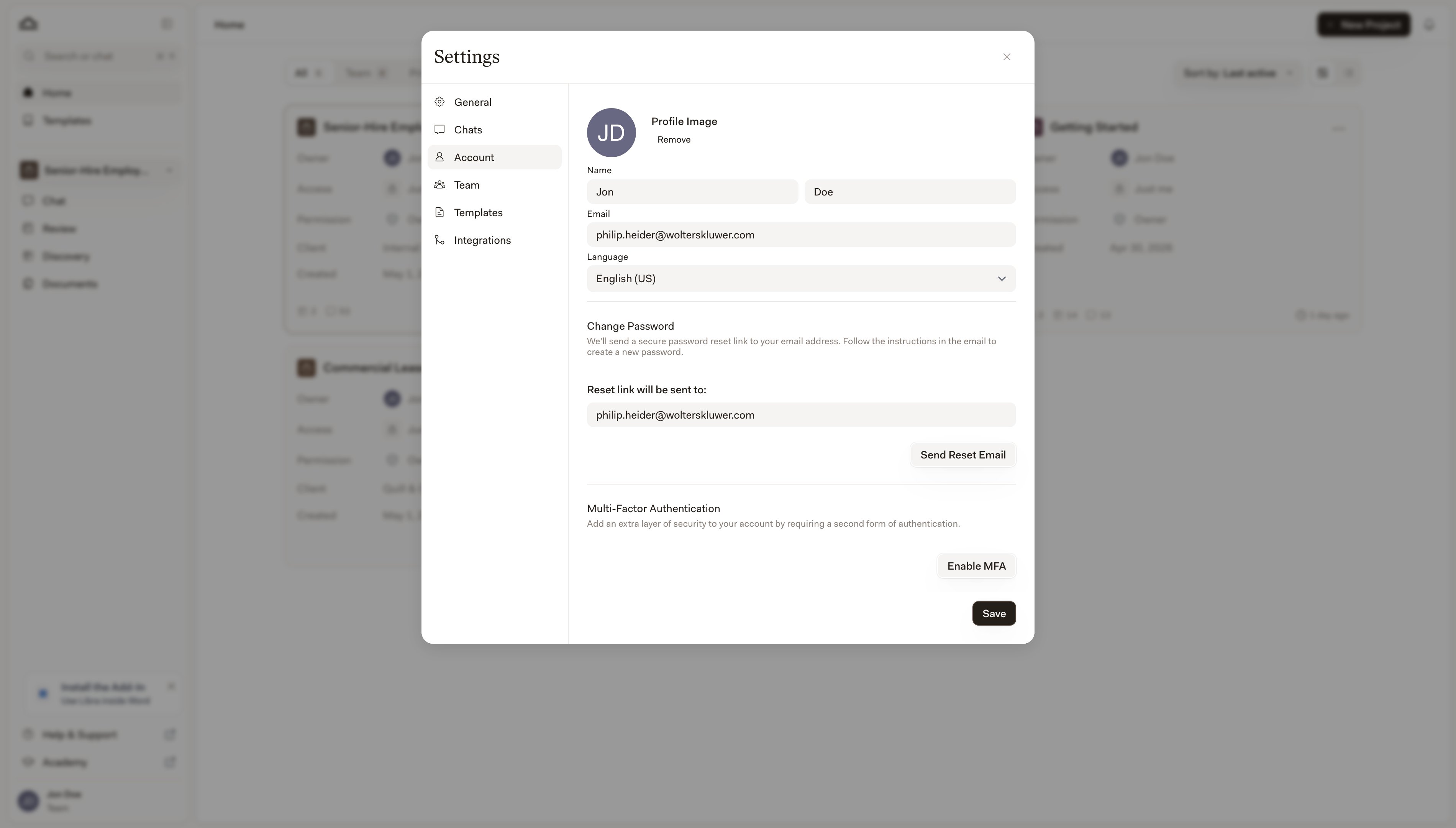 * **Profile image** — choose between your initials, a Gravatar image, or remove the image entirely
* **Name** — first and last, displayed on shared content and in team communications
* **Email** — your login email (read-only)
* **Language** — your preferred interface language
Click **Send Reset Email**, then follow the link in the email to set a new password. If your firm uses SSO, you'll see an SSO notice instead — change your password through your identity provider.
Add a second factor to your login:
1. Click **Enable MFA**.
2. Scan the QR code with an authenticator app (Google Authenticator, Authy, 1Password).
3. Enter the 6-digit code to confirm.
Save your recovery codes somewhere safe. You'll need them if you lose access to the authenticator.
Generate API keys to access Libra programmatically. Click **Create new secret key** to mint one. API keys grant full access to your account; do not share them.
## Templates
The **Templates** tab lets you upload a Word template that Libra applies whenever you export to `.docx`. Drag a `.docx` file onto the upload area (or click to browse), and Libra shows a first-page preview of the template you've uploaded.
* **Profile image** — choose between your initials, a Gravatar image, or remove the image entirely
* **Name** — first and last, displayed on shared content and in team communications
* **Email** — your login email (read-only)
* **Language** — your preferred interface language
Click **Send Reset Email**, then follow the link in the email to set a new password. If your firm uses SSO, you'll see an SSO notice instead — change your password through your identity provider.
Add a second factor to your login:
1. Click **Enable MFA**.
2. Scan the QR code with an authenticator app (Google Authenticator, Authy, 1Password).
3. Enter the 6-digit code to confirm.
Save your recovery codes somewhere safe. You'll need them if you lose access to the authenticator.
Generate API keys to access Libra programmatically. Click **Create new secret key** to mint one. API keys grant full access to your account; do not share them.
## Templates
The **Templates** tab lets you upload a Word template that Libra applies whenever you export to `.docx`. Drag a `.docx` file onto the upload area (or click to browse), and Libra shows a first-page preview of the template you've uploaded.
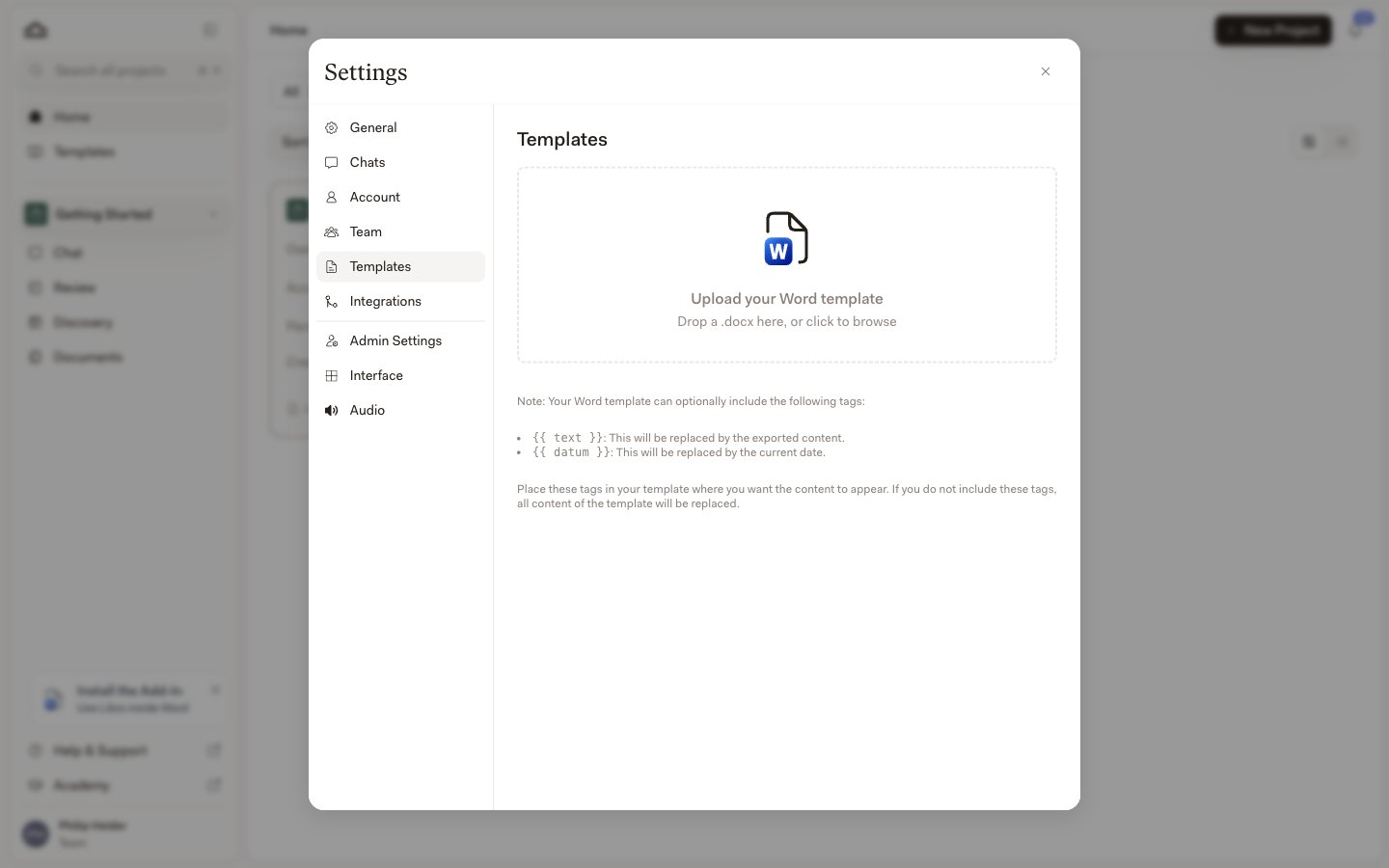 Your branded template's styling is preserved on export: tables inherit your template's fonts and layout instead of being forced to a default typeface and solid black borders, so your letterhead and firm details come through as designed.
Your template can include either of these placeholders. If neither is present, Libra replaces the entire template body with the exported content.
| Placeholder | Replaced with |
| ------------- | -------------------- |
| `{{ text }}` | The exported content |
| `{{ datum }}` | The current date |
Uploading a new template replaces the existing one.
## Integrations
The **Integrations** tab is where you connect external services to your Libra account. The list shows everything available to your firm; click any integration to manage its connection.
Your branded template's styling is preserved on export: tables inherit your template's fonts and layout instead of being forced to a default typeface and solid black borders, so your letterhead and firm details come through as designed.
Your template can include either of these placeholders. If neither is present, Libra replaces the entire template body with the exported content.
| Placeholder | Replaced with |
| ------------- | -------------------- |
| `{{ text }}` | The exported content |
| `{{ datum }}` | The current date |
Uploading a new template replaces the existing one.
## Integrations
The **Integrations** tab is where you connect external services to your Libra account. The list shows everything available to your firm; click any integration to manage its connection.
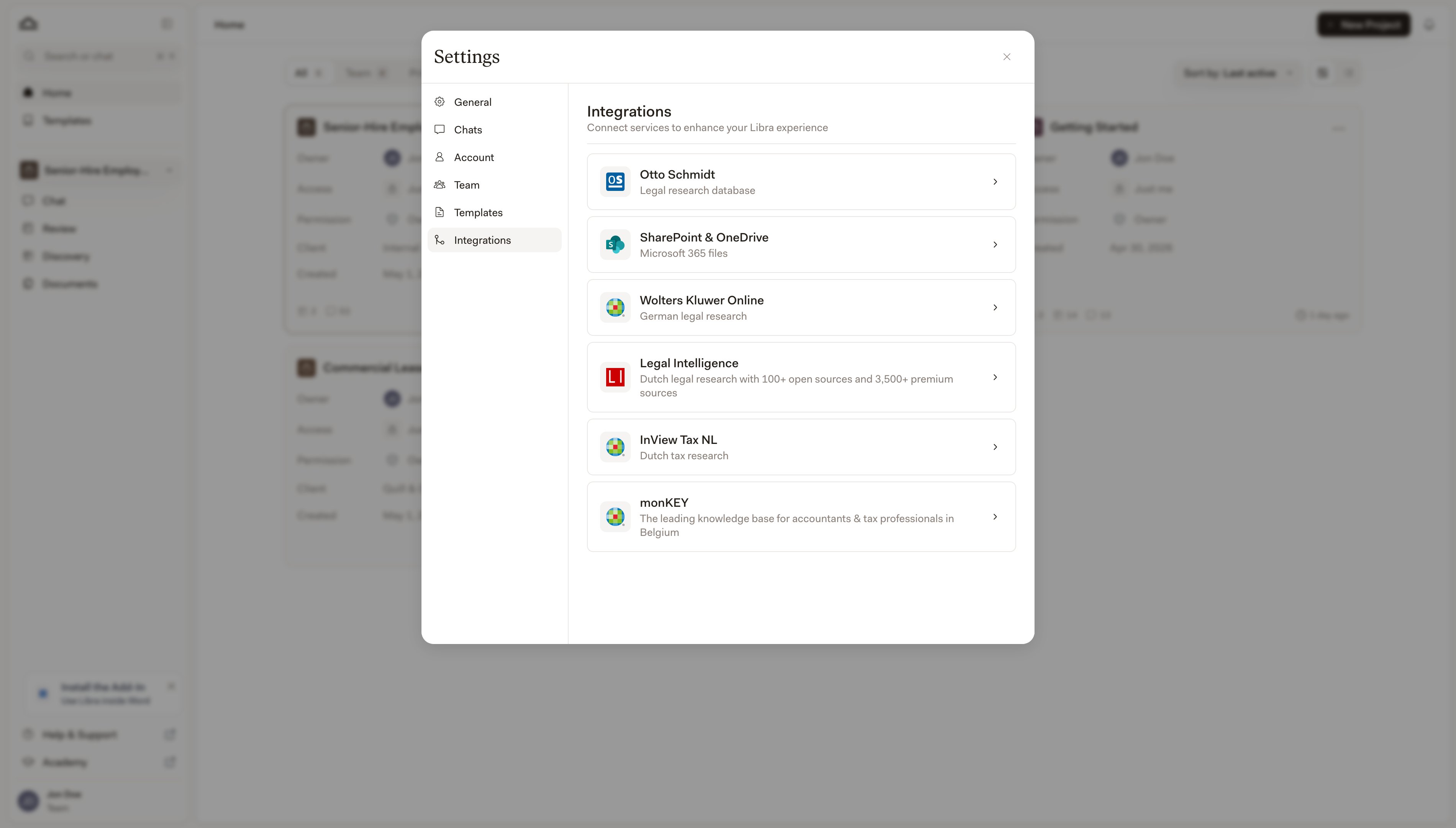 | Integration | What it adds |
| ------------------------------ | -------------------------------------------------------------- |
| **Wolters Kluwer Online** (DE) | German legal research |
| **InView Legal** (NL) | Dutch legal research |
| **InView Legal** (BE) | Belgian legal research |
| **InView Tax** (NL) | Dutch tax research |
| **LEX** (PL) | Polish legal research |
| **One** (IT) | Italian legal research |
| **Sintact** (RO) | Romanian legal research |
| **Jogtár** (HU) | Hungarian legal research |
| **ASPI** (CZ / SK) | Czech and Slovak legal research |
| **Legal Intelligence** (NL) | Dutch legal research with 100+ open and 3,500+ premium sources |
| **monKEY** (BE) | Knowledge base for accountants and tax professionals |
| **Otto Schmidt** | German legal research database |
| **SharePoint & OneDrive** | Microsoft 365 document access |
| **RA-MICRO Essentials** | RA-MICRO case files |
| **Kleos** | Kleos case files and documents |
Which integrations appear on your tab depends on your firm's plan and country. For setup details and per-integration walkthroughs, see [Content integrations](/en/integrations/setup).
## Related pages
Personal system prompt, default research sources, model selector.
Manage your plan, licenses, and payment.
Roles, user groups, license assignment, team profile.
Setup walkthroughs for every available integration.
| Integration | What it adds |
| ------------------------------ | -------------------------------------------------------------- |
| **Wolters Kluwer Online** (DE) | German legal research |
| **InView Legal** (NL) | Dutch legal research |
| **InView Legal** (BE) | Belgian legal research |
| **InView Tax** (NL) | Dutch tax research |
| **LEX** (PL) | Polish legal research |
| **One** (IT) | Italian legal research |
| **Sintact** (RO) | Romanian legal research |
| **Jogtár** (HU) | Hungarian legal research |
| **ASPI** (CZ / SK) | Czech and Slovak legal research |
| **Legal Intelligence** (NL) | Dutch legal research with 100+ open and 3,500+ premium sources |
| **monKEY** (BE) | Knowledge base for accountants and tax professionals |
| **Otto Schmidt** | German legal research database |
| **SharePoint & OneDrive** | Microsoft 365 document access |
| **RA-MICRO Essentials** | RA-MICRO case files |
| **Kleos** | Kleos case files and documents |
Which integrations appear on your tab depends on your firm's plan and country. For setup details and per-integration walkthroughs, see [Content integrations](/en/integrations/setup).
## Related pages
Personal system prompt, default research sources, model selector.
Manage your plan, licenses, and payment.
Roles, user groups, license assignment, team profile.
Setup walkthroughs for every available integration.