> ## Documentation Index
> Fetch the complete documentation index at: https://docs.libratech.ai/llms.txt
> Use this file to discover all available pages before exploring further.

# Subscription & Billing

> Buy or change your Libra plan, see what each tier includes, and manage the research-database licenses your firm holds.

<div className="libra-buddy-callout" style={{paddingTop: '12px', paddingBottom: '12px'}}>
  <img src="https://mintcdn.com/libra-4206ec93/wgVZXcGnHS4aJk9T/assets/images/libra-buddy/clipboard.png?fit=max&auto=format&n=wgVZXcGnHS4aJk9T&q=85&s=cde036cf23ea2d67cd50f1c295db549a" alt="Libra mascot with clipboard" width="725" height="605" data-path="assets/images/libra-buddy/clipboard.png" />

  <div className="libra-buddy-callout-content">
    Only team **owners** and **admins** can manage the subscription. Anyone else who opens the tab sees *Contact your team manager to update your subscription* — that's whoever owns your firm's Libra account.
  </div>
</div>

<Card title="View Plans & Pricing" icon="credit-card" href="https://libratech.ai/en/pricing">
  Compare Libra plans, features, and pricing on our website.
</Card>

## Finding the Subscription page

<Steps>
  <Step title="Open the profile menu">
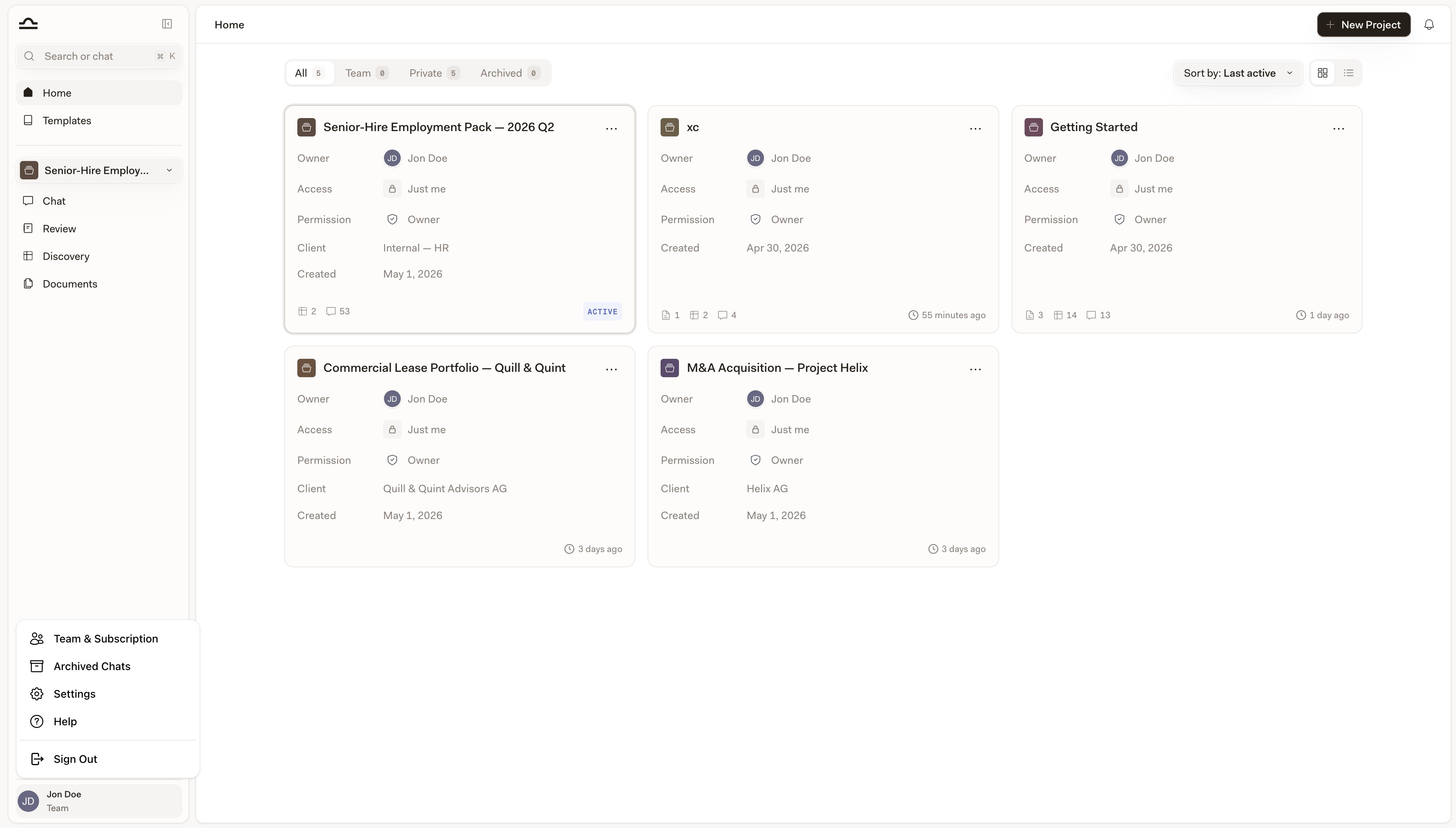
    Click your profile picture in the bottom-left of the sidebar.

    <img src="https://mintcdn.com/libra-4206ec93/pnEt5D-f3JDzogZl/assets/images/app/workspace-settings.png?fit=max&auto=format&n=pnEt5D-f3JDzogZl&q=85&s=ae986ba67089b24ccc3c7dd712f795e3" alt="Profile menu showing Team & Subscription, Archived Chats, Settings, Help, Sign Out" width="3800" height="2160" data-path="assets/images/app/workspace-settings.png" />
  </Step>

  <Step title="Pick Team & Subscription">
    The page opens on tabs along the top: **Team Members**, **User Groups** and **Subscription**. Teams with the usage dashboard switched on see a fourth tab, **Usage**. Switch to **Subscription**.
  </Step>
</Steps>

## What each plan includes

Libra sells three tiers. Each plan card on the Subscription tab lists what that tier carries; the differences that matter most in day-to-day work are these.

|                                  | Starter                           | Professional                                  | Team                                                                                                         |
| -------------------------------- | --------------------------------- | --------------------------------------------- | ------------------------------------------------------------------------------------------------------------ |
| Chat                             | 100 messages per user, per period | No message limit                              | No message limit                                                                                             |
| Document uploads                 | 100 per user, per period          | No limit                                      | No limit                                                                                                     |
| Projects                         | Up to 3 active                    | No limit                                      | No limit                                                                                                     |
| Assistants and Workflows         | Assistants, built-in and custom   | Assistants and Workflows, built-in and custom | Assistants and Workflows, built-in and custom                                                                |
| Review and Discovery             | Not available                     | Included                                      | Included                                                                                                     |
| Word and Outlook add-ins         | Not available                     | Included                                      | Included                                                                                                     |
| SharePoint                       | Not available                     | Included                                      | Included                                                                                                     |
| Databases                        | Not available                     | Not available                                 | Included                                                                                                     |
| Collaboration and administration | —                                 | —                                             | Team collaboration in projects, advanced user administration, priority support, SSO (additional costs apply) |

The plans quote the same per-document ceiling throughout — up to 2,000 pages and 500 MB per file. The Professional and Team plan cards also list deep-thinking mode as part of the plan; unlike the message and upload caps, it is not something Libra refuses on Starter.

Two Starter limits are worth spelling out, because you meet them as refusals rather than as greyed-out buttons. The message and upload counters run per user on your plan's own anniversary — a plan that started on 11 February resets on 11 March, not on the first of the month — and when a counter runs out, the next message or upload is turned away until the period rolls over. Creating a Review, a Playbook, a Discovery or a Discovery template is refused outright, with the message *This feature is not available on the Starter plan.* See [Starting work from chat](/en/features/chat/starting-work) for where those prompts appear.

Across all plans, the most capable reasoning models carry a daily per-user cap that is lowest on trials, higher on Starter and highest on paid plans. Reaching it doesn't stop you working: Libra continues the conversation on a comparable model automatically.

## What the Subscription tab shows

The tab is headed **Subscription Management**, and what it offers depends on where your firm is in its subscription.

| Your firm's situation                              | What you get                                                                                                                                                                                                                 |
| -------------------------------------------------- | ---------------------------------------------------------------------------------------------------------------------------------------------------------------------------------------------------------------------------- |
| On a trial, or restarting after a cancellation     | A full self-service checkout: tier tabs, a license-count stepper, any add-on content packages, and an order summary ending in **Upgrade from trial** — or **Continue to payment** if you are restarting after a cancellation |
| On a live subscription paid through Libra          | The current plan with an **ACTIVE** badge and its included features, a **Manage billing** button, and the same order summary for making changes                                                                              |
| On a subscription your account team set up by hand | The plan, an **ACTIVE** badge, the number of licenses included, and a **Contact Support** button                                                                                                                             |
| On a plan that sales manages end to end            | A single card — *Self-service checkout is not available for your team* — and a **Contact Sales** button                                                                                                                      |

Whichever state you're in, a **Wolters Kluwer Licenses** card sits at the bottom of the page wherever your jurisdiction is supported.

## Buying licenses

Checkout runs inside Libra and ends at Stripe. Work down the page:

1. **Pick a tier.** Tabs across the top switch between **Starter**, **Professional** and **Team**. On a trial all three are offered; once you are paying, the **Starter** tab is only there if Starter is the plan you are on.
2. **Set the license count.** The stepper on the plan card sets how many people the plan covers. Its minimum is the number of active users in your team — *Deactivate users first to reduce the number of licenses.*
3. **Add content packages.** German teams see the **Otto Schmidt Licenses** section with a checkbox and a stepper per module (the smallest package covers three licenses); Swiss teams see the equivalent **Stämpfli** section.
4. **Choose monthly or annual.** The billing toggle appears for German and Swiss teams; elsewhere subscriptions are annual.
5. **Confirm and pay.** The order summary on the right totals everything and shows the recurring price. Tick the terms you're asked to accept — German teams also confirm they aren't ordering as a consumer under § 13 BGB — then click **Continue to payment** (**Upgrade from trial**, if you're still on a trial) to open the Stripe checkout.

Prices on the page exclude VAT. VAT is worked out at checkout from the billing address you enter, and you can add a VAT ID there if your firm has one.

## Changing a live subscription

Once the subscription is running, the same page becomes the place you change it.

**Add licenses** with the stepper on the plan card. The stepper only goes up here: its minimum is the number of licenses you already pay for, so reducing the count is not something you can do on this page — email **[support@libratech.ai](mailto:support@libratech.ai)** instead.

**Move up a tier** with the tabs, which list your current plan and the ones above it. Libra only sells upgrades in the app; selecting a lower tier greys the button out and labels it **Downgrade not available**.

Either change opens a **Confirm Subscription Update** dialog. Before you confirm, the order summary shows the amount due today — Libra prorates the change against the days remaining in the current billing period rather than waiting for renewal. Confirm with **Update Subscription**.

Whenever the **Team** plan is the one on screen — because you picked its tab, or because it is already your plan — a **Request a quote** box sits under the plan card: *Need a tailored setup? Contact sales to get the best rate for your user count.* It opens a short message form rather than a checkout.

**Manage billing**, top-right, opens your firm's billing portal, where payment details and cancellation live. If a subscription is set to cancel, the Subscription tab carries a notice saying so and pointing you back at **Manage billing** to resume it.

## When your account team manages the subscription

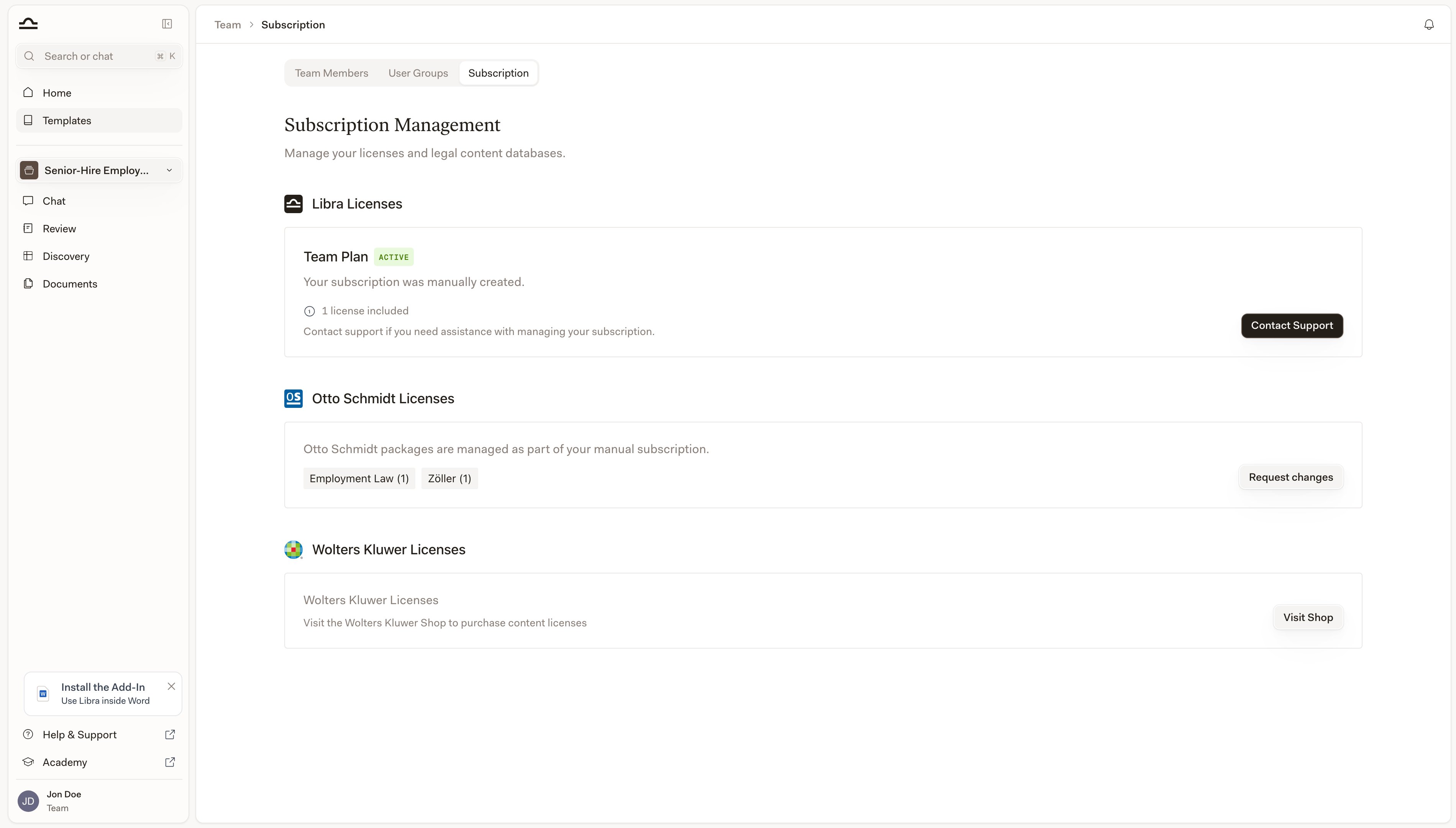
Some subscriptions are created by hand or owned by sales end to end. Those firms see a summary rather than a checkout: the plan name, an **ACTIVE** badge, the number of licenses included, and *Contact support if you need assistance with managing your subscription.*

<img src="https://mintcdn.com/libra-4206ec93/pnEt5D-f3JDzogZl/assets/images/app/subscription-overview.png?fit=max&auto=format&n=pnEt5D-f3JDzogZl&q=85&s=465b260c37cf1fd6f60b3d22cc6c5745" alt="Subscription tab for a manually created subscription, showing Libra Licenses with a Contact Support button, Otto Schmidt Licenses with Request changes, and Wolters Kluwer Licenses with Visit Shop" width="3800" height="2160" data-path="assets/images/app/subscription-overview.png" />

**Contact Support**, **Request changes** and **Contact Sales** all open the same thing: a short form inside Libra with a **Message** box. Describe what you need and it goes straight to the right team — you don't have to leave the page or find an email address.

## Research-database licenses

Publisher content is licensed separately from Libra itself, and each publisher has its own route.

| Publisher                  | Where you buy it                                                                                                                                                         |
| -------------------------- | ------------------------------------------------------------------------------------------------------------------------------------------------------------------------ |
| **Otto Schmidt** (Germany) | Directly on the Subscription tab, module by module, as part of the same order                                                                                            |
| **Stämpfli** (Switzerland) | Directly on the Subscription tab, package by package                                                                                                                     |
| **Wolters Kluwer**         | The **Wolters Kluwer Licenses** card — **Visit Shop** opens the Wolters Kluwer shop for your jurisdiction in a new tab. You can also add licenses you already hold later |

German licenses are the exception to the "separate" rule: statutes and case law from Wolters Kluwer Online come with the Libra license, and only additional publisher content needs its own subscription.

Once your firm holds module licenses, an admin hands them out to individual people on the **Team Members** tab — see [Team management](/en/features/team-management).

## Databases and your page allowance

[Databases](/en/features/databases/basics) are part of the **Team** plan and have to be switched on for your team. If your team has Databases but is below the Team plan, the sidebar entry stays, carrying a **Team** badge, and opens an upgrade prompt instead of a list; its **Upgrade plan** button drops you on this page with the Team tier already selected. Teams that have not had Databases switched on don't see the entry at all.

Ingestion into a Libra database draws on a page allowance that scales with the subscription: each billed license grants 100,000 page-equivalents, pooled across the team. It is a lifetime total rather than a monthly reset, and deleting documents does not give pages back. Documents in a SharePoint database don't count, because Libra never ingests them. Adding licenses raises the allowance.

## Common questions

<AccordionGroup>
  <Accordion title="How do I add more users to my team?">
    If your firm pays through Libra, raise the license count with the stepper on the plan card and confirm the update — the licenses are added right away. If your subscription was set up by your account team, use **Contact Support** on the **Libra Licenses** card and say how many you need.
  </Accordion>

  <Accordion title="What happens when I add licenses mid-cycle?">
    You pay a prorated amount for the days remaining until renewal. The order summary shows that amount before you confirm, so there are no surprises on the invoice.
  </Accordion>

  <Accordion title="Can I reduce my license count or move to a cheaper plan?">
    Not from this page. Libra sells upgrades in the app — a lower tier is labelled **Downgrade not available**, and the license stepper won't go below what you currently pay for. Email **[support@libratech.ai](mailto:support@libratech.ai)** to reduce either.
  </Accordion>

  <Accordion title="What happens if my payment fails?">
    Your access isn't cut off. Libra is alerted and the payment is retried; the subscription only ends if those retries are exhausted.
  </Accordion>

  <Accordion title="Is VAT included in the prices?">
    No — every price on the page is net. VAT is calculated at checkout from your billing address, and you can enter a VAT ID during checkout.
  </Accordion>

  <Accordion title="How do I get an invoice corrected, or update billing details?">
    Start at **Manage billing**. If what you need isn't there — a reissued invoice, a VAT ID added after the fact — email **[support@libratech.ai](mailto:support@libratech.ai)**.
  </Accordion>

  <Accordion title="How do I cancel?">
    Cancel from **Manage billing**. The subscription runs to the end of the current billing period, and until then the Subscription tab shows a notice reminding you that you can resume it from the same place.
  </Accordion>

  <Accordion title="Do I need to cancel a trial?">
    No. A trial expires on its own, costs nothing, and never turns into a paid subscription by itself. See the [FAQ](/en/resources/faq).
  </Accordion>
</AccordionGroup>

## Need help?

<Columns cols={2}>
  <Card title="Team management" icon="users" href="/en/features/team-management">
    Roles, user groups, and handing out the licenses you've bought.
  </Card>

  <Card title="FAQ" icon="circle-question-mark" href="/en/resources/faq">
    Find answers to other common questions.
  </Card>
</Columns>