


Project scope is a hard wall. An
@-mention in Project A can’t reach Project B.Need a document from another matter? Switch to that project, open the document’s ⋯ menu in Project files and pick Move to project — it re-homes the document, so it leaves the matter it came from.What lives inside a project
The project section of the sidebar lists four kinds of thing, each scoped to the project you’re in:
Those are the project-scoped sidebar entries, in the order they appear. Above the project sit the global ones — Search all projects, Home, Templates and Databases — which stay the same whichever project you’re in. See How Libra is organised.
Using a project in chat
When you attach a project to a chat (the project chip), Libra can work across everything in it — even projects with thousands of documents. Rather than loading the whole project up front, Libra searches it on demand. It starts from a summary — the item counts and your most recently updated documents. From there it reads, searches and previews documents as your question needs them, following your folder structure as it goes. This keeps answers fast and accurate on large matters, and a project is no longer capped before a request is even sent. When Libra draws on the project, its citations can point to a specific folder or a whole document, not just a single page.Working in Project files
Project files holds everything the project has collected, and the panel remembers how you left it — per project, not once for the whole account. Sort and filter choices stick. Pick Name, add a File type or Date filter, close the panel, and that view is waiting the next time you open the project; another project keeps its own. A project you have never sorted opens alphabetically. Search is the exception. It clears when you close the panel, so you never come back to a filtered-down list you have forgotten about. With Chat open, selecting files puts Add to chat on the selection bar as a button rather than under More, so attaching them to the current chat is one click. More still holds Download and Delete. In Review and Discovery the equivalent action stays under More. Project files covers the panel in full.Creating a project
The New Project button sits in the top right of the Home page. The project sidesheet has its own New project button. Both open the same Create a Project dialog. Before you start: on the Starter plan you can have three active projects at a time. Under the cap, the dialog shows a meter reading 2 of 3 projects used. At three, New Project on Home and New project in the sidesheet stop responding. Hover either one and Libra explains why: Starter Plan, 3 project limit, and an Upgrade to Professional link. Archiving a project frees a slot. Professional and Team have no project cap. See Subscription.1
Click New Project on the Home page
The Create a Project dialog opens.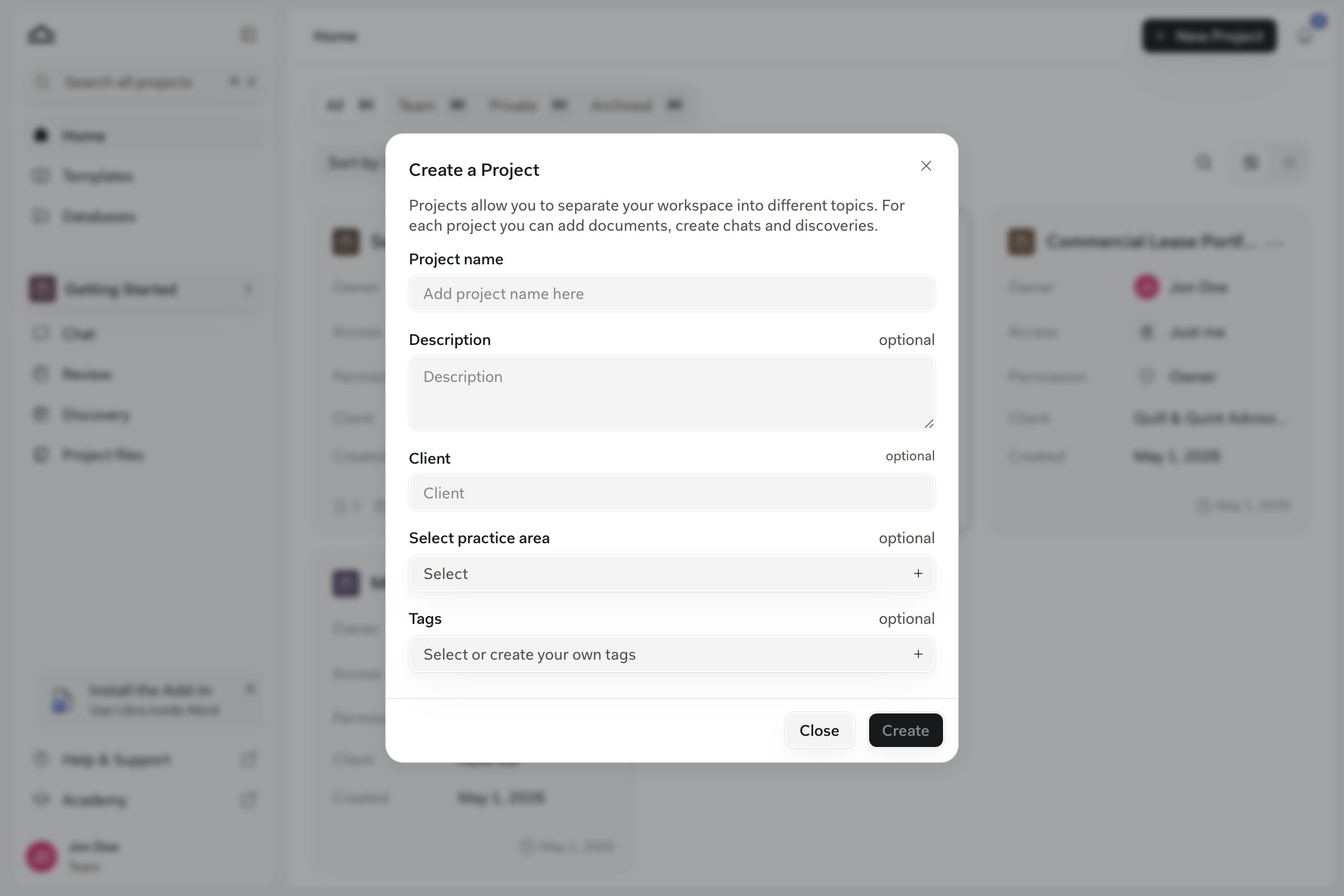
2
Fill in the basics
Only the name is required. The fields appear in this order.
3
Click Create
The project is created immediately.
4
Set sharing, then land on Home
If sharing is available to your team, a sharing dialog opens as a follow-up step: pick specific colleagues, a user group, or everyone in the team. You can change this later, so closing the dialog is a fine answer. See Sharing & access.Libra then makes the new project your active project — the project section of the sidebar switches to it — and takes you to Home.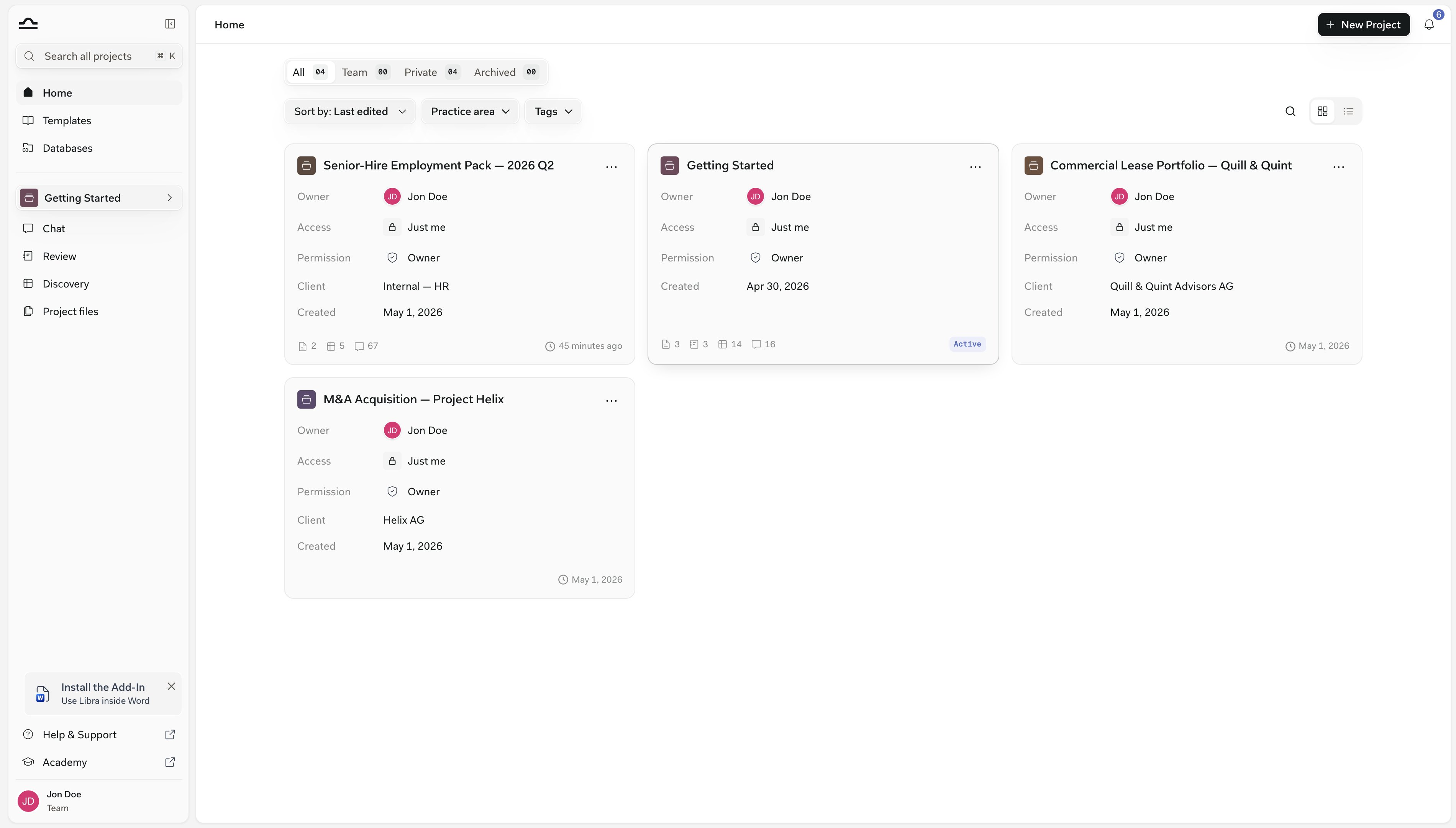
Switching between projects
Two ways to switch on purpose, and a third that happens as a side effect of Search.From the Home page
From the Home page
Open Home in the global section and click any project card — same result as the sidesheet: the project becomes active and Libra starts a new chat in it. Archived projects can’t be opened this way; unarchive them first. See Home.
By opening a search result
By opening a search result
Cmd+K searches the things inside your projects — chats, documents, folders, Reviews and Discoveries — not project names, so typing a project’s name finds nothing on its own. What it does do is cross the wall: open a result that lives in another project and Libra asks Switch project? first, then switches you into that project to show it. To pick a project by name, use the sidesheet or Home. See Search.
Editing a project
You can change the project name, description, client, practice area and tags without entering the project, and — if your team has sharing — reach the project’s sharing from the same dialog.1
Find the project on Home
Click Home in the global section, then search, sort, or scroll to the project.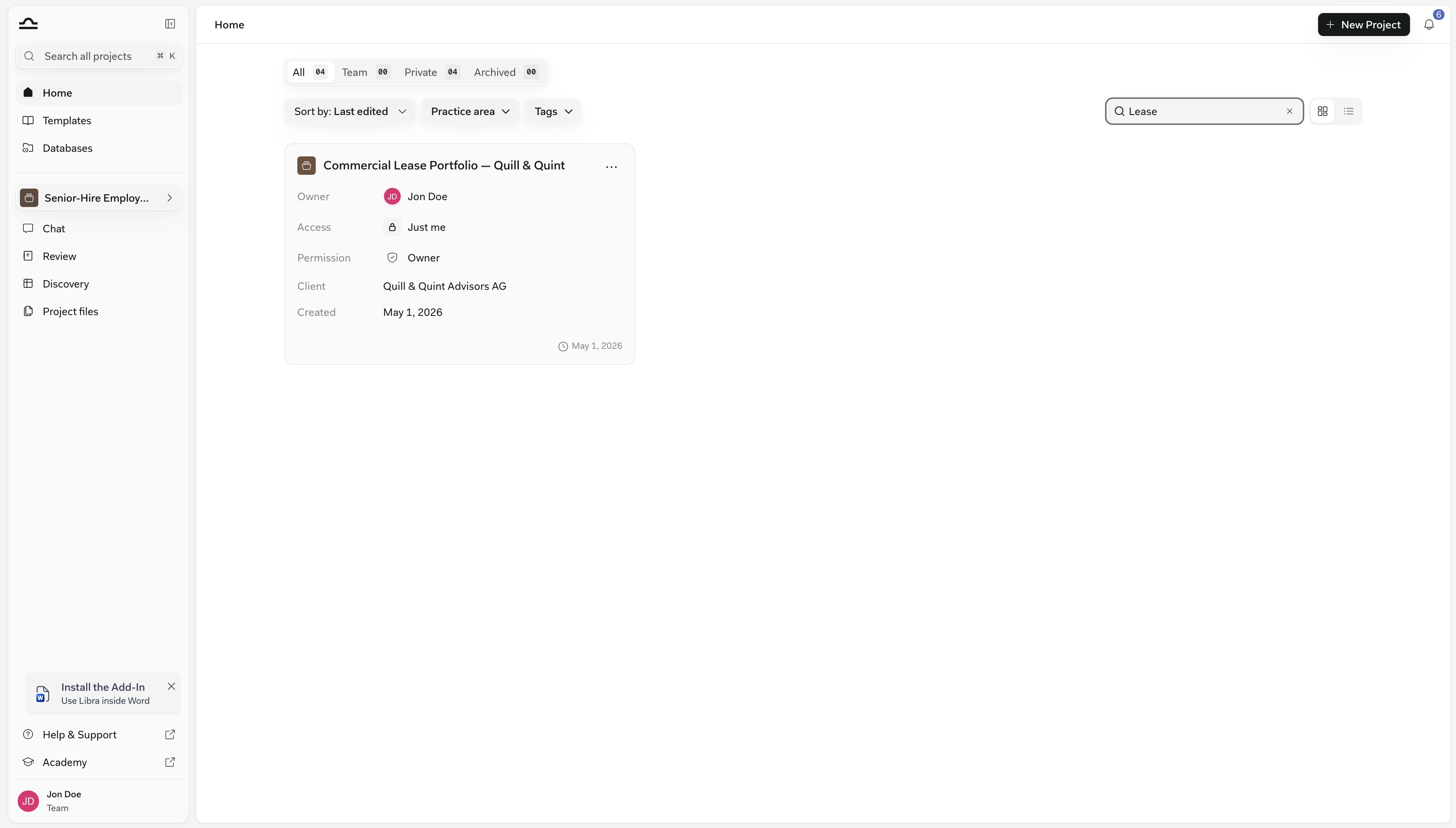
2
Open the project menu (⋯)
Pick Edit. On a project you can only view, the same entry reads Details and opens the dialog read-only.The rest of the menu is Favorite — Unfavorite once the project is starred — plus Archive and Delete, which need Full Access or ownership. A Share entry sits between them when your team has sharing and the project isn’t archived.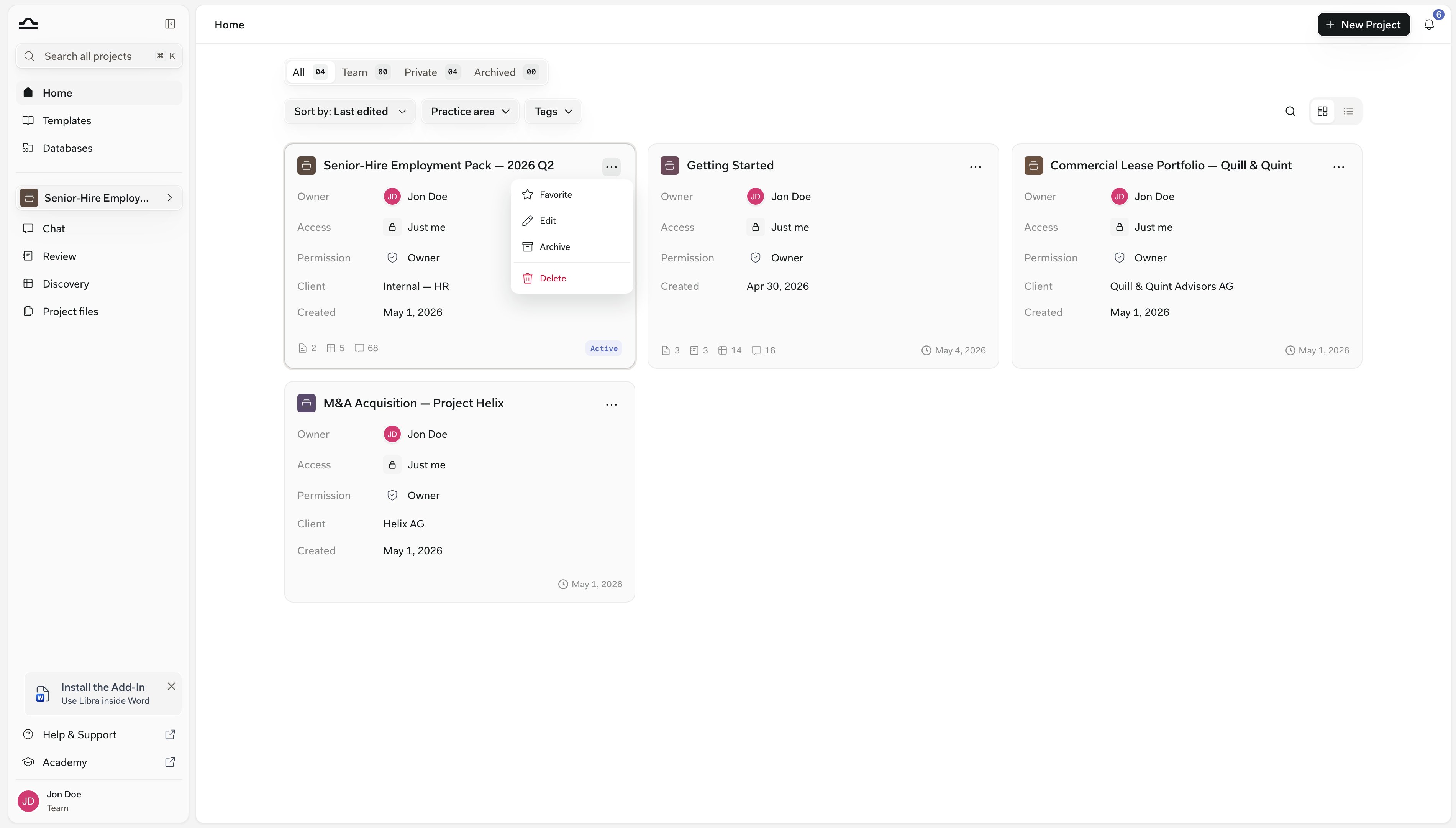
3
Change what you need to change
The dialog opens as Edit project details. If your team has sharing, an Owner and an Access row sit above the fields.Clicking the value on the Access row — its tooltip reads Manage sharing — opens the project’s sharing dialog. Click Save changes when you’re done.
Archiving and deleting
A finished matter doesn’t need to clutter your active list. Both actions are on the project’s ⋯ menu, and both need Full Access — being the owner counts.On the Starter plan only active projects count against the three-project cap, so archiving one frees a slot. The reverse also holds: while you’re at the cap, unarchiving is refused until you archive something else or upgrade.
Organising your project list
There’s no single right way. Common patterns:
You can always change strategy mid-stream. On Professional and Team there’s no ceiling on how many projects you keep; on Starter the three-project cap makes one-project-per-client impractical past the first few matters, so lean on folders and tags inside fewer projects instead.
In list view your projects carry Author, Practice area and Tags columns, and you can narrow the list with the Practice area and Tags filters — the same two you get on Templates.Global search leads with different filters — Location, Type and Created by — and offers Practice area and Tags under Add filter.
Next steps
Home
Manage every project from one place.
Sharing & access
Control who sees what.