

Why Create an Assistant?
Instead of explaining the same context every time you start a new conversation, an assistant remembers your instructions and applies them automatically. This is particularly useful for:- Contract reviews that follow the same checklist
- Document drafting with consistent formatting
- Research tasks in a specific area of law
- Recurring questionnaires
Creating Your First Assistant
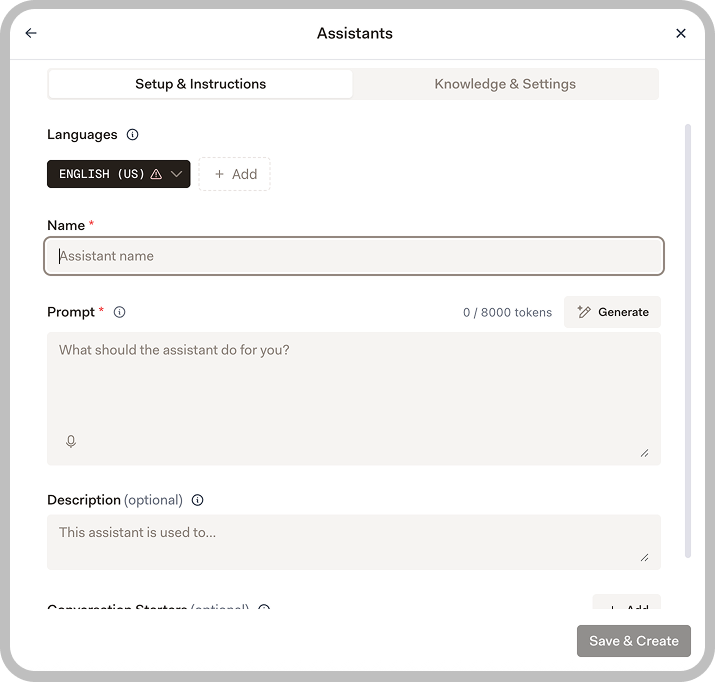
To create an assistant, navigate to Assistants and click Create Assistant. You will configure the assistant’s instructions, optionally add reference documents, and test it before use.
Create an Assistant
Follow the step-by-step guide to create and configure your first assistant.
Example: Employment Contract Reviewer
Name: Employment Contract Reviewer Instructions:Managing Your Assistants

Once you have created an assistant that works well, share it with your team. They can use it directly or customize it for their own needs.
- Edit: Update instructions or add new documents
- Duplicate: Create a copy to use as a starting point for a similar assistant
- Share: Make the assistant available to colleagues in your organization
- Delete: Remove assistants you no longer need
Chaining Assistants with Workflows
Once you have created assistants, you can chain them together in a workflow to automate multi-step tasks. The output from one assistant becomes the input for the next. Example: Reviewing a contract might involve:- Extract all key terms and dates
- Check each clause against a compliance checklist
- Generate a summary memo for the client

Create a Workflow
Follow the step-by-step guide to build your first workflow.
Next Steps
Assistant Library
Browse pre-built assistants you can use or customize.
Explore Features
Learn about all of Libra’s capabilities.