

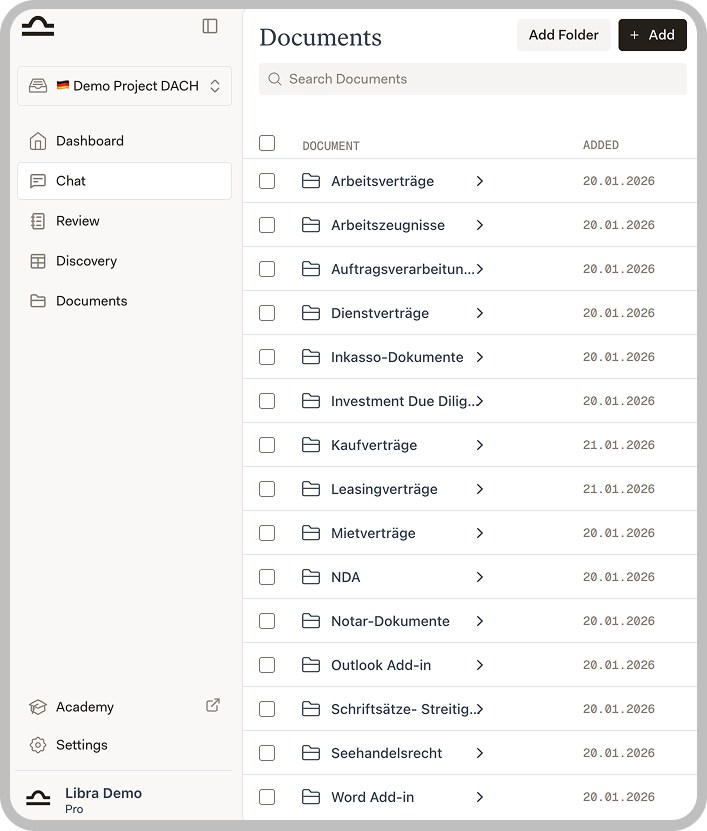

The Document Library is where you store documents you want to reference regularly. Unlike documents uploaded to a single chat, documents in your library can be easily accessed across multiple chats and assistants.
When to Use the Document Library
The Document Library is useful for:- Templates you use repeatedly (contract templates, standard clauses)
- Reference materials you consult often (guidelines, checklists)
- Client documents you need to reference across multiple conversations
- Sample documents that inform your assistants
Adding Documents
To add documents to your library:
Supported formats include PDF, Word documents, Excel files, and common text formats.
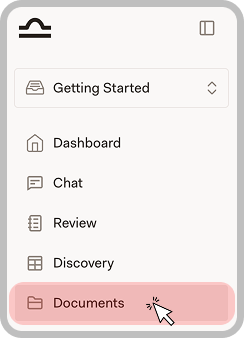
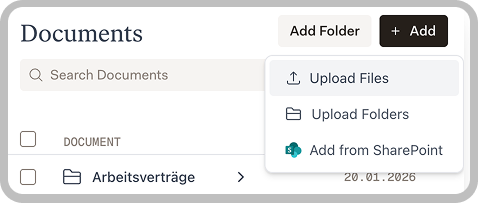
Documents are always stored within a specific project and are only visible when you are in that project. To access documents across projects, you need to upload them to each project separately or use a shared integration like SharePoint.
Organizing Your Library
Creating a New Folder
Create folders to group related documents by type, client, matter, or practice area.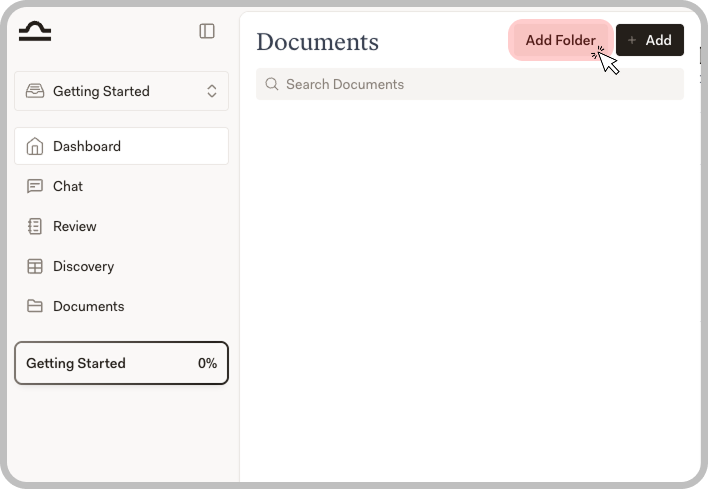
Enter a name
Give your folder a descriptive name (e.g., “Contracts”, “Client A”, or “Employment Law”).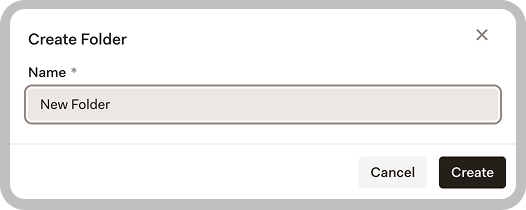
Managing Folders
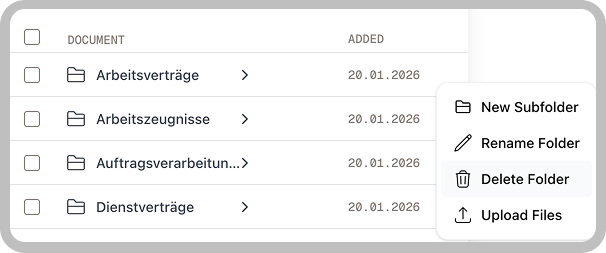
| Option | Description |
|---|---|
| New Subfolder | Create nested folders for deeper organization |
| Rename Folder | Change the folder name |
| Delete Folder | Remove the folder and its contents |
| Upload Files | Add documents directly to the folder |
Using Library Documents
Once documents are in your library, you can:Reference in Chat
Reference in Chat
When chatting, click the document icon and select from your library. Libra will have access to the document content when answering your questions.
Add to Assistants
Add to Assistants
When creating or editing an assistant, you can add library documents to its knowledge base. The assistant will reference these documents when responding.
Quick Access
Quick Access
Library documents appear in suggestions when you start typing document names, making them quick to access.
Sharing Documents
Documents follow the sharing settings of their project:- In a private project, documents are only visible to you
- In a shared project, team members can access project documents
Team Management
Learn how to manage team members and share projects in your organization.