


While you are reading a message, Libra picks up its attachments automatically: “summarize this thread and the attached SPA” gives one combined answer. Attachments are not read in a compose window.
The compose window is a newer entry point, and it comes with the add-in manifest your organization deploys — version 1.0.0.2 or later. On an earlier manifest the Libra button appears only when you are reading a message; ask your IT administrator to update the deployment.
Chat with email threads
Libra lets you have a conversation about the message you have open. Ask questions, request summaries, or get specific information extracted from the conversation.The chat panel follows the email you are reading. Switch to a different email in Outlook and Libra moves to that email’s conversation — or starts a fresh chat if it does not have one yet. Moving between messages in the same thread keeps your current chat open. A compose window behaves differently: it is pinned to the single draft you opened it from.
1
Open the email
In Outlook, open the email thread you want to work with.
2
Open the Libra panel
Click the Libra icon in your Outlook ribbon.
3
Ask your question
Type what you need in the chat field. For example:
- “Summarize this thread”
- “What did the client agree to?”
- “List all deadlines mentioned”
- “What questions are still open?”
4
Review the response
Libra analyzes the email and responds based on your request. Continue the conversation to dig deeper or ask follow-up questions.
One-click actions
For the four most common requests you do not need to type anything. Click Actions in the row beneath the chat field, next to Tools, and pick one: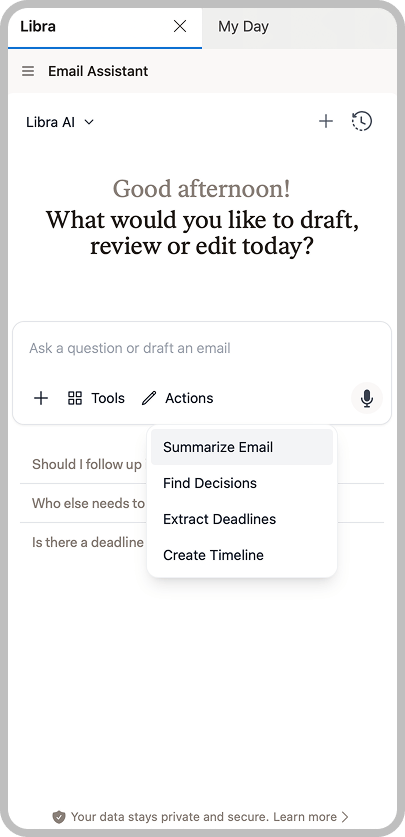
Example questions
Anything the Actions menu does not cover, you can simply ask:Draft a response
While you are reading a message, ask Libra to write the reply for you. Libra shows the proposed email in the chat and hands it to Outlook — there is no copying and pasting.1
Open the email thread
In Outlook, open the email you want to respond to.
2
Open the Libra panel
Click the Libra icon in your Outlook ribbon.
3
Describe your response
In the chat field, describe what you want to say. For example: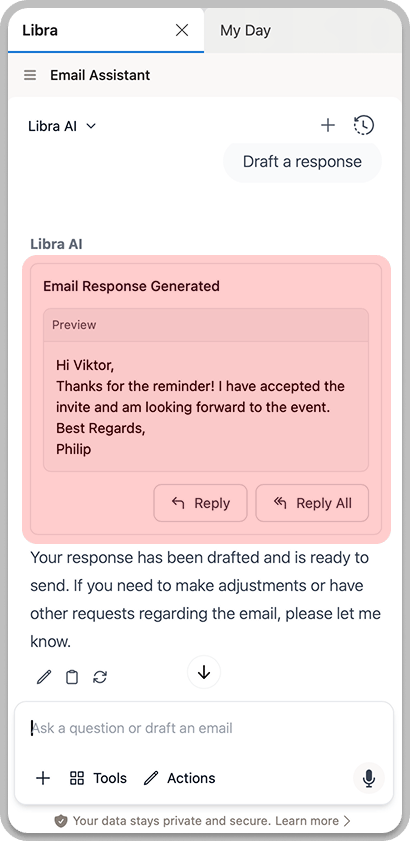
- “Draft a response confirming the meeting time”
- “Write a polite decline for this request”
- “Reply asking for clarification on the deadline”
4
Review the draft
Libra writes the reply and shows a preview of it in the chat. Read it through before you take it any further. Reply and Reply All stay disabled until the response has finished generating.
5
Open it in Outlook
Click Reply or Reply All. Outlook opens its own reply window with the draft already filled in, addressed the way you chose. Edit it there and send it yourself — Libra never sends anything on your behalf.
Rewrite the email you are composing
Open the Libra panel from a compose window — a new mail, a reply, a reply-all, a forward, or a draft you have reopened — and Libra works on the text in front of you instead of producing a separate one. Libra picks up the chat you already had open, so a question you asked in the reading pane carries over when you hit Reply and keep going.1
Start writing
Compose your email in Outlook as usual. You can start from a blank message or from a rough first attempt — Libra works with either.
2
Open the Libra panel
Click the Libra icon in the compose window’s ribbon.
3
Say what to change
Describe the edit you want, for example “make this more formal”, “shorten it to three sentences”, or “add a paragraph asking for an extension to the filing deadline”.
4
Read the proposed change
Libra returns the rewrite as a word-by-word comparison against your current text, so you can see exactly what it added and removed. Only the reply itself is rewritten — the quoted thread history below it is preserved exactly as it stands. Libra is instructed to carry your signature over unchanged, but check that it did before you apply.
5
Apply it
Click Apply to replace your draft with the rewrite. Libra asks you to confirm the first time; tick Don’t show again if you would rather it did not. If you change your mind, Undo on the same message puts your original text back.
Privacy considerations
Email content sent to Libra is processed according to your organization’s data handling policies. Sensitive or privileged communications are handled with the same security as all Libra interactions.
Tips for better results
Open the message that has the history
Open the message that has the history
Libra reads the message you have open — its body, including any quoted history it contains, and its attachments. If the earlier exchanges are not quoted in the message in front of you, open the one that does contain them.
Attach before you ask, not while composing
Attach before you ask, not while composing
Attachments are read from the message you are reading. A compose window gives Libra the subject, recipients, and body of your draft, but not its attachments — so ask your questions about a document from the reading pane.
Be specific
Be specific
Instead of broad questions, ask about specific aspects: “What did the client say about the payment terms?” returns more useful information than “Tell me about this email.”
Ask follow-up questions
Ask follow-up questions
Continue the conversation to get more details. After a summary, you can ask “What exactly was the timeline discussed?” or “Were there any concerns raised?”
Verify important details
Verify important details
For critical information (deadlines, amounts, commitments), verify against the original emails.