

Before you start
SharePoint is part of the Professional plan. On the Starter plan the integration panel shows an upgrade prompt instead of the setup flow, so there is nothing your firm administrator can switch on — see Subscription. Beyond the plan, three things have to be in place, in this order:- A Microsoft 365 organization administrator grants Libra access to SharePoint. This is one consent for the whole organization, granted once.
- A Libra team administrator (an owner or team admin) enables SharePoint for your team.
- Each person connects their own Microsoft account.
Two ways to use SharePoint
Once you are connected, SharePoint reaches Libra in two quite different ways, and it is worth knowing which one you want before you start.
Linking folders as databases needs the Team plan, because it is part of the Databases product.
Setting it up
One-time setup for your organization
This part is done by a Libra team administrator, working with whoever administers your Microsoft 365 tenant. Open Settings → Integrations → SharePoint; the panel opens on Setup required.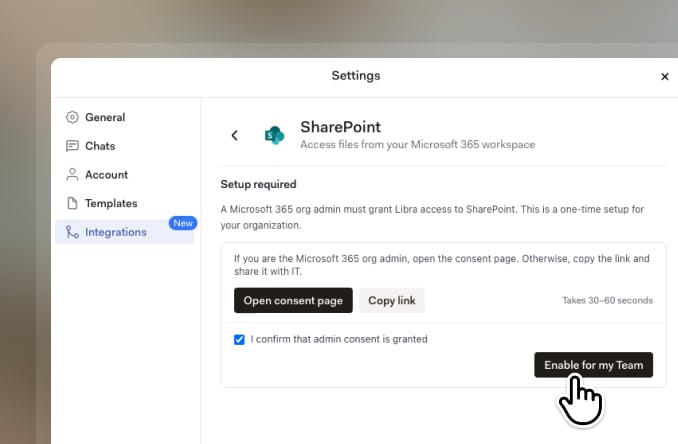
1
Get Microsoft admin consent
If you administer the Microsoft 365 tenant yourself, click Open consent page. Libra opens Microsoft’s admin-consent page in a new tab, where you review the access Libra is asking for and approve it. It takes under a minute.If you don’t administer the tenant, click Copy link instead and send the link to whoever does. Nothing else in this panel will work until they have approved it.
2
Confirm and enable
Back in Libra, tick I confirm that admin consent is granted. The Enable for my Team button stays greyed out until you do. Click it, and SharePoint becomes available to everyone on your team.
Enabling SharePoint for the team doesn’t give anyone access to anyone else’s files. It only opens the door — each colleague still signs in with their own Microsoft account and sees only what that account can see.
Connect your own account
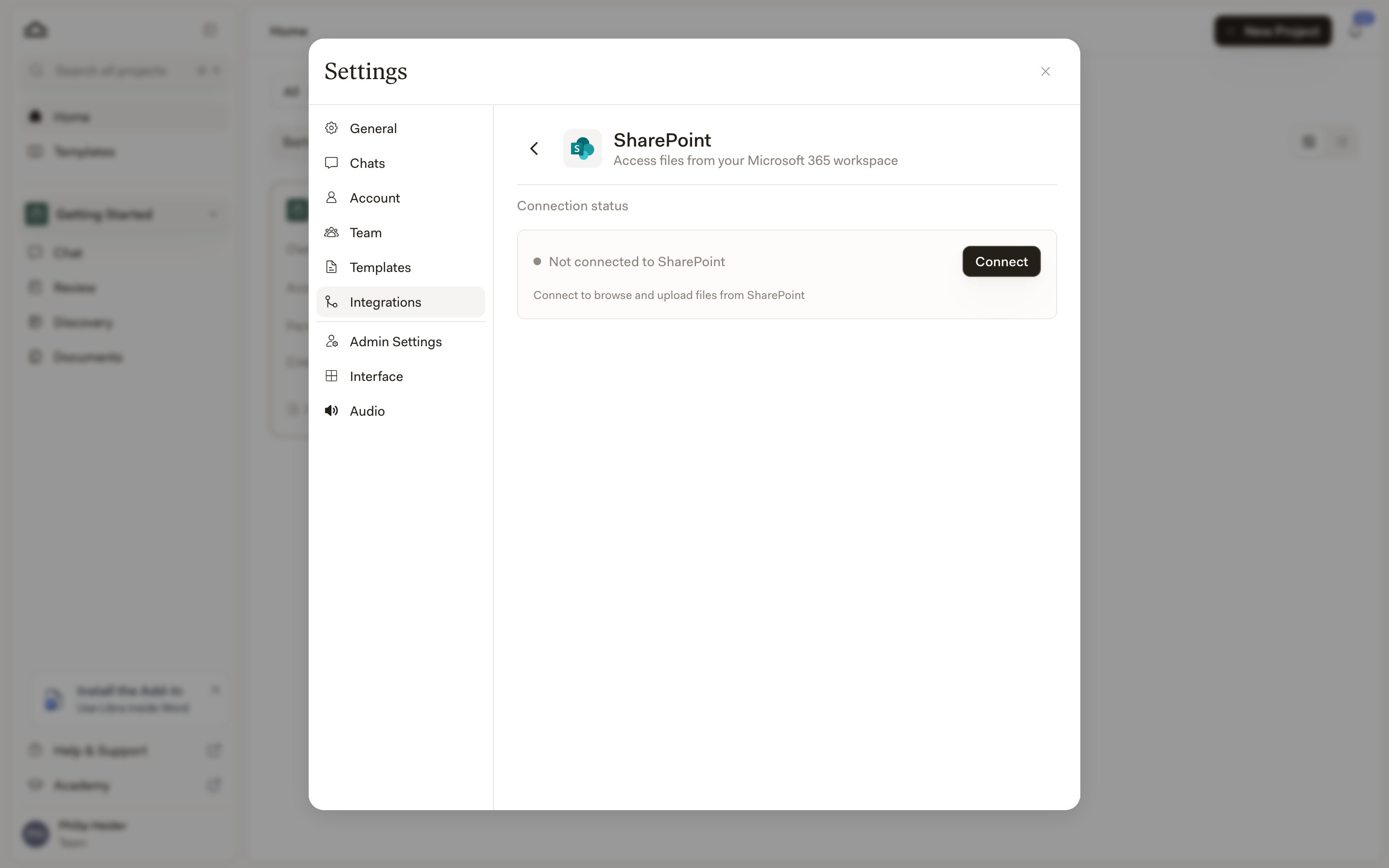
Bringing SharePoint files into a project
From a project’s Project files panel, open the Add menu, choose Select files, then pick SharePoint under Integrations in the picker. Browse to what you want, tick the files, and click Add to project. Libra downloads them and adds them to the project like any other upload — which means the project holds a copy, and later changes in SharePoint won’t reach it.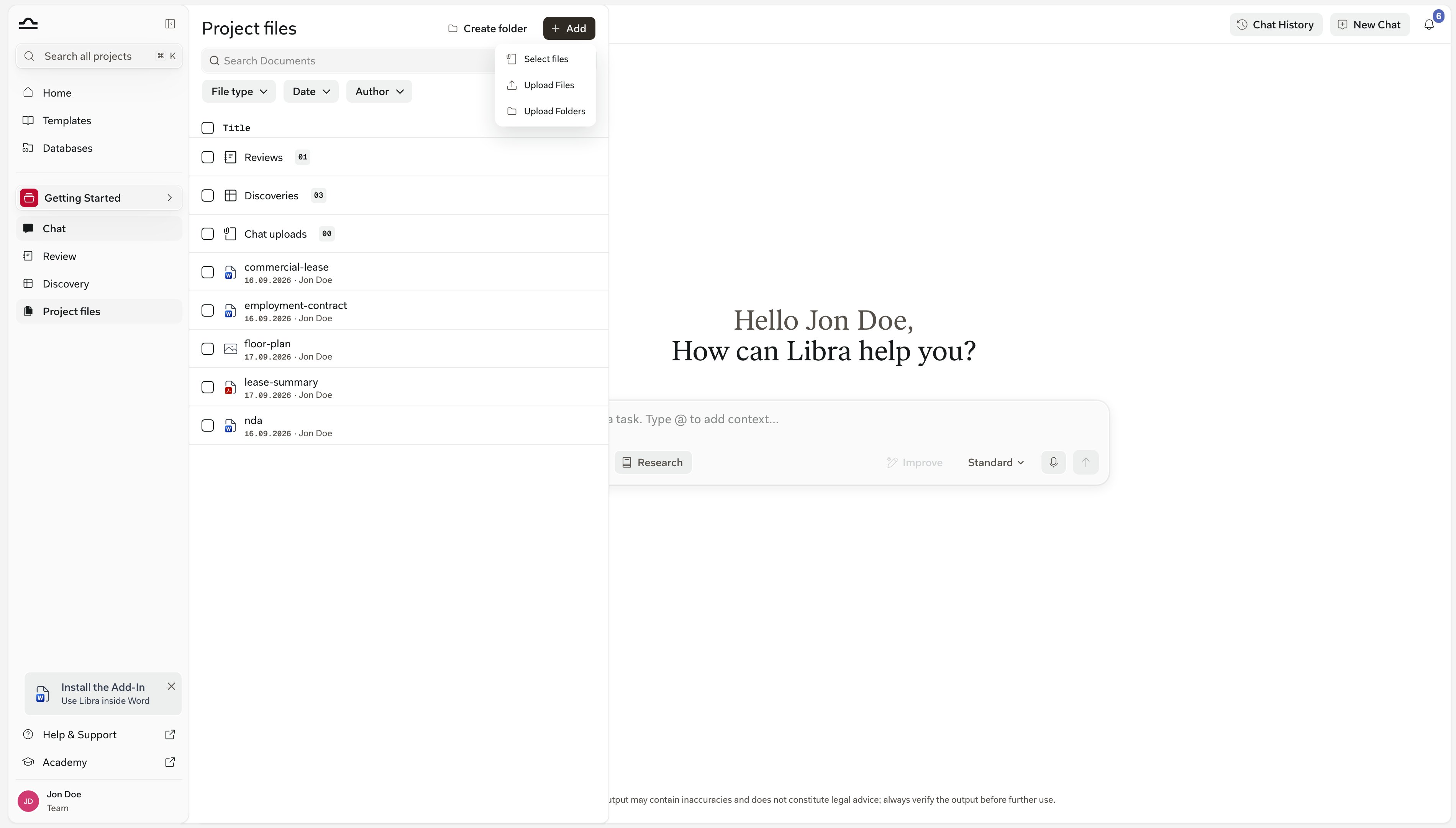
Once your team has Databases, that direct entry is gone: the attach menu leads with Select files, which lists your databases rather than opening SharePoint. Browse your SharePoint database from there — or, if you haven’t made one yet, the SharePoint entry in that list takes you to Databases to create it.
Linking a SharePoint folder as a database
A SharePoint database points Libra at one folder and leaves the files where they are. Create one from Databases → New database → Add Sharepoint folder, give it a name, then use Select from SharePoint to pick the folder. As the dialog puts it, the files stay in SharePoint and become reusable context across your chats and other Libra tasks. Because nothing is ingested, a SharePoint database doesn’t consume your page allowance, and it never goes out of date — Libra reads the folder as it stands each time. In exchange the browser is read-only: you can sort, navigate folders, preview documents and add them to a chat, but nothing in the folder can be changed from Libra. PDFs and the usual Office formats preview in place; anything else opens through Open in SharePoint. Once a SharePoint database exists, you can point a chat at it from Tools → Select files, where it appears under Databases. If you are connected to SharePoint, that list also offers an Entire SharePoint toggle for searching across your workspace rather than one linked folder. Three things are worth knowing before you rely on one:- SharePoint permissions still decide who sees what. Sharing the database in Libra doesn’t share the folder. A colleague who can’t open the folder in SharePoint sees No access to this folder and is told to ask the folder’s owner in SharePoint for access.
- Search quality depends on the individual’s Microsoft license. A user with a Microsoft 365 Copilot license gets semantic search; everyone else gets keyword search. There is no setting for this — Libra checks the license when you search, and the create dialog tells you which one you’ll get.
- Moving or deleting the folder breaks the link. The database then reports that the linked folder was moved or deleted, and an administrator has to re-link or remove it.
Managing your connection
Your connection lives in Settings → Integrations → SharePoint, under Connection status. Disconnect removes the link between your Libra account and your Microsoft account; Libra asks you to confirm, and you can connect again at any time from the same place. Team administrators see one more control, Disable for Team. It switches SharePoint off for everybody: no one on the team can connect, and existing connections are dropped. Use it when the firm is turning the integration off, not to fix a problem with one person’s account.Troubleshooting

Reaching for the same SharePoint folder in matter after matter? Link it as a database once instead of adding its files project by project — you’ll stop re-uploading, and everyone works from whatever is in the folder today.