


Templates published by Libra are read-only. Use Duplicate to get an editable copy of your own — Libra appends (Copy) to the name. Your edits never travel back to the original, so the Libra version stays as a baseline.
Finding a template
Click Templates in the global section of the sidebar, then open the Discoveries tab. Each card shows the template’s name and description, a badge with its column count, and its author.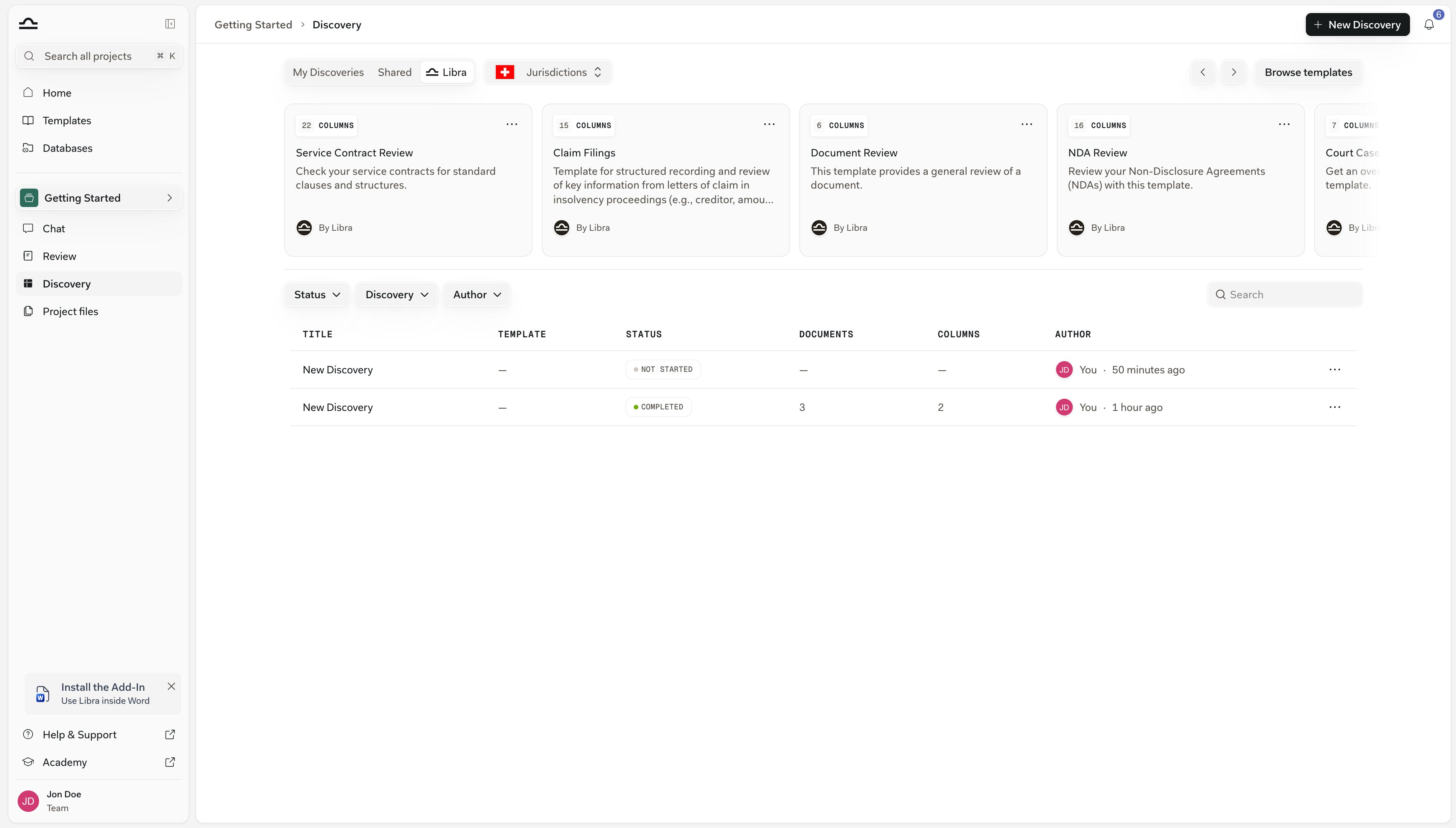
- Author filters by who owns the template: Yours, Team or Libra. You can select more than one. Team is hidden if you are the only person on your account.
- Practice area and Tags filter on how templates were classified — see Practice areas & tags.
- Sort by defaults to Last updated.
- The magnifier opens a Search templates… box.
- The gear opens Advanced filters, which adds Jurisdictions and Language.
Discoveries is a Professional-tier feature in the Templates library. On the Starter plan the Discoveries tab is visible but locked behind an upgrade prompt.
Running a template
A Discovery always belongs to a project, so select the project you want the results in — and make sure you have edit rights there — before you run anything. Hover a template card and two buttons appear: View and Run. The same actions sit in the ⋯ menu in the card’s top-right corner. Run opens a new, empty Discovery in your current project with the template’s columns already in place. Add your documents and click Start discovery. View opens the template itself. For a template you own, or one shared with you at Edit or Full Access, that’s the editor, where the primary button is Run. For a read-only template — anything by Libra, or shared with you as View only — you get a detail view whose primary button is Start Discovery. You can also start from the Discovery section itself. The strip across the top of Discovery shows template cards under My Discoveries, Shared and Libra, and Browse templates jumps straight to the Discoveries tab of the library. The Libra strip is filtered by your active jurisdictions: if none of them has a published template, it reads “No templates available for your active jurisdictions.” The My Discoveries strip also carries a Create New Template card.Creating a template
Two routes: build one in the library, or save the columns of a Discovery you have already put together.From scratch
1
Start a new Discovery template
On the Templates page, click Create new in the top right and choose Discoveries from the menu. The menu lists template types by their plural names — Assistants, Workflows, Reviews, Discoveries — and on the Starter plan every item except Assistants is disabled.
2
Name and describe it
The title field starts as Untitled discovery. The description goes in the Discovery Configuration panel on the left. Write both for a colleague who has never seen the template: “M&A NDA extraction” beats “NDA v2”.
3
Add the columns
Click Add first column, then Add column for each one after that. A column card holds a Column title, a Question — the question Libra applies to each document in that column — and an answer type: Text, Number, Date, Yes/No, Bullet list or Currency. Improve rewrites a rough question into a sharper one.For guidance on wording questions and choosing answer types, see Create a Discovery.
4
Classify it
Still in Discovery Configuration, use Select practice area and Tags so the template stays findable once the library grows.
5
Save
Click Save. The template appears on the Discoveries tab.
From a Discovery you have already built
This is the common path: you built a Discovery, the columns work, you want them again next quarter. Open the Discovery and click Save as Template in the header row, next to Author and Updated.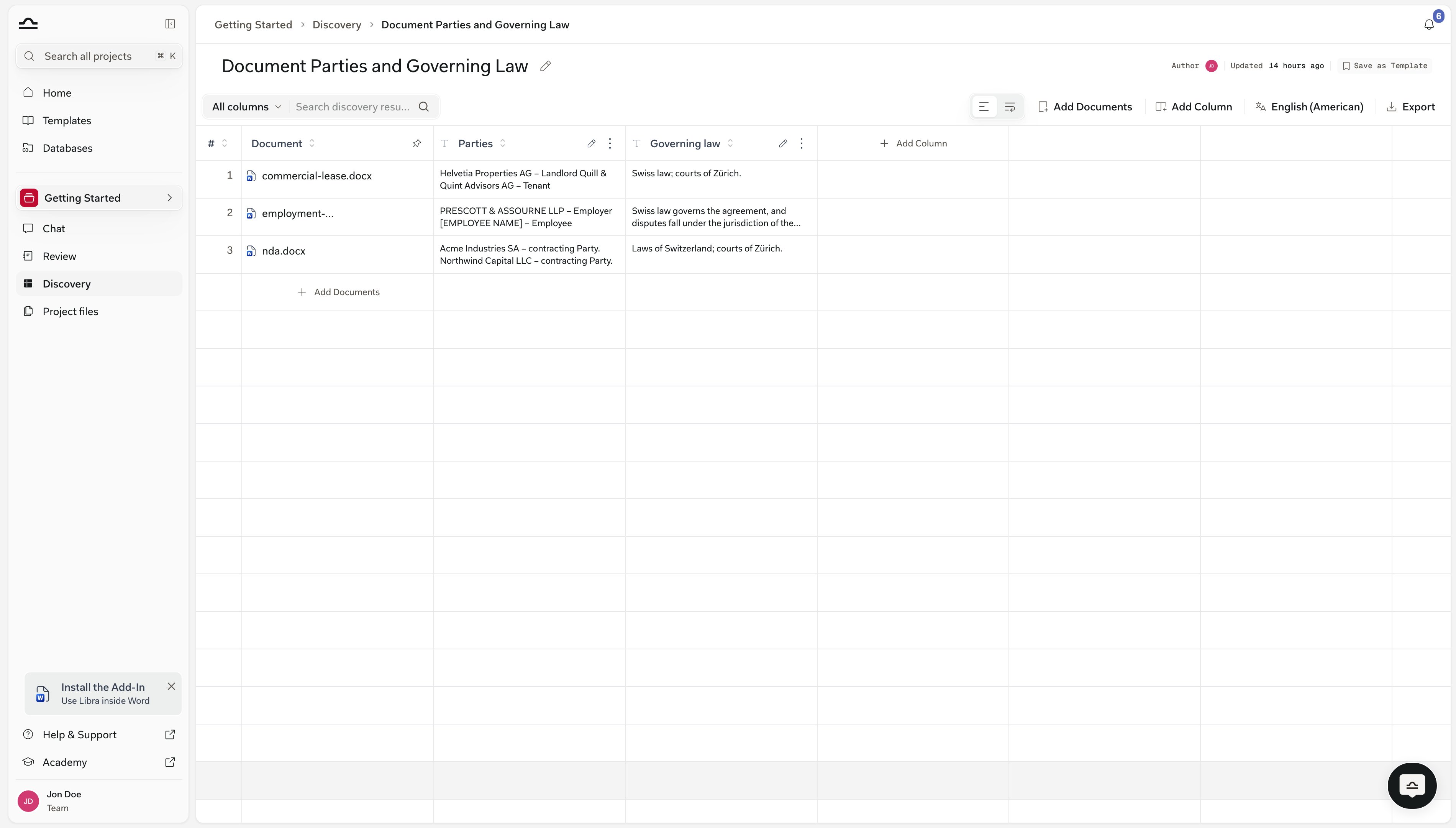
Customising a Libra template
Libra’s own templates cannot be edited in place. Open the ⋯ menu on the card and choose Duplicate. You get a copy with (Copy) appended to the name, owned by you and reachable through the Yours author filter. Change its columns, questions and answer types as you like — the original is untouched. The same menu carries Favorite, View and Run. Delete appears only on templates you are allowed to manage, which is why it is missing from Libra’s.Sharing a Discovery template
Share lives in the template’s header, and it only becomes available after the first save — there is no template to share until one exists, so you cannot set access while creating one. Sharing is a team feature: on a single-user account the control is unavailable. Under General access you choose between Everyone in the team and Only people invited. On top of that you can invite specific people or groups and give each Can view, Can edit or Full access. The full model is covered in Starring & sharing.Tips for good Discovery templates
Be specific in the question
Be specific in the question
“Extract the date when all parties signed” is better than “Contract date”. Specific questions produce consistent answers across documents.
Match the answer type to the data
Match the answer type to the data
Set each column to the type the answer actually is — Date for a signing date, Currency for a purchase price, Yes/No for a presence check — rather than leaving everything as Text. See Create a Discovery for what each type is best at.
Start with a small column set
Start with a small column set
A template with five well-tuned columns gives cleaner results than one with twenty. Add columns once the basics work.
One template per document type
One template per document type
A template for NDAs and a template for Lease agreements gives better results than one mixed template. Documents within a Discovery should share a structure.
Tag templates so the library scales
Tag templates so the library scales
A library with five templates needs no organisation. A library with fifty does. Set a practice area and tags from the start.
Next steps
Create a Discovery
Start a Discovery from scratch or from a template.
About templates
The full Templates library overview.