

- Create a new Discovery (or start from a template).
- Add columns for what to extract.
- Add documents and run.
- Work with the results: verify, edit, and export.
Create a new Discovery
1
Open the Discovery section
Click Discovery in the project section of the sidebar.
2
Click New Discovery
The button sits in the top right of the Discovery list. To start from a ready-made set of columns instead of a blank table, pick one of the template cards on the same page or click Browse templates — see Discovery templates.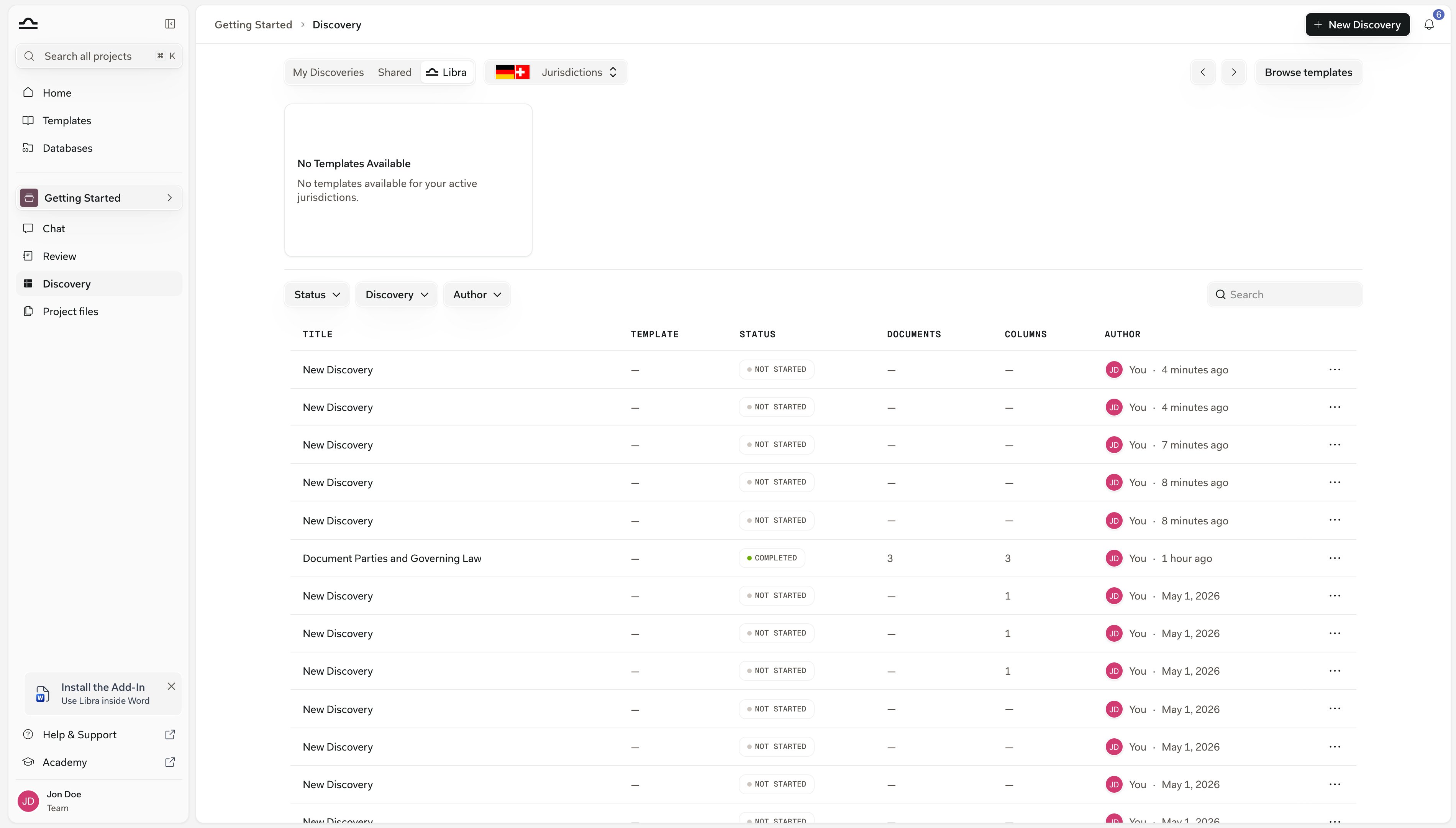
3
Name the Discovery
Libra opens an empty Discovery called New Discovery with the title field already focused, so you can type straight over it. A descriptive name pays off later: “NDA Q4 review”, “Lease portfolio extraction”, “Employment contracts, Berlin office”. The name is what you’ll see in the project’s Discoveries folder under Project files and in Search.
The toolbar carries a button showing a language name, such as English (American). That’s the language Libra writes its answers in, and it starts from your interface language rather than the language of your documents. Set it before you run: on a Discovery that already has results, switching it asks you to confirm, and confirming removes those results.

Pick the answer type carefully. Date, Number and Currency sort by value; Text, Yes/No and Bullet List sort alphabetically. And editing a column later — its label, its prompt or its type — clears that column’s answers and extracts them again.
Add columns
Each column is a question Libra answers for every document. A Discovery holds up to 50 columns; past that, adding another is refused and you have to delete one first.1
Click Add Column
The button sits in the toolbar above the table, and the table header repeats it after the last column. Either one opens the Add New Column panel on the right.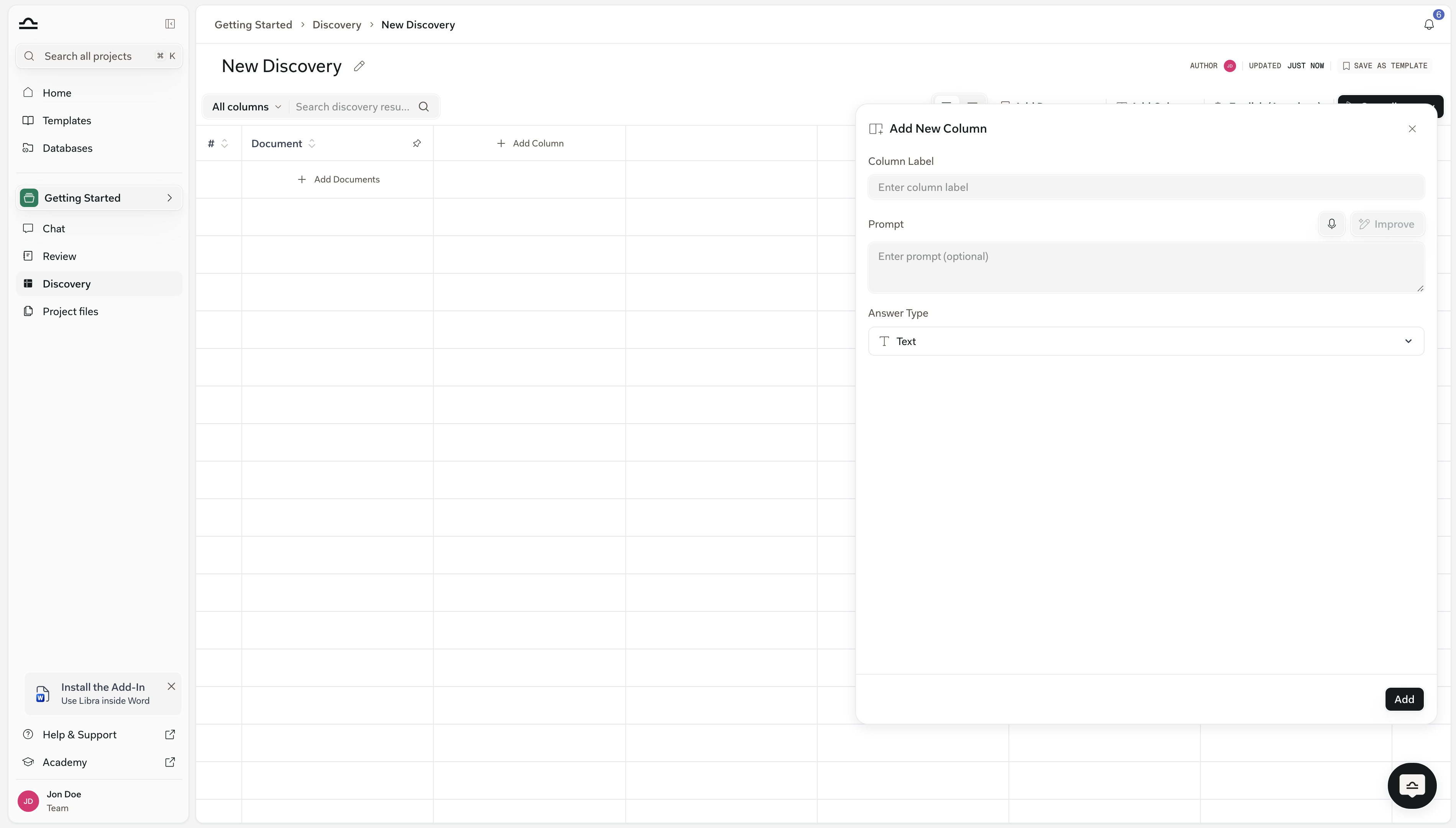
2
Set the Column Label
The header text. Short and clear: “Document Type”, “Notice Period”, “Counterparty”.
3
Write the Prompt
The instruction Libra follows when extracting. It’s optional, but the more specific it is, the better the result.Bad: “Extract notice period.”
Good: “Identify the notice period for termination, in days. If multiple notice periods are specified, return the longest.”If you’d rather not phrase it yourself, write a rough version and click Improve — Libra rewrites the prompt in place. The microphone next to it dictates instead of typing.
4
Pick the Answer Type
The type determines how the cell is rendered and how the column sorts.
5
Click Add
The column appears in the table, empty until you run the Discovery.
Add documents
By default each document becomes a row.1
Click Add Documents
The button sits in the toolbar above the table, and an empty table repeats it in the first row.
2
Pick from Project files, or upload
The picker opens onto the project’s Project files. Select what you need there, or bring in new material with Upload Files or Upload Folders (PDFs, Word, images, emails, text; see File types & previews).A file has to have finished processing before it can go into a Discovery. If you select one that hasn’t, Libra names it and leaves it out; wait for it to finish in Project files and add it then. Documents already in the Discovery are skipped the same way.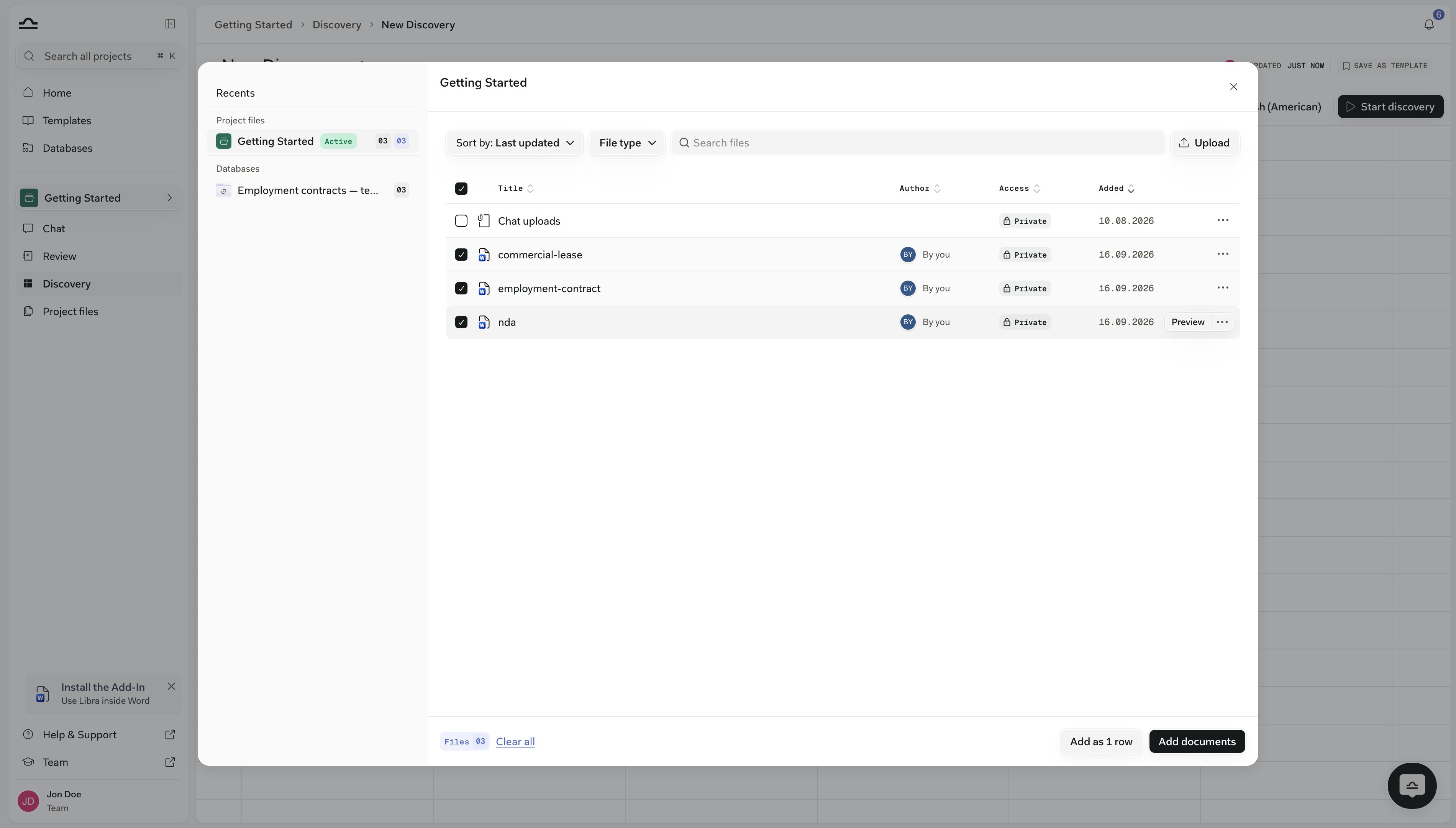
3
Choose one row or many
With a single file selected, click Add. Select more than one and Libra offers a choice instead. The primary button counts your selection — Add as 3 rows, say — and gives each document its own row, which is what you want when you’re comparing contracts side by side. Add as 1 row folds the whole selection into a single row, for when several files are really one matter: a contract plus its annexes.
4
Click Start discovery
Start discovery needs at least one document and at least one column; without them Libra tells you what’s missing instead of starting.
5
Watch results stream in
Cells fill in as Libra extracts each value, with a progress bar under the title. You can leave the page and come back — extraction carries on — and Cancel in the toolbar stops it. If you’re still on the page when the run lands, the toolbar confirms Discovery completed.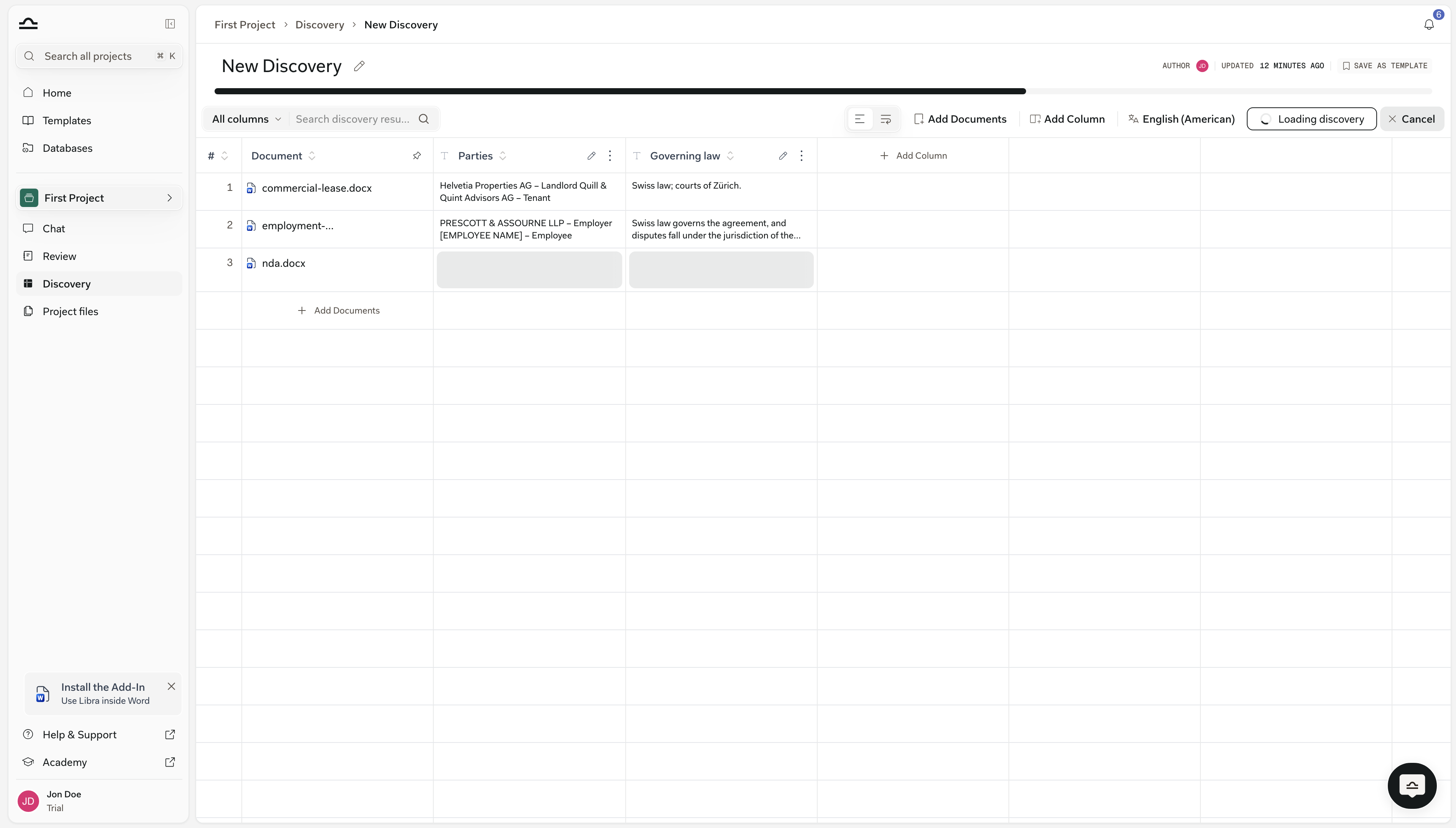
Work with results
After the Discovery completes, the table is sortable, searchable, and clickable.Sort and search
Click any column header to sort by it, including the # and Document columns; click again to reverse the order. Sorting respects the answer type — Date, Number and Currency columns order by value rather than alphabetically — and cells that are empty or still running always fall to the bottom. The Search discovery results box above the table filters rows as you type. The dropdown beside it starts at All columns; narrow it to a single column when a word you’re hunting for turns up everywhere. A toggle in the same row switches the table between compact and expanded cells, which is the quicker fix when long answers are being cut off.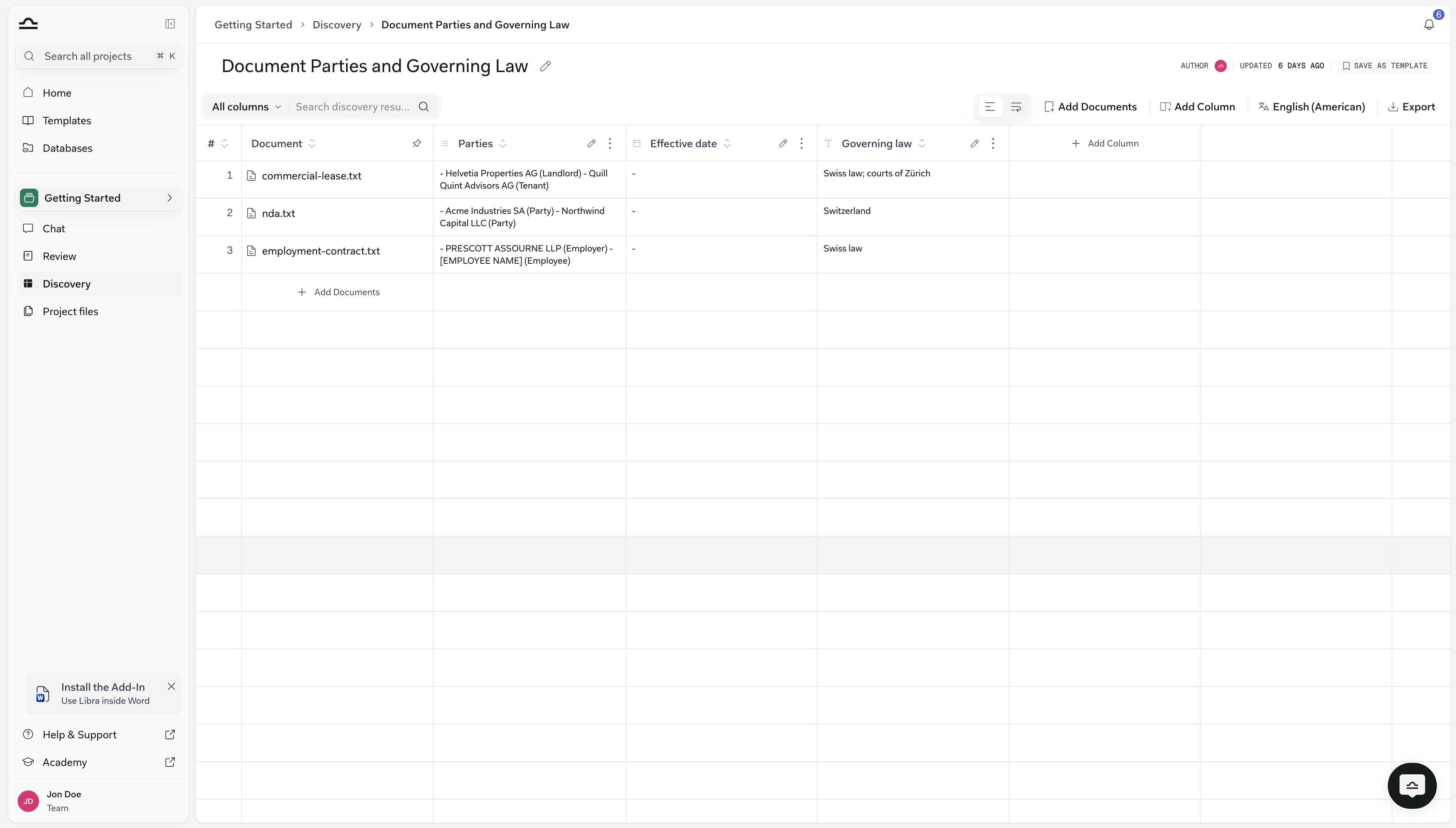
Verify a cell
Click any cell and a panel opens on the right with everything Libra used to extract that value, for the whole row, not just the one cell you clicked.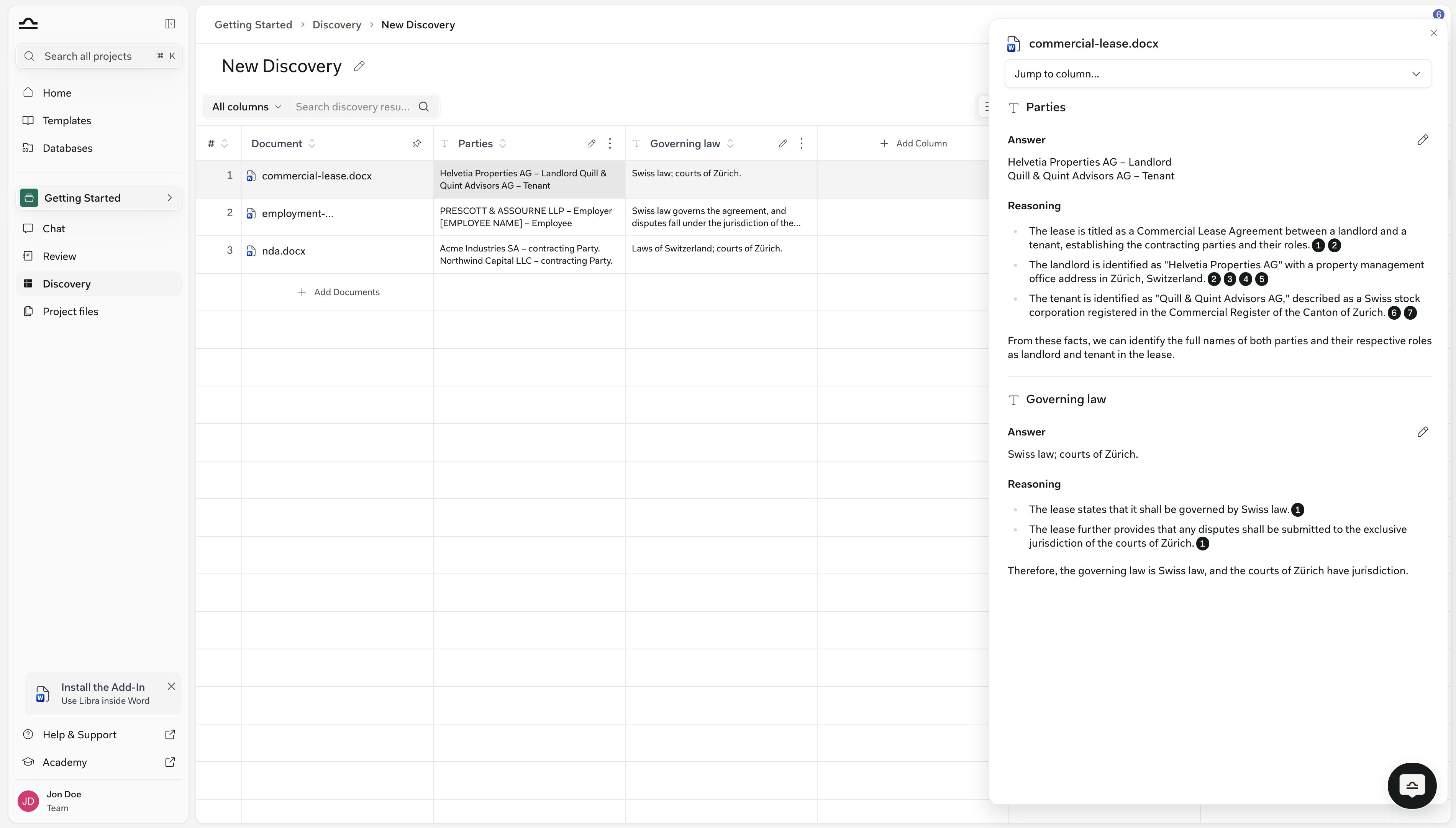
1
Click any cell in a row
The panel slides in on the right, headed with the document name. Use Jump to column… at the top to scroll straight to a specific column instead of paging through them.
2
Read the Answer and the Reasoning for each column
Every column appears as its own block, with two parts. Answer is the value Libra put in the cell. Reasoning explains how Libra got there, and the small numbered pills (1, 2, 3) sitting inside that text are the citations — each one ties the claim it follows back to a specific passage in the document. Click a pill to open the document at that page, with the passage highlighted.
Edit a cell
If you need to override an extracted value:1
Click the cell
The detail panel opens on the right.
2
Click the pencil next to Answer
It sits at the right of the Answer heading, in the block for the column you want. Type the value you want in its place.
3
Save
Click the check to save, or the cross to abandon the edit. Edits are stored on the Discovery; they don’t affect the original document.Libra keeps the version it extracted. Once a cell has been edited by hand, arrows and a counter (
1/2) appear beside the Answer heading so you can move between the original and your edit, and the table marks which version a cell is showing.Add or remove columns after running
You can iterate on a finished Discovery.1
Add a new column
Click Add Column as before. Libra restarts the Discovery to fill the new column across every existing row; answers already extracted for the other columns are kept.
2
Change or reorder a column
Every column header carries a pencil (Edit Column) and a More actions menu. The menu offers Move left and Move right — each one only when there is a column on that side, and neither while the Discovery is still running. Editing a column’s label, prompt or answer type clears that column’s answers and extracts them again; the other columns are untouched.
3
Remove a column
Delete Column sits at the bottom of the same More actions menu. Libra asks you to confirm, and the answers in that column are discarded for good.
Export
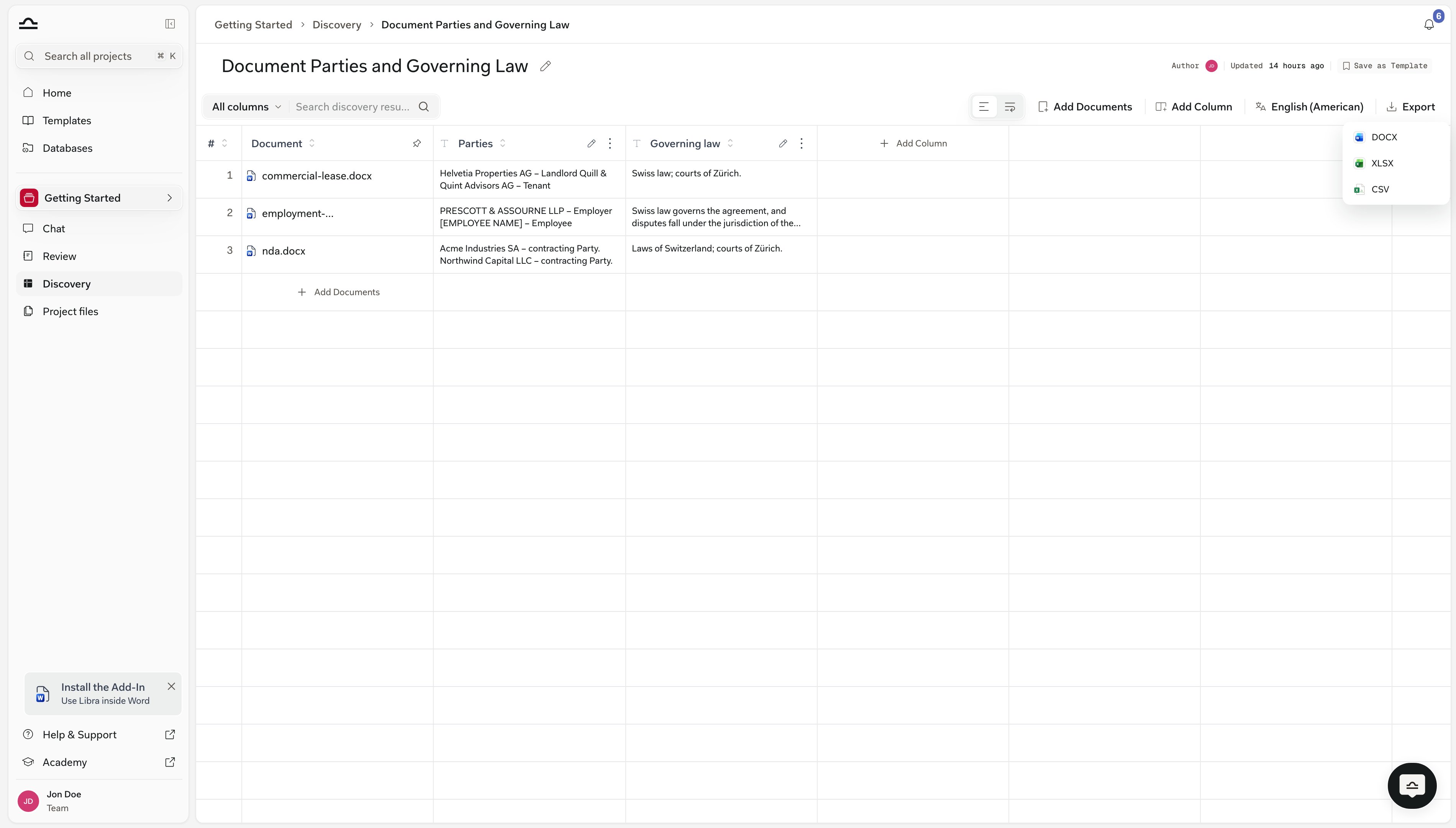
Export appears in the toolbar once the Discovery has finished. It opens a short menu of three formats:
On a narrow window the toolbar collapses into a single chevron; the same three formats sit in that menu as Export to DOCX, Export to XLSX and Export to CSV.
Continue analysis in chat
Once you have a Discovery, the most powerful next step is to ask follow-up questions about it.1
Open a chat in the same project
From the project sidebar, click Chat to open a new conversation. Discoveries are project-scoped, so the chat needs to live in the same project as the Discovery.
2
Attach the Discovery as context
Type 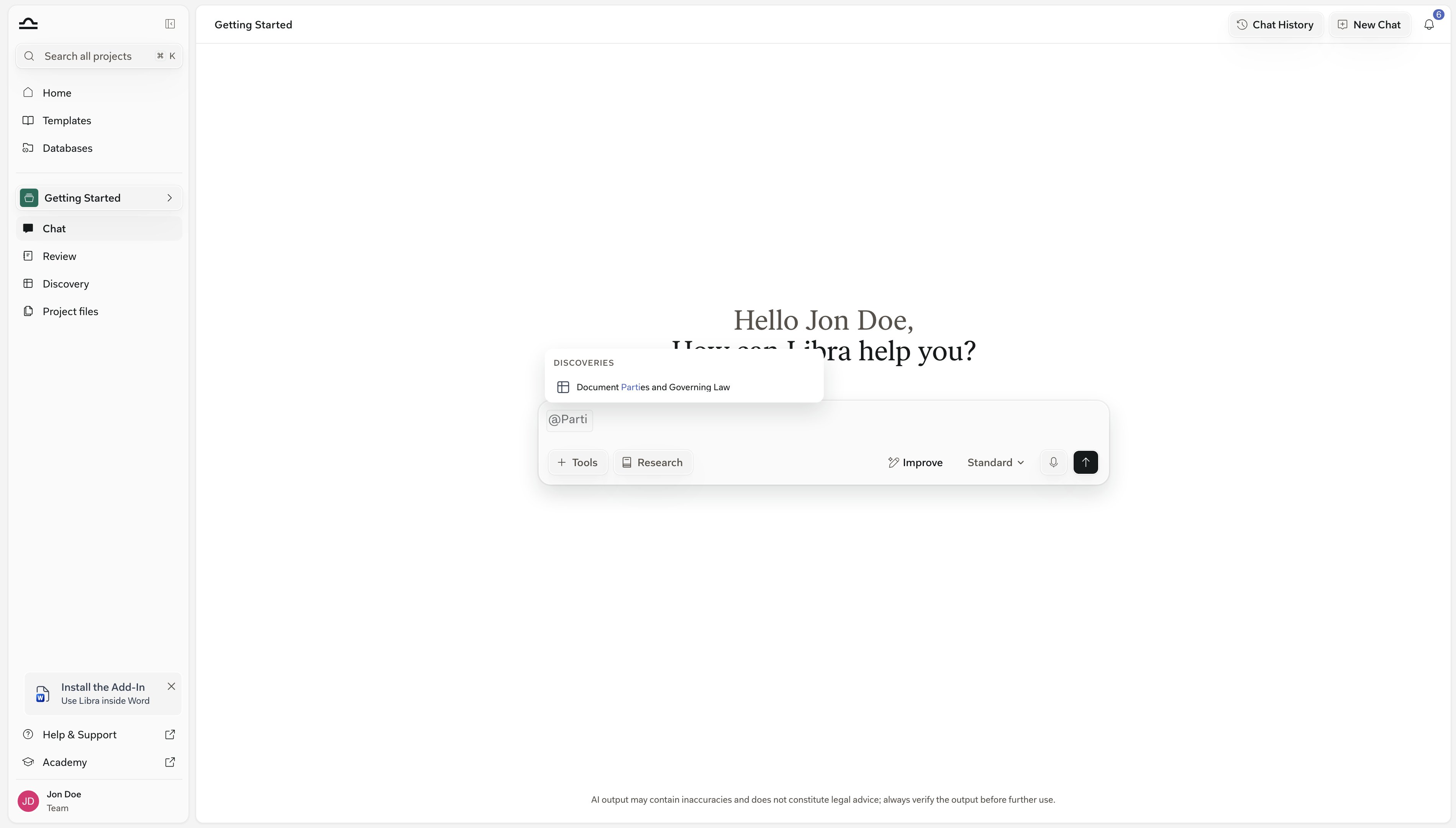
@ in the chat input and pick the Discovery from the Discoveries section of the picker. It lists the Discoveries in the project you’re currently in.3
Ask a follow-up
“Which rows have notice periods longer than 90 days?”, “Compare counterparties by contract value, sorted descending.”, “Draft an email summarising the high-value contracts for the partner.”
4
Read the citation-backed answer
Libra cites specific cells, rows, and columns. See Discovery from chat.
Tips for effective Discoveries
Group similar documents in one Discovery
Group similar documents in one Discovery
A Discovery on a mix of NDAs, leases, and employment contracts will produce inconsistent columns. Split by document type.
Write specific column prompts
Write specific column prompts
“Extract notice period in days, taking the longest if multiple are specified” gives consistent results across documents. “Notice period?” doesn’t.
Use the right answer type
Use the right answer type
A Currency column sorts by amount; a Text column sorts alphabetically, so “€90,000” lands next to “€9,000,000”. Pick the type up-front — switching it later clears the column and runs it again.
Verify columns that drive decisions
Verify columns that drive decisions
Spot-check the cells that you’ll use to make a decision, at least one cell per column, on a high-stakes Discovery.
Save as Template once it works
Save as Template once it works
Once a Discovery’s columns are tuned, click Save as Template next to the title. It saves the columns, not the documents, so the next time you have a similar set of files you start with the questions already written. See Discovery templates.
Next steps

Discovery templates
Reuse and share Discovery configurations.

Reference in chat
Use a finished Discovery as context for follow-up.