

Discovery is a Professional feature, and you need edit rights in the project you’re working in. On the Starter plan the Discovery section still opens, but New Discovery is disabled, an upgrade prompt takes the place of your saved templates and of the Discovery list, and the Libra templates are still listed but can’t be run. On some restricted deployments Discovery is switched off entirely, and the project section of the sidebar shows neither Review nor Discovery.

Add columns one at a time to a finished Discovery. A new column is filled in across the rows you already have, and the answers in the other columns are kept — so you iterate without re-paying for what worked.
What’s in a Discovery
A Discovery belongs to the project you create it in, and stays there: you’ll find it again in the Discoveries folder under Project files, and in the Discovery list.
When to use Discovery
Compare provisions across many contracts
“Show me notice periods across our 200 service agreements.”
Extract data from a document set
“Pull party names, signing dates, and contract values from this folder of NDAs.”
Spot inconsistencies in a portfolio
“Find leases where the rent escalation isn’t in line with our standard.”
Build summaries of large stacks of documents
“Summarise the key obligations across these 50 employment contracts.”
How Discovery works
1
Define the columns
Add Column opens the Add New Column panel. A column needs a Column Label (the header text) and an Answer Type, which decides how the cell is rendered and how the column sorts. The Prompt is optional, but the more specific it is — “Identify the notice period for termination, in days” — the better the extraction.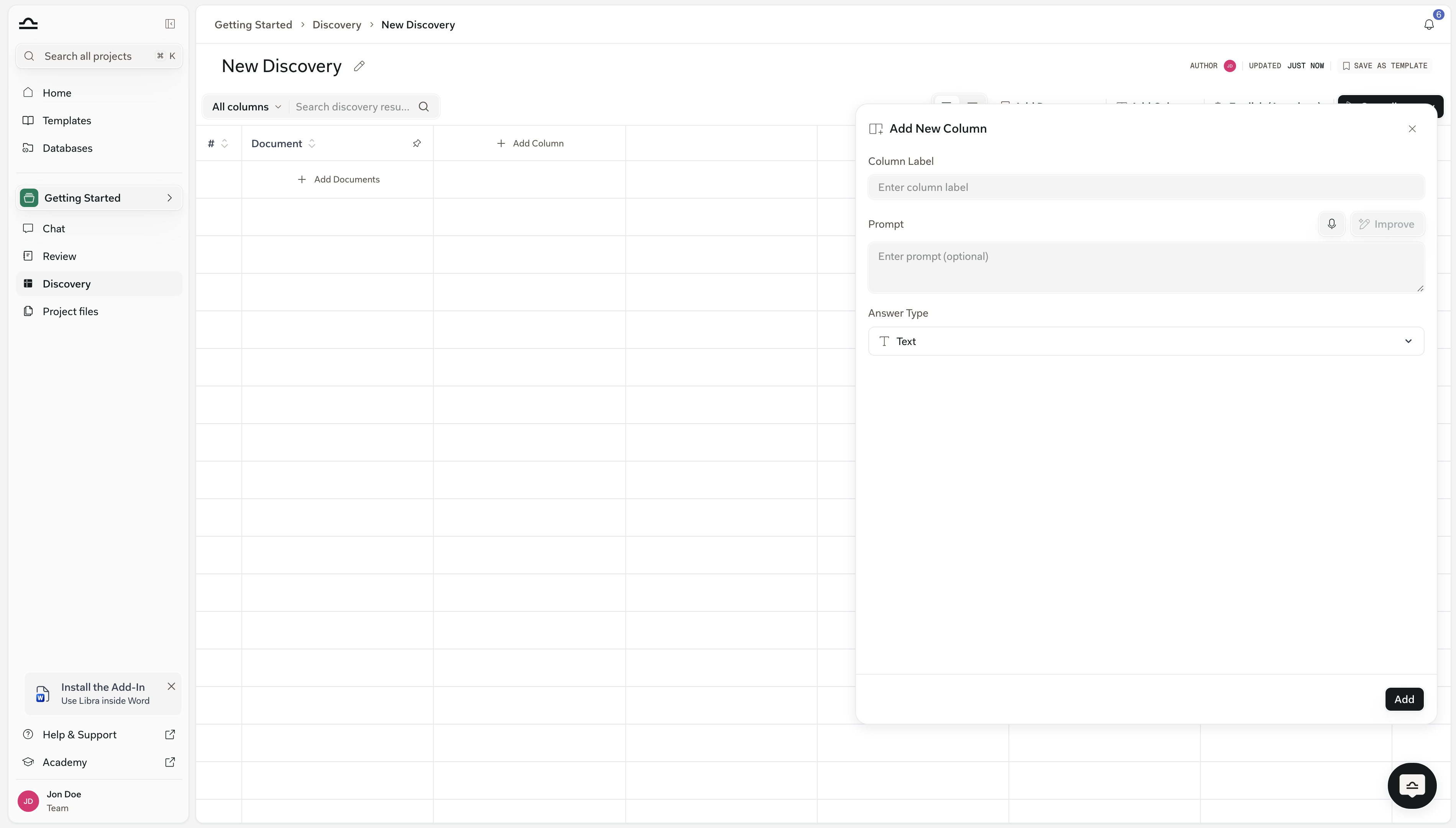
2
Add the documents
Add Documents opens a picker over the project’s Project files; Upload Files and Upload Folders bring in new material. Each file you select becomes its own row, or you can fold a whole selection into a single row when several files are really one matter — a contract and its annexes, say.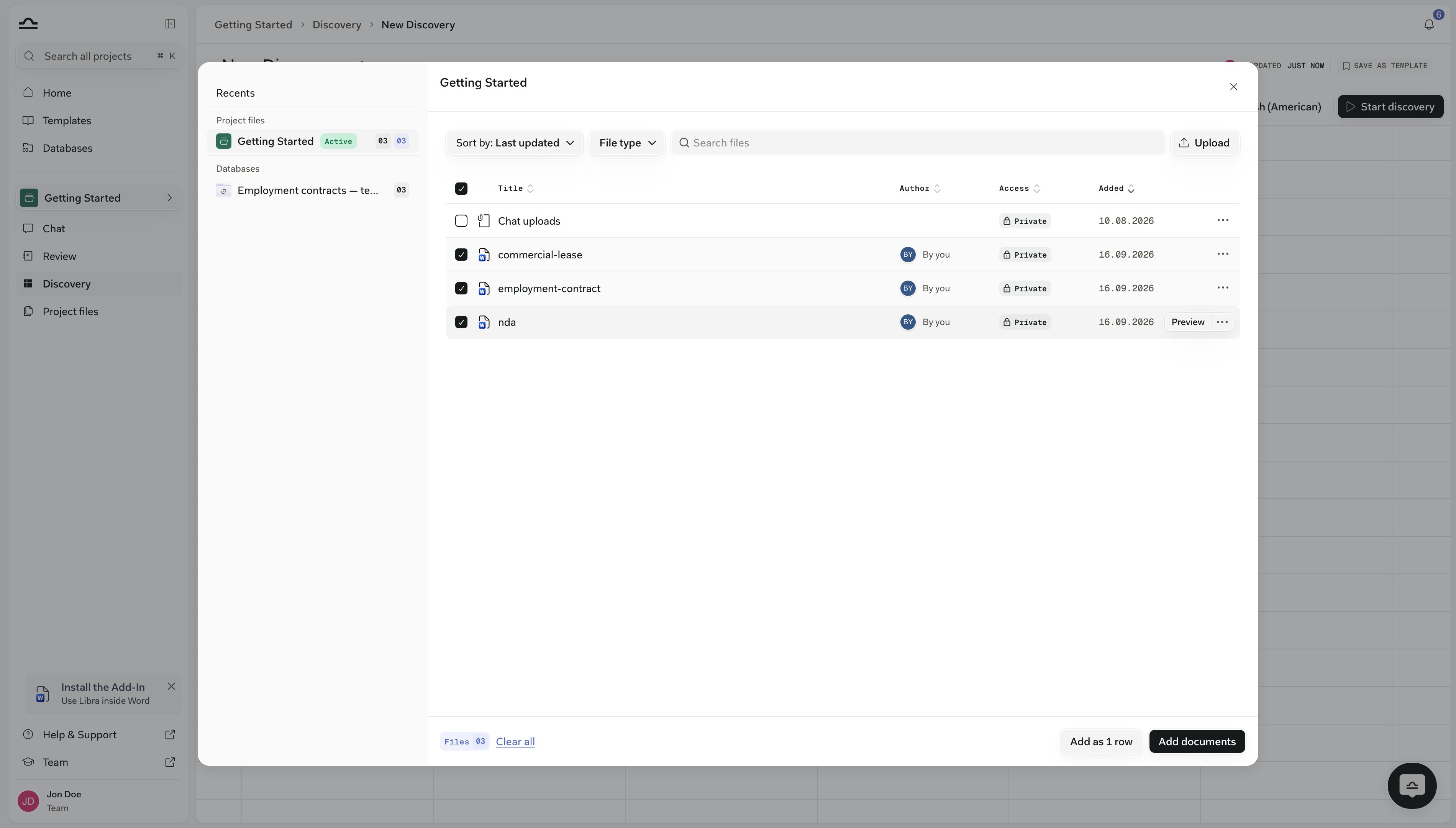
3
Run it
Start discovery needs at least one document and at least one column. Cells fill in as Libra works through the table, with a progress bar under the title. The extraction runs on Libra’s side, so you can leave the page and come back to a finished table; Cancel stops a run you no longer want. If you stay on the page, a Discovery completed badge appears in the toolbar for a moment as the last cells land.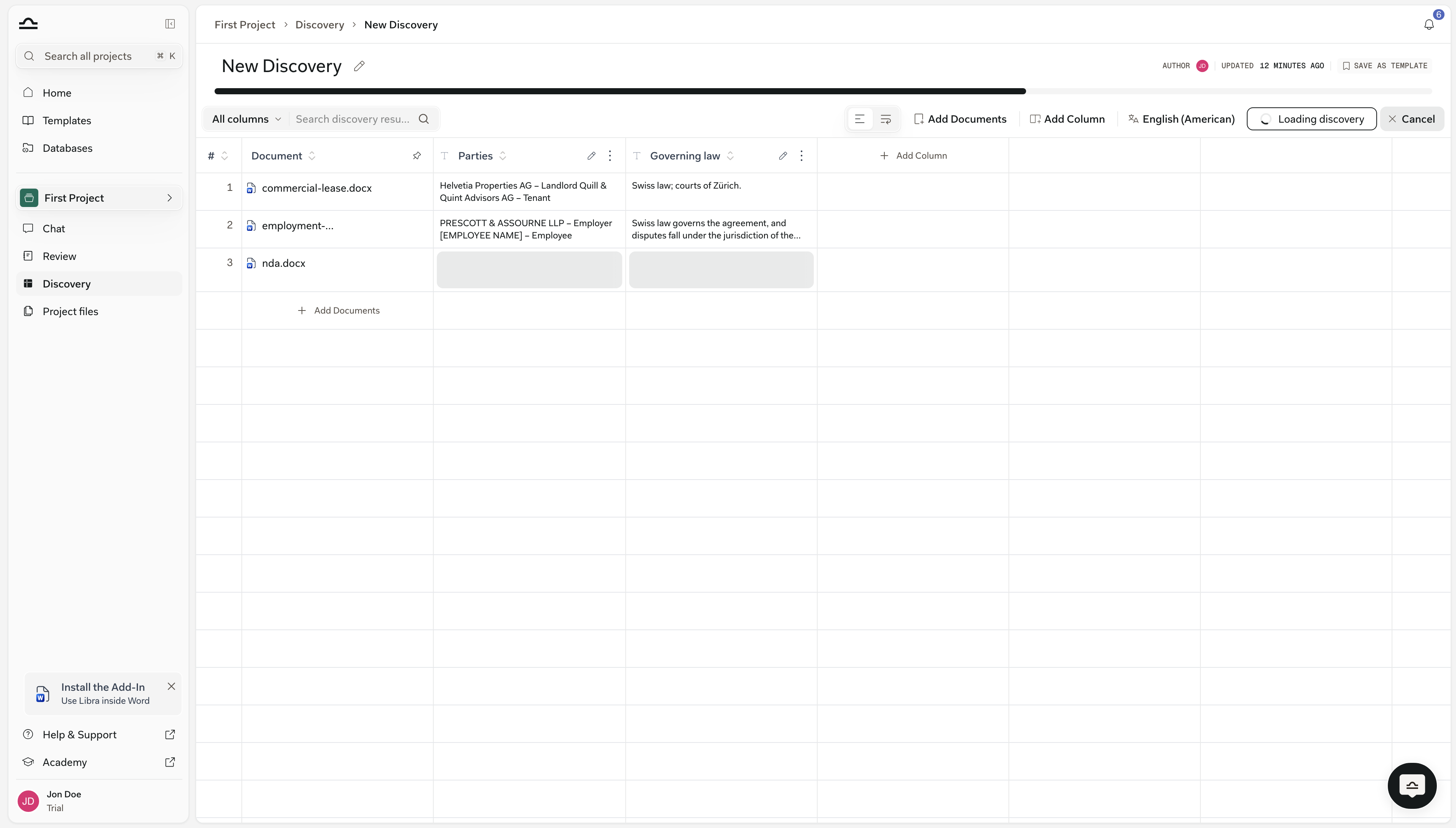
4
Verify and refine
Click any cell and a panel opens on the right, headed with the document name and covering every column for that row. Each block shows the Answer and the Reasoning behind it, with numbered citation pills that open the passage they rest on. The pencil beside Answer overrides a value, keeping Libra’s original as an earlier version. Add a column and only the new column is extracted; edit a column’s label, prompt or type and only that column is cleared and run again.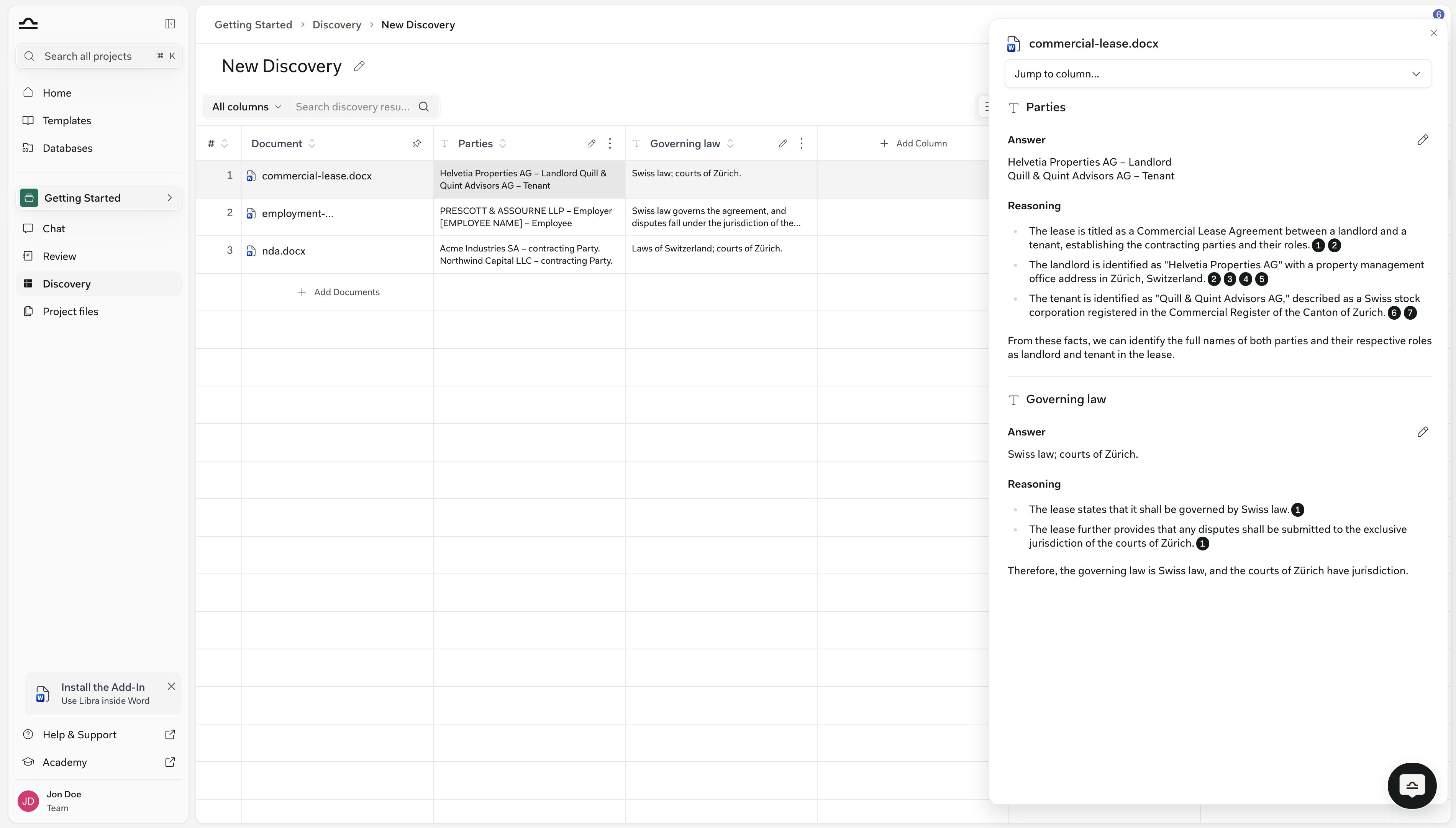
How Discoveries get started
There are three paths into a Discovery, and the right one depends on how settled the questions are. The most common is to start from a template: click Discovery in the project section of the sidebar, pick a card from the template strip — My Discoveries, Shared and Libra, or Browse templates for the full library — attach the documents, and run. That’s the path you take when this is a recurring task and the columns are stable. (See Discovery templates for how the templates library works, and why the Libra strip depends on your active jurisdictions.) When no template quite fits, you start from scratch: New Discovery at the top right of the same page, define the columns yourself, attach documents, run. The columns you define become a candidate template; once they work for one matter, Save as Template next to the title puts them in reach next time. The third path is from Chat, and it’s the one that surprises people. Drop documents into a chat and describe what you want extracted in plain language, like “extract employee name, job title, and home office location for each contract”, and Libra creates a Discovery on the fly, runs it, and shows the result inline. You can also reach for it explicitly with Tools → Start analysis → Discovery. That’s the right path when the columns are still half-formed in your head; the chat is where you find out what you actually want to know. See Starting work from Chat.Discovery vs. Review
Tips
Group similar documents
Group similar documents
Discovery works best when documents share a structure. Don’t run an NDA Discovery against a mix of NDAs and lease agreements; split them into separate Discoveries.
Start with key fields, add later
Start with key fields, add later
A Discovery with three or four columns gives you cleaner output than one with twenty. Once you trust the basics, add columns — adding one extracts only that column and leaves the rest of the table alone.
Verify the cells that matter
Verify the cells that matter
For high-stakes decisions, open the cells you’ll rely on and read the Reasoning. The citations inside it are the verification path back to the document.
Use Chat for follow-up analysis
Use Chat for follow-up analysis
Once a Discovery is finished, attach it to a chat with
@ — it appears under Discoveries in the picker — to ask deeper questions: “which rows have non-compete clauses longer than 12 months?” Libra cites the specific cells. See Discovery from chat.Next steps
Create a Discovery
Step-by-step: define columns, add documents, work with results.

Discovery templates
Reuse and share Discovery configurations.

Reference in chat
Cite Discovery cells, rows, and columns in follow-up conversations.

Review
For measuring a document set against a Playbook.