


A step’s Workflow Prompt rides on top of the Assistant’s own instructions; it doesn’t replace them. Narrow a generic Assistant for one stage without forking it.
Before you start
Workflows are a Professional capability. On a Starter plan the Workflows tab of the Templates library shows Workflows are a Professional feature — Upgrade your plan to build and run workflows in place of your Workflows, and the Create new → Workflows item is disabled behind an Upgrade to Professional prompt. See Subscription. Build the Assistants first. The editor’s Assistants panel only lists Assistants that already exist, and a Workflow needs at least two steps before Libra will let you create it. See Assistants.What the editor looks like
The Workflow editor is a full page, reached at Templates › Workflows › New Workflow. Three areas matter: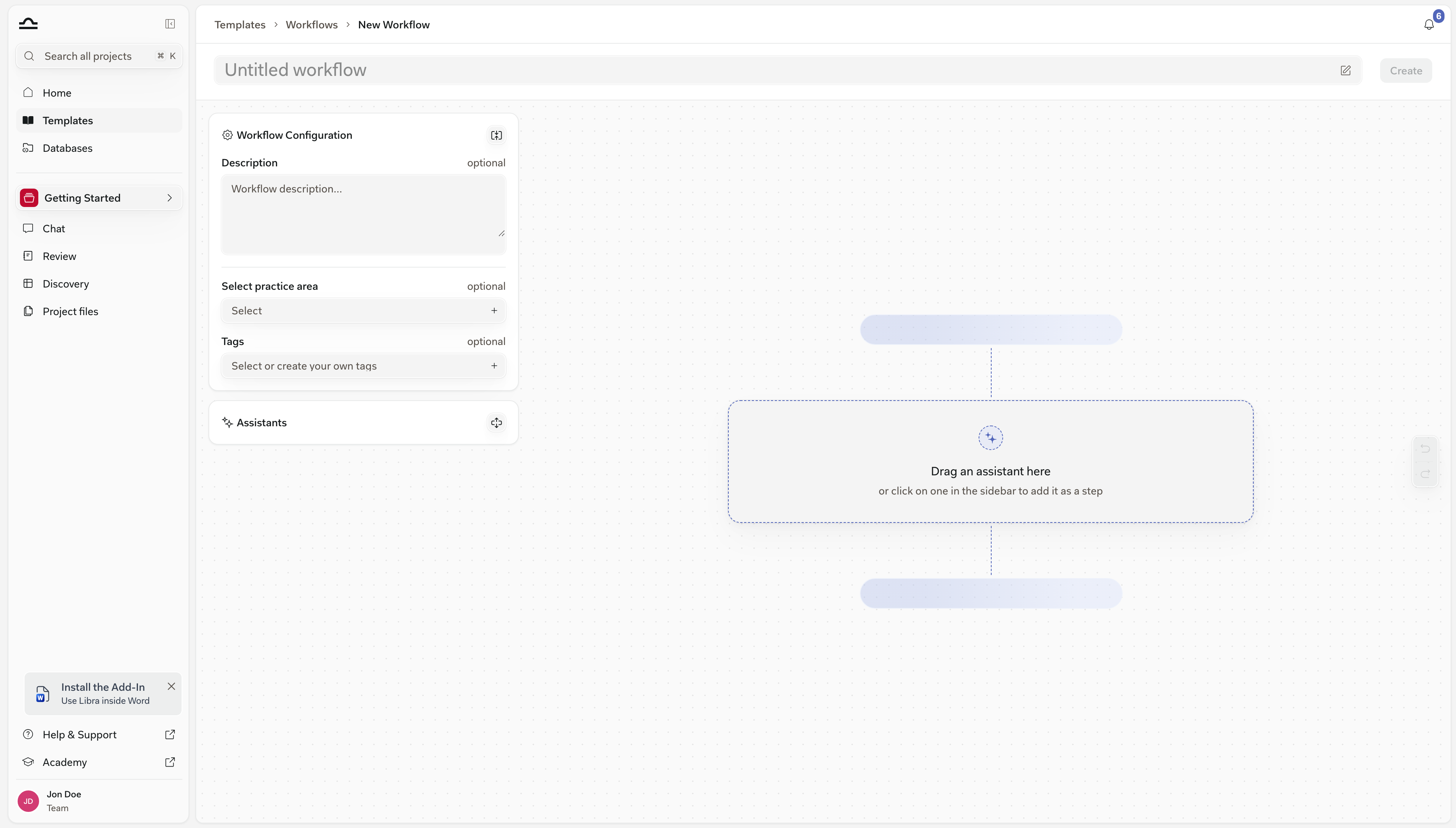
Build the Workflow
1
Open the Workflows tab in Templates
Click Templates in the global section of the sidebar, then switch to the Workflows tab.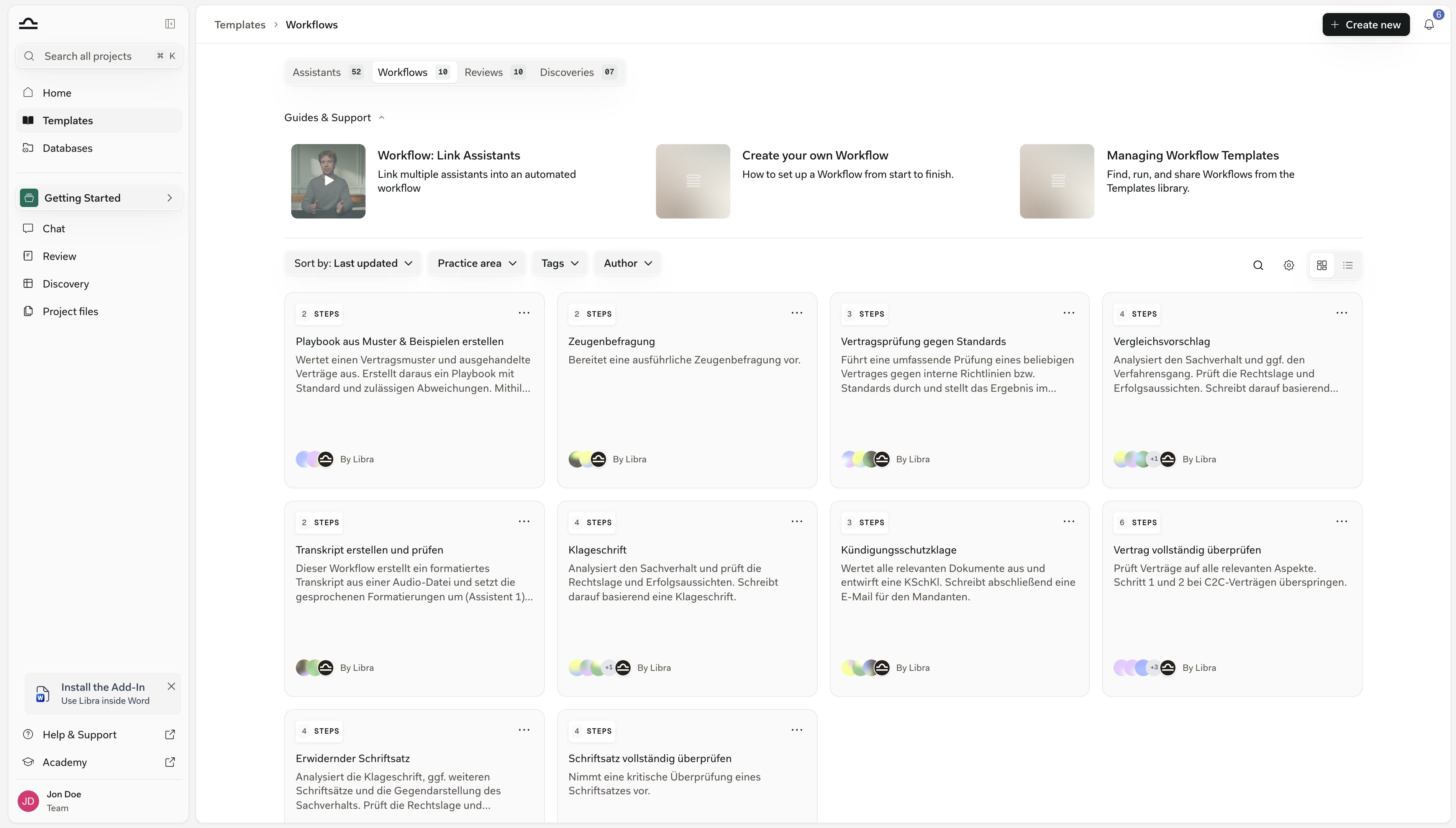
2
Click Create new → Workflows
Create new sits at the top right of the Templates library; Workflows is the second item in its menu. The editor opens empty.
3
Name the Workflow
Type the name straight into the header field, over the Untitled workflow placeholder. The name is required — without one, Create stays disabled and its tooltip reads Add a workflow name first.Give it a name a colleague would recognise: “Contract review for clients”, “NDA drafting end-to-end”.
4
Describe and file it
In the left column, Workflow Configuration is open by default. Fill in Description — one paragraph on what the Workflow is for and what input it expects. It’s optional, but it is what colleagues see on the Workflow’s card in the Templates library.The same panel carries Select practice area and Tags, both optional. They drive the filters in the Templates library, so they’re worth setting on anything you intend to share. See Practice areas & tags.
5
Add Assistants as steps
Open the Assistants panel underneath Workflow Configuration — opening it collapses the configuration panel. It has a search box and the tabs All, Yours, Libra and Shared.Click an Assistant to append it as the next step, or drag it onto the canvas to drop it at a particular position. While the canvas is empty it shows a dashed drop area reading Drag an assistant here — or click on one in the sidebar to add it as a step.Order matters: the steps run in the sequence you see, and each one works in the same conversation, so it can build on what the earlier steps produced. Drag a step card to reorder it. Hovering a step reveals a small action bar beside it with View assistant and Remove step.You need two steps minimum. Until then Create is disabled with the tooltip Add at least 2 assistants.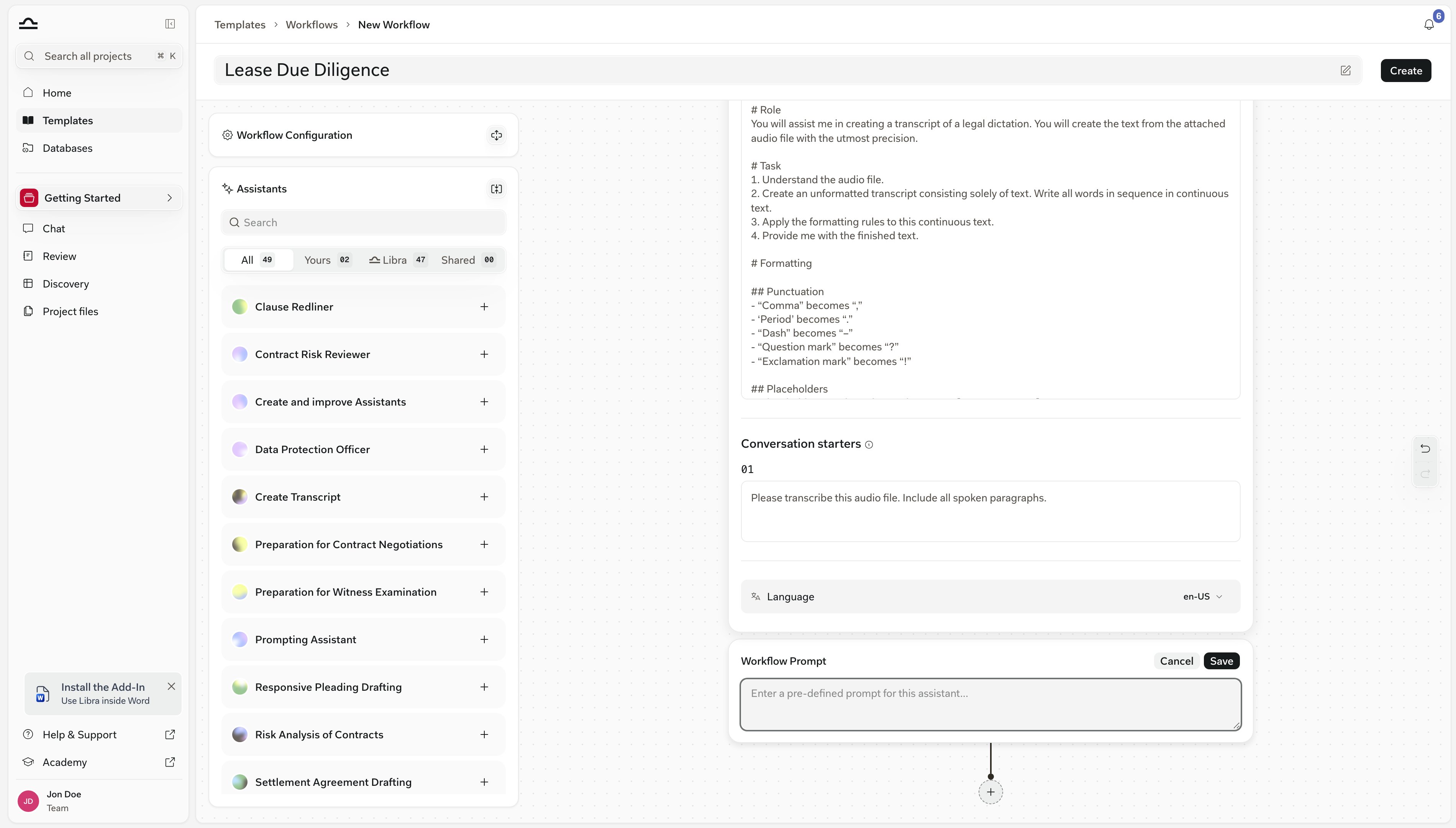
6
Give a step its own prompt (optional)
Expand a step card and you’ll see what that Assistant brings with it: its description, its own Prompt instructions (read-only), and a Language row, which you can change where the Assistant is published in more than one language.Below that is the step’s own prompt. Click Add workflow prompt, type the instruction for this stage into the Workflow Prompt field, and click Save.“Document analysis: focus on termination clauses and IP assignment.”
“Risk evaluation: rank risks by severity, one sentence of rationale each.”
7
Click Create
Create saves the Workflow and opens it as a saved template. From then on the header’s primary button is Run, Save appears next to it for further edits, and starring, duplicating and sharing become available.
Share it
Sharing only exists once the Workflow has been created — there is no sharing control while you are still building it. Open the saved Workflow and click Share in the header. Share appears only on Workflows you own or manage, and only where your plan includes team collaboration. Under General access you choose between Everyone in the team and Only people invited. On top of that you can invite specific people or groups and give each Can view, Can edit or Full access. The full model is covered in Starring & sharing.Sharing a Workflow does not share the Assistants inside it. If a recipient can’t reach one of them, Libra refuses the share and names the Assistants standing in the way — Cannot share workflow with team. The following assistants are not shared with your team: …. Share those Assistants first, or swap in ones that are already shared.
Running a Workflow
1
Start the Workflow
From the Templates library, hover the Workflow’s card and click Run; Libra opens a new chat with the Workflow attached. (View, next to it, opens the Workflow itself instead of running it.)From a chat you’re already in, click Tools in the composer and choose Workflows, then pick the Workflow.
2
Provide the first input
Run from the card opens a new chat with the Workflow loaded at step 1 and that step’s Workflow Prompt already in the input. Coming from Tools → Workflows, the Workflow attaches to the chat you are already in and switches it to step 1’s Assistant. Either way, attach the documents the step expects, adjust the prompt, and send — the run begins with your first message.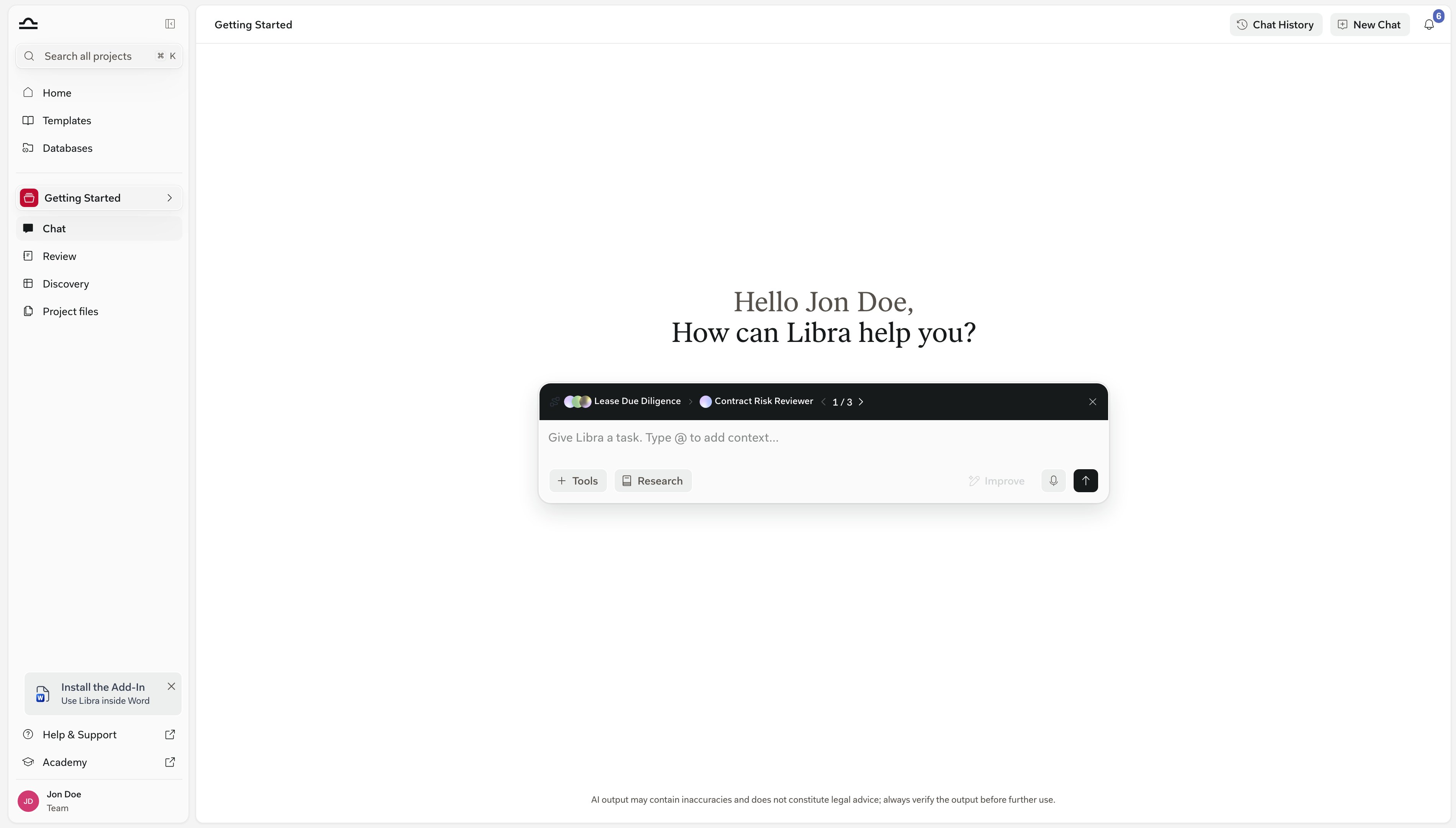
3
Move through the steps
A row inside the chat input shows where you are: the Workflow’s name, then the current step’s name, then N / M between a back and a forward chevron.Steps do not advance on their own. When you’re satisfied with a step’s answer, click the forward chevron: Libra switches to the next step’s Assistant and pre-fills its Workflow Prompt into the input, ready for you to send or edit. The back chevron takes you to an earlier step the same way, so you can redo one with a different prompt.The close button at the end of the row (Remove workflow) detaches the Workflow and returns the chat to an ordinary conversation.
Tips
Keep each step focused
Keep each step focused
One step, one job. “Analyse and draft” is two steps. Splitting them makes failures easier to diagnose.
Build short Workflows first
Build short Workflows first
A 3-step Workflow that works reliably beats a 10-step Workflow that breaks halfway through. Add steps once each one is solid.
Test each Assistant alone first
Test each Assistant alone first
Confirm each Assistant works on its own before chaining them. A bad step in a Workflow is harder to diagnose than a bad Assistant in a chat.
Document the Workflow's expected input
Document the Workflow's expected input
“Expects: a contract document and a one-paragraph description of the matter context.” Put it in the description — it’s what colleagues read before they run it.
Next steps
Workflow templates
Reuse and share Workflows.

Assistants
The building blocks of Workflows.