


Only team owners and admins can manage the subscription. Anyone else who opens the tab sees Contact your team manager to update your subscription — that’s whoever owns your firm’s Libra account.
View Plans & Pricing
Compare Libra plans, features, and pricing on our website.
Finding the Subscription page
1
Open the profile menu
Click your profile picture in the bottom-left of the sidebar.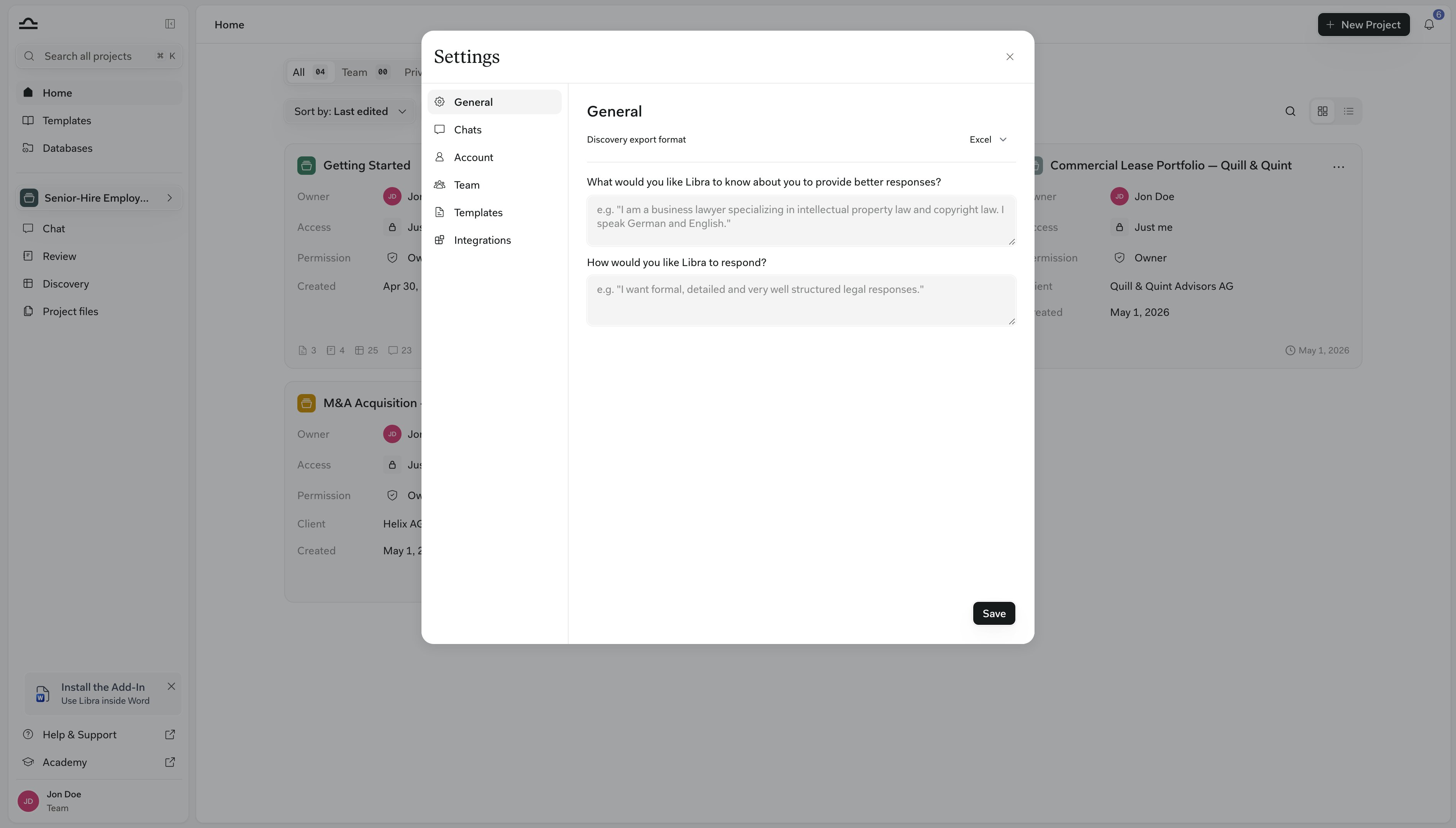
2
Pick Team & Subscription
The page opens on tabs along the top: Team Members, User Groups and Subscription. Teams with the usage dashboard switched on see a fourth tab, Usage. Switch to Subscription.
What each plan includes
Libra sells three tiers. Each plan card on the Subscription tab lists what that tier carries; the differences that matter most in day-to-day work are these.
The plans quote the same per-document ceiling throughout — up to 2,000 pages and 500 MB per file. The Professional and Team plan cards also list deep-thinking mode as part of the plan; unlike the message and upload caps, it is not something Libra refuses on Starter.
Two Starter limits are worth spelling out, because you meet them as refusals rather than as greyed-out buttons. The message and upload counters run per user on your plan’s own anniversary — a plan that started on 11 February resets on 11 March, not on the first of the month — and when a counter runs out, the next message or upload is turned away until the period rolls over. Creating a Review, a Playbook, a Discovery or a Discovery template is refused outright, with the message This feature is not available on the Starter plan. See Starting work from chat for where those prompts appear.
Across all plans, the most capable reasoning models carry a daily per-user cap that is lowest on trials, higher on Starter and highest on paid plans. Reaching it doesn’t stop you working: Libra continues the conversation on a comparable model automatically.
What the Subscription tab shows
The tab is headed Subscription Management, and what it offers depends on where your firm is in its subscription.
Whichever state you’re in, a Wolters Kluwer Licenses card sits at the bottom of the page wherever your jurisdiction is supported.
Buying licenses
Checkout runs inside Libra and ends at Stripe. Work down the page:- Pick a tier. Tabs across the top switch between Starter, Professional and Team. On a trial all three are offered; once you are paying, the Starter tab is only there if Starter is the plan you are on.
- Set the license count. The stepper on the plan card sets how many people the plan covers. Its minimum is the number of active users in your team — Deactivate users first to reduce the number of licenses.
- Add content packages. German teams see the Otto Schmidt Licenses section with a checkbox and a stepper per module (the smallest package covers three licenses); Swiss teams see the equivalent Stämpfli section.
- Choose monthly or annual. The billing toggle appears for German and Swiss teams; elsewhere subscriptions are annual.
- Confirm and pay. The order summary on the right totals everything and shows the recurring price. Tick the terms you’re asked to accept — German teams also confirm they aren’t ordering as a consumer under § 13 BGB — then click Continue to payment (Upgrade from trial, if you’re still on a trial) to open the Stripe checkout.
Changing a live subscription
Once the subscription is running, the same page becomes the place you change it. Add licenses with the stepper on the plan card. The stepper only goes up here: its minimum is the number of licenses you already pay for, so reducing the count is not something you can do on this page — email support@libratech.ai instead. Move up a tier with the tabs, which list your current plan and the ones above it. Libra only sells upgrades in the app; selecting a lower tier greys the button out and labels it Downgrade not available. Either change opens a Confirm Subscription Update dialog. Before you confirm, the order summary shows the amount due today — Libra prorates the change against the days remaining in the current billing period rather than waiting for renewal. Confirm with Update Subscription. Whenever the Team plan is the one on screen — because you picked its tab, or because it is already your plan — a Request a quote box sits under the plan card: Need a tailored setup? Contact sales to get the best rate for your user count. It opens a short message form rather than a checkout. Manage billing, top-right, opens your firm’s billing portal, where payment details and cancellation live. If a subscription is set to cancel, the Subscription tab carries a notice saying so and pointing you back at Manage billing to resume it.When your account team manages the subscription
Some subscriptions are created by hand or owned by sales end to end. Those firms see a summary rather than a checkout: the plan name, an ACTIVE badge, the number of licenses included, and Contact support if you need assistance with managing your subscription.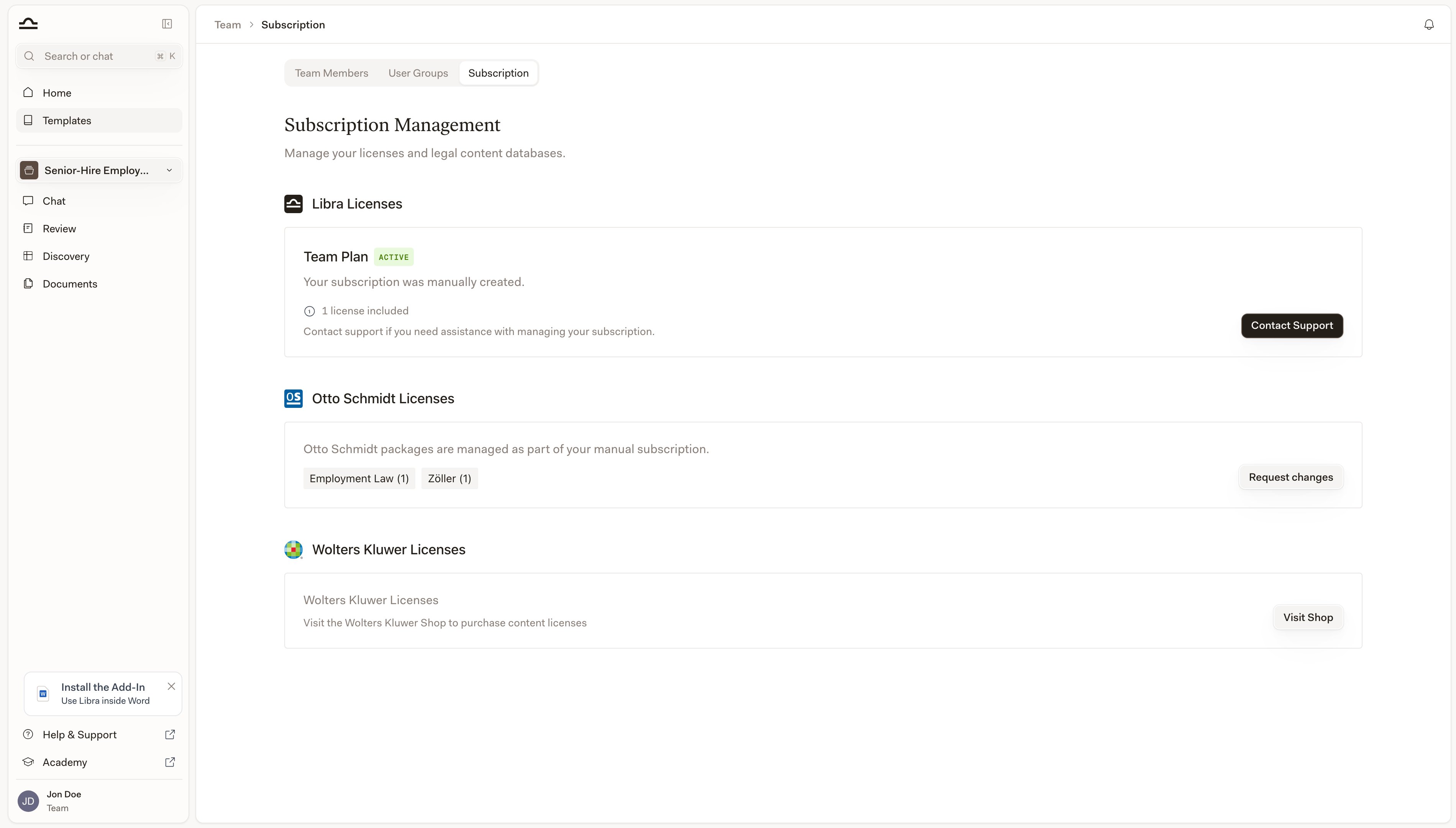
Research-database licenses
Publisher content is licensed separately from Libra itself, and each publisher has its own route.
German licenses are the exception to the “separate” rule: statutes and case law from Wolters Kluwer Online come with the Libra license, and only additional publisher content needs its own subscription.
Once your firm holds module licenses, an admin hands them out to individual people on the Team Members tab — see Team management.
Databases and your page allowance
Databases are part of the Team plan, and every team has the sidebar entry. Below the Team plan it opens an upgrade prompt rather than a list. Its Upgrade plan button drops you on this page with the Team tier already selected. Ingestion into a Libra database draws on a page allowance that scales with the subscription: each billed license grants 100,000 page-equivalents, pooled across the team. It is a lifetime total rather than a monthly reset, and deleting documents does not give pages back. Documents in a SharePoint database don’t count, because Libra never ingests them.Common questions
How do I add more users to my team?
How do I add more users to my team?
If your firm pays through Libra, raise the license count with the stepper on the plan card and confirm the update — the licenses are added right away. If your subscription was set up by your account team, use Contact Support on the Libra Licenses card and say how many you need.
What happens when I add licenses mid-cycle?
What happens when I add licenses mid-cycle?
You pay a prorated amount for the days remaining until renewal. The order summary shows that amount before you confirm, so there are no surprises on the invoice.
Can I reduce my license count or move to a cheaper plan?
Can I reduce my license count or move to a cheaper plan?
Not from this page. Libra sells upgrades in the app — a lower tier is labelled Downgrade not available, and the license stepper won’t go below what you currently pay for. Email support@libratech.ai to reduce either.
What happens if my payment fails?
What happens if my payment fails?
Your access isn’t cut off. Libra is alerted and the payment is retried; the subscription only ends if those retries are exhausted.
Is VAT included in the prices?
Is VAT included in the prices?
No — every price on the page is net. VAT is calculated at checkout from your billing address, and you can enter a VAT ID during checkout.
How do I get an invoice corrected, or update billing details?
How do I get an invoice corrected, or update billing details?
Start at Manage billing. If what you need isn’t there — a reissued invoice, a VAT ID added after the fact — email support@libratech.ai.
How do I cancel?
How do I cancel?
Cancel from Manage billing. The subscription runs to the end of the current billing period, and until then the Subscription tab shows a notice reminding you that you can resume it from the same place.
Do I need to cancel a trial?
Do I need to cancel a trial?
No. A trial expires on its own, costs nothing, and never turns into a paid subscription by itself. See the FAQ.
Need help?
Team management
Roles, user groups, and handing out the licenses you’ve bought.
FAQ
Find answers to other common questions.