


Assistant instructions persist across every turn; an
@-mention injects context for one turn. For an always-on prompt, build the Assistant.What’s in an Assistant
When you start a chat with an Assistant, all of these are applied automatically. You skip straight to the question.
There is no output-format setting on an Assistant. If you want every answer to come back in the same shape, say so in the prompt instructions — see Specify the output format below.
When Assistants pay off
Assistants reward two things: recurrence and specialisation.Common Assistant patterns
Contract reviewers
Contract reviewers
Pre-configured to read against your standard. Output a structured findings list with risk levels.
Drafters
Drafters
Pre-loaded with your firm’s templates and style guide. Produce first-draft text in your house format, ready to copy out of the chat.
Researchers
Researchers
Pre-set jurisdictions, pre-set Research sources. Optimised for sourced answers in a specific area of law.
Intake processors
Intake processors
Take an intake form, extract the key fields, flag conflicts, propose an engagement letter outline.
Compliance checkers
Compliance checkers
Pre-loaded with the relevant regulation; check submitted documents against requirements.
Where Assistants live
Assistants are templates. Open Templates in the sidebar and you land on the Templates library with the Assistants tab selected, alongside Workflows, Reviews, and Discoveries. Filter the tab by Practice area, Tags, or Author. The Author filter is the one that answers “whose Assistant is this?”:
The Assistants picker inside chat splits the same content slightly differently — All, Yours, Shared, and Libra.
Using an Assistant
1
Pick the Assistant
In a chat, click Tools → Assistants and choose one; the Assistant attaches to the chat you are already in. Or, from the Assistants tab of the Templates library, hover an Assistant’s card and click Run, which opens a new chat with the Assistant already attached — the card’s … menu offers the same View and Run actions.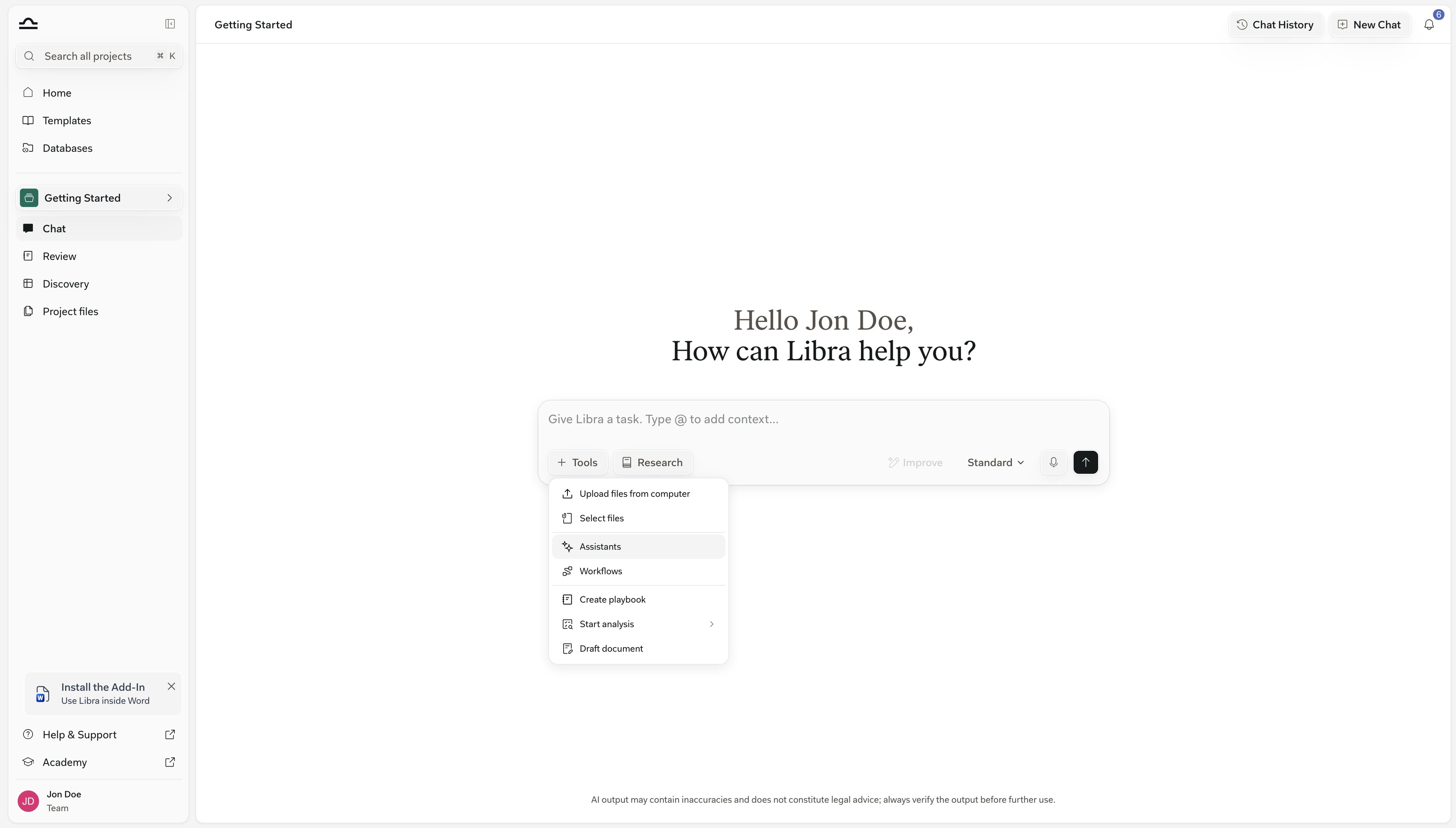
2
The Assistant attaches to the composer
The active Assistant appears as a dark bar sitting on top of the chat composer, showing its name. Its instructions, knowledge, and resources now apply to the whole conversation. If it defines conversation starters, they appear as clickable buttons you can send as-is or edit first.For your own and your team’s Assistants, the i button on the bar opens its details. The ✕ clears the Assistant and returns you to an ordinary chat.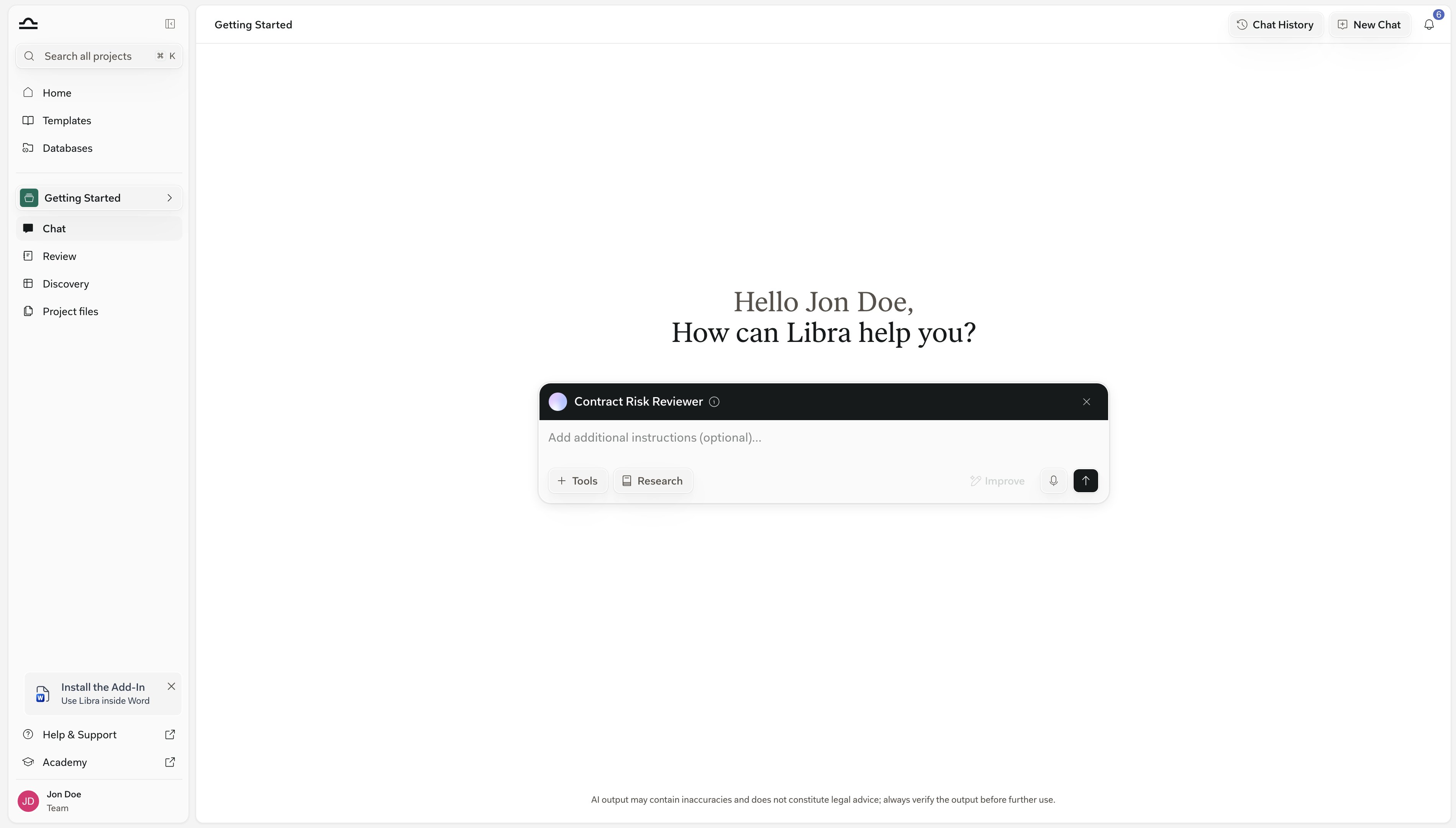
3
Ask your question
The Assistant interprets your question through its configuration, so you don’t need to repeat instructions it already knows. Its replies are labelled with the Assistant’s name, and it stays attached for your follow-up questions.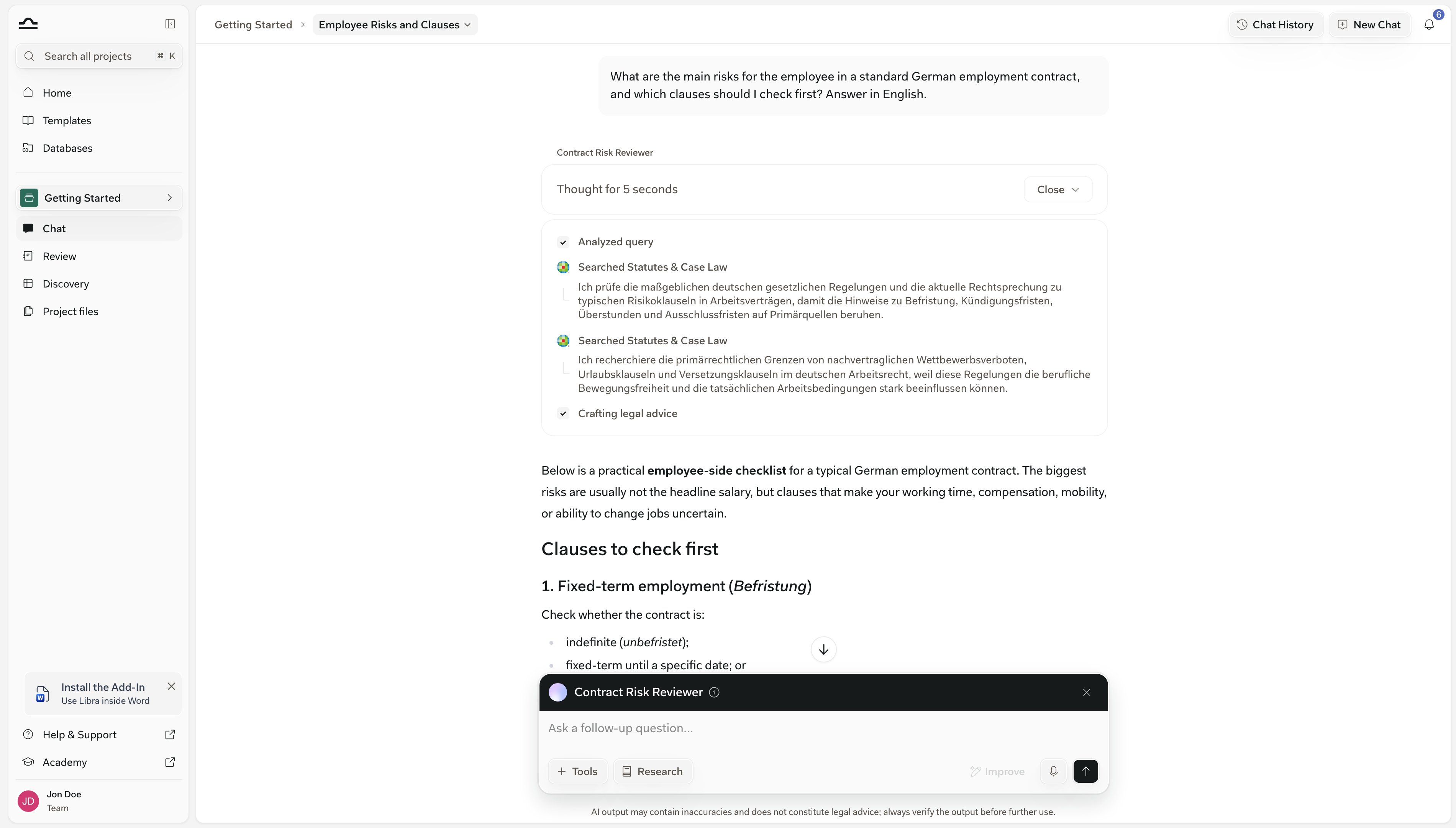
Sharing Assistants
Same model as the rest of the Templates library; see Starring & sharing. The standard pattern: build an Assistant, validate it on a few real prompts, share it with your team.Tips for designing good Assistants
One Assistant, one job
One Assistant, one job
A “do everything for M&A” Assistant struggles to give consistent output. Three Assistants, one for analysis, one for drafting, and one for summarising, work better. Chain them with a Workflow if you need them sequentially.
Front-load the instructions
Front-load the instructions
The first paragraph of an Assistant’s prompt instructions sets the tone. Put the most important thing first: who the Assistant is, what it does, and what it never does.
Add knowledge documents you'd hand a junior
Add knowledge documents you'd hand a junior
The reference documents, the house style guide, the standard templates: anything you’d put in a junior associate’s onboarding pack belongs in an Assistant’s knowledge.
Specify the output format
Specify the output format
Because format isn’t a separate setting, it has to live in the instructions. “Output as a numbered list with three sections: Risks / Recommendations / Open questions” gives consistent answers. Without a format spec, you’ll get whatever the model felt like that day.
Write conversation starters for the obvious first questions
Write conversation starters for the obvious first questions
Starters turn a blank composer into one click. They’re also the fastest way to show a colleague what the Assistant is actually for.
Tag and star the ones you use
Tag and star the ones you use
A library with 30 Assistants is unmanageable without tags. Set the practice area and tags at creation; star the ones you reach for weekly.
Next steps
Create a custom Assistant
Build an Assistant for a specific task.
About templates
Where Assistants live in the Templates library.