


Set the Type in Step 2, Name, Address, Date, Amount, before pointing at a reference document. Type is the biggest accuracy lever in the flow.
{Landlord's name} and fills them from documents you already have in the project. You keep control at every stage: you decide what each placeholder means, where the answers come from, and which of the proposed values actually go into the document.
Start the Wizard
1
Open the Actions tab
Click Actions in the Libra panel. The panel has two tabs, Chat and Actions.
2
Select Fill Placeholders
The Actions list offers three things: Review, Document Comparison and Fill Placeholders. Click Fill Placeholders.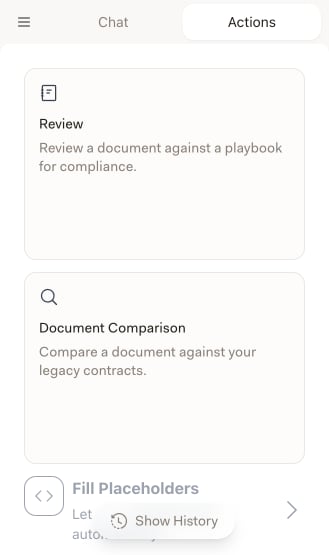
Review sits directly above Fill Placeholders in the same list, but it is a different feature — it checks a document against a Playbook. Make sure you click the third item.
Step 1: Placeholder Formats
First tell Libra how placeholders are written in your document. A format is a prefix and a suffix wrapped around the placeholder text, so{ and } match {Landlord's name}. The default format is a single pair of curly braces.
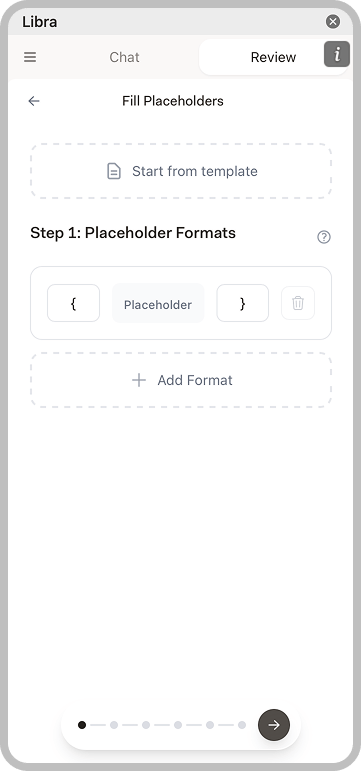
[ and ] for square brackets, {{ and }} for double braces. Click Add Format if one template mixes several conventions, and use the bin icon to drop a format you no longer need.
Start from template at the top of the step is a shortcut, not a way of designating the open document. It loads a saved placeholder template — a set of formats plus the type and context settings you recorded on a previous run — so a template you fill every week only has to be configured once. Pick one from the list and the wizard shows its name, description, and how many formats and placeholders it carries; the placeholders it contributes are tagged From Template in the next step. Clear it with the cross if you change your mind.
Step 2: Enrich Placeholders
Libra scans the document and lists every placeholder it found, with a count of how many times each one occurs. Libra also suggests a type for each one automatically — you will see Suggesting placeholder types… while it works — and you can correct any of them.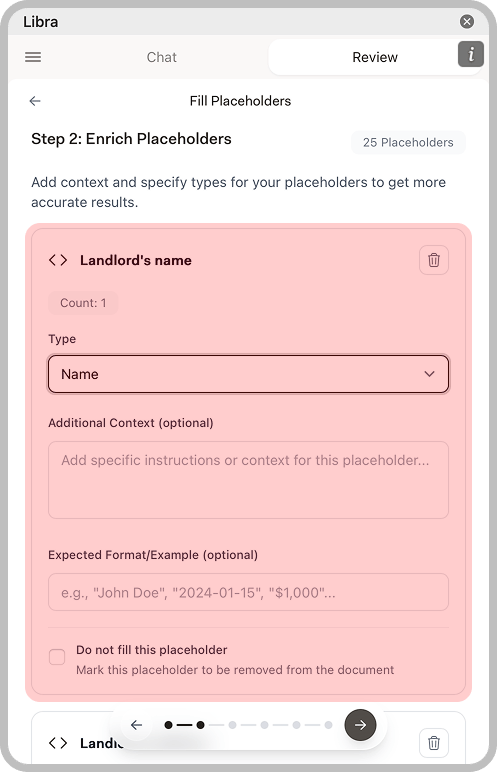
If you tick Do not fill this placeholder on everything, the wizard will not let you continue — at least one placeholder has to be left to fill.
Save your configuration as a template
When you leave Step 2, Libra asks Save as Template?. Saving keeps your formats along with each placeholder’s type, context and example, and you can share the template with your team. If you started from an existing template and changed something, the dialog reads Save template changes? and offers Save as New; Update Template is offered as well, but only on a template you created yourself, so overwriting a colleague’s shared template is not on the table. Choose Dont Save and the run proceeds normally, configuration unsaved.Step 3: Add Context
Now tell Libra where the answers should come from. The two sources combine, so you can use either or both.Select Documents
Opens your project’s Project files so you can pick the documents that carry the information — an intake form, a signed term sheet, prior correspondence. You can also upload new files into the project from the same picker. Selected documents appear in a list underneath, and each can be removed with the cross.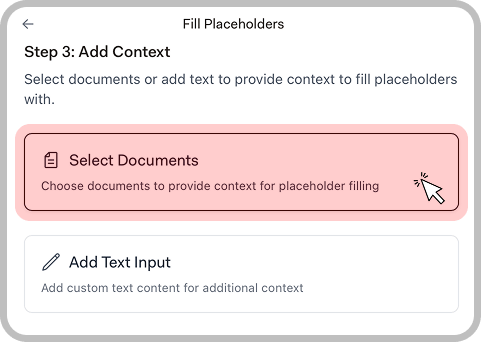
A project has to be active in the add-in for this to open. Click the menu button at the top left of the panel, then Selected Project, and pick one — see Set up the Word add-in.
Add Text Input
Reveals a free-text box for context that is not in any document, such as a fee figure agreed by phone. Click it again to remove the box.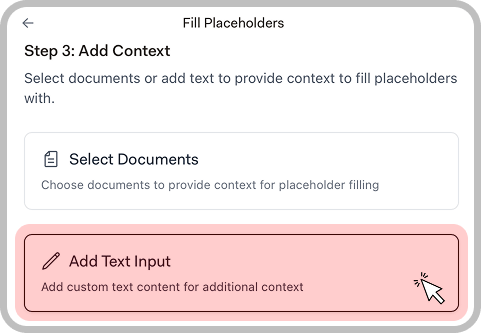
Step 4: Confirm Placeholders
Libra generates a value for every placeholder you left to fill, streaming them in with a progress bar as it goes. This is the step where you check its work.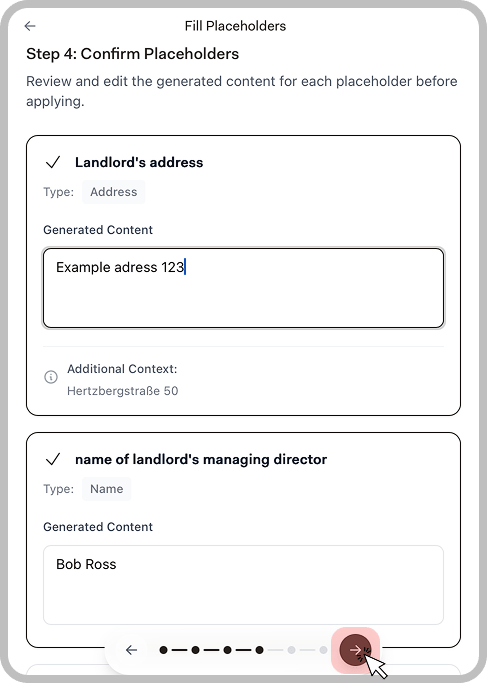
Step 5: Apply Placeholders
The wizard turns each accepted value into a proposed change and shows it as a diff — the old placeholder struck through, the new text alongside. The magnifier on a card scrolls the document to that spot so you can see the change in context.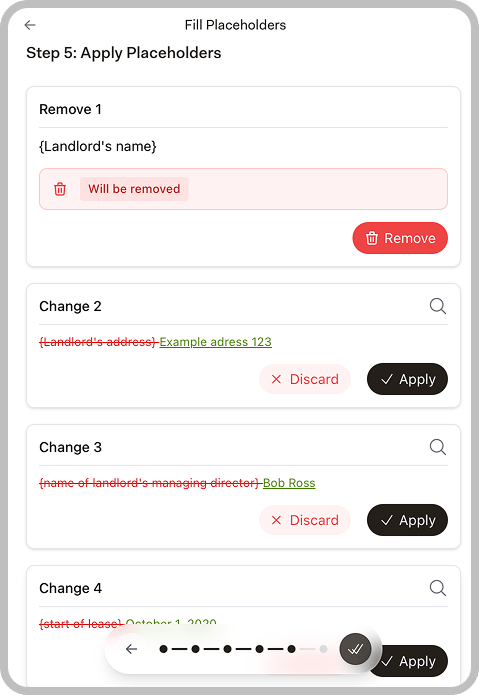
To process everything at once, use the round double-check button in the control bar, Apply All. It applies every change you have not discarded, then moves you to the final step.
Step 6: Finished
Once every change is applied or discarded, the panel shows Process Complete! and the round button returns you to the Actions list.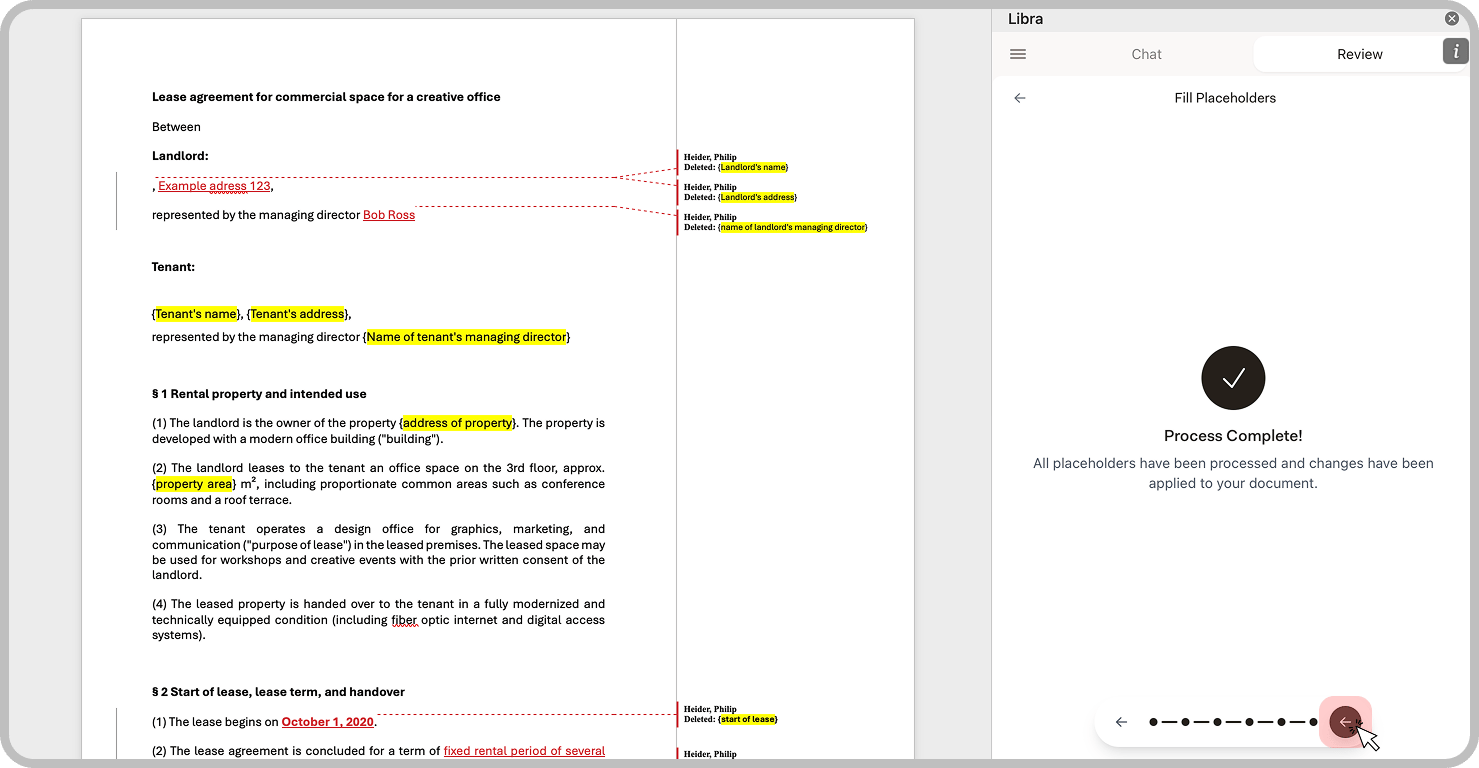
Example Use Cases
Engagement letters
Engagement letters
Point at the client intake form. Libra fills in client name, matter description, fee arrangement and contact details.
Lease agreements
Lease agreements
Point at the signed term sheet or prior correspondence. Libra fills landlord details, tenant information, property address and key dates.
Contract summaries
Contract summaries
Point at the executed contract. Libra fills in party names, dates, key terms and financial figures.
Standard correspondence
Standard correspondence
Point at case information or prior correspondence. Libra fills names, dates, case numbers and references.
Tips for Better Results
Use descriptive placeholder names
Use descriptive placeholder names
{Landlord's name} is easier to fill correctly than {Party A}. Descriptive names help Libra understand what information to extract.Check the suggested types
Check the suggested types
Libra proposes a type for every placeholder in Step 2. Correcting a wrong suggestion — Name, Address, Date, Amount — is the single most effective thing you can do for accuracy.
Save a template for recurring documents
Save a template for recurring documents
If you fill the same template regularly, accept the Save as Template? prompt after Step 2. Every later run starts with the formats and types already set.
Provide structured reference documents
Provide structured reference documents
Documents with clear headings, labeled fields and organized information produce better extraction results.
Add context for ambiguous placeholders
Add context for ambiguous placeholders
Use Additional Context (optional) to give specific instructions when a placeholder name isn’t self-explanatory.
Review before applying
Review before applying
Always check the generated values in Step 4. Edit any incorrect extractions before they reach the document.