


Highlight the clause first, then pick the Assistant. The selection arrives as a Selected Text chip above the input, which is sharper than turning the Assistant loose on the whole document.
Pick an Assistant
1
Open the picker
In the Chat tab, click the name at the top left of the panel. It always shows whatever the chat is currently running on — an Assistant, or a model — with a chevron beside it.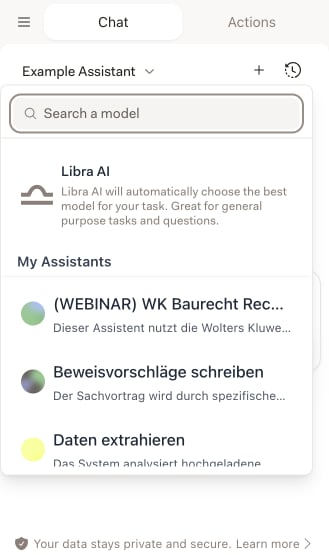
2
Find the one you want
Type in Search a model at the top. It matches Assistant names — including the names of every language version, so a German-named Assistant still turns up when you search its English name. Each section shows five Assistants at a time; Show all expands it and Show less collapses it again.
3
Click it
The chat switches over immediately. From the next message on you get that Assistant’s instructions, knowledge and research sources.
What’s in the picker
The list is grouped, and a group only appears when it has something in it.Libra Assistants is filtered by the language your interface is set to: you see the Libra Assistants that have a version in that language, and all of them only if none match. Two colleagues on different interface languages can therefore see different lists.
Choose a language version
An Assistant can carry several language versions, each with its own name, description and prompt instructions. Hover over an Assistant that has more than one and a small language chip appears beside its name showing a two-letter code — DE, EN, PL. Assistants with a single version have no chip. Click the chip and the Assistant’s languages are listed alphabetically; pick one, then click the Assistant to start the chat. The chip is a setting, not a shortcut — choosing a language does not select the Assistant, so the click on the Assistant itself is still needed. Skip the chip and Libra picks for you: your interface language if the Assistant has a version in it, otherwise the Assistant’s first. Whichever version is in play, its name and description are what the picker displays, and the choice is saved with the chat — reopen that conversation later and it comes back in the same language.Pin an Assistant
Hover over any Assistant and a pin appears beside its name, tooltipped Pin to top. Click it to pin, click it again to unpin. Base models cannot be pinned.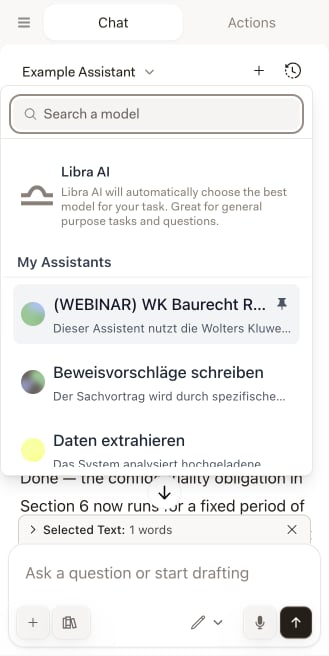

Pin the two or three you actually reach for — the NDA checker, the clause rewriter, the jurisdiction researcher. Beats scrolling the firm-wide list on every document.
What an Assistant brings into Word
An Assistant configured with Knowledge documents is the one that pays off most in Word: it reads the document you have open against the reference material it already carries — your standard template, the house style guide, the relevant statute — so the analysis is consistent from matter to matter without you attaching anything. Research sources come across too. If the Assistant has research sources pre-set, selecting it switches Research on with exactly those sources; switch back to a plain model and the selection clears again. You can still change the selection afterwards in the Research panel, and it holds for the rest of the chat — until you switch Assistant, which reapplies that Assistant’s sources or clears them.If an Assistant relies on a Wolters Kluwer source your account isn’t connected to, the picker marks it Requires connection and clicking it does nothing but explain why. The add-in cannot run the provider sign-in itself — connect the source in the Libra web app, as described in Set up, and the Assistant works in Word from then on.
Tips for using Assistants
Match the Assistant to the task
Match the Assistant to the task
A contract-review Assistant for reviewing, a researcher for sourced questions. The right Assistant beats a general-purpose one with a longer prompt.
Select text for focus
Select text for focus
Highlight the section you care about before you ask. The Assistant works on exactly that passage rather than the whole document.
Build for the documents you see often
Build for the documents you see often
If you review the same contract type every week, put your standard into an Assistant’s Knowledge once. After that it’s one click per document.
Use Libra AI when no Assistant fits
Use Libra AI when no Assistant fits
For a one-off question there’s nothing to gain from an Assistant. The Libra AI entry at the top of the picker chooses the model for you.
Create new Assistants
Assistants are built in the Libra web app, not in the add-in. Anything you create or edit there shows up in Word the next time you open the picker.
Build a custom Assistant
Prompt instructions, language versions, research sources and knowledge documents — the full editor.