

Install the add-in
Requirements: Microsoft Word — desktop on Windows or Mac, or Word on the web — and an active Libra account.The add-in declares a single minimum for all three (Word JavaScript API requirement set 1.7); there is no separate Windows or Mac version floor. Current Microsoft 365 builds meet it. If Word never offers you the add-in, your Word build is older than that minimum — update Word or ask your IT team.
1
Open Microsoft Word
Launch Word and open any document, or create a new one.
2
Open the add-ins dialog
Click Add-Ins in the Word toolbar.
3
Add Libra
If Libra is not installed yet, search for “Libra” in the Office Add-ins dialog and click Add. If your organization deploys add-ins centrally, Libra sits under Admin-managed rather than in the search results.
4
Open the panel
The Libra button now sits in your Word toolbar. Click it and the panel opens to the right of your document.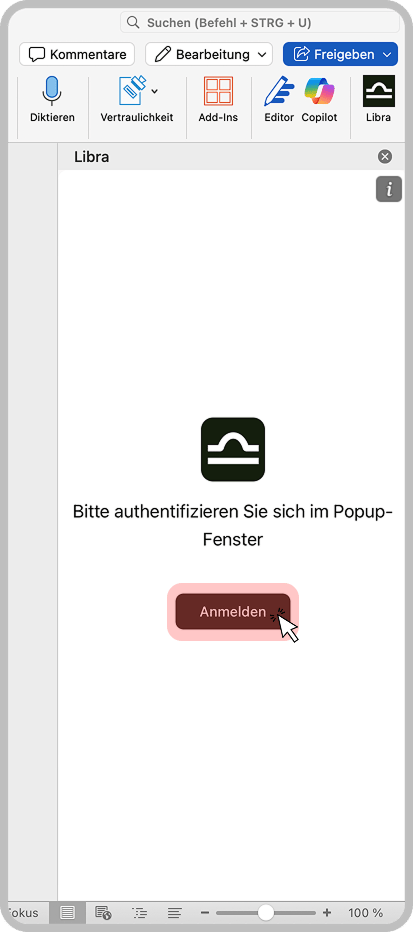
5
Sign in
Click Sign in. Word opens a separate window for the Libra login — enter your email address and finish the flow there. The panel then reloads with your account.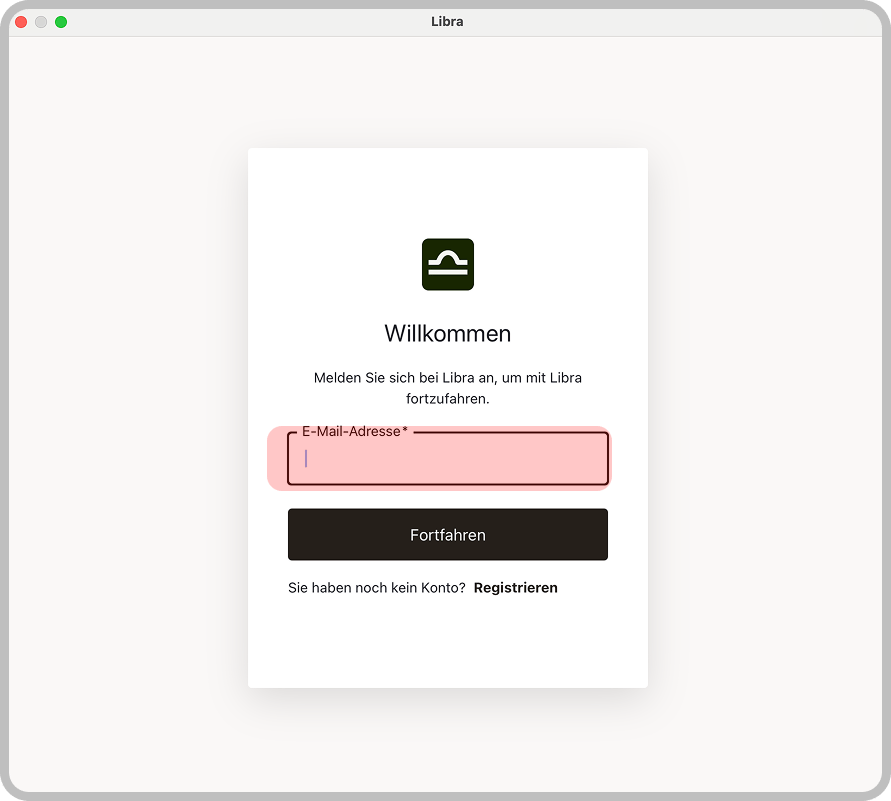
Your organization may have pre-installed the add-in for you. If Libra already appears in your Word toolbar, skip the installation steps and just sign in.
The Libra panel
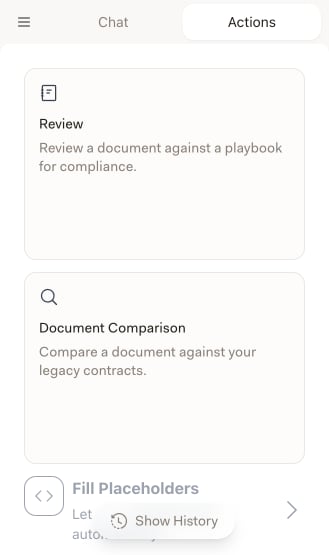
Signing in brings you to the panel proper. It has two tabs — Chat and Actions — plus a menu behind the hamburger button in the top-left corner.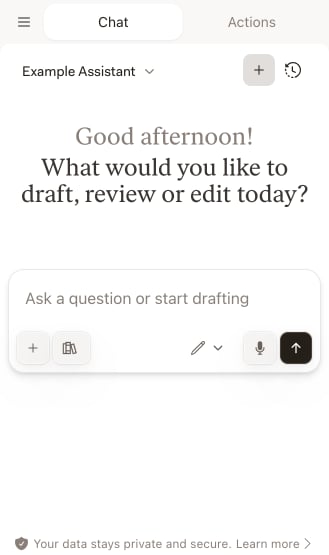
Troubleshooting
Cannot find the add-in
Cannot find the add-in
Click Add-Ins in the Word toolbar, then More Add-ins, and search for “Libra”. If your organization deploys add-ins centrally, look under Admin-managed in the same dialog rather than in the search results, and contact your IT administrator if it is not there either.
The add-in will not load, or the panel is blank
The add-in will not load, or the panel is blank
The panel is a web view, so it needs a live connection to Libra. Check your internet connection, close and reopen the panel, and if that does not help, restart Word. Installing pending Office updates is worth a try as well.
Nothing happens when you click Sign in
Nothing happens when you click Sign in
The login opens in a separate window rather than inside the panel, so if nothing appears, allow pop-ups and try again. Check that the same credentials work at app.libratech.ai.
Your earlier chats or reviews are missing
Your earlier chats or reviews are missing
Chats and reviews belong to a project. Open the hamburger menu, check that Selected Project names the project you expect, and switch if it does not.
Organization deployment
Administrators can deploy the add-in to everyone from the Microsoft 365 admin center, so nobody has to install it themselves. If you would rather not do it yourself, ask your IT administrator to roll it out.Next steps
Chat
Ask questions about the open document and have Libra revise its text.

Assistants
Use your Assistants, personal and shared, inside Word.

Review
Check a document against a Playbook and redraft what deviates.
Fill Placeholders
Fill a template’s placeholders from the documents and context you supply.