

Playbooks are written in the Libra web app, not in the add-in. See Create a Playbook for how Topics, Positions and Rules are built, and Understanding Review results for the full anatomy of a result.
Before you start
Both gates are on the project the add-in is pointed at:- A project has to be selected. Click the menu button at the top left of the panel, then Selected Project, and pick one. With no project selected, Start Review is greyed out; hover it and the tooltip reads Select a project to create reviews or discoveries.
- You need edit access to that project. Owner, admin or edit all qualify. On a project you can only view, Start Review is greyed out and its tooltip reads You need edit access. Ask a project admin for edit rights or switch projects.
Run a review
1
Open Review
Open the Actions tab in the Libra panel and click Review.
2
Pick a Playbook
The Playbook Review screen lists the Playbooks available to you, each with its Topic count and its author. Use Search playbooks to find one by name, or Manage playbooks to open the Templates library in the web app.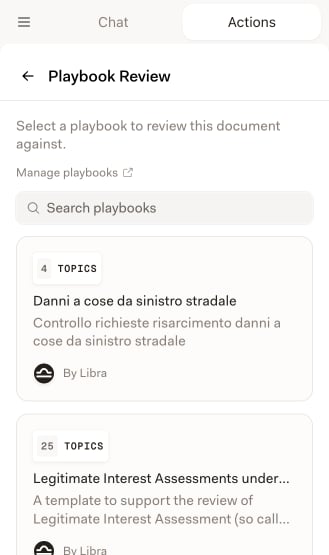
3
Check the Topics, then start
The preview names the Playbook, its description and how many Topics it carries — for an NDA, Parties, Mutual or Unilateral, Permitted Purpose, Confidential Information and so on. Expand any Topic to read the Positions behind it before you commit, then click Start Review.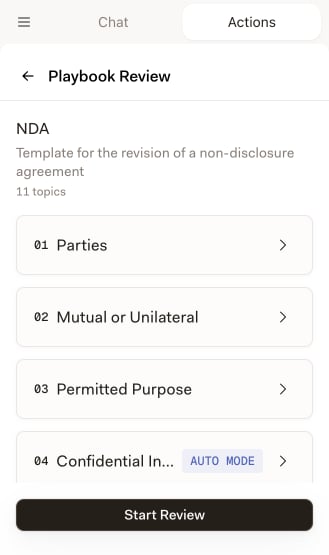
4
Let Libra work through the Topics
Every Topic is evaluated against the document and swaps its spinner for a risk badge as it lands. Long contracts take a few minutes; you can watch the list fill in.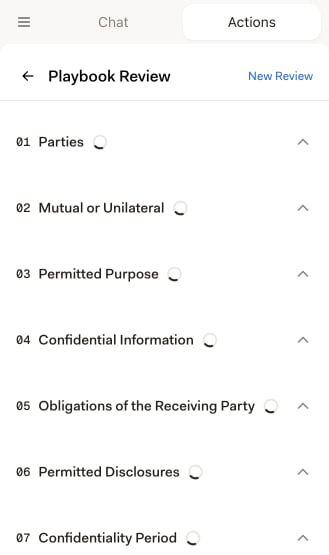
5
Read the result
A card at the top names the Playbook and gives one Compliance percentage; each Topic below it carries its own risk badge.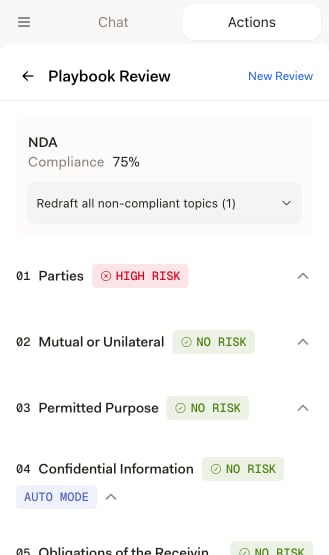
Reading the result
Each Topic is badged No risk, Medium risk or High risk according to how the document measured against that Topic’s Positions — or Not found, when nothing in the document was judgeable for it. The badges mean exactly what they mean in the web app, and Understanding Review results explains how each verdict is reached. Click a Topic to expand it. You get a Reasoning paragraph justifying the verdict, with numbered citations you can click to jump to that paragraph in the document, and the Positions the Topic was measured against.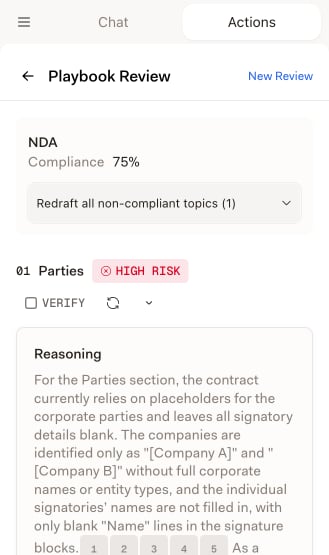
Redraft one Topic
Under an expanded Topic, a Redraft section offers a Select position dropdown and a redraft button beside it. The dropdown lists the Topic’s Starting Position and any Fallback 1, Fallback 2 and so on. A position the document already satisfies is labelled (compliant) and cannot be chosen — there is nothing to redraft toward. Libra preselects the first non-compliant one for you. Not acceptable positions never appear in the picker, and neither do Auto mode Topics. Click the redraft button and Libra proposes new wording. The result appears as a card headed Redrafting toward: the position you picked, followed by Suggested Changes — one proposed paragraph at a time, shown as a redline against your text, with arrows to page through them. Apply or reject each suggestion individually, or apply them all. Nothing reaches the document until you apply it. If the draft is close but not right, type into the Follow-up instructions… box at the bottom of the card and redraft again. Libra iterates on the previous attempt rather than starting over. Switching to a different position starts a clean draft instead.Redraft every non-compliant Topic at once
Redraft all non-compliant topics (n) sits in the compliance card at the top of the result. The count is the number of Topics that qualify: those Libra could map to the document and whose Starting Position the document does not meet. Compliant Topics, and Topics with no Starting Position, are skipped. It is a dropdown, not a single button, and it opens on two choices:- Redraft all drafts new wording for every qualifying Topic and stages it in that Topic’s card, exactly as if you had redrafted each one by hand. Your document is untouched.
- Redraft all & apply does the same and then applies each draft. Because that rewrites the document, Libra asks first — Apply redrafts to all n topics? — and you confirm with Redraft & apply.
Ctrl+Zundoes it, and you can still reject individual changes Topic by Topic afterwards.
Reviews created in the web app
The history list mixes reviews run here with reviews run in the Libra web app. A web-app review opens and reads normally in the add-in, tagged Started in the Libra web app above the results — but you cannot redraft from it. Every Topic that would normally offer a redraft still shows its Redraft heading, with a help icon where the position picker would be; hover the icon and it reads Redrafting isn’t available — this review wasn’t created from a Word document in the Word add-in. Re-run evaluation is disabled too, and its tooltip reads This review was created in the Libra web app. To retry topics, open the review there. The bulk Redraft all non-compliant topics control is absent altogether. That is a consequence of how redrafting works: it rewrites the paragraphs of the Word document the review was built from, and a web-app review has no such document behind it. Reopen the review in the web app to re-run its Topics there.When a Playbook needs research sources you don’t have
Auto mode Topics name the research sources Libra should consult. If a Playbook references a source that is not enabled on your account, the add-in stops you before the review starts: selecting that Playbook opens Missing research sources instead of the preview, listing each Topic and the source it needs. The same check runs when you open an existing review whose sources you have since lost access to, and blocks the whole result. The add-in has no way to switch a source on. Enable it in the Libra web app under Settings → Integrations, then come back — see Set up integrations.Find an earlier review
Show History is a floating pill at the bottom of the Actions home. It is not on the Playbook Review screen, so use the back arrow in the header to leave the review first. The Recent Reviews sheet slides up over the panel with both kinds of review in it, newest first. A Playbook Review row shows its name, how long ago it ran, the document it ran against, the Playbook used, and its Compliance percentage — or Failed, or a pulsing dot while it is still processing. Click any row to reopen that review. Three controls narrow the list: a search box, a Type filter (All, Document Comparison or Playbook Review, each with a count), and Filter by current document, which hides everything not run against the document you have open. History is per project, so with no project selected the sheet just reads Select a project to see your recent reviews.Tips for better reviews
Match the Playbook to the document
Match the Playbook to the document
A Playbook written for NDAs produces sharper results on an NDA than a general one. Pick the most specific Playbook for the document type, and check its Topic list in the preview before you start.
Stage the bulk redraft, then read it
Stage the bulk redraft, then read it
Redraft all — without & apply — drafts wording for every flagged Topic and leaves it staged. You get the speed of the bulk action and still decide paragraph by paragraph what goes into the document.
Work down from High risk
Work down from High risk
Open the High risk Topics first, skim the Medium risk ones, and spot-check a No risk Topic or two. Reading the Reasoning before you accept a redraft is usually faster than undoing one.
Iterate rather than restart
Iterate rather than restart
If a redraft is nearly right, give it Follow-up instructions… instead of redrafting from scratch — it keeps the previous attempt as context. Once you have accepted changes, Re-run evaluation on that Topic re-checks the verdict against the new text.