

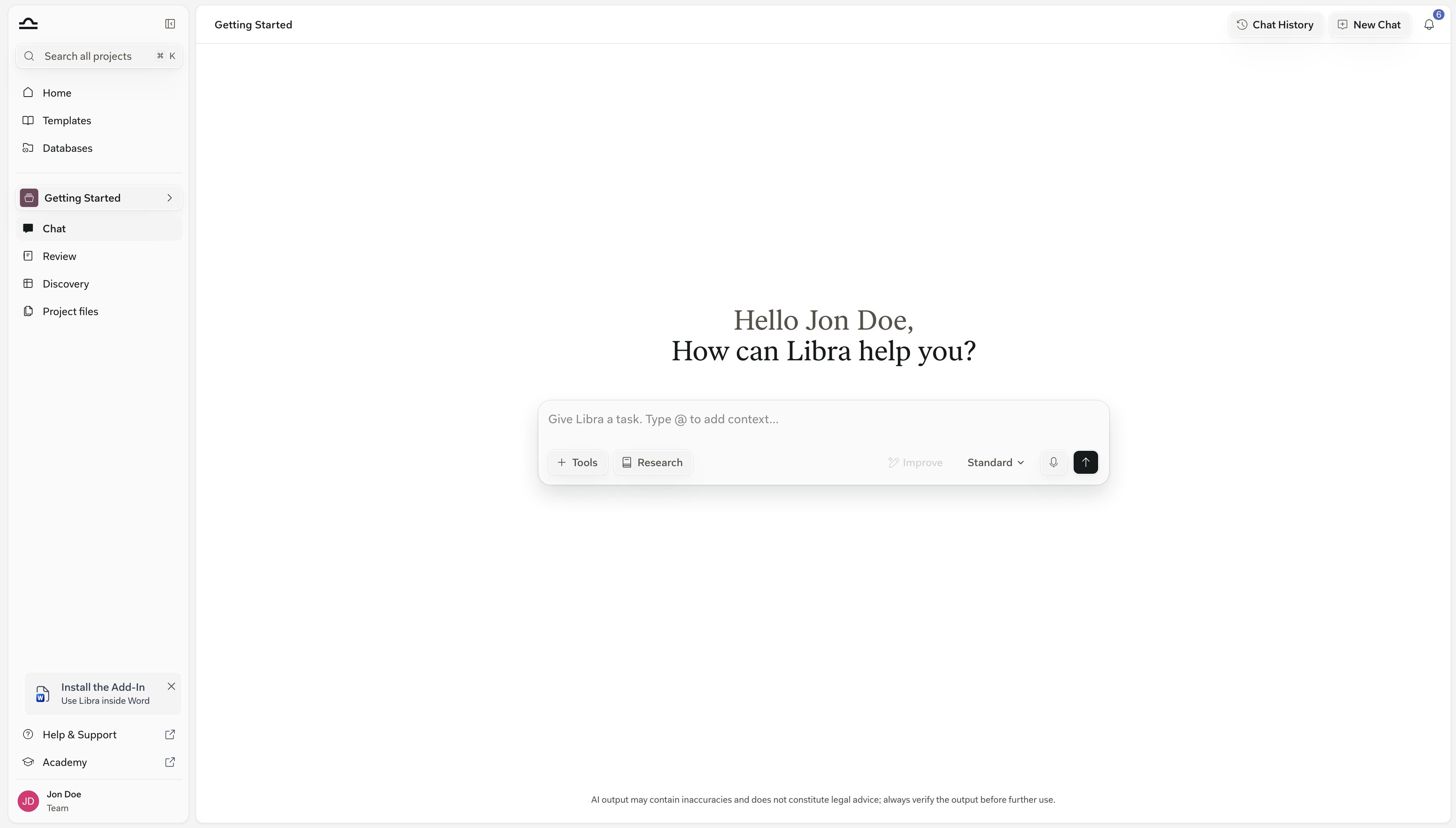

A horizontal line divides the sidebar. Everything above it — Search, Home, Templates, and, if your team has them, Databases — stays put when you switch projects. Directly below it sits the project you’re in, and its entries rebind whenever you switch.
The two zones
The sidebar mirrors that split. The global entries sit at the top, above the separator. Below it, the active project’s name doubles as the switcher, and that project’s own entries follow.
Global tools
The entries at the top of the sidebar are the same whichever project you’re in.Search
The Search all projects bar sits at the very top, or press Cmd+K from anywhere. It covers chats, documents, folders, Reviews, Discoveries, Assistants, Workflows, and templates.
Home
The list of every project you have access to. Star, sort, filter, share, archive, or open one.
Templates
Reusable Assistants, Workflows, and templates for Reviews and Discoveries. Once configured, available everywhere.
Databases
Sets of documents that sit above your projects, so the same sources can back work in any matter.
Project tools
Each project is a self-contained workspace. When you switch projects, the chat history, the Project files panel, and the Reviews and Discoveries all change to show only the work that belongs to the project you’re now in.
Chat
Where most of the work starts. Ask questions, attach documents, run Reviews and Discoveries, all from one place.

Review
Check a contract against your firm’s standard positions and rules.

Discovery
Ask the same questions across many documents and get a comparable table.
Project files
Every file in the project, plus the Reviews, Discoveries, and chat uploads it has produced.
Switching projects
The active project’s name sits just below the global entries. Clicking it slides out a full-height Projects panel — a sidesheet, not a dropdown.1
Open the Projects panel
Click the active project’s name in the sidebar. The chevron beside it flips from pointing right to pointing left while the panel is open.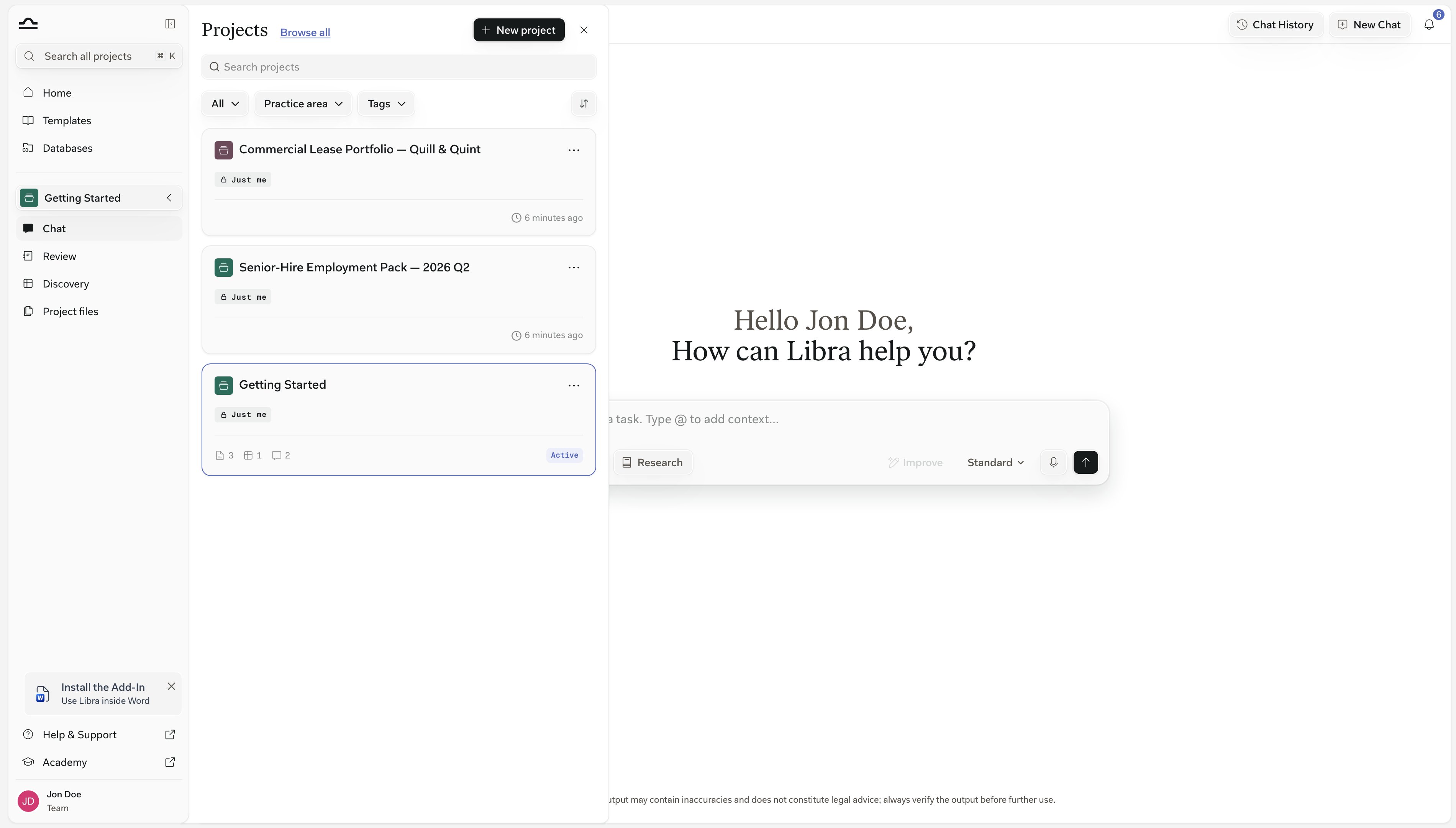
2
Find the project you want
Type into Search projects, or narrow the list with the All, Practice area, and Tags chips and the sort button beside them. Each card shows how the project is shared — Just me, Everyone in your team’s name, or Shared — with a View only badge if your access is read-only, plus counts of what’s in it and when it was last edited. The project you’re in is marked ACTIVE in place of that timestamp.Browse all takes you to Home for the full list; New project creates one on the spot.
3
Pick it
Chat, Review, Discovery, and Project files rebind to the project you chose. Search, Home, Templates, and Databases stay exactly as they were; they belong to all projects.
What this changes for you
If you’ve used Libra before:
One thing hasn’t changed: signing in drops you straight into a blank Chat in your active project. Home is a destination in the sidebar, not the screen you land on.

Anything you star, whether a template, Assistant, or Workflow, is stored against your account. Sign in on a colleague’s laptop and your stars come with you.
Next steps
Home
Every project you have access to, in one list.
Templates
Build a library of reusable work.
Databases
Share sources across every matter.