


Home’s search box matches project details — the name and the client — not what’s inside your chats and files. For that, hit Cmd+K; global Search indexes every chat, document, Review, and Discovery.
What a project card shows
Every project is a card with the same fields, so you can scan a long list quickly.
Along the bottom of the card, a footer counts what’s inside — documents, Reviews, Discoveries, and chats. Counts that are still zero are left out, so a brand-new project doesn’t read as a row of zeros. On the right of the footer you get the relative time the project was Last edited, or an Active tag on the project you currently have open.
Practice area and tags aren’t printed on the card. They’re filters above the list, and columns in the list view.
Grid or list
Two buttons at the right of the toolbar switch between Grid view — the cards described above — and List view, a table with one row per project and the columns Project Name, Author, Practice area, Tags, Access, Includes (the same artefact counts as the card footer), Last edited, and Created. The list view is the better one for scanning a hundred matters at once; the grid is easier to read a single project from. Libra remembers your view mode and your sort order in the browser you set them in, so Home comes back the way you left it.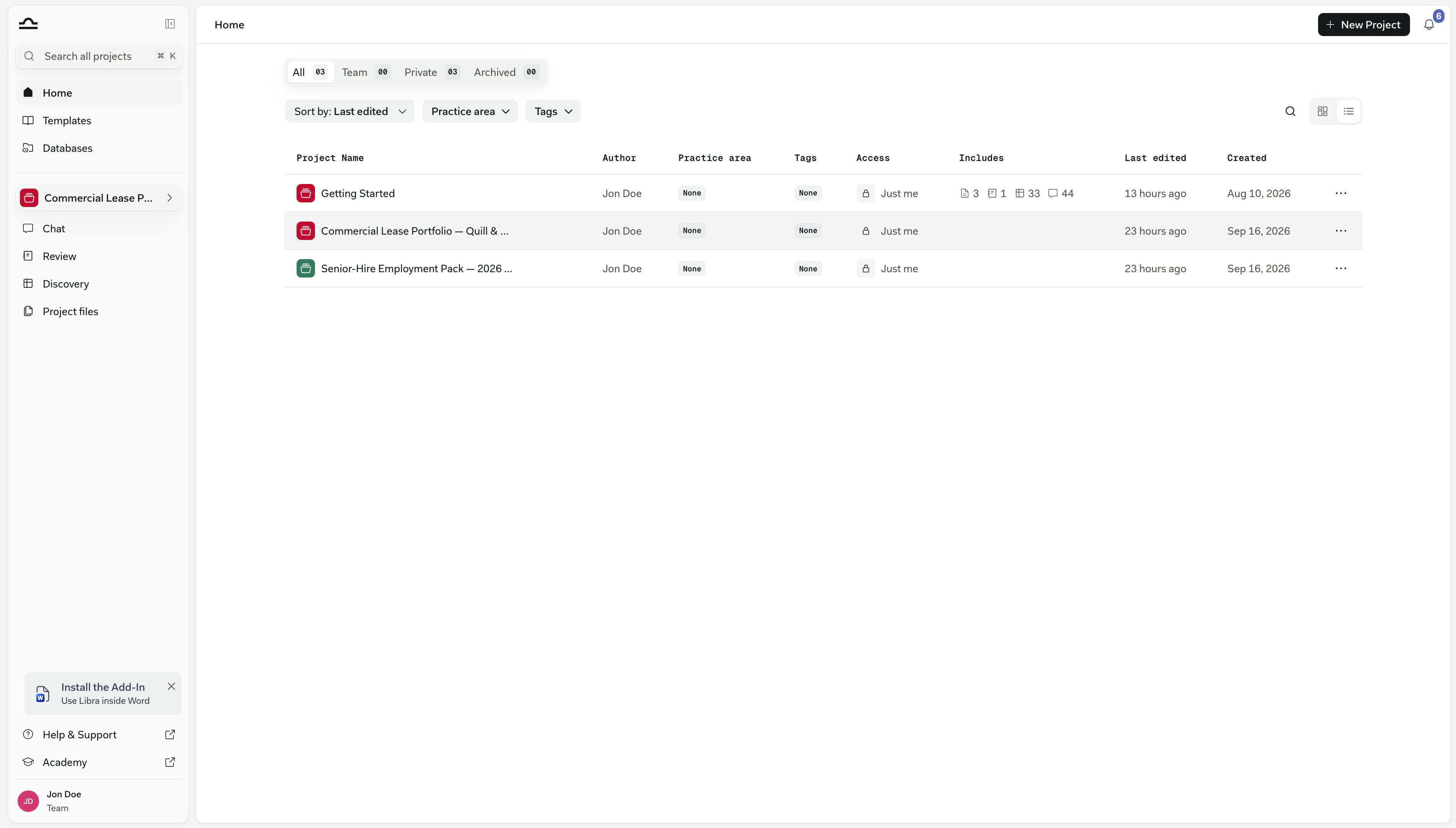
The tabs
The list narrows with the tabs at the top of the page, each showing a count.All
All
Every project you have access to that hasn’t been archived. Default view.
Team
Team
Projects shared with one or more people. Useful for finding work you’re collaborating on. On plans without team collaboration this tab is locked, and its icon changes to a padlock.
Private
Private
Projects nobody else has been given access to. Solo work and drafts.
Archived
Archived
Projects that have been archived. They don’t clutter the active list, and nothing inside them is lost — chats, documents, Reviews, and Discoveries are all preserved. To work in one again, unarchive it first.
Favorites
Favorites
Projects you’ve marked as favourites. This tab only appears once you have favourited at least one project.
Finding a project
Four ways to narrow down the list, depending on what you’re looking for.1
Search by name
Click the magnifier at the right of the toolbar to open the Search projects box and start typing. Libra re-runs the search as you type, matching the project name and the client.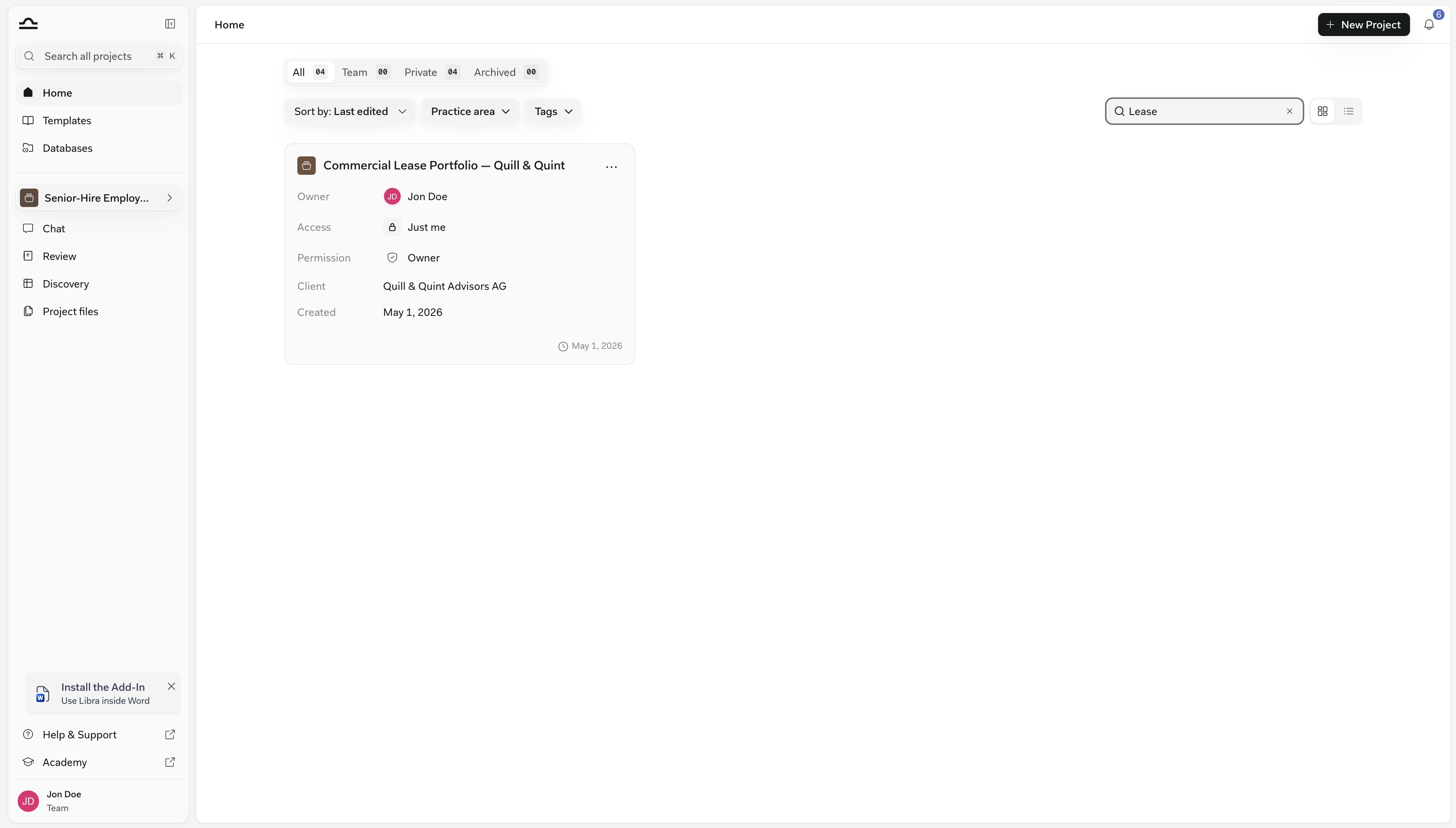
2
Sort the list
Use the Sort by dropdown to switch between Last edited (the default), Name, and Date created.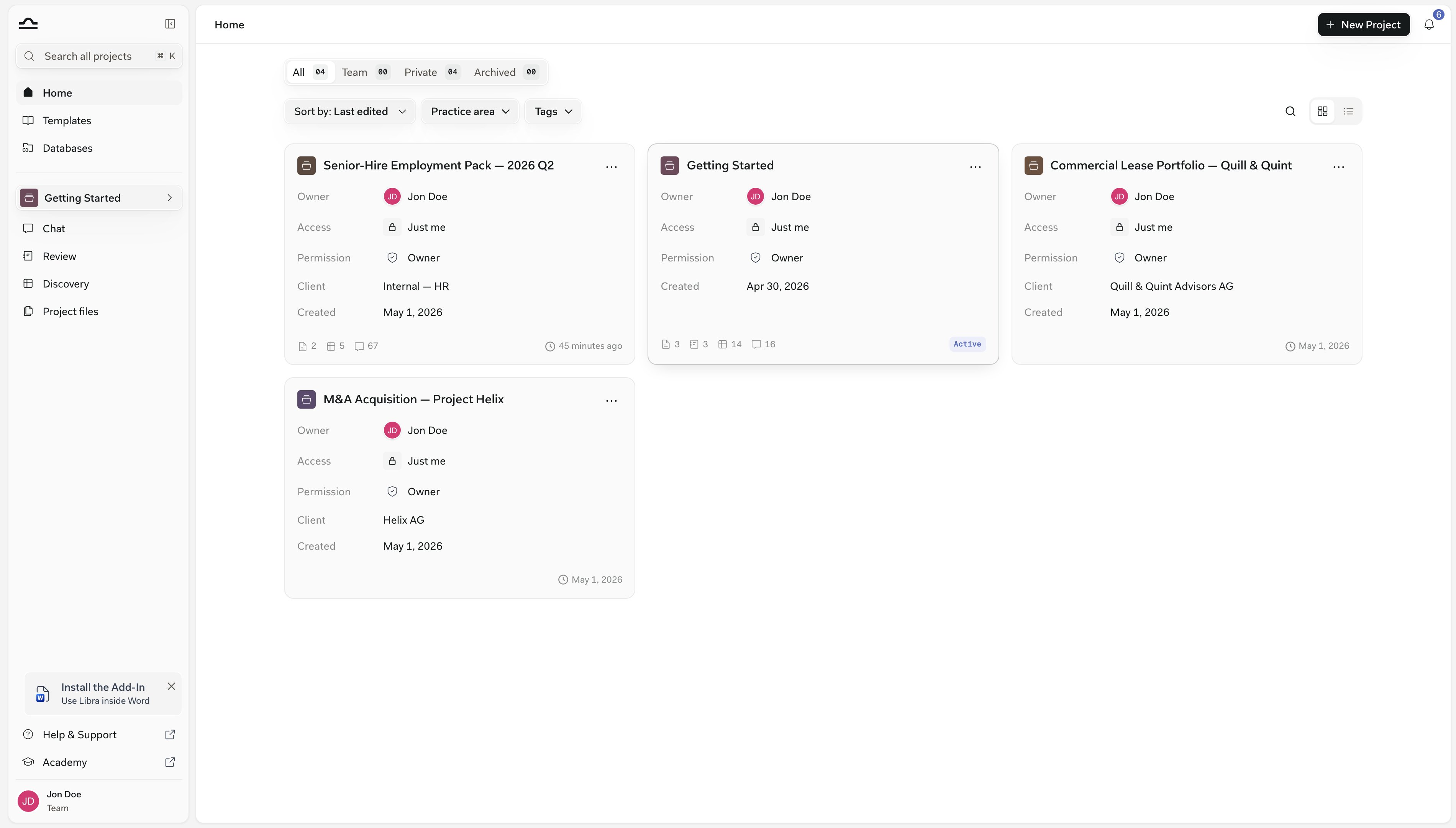
3
Filter by practice area or tag
The filter chips above the list narrow your projects by Practice area and Tags — the same filters you already use in the template library. (To narrow by who can see a project, use the tabs instead.) Combine them to pare a long matter list down to exactly what you need, and use Clear all filters to start over.
4
Favourite the ones you work on
In the grid, open a card’s ⋯ menu and choose Favorite. In the list view, click the star next to the project name. Favourites collect in the Favorites tab, one click away whatever else you’re filtering by.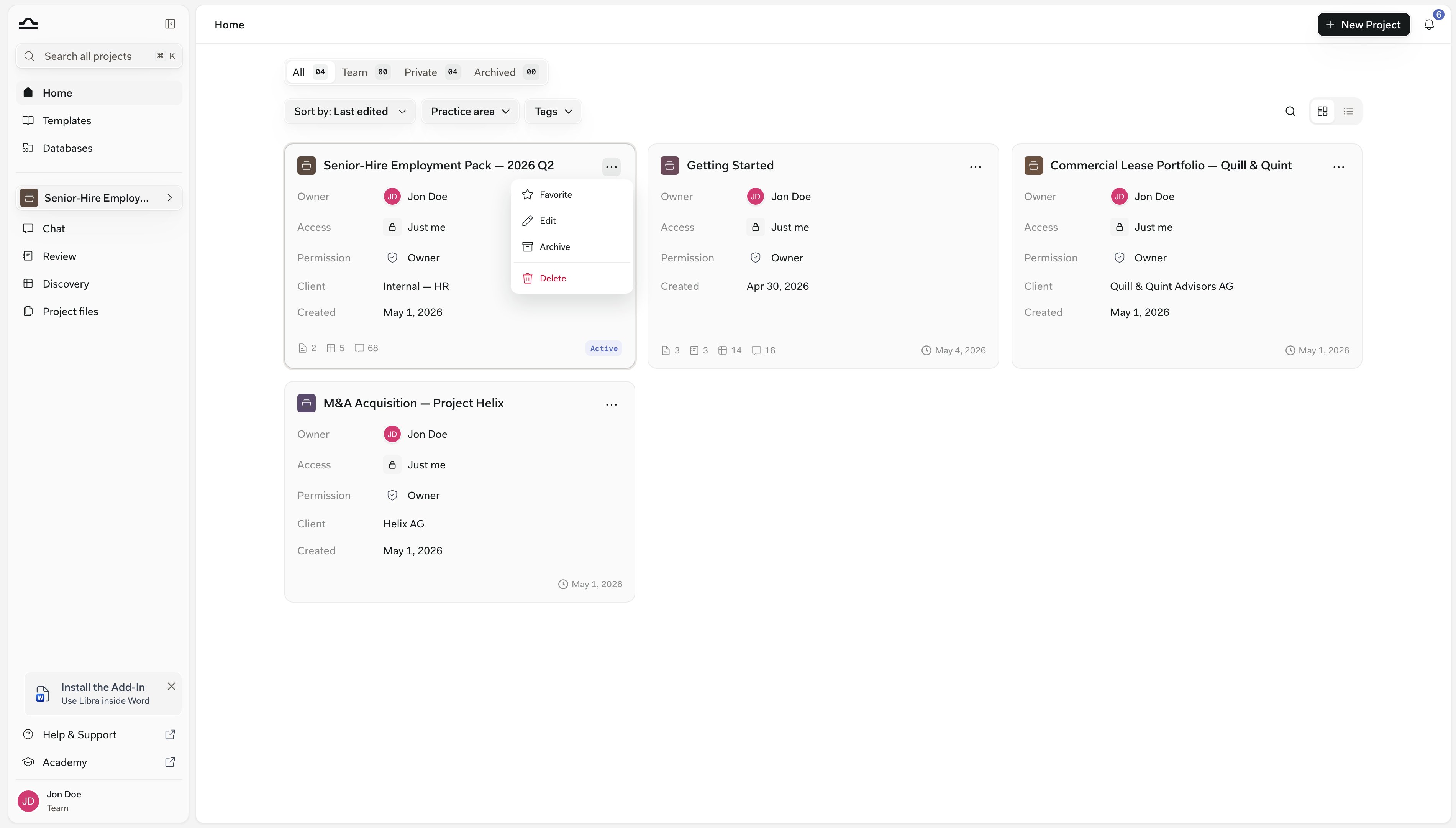
Home loads at most 200 projects for the current tab and sort. Past that you get a banner — Showing the first 200 projects. Search by project name to find a specific one. — and the search box reaches the rest.
Project actions
Every card and every list row has a ⋯ menu that acts on the project without opening it first. On a favourited card the star sits where the menu button is; move the pointer over the card and the star fades out to reveal it.Open
Open
Click anywhere on the card. Libra makes that project the active one, takes you to Chat, and starts a new chat in it. Review, Discovery, and Project files in the sidebar all point at the new project too. Archived projects can’t be opened — unarchive them first.
Favorite / Unfavorite
Favorite / Unfavorite
Add the project to, or remove it from, the Favorites tab.
Edit
Edit
Change the project name, description, client, practice areas, or tags. If you only have view access the entry reads Details and opens the same dialog read-only.
Archive / Unarchive
Archive / Unarchive
Move a finished project to the Archived tab, or bring it back. Anything inside it is preserved either way.
Delete
Delete
Remove the project permanently. Libra asks you to confirm, and warns you when the project is shared — deleting it deletes it for everyone it was shared with.
Creating a new project
The New Project button is always visible at the top right of Home.1
Click New Project
The Create a Project dialog opens. Only Project name is required; Description, Client, Practice area, and Tags are all optional, and you can fill them in later from Edit.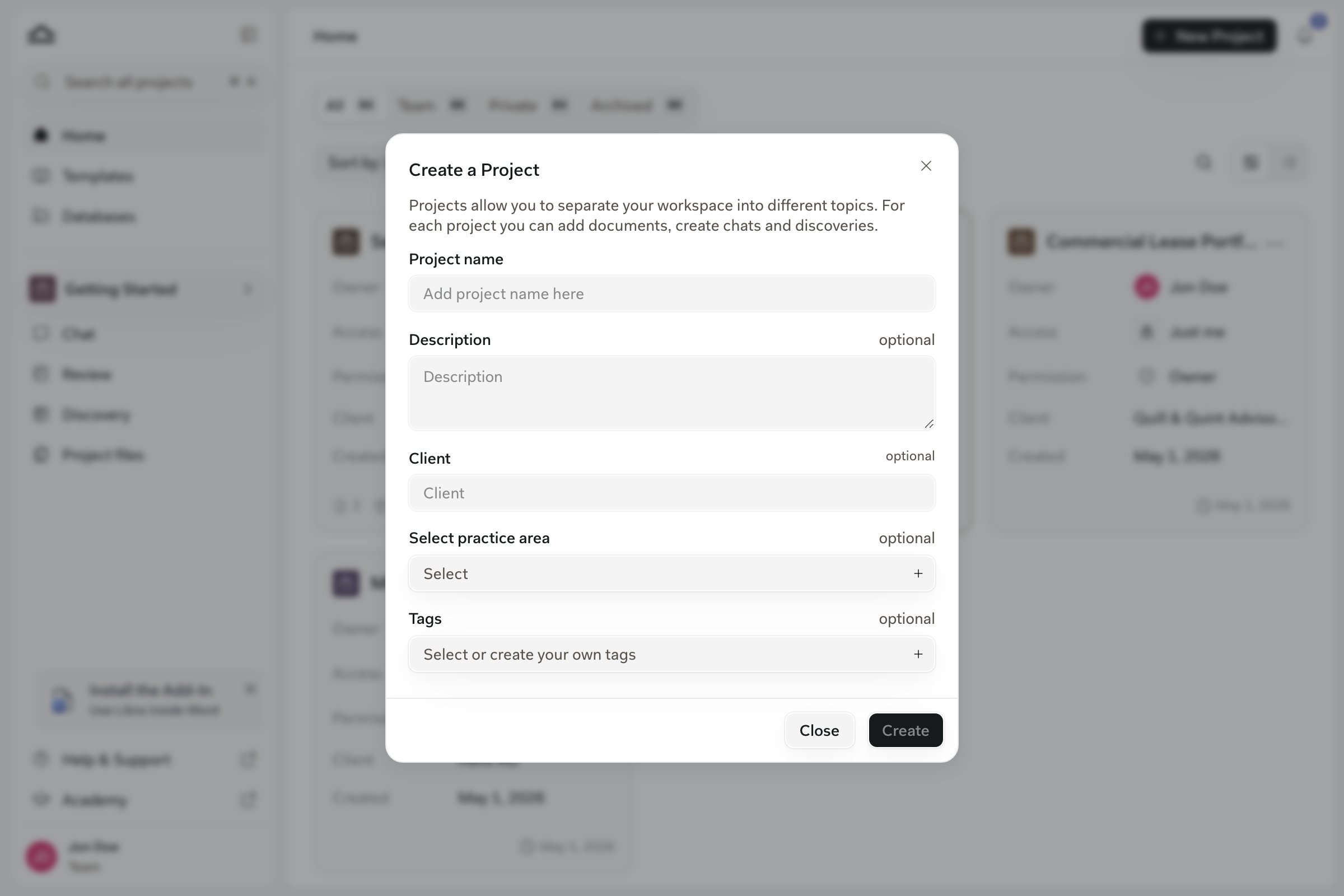
2
Decide who else gets in
If your plan includes team collaboration and there is someone else on your team, Libra creates the project and then opens the sharing dialog as a follow-up step, so you can add people straight away. Close it when you’re done — or close it immediately, and the project stays private until you share it later. On a solo account you go straight back to Home.
3
Start working
You land back on Home with the new project active, so Chat, Review, Discovery, and Project files in the sidebar are already scoped to it. Open it and you can start a chat, upload documents, or run a Review immediately.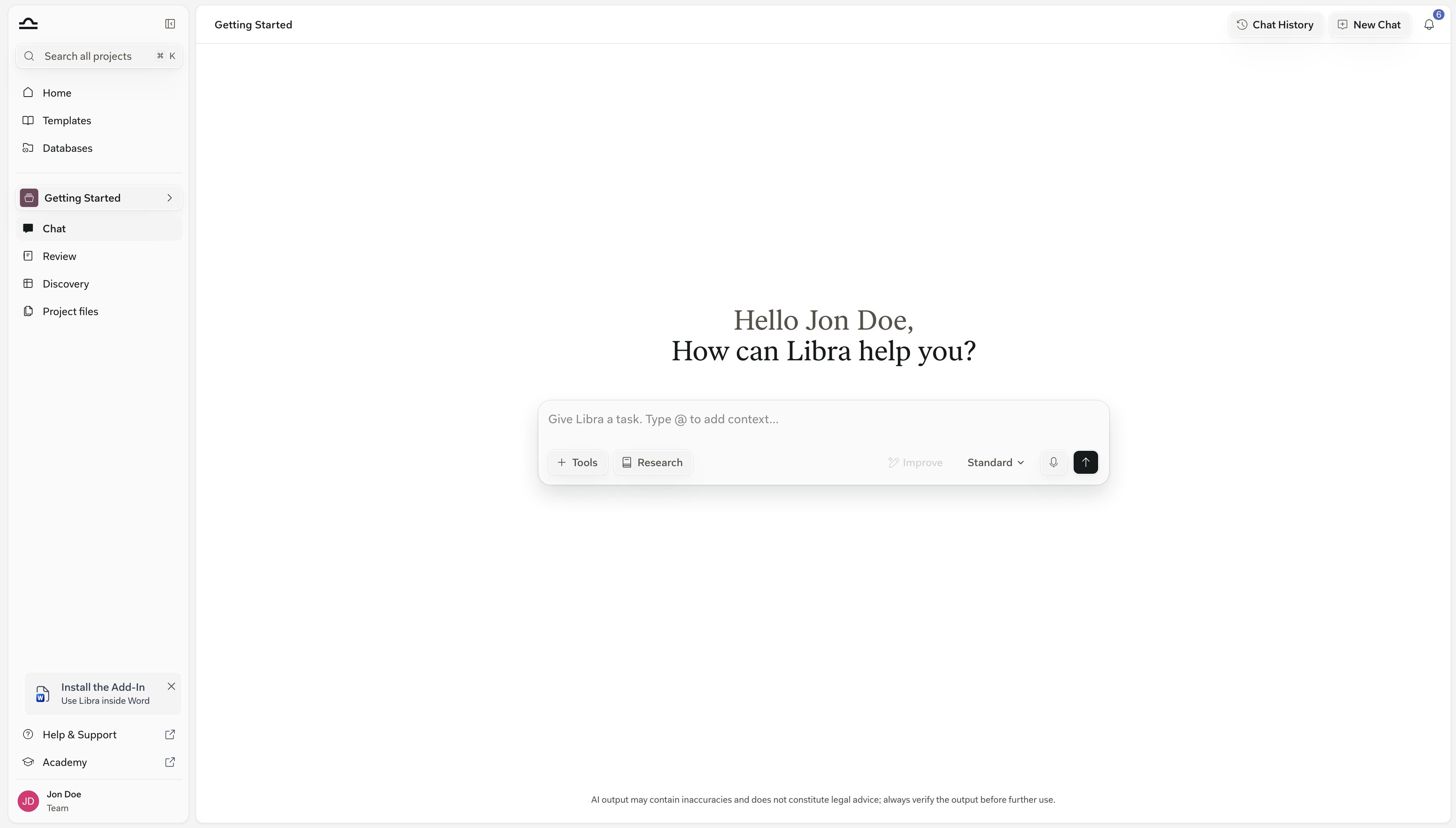
On plans with a project limit, the create dialog shows how many of your projects you’ve used, and the New Project button stops responding once you hit the cap.
Tips for organising Home well
Favourite the matter you're currently in
Favourite the matter you're currently in
One or two favourites turn the Favorites tab into a shortlist of live matters, which beats scrolling the full list every morning.
Archive after closing
Archive after closing
The moment a matter closes, archive its project. It clears your active list without losing any of the work.
Name projects so you'll find them later
Name projects so you'll find them later
Project names show up in Search results too. “NDA review for Acme Corp” is much easier to find later than “Project 4”.
Next steps
Projects
What lives inside a project, and how to work in one.
Search
Find anything across every project.
Sharing & access
Decide who sees what.