


Dragging a folder from Project files into the message box attaches everything inside it — every document plus every completed Review and Discovery, subfolders included. Useful when the whole matter sits in one folder. (
@-mentioning a folder attaches only the files sitting directly in it.)Working in Project files
Three folders that Libra maintains sit pinned at the top of every project: Reviews, Discoveries and Chat uploads. You can’t rename them, drag them, delete them, or put a folder inside them. Reviews and Discoveries take only their own kind of work product — drop a document on either and Libra refuses the move. Chat uploads is protected in the same way but holds ordinary documents, so files move in and out of it freely and it stays available wherever Libra asks you to pick documents.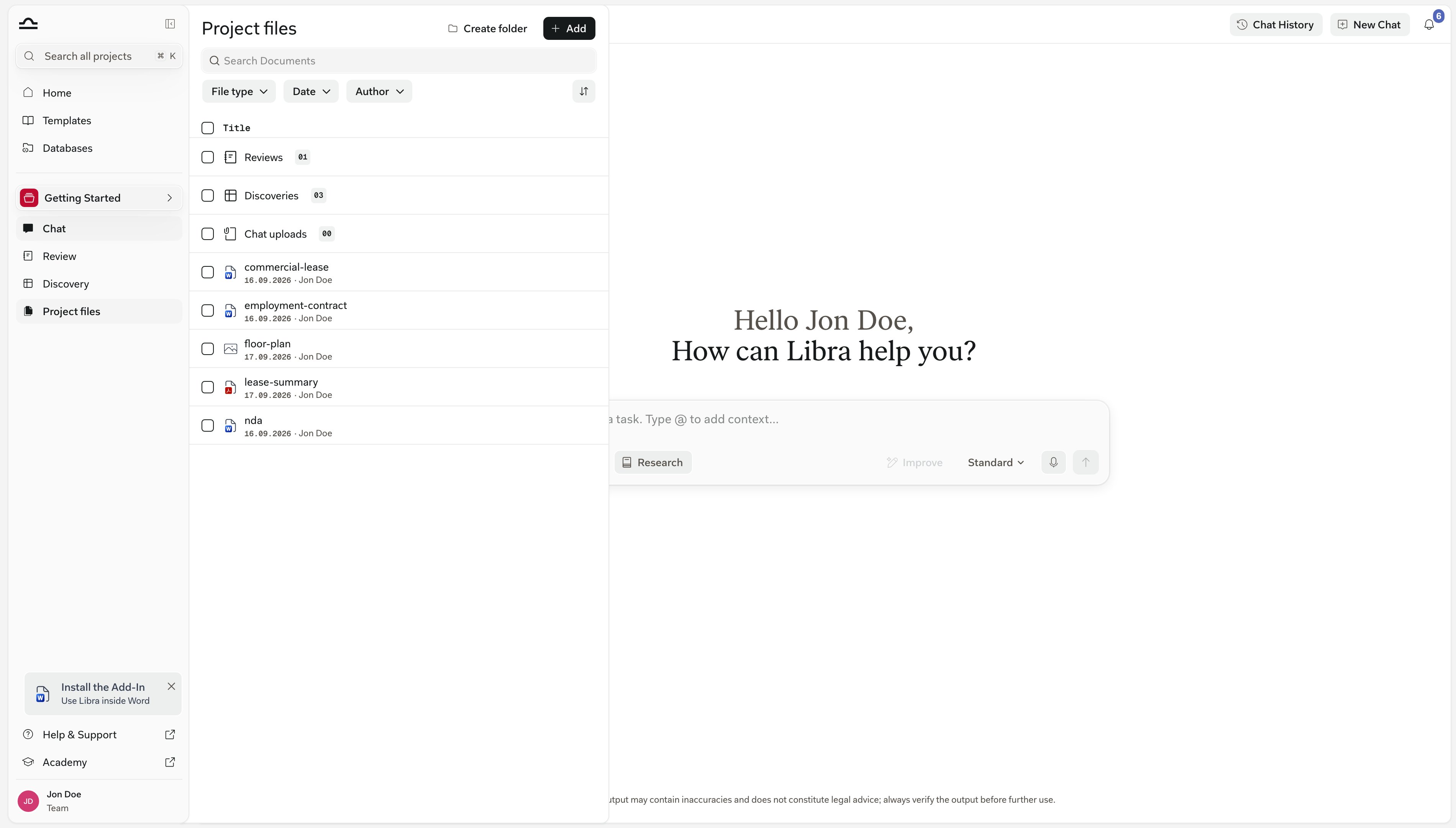
Selecting a batch
Select all takes everything in view, empty folders included, and a search or file-type filter no longer drops those ticks. The bar along the bottom then reports x of y selected and offers what fits the selection. More → Delete on that bar removes what you ticked outright. A Review or a Discovery in the selection is deleted rather than moved back to its home folder, which is what the row ⋯ menu has always done. Add to chat and More hide themselves when the only things ticked are empty folders, since there is nothing in them to send. You create a folder with the Create folder button at the top of the panel. New folders land at the project root and can be dragged anywhere afterwards. Naming matters more than it looks like it does: “Inbound documents” and “Drafts” are clearer than “Folder 1” and “Folder 2” in three months when you’ve forgotten which version is which.Where Libra files things for you
When you start a Review or a Discovery, it is filed in the project’s Reviews or Discoveries folder. Treat those two as landing zones rather than final homes — the item inside can be dragged into any folder you create, and the pattern that makes this feature pull its weight is to move it into the matter folder it describes. A folder called “Schneider employment package” holding Schneider — employment contract.pdf, the Schneider contract Review and Schneider — counterproposal.docx keeps the contract, the analysis and the negotiation drafts side by side. A file you attach to a message in Chat is filed into Chat uploads and becomes a normal project document: you can preview it, move it into a folder of your own, attach it to another chat, and delete it. Attaching a file in Chat therefore adds it to the project, where everyone with access to the project can see it. The exception is view-only access — if you can only view the project, your chat attachment stays with that conversation and is never added to the project’s shared files. Email threads exported from the Outlook add-in land in a folder called E-mails. That one is an ordinary folder — it isn’t protected the way the pinned folders are — but leave it named E-mails at the project root: the add-in files every export into a root-level folder by that name, and renaming or nesting it just makes the next export create a fresh one beside it.Moving files to another project
Move to project on the ⋯ menu re-homes a document, or a whole folder, into a different project. The submenu lists the projects you can edit — archived projects and ones you only have view access to aren’t offered — and New project creates the destination on the spot. Libra asks you to confirm before the move goes through. A folder move takes the entire subtree with it: every subfolder and every document inside. Any Review or Discovery caught in that subtree is filed into the destination project’s Reviews or Discoveries folder rather than travelling inside your subfolder. A document you move on its own arrives at the top level of the destination project. A move is refused while any document in it is still being processed — wait for the upload to finish and try again — and a folder move is refused if the destination project already has a folder of the same name. Either way the item leaves this project, so anyone who can see the destination project can now see what you moved there — check the destination’s access before moving anything sensitive.The pinned Reviews, Discoveries and Chat uploads folders can’t themselves be moved to another project. A document sitting in Chat uploads has its own Move to project — use that. A Review or Discovery doesn’t: drag it into a folder you created and move that folder instead, and it arrives in the destination project’s Reviews or Discoveries folder.
Common folder structures
There’s no single right way to organise. The pinned folders always sort above whatever you create, so the patterns below show only your own folders:By document type
By document type
By matter phase
By matter phase
By party
By party
By topic, with Reviews and Discoveries inline
By topic, with Reviews and Discoveries inline

Drag-and-drop is multi-select aware. Tick the checkboxes of several files — or Shift-click to take a range — then drag in one move. Beats 30 PDFs one at a time.
Tips
Set up the structure on day one
Set up the structure on day one
Decide on the folder structure when the project is created; it’s much easier than reorganising 200 files later.
Don't let the pinned folders accumulate
Don't let the pinned folders accumulate
Reviews, Discoveries and Chat uploads are fine as landing zones. Once you have more than five items in any of them, drag them out into folders of your own, organised by document type or matter phase — you can’t create subfolders inside the pinned folders themselves.
Use folders consistently across projects
Use folders consistently across projects
A consistent structure across projects makes it easier to find things. “Inbound documents” / “Drafts” / “Signed versions” in every M&A project, for example.
Subfolders are your friend
Subfolders are your friend
Don’t be afraid of nested folders. “Inbound documents > Counterparty drafts > v1” is more useful than 50 files in a flat “Inbound documents” folder.
Next steps
File types & previews
Every supported format and what the preview looks like.
Project files
Back to the Project files overview.