


Word files convert to PDF for preview, but the original is preserved; Download always returns what you uploaded, never the converted PDF. Handy for handing back source.
What Libra accepts
A further set of formats uploads and indexes but has no preview of its own:
.msg Outlook messages, .tiff / .tif scans, and a long list of plain-text and source-code extensions (.rst, .ini, .conf, .sql, .py, .js and similar). Their text is searchable and citable; they just don’t open in the viewer.
.svg and .bmp are not accepted. Drop either into an upload and it is skipped as an unsupported file type. Convert to PNG first.Format-specific notes
PDFs
PDFs
The richest preview. Page navigation, zoom and citation jumps — arrive from an answer and the cited passage is highlighted for you — plus the Translate and Anonymize actions in the toolbar where your subscription includes them.
Word documents
Word documents
Word files are converted to PDF on upload, so the preview behaves identically to a PDF — including page controls, zoom and anonymisation. The original is preserved; Download returns the editable file you uploaded.To edit a Word document in place with AI assistance, use the Word Add-in.
PowerPoint and OpenDocument
PowerPoint and OpenDocument
.pptx, .ppt, .ppsx, .pps and .odp decks convert to PDF, as do .odt documents and .ods spreadsheets. Once converted they behave like any other PDF in the viewer, and the original stays available for download.Excel
Excel
.xlsx and .xls workbooks are parsed on the server and rendered as one scrolling HTML document, with each sheet under its own heading. It is a read-only rendering in a sandboxed frame — there are no sheet tabs and the cells are not clickable. Long sheets are truncated for the preview; the full workbook is still indexed.Behind the preview, Libra reads each sheet as a table and finds the header row even under a title line. A citation shows the cited rows as a small table labelled with the sheet and cell range, such as Offene Posten · A4:F7..csv previews in the plain-text pane, and the File type filter in Project files groups it under Excel. For search, answers and citations it is read as a table, like a workbook.Comma, semicolon, tab and pipe separators are all recognised, so a semicolon export from a German accounting system indexes like any other..csv and .xls files uploaded before 23 September 2026 keep their earlier, flat-text indexing until you upload them again.Images
Images
Rendered inline and scaled to fit the pane. There are no zoom or pan controls — zoom is a PDF-viewer feature.Text in images is extracted automatically, so a photographed or scanned page is searchable and citable once processing finishes.
.tiff scans are text-extracted the same way but have no inline preview.Emails (.eml)
Emails (.eml)
The viewer shows the Subject, then From, To, Cc and Date, then the message body. Where the email carries an HTML part, that part is rendered — sanitised, with inline images embedded and any external references stripped. Plain-text-only emails render as text.Attachments are not listed in this preview. Upload the attachments you need as their own files.
.msg files upload and index but do not open in this preview. Emails exported into a project from the Outlook Add-in arrive with a PDF conversion, so they open in the PDF viewer.Text and structured text
Text and structured text
.txt, .md, .log, .csv, .xml and .json render as monospaced plain text, with no syntax colouring and no formatting. Useful for transcripts, exports and logs.For anything you want to analyse rather than read, point a Discovery at the file instead of opening it here.HTML
HTML
.html and .htm files are sanitised on the server — scripts and styles stripped, external resource loads blocked — and rendered in a sandboxed frame. Useful for archived web pages and saved articles.Audio
Audio
Audio uploads are transcribed, and the transcript is what Libra searches and cites. There is no player in the document viewer.
Email, Excel and HTML previews are generated on the server at the moment you open them, and that generation is capped at 10 MB. A larger
.eml, .xlsx or .html file uploads and indexes normally, but the preview itself fails to load. Search, answers and citations still work on it.Working in the viewer
The tab strip and the Download button are there whatever the file is. The page, zoom, Translate and Anonymize controls appear only on the PDF path. Tabs. Every document you open becomes a tab along the top. Click a tab to switch, drag a tab to reorder, and click the × on a tab to close it. Once more than one tab is open, arrows appear for stepping through them. Opening an answer’s sources adds a single Citation list tab at the front of the row — it is re-pointed at whichever answer you came from rather than stacking up one tab per answer.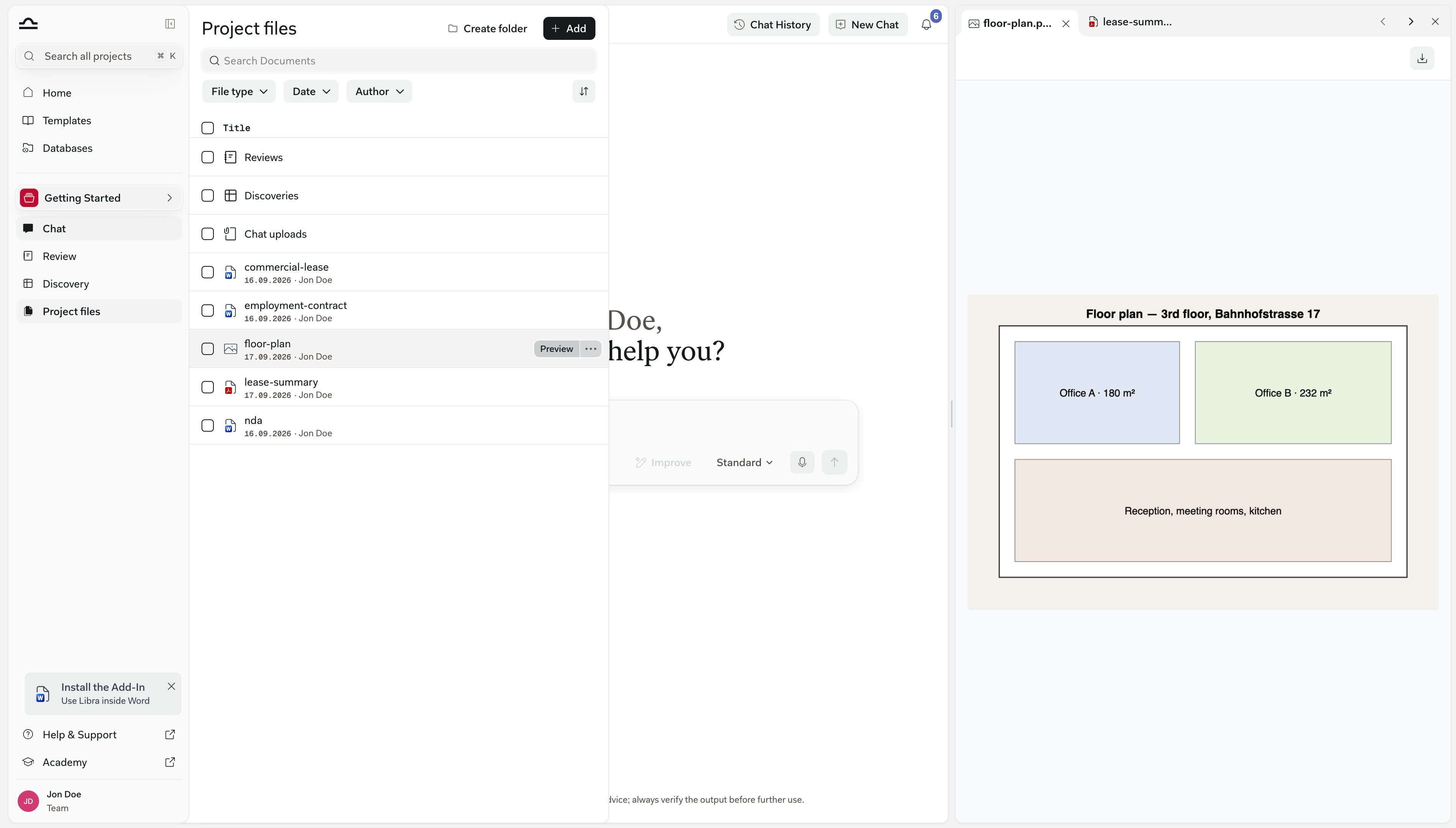
.docx, not as the converted PDF.
Translate. PDFs and .docx files can be translated into another language from the toolbar, up to 30 MB per file and subject to a daily limit. Translations open as their own document.
Anonymize. Where your subscription includes it, PDFs — and therefore anything converted to PDF — can have personal data removed in one click from the toolbar. It is marked Beta, capped at 30 MB per file, and also subject to a daily limit.
Citations across formats
An answer in Chat, a Review result or a Discovery cell can cite any indexed file, and clicking the citation opens that file in the viewer. How precisely it lands depends on the preview:Tips
Upload originals, not converted versions
Upload originals, not converted versions
If you have the original
.docx, upload that rather than a PDF you exported from it. Libra converts it for preview but keeps the original, so the download stays editable.Give scans a moment before you search
Give scans a moment before you search
Scanned PDFs, photographs and
.tiff files are text-extracted in the background. No hits on a fresh upload usually means extraction is still running, not that the text is missing. Wait, then re-run the query.Upload email attachments separately
Upload email attachments separately
The
.eml preview shows the message, not its attachments. If the attachment is the document that matters, upload it as its own file so it is indexed, previewable and citable in its own right.Use Discovery for data files
Use Discovery for data files
A folder of spreadsheets is a Discovery’s natural input. Rather than paging through each workbook in the viewer, extract the fields you need into a Discovery table.
Convert what Libra won't take
Convert what Libra won't take
.svg and .bmp are refused outright, and .tiff gives you indexing without a preview. If you need the file on screen as well as in the index, convert it to PNG or PDF before uploading.
Uploaded a mixed batch and came up short? An unsupported type doesn’t fail the whole upload — the rest goes through and a notice names what was skipped. Worth reading before you assume everything landed.
Next steps
Folder structure
Organise Project files into folders.
Project files
Back to the Project files overview.