

A file you dropped into a conversation last week is already in the project — chat attachments are filed in Chat uploads automatically. You never have to upload the same document twice.
What’s in Project files
Reviews, Discoveries and Chat uploads are system folders. Libra creates them for you and keeps them pinned above your own folders, in that order, whichever sort you’ve chosen. You can’t rename, move or delete them — but the Reviews and Discoveries inside them can be dragged into any folder you create, and Chat uploads takes ordinary documents like any other folder. See Folder structure for organising the panel as it grows.
Adding documents
You need write access to the project to add anything to it.1
Open Project files
Click Project files in the project section of the sidebar.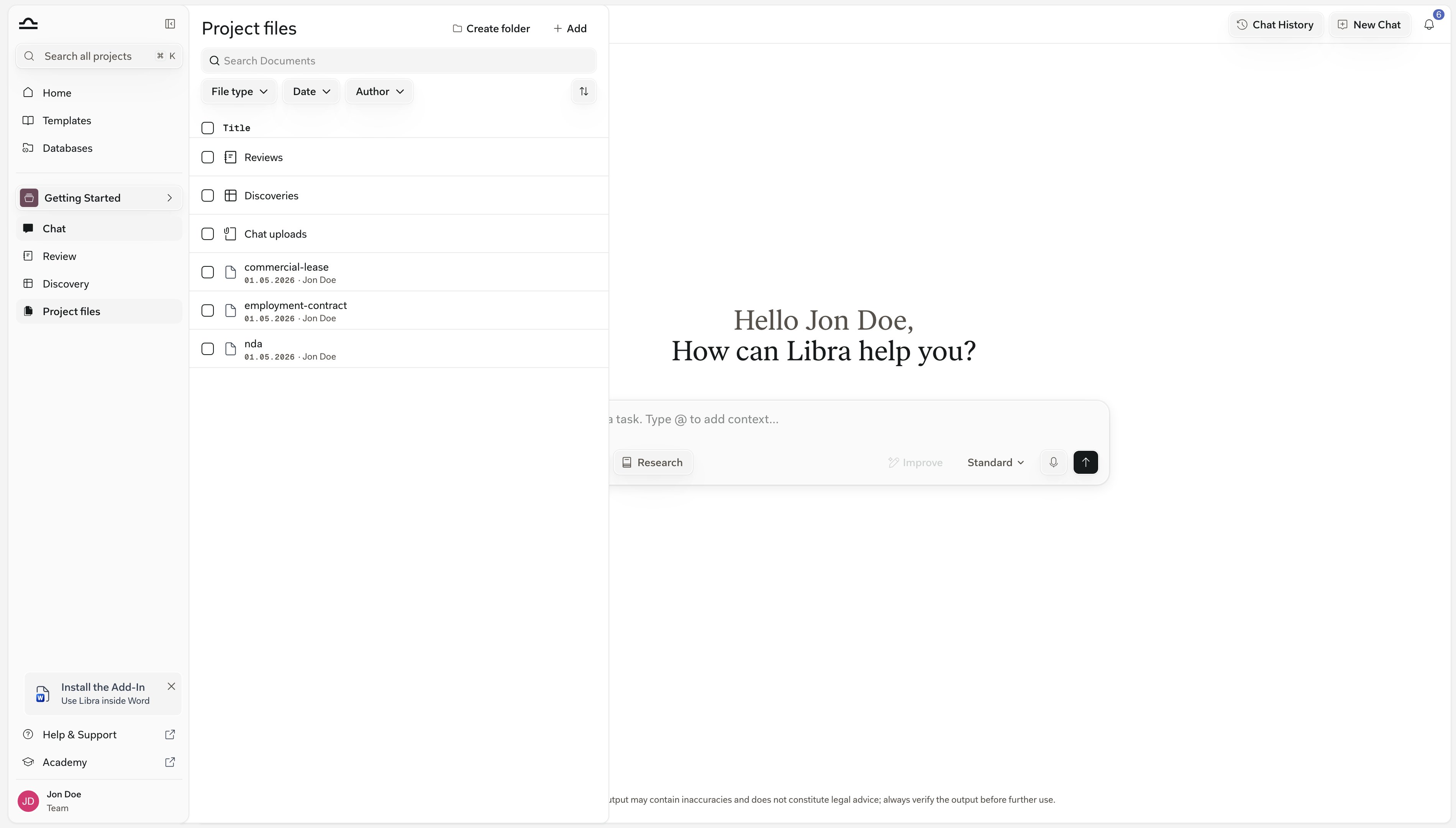
2
Open the Add menu
Add, at the top of the panel, is a menu rather than a single button. Upload Files opens your computer’s file browser for individual files, and Upload Folders uploads a whole folder, subfolders and all.Select files opens Libra’s file picker instead: documents from your other projects and databases, and your connected sources such as SharePoint and Kleos under Integrations.You can also skip the menu entirely and drag files from your desktop straight onto the panel.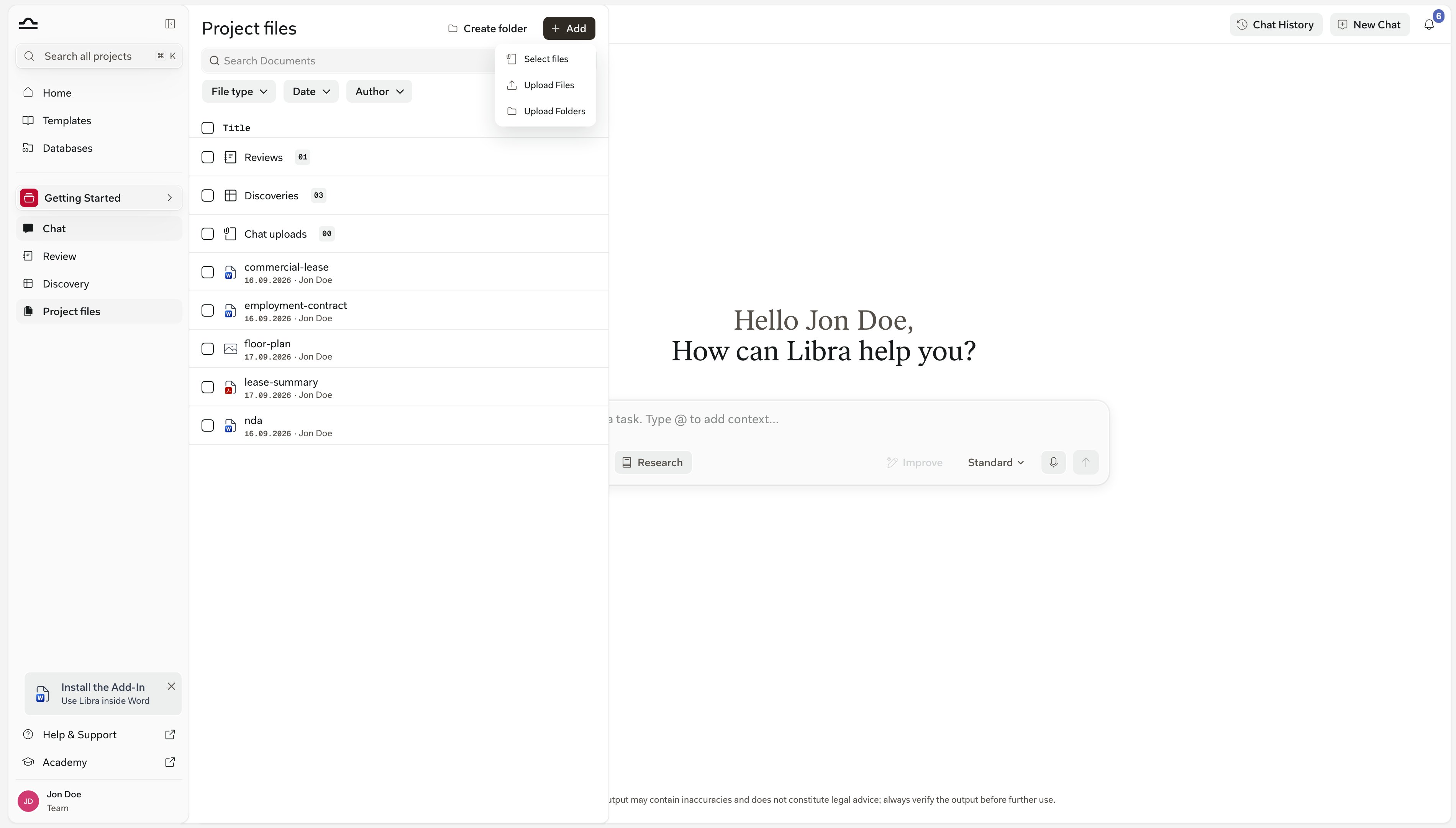
3
Choose where the files land
Everything you add from the toolbar’s Add menu goes to the project root. To put files straight into a folder, hover that folder’s row, open its ⋯ menu and choose Upload Files — or drag the files onto the folder row.
4
Wait for processing
Libra extracts the text, prepares previews, and indexes the document for search. You can keep working while documents process.
Where documents come from
Documents land in the panel from several places:Finding a document in the panel
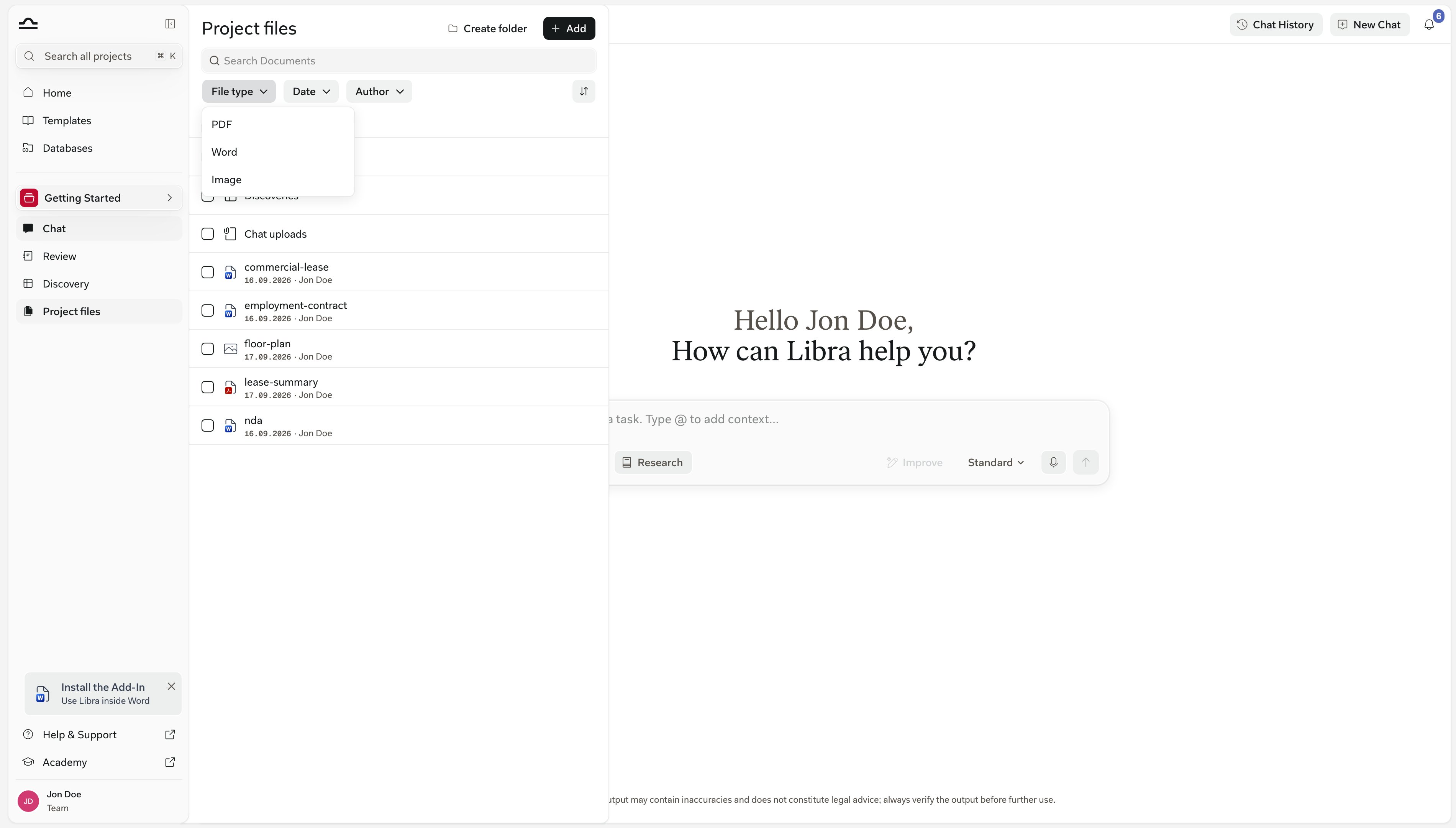
A busy matter fills the panel quickly, so the panel has its own search and filters — separate from Search, which spans every project and, in its Document content mode, searches inside the documents themselves. The Search Documents box at the top of the panel matches names and titles — document names, Review and Discovery titles, and folder names — not the text inside the files. Under it sits a row of filter chips, with the sort control at the right end of the row:
Libra remembers the chips you set, so a filter stays in place when you come back to the panel.
The chips don’t all reach the same things. Date and Author narrow Reviews and Discoveries too. File type applies to documents only, so with a file type selected, Reviews and Discoveries stay listed in the Reviews and Discoveries folders but drop out of any folder you have moved them into.
Using documents
Reference in chat
Reference in chat
Type
@ in any chat input and pick a document from the Documents group of the context picker; it’s now part of the chat’s context. Libra cites the document in answers.Run a Review
Run a Review
From Review, or straight from chat: pick the documents, pick a Playbook, run. See Reviews from chat.
Include in a Discovery
Include in a Discovery
Click Add Documents in any Discovery and pick from the project tree.
Add to an Assistant's knowledge
Add to an Assistant's knowledge
When editing an Assistant, attach project documents to its knowledge base. The Assistant references them when responding.
Preview or download
Preview or download
Hover a document row and click Preview to open it in the document viewer; Download is in the same row’s ⋯ menu. Reviews and Discoveries get an Open button instead. See File types & previews for what each format looks like.
Downloading in bulk
You don’t have to download files one at a time. Tick the checkbox on any items in the panel — documents, Reviews and Discoveries in any mix — and a selection footer appears with the count and a More menu. Choose Download files and Libra packages everything into a single .zip that preserves your folder structure.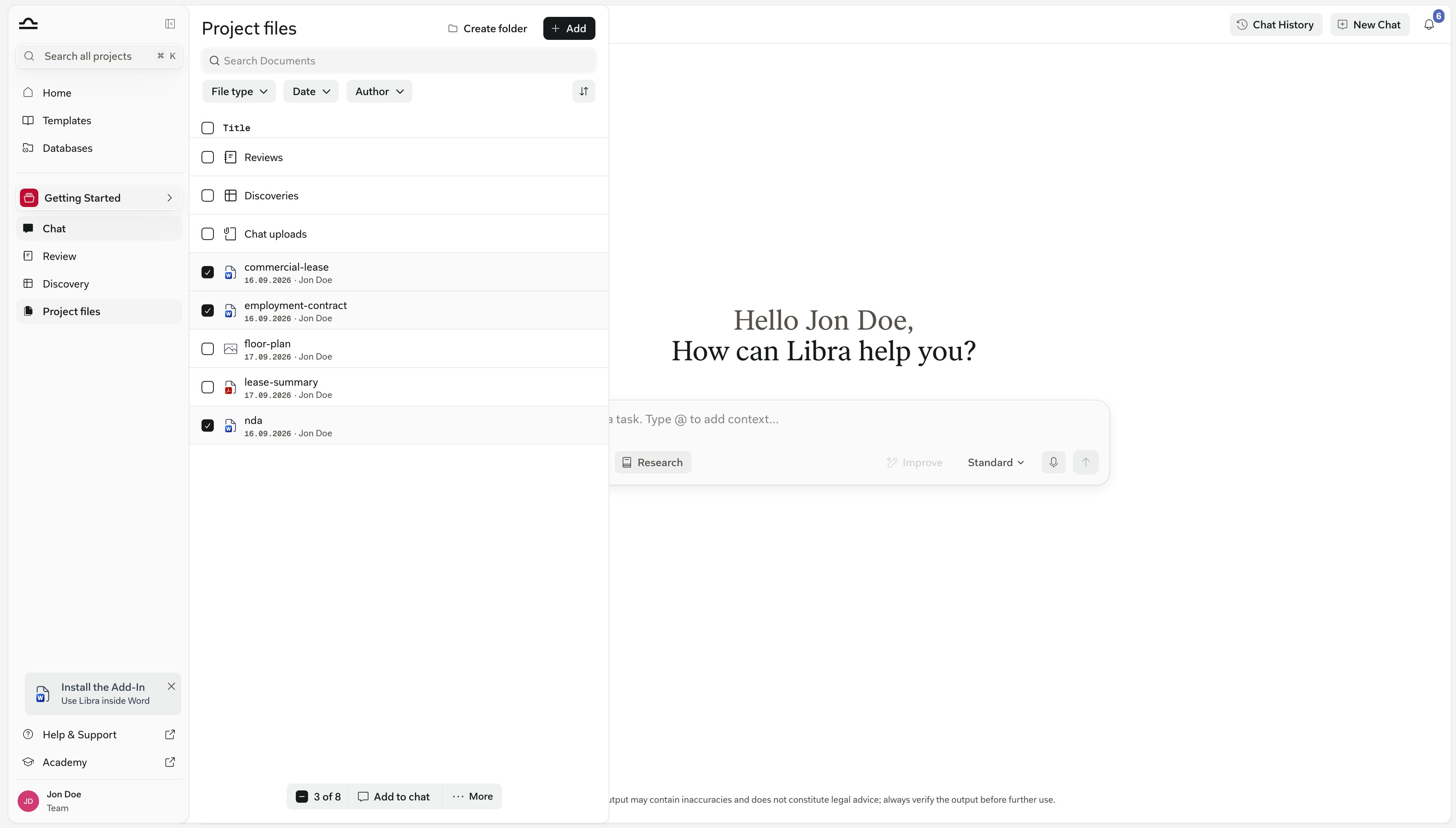
1
Select the items
Tick the checkbox on each document, Review or Discovery you want. The footer at the bottom of the panel tallies your selection.
2
Open More and choose Download files
Libra prepares a
.zip and your browser downloads it. Folders are kept, so the archive mirrors how the panel is organised.A single download covers up to 1,000 items, with a combined cap of 50 Reviews and Discoveries. For larger sets, download in batches.
Sharing documents
Documents follow project sharing by default; anyone with access to the project can see the project’s documents. Access is controlled at the project level, not per file — there is no way to share a single document on its own. To change who can see a project’s documents, share the project. See Sharing & access.Document limits
The per-project limit counts every document stored in the project, whether you uploaded it from the panel or from inside a chat. Reviews and Discoveries are results rather than uploads, so they don’t count toward it — you can keep creating and running them even after a project reaches 1,000 documents. The limit only blocks adding new files: once a project is full, Libra asks you to start a new project before you can upload more.
Split an oversized workbook into smaller ones. Exporting just the sheets you need as
.csv gets round the .xlsx row limit, since a CSV is bound only by its cell count.
Previewing a spreadsheet is capped separately: the viewer won’t render one larger than 10 MB, and it shows at most 5,000 rows per sheet and 20,000 rows across the workbook. The complete file is still stored and still downloads in full.
Tips for keeping a tidy panel
Set up the folder structure early
Set up the folder structure early
The first day of a matter is when folder structure decisions cost the least. Decide on Inbound documents, Drafts, Signed versions, then keep moving files into the right buckets as they arrive — the Reviews, Discoveries and Chat uploads folders are already there.
Move Reviews and Discoveries out of their default folders
Move Reviews and Discoveries out of their default folders
The Reviews and Discoveries folders work for low volume. As soon as you have several of either, drag them into the matter folder they describe, so the contract and its analysis sit side by side.
Empty Chat uploads regularly
Empty Chat uploads regularly
Chat attachments accumulate in Chat uploads without anyone deciding they belong there. Every so often, move the ones worth keeping into a real folder and delete the rest — they count toward the project’s 1,000-document limit either way.
Use clear file names
Use clear file names
Document names show up in Search, and the panel’s own search box matches on them too. “Acme, Employment Contract, Maria Schneider, signed.pdf” is much more useful than “contract_v3.pdf”.
Delete drafts you don't need
Delete drafts you don't need
Old drafts of contracts you’ve since signed don’t need to clutter the panel, but consider archiving the project rather than deleting individual files. Archived projects keep everything.
Next steps
Folder structure
Organise documents, Reviews, and Discoveries into folders.
File types & previews
Every supported format and what the preview looks like.