


Editing a template changes it for everyone it is shared with. Reviews are the exception: a Review stays on the Playbook version it started from, and its header tells you once the Playbook has moved on. When you want a variant, use Duplicate rather than editing.
The four tabs
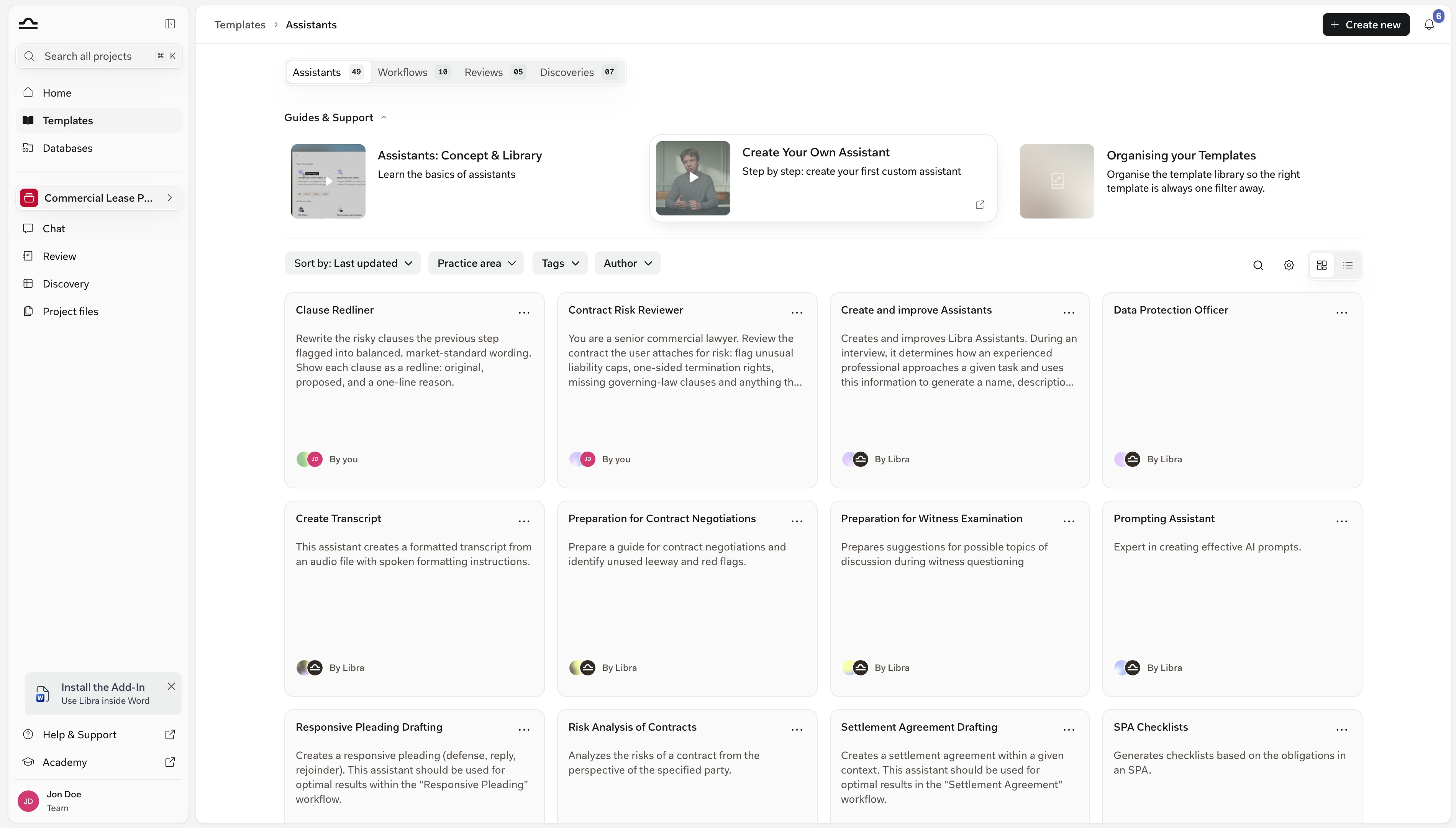
Click Templates in the global section of the sidebar and the library opens on Assistants. A segmented control across the top switches between the four types, each with a count of what it holds, and each tab is its own page — the breadcrumb reads Templates › Assistants — so you can bookmark the one you live in.
Assistants
Custom AI experts pre-loaded with instructions and reference documents: your “M&A specialist”, your “GDPR reviewer”, your “house style writer”.

Workflows
Assistants chained into a fixed sequence of steps, so a recurring multi-step process runs the same way every time.

Reviews
Playbooks — the Topics and positions that define how your firm reviews a particular kind of contract. See Create a Playbook.

Discoveries
The columns and questions you ask across many documents at once: your “Contract data extractor”, your “Lease term checker”.
Workflows, Reviews and Discoveries are Professional-tier features. On the Starter plan those three tabs carry a lock icon and show an upgrade panel instead of the grid; only Assistants is fully available.
What every template card gives you
Whatever the type, the cards behave the same way. A card shows the template’s name and description, its author in the footer — By you, By Libra or the colleague’s name — and, for everything except Assistants, a badge counting what it contains: TOPICS for a Playbook, COLUMNS for a Discovery template, STEPS for a Workflow. Hover the card and the author line gives way to two buttons, View and Run. The ⋯ menu in the top-right corner carries the same two actions plus Favorite, Duplicate and Delete, with Delete shown only on templates you are allowed to manage — which is why Libra’s own templates never offer it. View opens the template’s own page. There the header carries icon buttons for Add to favorites, Duplicate and Share, plus Delete on Assistant, Playbook and Discovery templates you own — a Workflow can only be deleted from its card’s ⋯ menu — and the primary button names the action for that type: Run Assistant, Start Review, Start Discovery, or plain Run for a Workflow. Run takes you straight into the work: an Assistant opens a new chat with that Assistant selected, a Workflow opens a new chat with its steps loaded, a Discovery template opens a new Discovery with its columns in place, and a Playbook opens the file picker so you can choose the documents to review. Because a Review and a Discovery both belong to a project, Run is disabled on those two types until you have selected a project you can edit — the tooltip tells you which is missing. Favorite pins a template to the front of its tab whatever sort you have chosen, and it follows your account rather than the browser you set it in. See Starring & sharing. Share opens the same dialog Libra uses everywhere else. Under General access you choose between Everyone in the team and Only people invited; on top of that you can add named people or groups and give each Can view, Can edit or Full access. Sharing is a team feature — on a single-user account the control is unavailable. Tagging is what keeps all of this findable once the library grows past a screenful. Give every template a practice area and whatever custom tags your firm uses; see Practice areas & tags.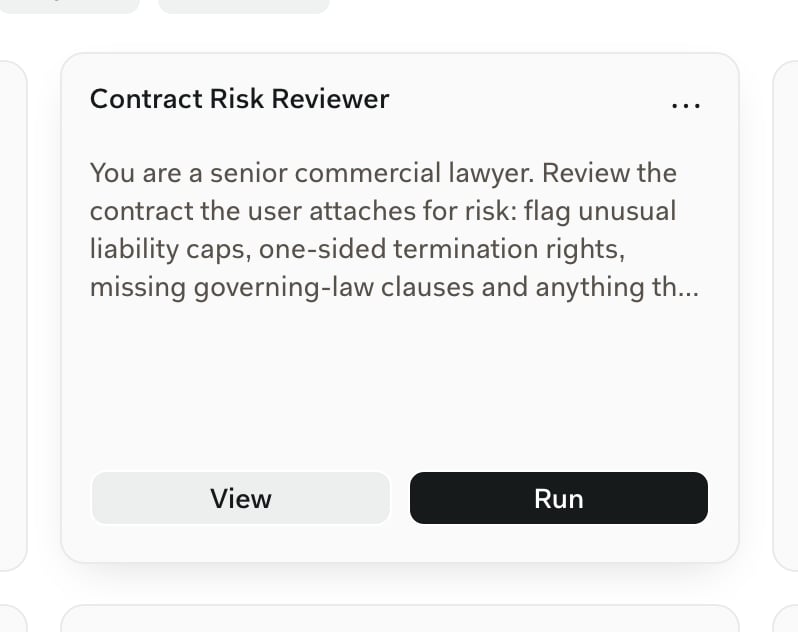
Narrowing the list
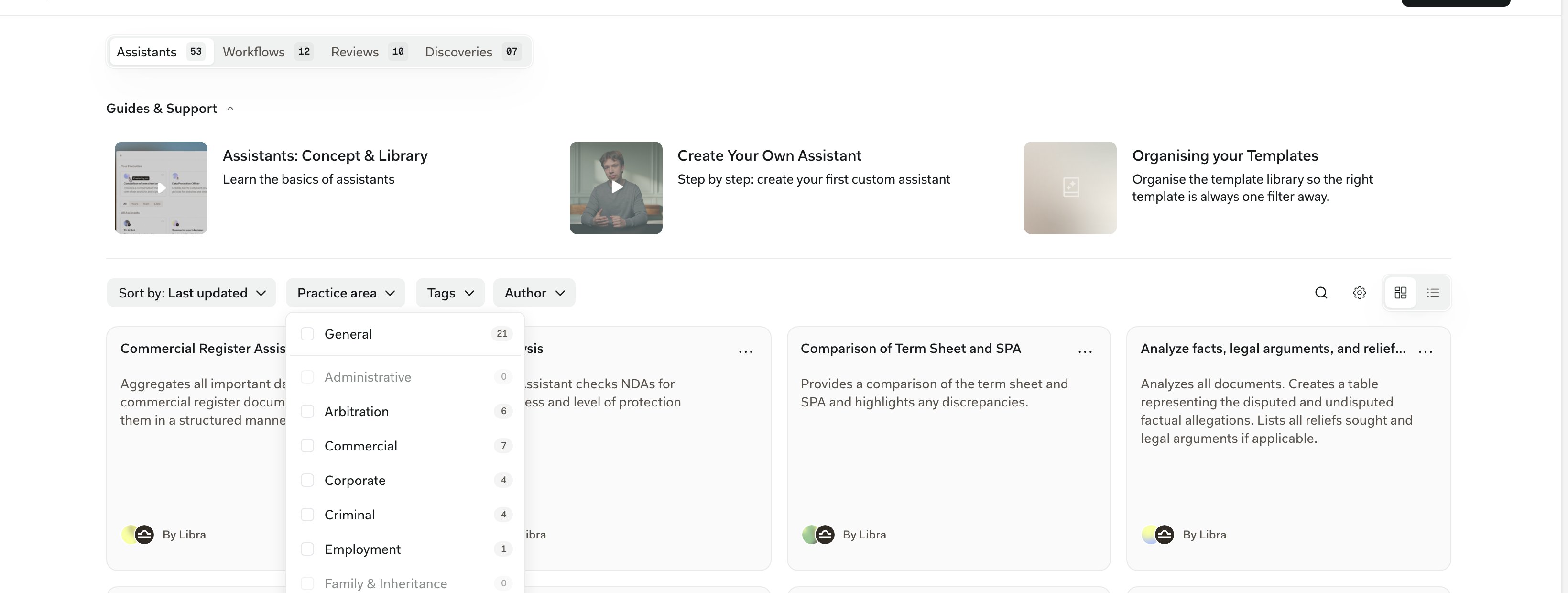
The controls sit in one horizontal bar above the cards, not in a sidebar, and all of them apply to the tab you are on — a search run from Discoveries never turns up an Assistant.- Sort by defaults to Last updated. Favorites stay at the top regardless.
- Practice area and Tags filter on how templates were classified.
- Author filters by owner: Yours, Team or Libra, and you can pick more than one. Team is hidden if you are the only person on your account.
- Clear all filters appears at the end of the row as soon as anything is set.
- On the right, the magnifier opens a Search templates… box that matches on name and description, the gear opens Advanced filters with Jurisdictions and Language, and the last control switches the grid to a list.
Creating a template
Three routes, depending on where you are when the idea strikes.From the Templates page
Click Create new in the top right. The menu lists the types by their plural names — Assistants, Workflows, Reviews, Discoveries — and drops you into a fresh editor for the one you pick. On the Starter plan every item except Assistants is disabled behind an upgrade tooltip.From work you have already done
This is the common path: you built the thing once, it worked, and you want it again next quarter. In a Discovery, click Save as Template in the header row beside Author and Updated. There is no dialog — Libra copies the columns into a new template on the Discoveries tab and confirms with Saved as Template for a few seconds before the button returns. Pressing it again makes a second template, so save once. In a Review, the equivalent is Save as Playbook, and it appears only while the Review is not already based on one. Here there is a dialog: give the new Playbook a name and a description, and Libra builds it from the Review’s Topics. Afterwards the header shows Saved as Playbook for good, because the Review is now attached to that Playbook.From chat
Open the Tools menu in the control row below the message box and choose Create new. Playbook has Libra draft one with you in the conversation and saves it to the Reviews tab when it is done. Review and Discovery start that work in your current project instead. A Review created this way is already built on a Playbook, so there is nothing left to save; a Discovery can be added to the library afterwards with Save as Template. All three need a project you have edit rights on, and none of them is available in a temporary chat or on the Starter plan.
Build the second variant with Duplicate, not by editing. Libra appends (Copy) to the name and the copy belongs to you, so your changes never travel back to the original — which matters most for Libra’s own templates, since those cannot be edited in place at all.
Tips for a tidy library
Favorite sparingly
Favorite sparingly
Favorites are most useful when there are only a few. If everything is pinned to the top, nothing is.
Tag every template you create
Tag every template you create
Practice areas and custom tags are what make the library scalable as it grows. Set them at creation, not later.
Save a template only after you have run the work once
Save a template only after you have run the work once
Don’t save a Review or a Discovery to the library until you have run it and confirmed the result. The template inherits every sloppy column and half-written Topic.
Next steps
Practice areas & tags
Organise templates so they’re findable as the library grows.
Starring & sharing
Make the templates that matter most always one click away.