

Starring a template
Starring is a personal preference. Your stars never change what your colleagues see, and any template can be starred — your own, one a colleague shared with you, or one that ships with Libra. Where the control sits depends on how you’re looking at the library. In the default grid view the star is only an indicator: it appears in a card’s top-right corner once the template is starred, and it fades out the moment you hover so the … button can take its place. The action itself lives in that menu.1
Open the card's … menu
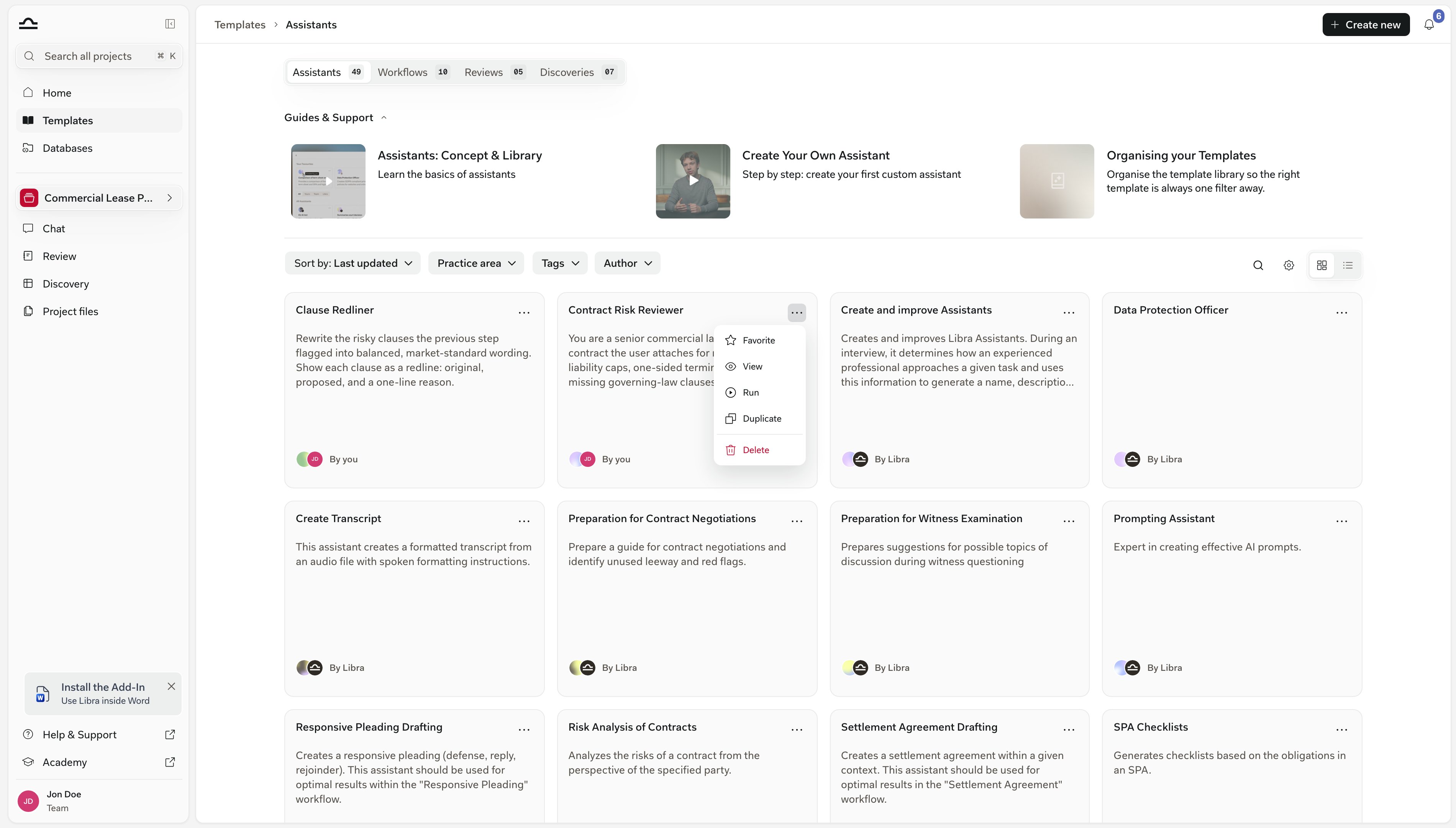
On an unstarred card the … (More options) button sits in the top-right corner; on a starred one it takes the star’s place as you hover. A template shared with you while your team is without collaboration is locked: a padlock sits in that corner instead, and there’s no menu. Open the menu and choose Favorite — or Unfavorite on a template that’s already starred.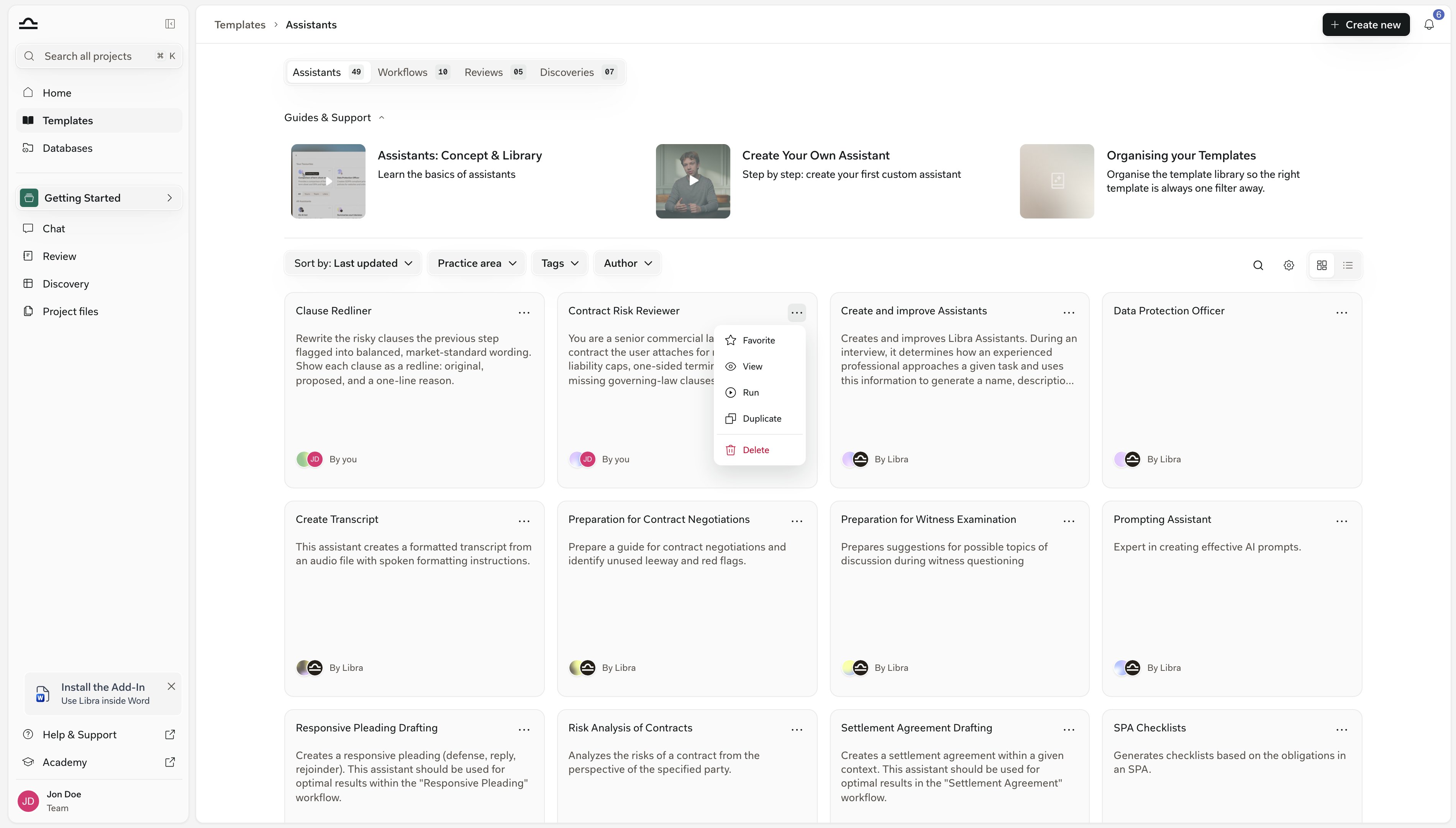
2
Or use the star in list view
Switch the library to list view with the toggle on the right of the filter row. Hovering a row reveals a star next to the template title, labelled Add to favorites or Remove from favorites. One click, no menu.
3
Or star it from the template itself
Open a template and the same star sits in the top-right toolbar next to Duplicate and Share, with the same Add to favorites / Remove from favorites labels.

Stars are stored against your Libra account rather than the browser, so they follow you into any browser you sign in to. The Word and Outlook add-ins are a separate list: their assistant picker has its own Pin to top control, saved only on that installation.
Stars vs. tags
Stars and tags do different jobs. Use both.Sharing a template
Sharing a template means being able to change it, so Share appears only on templates you own or hold Edit or Full Access on — open one that was shared with you as View only and there is no Share control at all. Past that, it depends on your team. If your team doesn’t currently have collaboration — you’re on a trial, on a plan without it, or the plan was downgraded — Share becomes a padlock whose tooltip offers Enable team features on a trial and Upgrade to Team otherwise. And if collaboration is already part of your plan but you’re the only person on your team, Share is hidden altogether: there’s nobody to add. When it is available, Share opens a dialog with two halves that work independently: a list of named people and groups, and a single team-wide setting.Adding people and groups
Type into Add email, name or group name and Libra suggests matching team members and user groups; pick as many as you want and they collect as chips in the field. Set the permission for that batch in the dropdown beside it, then press Add. The dialog spells out the distinction itself: Editors can make changes and manage sharing. Viewers have read-only access.
You can only hand out a permission you hold yourself, so an editor can add viewers and editors but not grant Full Access.
Team-wide access
Below the invite field, General access covers everyone in your team in one setting. Only people invited is the default and keeps the template to the list you’ve built by hand. Switch it to Everyone in the team and a permission dropdown appears next to it, so team-wide access can be View only, Edit or Full Access in the same way an individual’s can.Reviewing who has access
Who has access lists the owner, then every person and group you’ve added, each with its own permission dropdown and a Remove action. There is no separate save step — each change is applied as you make it, and the people you added see the template in their library on their next refresh.If you have the admin role, template editors show an extra ADMIN ONLY block. Alongside Make public, it carries Assign to User: enter a colleague’s User Email and Libra creates a copy of the template that they own and can edit independently, optionally shared with their team as well. It’s available on Assistant, Discovery and Playbook templates. For Assistants, knowledge files are not copied across.
Duplicating instead of editing
To build a variant of someone else’s template without touching theirs, use Duplicate — the icon between the star and Share in the template’s top-right toolbar, or the Duplicate entry in the card’s … menu. For an Assistant, Discovery or Playbook template, Libra makes the copy straight away and names it after the original with (Copy) appended. A Workflow asks first: a Duplicate Workflow dialog opens with that same name filled in, and the copy is created when you confirm with Create Workflow. Either way the copy is yours and private — not shared with the team, not public — until you share it yourself.Tips for sharing well
Invite the people who need it before you open it to the team
Invite the people who need it before you open it to the team
Everyone in the team is hard to walk back once colleagues start relying on a template. Add the two or three people who actually need it, let it prove itself, and switch General access afterwards.
Document the template in its description
Document the template in its description
The description is what colleagues see before they run a template. A one-paragraph “what this is for and when to use it” saves a lot of confusion downstream.
Keep edit rights tight once the template is stable
Keep edit rights tight once the template is stable
A template that’s been used dozens of times shouldn’t be edited casually. Share it as View only and encourage duplicates for variants.
Next steps
Practice areas & tags
Make sure templates can be found before you decide who shares them.
Sharing & access
The full sharing model across projects, templates, and Project files.