

Before you start
Sharing is part of the Team plan. Without it the Share action is locked rather than hidden. On a project, a chat or a Playbook it renders as a padlock with an upgrade tooltip and never opens. On a Database the dialog does open, and an Upgrade prompt replaces the controls. Teams on a trial may have team features switched on as a preview. See Subscription for what the plan covers.
When someone reaches a resource by two routes at once — directly and through a group — the highest permission wins. Adding a View only share won’t pull them down from group-granted Edit. To restrict them, take them out of the group.
What you can share
Each row below is where Share lives for that resource type, and what travels with it.
For the four template types, Starring & sharing templates covers the library side of this in more detail.
The library’s Access column now reads exactly like the project list on Home: Just me, your team’s name, a single colleague’s name, or overlapping avatars with a +N once the group gets large.
Who can share what
The owner of a resource can always share it. For everyone else, the right to share comes from the permission you hold on that particular resource:- Full Access — share with anyone at any level, and change or revoke any share on the resource.
- Edit — share further, but only up to Edit. You can’t hand out Full Access, and you can’t touch someone who already holds it.
- View only — no sharing at all.
Your team role (Owner, Admin, Member) doesn’t grant rights on an individual resource — that’s decided by the resource’s own permissions.It does affect the picker, though: team admins can share with any user group in the firm, while everyone else only sees the groups they belong to.
Three ways to grant access
Access can go to named people, to a user group, or to your whole firm at once.Individual people
Individual people
Pick specific colleagues by name or email. Useful for one-off collaboration.
User groups
User groups
Share with a named group (“Corporate Law”, “Berlin Office”, “Associates”). Every member gets access, and anyone who joins the group later picks it up automatically. See Team management for creating groups.
Everyone at once
Everyone at once
Open General access. The default is Only people invited; the alternative opens the resource to your whole firm without naming anyone.On most resources that option reads Everyone in the team. On a chat it reads Everyone in the project, because a chat can never reach further than the project it lives in.Good for templates the firm has standardised on.
Permission levels
Three levels, and each one contains everything the level below it allows.
The sharing controls word the same three levels slightly differently: in the dropdown when you add someone, and beside each name in Who has access, they read Can view, Can edit and Full access.
Sharing, step by step
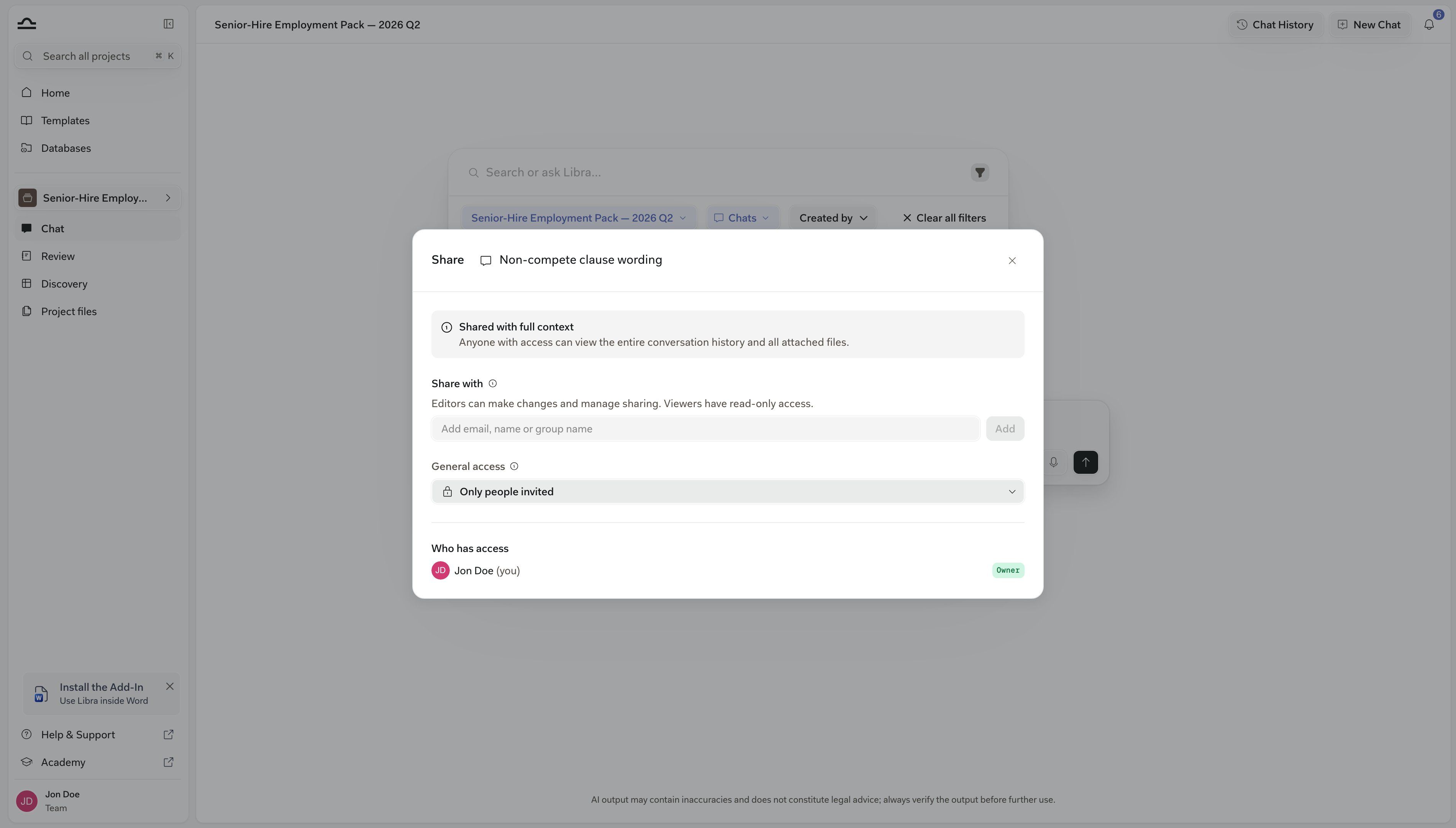
The dialog is the same for every resource type, so this flow works wherever you opened it from.1
Open the Share dialog
2
Add the people and groups
Type a name, email, or group name into Share with. Matches appear as you type, and each one you pick becomes a chip in the field — the list stays open, so you can queue several recipients in a row.
3
Pick the permission and click Add
Choose Can view, Can edit, or Full access from the dropdown beside the field, then click Add. You can only offer levels at or below your own, so an editor’s dropdown stops at Can edit.There’s no separate save step: everyone in the field is shared the moment you click Add.
4
Set General access (optional)
Leave it on Only people invited to keep the resource to the named list, or switch it to Everyone in the team (Everyone in the project on a chat) to open it up.A team-wide share appears in the list below as Everyone at your firm’s name.
5
Check Who has access
Who has access is the full picture: the owner, each named person, each group, and the team-wide share if you set one.A group row shows how many people it covers and expands to list them. To change someone, open the dropdown on their row and pick a different level.
When the recipient doesn’t have the project yet
Chats are the one case where sharing needs a second decision. If you add someone who can’t reach the chat’s project, Libra flags them: “This user needs project access first”. If you can manage that project’s sharing, Libra offers to fix both at once — confirm Grant project access and share and they get the project and the chat together. If you can’t, Libra asks you to contact the project owner or an editor instead. A chat that isn’t in a project can’t be shared at all. The dialog says so, and adding the chat to a project unlocks it.Special rules
A few resource types have extra rules worth knowing.Workflows need their Assistants
Workflows need their Assistants
A Workflow that calls three Assistants can only be shared with someone who can reach all three. If one is missing, Libra refuses the share and names the Assistants that are blocking it, so you can share those first.Assistants that ship with Libra never block a share.It works in reverse too: revoking a share on an Assistant that shared Workflows depend on prompts you to confirm, because those Workflows will lose it.
Templates travel with the user
Templates travel with the user
Playbooks, Discovery templates, Assistants and Workflows aren’t project-scoped. Once you share one with a colleague, it appears in their Templates library in every project they work in.
Project files follow the project
Project files follow the project
Files in a project are visible to everyone with access to that project. Individual files aren’t shared one by one — to change who can see them, change who the project is shared with.
Databases are independent of projects
Databases are independent of projects
A Database isn’t inside a project, so project access grants nothing on it and vice versa.It carries its own list. When a database is shared with you, your role on it — Viewer, Editor, or Admin — shows in the database browser and decides whether you can add or remove documents. See Databases.
Removing access
Access comes off in the same dialog it went on, and takes effect the moment you confirm.1
Open the Share dialog
Click Share on the resource and find the person, group, or team-wide share under Who has access.
2
Open the dropdown on their row
The same control you’d use to change their permission also holds Remove, described as Remove access.
3
Confirm
Access is revoked immediately. If the change would strip or reduce your own access — because you’re removing a group you’re in, for instance — Libra asks you to confirm first.

Edit quietly carries the right to re-share. If you want a colleague to use a Playbook but not redistribute it, give them View only — it’s the only level that can’t pass the resource on.
Tips for sane sharing
Default to user groups, not individuals
Default to user groups, not individuals
Group-based sharing scales as the firm grows. Individual shares mean manual maintenance every time someone joins or leaves.
Use General access for things the whole firm uses
Use General access for things the whole firm uses
Standard NDA Playbooks, standard policies, the firm’s house-style Assistant: good candidates for Everyone in the team. Keep invitation-only for sensitive matters.
Reserve Full Access for co-owners
Reserve Full Access for co-owners
Full Access lets someone delete the resource and rewrite its whole access list. Grant it to people you’d genuinely call co-owners — a fellow practice-group lead, the partner you co-counsel with — not casually.
Next steps
Team management
Create user groups and manage roles.
Projects
The most common thing you’ll share.