

A bought license does nothing until it is assigned and activated. Libra never assigns Wolters Kluwer Online licenses automatically.
In-app checkout is available to teams based in Germany. Teams in Austria, Switzerland and other countries don’t see the Wolters Kluwer Online modules on the Subscription tab.
The seven Premium modules
Libra sells seven Wolters Kluwer Online Premium modules. Each one is licensed per person, and each includes Wolters Kluwer’s full collection of statutes and case law.
The module you assign decides what that person can search in Libra and read on the Wolters Kluwer Online platform.
1. Buy licenses
Only team Owners and Admins can buy. Everyone else sees Contact your team manager to update your subscription.1
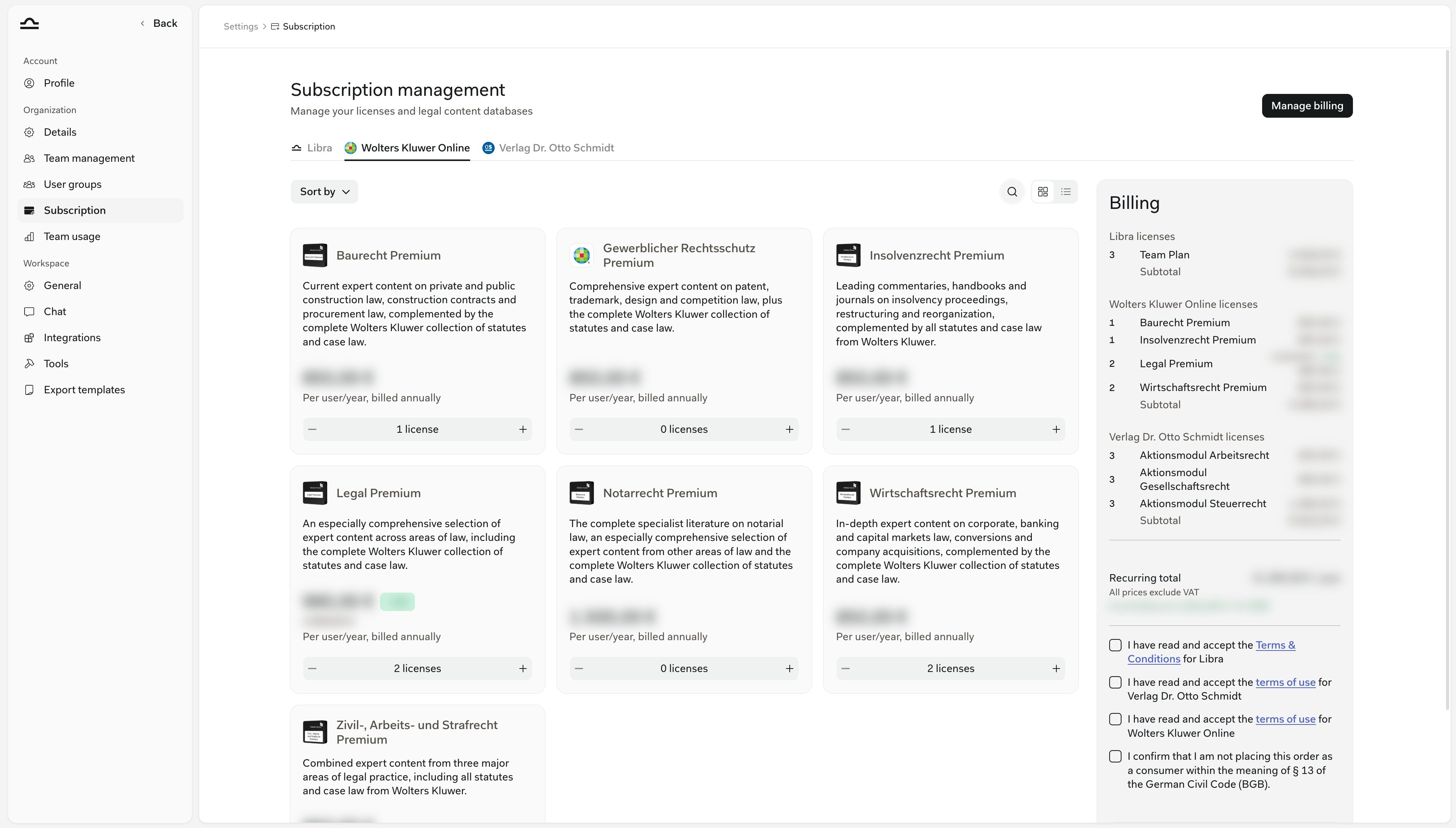
Open the Wolters Kluwer Online tab
2
Set the number of licenses per module
Use the + and − stepper on each module card. The search, Sort by and list view at the top help you compare modules.
3
Check the Billing summary and accept the terms
The Billing summary on the right lists your Libra licenses and your Wolters Kluwer Online licenses separately, with the recurring total. All prices exclude VAT.Tick the checkboxes below it:
- the Terms & Conditions for Libra, asked once per team
- the terms of use for Wolters Kluwer Online, asked again whenever Wolters Kluwer publishes a new version
- the confirmation that you are not ordering as a consumer within the meaning of § 13 BGB
4
Pay
How you pay depends on where your team stands:
- No subscription yet, or on a trial: click Continue to payment to open the Stripe checkout. Every order needs at least one Libra license.
- Existing subscription: click Update licenses and confirm in the Confirm Subscription Update dialog. The modules are charged right away to the payment method on file, prorated for the current billing period.
5
Go on to assign the licenses
A Purchase complete popup confirms the order, and billing sends a confirmation by email. Click Assign modules to team to go straight to step 2.
2. Assign licenses
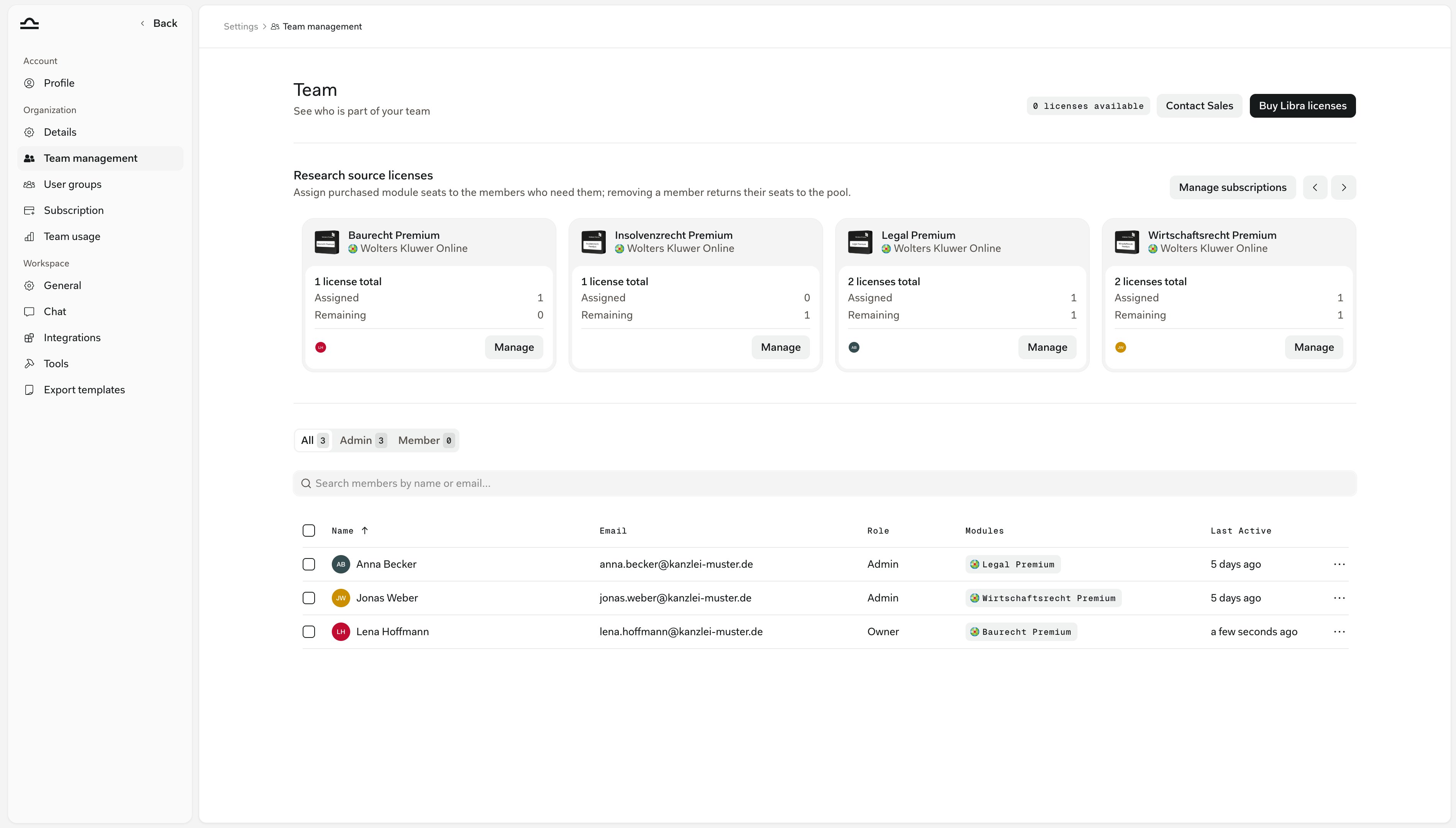
Assign each license to the person who will use it. You do this on the Team Members tab, where Research source licenses shows a card per module with its total, assigned and remaining licenses.1
Open the module's card
2
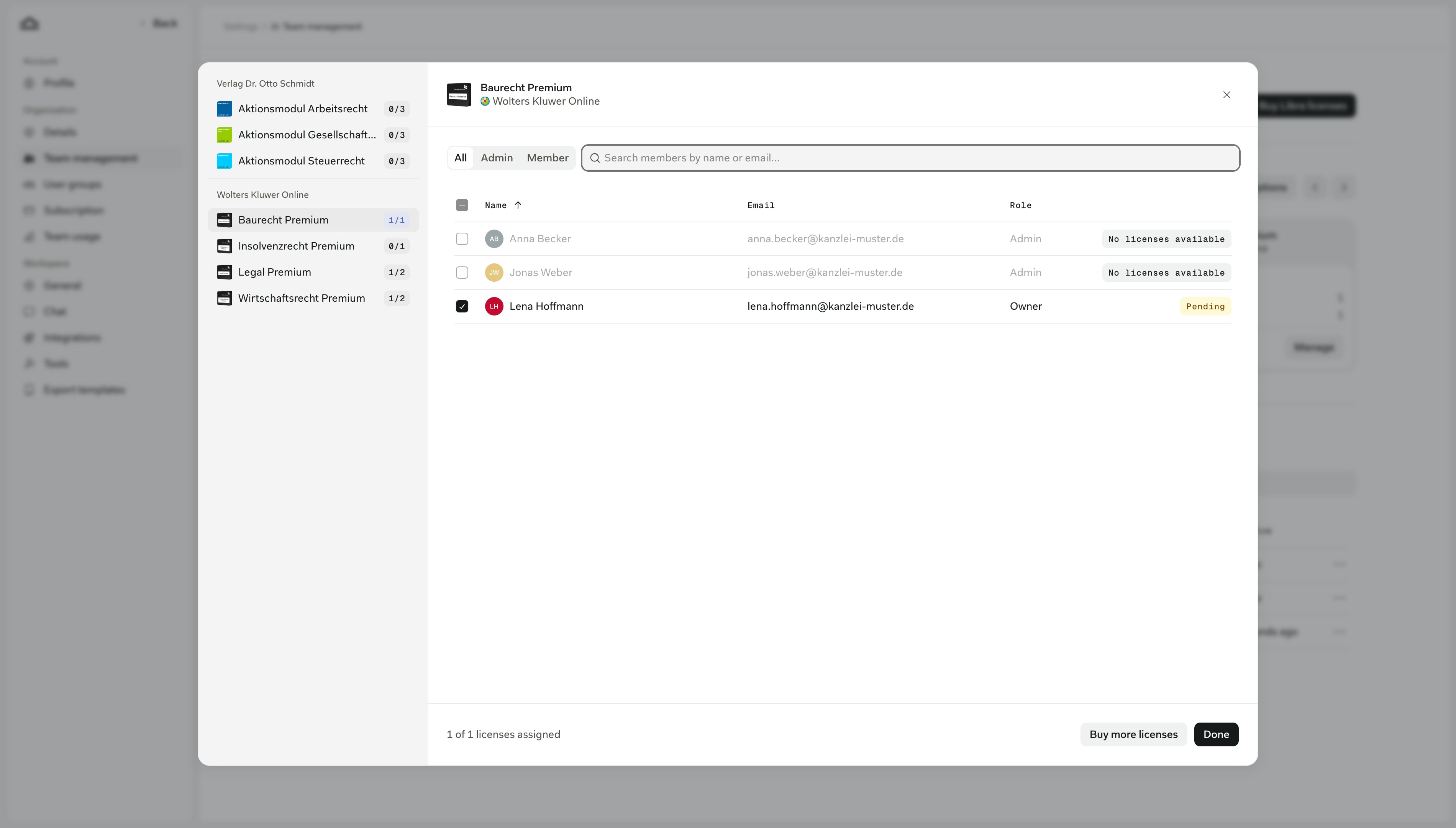
Tick the members
3
Click Done
The assignment applies immediately. Each member gets a notification in Libra telling them which module they now have, and the module appears in their row under Modules.
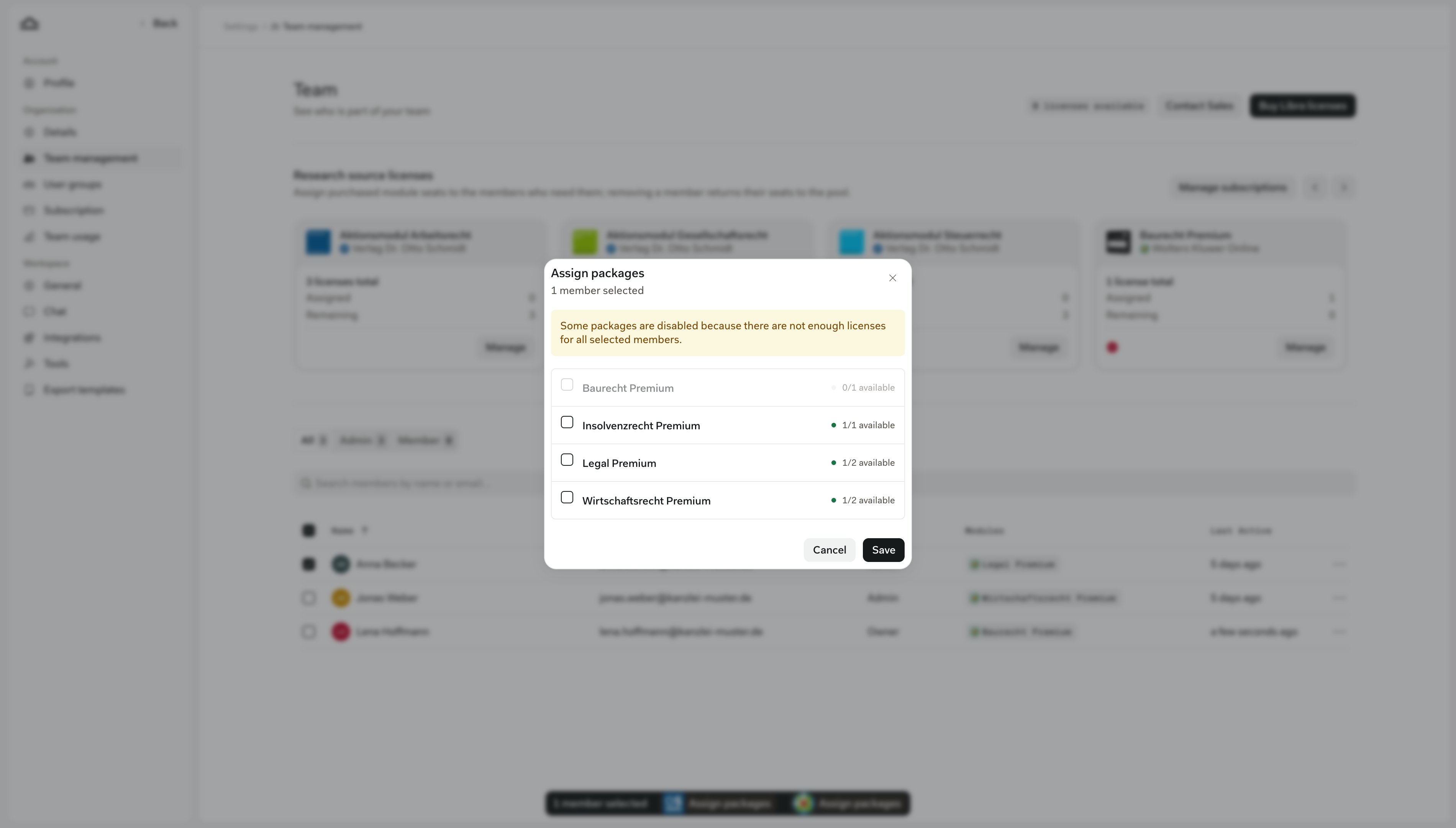
Licenses bought outside Libra
Check for grey module tags next to members’ names before you buy. A grey tag means the member already holds that module through their own connected Wolters Kluwer account, bought from the Wolters Kluwer shop or sales: The license is managed outside Libra. Buying them a second license in Libra would pay twice for the same person. Only Owners and Admins see these tags.Changing an assignment
You can remove a license or give it to someone else until Libra starts activating it at Wolters Kluwer. That happens as soon as the member connects their Wolters Kluwer account. After that, the license shows Seat occupied and is locked. To move it, use Contact Support on the license.Activation status
Each assigned license shows a status badge next to the member in the module’s Manage dialog, so you can see who still has to act.3. Activate your license
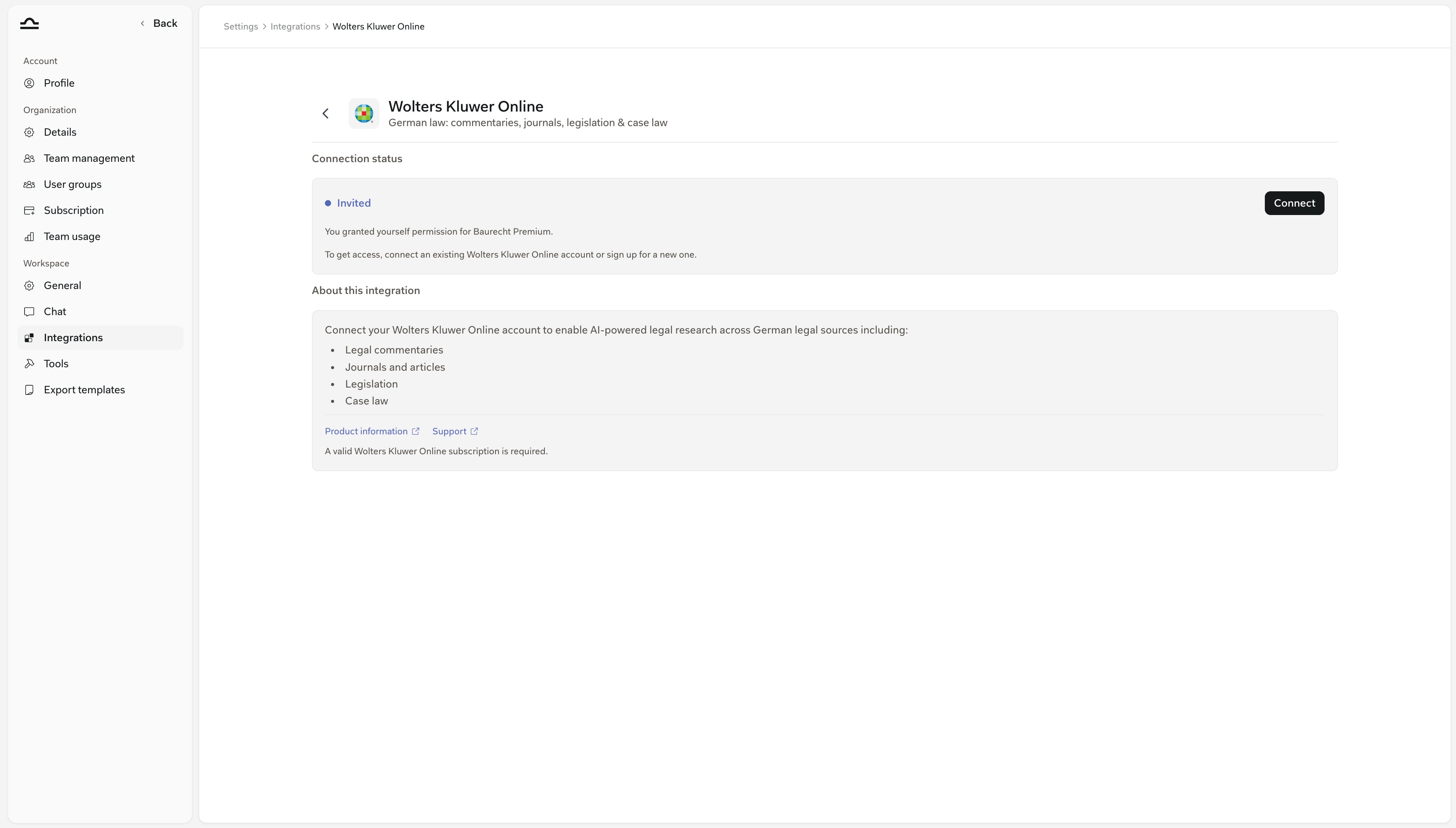
To use an assigned module, connect a Wolters Kluwer Online account: an existing one, or a new one you create while connecting. Libra tells you when a module is assigned with a popup, You’ve been assigned new research modules, and a message in your notifications.1
Open the Wolters Kluwer Online integration
2
Sign in at Wolters Kluwer
Click Connect. A Wolters Kluwer sign-in window opens. Sign in with your Wolters Kluwer Online account, or register a new one there.The window belongs to Wolters Kluwer. Libra never sees your password.
3
Wait for the license to become active
Libra activates your license at Wolters Kluwer automatically. This usually takes a moment.
4
Turn on Wolters Kluwer Online in chat
In any chat, open Research, choose Germany and switch on Wolters Kluwer Online. There’s one switch for the source, with no module picker. See Research mode.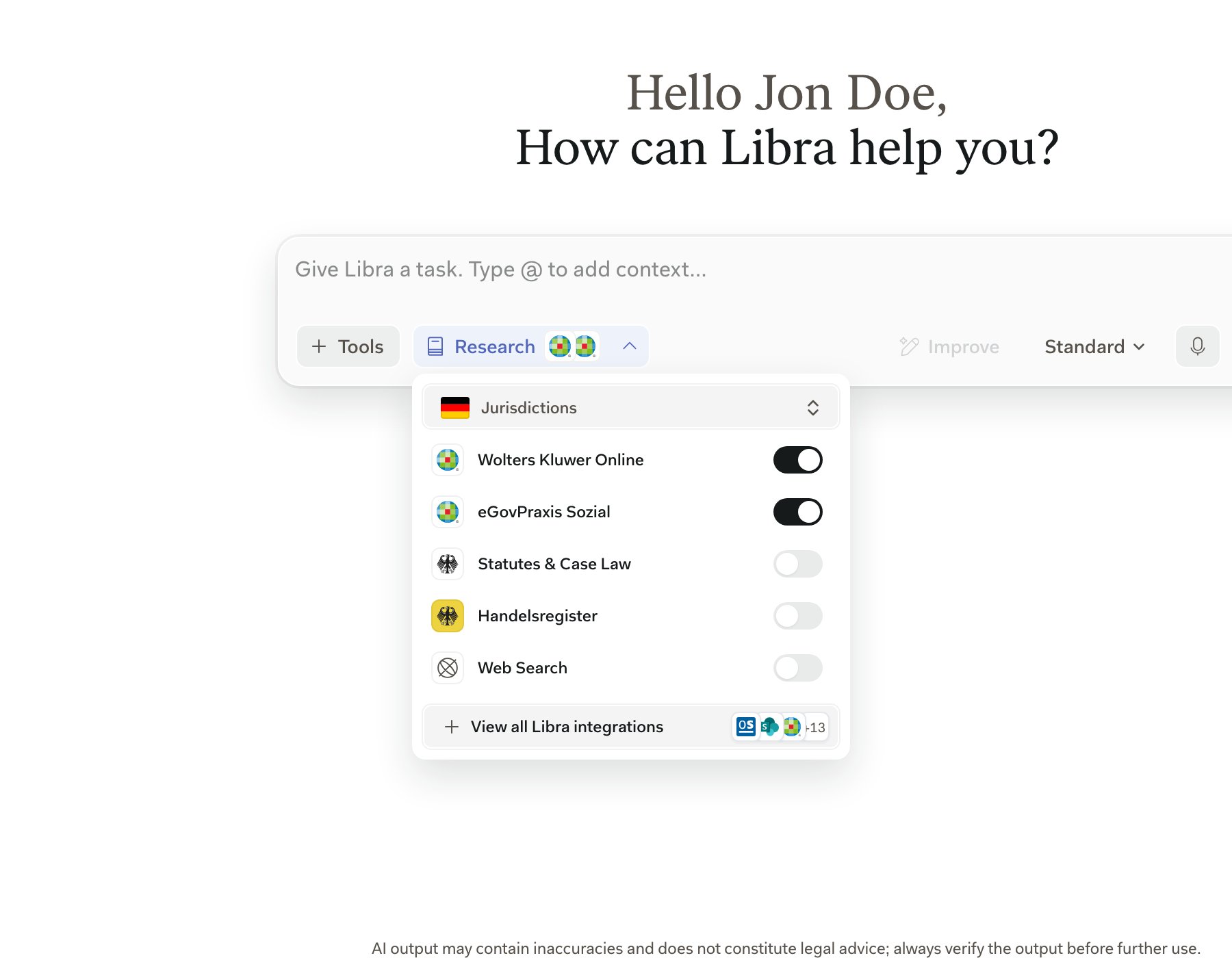
Other ways to get Wolters Kluwer content
Buying in Libra is one of three routes. They differ in who manages the license.
Libra can’t change what an account bought from Wolters Kluwer includes. Standard Wolters Kluwer subscriptions don’t unlock content in Libra; you need a Premium module.
Troubleshooting
Most problems come from the Wolters Kluwer account or the sign-in window rather than from the license itself.Answers cite case law but no commentaries or journals
Answers cite case law but no commentaries or journals
Check that your Wolters Kluwer Online account is connected and that it’s the right one, not an old trial or a colleague’s account. To compare, sign in at research.wolterskluwer-online.de with the same credentials and check which modules you see there.
A newly assigned module doesn't show up
A newly assigned module doesn't show up
Disconnect and reconnect Wolters Kluwer Online under Settings → Integrations. Libra then fetches your modules again.
The sign-in window shows Page Expired
The sign-in window shows Page Expired
An old Wolters Kluwer session in your browser causes this. Close the window and try again quickly, use a private window, or clear your browser’s cookies for Wolters Kluwer.
The sign-in window doesn't open
The sign-in window doesn't open
Allow popups for
app.libratech.ai in your browser.Forgot password sends no email
Forgot password sends no email
That page belongs to Wolters Kluwer. Contact Wolters Kluwer customer service.
Libra says No content found in your enabled sources
Libra says No content found in your enabled sources
The search ran, but your module doesn’t cover that material. It isn’t a connection error.
A built-in assistant doesn't use Wolters Kluwer Online
A built-in assistant doesn't use Wolters Kluwer Online
Duplicate the assistant, then turn on Wolters Kluwer Online under Resources → Research sources. This needs a connected account. See Custom assistants.
Your connection has expired
Your connection has expired
For security, the connection expires from time to time. Click Reconnect under Settings → Integrations → Wolters Kluwer Online.
Next steps
Wolters Kluwer Online
What the source covers and how to ask good questions.
Subscription & Billing
Libra plans, billing and changing a live subscription.