

Link a SharePoint folder
Linking a folder is a one-time job, but it depends on a Microsoft 365 setup being in place first.1
Check the one-time setup
Open Settings → Integrations → SharePoint. Setup required means a Microsoft 365 organization administrator still has to grant Libra access, after which a Libra team administrator clicks Enable for my Team. Then connect your own Microsoft account from the same panel. The full sequence is on the SharePoint integration page.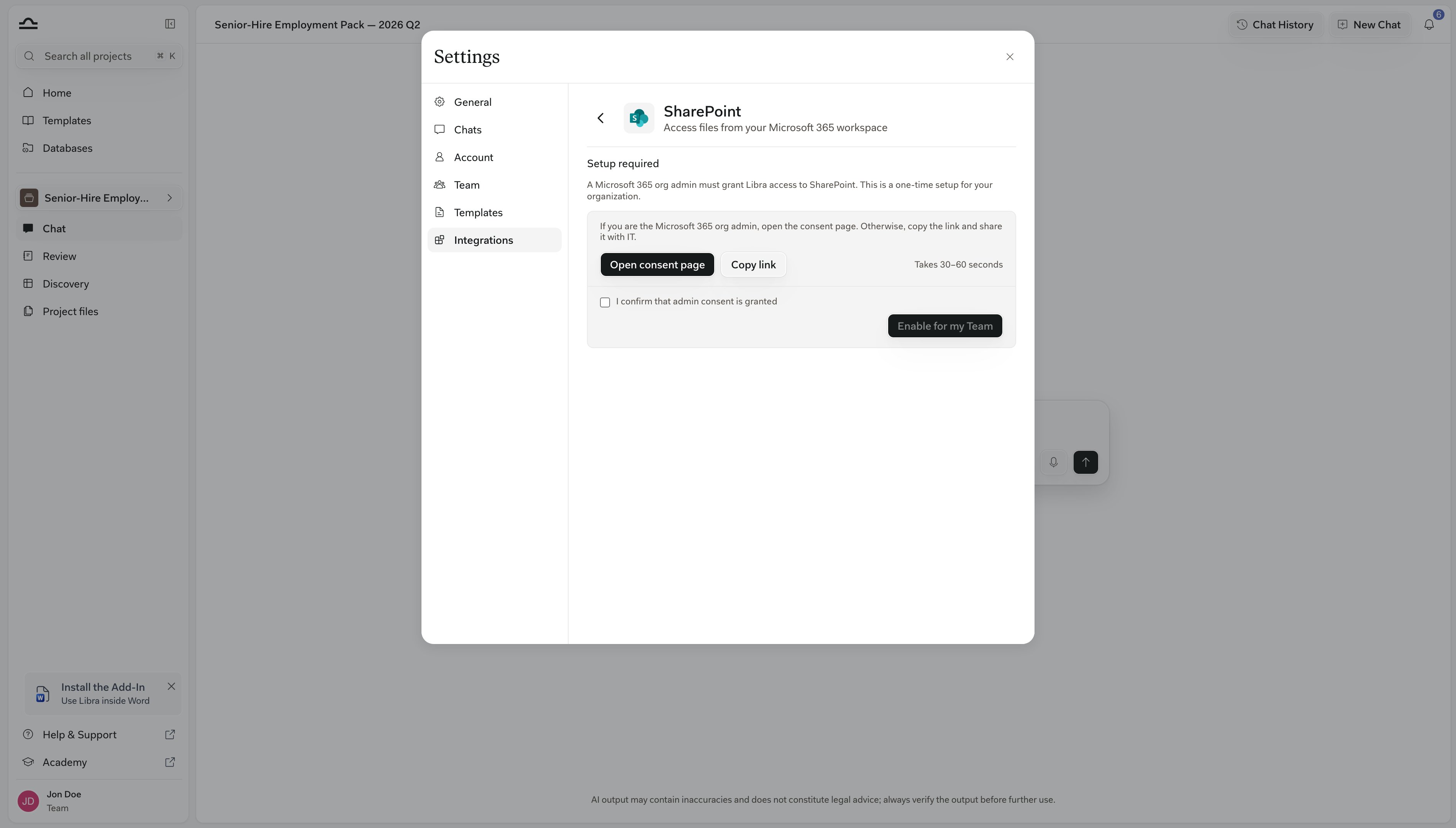
2
Databases → New database → Add Sharepoint folder
The New SharePoint database dialog opens.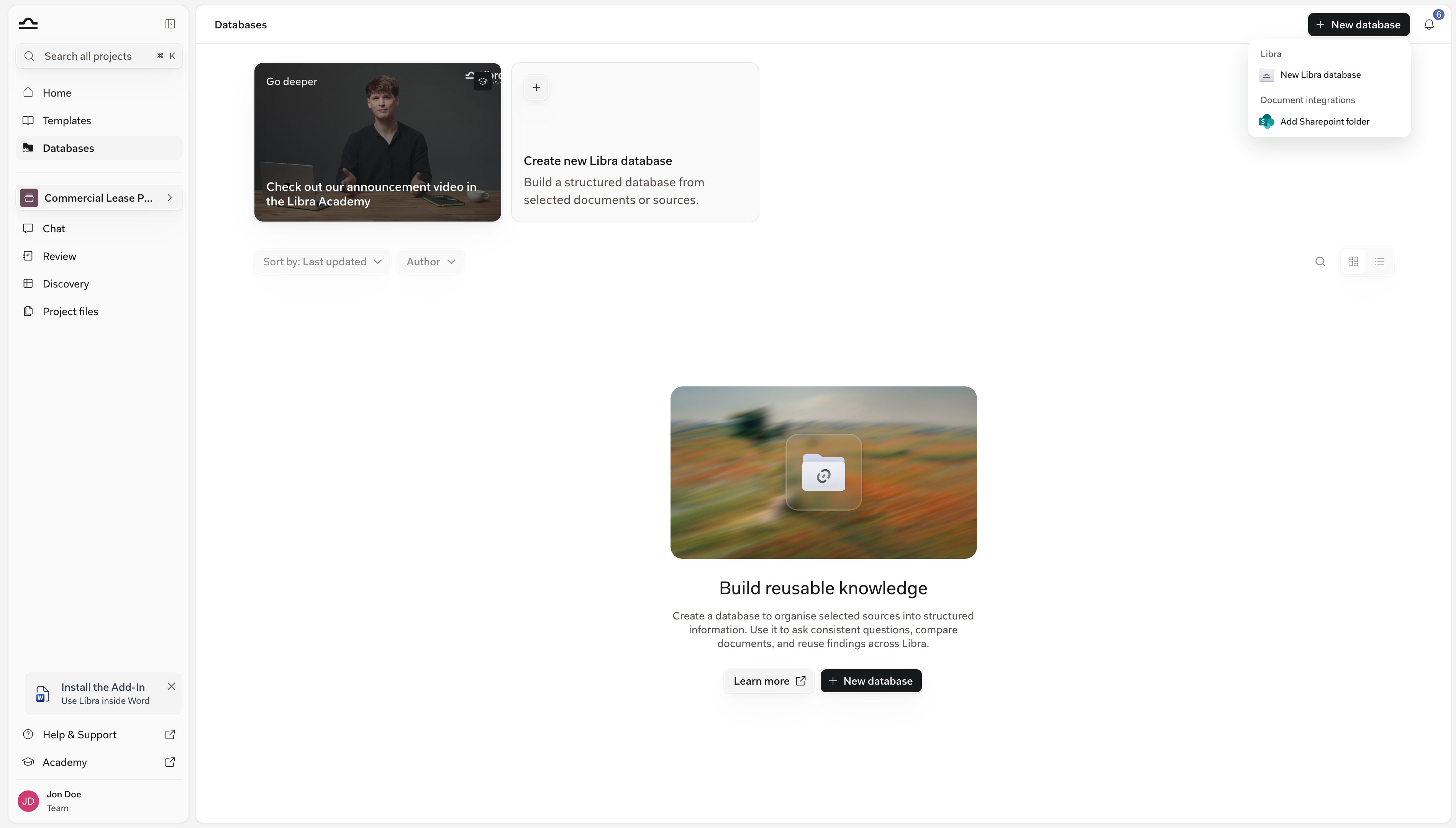
3
Pick the folder, name it and Create
Select from SharePoint opens Microsoft’s folder picker. Only folders can be chosen; everything inside, subfolders included, becomes part of the database, and the folder’s name is proposed as the database name. Adjust the Database name, add a Description, then click Create. The footer previews whether this database will search by meaning or by keyword.
Give colleagues access
Two permission systems apply at once, and both have to say yes: Libra decides who sees the database, SharePoint decides who can open the files.1
Share the database in Libra
⋯ → Share, as for any database. This decides who sees the database in their list. The dialog reminds you: Users will need access to the folder in SharePoint in order to access it.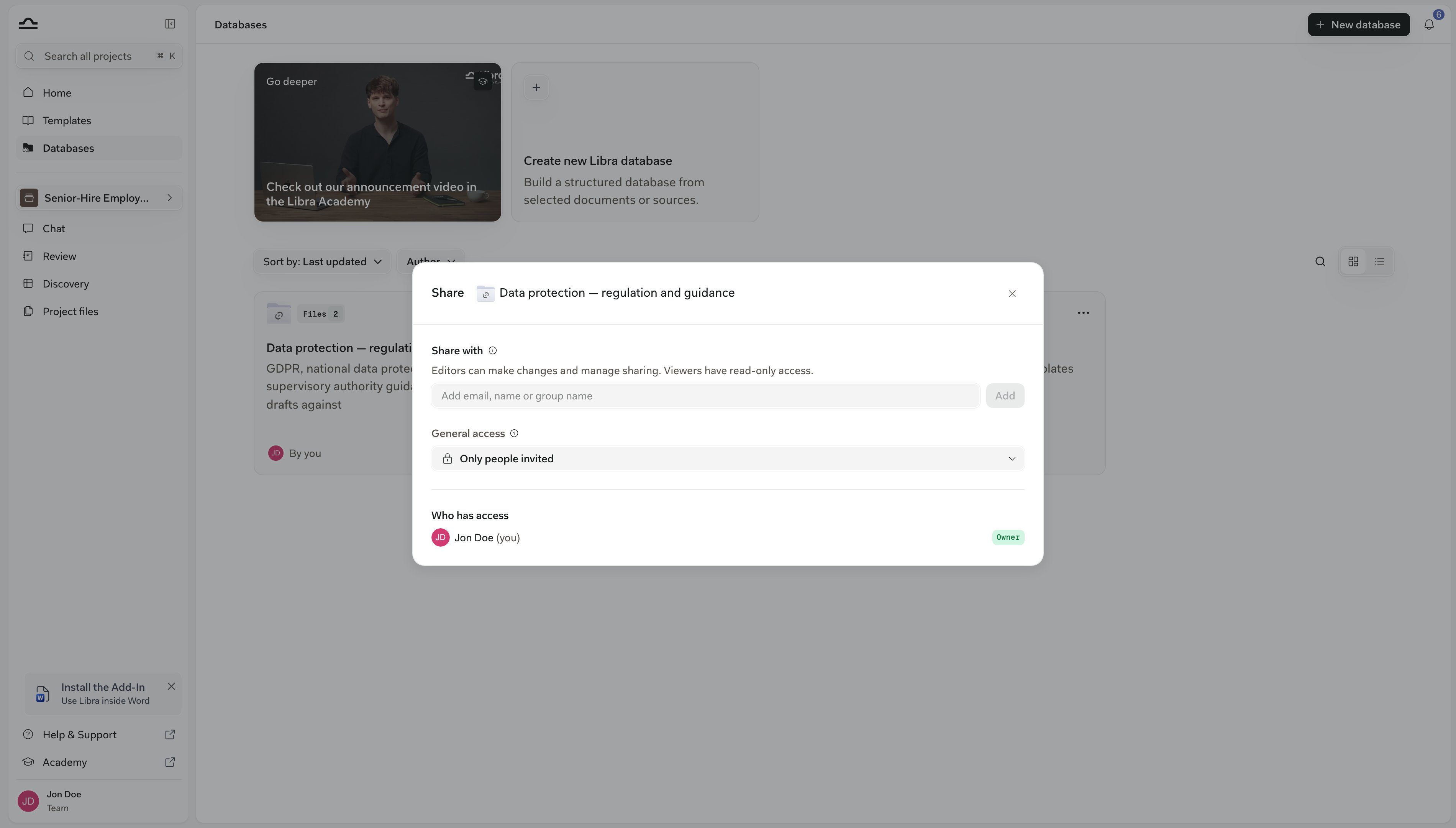
2
Give them access in SharePoint, and have them connect
Every colleague browses the folder with their own Microsoft account, so they see only what SharePoint lets them see. Two things can stop them: without access to the folder they see the database but only No access to this folder inside it; and without a connected Microsoft account they see the card dimmed with You are not connected to SharePoint. and a Connect your SharePoint account link, with Add to chat hidden until they connect.

Share the folder in SharePoint at the same time as you share the database in Libra. A colleague who can see the database but not its files will otherwise think Libra is not working.
Search it from a chat
A SharePoint database is attached differently from a Libra one, and Microsoft does the searching rather than Libra.1
Attach it
An 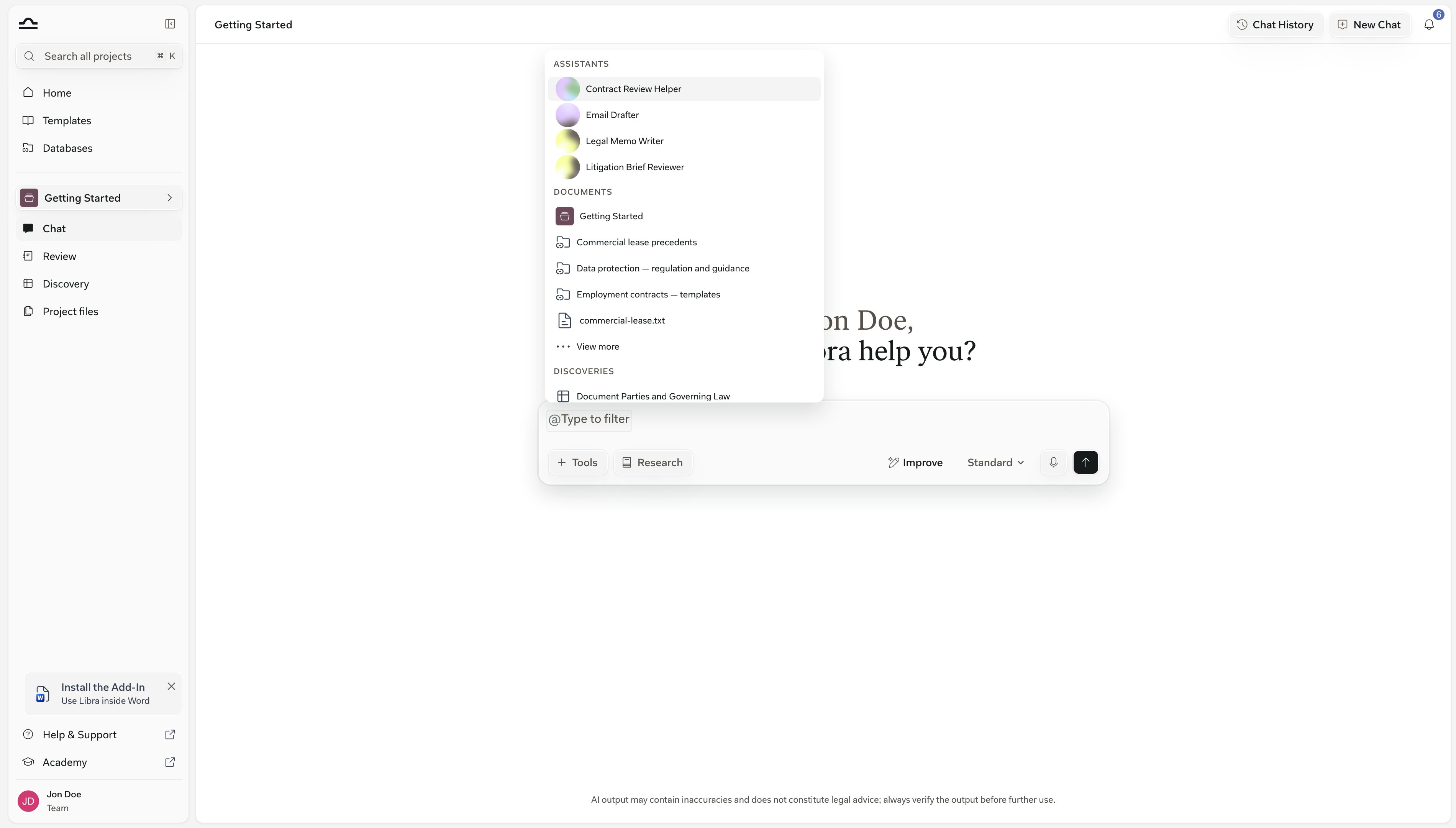
@-mention of its name, or Add to chat from its card or from inside the database (see Usage). SharePoint databases don’t appear in Tools → Select files. On that picker’s SharePoint tab under Integrations, Attach entire SharePoint searches your whole connected SharePoint rather than one folder, and single files you pick there are downloaded into the chat so Libra reads them in full.2
Ask
Libra searches the folder through Microsoft: by meaning if you hold a Microsoft 365 Copilot licence, by keyword otherwise, checked at the moment you ask. Without Copilot, use the words the documents use.
3
Open the citations
A cited passage opens in a read-only preview, or in SharePoint itself if the preview can’t be shown.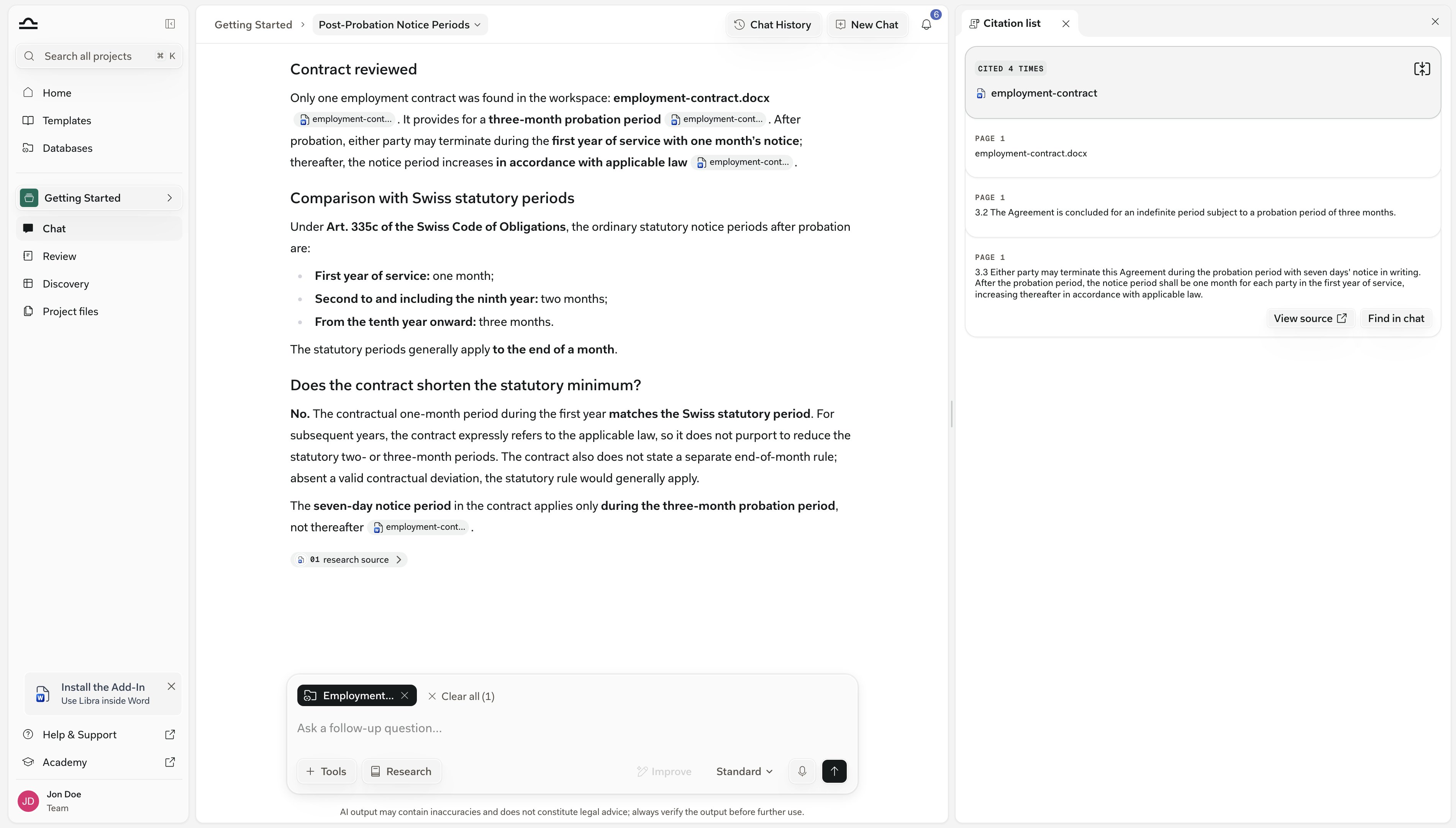
Browse the folder
The browser is read-only, so it is for finding and reading files rather than changing them. The browser lists the files with the date each was last Modified in SharePoint. Each file row offers Download, Open in SharePoint, Copy link and Add to chat; PDFs, Office documents and most text formats also offer Preview on hover, while other files such as images open in SharePoint. Folder rows offer only Open in SharePoint and Copy link. There is no search box, and nothing can be changed from Libra; the database itself can still be renamed, shared, favourited and deleted.Limits and troubleshooting
It costs no page allowance
It costs no page allowance
A SharePoint database consumes none of the team’s page allowance, however large the folder. Files picked from SharePoint while filling a Libra database are copied into Libra and do count.
File counts can lag
File counts can lag
The Files count on the card is worked out per person and refreshed about once a day, so it can trail SharePoint and differ between colleagues who see different parts of the folder.
The folder was moved or deleted
The folder was moved or deleted
The database reports This folder is no longer available. The link can’t be repointed: someone with Full access deletes the database and links the folder from its new location, then shares it again.
Next steps
SharePoint integration
Admin consent, enabling for the team, connecting your account.
Usage
Attaching a database in chat, Review and Discovery.